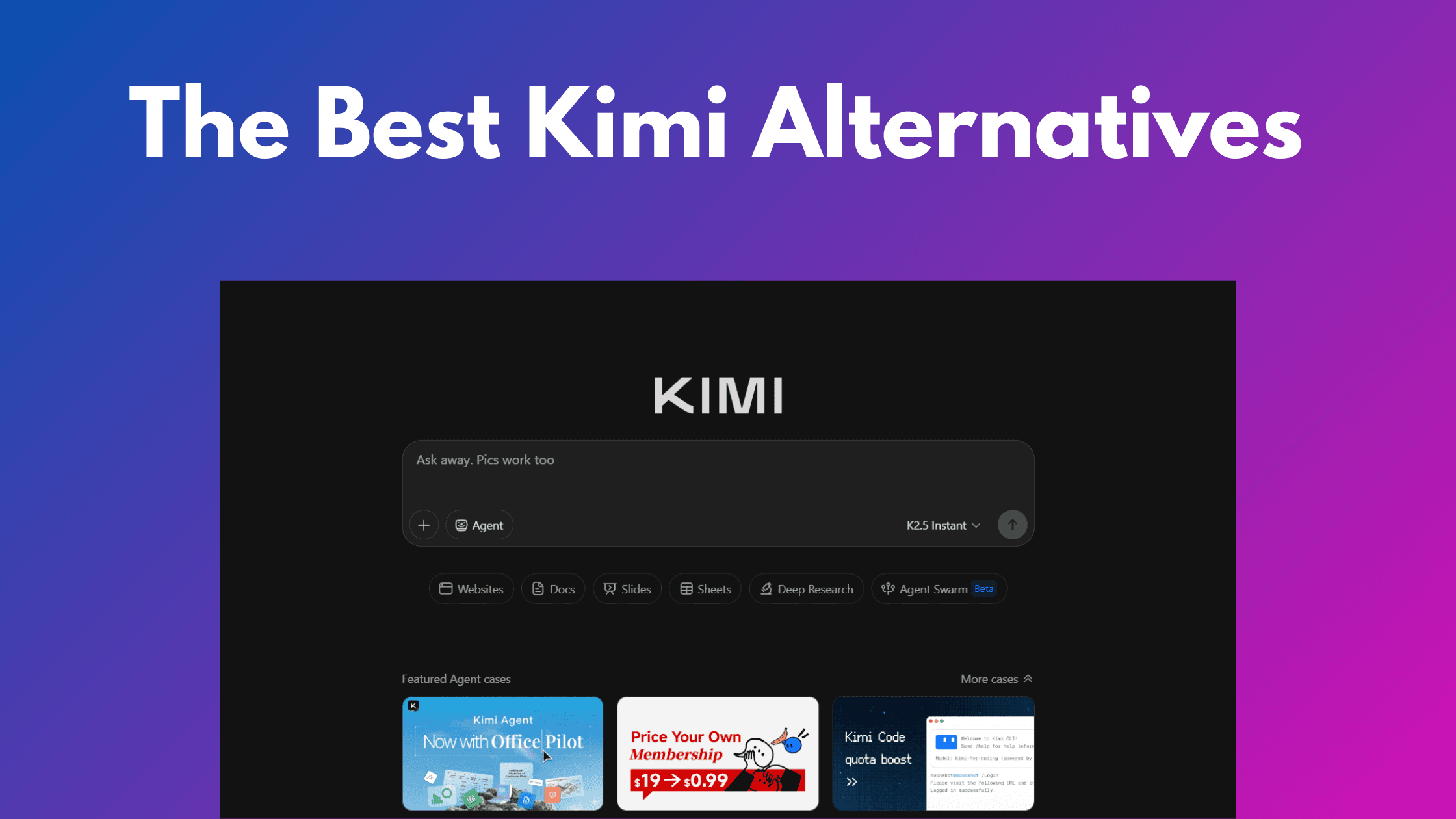
·
CASE STUDY
·
29 Min. Lesezeit

Marketingleiter
Wenn Sie schon einmal um 22 Uhr am Abend vor einer wichtigen Präsentation auf eine leere PowerPoint-Leinwand gestarrt haben, kennen Sie den Schmerz. Vorlagen auswählen, Textfelder ausrichten, nach passenden Stockfotos suchen, den Abstand zum hundertsten Mal korrigieren. Es ist erschöpfend. Und es spielt keine Rolle, wer Sie sind. Produktmanager, Marketingexperten, Pädagogen, Startup-Gründer: Präsentationen finden irgendwie einen Weg, jeden zu verfolgen.
Genau deshalb sind KI-Präsentationstools im Jahr 2026 explodiert. Plattformen wie Kimi, Alai, Gamma und andere können jetzt ausgefeilte, professionelle Folienpräsentationen aus einer einfachen Texteingabe, einem PDF-Upload oder sogar einer eingefügten URL generieren.
In diesem Leitfaden werde ich Kimi Slides detailliert untersuchen: was es ist, wie es funktioniert und wie es sich in der Praxis anfühlt. Dann werde ich vier starke Alternativen vorstellen, falls Kimi nicht ganz Ihren Bedürfnissen entspricht. Wenn Sie sich einen breiteren Überblick verschaffen möchten, schauen Sie sich unsere vollständige Zusammenfassung der besten KI-Präsentationsersteller für noch mehr Optionen an.
Legen wir los.
Was ist Kimi AI?
Bevor wir speziell über Kimi Slides sprechen, ist es hilfreich, das größere Ökosystem zu verstehen, in dem es sich befindet.
Kimi AI ist eine verbraucherorientierte KI-Assistentenplattform, die von Moonshot AI entwickelt wurde, einem in Peking ansässigen Startup, das im März 2023 von Yang Zhilin, einem Absolventen der Tsinghua-Universität und ehemaligen Baidu-Forscher, gegründet wurde. Moonshot erreichte in weniger als einem Jahr den Unicorn-Status, unterstützt von Alibaba und anderen großen Tech-Investoren. Kimi ist auf über 100 Millionen Nutzer angewachsen und ist damit Chinas drittbeliebtester KI-Assistent.
Was Kimi von anderen KI-Assistenten unterscheidet, ist sein Fokus auf Dokumentenintelligenz. Die Plattform unterstützt ein riesiges Kontextfenster von 2 Millionen Zeichen, das ist etwa 62,5-mal mehr als das Standardangebot von ChatGPT, wodurch es ganze Romane, komplette Codebasen oder monatelange Gesprächsprotokolle in einer einzigen Sitzung verarbeiten kann. Es verarbeitet PDFs, PowerPoints, Excel-Dateien, Bilder und mehr gleichzeitig und beinhaltet eine Echtzeit-Websuche über mehr als 100 Websites.
Kimi läuft auf Moonshots K2 Thinking-Modell, einem Open-Source-Modell mit 1 Billion Parametern (32 Milliarden aktiviert), das für seine fortschrittliche Argumentation, seine verschränkten Denkfähigkeiten und seine agentische Aufgabenausführung bekannt ist.
Kimi Slides: Die Präsentationsfunktion
Kimi Slides ist ein spezialisierter KI-Agent, der im Kimi+-Ökosystem lebt. Stellen Sie es sich als ein dediziertes Präsentations-Plugin innerhalb des größeren Kimi-Chatbots vor, nicht als eine eigenständige App. Es kombiniert Kimis K2 Thinking-Modell für die Inhaltsstrukturierung mit Googles Nano Banana Pro für die Bildgenerierung und bietet zwei verschiedene Erstellungspfade:
Adaptiv (30–60 Min.): Ein forschungszentrierter Modus, der K2 Thinking nutzt, um Ihr Thema gründlich zu untersuchen, Argumente zu strukturieren und eine umfassende, logisch organisierte Präsentation mit strukturierten Layouts zu liefern.
Visuell (5–10 Min.): Ein designzentrierter Modus, der von Nano Banana Pro angetrieben wird und schnell Folien mit benutzerdefinierten Infografiken, Illustrationen und visuellen Elementen in Designerqualität generiert.
Funktionsübersicht
Prompt-zu-Präsentation: Geben Sie einen Text-Prompt ein und erhalten Sie in wenigen Minuten eine vollständige Folienpräsentation.
Dokumenten-Upload: Füttern Sie es mit PDFs, Word-Dokumenten, Tabellenkalkulationen oder Rohnotizen, und es strukturiert diese in kohärente Folien um.
Bearbeitbare Gliederungen: Erstellt zuerst eine Gliederung, sodass Sie die Struktur überprüfen und neu gestalten können, bevor ein Design angewendet wird.
Vorlagenbibliothek: Wählen Sie nach Genehmigung Ihrer Gliederung aus mehreren Designvorlagen.
In-Browser-Bearbeitung: Volle Bearbeitungsmöglichkeiten (Text, Layouts, Bilder, Animationen) direkt in Kimis Oberfläche.
Multi-Format-Eingabe: Unterstützt DOC, DOCX, PDF, PPT, PPTX, TXT, MD, XLS, XLSX, CSV, HTML, EPUB und mehr (unter 10 MB).
K2-Suchintegration: Integrierte agentische Suche, die relevante Daten, Statistiken und Texte aus dem Web abruft, ohne den Editor zu verlassen.
Diagramm-Parsing: Nutzt Nano Banana Pro, um Text aus Diagrammbildern zu extrahieren, statische Beschriftungen zu entfernen und saubere, bearbeitbare Textfelder zu überlagern.
Export: Als .pptx-Dateien herunterladen oder direkt aus dem Browser präsentieren.
Kimi-Preise
Kimi verwendet ein gestaffeltes Mitgliedschaftssystem mit nach Musiktempo benannten Tarifen. So sieht es aus:
Adagio (Kostenlos) Die kostenlose Stufe bietet Ihnen unbegrenzte grundlegende Konversationen und Zugriff auf Kimi Slides im adaptiven Modus – das bedeutet, Sie erhalten die K2 Thinking-gestützte Recherche und strukturierte Inhaltslieferung, aber der visuelle Modus (powered by Nano Banana Pro) kann eingeschränkt oder nicht verfügbar sein. Die Nutzung des OK Computer-Agenten ist auf etwa 3 Nutzungen pro Tag begrenzt, Deep Research-Anfragen sind limitiert, und kostenlose Nutzer erleben während der Stoßzeiten (18–22 Uhr Pekinger Zeit) Warteschlangenverzögerungen. Die Antwortausgabe ist auf etwa 4.000 Zeichen begrenzt.
Moderato (19 $/Monat) Schaltet höhere Quoten für OK Computer und Deep Research frei, priorisierten Zugang während Spitzenzeiten und schnellere Antwortgenerierung. Der visuelle Modus mit Nano Banana Pro-Generierung wird auf dieser Stufe verfügbar. Dies ist der ideale Punkt für Power-User, die sowohl Forschungstiefe als auch visuelle Elemente in Designerqualität in ihren Präsentationen wünschen.
Allegretto (39 $/Monat) Weiter erhöhte Quoten und Parallelität, was bedeutet, dass Kimi mehrere Hochgeschwindigkeitsanfragen gleichzeitig bearbeiten kann. Beinhaltet den Zugang zu Kimis schnelleren K2 Turbo-Modellausgaben. Jahresplan für 374,99 $/Jahr verfügbar.
Vivace (199 $/Monat) Die höchste Stufe. Unbegrenzte Nutzung des OK Computer-Agenten, höchste Priorität, erweiterte Kontextfenster und die schnellsten verfügbaren Inferenzgeschwindigkeiten. Entwickelt für Profis und Teams, die täglich komplexe, zeitkritische Arbeitsabläufe ausführen.
Fazit: Der kostenlose Adagio-Plan ist wirklich nützlich für forschungsintensive, inhaltsorientierte Präsentationen im adaptiven Modus. Wenn Sie jedoch die vollständige visuelle Generierung von Nano Banana Pro – benutzerdefinierte Infografiken, Illustrationen und Grafiken in Designerqualität – wünschen, benötigen Sie wahrscheinlich Moderato für 19 $/Monat. Nutzen Sie den kostenlosen Plan, um die Inhaltsfunktionen der Plattform zu testen, und upgraden Sie, wenn Sie den visuellen Feinschliff benötigen.
Wie erstellt man Präsentationen mit Kimi AI?
Hier ist eine Kurzanleitung zur Verwendung von Kimi AI:
Schritt 1 – Registrieren: Gehen Sie zu kimi.com und erstellen Sie ein kostenloses Konto.
Schritt 2 – Kimi Slides öffnen: In der linken Seitenleiste finden Sie „Kimi Slides“ unter dem Abschnitt „Kimi+“. Ein Klick führt Sie zur Präsentationsoberfläche.
Schritt 3 – Ihre Eingabe bereitstellen: Sie haben drei Möglichkeiten:
Text-Prompt: Beschreiben Sie Ihr Präsentationsthema (z. B. „Erstellen Sie eine detaillierte PPT, die die Unterschiede zwischen KI-Agenten und agentischer KI diskutiert“).
Dokumenten-Upload: Laden Sie eine PDF, ein Word-Dokument oder eine andere unterstützte Datei hoch.
Inhalt einfügen: Kopieren Sie Text oder eine URL direkt mit Anweisungen.
Schritt 4 – Die Generierungsmethode wählen: Kimi bietet zwei Methoden zur Generierung einer Präsentation:
Adaptiv (30–60 Min.): Tiefgehende Recherche und strukturierte Inhaltslieferung, angetrieben von K2 Thinking – am besten, wenn Substanz und Genauigkeit am wichtigsten sind.
Visuell (5–10 Min.): Schnelle, designorientierte Generierung, angetrieben von Nano Banana Pro – am besten, wenn Sie schnell ansprechende Visuals benötigen.
Schritt 5 – Vorlage + Folienanzahl wählen: Wählen Sie die gewünschte Anzahl an Folien für Ihre Präsentation und suchen Sie ein Design aus den verfügbaren Vorlagen aus. Sobald Sie sich entschieden haben, erstellt Kimis KI-Agent Ihre Folien in Echtzeit, direkt vor Ihren Augen, platziert Inhalte im Layout, fügt visuelle Elemente hinzu und formatiert alles.
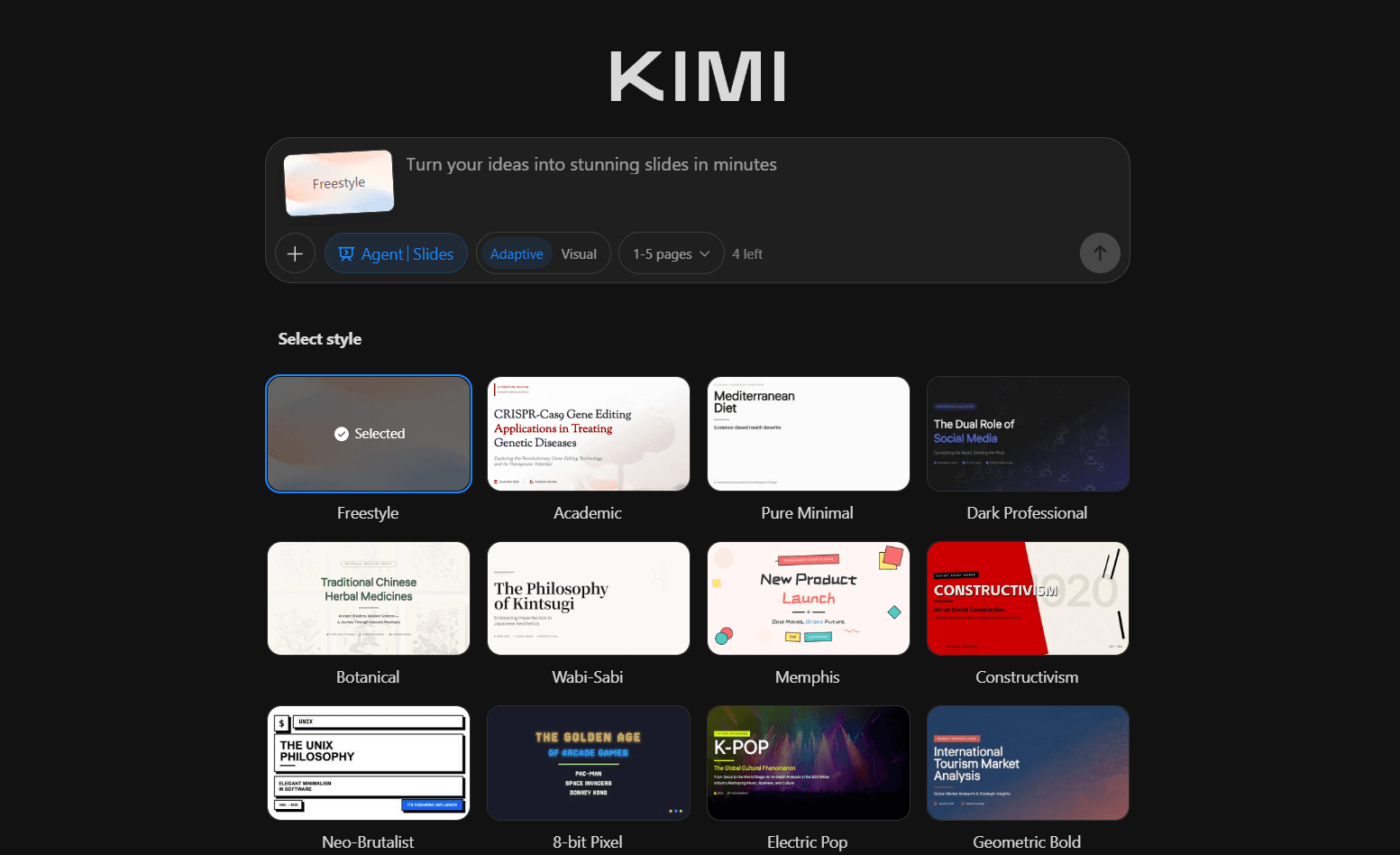
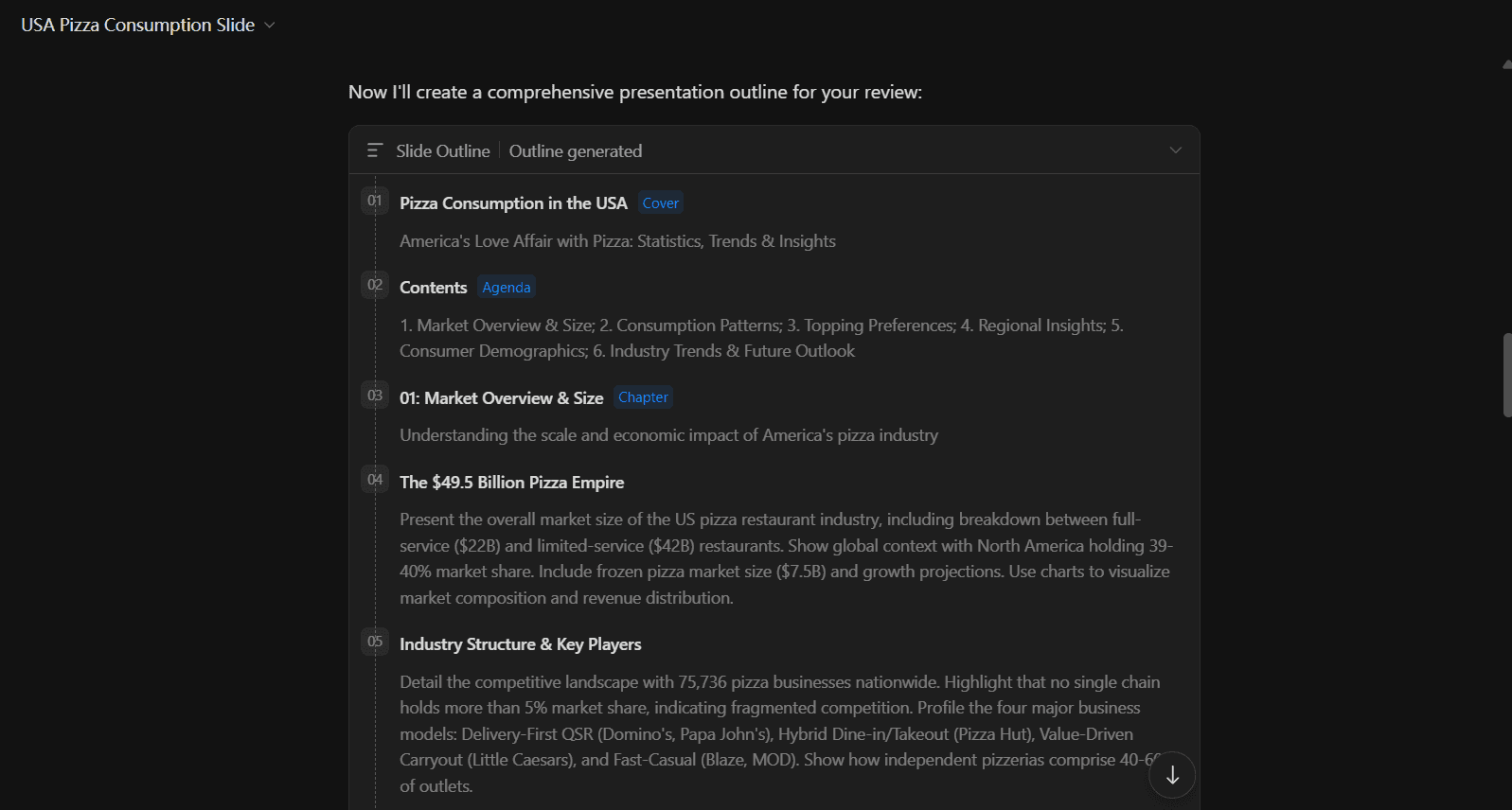
Schritt 6 – Gliederung überprüfen: Kimi generiert eine bearbeitbare Gliederung, die in der Mitte des Bildschirms angezeigt wird und es Ihnen ermöglicht, Folieninhalte zu bearbeiten, hinzuzufügen, zu löschen und neu anzuordnen. Sie können den Ablauf neu anordnen oder auf „Wiederholen“ klicken, um alles neu zu generieren. Dies ist ein großer Vorteil für Personen, die ihren Inhalt noch nicht erstellt haben: Sie gestalten die Inhaltsstruktur, bevor jegliche Designarbeit beginnt.
Schritt 7 – Bearbeiten und Anpassen: Die fertige Präsentation ist vollständig in Kimi bearbeitbar:
Bearbeiten Sie Text, Layout oder Stil direkt.
Bilder und Animationen hinzufügen oder entfernen.
Vergrößern/Verkleinern, um die Ansicht anzupassen.
Schritt 8 – Präsentieren oder Exportieren: Präsentieren Sie direkt über Kimis Oberfläche oder klicken Sie auf „Herunterladen“, um die Datei als .pptx oder Bild zu speichern.
Kimi Slides im Test: Eine ehrliche, detaillierte Einschätzung
Wie ich Kimi getestet habe
Ich habe viel Zeit damit verbracht, Kimi Slides im Moderato-Plan zu testen. Mein Test basierte hauptsächlich auf den folgenden Kriterien:
Qualität des ersten Entwurfs: Wie nah ist der erste Entwurf an meiner endgültigen Vision?
Einfachheit der Iteration: Wie einfach ist es, vom ersten zum endgültigen Entwurf zu gelangen?
KI-Fähigkeiten: Welche KI-Funktionen sind beim Entwerfen meiner Präsentation wirklich nützlich?
Beginnen wir mit dem ersten Kriterium.
Qualität des ersten Entwurfs
In meinem ersten Test gab ich Kimis Folien-Agenten einen einfachen Prompt – „Hilf mir, eine Präsentation über den Pizzakonsum in den USA zu erstellen“. Hier sind die Ergebnisse, die ich erhielt:
Inhaltsqualität des ersten Entwurfs:
In Bezug auf den Inhalt hat Kimi hervorragende Arbeit geleistet. Aus einem ziemlich einfachen Prompt generierte es eine detaillierte 20-Folien-Präsentation, die Marktübersicht, Konsummuster, regionale Einblicke und vieles mehr abdeckte. Jede Folie wurde mit relevanten Grafiken und datengesteuerten Erkenntnissen untermauert, die sich wirklich recherchiert anfühlten und nicht nur oberflächliche Füllstoffe waren.
Diese Tiefe stammt von Kimis K2 Thinking-Modell – einer Mixture-of-Experts-Architektur mit 1 Billion Parametern (32 Milliarden pro Abfrage aktiviert), die nur die für Ihr Thema relevanten Expertenmodule selektiv aktiviert. Ihre verschränkte Denkfähigkeit bedeutet, dass das Modell zwischen jedem Schritt reflektiert und korrigiert, anstatt alles in einem Durchgang zu generieren, wodurch Inhalte entstehen, die einem logischen Erzählbogen folgen, anstatt nur Fakten auf Folien zu werfen.
Designqualität des ersten Entwurfs:
In Bezug auf das Design empfand ich Kimi im Vergleich zu anderen KI-Präsentationserstellern als mangelhaft. Hier ist der Grund:
Keine benutzerdefinierten Themen: Obwohl Kimi eine anständige Auswahl an Themen für die adaptive und visuelle Generierung bietet, fehlt die Option, benutzerdefinierte Themen zu erstellen (und wiederzuverwenden). Dies ist ein großer Nachteil, insbesondere für Marken, die markengerechte Materialien in großem Umfang erstellen möchten. Obwohl die Editor-Oberfläche es Ihnen ermöglicht, Schriftarten und Farbschemata zu ändern, erfordern die Änderungen den manuellen Aufwand, jede Folie durchzugehen und Schriftarten und Farben zu korrigieren, damit die Präsentation einigermaßen markengerecht aussieht.
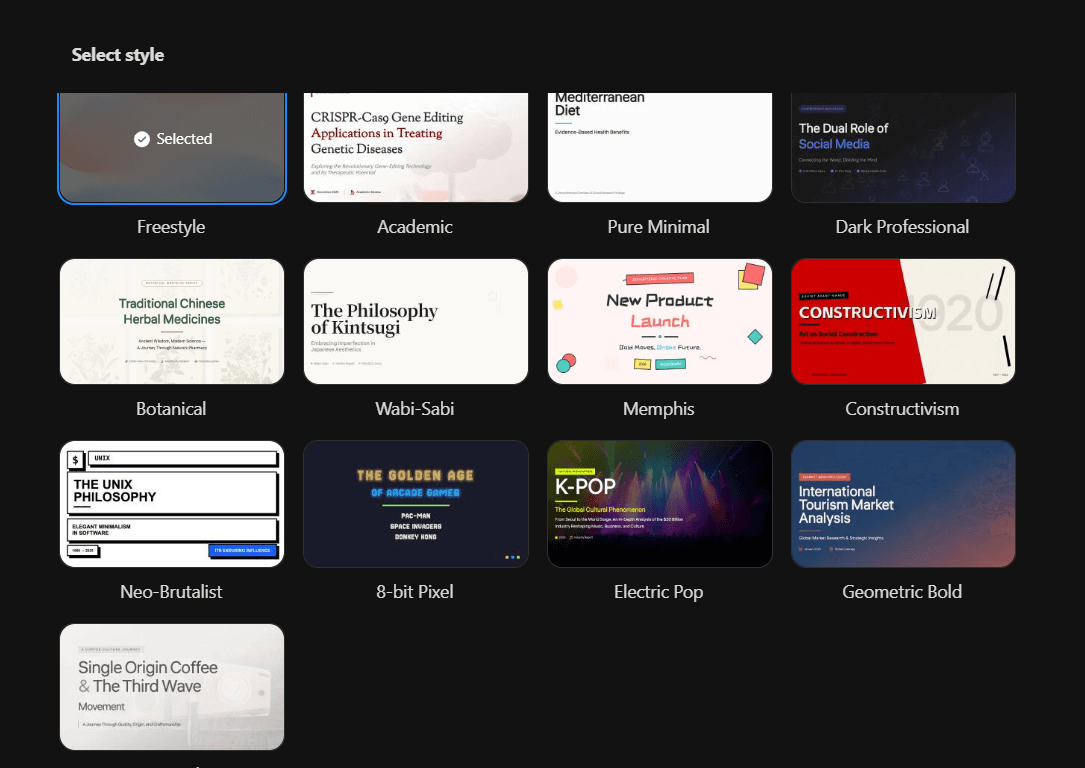
Folien-Designs sind repetitiv: Obwohl Kimi bei der Recherche und dem Inhalt hervorragende Arbeit geleistet hat, schien die KI den Inhalt in 2-3 festen Design-Layouts einzufügen. Jede Folie kommunizierte Daten gut, aber es fühlte sich auch so an, als würde ich immer wieder dieselbe Folie sehen. Zum Beispiel, wie unten zu sehen, scheinen diese beiden Folien visuell exakt gleich zu sein. Eine Alternative wäre hier gewesen, die Marktlandschaft mithilfe eines Balkendiagramms mit einem Textfeldabschnitt darzustellen, der erklärt, was jedes Marktsegment beinhaltet.
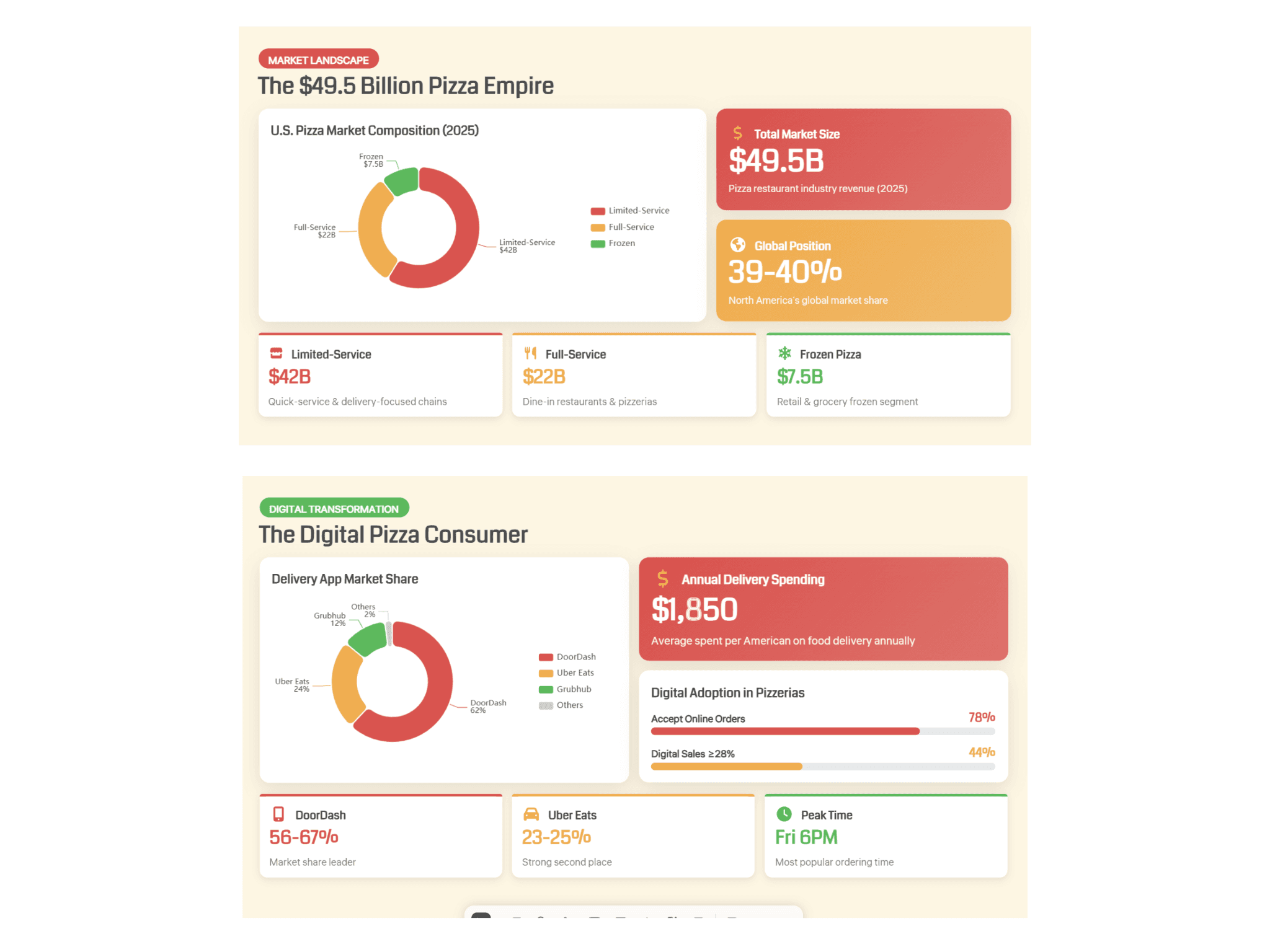
Mangel an modernen Designprinzipien: Obwohl Kimis Folien sauber und funktional sind, neigen sie stark zu flachem Design. Die Layouts basieren auf einfarbigen Blöcken, einfachen Diagrammstilen und einfachen Kartenanordnungen ohne die Tiefenhinweise – Verläufe, subtile Schatten, geschichtete Elemente oder texturierte Hintergründe –, die modernen Präsentationen ein poliertes, hochwertiges Gefühl verleihen. Alles liegt auf derselben visuellen Ebene, was die Folien eher wie ein gut organisiertes Tabellenkalkulations-Dashboard als eine von Designern erstellte Präsentation wirken lässt. Für interne Teambesprechungen funktioniert das gut, aber für kunden- oder investorenbezogene Arbeiten werden Sie wahrscheinlich exportieren und visuelle Verfeinerungen manuell hinzufügen wollen.
Keine unterstützenden Bilder über Titelfolien hinaus: Wie in der unten angehängten Übersicht zu sehen ist, verwendete Kimi in der gesamten Präsentation Bilder nur als Hintergrundbilder auf den Titel- und Abschnittstrennfolien. Die Inhaltsfolien selbst – wo Bilder tatsächlich einen Mehrwert bieten würden – enthielten keinerlei Fotos, Illustrationen oder visuelle Assets. Jeder Datenpunkt, Trend und jede Erkenntnis wurde ausschließlich durch Diagramme, Symbole und Text kommuniziert. Für ein Thema wie Pizzakonsum hätten relevante Bilder (Ladenformate, regionale Esskultur, Liefertrends) die Erzählung wesentlich ansprechender gemacht. Dies ist eine bemerkenswerte Lücke, insbesondere im Vergleich zu Tools wie Alai und Gamma, die unterstützende Visualisierungen in die gesamte Präsentation einweben.
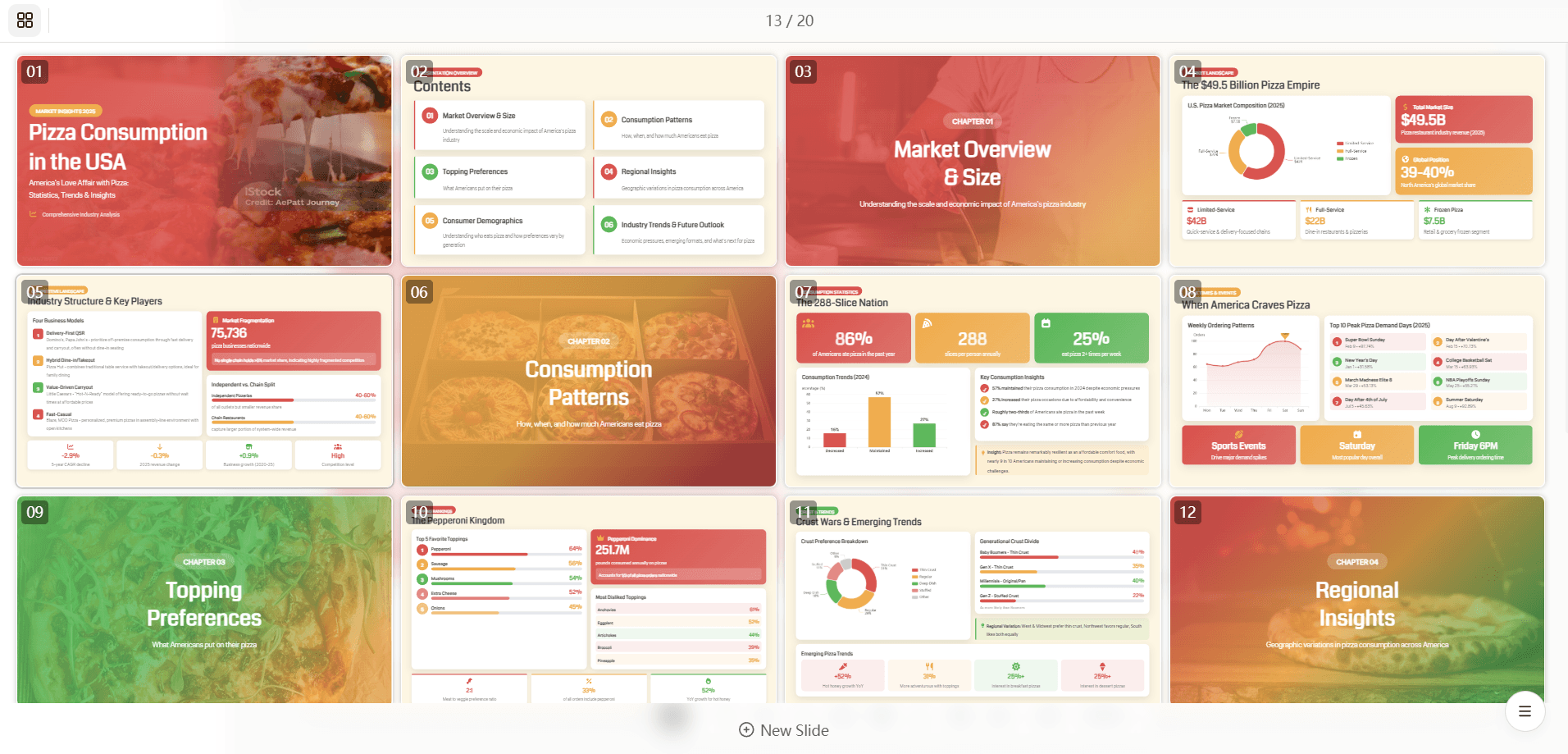
Informationsdichte auf Inhaltsfolien: Mehrere Folien (04, 05, 07, 08, 10, 11) packen viele Daten auf engstem Raum – mehrere Diagramme, Statistik-Callouts, Textblöcke und Legenden konkurrieren alle um Aufmerksamkeit. Obwohl die Daten selbst solide sind, würden die Folien von mehr Freiraum profitieren. Ein menschlicher Designer würde wahrscheinlich einige davon in zwei Folien aufteilen, anstatt alles in eine zu quetschen, um jeder Erkenntnis den visuellen Raum zu geben, den sie verdient.
Wasserzeichen auf Stockbildern: Die Titelfolie verwendet ein Hintergrundbild mit einem sichtbaren iStock-Wasserzeichen („iStock | Credit: AePatt Journey“ ist deutlich lesbar). Für ein Tool, das Präsentations-fertige Ergebnisse liefern soll, ist die Verwendung von nicht lizenzierten Stockbildern ein erhebliches Versäumnis. Es macht die Präsentation in jedem professionellen Kontext unbrauchbar, ohne das Bild manuell zu beschaffen und zu ersetzen.
Einfachheit der Iteration
Der bearbeitbare Gliederungs-Workflow ist meiner Meinung nach Kimis intelligenteste Funktion. Die Möglichkeit, Abschnitte zu überprüfen, neu zu strukturieren, hinzuzufügen und zu entfernen, bevor die KI mit dem Design beginnt, bedeutet, dass Sie keine Zeit damit verschwenden, ganze Präsentationen neu zu generieren, weil die Struktur nicht stimmte. Dieser Schritt ermöglicht es Ihnen, detaillierte Iterationen an der Erzählung vorzunehmen – Abschnitte neu anzuordnen, dünnen Bereichen Tiefe zu verleihen, unnötiges zu entfernen, bevor jegliche visuelle Arbeit beginnt. Das ist wirklich nützlich.
Sobald die Folien erstellt sind, ist der In-Browser-Editor jedoch begrenzt. Die Grundlagen sind abgedeckt: Sie können Schriftarten, Schriftfarben, Schriftgrößen manuell ändern und Textinhalte bearbeiten. Sie können Logos, Bilder, Symbole, Formen und Tabellen einfügen. Aber Ausrichtung und Schichtung sind vollständig manuell – es gibt kein intelligentes Einrasten, keine automatische Ausrichtung oder reaktionsschnelle Neupositionierung, wenn Sie Elemente verschieben. Für schnelle Textkorrekturen und kleinere Anpassungen reicht das aus, aber für eine sinnvolle Design-Iteration – die Art, die einen guten ersten Entwurf in eine großartige endgültige Präsentation verwandelt – benötigen Sie entweder Geduld oder einen Export in ein leistungsfähigeres Tool.
KI-Fähigkeiten
Für die Inhaltserstellung und Recherche glänzt Kimi wirklich. Das K2 Thinking-Modell produziert gut strukturierte, logisch organisierte Inhalte, die sich natürlich lesen und nicht wie KI-Müll. Die Recherchefunktionen, insbesondere im OK Computer-Modus, sind beeindruckend. Kimi paraphrasiert Ihre Aufforderung nicht nur; es durchsucht aktiv das Web, zieht relevante Daten heran und konstruiert Argumente mit einem logischen Fortschritt von der Einleitung bis zum Fazit. Bei meinen Tests dauerte eine Präsentation über KI-Trends im OK Computer-Modus etwa 4 Minuten und lieferte Datenpunkte, Branchenbeispiele und eine Struktur, die ich manuell stundenlang hätte zusammenstellen müssen. Der Inhalt war nicht nur Füllmaterial, sondern als Ausgangspunkt wirklich nützlich. Allerdings kann die Aktualität der Daten inkonsistent sein. In einem von mir gelesenen direkten Vergleich zog Kimi gelegentlich aus etwas älteren Quellen als Konkurrenten wie Manus. Das ist kein Beinbruch, aber bei zeitkritischen Themen sollte man die Fakten lieber noch einmal überprüfen.
Im Bereich Design-KI hinkt Kimi den Mitbewerbern deutlich hinterher. Wie bereits erwähnt, gibt es keinen Agentenmodus für konversationelle Designbearbeitungen, keine schnellen KI-Funktionen wie Textumschreibung, Elementkonvertierung oder Layoutwechsel und keine KI-Bilderzeugung innerhalb des Editors. Die Nano Banana Pro-Integration liefert eine solide Erstausgabe, aber die Bearbeitung nach der Generierung ist rein textbasiert – Sie können Überschriften, Aufzählungspunkte und Beschriftungen ändern, aber Symbole, Bilder und visuelle Elemente sind gesperrt. Wenn Sie eine Grafik anpassen oder ein visuelles Element ändern möchten, generieren Sie die gesamte Folie neu, anstatt sie vor Ort zu optimieren. Vergleichen Sie dies mit Alai, wo Nano Banana Pro-Visuals vollständig bearbeitbar und themenbezogen bleiben. Kimis KI leistet die Hauptarbeit im Vorfeld, verschwindet aber im Wesentlichen, sobald das Deck erstellt ist.
Das endgültige Urteil
Kimi Slides ist eine Geschichte zweier Hälften. Inhaltlich ist es wohl die beste kostenlose Option auf dem Markt – das K2 Thinking-Modell liefert wirklich beeindruckende Recherchen, logische Strukturierungen und datenreiche Folien, deren manuelle Erstellung Stunden dauern würde. Der bearbeitbare Gliederungs-Workflow ist ein cleveres Unterscheidungsmerkmal, das kein Benutzer ignorieren sollte.
Im Bereich Design und Nachbearbeitung fällt es merklich ab. Wiederholende Layouts, ein flacher visueller Stil, Wasserzeichen auf Stockbildern und keinerlei KI-Unterstützung nach der ersten Generierung bedeuten, dass Sie erhebliche manuelle Arbeit leisten müssen, um das Deck präsentationsreif zu machen. Wenn Sie die Ausgabequalität direkt mit Tools wie Alai oder Gamma vergleichen, ist die Designlücke schwer zu ignorieren.
Fazit: Kimi Slides ist eine exzellente Recherche- und Content-Engine, die zufällig Folien ausgibt – kein Design-Tool, das zufällig gut schreibt. Verwenden Sie es, wenn der Inhalt wichtiger ist als der Feinschliff, wenn Sie schnell einen starken ersten Entwurf benötigen oder wenn das Budget der entscheidende Faktor ist. Aber wenn Ihr Deck so gut aussehen soll, wie es sich liest, planen Sie entweder den Export in einen leistungsfähigeren Editor oder kombinieren Sie Kimis inhaltliche Stärken mit einem designorientierten Tool, um die Arbeit abzuschließen.
Nachdem wir nun besprochen haben, wie Kimi funktioniert, wollen wir uns auch Alternativen basierend auf dem primären Anwendungsfall ansehen.
Beste Kimi KI-Alternativen im Jahr 2026
Die Landschaft der KI-Präsentationssoftware hat sich rasant entwickelt, und verschiedene Tools haben sich echte Spezialgebiete erobert. Nach dem Testen Dutzender Optionen habe ich vier Alternativen herausgefiltert, die jeweils ein spezifisches Problem besser lösen als Kimi. Hier sind sie.
Alai: Beste Alternative für Designqualität & Geschwindigkeit
Alai ist ein KI-Präsentationsersteller, der von Grund auf mit KI als Kernstück entwickelt wurde. Im Gegensatz zu Kimi, das sich auf Recherche und Inhaltserstellung konzentriert, wurde Alai speziell für die Erstellung hochwertiger Folien mit KI-Unterstützung während des gesamten Prozesses, vom ersten Entwurf bis zum letzten Schliff, konzipiert.
Im Vergleich zu Kimi schauen wir uns an, wo Alai herausragt:
Benutzerdefinierte Themes, die Kimi nicht bieten kann
Einer der größten Nachteile von Kimi für markenbewusste Teams ist das vollständige Fehlen von Unterstützung für benutzerdefinierte Themes. Sie können Schriftarten und Farben manuell Folie für Folie ändern, aber es gibt keine Möglichkeit, Markenrichtlinien einmal festzulegen und sie auf Ihr gesamtes Deck anzuwenden. Jede neue Präsentation bedeutet, dieselben manuellen Anpassungen zu wiederholen.
Mit Alai können Sie benutzerdefinierte Themes mit den Schriftarten, Farben und dem visuellen Stil Ihrer Marke erstellen, speichern und wiederverwenden. Sobald Ihr Theme festgelegt ist, folgt jede von der KI generierte Folie automatisch Ihren Markenrichtlinien. Keine manuellen Korrekturen, keine Folie-für-Folie-Farbkorrekturen, keine Inkonsistenzen über die Decks hinweg. Für Teams, die mehrere Präsentationen pro Woche erstellen, entfällt allein dadurch stundenlange, sich wiederholende Formatierungsarbeit, die Kimi Sie von Hand erledigen lässt.
Folien, die professionell gestaltet aussehen, nicht automatisch generiert
Kimis Folien wirken flach: einfarbige Blöcke, einfache Diagrammstile und schlichte Kartenanordnungen ohne Verläufe, Schatten oder visuelle Tiefe. Die Vorlagen erzeugen eine saubere Ausgabe, aber es sieht oft eher aus wie ein gut organisiertes Analyse-Dashboard als etwas, das ein Designer erstellt hat.
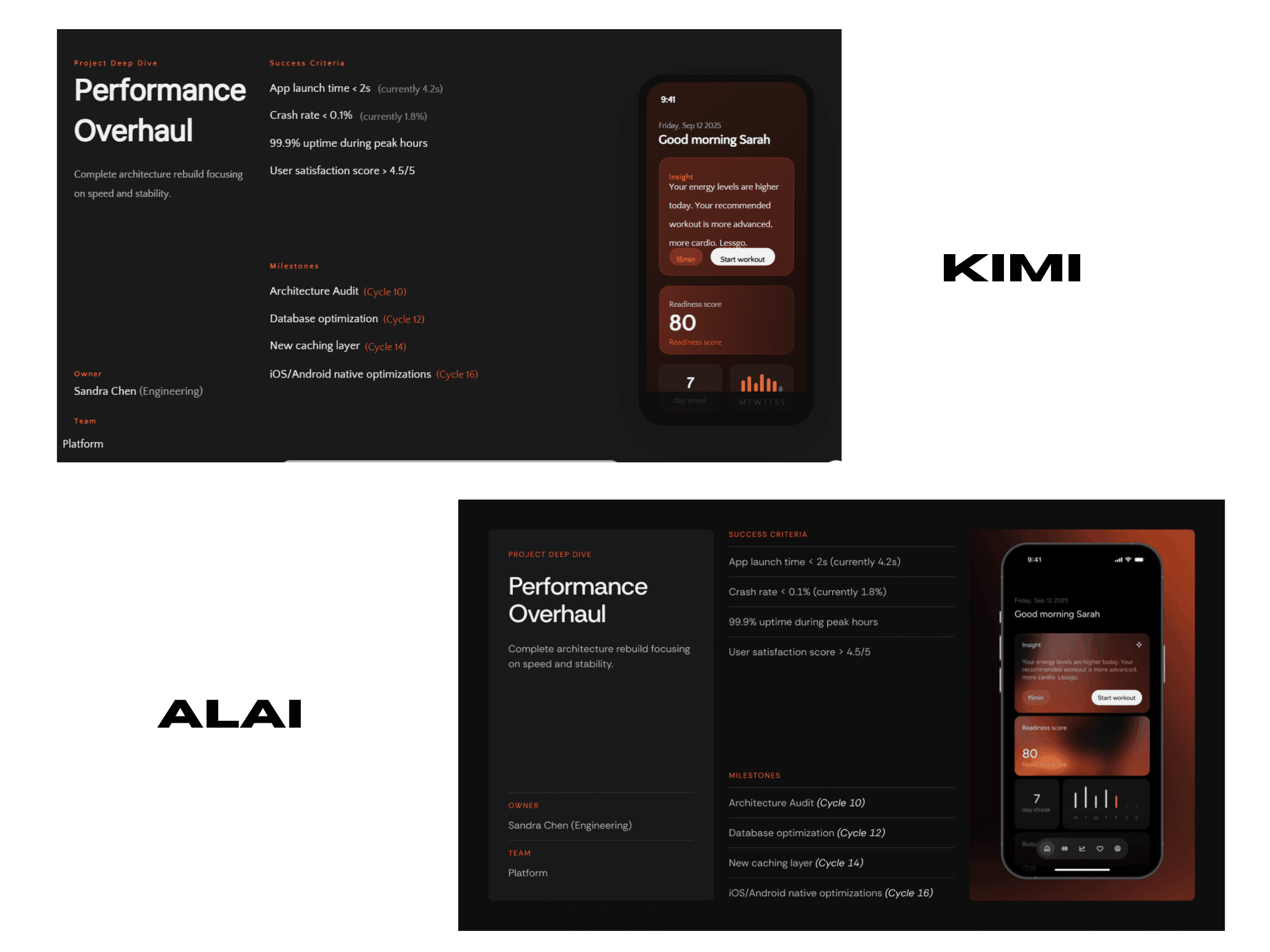
Alai verwendet moderne Designprinzipien: Verläufe, Schatten, Unschärfen und Überlagerungen, die visuelle Tiefe erzeugen. Folien wirken reichhaltig und aktuell statt einfach und veraltet.
Wenn man denselben Inhalt auf beiden Plattformen vergleicht, produziert Kimi Folien, die auf 2-3 sich wiederholenden Layouts über ein 20-Folien-Deck hinweg basieren. Alai produziert Folien mit visuellem Charakter: geschichtete Abschnitte, ausgeklügelte Farbbeziehungen und Designentscheidungen, die eher intentional als vorlagenbasiert wirken.
Wie im folgenden Beispiel zu sehen ist, fügt Kimi Inhalte einfach in Punkte ein, während Alai Punkte durch Linientrenner trennt, einen Verlaufs-Hintergrund für das Bild hinzufügt und einen visuellen Unterschied zwischen den beiden Textfeldern durch die Verwendung unterschiedlicher Hintergrundfarben schafft.
Zusätzlich bietet Alai auch eine umfangreiche Elementbibliothek mit Layouts wie „Zwei vergleichen“, „Funktionsmatrix“, „Trichter“, „Hub & Speiche“, „Kreisdiagramm“ und anderen Visualisierungen, die sich perfekt an Ihre Inhalte anpassen und sicherstellen, dass jede Folie eine andere Art der Inhaltskommunikation verwendet – dies verhindert auch das Problem sich wiederholender Layouts, das oft in Kimis Decks zu sehen ist.
Vier Optionen pro Folie, nicht eine
Kimi generiert eine Version Ihres Decks. Wenn eine Folie nicht funktioniert, bearbeiten Sie sie entweder manuell in einem eingeschränkten Editor oder erstellen eine komplett neue Aufgabe in einem neuen Chat mit Ihren Bearbeitungsanweisungen und hoffen auf das Beste.
Alai generiert vier verschiedene Layout-Optionen für jede Folie. Unterschiedliche Anordnungen, unterschiedliche visuelle Schwerpunkte, Optionen mit und ohne Bilder. Sie wählen, was Ihre Botschaft am besten kommuniziert, und verfeinern dann von dort aus. Dies verändert den Workflow grundlegend: Sie beginnen mit Qualität, anstatt Mittelmäßigkeit aufzuräumen.
Eine Leinwand, die auf Ihren Inhalt reagiert
Kimis gesamte Bearbeitungserfahrung ist manuell – was auch bedeutet, dass jede Hinzufügung von Text, Bildern oder anderen Elementen eine manuelle Anpassung der Positionierung innerhalb der Folie erfordert. Wie Sie unten sehen können, fügt der Editor beim Hinzufügen eines Bildes dieses einfach auf der Folie ein, anstatt Elemente zu verschieben, um Platz für das Bild zu schaffen.
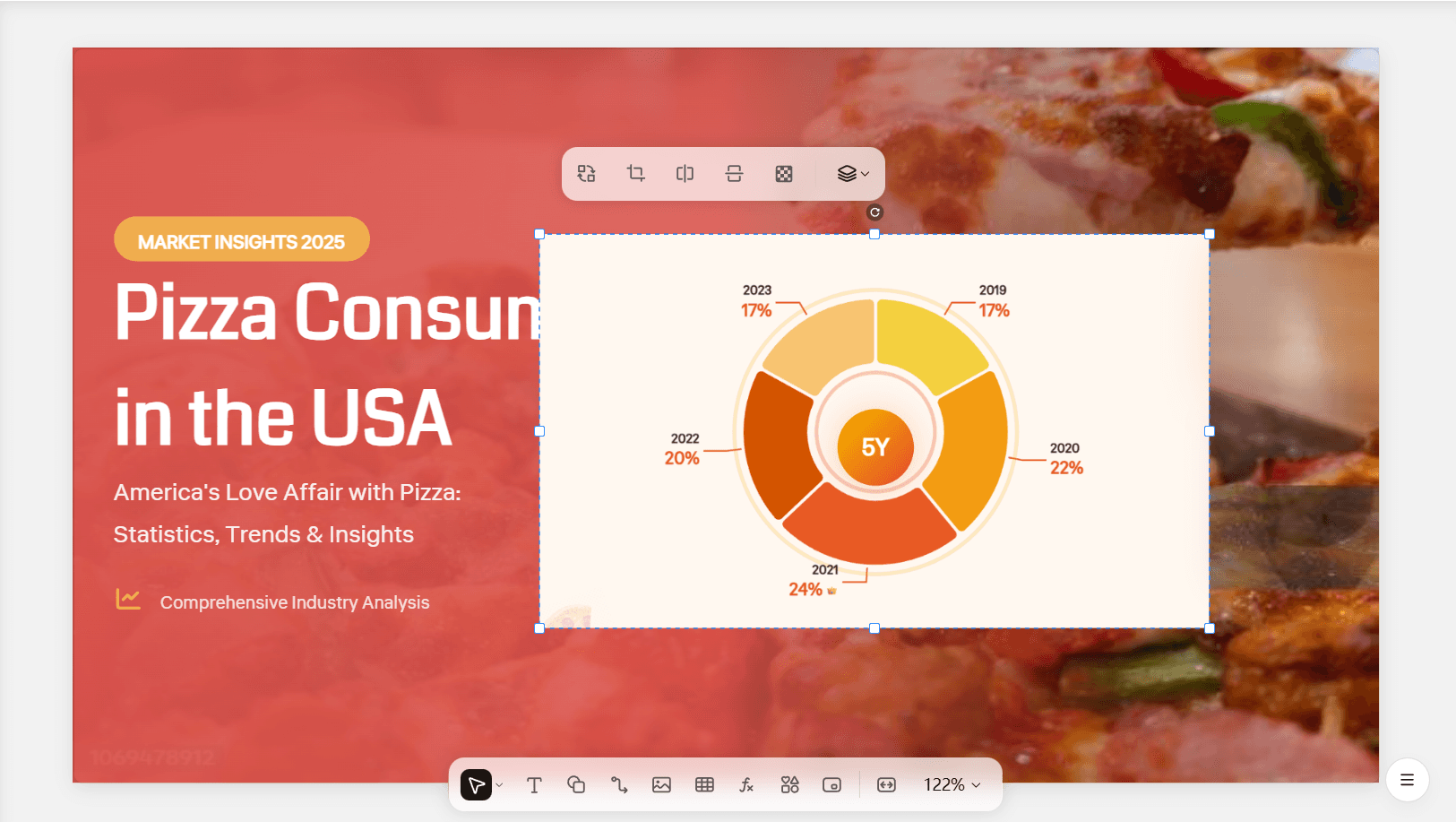
Alai verwendet eine responsive Leinwand. Fügen Sie einen neuen Textblock hinzu, und alles andere verschiebt sich, um Platz zu schaffen. Löschen Sie ein Element, und der verbleibende Inhalt wird automatisch neu ausbalanciert. Sie können mehrere Elementtypen frei kombinieren: ein kreisförmiges Prozessdiagramm neben einem Metrik-Panel, ein Vergleichsdiagramm über einer Feature-Liste. Die Folie passt sich während Ihrer Arbeit an, ohne dass eine manuelle Größenänderung erforderlich ist.
Dies ist wichtig, wenn Ihre Botschaft nicht in ein Standardvorlagenformat passt. In Kimi müssten Sie entweder Ihren Inhalt vereinfachen oder stecken bleiben, indem Sie die Positionierung jedes Elements manuell korrigieren. In Alai erstellen Sie genau das, was Ihre Idee am besten kommuniziert.
KI, die auch nach dem ersten Entwurf weiterhilft
Hier ist der grundlegende Unterschied: Kimis KI generiert Ihre Präsentation und verschwindet dann. Es gibt keinen Agentenmodus, keine Textumschreibungsoption, keine KI-Bilderzeugung innerhalb des Editors, keine Möglichkeit, zwischen Elementen zu wechseln. Jede Änderung nach der Generierung ist manuell.
Alai's KI begleitet Sie während des gesamten Bearbeitungsprozesses. Eine Folie generiert, aber Sie möchten sie lieber als Zeitleiste statt als Aufzählungspunkte? Verwenden Sie die Konvertierungsfunktion, um zwischen Elementen zu wechseln, oder bitten Sie die KI, sie zu konvertieren. Benötigen Sie den Text für ein technisches Publikum umgeschrieben? Die KI erledigt das. Möchten Sie ein völlig anderes Layout für einen Abschnitt ausprobieren? Die KI generiert neue Optionen, ohne den Rest Ihres Decks zu beeinflussen.
Zusätzlich berücksichtigt jede Bearbeitung den gesamten Präsentationskontext. Wenn Sie eine Folie umschreiben, versteht die KI, wie sie zu den Folien davor und danach passt. Dies führt zu kohärenteren Ergebnissen: Folien, die als Geschichte zusammenfließen, anstatt sich wie unzusammenhängende Einheiten anzufühlen.
Nano Banana Pro, das tatsächlich bearbeitbar bleibt
Sowohl Kimi als auch Alai verwenden Nano Banana Pro für die visuelle Generierung, aber die Erfahrung nach der Generierung ist völlig anders.
In Kimi liefert Nano Banana Pro eine solide Erstausgabe, aber die Visuals sind nach der Generierung gesperrt. Sie können Überschriften, Aufzählungspunkte und Beschriftungen ändern, aber Symbole, Bilder und visuelle Elemente können nicht angepasst werden. Eine Grafik zu ändern bedeutet, die gesamte Folie neu zu generieren. Bei meinen Tests konnte Kimi auch kreative visuelle Anweisungen nicht befolgen. Als ich ein Tortendiagramm als Pizzastücke (eine offensichtlich kreative Wahl für ein Deck über Pizzakonsum) anforderte, ignorierte es die Anweisung vollständig und produzierte ein generisches Donut-Diagramm.
In Alai sind Nano Banana Pro-Folien vollständig bearbeitbar und themenbezogen. Sie können sie mit Voreinstellungen und Anmerkungen verfeinern, anstatt eine einzelne KI-Ausgabe als endgültig zu akzeptieren. Sie können auch Nano Banana Pro-Folien mit regulären Folien im selben Deck mischen – etwas, das Kimi nicht zulässt, und bestehende Folien mit Voreinstellungen, die auf über 1.000 Präsentationen trainiert wurden, in Nano Banana Pro-Visuals umwandeln, ohne dass Prompt Engineering erforderlich ist.
Saubere PowerPoint-Exporte ohne Wasserzeichen
Kimis Exporte kommen als .pptx-Dateien, aber die Qualität ist nicht immer präsentationsreif. Bei meinen Tests enthielt die Titelfolie ein Hintergrundbild mit einem sichtbaren iStock-Wasserzeichen, was das Deck in jedem professionellen Kontext unbrauchbar machte, ohne das Bild manuell zu beschaffen und zu ersetzen.
Alai exportiert sauber mit erhaltener Formatierung und ohne Wasserzeichen auf Stockbildern.
Präsentationsanalysen zur Verfolgung des Engagements
Kimi hat keine Analysen. Sie exportieren eine .pptx, senden sie ab und haben keinerlei Einblick, ob jemand sie geöffnet hat, auf welchen Folien er Zeit verbracht hat oder wo er ausgestiegen ist.
Alai enthält integrierte Präsentationsanalysen, die Aufrufe, die auf jeder Folie verbrachte Zeit und das Engagement der Zuschauer verfolgen. Sie können genau sehen, wie Ihr Publikum mit Ihrem Deck interagiert hat, welche Folien Aufmerksamkeit erregten und welche übersprungen wurden. Für Vertriebsteams, die Angebote nachverfolgen, Berater, die Lieferungen teilen, oder Gründer, die Pitch Decks an Investoren senden, verwandelt diese Daten einen blinden Versand in einen informierten nächsten Schritt.
Vorteile:
Modernes Design mit Tiefe, Verläufen und Schichten, nicht flach wie Kimi
Unterstützung für benutzerdefinierte Themes für Markenkonsistenz über alle Decks hinweg
Responsive Leinwand ermöglicht das Hinzufügen oder Entfernen von Elementen, ohne das Layout zu zerstören
Vier Layout-Optionen pro Folie gegenüber Kimis einer
KI erstellt Diagramme, die Kimi nicht kann: Venn-Diagramme, Flussdiagramme, Quadranten, Organigramme
KI hilft Ihnen beim Bearbeiten und Iterieren, während Kimis KI nach dem ersten Entwurf aufhört
Kontextbezogene KI berücksichtigt Ihre gesamte Präsentation, nicht nur einzelne Folien
Nano Banana Pro-Integration, die vollständig bearbeitbar und themenbezogen bleibt
Sauberer PowerPoint-Export ohne Wasserzeichen oder Formatierungsprobleme
Kostenlose Stufe mit 200 KI-Credits, keine Kreditkarte erforderlich
Integrierte Präsentationsanalysen zur Verfolgung von Aufrufen und Engagement
Nachteile:
Fehlende tiefgreifende autonome Forschungsfähigkeiten von Kimi (OK Computer-Modus)
Kein Äquivalent zu Kimis 2M Zeichen Kontextfenster zur Verarbeitung riesiger Dokumente
Preise:
Kostenlos mit 200 KI-Credits (keine Kreditkarte). Kostenpflichtige Pläne ab 16 $/Monat.
Wählen Sie Alai, wenn:
Sie Folien wünschen, die professionell gestaltet aussehen, Flexibilität benötigen, um genau das zu erstellen, was Ihr Inhalt erfordert, und KI schätzen, die während des gesamten Prozesses hilft, nicht nur am Anfang.
Gamma: Beste Alternative für die vielseitige Inhaltserstellung
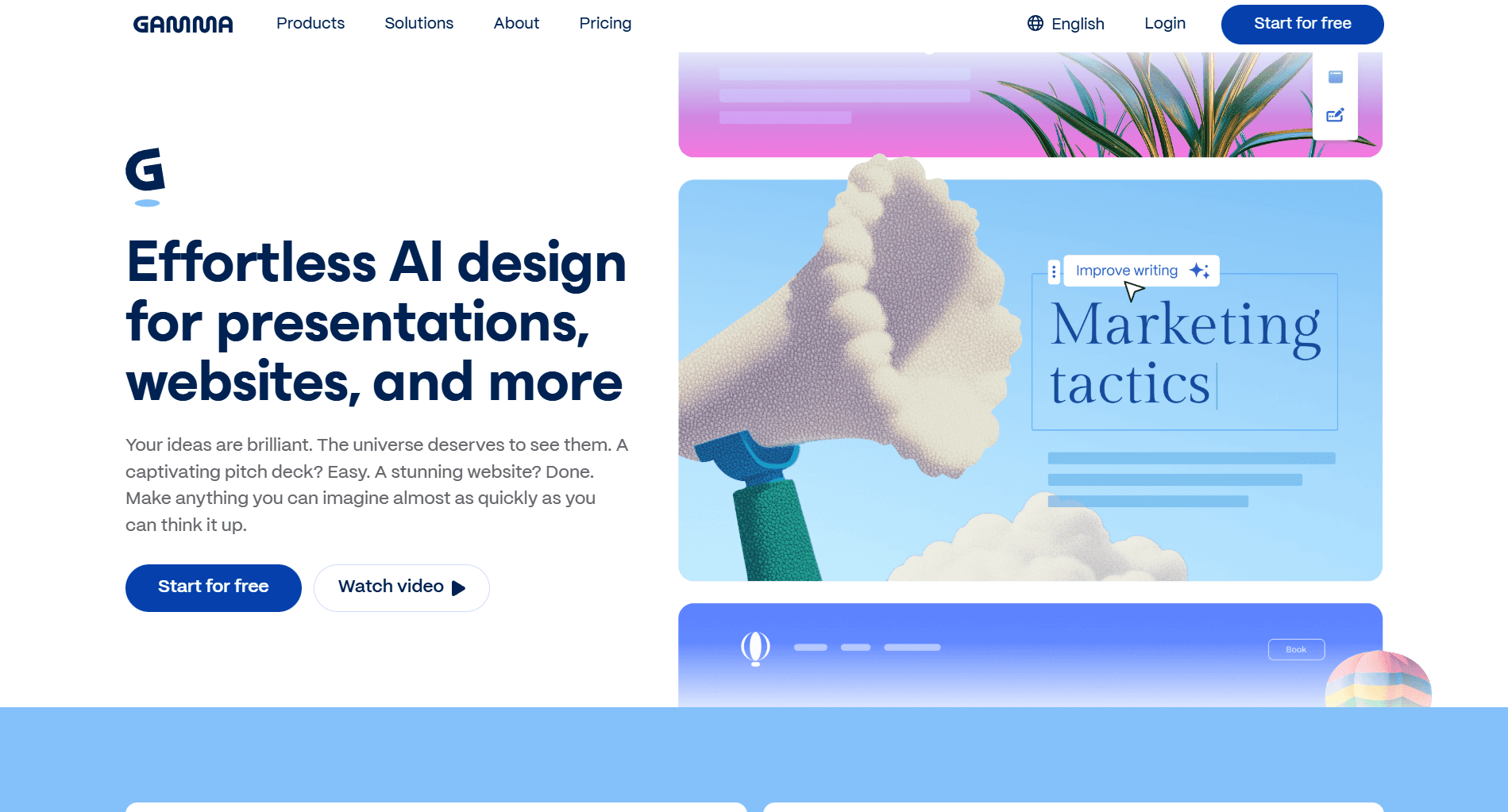
Gamma hat sich von einem Präsentationstool zu einer vollständigen Content-Erstellungsplattform entwickelt, die Präsentationen, Dokumente, Websites und Social-Media-Inhalte über eine einzige Benutzeroberfläche verwaltet. Mit über 50 Millionen Nutzern und einem scrollbaren, web-nativen Format ist es ein etablierter und vielseitiger Akteur im Bereich des KI-Designs.
Im Vergleich zu Kimi zeichnet sich Gamma hier aus:
Präsentationen, die wie Websites scrollen
Kimi erstellt traditionelle Folien mit festen Abmessungen, einen Bildschirm pro Folie, zum Weiterklicken. Gamma erstellt scrollbare „Karten“, die wie moderne Webseiten funktionieren. Dies funktioniert besonders gut für das digitale Teilen von Präsentationen, bei denen die Leute in ihrem eigenen Tempo lesen, anstatt eine Live-Präsentation anzusehen.
Der visuelle Stil wirkt auch frischer als Kimis flache Ästhetik. Gammas Karten haben mehr visuelle Tiefe mit interaktiven Elementen, die Inhalte lebendig statt statisch wirken lassen.
Der Kompromiss: Gammas Format erfordert etwas Eingewöhnung, wenn Sie traditionelle Folien erwarten. Kimis .pptx-Ausgabe fühlt sich für jeden, der PowerPoint verwendet hat, sofort vertraut an.
Chatten Sie mit der KI, um Ihre Folien zu bearbeiten
Sowohl Kimi als auch Gamma ermöglichen die Generierung von Präsentationen aus einer Textaufforderung. Aber Gamma bietet etwas, das Kimi völlig fehlt: eine Chat-Oberfläche zur Bearbeitung.
Nachdem Gamma Ihre Präsentation generiert hat, können Sie Dinge eingeben wie „diesen Abschnitt kürzen“ oder „das Layout in zwei Spalten ändern“ oder „ein Bild zum Thema Teamwork hinzufügen“. Die KI nimmt die Änderungen durch Konversation vor. Kimi generiert Ihren Entwurf, und Sie müssen dann alles manuell in einem eingeschränkten Editor ohne KI-Unterstützung bearbeiten.
Gamma bietet auch eine Ein-Klick-Neugestaltung, um das gesamte Erscheinungsbild Ihrer Präsentation sofort zu ändern, während der Inhalt erhalten bleibt. In Kimi bedeutet das Ändern von Stilen, Schriftarten, Farben und Layouts Folie für Folie manuell anzupassen.
Echtzeit-Zusammenarbeit, die Kimi nicht bieten kann
Kimi ist ein Einzelwerkzeug: Eine Person erstellt, eine Person bearbeitet, kein gemeinsamer Arbeitsbereich. Gamma bietet Echtzeit-Co-Editing und Kommentieren. Mehrere Teammitglieder können gleichzeitig am selben Deck arbeiten, Feedback hinterlassen und gemeinsam iterieren.
Für Teams, die Präsentationen kollaborativ erstellen, ist dies eine grundlegende Fähigkeitslücke in Kimi.
Interaktive Elemente jenseits statischer Folien
Kimis Ausgabe ist statisch: Text, Diagramme, Symbole und Bilder, die auf Folien angeordnet sind. Gamma ermöglicht es Ihnen, Umfragen, GIFs, Live-Videos, Figma-Dateien, YouTube-Clips und Umfragen direkt in Ihre Inhalte einzubetten, ohne Code schreiben zu müssen. Dadurch wirken Gamma-Decks interaktiver und ansprechender, was Kimis traditionelle Folien einfach nicht erreichen können.
Vorteile:
Modernes, scrollbares Format fühlt sich frisch an im Vergleich zu Kimis flachen, statischen Folien
Chat-basierte KI-Bearbeitung, die Kimi komplett fehlt
Ein-Klick-Restyling, um Ihr gesamtes Erscheinungsbild sofort zu ändern
Echtzeit-Zusammenarbeit für Teams (Kimi ist nur für Einzelpersonen)
Interaktive Einbettungen: Umfragen, Videos, Figma-Dateien, Befragungen
GPT-Image-1-Integration für KI-Bildgenerierung innerhalb des Editors
Kostenloser Plan mit 400 Credits, keine Kreditkarte erforderlich
Nachteile:
Scrollbares Format sind keine traditionellen Folien und könnte Vorstandsmitglieder verwirren
Exporte nach PowerPoint können anders aussehen als die Webversion
Fehlt Kimis Forschungstiefe und der OK Computer Agentenmodus
Die Inhaltserstellung ist nicht so detailliert oder forschungsbasiert wie Kimis K2 Thinking-Modell
Preise:
Kostenlos mit 400 Credits. Plus für 10 $/Monat. Pro für 20 $/Monat.
Wählen Sie Gamma, wenn:
Sie Präsentationen digital teilen oder ein vielseitigeres Design-Tool suchen, um Dokumente und Websites neben Folien zu erstellen.
Suchen Sie nach weiteren Optionen? Schauen Sie sich andere Gamma-Alternativen.
Beautiful.ai: Beste Alternative für vorlagenbasiertes, markenkonsistentes Design
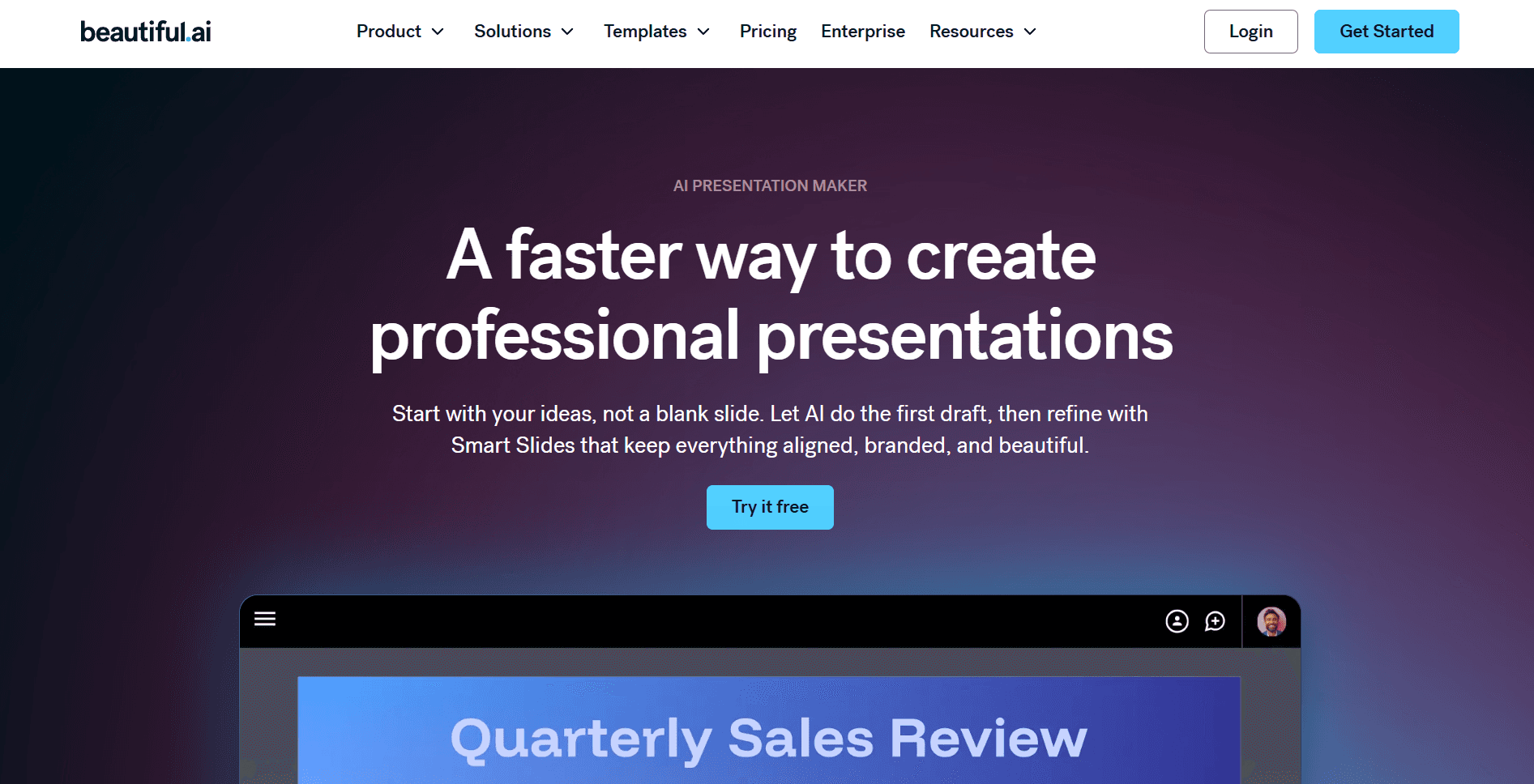
Beautiful.ai verfolgt einen grundlegend anderen Ansatz als KI-First-Tools wie Kimi. Sein Hauptaugenmerk liegt darauf, eine riesige Vorlagen- und Elementbibliothek zu nutzen, um Benutzern bei der Erstellung professioneller, markenkonsistenter Decks zu helfen.
Deshalb sollten Sie Beautiful AI gegenüber Kimi in Betracht ziehen:
Eine der umfangreichsten Vorlagenbibliotheken in diesem Bereich
Kimi bietet eine anständige Auswahl an Vorlagen für adaptive und visuelle Generierung, aber die Bibliothek ist begrenzt und Sie können keine benutzerdefinierten Themen erstellen oder wiederverwenden. In meinen Tests wiederholte Kimi dieselben 2-3 Layouts über ein 20-Folien-Deck hinweg.
Beautiful.ai verfügt über die größte Auswahl an gebrauchsfertigen professionellen Vorlagen im Bereich der KI-Präsentationen, die Pitch Decks, QBRs, Marketingkampagnen, Verkaufsangebote, Schulungsmaterialien und mehr abdecken. Jede Vorlage ist eine Smart Slide, die sich automatisch formatiert, sodass die Vielfalt nicht auf Kosten der Designqualität geht.
Markenkontrollen, die Kimi nicht bietet
Kimi hat kein System zur Markenanpassung. Sie können Schriftarten und Farben manuell Folie für Folie ändern, aber es gibt keine Möglichkeit, Markenrichtlinien einmal festzulegen und jede Folie diese befolgen zu lassen. Für Teams, die mehrere Decks produzieren, bedeutet dies, dass jedes Mal manuelle Arbeit wiederholt werden muss.
Die Team- und Enterprise-Pläne von Beautiful.ai ermöglichen es Ihnen, Ihre Schriftarten, Farben und Logos einmal festzulegen. Jede Folie bleibt automatisch markenkonform. Gemeinsame Folienbibliotheken und zentralisiertes Asset-Management sorgen für Konsistenz im gesamten Team, ein Maß an Markengovernance, das Kimi einfach nicht hat.
Zuschaueranalysen zur Messung des Engagements
Kimi hat keine Analysen. Sie exportieren eine .pptx-Datei, senden sie und hoffen das Beste.
Beautiful.ai verfolgt, welche Folien die meiste Aufmerksamkeit erhalten, wie viele Aufrufe Ihr Deck erhält und die Engagement-Zeit pro Folie. Für Vertriebsteams und Berater, die das Interesse potenzieller Kunden messen, fließen diese Daten direkt in die Follow-up-Strategie ein. In Kombination mit der nativen Salesforce-Integration entsteht ein Präsentations-zu-Pipeline-Workflow, den kein kostenloses Tool erreicht.
Offline-Präsentation ohne Internet
Sowohl Kimi als auch die meisten KI-Präsentationstools erfordern eine Internetverbindung. Beautiful.ai bietet einen Desktop-Player, der das Präsentieren ohne Konnektivität ermöglicht, ein kleiner, aber bedeutsamer Vorteil für Konferenzen, Kundenstandorte und überall dort, wo WLAN unzuverlässig ist.
Vorteile:
Smart Slides formatieren sich beim Bearbeiten automatisch, wodurch Kimis manuelle Ausrichtungsarbeit entfällt
Größte Vorlagenbibliothek in diesem Bereich mit konsistenter Designqualität
Robuste Markenkontrollen für teamweite Konsistenz (Kimi hat keine)
Zuschaueranalysen und Salesforce-Integration für Vertriebs-Workflows
Offline-Präsentation über Desktop-Player
CRM-Integrationen mit Salesforce, Dropbox, Slack und Webex
Nachteile:
Kein kostenloser Plan, nur eine 14-tägige Testversion, die eine Kreditkarte erfordert (Kimi ist kostenlos)
KI unterstützt mehr bei der Formatierung als bei der Inhaltserstellung. Kimis K2 Thinking schreibt deutlich bessere Inhalte
Starres Vorlagensystem begrenzt die Anpassung außerhalb vordefinierter Bereiche
Flache Designästhetik ähnlich der von Kimi, ohne moderne Farbverläufe und Tiefe
Langsamerer Erstellungsworkflow: Folie-für-Folie-Erstellung im Vergleich zu Kimis Prompt-to-Deck-Pipeline
Preise:
14-tägige kostenlose Testphase (Kreditkarte erforderlich). Pro für 12 $/Monat (jährlich). Team für 40 $/Benutzer/Monat (jährlich).
Wählen Sie Beautiful.ai, wenn:
Sie Teil eines Unternehmens-Teams sind, bei dem Markenkonsistenz, Zuschaueranalysen und Designrichtlinien wichtiger sind als KI-generierte Inhalte oder Geschwindigkeit.
Möchten Sie weitere Optionen? Schauen Sie sich diese Beautiful AI-Alternativen.
Manus: Beste Alternative für forschungsbasierte Präsentationen
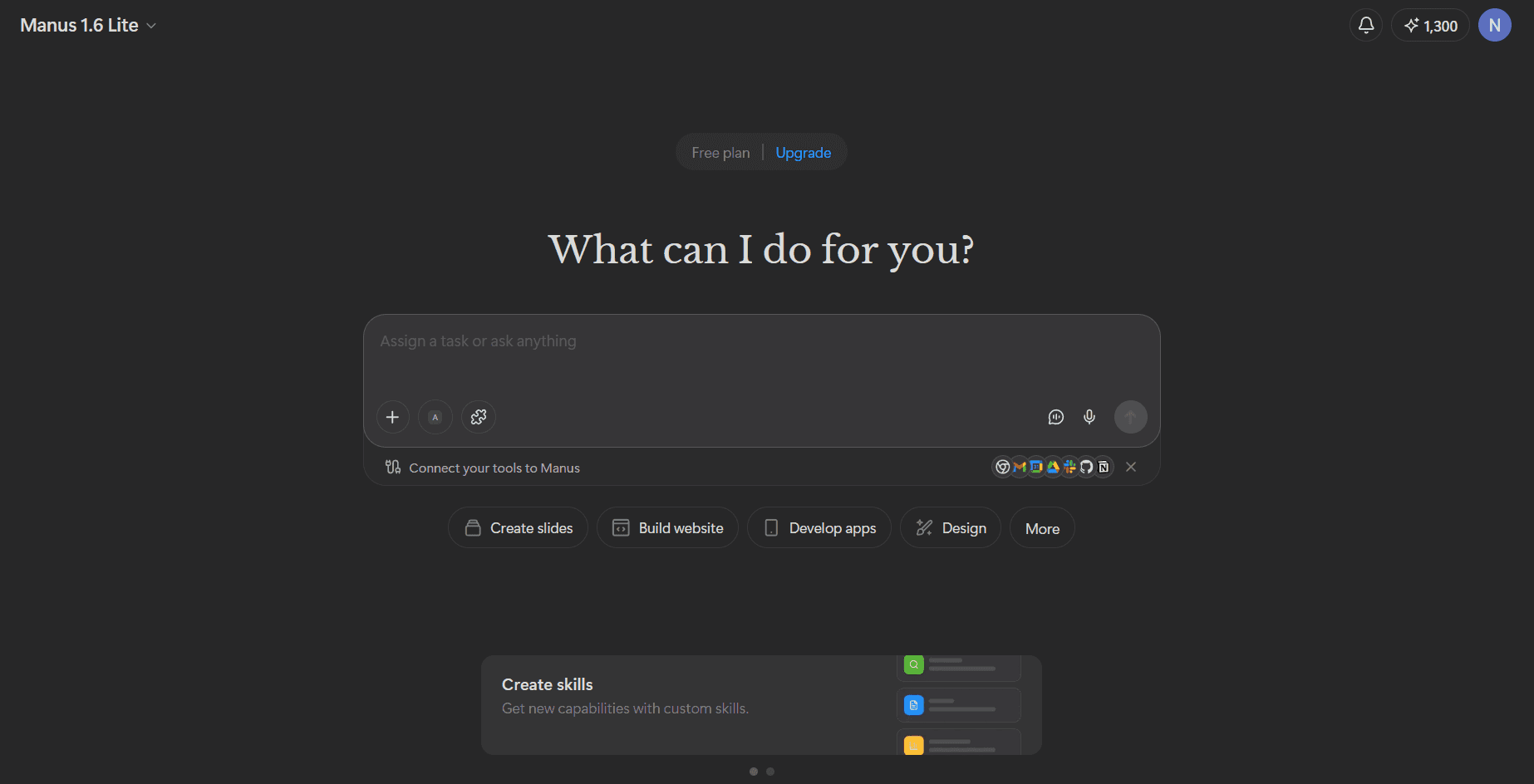
Manus ist das Tool, zu dem man greifen sollte, wenn die Genauigkeit des Inhalts wichtiger ist als der visuelle Feinschliff. Basierend auf einem agentenbasierten KI-System ist seine Superkraft die tiefe, autonome Forschung. Es formatiert Ihre Ideen nicht nur in Folien, sondern untersucht Ihr Thema aktiv über mehrere Quellen hinweg, bevor es das Deck erstellt.
Das macht Manus besser als Kimi:
Forschungstiefe, die über Kimis OK Computer hinausgeht
Kimis OK Computer-Modus ist beeindruckend: Er durchsucht das Web, zieht Daten und konstruiert Argumente autonom. Aber Manus geht tiefer. In Vergleichstests fand Manus konsequent aktuelle Arbeiten, Daten und Referenzen, die Kimi komplett verpasste. Sein Forschungsagent kann über 100 wissenschaftliche Publikationen in einer einzigen Sitzung verarbeiten und die Ergebnisse in strukturierte Folieninhalte mit Quellenangabe synthetisieren.
Wo Kimi gelegentlich auf etwas ältere Quellen zurückgreift, priorisiert Manus Aktualität und Breite. Für akademische Präsentationen, Beratungsaufträge und compliance-sensible Decks, bei denen die faktische Genauigkeit die Glaubwürdigkeit direkt beeinflusst, ist dieser Unterschied in der Forschungstiefe wichtig.
Eine transparente Forschungsspur, die Sie überprüfen können
Kimi generiert Inhalte und präsentiert sie als fertiges Produkt. Sie sehen die Ausgabe, aber nicht den Prozess. Es gibt keine Möglichkeit zu überprüfen, welche Quellen verwendet wurden, wie Daten synthetisiert wurden oder ob die Schlussfolgerungen der KI gut begründet sind.
Manus zeigt genau, welche Quellen es gefunden und wie es den Inhalt strukturiert hat. Sie können der Forschungsspur folgen, Behauptungen mit Originalquellen überprüfen und Fehler erkennen, bevor sie in Ihr endgültiges Deck gelangen. Für jeden, der vor Stakeholdern präsentiert, die fragen könnten „Woher kommt diese Zahl?“, ist diese Transparenz von unschätzbarem Wert.
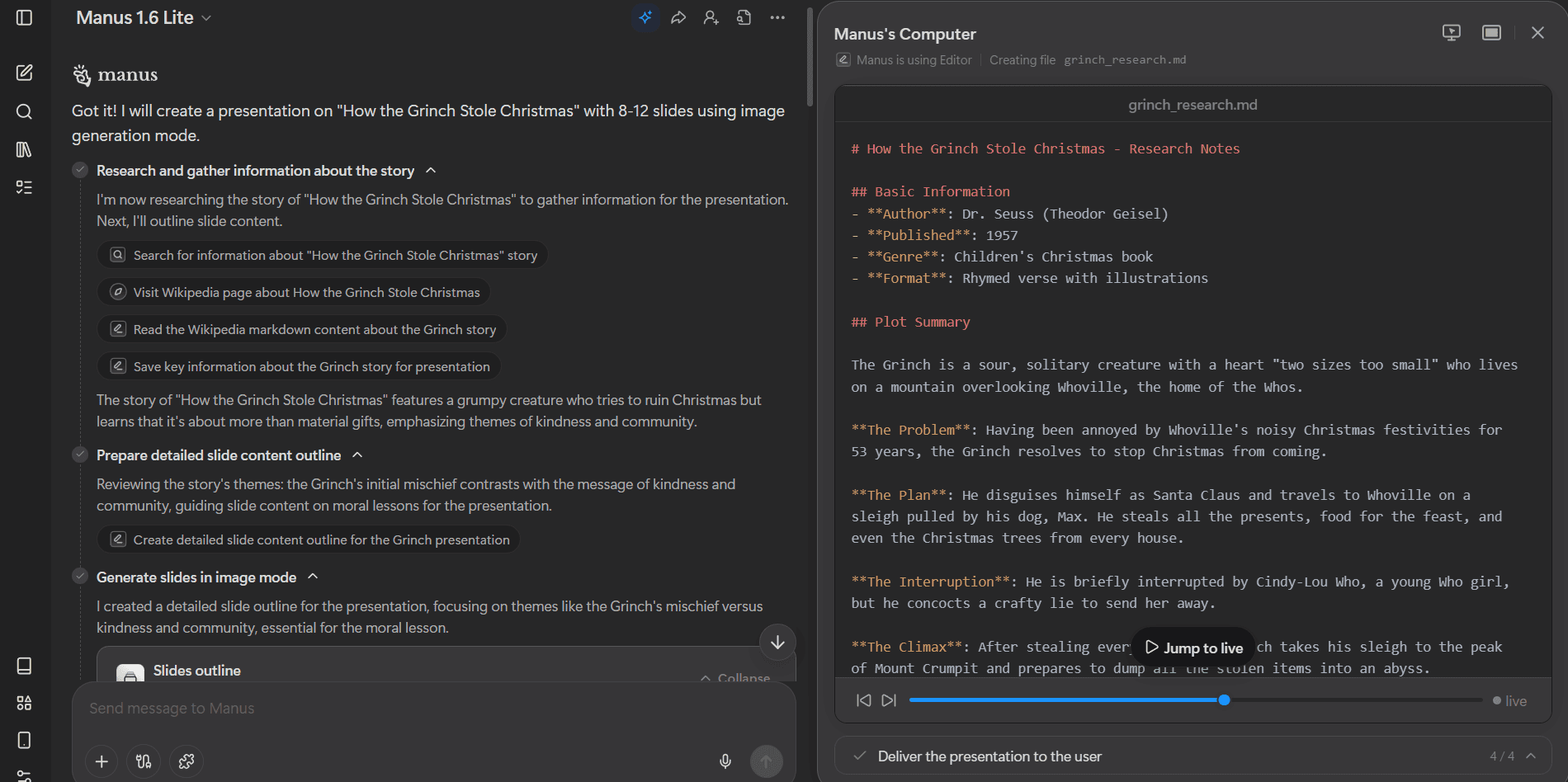
Manus ermöglicht es Ihnen, eine Forschungsspur zu Inhaltsquelle und -struktur zu führen
Claude 3.7 Sonnet für Inhaltsqualität
Beide Tools verwenden leistungsstarke Sprachmodelle, aber sie sind unterschiedlich. Kimi verwendet sein eigenes K2 Thinking-Modell (Mixture-of-Experts, 1T Parameter). Manus verwendet Anthropic's Claude 3.7 Sonnet für die Inhaltserstellung. In der Praxis produzieren beide gut strukturierte, natürlich klingende Texte. Der Unterschied liegt eher in der Forschungsmethodik als in der Schreibqualität. Manus' Stärke liegt darin, was es findet, nicht nur darin, wie es schreibt.
Nano Banana Pro Visuals mit Bearbeitung auf Elementebene
Sowohl Kimi als auch Manus verwenden Nano Banana Pro für die visuelle Generierung. Kimi sperrt visuelle Elemente nach der Generierung: Sie können Text bearbeiten, aber keine Grafiken, und das Anpassen eines visuellen Elements bedeutet, die gesamte Folie neu zu generieren.
Manus hat seinen Editor kürzlich aktualisiert, um die Bearbeitung von Nano Banana Pro-generierten Folien auf Elementebene zu unterstützen. Obwohl die Bearbeitung nicht so ausgereift ist wie Alais vollständig themenbewusste Integration, ist sie Kimi's textbasierter Nachbearbeitung einen Schritt voraus.
Vorteile:
Tiefste Forschungsfähigkeiten im Bereich der KI-Präsentationen, übertreffen Kimis OK Computer
Transparentes Forschungsprotokoll zeigt Quellen und Begründungen (Kimi nicht)
Verarbeitet über 100 wissenschaftliche Publikationen in einer einzigen Sitzung
Benutzerdefinierter Vorlagen-Upload für Markenkonsistenz (Kimi fehlt dies)
Claude 3.7 Sonnet für hochwertige schriftliche Inhalte
Bearbeitung von Nano Banana Pro-Visuals auf Elementebene
Kostenlose Stufe mit 300 Credits pro Tag
Nachteile:
HTML/CSS-Folienkonstruktion führt zu Formatierungsproblemen beim PowerPoint-Export
Steilere Lernkurve als Kimis einfacherer, intuitiverer Workflow
Die Benutzeroberfläche ist komplexer und weniger ausgefeilt als die von Kimi
Designkonsistenz und visuelle Politur bleiben hinter Kimis vorlagenbasierter Ausgabe zurück
Kostenlose Stufe begrenzt Präsentationen auf 12 Folien
Preise:
Kostenlose Stufe mit 300 Credits/Tag. Kostenpflichtige Pläne von 19 $/Monat bis 199 $/Monat.
Wählen Sie Manus, wenn:
Sie evidenzbasierte Präsentationen erstellen, bei denen faktische Genauigkeit und Quellentransparenz wichtiger sind als visuelle Politur.
Kimi & Alternativen: Funktionsübersicht
Tool | Am besten für | Preise | Hauptmerkmale |
Kimi Slides | Schnelle Decks mit Forschungsfunktionen | Kostenlos + 19 $/Monat | Bearbeitbare Gliederungen, Nano Banana Pro Visuals, .pptx-Export, Multi-Format-Dokumenten-Upload, K2-Suchintegration |
Alai | Design-orientierte Teams, die ausgefeilte, wichtige Decks benötigen | Kostenlos (200 Credits) + 16 $/Monat | 4 Layout-Optionen pro Folie, responsiver Zeichenbereich, Agentenmodus für konversationelle Bearbeitung, markenkonsistente Themen, Nano Banana Pro-Unterstützung, Analysen und Tracking |
Gamma | Remote-Teams und Multi-Format-Inhaltserstellung | Kostenlos (begrenzt) + 10–20 $/Monat | Scrollbares kartenbasiertes Layout, Echtzeit-Zusammenarbeit, eingebettete Umfragen/Videos/Diagramme, Website- und Social-Media-Generierung, GPT-Image-1, Ein-Klick-Redesign |
Beautiful.ai | Unternehmensteams, die markenkonsistente, vorlagenbasierte Decks benötigen | 14-tägige Testversion + 12–40 $/Monat (kein kostenloser Plan) | Smart Slides mit Auto-Formatierung, größte Vorlagenbibliothek, Markenkontrollen, Zuschaueranalysen, Salesforce/Slack/Webex-Integrationen, gemeinsame Folienbibliotheken |
Manus Slides | Forschungsintensive, datengesteuerte Präsentationen | Kostenlose Stufe (300 Credits/Tag) + 19–199 $/Monat | Agentenbasierte Forschung über 100+ Quellen, Claude 3.7 Sonnet Inhaltserstellung, benutzerdefinierte Visuals, Vorlagen-Upload, PowerPoint/Google Slides/PDF-Export |
Wann Kimi vs. Alternativen verwenden
Nachdem ich Kimi und jede wichtige Alternative in diesem Leitfaden getestet habe, hier meine ehrliche Empfehlung:
Für Designqualität und Geschwindigkeit: Wählen Sie Alai, wenn Sie schnell hochwertige Präsentationen erstellen möchten. Sein Präsentations-orientiertes Design, die Nano Banana Pro-Integration und die kontextsensitive KI stellen sicher, dass Sie Decks erstellen, die professionell gestaltet aussehen.
Für die Erstellung von vielseitigen Inhalten: Wählen Sie Gamma, wenn Sie mehr als nur Folien benötigen. Präsentationen, Dokumente, Websites und Social-Media-Inhalte von einer Plattform, plus Echtzeit-Zusammenarbeit und ein Chat-basierter KI-Editor, der Kimi komplett fehlt. Am besten für Teams, die digital teilen und asynchron arbeiten.
Für die vorlagenbasierte Erstellung: Wenn Sie eine riesige Vorlagenbibliothek suchen, um mit Ihren Decks zu beginnen, ist Beautiful AI Ihre erste Wahl.
Für forschungsintensive Präsentationen: Wählen Sie Manus, wenn faktische Genauigkeit und Quellentransparenz wichtiger sind als visuelle Politur. Es übertrifft Kimis OK Computer-Modus in der Forschung, zeigt seine Arbeit mit einem transparenten Forschungsverlauf und verarbeitet über 100 akademische Quellen in einer einzigen Sitzung.
Wenn Sie Kimi bereits als KI-Agenten verwenden: Bleiben Sie bei Kimi Slides. Wenn Kimi bereits Teil Ihres Workflows für Forschung, Dokumentenverarbeitung oder tiefgehende Denkaufgaben ist, ist die Slides-Funktion eine natürliche Erweiterung. Die kostenlose Version bietet eine wirklich beeindruckende Inhaltserstellung, die kein anderes kostenloses Tool erreicht. Seien Sie jedoch darauf vorbereitet, für den letzten Designschliff nach PowerPoint oder einen anderen Editor zu exportieren.
Fazit
Die KI-Präsentationslandschaft im Jahr 2026 hat einen Punkt erreicht, an dem niemand mehr Stunden damit verbringen sollte, Folien manuell zu erstellen. Tools wie Kimi, Alai, Gamma, Beautiful.ai und Manus lösen das Problem jeweils unterschiedlich, und die richtige Wahl hängt ganz davon ab, was Ihnen am wichtigsten ist: Designqualität, Zusammenarbeit, Markenkonsistenz, Forschungstiefe oder Preis.
Die Zeiten, in denen man bis Mitternacht mit der PowerPoint-Formatierung kämpfte, sind vorbei. Wählen Sie Ihr Tool und kehren Sie zu der Arbeit zurück, die wirklich zählt.
FAQ
Kann ich Kimi Slides nach PowerPoint exportieren?
Ja. Mit Kimi Slides können Sie Ihre fertige Präsentation als .pptx-Datei herunterladen, die nativ in Microsoft PowerPoint geöffnet wird. Sie können auch als Bilder exportieren oder direkt aus dem Browser präsentieren. Die Exportqualität kann jedoch inkonsistent sein. In meinen Tests enthielt die Titelfolie ein Wasserzeichen-Stockbild, sodass Sie möglicherweise vor der Präsentation noch etwas aufräumen müssen.
Welches Tool erstellt die am besten aussehenden Folien?
Alai, mit deutlichem Abstand. Seine designgeschulte KI verwendet moderne Prinzipien wie Farbverläufe, Schatten und geschichtete Elemente, die andere Tools (einschließlich Kimi) nicht erreichen. Der Ansatz mit vier Optionen pro Folie bedeutet auch, dass Sie aus Qualität wählen, anstatt eine einzelne Ausgabe zu akzeptieren und zu hoffen, dass sie funktioniert.
Kann ich diese Tools für akademische oder pädagogische Präsentationen verwenden?
Ja. Kimi und Manus eignen sich dank ihrer tiefgreifenden Forschungsfähigkeiten gut für forschungsintensive akademische Inhalte. Gammas interaktive Elemente (Einbettungen, Umfragen, Videos) machen es für Studenten ansprechend. Für akademische Präsentationen, die auch ansprechend aussehen sollen, bietet Alai die beste Balance zwischen Inhaltsqualität und visuellem Design.
Welches Tool ist am besten für Pitch Decks und Investorenpräsentationen geeignet?
Alai. Seine Designqualität, iterative KI-Bearbeitung, responsive Leinwand und Nano Banana Pro-Integration erzeugen die Art von poliertem, professionellem Output, den hochrangige Präsentationen erfordern. Auf Alai erstellte Fundraising-Decks sollen Berichten zufolge Millionen eingebracht haben. Kimi kann starke Inhalte für ein Pitch Deck generieren, aber Sie müssen wahrscheinlich für investorentaugliche Visuals exportieren und neu gestalten.
Funktionieren diese Tools auch offline?
Alle fünf Tools sind Cloud-basiert und erfordern eine Internetverbindung zur Erstellung. Beautiful.ai bietet einen Desktop-Player für die Offline-Präsentation, aber das Erstellen und Bearbeiten erfordert weiterhin Konnektivität.
Kann ich die Markenkonsistenz über mehrere Präsentationen hinweg aufrechterhalten?
Alai und Beautiful.ai sind hier die stärksten Optionen. Mit Alai können Sie benutzerdefinierte Themen erstellen, speichern und wiederverwenden, sodass jede KI-generierte Folie automatisch Ihren Markenrichtlinien folgt. Beautiful.ai erzwingt Markenkontrollen durch sein Smart Slide-System. Kimi verfügt über keine benutzerdefinierten Themen- oder Markenverwaltungsfunktionen, sodass Sie Schriftarten und Farben bei jedem Deck manuell anpassen müssten.
Ist Kimi Slides wirklich kostenlos?
Kimis Adagio (kostenloser) Tarif bietet Ihnen Zugang zu Slides im adaptiven Modus mit unbegrenzten grundlegenden Konversationen. Der visuelle Modus (unterstützt von Nano Banana Pro), die Nutzung des OK Computer Agenten und Deep Research sind jedoch begrenzt oder eingeschränkt. Kostenlose Nutzer erleben außerdem während der Stoßzeiten Warteschlangenverzögerungen. Für den vollen Zugriff auf alle Funktionen beginnen die kostenpflichtigen Pläne bei 19 $/Monat.
SEITEN
Werkzeuge vergleichen
Ressourcen