·
CASE STUDY
·
7 min read

Marketing Lead
You are sitting with a PowerPoint or PDF presentation in front of you. The slides are full of useful text, data, points, definitions, and important notes. But the whole thing is locked inside images. You cannot select it. You cannot copy it. You cannot edit a single word.
So what do you do?
Most people do the difficult thing, which is retyping the whole file using a keyboard. This requires much time, effort, and attention. And after all that hard work, there are still chances of missing important details and typos in the draft.
The good news is that you do not need to type any of it manually. There are tools built specifically for this. This guide will walk you through exactly how to extract editable text from image-based slides. The method is fast, accurate, and without any technical headaches. Keep reading to learn more.
What Are Image-Based Slides?
Some slides have text that is typed directly into the slide using a text box. You can select it and edit it. But image-based slides are different.
In these slides, the text is not typed. It is printed on an image that is pasted onto the slide. To the eye, it looks exactly like normal text. But it is not. It is just pixels on a screen. This is why you cannot select it. The text is visually there but digitally locked.
This is a very common problem. Students receive lecture slides where scanned book pages or screenshots are directly pasted onto the slides. Professionals get project presentations where charts, reports, and data tables are embedded as images. Researchers work with academic papers shared as image-heavy PDFs.
What Is the Easiest Way to Extract Text from an Image Online?
The easiest method is to use an online image to text converter tool.
These tools are based on optical character recognition technology. This technology can scan the printed or embedded text on the image and convert it into machine-readable and editable text. Modern image to text converter tools offer a high level of accuracy and speed. They can even extract text from low-quality or blurred images with good accuracy.
So this is one of the most practical and time-saving solutions for students and professionals working with image-based slides on a daily basis.
Step-by-Step Guide to Extract Text from Slides
We will walk you through the complete process of extracting printed text from the images pasted in the slides. Make sure to read the content carefully and follow all the steps to get the best results.
1) Save Your Slides as Images
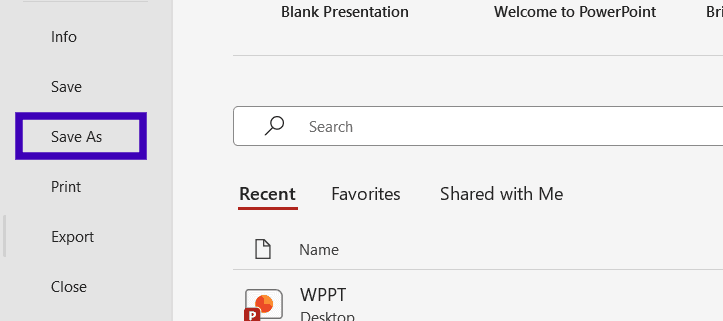
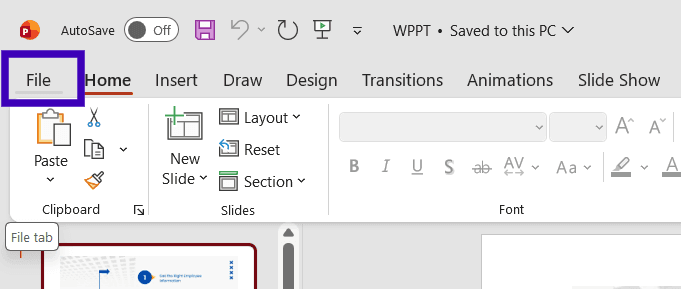
First, you need to convert your slides into images. If your slides are in PPT format, you can convert them into images with ease. Open the PPT in PowerPoint and click on the “File” button in the top left corner. Then click on the “Save as” button and choose the output folder.
A dialogue box will open when you select the folder. Click on the “Save as type” button at the bottom of the box and select “PNG” as output.
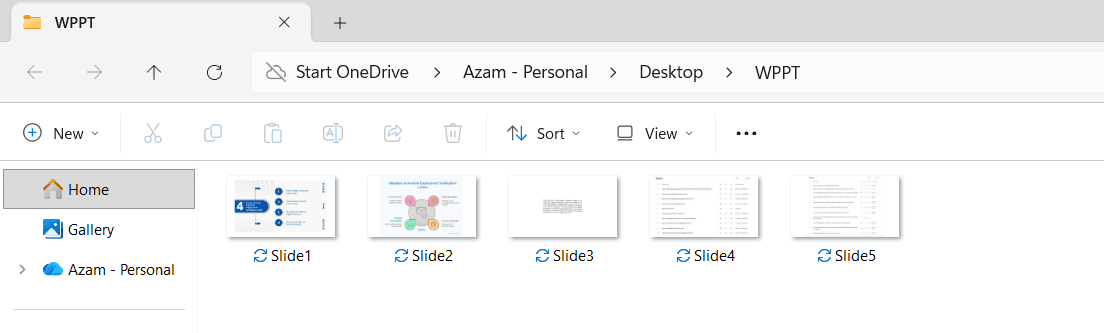
All the images in your PPT slides will be saved as separate image files in your selected folder, like this:
If your slides are in PDF format, you can use them as they are. There are certain OCR tools that allow PDF to text conversion. But in that case, you will get one single text file from all the slides. And it can cause confusion for you. So, a better way is to convert PDF to images using an online PDF to image converter.
2) Choose a Reliable Image to Text Converter
There are plenty of OCR tools available online. But not all the tools provide the same level of efficiency. Privacy is another issue, especially for professionals dealing with sensitive business documents. So, you have to choose a reliable tool before going through the process.
Search for “image to text converter” on Google and choose any one that appears promising. You can test it with sample images before submitting your original documents. Also, you can check users’ reviews for that tool. For data security, read the privacy policy. If it clearly states that user data will not be saved or shared with any third-party platform, you can use it. To demonstrate the process, we considered the above factors and selected imagetotext.cc.
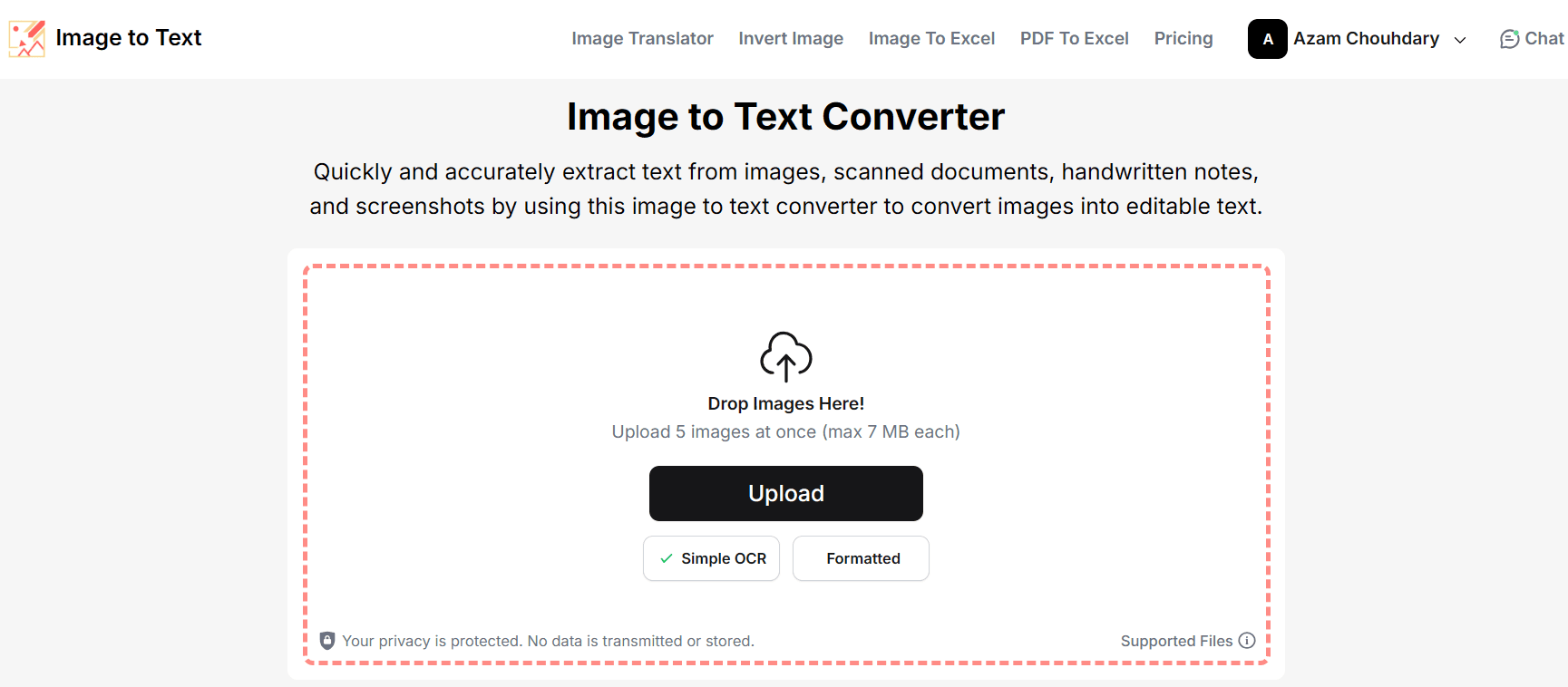
We will use it in the step-by-step process to show you how it works.
3) Upload your Slide Images and Convert
Well, once you have selected the right tool, the next step is to upload your slide images and extract text from them.
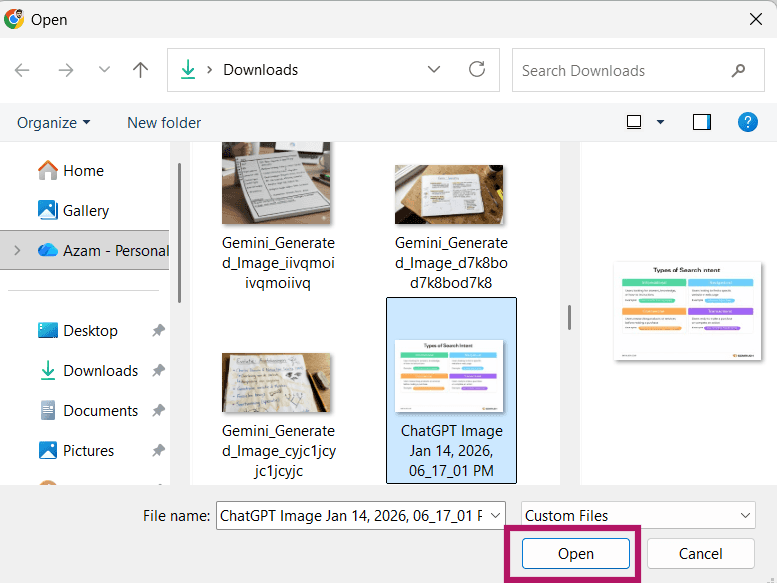
Access the tool and click on the “Upload” button. A dialog box will open. Select your images and click on the “Open” button.
You can crop the images using the “Crop” button. Mostly, the images contain some of the unnecessary data like headers, page numbers, etc. For better extraction and accurate results, remove such parts of the images by cropping.
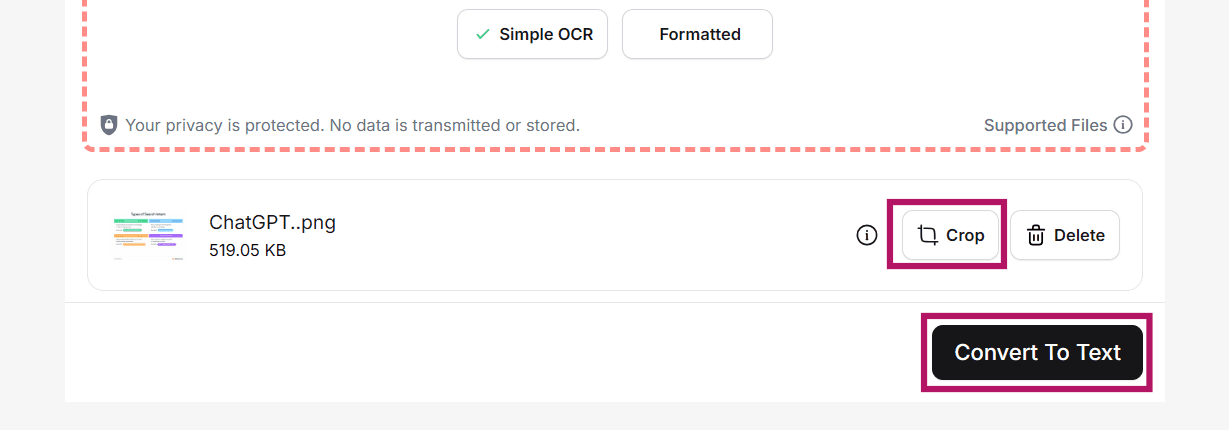
After that, click on the “Convert To Text” button, and the tool will extract printed text from the images and convert it into digital text. You will get the results in a box like this:
4) Clean Up If Needed
After the tool provides you with the output, read it with care. The text will be accurate in most cases. However, there may be minor inconsistencies in punctuation marks or spelling if your images are too blurry or misprinted. This happens in handwritten notes because they can be unclear and do not follow any font style.
Fix them quickly. This takes a minute at most.
But if your slides are messy or outdated beyond just the text, Alai's free Prettify Deck tool lets you upload your existing PPT and instantly redesign it with AI — giving it a consistent theme, clean typography, and polished layouts throughout. Everything comes out fully editable too, so you're never stuck with locked image slides again.
Also, remove anything you do not need. If you did not crop the page numbers, headers, or watermarks earlier, delete them from the generated output now.
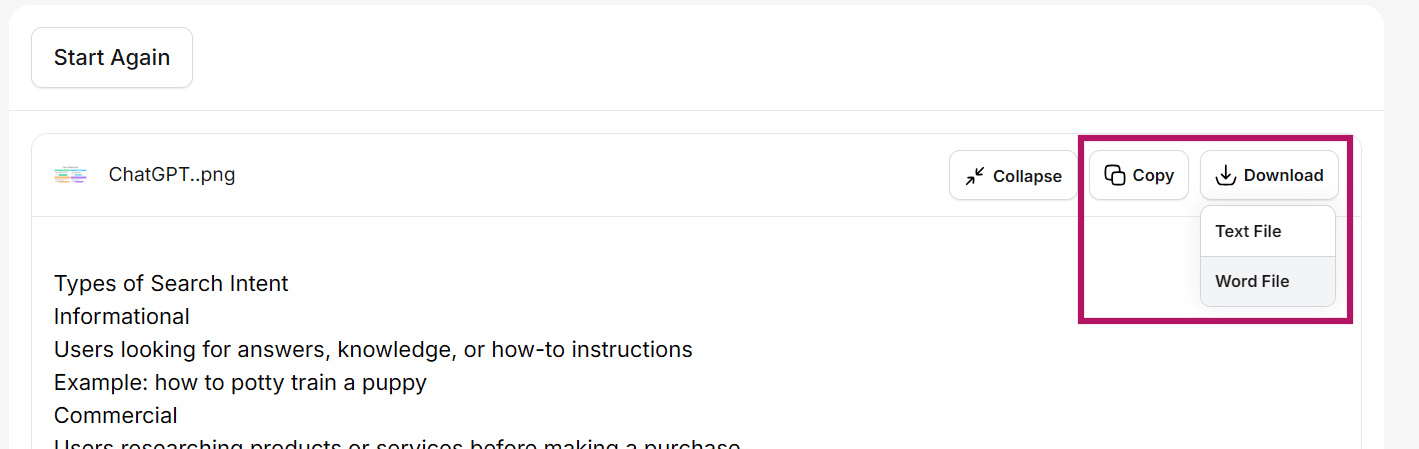
You can copy the extracted text to the clipboard using the “Copy” button or download it in a Word or TXT file using the specified button.
Tips to Extract Text Accurately from Image-Based Slides
Well, now that we have discussed the complete process to extract text, let's look at some of the important tips to get the best results out of your image slides.
1) Use the Formatted Text Option
This feature is only available in a few tools, including the one we discussed earlier. And it is very useful if your images contain table data. Normal OCR tools convert tabular data into plain text. But if you use the formatted text option, the tool will provide you with the output as a table.
2) Upscale the Images
If any of your images are too blurred, misprinted, or contain handwritten text that is unclear, clean them using online image upscaling tools like Canva. This will improve the accuracy of the final results.
3) Always Review the Final Output
Even the best tools can miss small details. A quick review helps fix minor errors. Check for spelling and punctuation with care.
Wrapping It Up
Dealing with image-based slides wastes a lot of time. You have the content right in front of you but cannot use it as you can use normal digital text.
An online image to text converter solves this problem completely.
Save your slides as images, upload them to a good OCR tool, and get your text out in seconds. That is the whole process. What used to take an hour now takes a few minutes.
Just make sure you pick a tool that is accurate and does not store your data. Test it once before using it on important documents. Use the formatted text option for tables and structured content. And do a quick review of the output before using it anywhere.
Once you start doing this, you will never go back to manual typing again. It saves real time every single day.
If you found this guide helpful, share it with someone who is still retyping slides by hand. They need this.
Is it safe to upload sensitive documents to an online OCR tool?
It depends on the tool. Always read the privacy policy before uploading. Look for tools that explicitly state they do not store or share your data with third parties.
Can I extract text from a PDF presentation, not just PPT?
Yes. Many OCR tools support PDF uploads directly. However, for better organization, it is recommended to convert your PDF into individual images first so each slide is processed separately.
What should I do after extracting the text from my slides?
Once extracted, clean up any minor errors, remove unwanted headers or page numbers, and copy the text into your desired format. If you want to rebuild your slides properly, you can upload your existing PPT to Alai's free Prettify Deck tool directly — it redesigns your deck with a consistent theme and fully editable layouts using AI.
SEITEN
Werkzeuge vergleichen
Ressourcen