·
BASICS
·
10 min read

Marketing Lead
What Is Gemini Canvas?
Google Gemini Canvas is an interactive AI workspace inside the Gemini app for creating documents, presentations, and other content using AI prompts. It was built as a general-purpose tool — not a dedicated slide maker — which means its presentation design quality, editing controls, and workflow fall significantly short of purpose-built alternatives.
Google Gemini Canvas recently announced that it can now create presentations with a single prompt. But can an AI workspace that does everything from writing documents to analysing data actually create compelling presentations?
We tested Gemini Canvas's presentation capabilities and spoiler alert: the results are...underwhelming.
In this Gemini Canvas review, we'll break down exactly what Gemini Canvas can and can't do when it comes to creating presentations, how it compares to dedicated AI presentation tools, and whether it's worth your time and money.
Quick Answer: Gemini Canvas can technically generate presentations, but it's far from the seamless experience and quality that dedicated AI presentation tools like Alai offer.
Unless you're willing to invest serious time crafting detailed prompts and making manual edits in Google Slides, you'll likely find yourself frustrated with generic outputs that miss the mark on both design and content.
We recommend Gemini Canvas for:
Teams comfortable with extensive manual editing in Google Slides
Users who are okay with spending hours or even days prompting AI to achieve the first usable draft all while having zero design control
We don't recommend Gemini Canvas for:
Anyone looking to create polished presentations quickly and seamlessly
Non-designers who want professional-looking slides where AI does the heavy lifting
Teams needing customizable templates and design control upfront
What is Gemini Canvas? Detailed Feature Breakdown
Gemini Canvas is not the same thing as Gemini in Google Slides
This distinction matters more than it sounds. A lot of the search confusion around "Gemini Canvas ppt" and "can Gemini Canvas create slides" comes from people lumping together two different Google workflows.
Gemini Canvas is the workspace inside the Gemini app discussed on this page: a general-purpose drafting environment for writing, coding, and shaping content before you export it. By contrast, Google later introduced a separate full-deck creation workflow inside Google Slides that generates native, editable multi-slide presentations directly in Slides, with outline approval and file-context features, according to Google's June 30, 2026 announcement here.
If you specifically want the newer Slides-native workflow, do not use this page as your main how-to. Read our dedicated guide to Gemini Google Slides presentations instead.
Why people conflate the two workflows
Both use the Gemini brand. That makes them easy to mix up in search results and YouTube demos.
Both can be part of a presentation workflow. But they solve different jobs: Canvas helps you draft and iterate content, while the newer Google Slides feature is built to generate the deck inside Slides.
Older Canvas coverage can look outdated now. Once Google shipped native deck generation in Slides, any article about "Gemini presentations" needed a clean split between the Canvas experience and the Slides experience.
Practical difference: where the work actually happens
Workflow | Primary workspace | What it is best understood as | What Google has publicly said |
|---|---|---|---|
Gemini Canvas | Gemini app | General AI workspace that can help produce presentation content before export | This article's current coverage focuses on Canvas as a prompt-led workspace, not a dedicated slide editor |
Gemini in Google Slides | Google Slides | Slides-native deck generation workflow | Google says it can create fully native and editable presentations, use multiple Drive files, suggest relevant files/emails/chats, accept a style-reference deck, and let users edit or approve an outline before slide creation source |
What this means for evaluating Gemini Canvas fairly
It is easy to over-credit Canvas for capabilities Google later described in the dedicated Slides workflow. That would be sloppy. If a feature depends on being inside Google Slides - for example native multi-slide generation, outline approval before slide creation, style-reference decks, or using suggested Workspace context - then the evidence we have ties that to the June 2026 Google Slides release, not to Gemini Canvas itself source.
So the clean way to think about it is:
Use Gemini Canvas if you want a broad AI workspace for roughing out ideas, text, structure, or early presentation content.
Use Gemini in Google Slides if your goal is specifically to generate and edit a deck natively in Slides.
That separation also sharpens the core critique in this review. Canvas is still being judged here as a presentation creation experience. And for that use case, its limitations are easier to see because it was not originally presented as a purpose-built slide product.
Bottom line for searchers asking "Can Gemini Canvas create slides?"
The honest answer is: yes, but that does not mean Canvas and the newer Google Slides workflow are interchangeable.
If you mean "Can Canvas help me produce presentation material?" - yes, that is the premise of this page.
If you mean "Can Gemini now generate a full editable deck directly in Google Slides?" - yes, but that is a separate product workflow announced by Google in June 2026 source.
If you are comparing AI presentation tools, mixing those two together will distort the comparison.
That is why this article stays focused on Gemini Canvas. It is the right page for understanding what Canvas is, what it can contribute to a presentation process, and where it falls short against dedicated presentation software. For the newer Slides-native experience, go to our full Google Slides guide.
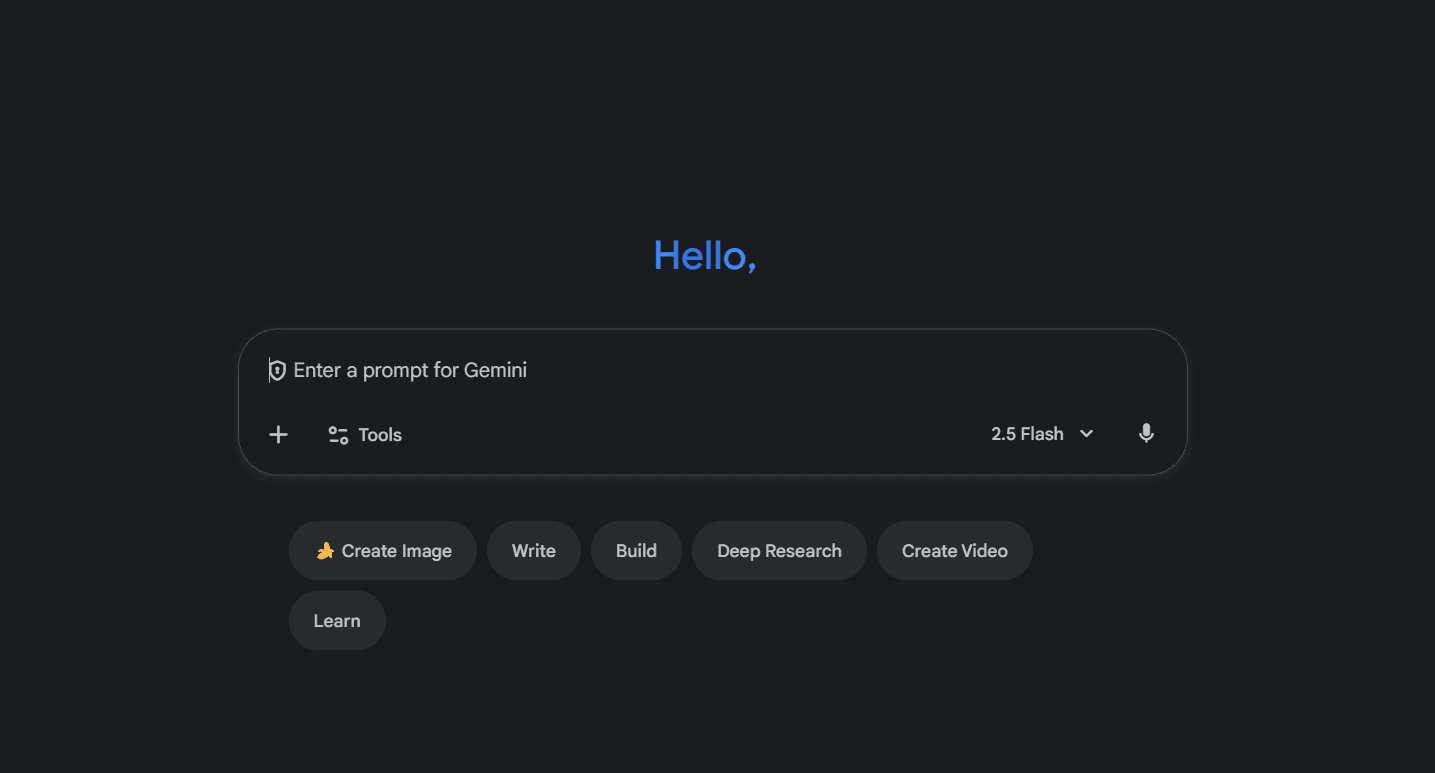
Gemini Canvas started as a writing and document tool — emails, long-form content, code. Google bolted on presentation creation later, and that sequencing matters: the feature set, design logic, and editing experience all reflect a tool that wasn't originally built with slides in mind.
Gemini Feature Overview: What Can It Actually Do?
Feature | Gemini Canvas Capabilities |
|---|---|
Templates & Design | No templates available. All design (fonts, colors, layouts) controlled via text prompts or manual editing in Google Slides after export. |
AI Content Generation | Generates text content based on prompts. Quality varies - often produces essay-style content rather than presentation-ready slides. |
Editing & Iteration | No real-time visual editing. Make changes by chatting with AI or exporting to Google Slides for manual edits. |
Elements & Layouts | Access to Google Slides' element library only after export. Layout changes via prompts only - no drag-and-drop during creation. |
Export & Collaboration | Export to Google Slides (native) or PDF. No direct .pptx export. Collaboration available through Google Slides after export. |
How Do I Make Presentations on Gemini Canvas? Step-by-Step Guide
Creating presentations with Gemini Canvas follows a prompt-dependent process:
Step 1: Access Gemini Canvas at gemini.google.com
Step 2: Input a detailed prompt. Vague prompts = generic results
❌ Weak: "Create a presentation about marketing."
✅ Strong: "Create a 10-slide presentation about digital marketing strategies for B2B SaaS companies. Include sections on content marketing, LinkedIn advertising, and SEO. Use a professional blue and white color scheme with modern fonts."
Step 3: Choose your editing path:
Stay in Gemini and iterate via chat prompts
Export to Google Slides for manual editing
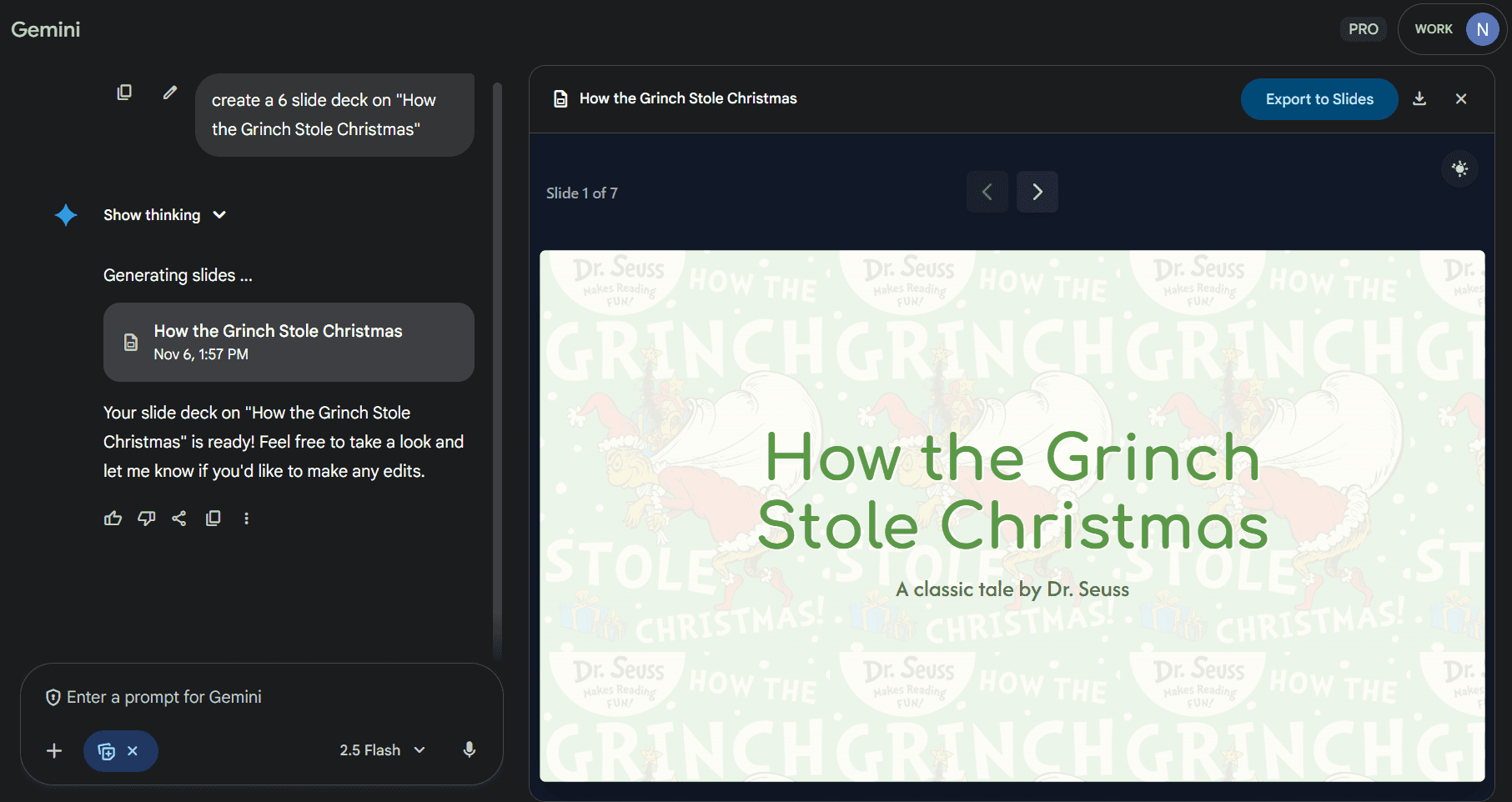
Chat interface for iterations in Gemini Canvas
Step 4: Download final results
Export to Google Slides, or,
Download as a PDF
Gemini Canvas and PowerPoint: What Are Your Export Options?
One of the most common questions about Gemini Canvas is how to export slides to PowerPoint. The short answer: Gemini Canvas has no native PowerPoint (.pptx) export.
Your only direct Gemini Canvas export options are Google Slides and PDF. To get a .pptx file you have to:
Export your Gemini Canvas presentation to Google Slides
Open the file in Google Slides
Go to File → Download → Microsoft PowerPoint (.pptx)
This two-step process is clunky, and the resulting file often has formatting issues - fonts shift, layouts break, images resize. If clean PowerPoint output matters to you, dedicated AI presentation makers like Alai export directly to .pptx with consistent formatting.
Do Gemini's Presentations Look Good? The Design Reality Check
If I am being honest - unless you're extremely specific with your prompts, Gemini Canvas's design output lacks quality. The only thing saving its design is its decent image output.
The Core Problems
No Template Foundation: Every presentation starts from scratch with random unpredictable templates that can only be controlled via detailed prompts.
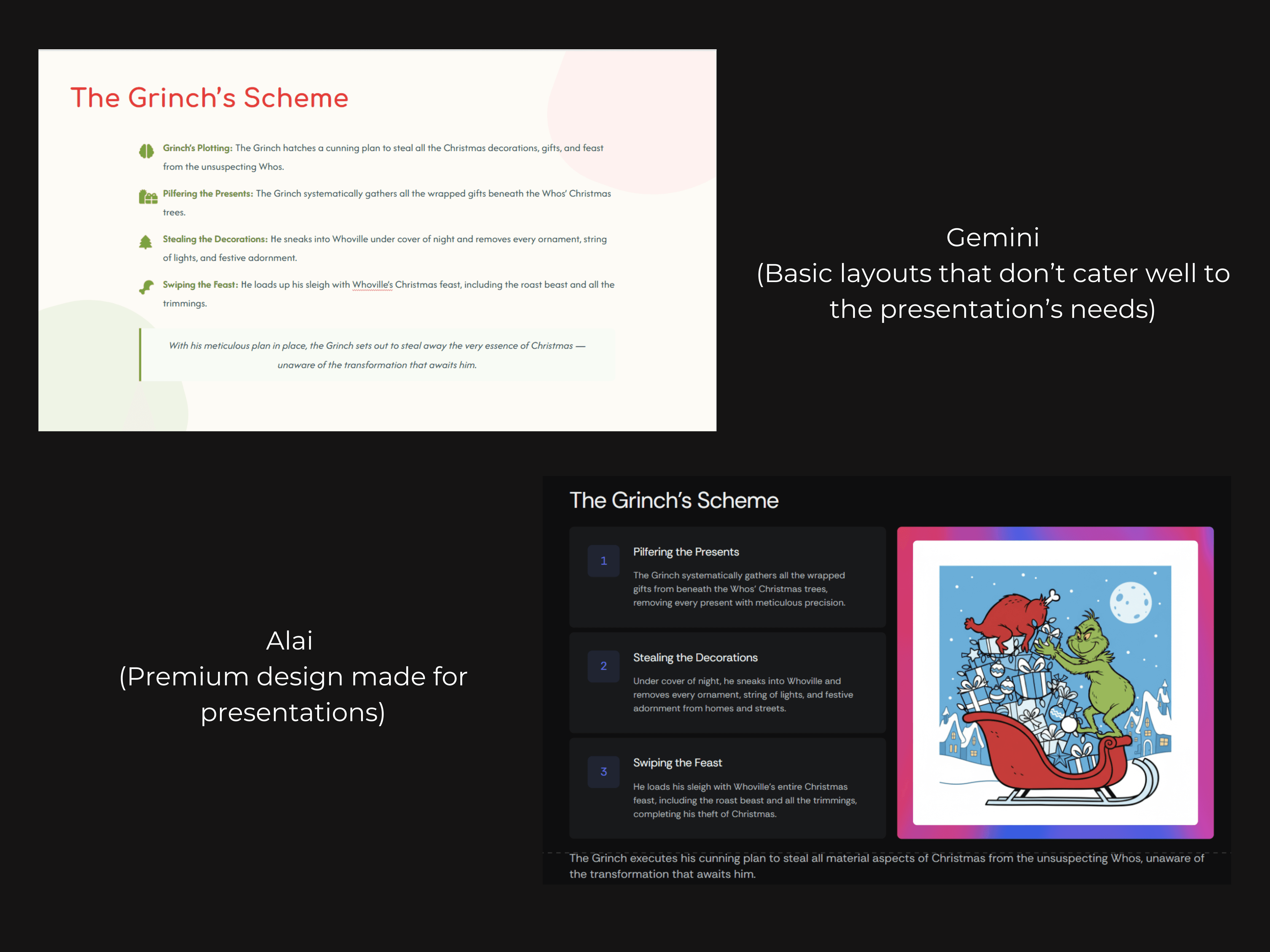
Lack Of Presentation Based Design Principles: Unlike other AI presentation tools, Gemini Canvas’s output lacks design knowledge specific to presentations. This leads to designs feeling dated - think 2015-era PowerPoint.
Decks without detailed design prompts end up with repeated usage of the same basic layouts like text on one side and images on the other, text-only slides with bullet points/icons. As you can see in the example below the layout used by Gemini Canvas seems flat and simple compared to the one used by Alai.
How To Make It Work
With detailed prompts specifying fonts, colours, and layout styles you can get decent results which still require a lot of iterations. But for non-designers, this is tedious guesswork.
Bottom line: Design quality depends entirely on your ability to direct an AI with no visual editor.
Do Gemini Presentations Read Well? Content Quality Assessment
Gemini Canvas's content generation is decent, but it's not optimized for presentation formats.
What Works
Good research capabilities: Pulls information effectively
Clear writing: Grammatically correct and coherent
What Doesn't Work
Not Presentation-Ready: Unless you’re sharing the exact draft you want to use in the slides, Gemini often ends up creating content that is not always fit for presentations (e.g. - lengthy hard to read texts and long and heavy paragraphs).
Generic Without Guidance: Gemini Canvas uses corporate-bland tone unless you specify voice and style preferences in your prompt. Other AI presentation tools like Alai tackle this by providing options to choose tone along with other guidelines.
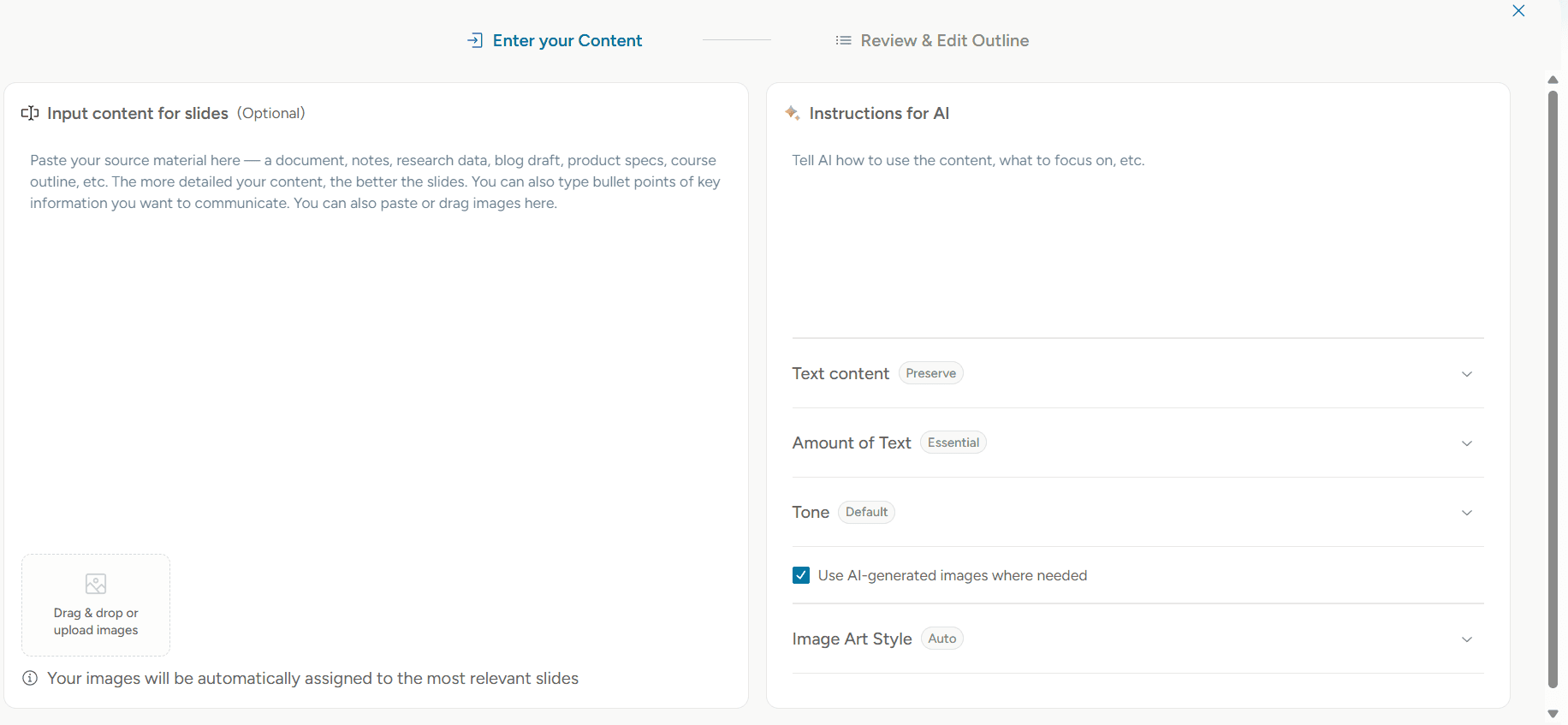
Alai allows users to customize their content in terms of tone, focus, length and intent
Bottom line: If you need AI that understands how to write/edit content meant for presentations, Gemini Canvas isn't fully there yet.
How Easy Is It To Create Presentations On Gemini Canvas?
Ease of use rating: 3/10
Gemini Canvas has a steep learning curve that contradicts its promise of simplicity.
Why It's Difficult
Zero Visual Control: No templates or element options leaving you stuck with whatever Gemini Canvas creates or with the option to edit the slide from scratch on Google Slides.
Prompt Engineering Required: Getting good results means writing detailed briefs with design terminology and clear vision before starting.
Iteration Headaches: Design and content changes require tedious chat-based feedback or manual Google Slides editing, no drag or drop or direct editing options available on Gemini Canvas itself.
No Preview Options: Can't see what your presentation will look like before generation.
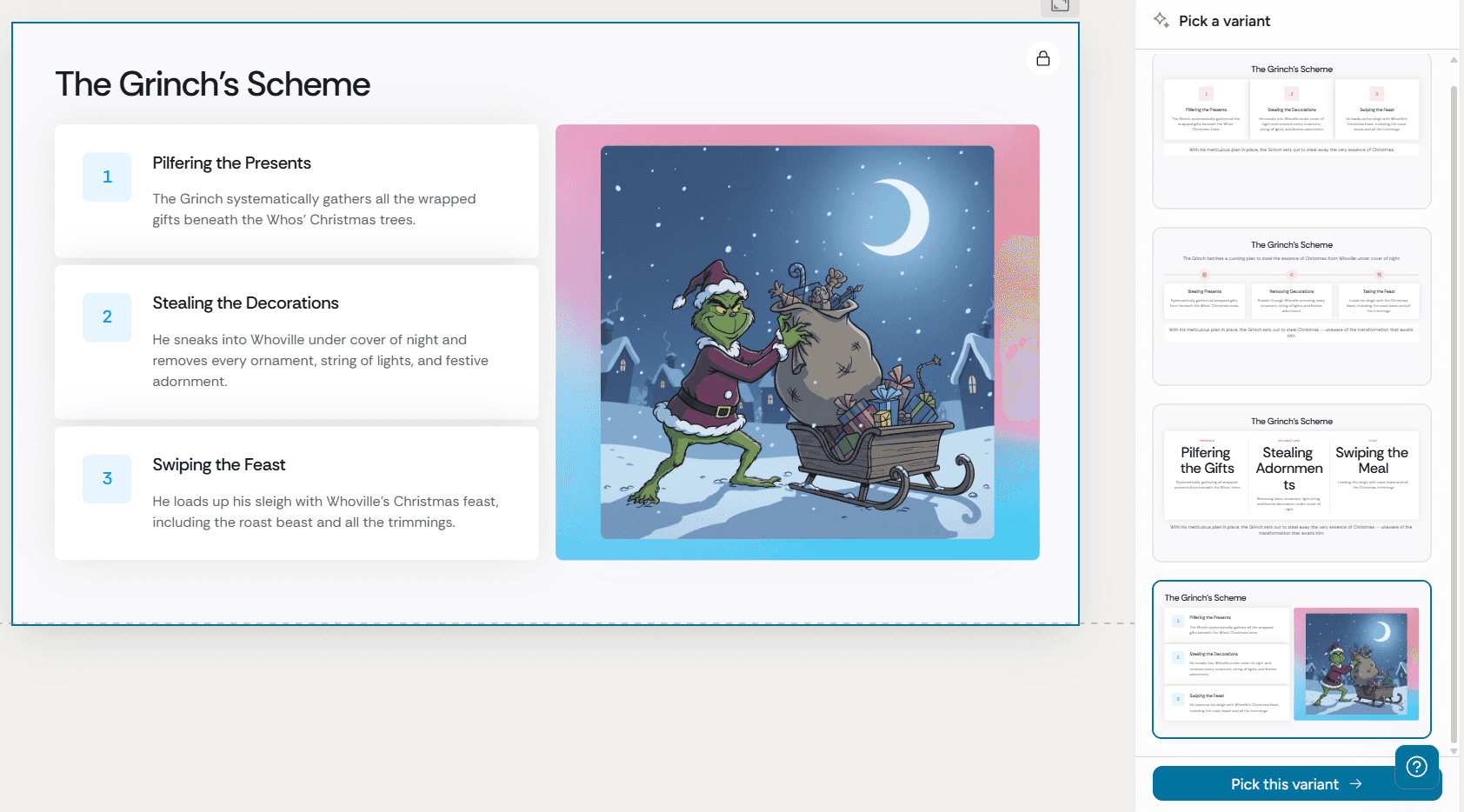
Unlike Gemini, Alai allows you to preview and pick from 4 variations for each slide
Who Might Find It Easy
Gemini Canvas works if you're already a Google Slides expert, have crystal-clear vision, can articulate it perfectly, and don't mind extensive manual editing.
Gemini's Pricing: What Does It Cost?
Plan | Price | Key Features |
|---|---|---|
Free | $0 | Limited AI features |
Google AI Pro | $19.99/month | Full Gemini AI + Canvas, 2TB Google Drive storage |
Google AI Ultra | $249.99/month | Advanced thinking models, full Gemini AI + 30TB storage |
Gemini Canvas: Is It Worth The Price?
Value if using for presentations only: Not great. At $20/month, alternatives like Alai are better with presentation-specific features.
How Does Gemini Canvas Compare To Other AI Presentation Tools?
Let's do an honest comparison across the criteria that actually matter when creating presentations.
Criteria | Gemini Canvas | Typical AI Presentation Tools |
|---|---|---|
Design | Generic output, no templates, inconsistent styling without detailed prompts. Fonts and colours vary between slides. Zero design control unless edited manually on Google Slides. | 20+ template library to choose from, visual editors, full design control. Consistent design across all slides and options to customize layouts using drag and drop elements. |
Content | Good research and writing, but not fit for presentations. Poor hierarchy, often too verbose. Tone control via prompts only. | Presentation-optimized content, scannable bullet points, built-in tone selectors, and understands visual hierarchy. |
Ease of Use | Steep learning curve, requires prompt engineering, no preview before generation, tedious iteration. | Intuitive edit controls, template preview, easy drag-and-drop editing, AI features trained and built for presentations. |
Pricing | $20/month but does not make sense if only purchased for presentations (not its primary use-case) | Starts at $20/month. Better value when it comes to presentations. |
The bottom line: Dedicated AI presentation tools were built for one purpose: creating great presentations quickly. Gemini Canvas was built as a general workspace and feels like it. The lack of design and content controls, template options, and editing capabilities makes it harder to use than tools designed specifically for slides.
Disclosure: How to Read This Gemini Canvas Comparison
Disclosure: Alai publishes this article and offers an AI presentation product that is discussed in the alternatives section below. That creates a commercial interest in the comparison. The assessments in this review—including opinions about design, workflow, usability, and the overall verdict—should therefore be read as Alai’s editorial perspective, not as an independently audited product benchmark.
This disclosure is especially important because “Gemini Canvas” can refer to several related Google presentation workflows in search results. For factual questions about what Canvas currently supports, the most reliable starting point is Google’s own documentation rather than an opinion-led comparison. Google’s Canvas help documentation says users can create or edit slides by selecting Canvas and requesting a slide deck in their prompt. Google also announced that presentations generated in the Gemini app can begin from a text prompt or uploaded source and can be exported to Google Slides; see Google’s presentation-generation announcement.
Use those first-party sources to verify product behavior that may change, including available formats, export routes, account eligibility, and interface details. They are a better basis for a purchasing or workflow decision than treating a single review’s observations as universal. The screenshots and judgments elsewhere on this page illustrate one editorial evaluation; they do not establish that every prompt, source file, account type, or presentation brief will produce the same result.
What this article can and cannot tell you
This article can help frame the practical question behind searches such as “Gemini Canvas PPT”: whether a prompt-led Canvas workflow appears suitable for the kind of deck you need to make. It can also point out where a reader should distinguish between documented Google functionality and a publisher’s preference for a presentation-specific product.
It cannot replace checking the official documentation for a particular requirement. Before choosing a tool, confirm the exact output format you need, whether your source material can be used in the workflow you intend, and what editing environment your team expects to use. If the decision involves a high-stakes sales, fundraising, or investor presentation, compare the workflow against the needs of that deck rather than relying on a general rating. Our AI pitch deck generators guide covers considerations specific to pitch-deck use cases.
How we suggest comparing alternatives
Read the alternatives below as starting points for your own evaluation, not as a claim that one product is objectively best for every user. A useful comparison starts with your deliverable: a quick internal draft, a client-facing deck, a presentation that must be editable in a particular application, or a narrative that needs substantial source review. Then validate the product-specific claims that matter to you in the vendor’s current documentation or product trial.
For a broader, separately structured overview of presentation-generation products, see our AI presentation makers comparison. Keeping this disclosure in mind makes the remainder of the article more useful: Google’s official materials are the source for current Canvas behavior, while Alai’s recommendations and product positioning are clearly identified as the publisher’s viewpoint.
Alternatives to Gemini's AI Presentation Maker
Being honest, if you’re looking to build high-quality presentation, Gemini Canvas won’t cut it for you, here are three solid alternatives worth considering:
1. Alai: The AI Tool That’s Made For Presentations
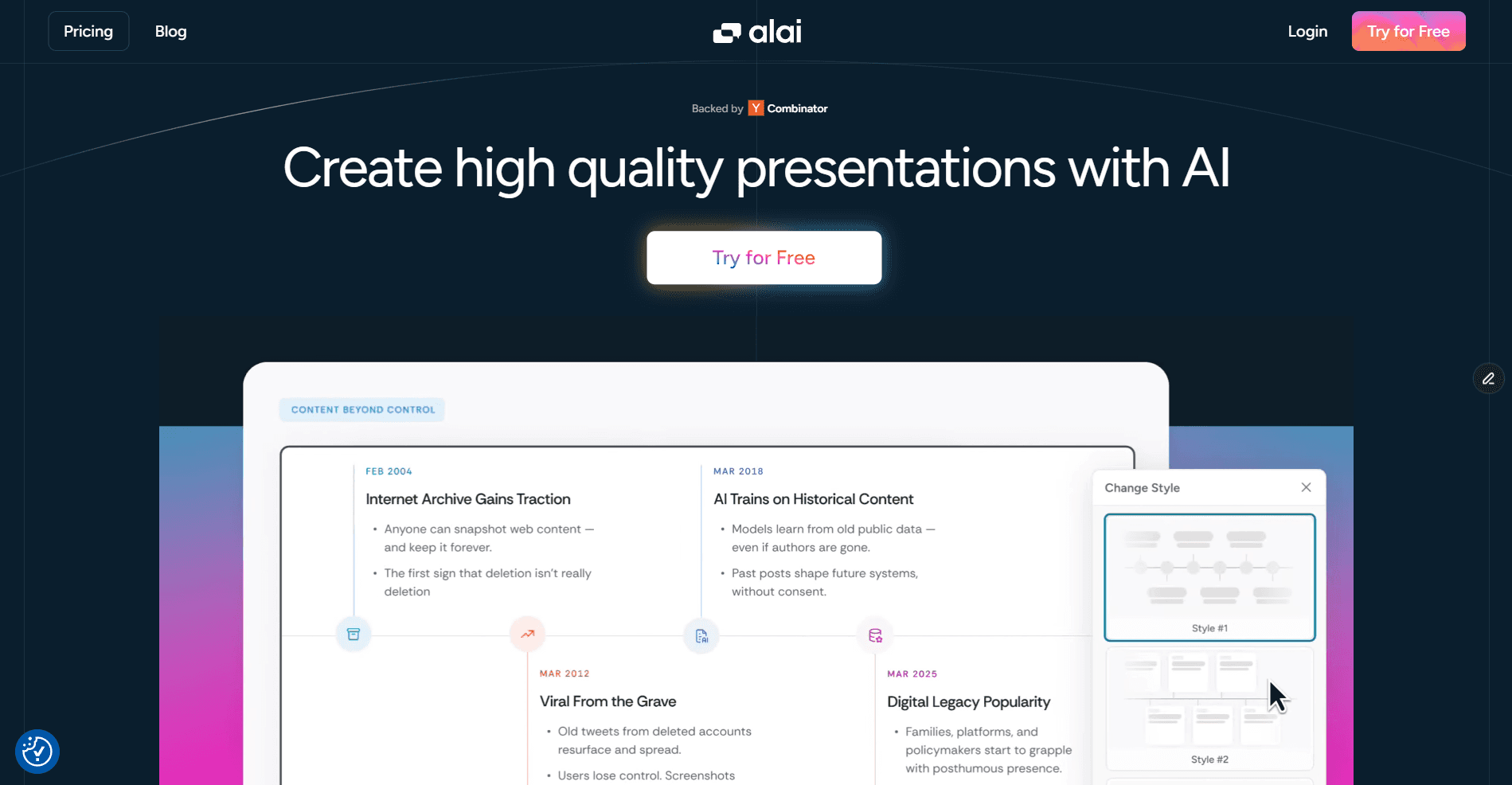
Key Features:
Four slide options per idea: Every time you generate a slide, Alai gives you four distinct design options so you can choose what fits best
Responsive canvas: Everything adjusts automatically as you work. No manual resizing or pixel tweaking
Rich element library: Add Compare Two, Feature Matrix, Funnel, Hub & Spoke, Pie Chart, and other visuals that adapt perfectly to your content
Full creative control: Edit anything, either manually or with AI. Rewrite text, restyle visuals, or change layouts in seconds
Context-aware AI: Every AI action in Alai understands the full deck. When you rewrite, summarize, split or merge slides, or generate visuals, it considers context so everything fits naturally
Customizable styles: Change themes or try different looks for each element. Alai adapts layouts and designs automatically to keep your deck cohesive
AI image generation: Create or edit images directly inside your deck with model options that fit your visual style
Pricing: Free plan with 200 AI credits, $16/month paid plans.
Why choose over Gemini Canvas: Get four professionally designed options per slide instead of hoping one prompt works. Specialized AI understands design and content principles that make a good presentation.
Learn more: GetAlai.com
2. Gamma: The AI Design Tool Made for Documents, Websites & Presentations
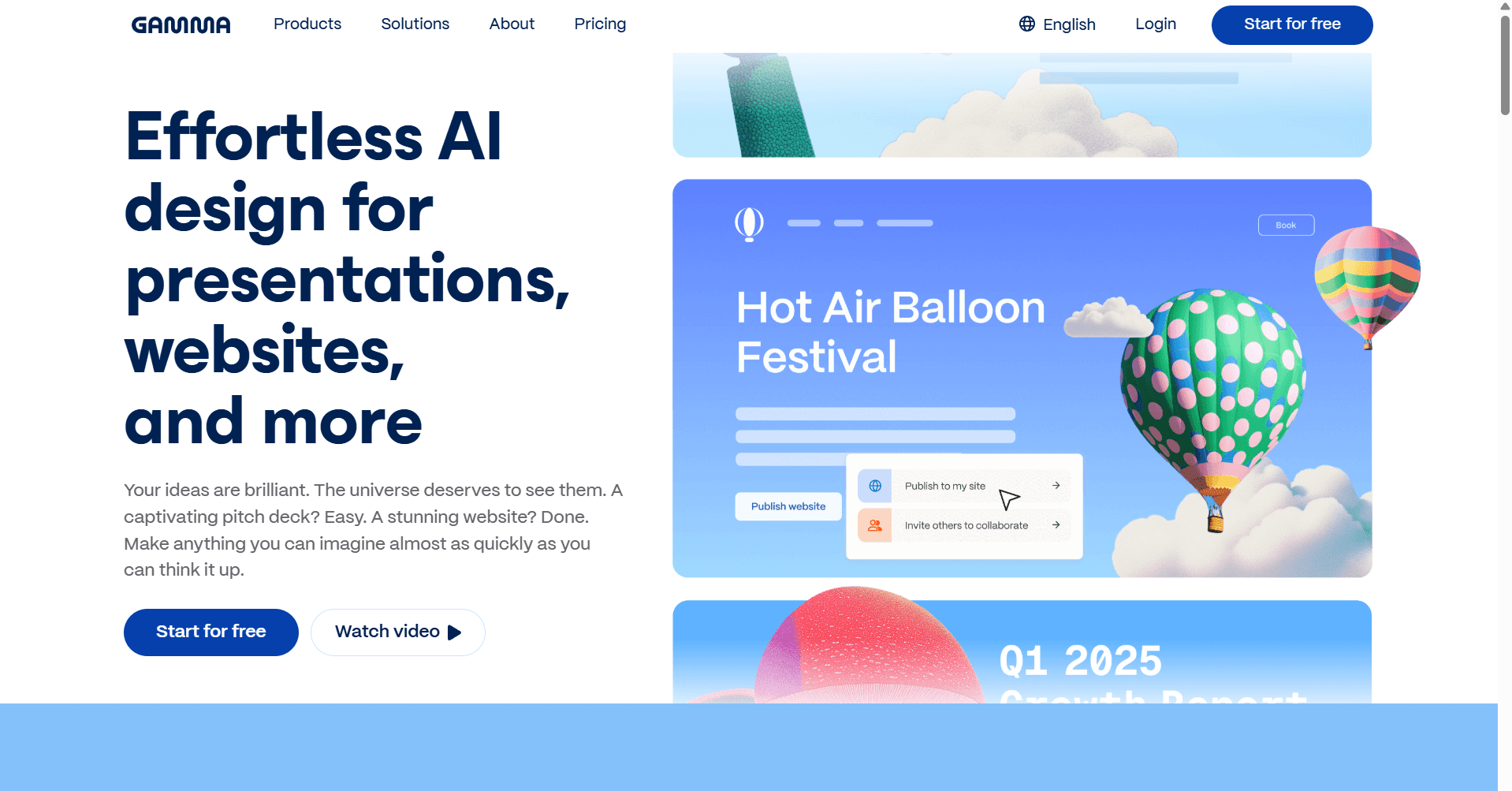
Key Features:
Card-based format: Presentations work like scrollable webpages instead of traditional slides. Fit for web sharing or sharing info in doc formats
30+ modern themes: Preview and select from professionally designed themes before generation. Each theme includes coordinated colours, fonts, and layouts
Built-in AI image generation: Create custom visuals directly in your deck using AI. No need to switch to external tools or stock photo sites
Rich embeds: Add YouTube videos, Loom recordings, Figma prototypes, charts, polls, and GIFs that work interactively within your presentation
Real-time collaboration: Multiple team members can edit simultaneously with live updates. Comment, suggest, and iterate together seamlessly
Pricing: Free plan, $10/month Pro, $20/month Team.
Why choose over Gemini Canvas: Provides better optimization of content for slides, offers preview-able themes, and delivers polished drafts in minutes. Visual control from start to finish.
Worth noting: While Gamma outperforms Gemini Canvas in both design and content, its AI is trained to create assets across multiple formats (docs, presentations, websites). This multi-format approach means it often applies the same design and content principles across all outputs, which can lead to drafts that feel somewhat generic and flat. If you need more specialized presentation capabilities, check out this Gamma alternative.
Learn more: Gamma.app
3. Beautiful AI: The Design Tool Made For Templatized Presentations
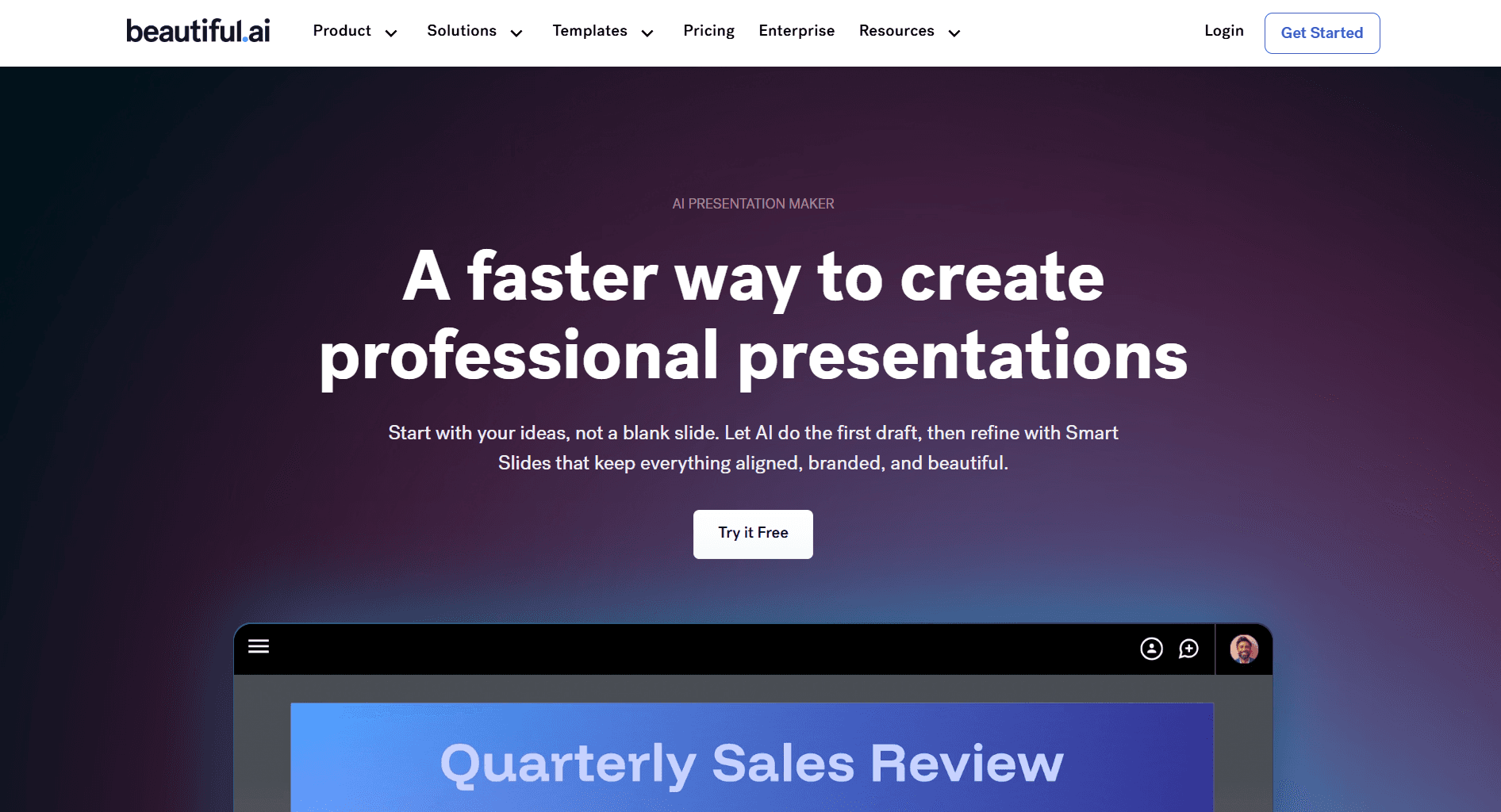
Key Features:
Smart Slides technology: AI automatically formats/switches your content into pre-set layouts
Premium templates: Choose from 20+ professionally designed templates depending on your use-case
Brand Kit integration: Upload your logo, colours, and fonts once. Beautiful.ai applies them consistently across all presentations automatically
Team collaboration: Work together in real-time with role-based permissions. Share feedback, make edits, and maintain version control seamlessly
Extensive visual library: Access high-quality icons, images, and design elements optimized for business presentations
Pricing: Free trial, $12/month Pro, $40/month Team
Why choose over Gemini Canvas: Smart templates and auto-formatting eliminate all design guesswork, just add content and Beautiful AI handles the rest.
Worth noting: Beautiful AI's large template library lets you control what your first draft looks like - a clear advantage over Gemini's blind generation. However, the tool relies heavily on static templates. While features like Smart Slides and AI rewrites help with formatting, if you need deeper AI-powered customization and elements that go beyond template constraints, check out this Beautiful AI alternative.
Learn more: Beautiful.ai
Final Verdict: Is Gemini The Best AI Presentation Tool Out There?
Short answer: No. Not even close.
Gemini Canvas delivers what you'd expect when a general-purpose AI tries presentations as a side feature - functional, but nowhere near the quality of purpose-built tools.
Our recommendation: Unless you're locked into Google ecosystem and getting Gemini Canvas for other purposes, invest in a tool built for presentations. Your time is worth more than fighting with an AI that doesn't understand the medium.
Rating: 4/10 - Not recommended when better alternatives exist.
See how Gemini Canvas ranks against other tools in our best AI presentation makers roundup.
FAQs About Gemini Canvas and AI Presentations
What is Gemini Canvas?
Google Gemini Canvas is an interactive AI workspace inside the Gemini app for creating documents, presentations, and other content using AI prompts. It was originally built for writing tasks and later expanded to include slide creation.
What is Gemini Canvas mode?
Gemini Canvas mode is the full-screen editing workspace inside the Gemini app, separate from the standard chat interface. It gives you a document-style editor for building longer-form content like presentations, code, and documents with AI assistance.
What does Gemini Canvas do?
Gemini Canvas is an AI-powered workspace for creating and editing documents, code, and presentations. For presentations specifically, it generates slides based on text prompts and exports them to Google Slides or PDF. It does not support direct PowerPoint (.pptx) export.
What is Gemini Canvas good for?
Gemini Canvas is strongest for document writing, email drafting, and general content generation within the Google ecosystem. For presentations specifically, you'll get better results from a dedicated AI presentation tool like Alai, Gamma, or Beautiful.ai.
Is Gemini Canvas free to use?
A limited free Gemini version exists, but presentation features are restricted. Tools like Alai allow you to create 2-3 complete decks within the first trial with full freedom to test all design layouts and elements.
How long does it take to create a presentation with Gemini Canvas?
Initial generation: a few minutes. Perfecting your deck: 10-12+ hours. Why? Gemini forces you into tedious chat-based iterations with no direct slide editing (you can only make direct changes by importing to Google Slides). Tools like Alai compress this timeline to ~4-5 hours by offering granular design control (sizing, padding, spacing, alignment) alongside direct editing and AI refinements.
Is Gemini Canvas the same as Gemini in Google Slides?
No. Gemini Canvas is the Gemini app workspace covered on this page, while Google announced a separate Google Slides workflow on June 30, 2026 for creating fully native and editable presentations directly in Slides.
Can Gemini Canvas create PowerPoint presentations directly?
Based on the current article, Gemini Canvas exports to Google Slides or PDF, not directly to .pptx. To get PowerPoint, you need to export to Google Slides first and then download as .pptx from Slides.
Where should I go if I want the full Gemini-in-Slides presentation workflow?
Use the dedicated guide at /blog/gemini-google-slides-presentations. This article stays focused on Gemini Canvas so the two workflows do not get conflated.
SEITEN
Werkzeuge vergleichen
Ressourcen