
·
CASE STUDY
·
28 Min. Lesezeit

Marketingleiterin
Ich habe genau dasselbe Deck in Claude Design, der Claude-App und dem Claude für PowerPoint-Add-in erstellt. Hier ist, was wirklich Bestand hat.
Claude kann PowerPoint-Präsentationen mit drei verschiedenen Tools erstellen: Claude Design, der Claude Web- und Desktop-App und dem Claude für PowerPoint-Add-in. Jedes Tool erstellt Folien unterschiedlicher Qualität und jedes berechnet Ihnen unterschiedlich viel Zeit und Geld.
Ich habe denselben Inhaltsbrief durch alle drei geschickt. Dasselbe Ausgangsmaterial, dieselben Designanweisungen, dieselbe 10-Folien-Struktur. Die Gewinner und Verlierer waren nicht die, die ich erwartet hatte. Und die Option, die ich jetzt am häufigsten für ernsthafte Decks verwende, ist keine der drei, sondern eine vierte Option, die die meisten Claude-Benutzer noch nicht eingerichtet haben.
Dies ist mein unvoreingenommener Vergleich von Claude – was funktioniert, was nicht, was es kostet und der spezifische Workflow, der Ihnen Claudes Gehirn mit präsentationsfähiger Ausgabe am Ende liefert.
TL;DR: Die besten Wege, Präsentationen mit Claude zu erstellen
Option | Am besten für | Hauptschwäche |
Claude Design | Bestes natives visuelles Design | Langsame erste Generation, schwach bei Daten- und Geschäftslayouts |
Claude App (Web/Desktop) | Ausgewogenes Design + Bearbeitbarkeit | Design wirkt flach, langsame Iteration |
Claude für PowerPoint Add-in | Bearbeitung innerhalb Ihrer Markenvorlage | Flachstes Design, am langsamsten, am teuersten |
Alai MCP + Claude App | Echte Designqualität mit Claudes Argumentation | Erfordert Alai-Konto + Claude Pro für Remote-Konnektoren |
Scrollen Sie weiter für den vollständigen Test.
Kann Claude PowerPoint-Präsentationen erstellen?
Ja. Claude kann PowerPoint-Präsentationen über jede der drei von Anthropic entwickelten Oberflächen erstellen: das Claude Design Labs-Tool, die Claude Chat-App und das Claude für PowerPoint-Add-in, das sich in Microsoft PowerPoint selbst befindet.
Wie ich Claude mit allen drei Tools getestet habe
Ich habe genau dasselbe Deck dreimal erstellt. Derselbe Inhalt, dieselbe Designrichtung, dieselbe 9-Folien-Struktur.
Was ich für jedes gemessen habe:
Designqualität. Was es gut macht und wo es versagt.
Einfache Iteration. Wenn ich um Bearbeitungen bitte, wie sauber und schnell sind sie?
Zeit bis zum endgültigen Entwurf. Wie lange von „Start“ bis „Das würde ich versenden“?
Ich habe Exporte getestet, wo sie existierten. Ich habe bei jedem Tool mindestens fünf Bearbeitungen ausprobiert, von kleinen Textanpassungen bis hin zu vollständigen Layoutänderungen. Ich habe Claudes leistungsfähigstes Modell, Opus 4.7, für alle Generierungen verwendet.
Option 1: Claude Design, die am besten aussehende native Claude-Option
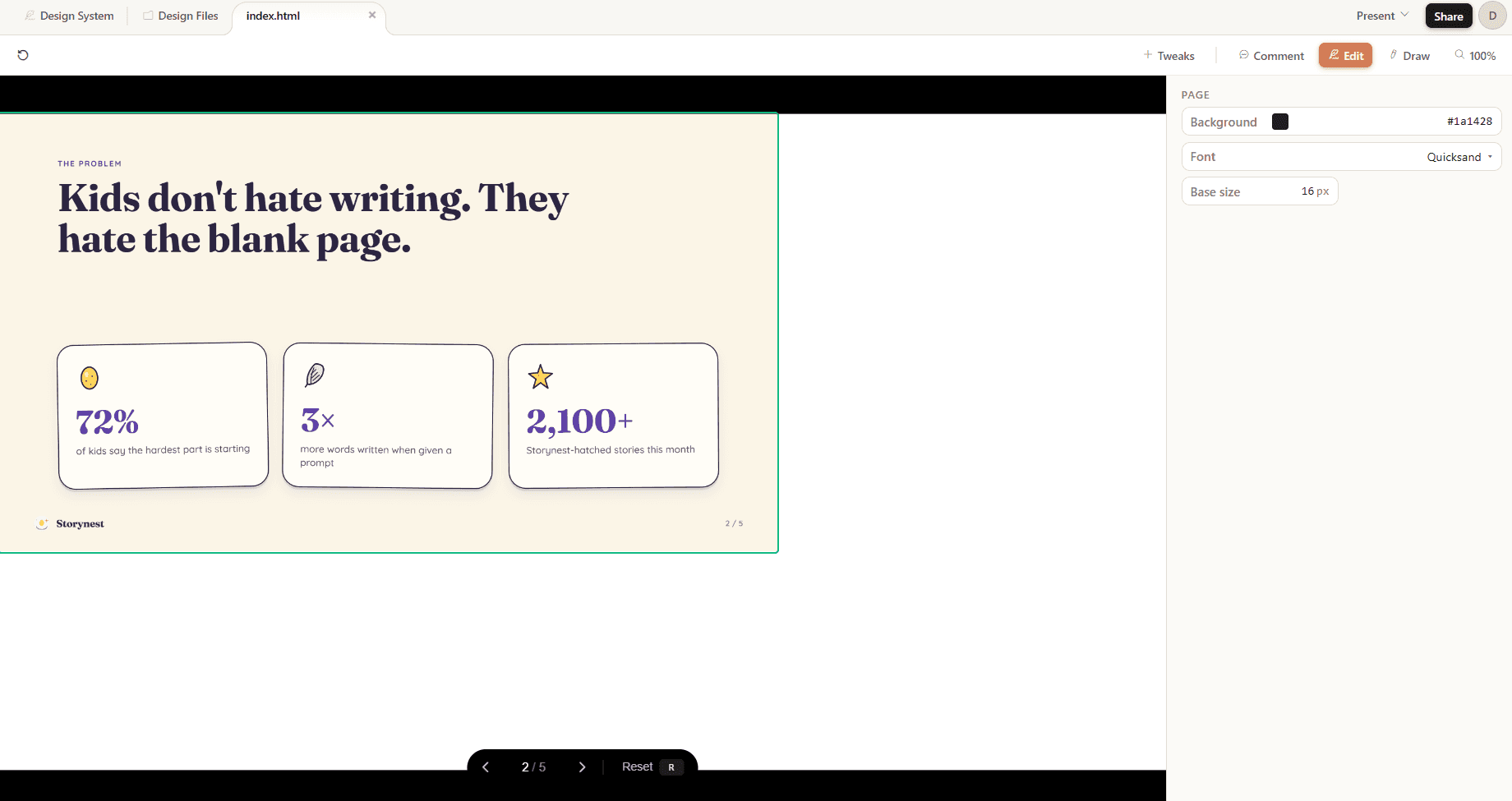
Claude Design ist Anthropic's Labs-Tool für visuelle Kreation, einschließlich Präsentationen, die in einem Design-Canvas innerhalb von claude.ai gerendert werden. Von den drei Claude-Präsentationstools erstellt Claude Design den am besten aussehenden ersten Entwurf mit deutlichem Abstand.
Wie man Claude Design verwendet (Schritt für Schritt)
Gehen Sie direkt in Ihrem Browser zu claude.ai/design, oder öffnen Sie die Claude Desktop-App und navigieren Sie dorthin. Sie benötigen einen Pro-, Max-, Team- oder Enterprise-Plan.
(Optional, aber empfohlen, für Teams) Richten Sie zuerst Ihr Designsystem ein. Dies ist eine einmalige Einrichtung für Marken- oder Designleiter.
Erstellen Sie ein neues Projekt. Klicken Sie auf der Claude Design-Startseite auf „Neues Projekt erstellen“.
Wählen Sie Ihren Startmodus. Claude Design bietet Startmodi für verschiedene Ergebnisse: Prototyp, Foliensatz, Vorlage oder Freiform. Wählen Sie Foliensatz für eine Präsentation.
Beschreiben Sie, was Sie möchten. Geben Sie das Ziel, die Zielgruppe und die wichtigste Erkenntnis an.
Beantworten Sie Claudes klärende Fragen. Vor dem Erstellen stellt Claude typischerweise 4 bis 5 Fragen zu Blickwinkel, Zielgruppe, Dauer, Ton und visueller Ausrichtung. Arbeiten Sie diese durch.
Warten Sie auf die Generierung. Dies dauert einige Minuten. Claude erstellt jede Folie als eigenständiges Design mit eigener Typografie und eigenem Layout und erzählt im Chatfenster, was es gerade tut.
Iterieren Sie mithilfe von Chat und Inline-Kommentaren. Verwenden Sie den Chat für strukturelle oder ästhetische Änderungen („Folie 4 neu anordnen“, „Palette dunkler machen“). Verwenden Sie Inline-Kommentare für spezifische Elementanpassungen („diesen Button größer machen“, „dies in ein Dropdown ändern“) oder bearbeiten Sie über den detaillierten Elementeditor.
Exportieren Sie, wenn Sie fertig sind. Klicken Sie oben rechts auf Exportieren. Wählen Sie aus: PPTX, PDF, eigenständiges HTML, an Canva senden, als .zip herunterladen oder an Claude Code übergeben.
Claude Design Bewertung: Designqualität, Iteration und Zeit bis zum finalen Entwurf
Ich habe Claude Design mit demselben 10-Folien-Inhaltsbrief getestet, den ich für jedes Tool in dieser Bewertung verwendet habe. Die drei wichtigen Dimensionen, unten aufgeschlüsselt.
1. Designqualität
Claude Design erstellt die am besten aussehenden Folien der drei Tools. In den meisten Fällen dieselben Layouts wie die Claude-App und das Add-in, aber die Ausführung ist eine andere Liga.
Hier ist, was auffällt, wenn man sich ein generiertes Deck ansieht:
Das Thema entspricht der Aufforderung. Ich bat um ein Deck mit einem bestimmten Thema und einer Bildrichtung, und Claude Design lieferte dies, anstatt auf eine blau-weiße SaaS-Palette zurückzugreifen. Das Add-in und die Claude-App tendieren beide zu ihrem Hausstil. Claude Design hört zu.
Schriftarten werden gewählt, nicht einfach genommen. Typografie-Paarungen sind durchdacht. Eine Display-Schrift für Überschriften, eine kontrastierende Sans für den Fließtext, eine Mono für Datenbeschriftungen. Konsistent auf jeder Folie.
Die Ausrichtung ist wirklich sauber. Ränder stimmen auf allen Folien überein. Das Raster wird eingehalten. Nichts sitzt einen halben Pixel daneben, wie es im Add-in der Fall ist.
Die Struktur funktioniert. Jede Folie hat einen klaren Fokuspunkt, unterstützende Elemente sind passend dimensioniert. Keine Folie liest sich wie „Titel oben und ein paar Aufzählungspunkte darunter geschoben“.
Icons gehören zum Thema. Wenn Claude ein Icon hinzufügt, ist es stilistisch auf alles andere auf der Folie abgestimmt. Nicht aus einem generischen Icon-Paket gezogen. Dasselbe gilt für Illustrationen und Hintergrundtexturen.
Designdetails, die gut aussehen. Inhalts-Tags, Wort-Highlights, Seiten-Callouts, geschichtete Hintergründe – alles hinzugefügt, um die Qualität der Folie zu maximieren, ohne sie überladen wirken zu lassen.
Stellen Sie es neben denselben Inhalt in der Claude-App oder dem Add-in, und der Unterschied ist offensichtlich. Claude Design sieht aus wie ein professionell gestaltetes Deck.
Wo es Defizite gibt: Geschäfts- und Datenfolien.
Zuerst die Layouts. Claude Design läuft auf ungefähr derselben Layout-Bibliothek wie die Claude-App und das Add-in. Dreispaltiger Hauptteil, zweispaltige Aufteilung, Titel-plus-unterstützendes-Visual, zentrierte Hero-Folie. Sie werden dieselben strukturellen Muster in allen drei Tools sehen, wenn Sie genügend Decks generieren. Claude Design kleidet sie nur besser ein.
Das ist wichtig, denn die Layouts von Claude sind oft textbasierter, wie z.B. Inhaltsfelder, Tabellen, Zeitleisten, was gut für Keynote-Sitzungen oder Seminare funktioniert. Aber wenn es um Investoren-Pitches oder Verkaufs-Decks geht, bevorzugt man visuell ansprechendere Diagramme und Schaubilder, die die Geschichte schneller und besser vermitteln als einfacher Text.
Präsentationsspezifische Layouts (Vergleich von zwei, Trichter, Feature-Matrix, Hub & Spoke) sind nirgendwo im Claude-Ökosystem standardmäßig enthalten. Sie erhalten eine saubere redaktionelle Typografie, wo Sie eigentlich ein Side-by-Side-Vergleichsdiagramm benötigt hätten.
Zweitens, und das hat mich überrascht: Komplexe Datendiagramme werden in merklich geringerer Qualität gerendert als der Rest des Decks. Mehrreihige Diagramme, Vergleichstabellen mit mehr als drei Spalten, Zeitleisten mit Anmerkungen, Marktübersichten, alles, wo mehrere Datenpunkte auf einer Folie koexistieren müssen. Textbeschriftungen werden zu eng beieinander platziert (wie unten zu sehen). Zahlen liegen auf Gitternetzlinien. Legenden landen an schwer lesbaren Positionen. Die Beschriftung wird auf den ersten Blick schwer verständlich, was genau der Zeitpunkt ist, an dem eine Datenfolie versagt.
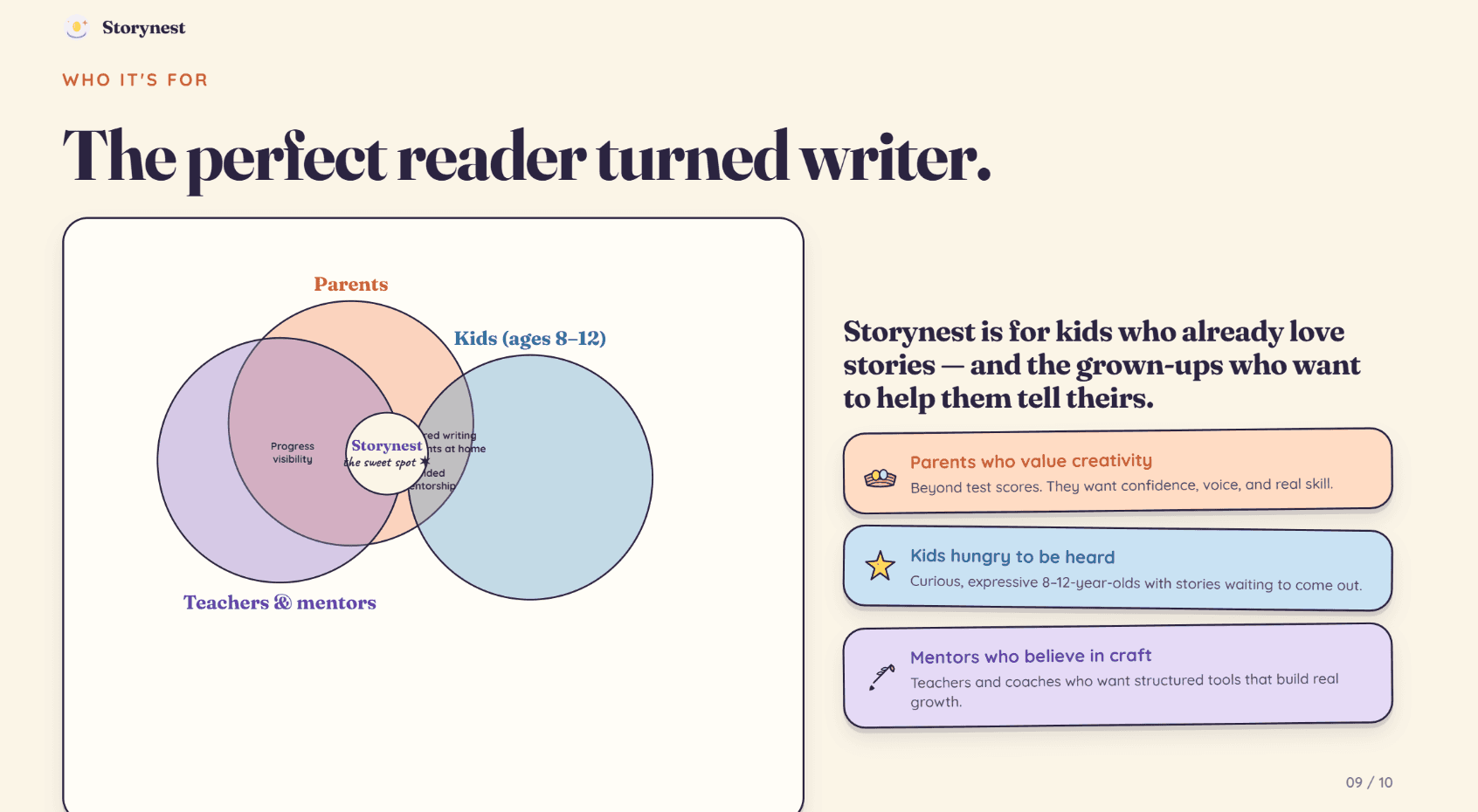
Die einfachen Diagramm- und redaktionellen Textfolien sehen großartig aus. Sobald eine Folie echtes analytisches Gewicht tragen muss, sinkt die Qualität der Ausgabe um eine Stufe.
2. Einfache Iteration
Das Beste der drei Claude-Oberflächen. Vier Bearbeitungsmöglichkeiten:
Chat-basierte Bearbeitungen. Standard-Prompt-und-Antwort. Am besten für strukturelle oder ästhetische Änderungen, die das gesamte Deck betreffen.
Inline-Kommentare. Klicken Sie direkt auf ein bestimmtes Element oder einen Bereich auf der Leinwand und hinterlassen Sie einen gezielten Kommentar. Der schnellste Weg, einen einzelnen Teil einer Folie zu korrigieren, ohne dessen Position in Prosa zu beschreiben.
Direkte Elementbearbeitung. Klicken Sie in ein Element, bearbeiten Sie dessen Inhalt, Farbe, Größe oder Position manuell.
Zeichnungsartige Anmerkung. Während meiner Tests erlaubte mir die Leinwand, grobe Layoutänderungen über einer bestehenden Folie zu skizzieren, und Claude interpretierte die Absicht.
Der Inline-Kommentar-Modus ist das, was dieses Tool wirklich von der Claude-App oder dem Add-in unterscheidet. Die Möglichkeit, auf einen Block zu klicken und zu sagen „mach diesen Teil größer“, ohne einen ganzen Absatz mit Prompt-Anweisungen einzugeben, ist die schnellste Iterationsschleife, die ich in einer Claude-Oberfläche verwendet habe.
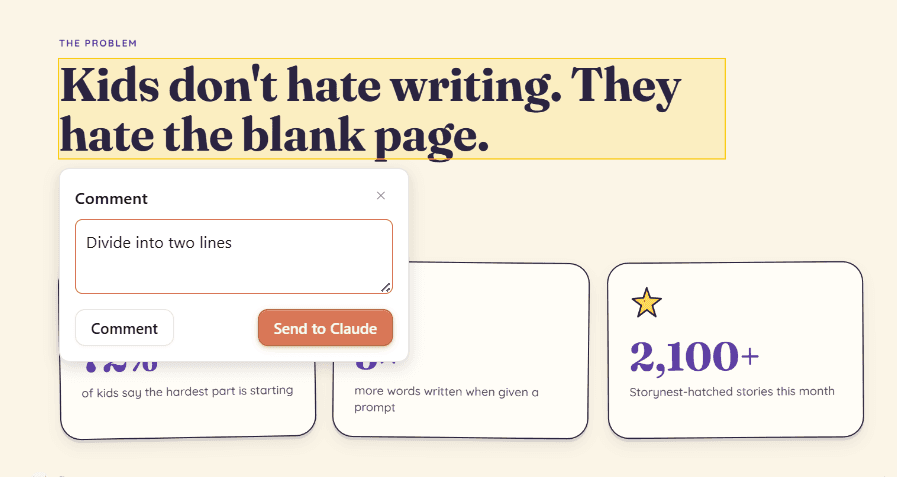
Die KI selbst versteht Prompts hervorragend und setzt sie um, während sie dem Gesamtthema und Inhalt des Decks treu bleibt. Darüber hinaus nimmt der Agent keinerlei unerwünschte Änderungen vor – ein Manko, das mir bei anderen führenden KI-Präsentationserstellern begegnet ist.
3. Zeit bis zum finalen Entwurf
Erste Generierung: ~15 Minuten, inklusive Fragebogen
Inline-Kommentar-Bearbeitungen: jeweils 20 bis 40 Sekunden
Chat-Bearbeitungen: jeweils 60 bis 90 Sekunden
Gesamtzeit bis zum finalen Entwurf (10-Folien-Deck): ~45 Minuten in meinem Test
Die anfängliche Wartezeit rechtfertigt sich durch die Ausgabequalität.
Claude Design: Vor- und Nachteile
Vorteile | Nachteile |
Stärkste Typografie und visuelle Hierarchie der drei | Langsamste Generierungszeit der ersten Generation der drei |
Inline-Kommentare machen die Iteration wirklich schnell | Diagramme und Datenslides sind schwach |
Layouts wirken durchdacht, nicht vorlagenbasiert | Präsentationsspezifische Layouts (Trichter, Feature-Matrix) fehlen |
Funktioniert direkt in claude.ai, keine Installation erforderlich | Fragebogen erhöht die Reibung vor der Generierung (insbesondere bei detaillierten Prompts) |
Das Designsystem-Setup bietet echte Markenkonsistenz über zukünftige Decks hinweg | Das Designsystem-Setup erfordert ein Teamkonto + Administratorberechtigungen |
Sechs Exportpfade (PPTX, PDF, HTML, Canva, ZIP, Claude Code) | Nicht die beste Option für Verkaufs- oder Geschäftsdecks |
Claude Design Preise
Wichtiges Detail, das die meisten Rezensionen übersehen: Claude Design wird unabhängig vom Rest von Claude bepreist und abgerechnet.
Hier ist jeder Plan mit verifizierten Preisen, entnommen aus den offiziellen Dokumenten von Anthropic (Claude Design Preise, Team-Plan, Enterprise-Abrechnung):
Plantyp | Stufe | Preis | Claude Design Zugang | Am besten für |
Einzelperson | Pro | 17 $/Monat (jährlich) oder 20 $/Monat (monatlich) | Wiederkehrende wöchentliche Zuteilung, getrennt vom Chat | Schnelle Erkundungen, einmalige Nutzung |
Einzelperson | Max 5x | Ab 100 $/Monat | Größere wöchentliche Zuteilung (5x Pro Chat-Nutzungslimits) | Halbregelmäßige Nutzung: PMs und Ingenieure, die regelmäßig Mock-ups erstellen |
Einzelperson | Max 20x | 200 $/Monat | Größte individuelle wöchentliche Zuteilung (20x Pro Chat-Nutzungslimits) | Power-Nutzung: Designer und Kreative |
Team | Standardplatz | 20 $/Platz/Monat (jährlich), 25 $/Platz/Monat (monatlich). Mindestens 5 Plätze, maximal 150. | Wöchentliche Zuteilung pro Benutzer | Schnelle Erkundungen, einmalige Nutzung |
Team | Premiumplatz | 100 $/Platz/Monat (jährlich), 125 $/Platz/Monat (monatlich). Mindestens 5 Plätze, maximal 150. | Größere wöchentliche Zuteilung pro Benutzer | Power-User: Designer und Kreative |
Enterprise (aktuell, nutzungsbasiert) | Einzelner Enterprise-Platz | Jährliche Platzgebühr (benutzerdefiniert, Vertrieb kontaktieren) + Nutzung wird separat zu Standard-API-Raten abgerechnet | Keine wöchentliche Zuteilung. Pay-as-you-go zu API-Raten. Einmaliger Kredit im Wert von ~20 Prompts pro Benutzer, läuft am 17. Juli ab. | Organisationen mit nutzungsbasierter Claude-Abrechnung |
Enterprise (veraltet, sitzplatzbasiert) | Standardplatz | Jährliche Platzgebühr (benutzerdefiniert, Vertrieb kontaktieren). Veraltet, wird für neue Verträge nicht mehr angeboten. | Wöchentliche Zuteilung pro Benutzer | Halbregelmäßige Nutzung, Enterprise-Konten vor der Umstellung |
Enterprise (veraltet, sitzplatzbasiert) | Premiumplatz | Jährliche Platzgebühr (benutzerdefiniert, Vertrieb kontaktieren). Veraltet, wird für neue Verträge nicht mehr angeboten. | Größere wöchentliche Zuteilung pro Benutzer | Power-User auf Enterprise-Konten vor der Umstellung |
Ein paar Dinge, die aus den offiziellen Dokumenten hervorzuheben sind:
Anthropic veröffentlicht keine genauen Kreditmengen oder Folienanzahl-Limits pro Stufe. Sie beschreiben die Stufen nach Anwendungsfall statt nach einer Zahl. Das ist ungewöhnlich für ein kostenpflichtiges Produkt und sollte vor einer Verpflichtung bekannt sein.
Die Zuteilungen sind pro Benutzer, nicht auf Organisationsebene gebündelt. Ein Team mit 10 Plätzen teilt sich nicht einen großen Claude Design-Pool.
Zusätzliche Nutzung kann zusätzlich zu Pro-, Max-, Team- und älteren Enterprise-Plänen erworben werden, wenn Ihnen unter der Woche die Credits ausgehen.
Nutzungsbasierte Enterprise-Kunden erhalten einen einmaligen Kredit im Wert von ~20 Prompts pro Benutzer, der am 17. Juli abläuft. Dies deckt die anfängliche Nutzung ab, bevor die Ausgaben der Organisation anfallen.
Enterprise befindet sich im Übergang. Das alte Standard-/Premium-Sitzmodell mit pauschalen monatlichen Zuteilungen wird für neue Verträge nicht mehr angeboten. Bestehende alte Konten werden bei ihrer nächsten Verlängerung automatisch auf den einzelnen nutzungsbasierten Enterprise-Sitz umgestellt.
Claude Design ist noch eine Anthropic Labs Forschungs-Preview. Nutzungsverfolgung und Audit-Logs sind noch nicht verfügbar, was wichtig ist, wenn Sie sich in einem regulierten Umfeld befinden.
So sieht „Kosten pro Deck“ hier tatsächlich aus: Bei Einzelplänen zahlen Sie nicht pro Deck, sondern für den wöchentlichen Durchsatz. Bei Pro können Sie mit einem wöchentlichen Kontingent für eine Handvoll Explorationsprojekte rechnen. Bei Max 20x können Sie mehrere Decks pro Woche erstellen, ohne das Limit zu erreichen. Bei nutzungsbasierten Enterprise-Plänen benötigt ein typisches 10-Folien-Deck mit moderater Iteration etwa 15 bis 25 Prompts, was bei Opus 4.7 API-Raten ungefähr 4 bis 7 US-Dollar pro Deck kostet.
Verwenden Sie Claude Design zum ersten Mal für Präsentationen? Dieser Leitfaden zum Erstellen von Präsentationen mit Claude könnte Ihnen helfen.
Option 2: Die Claude-App direkt, der ausgewogene Mittelweg
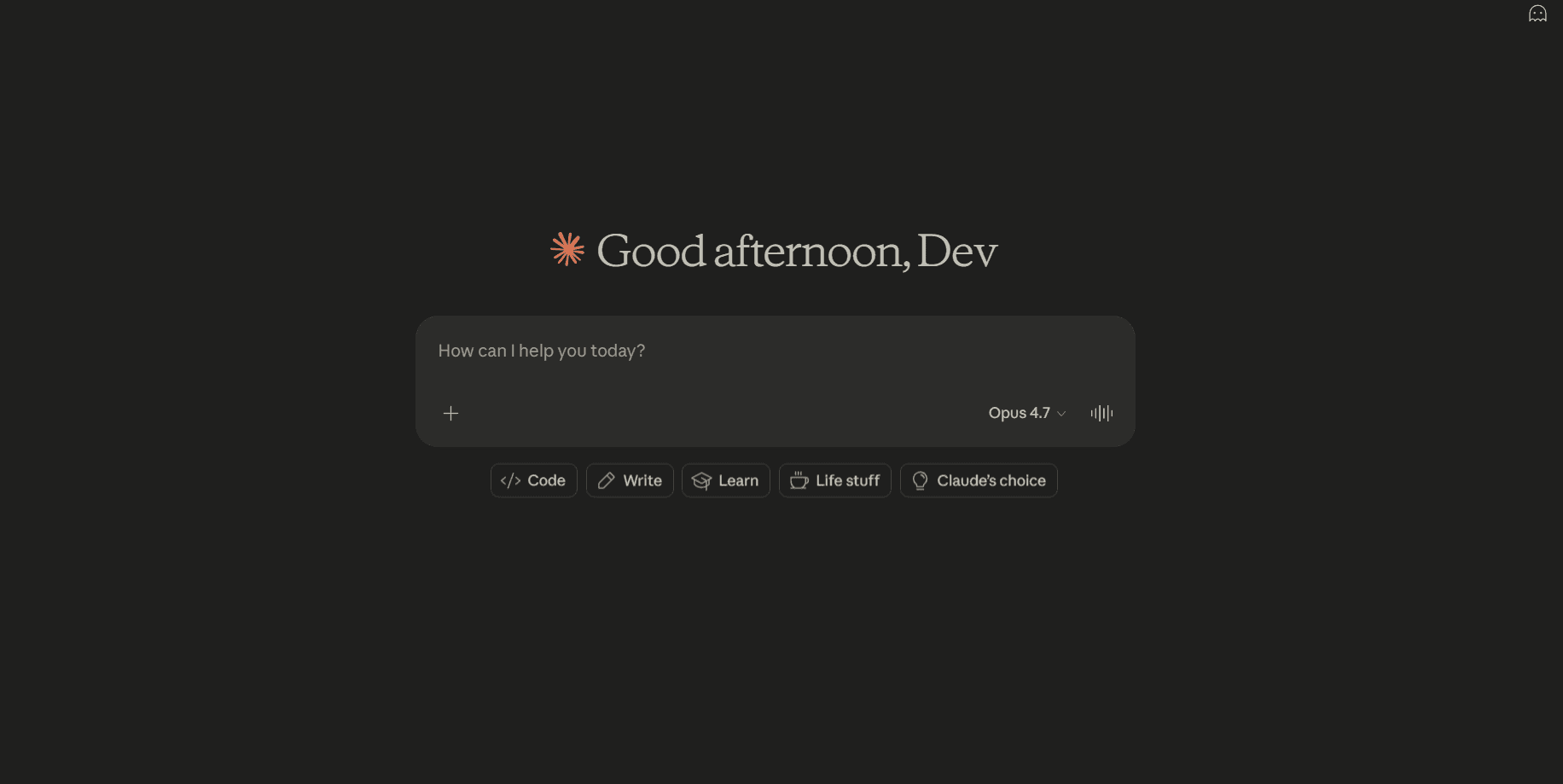
Wenn Sie bereits in Claude für Recherche, Schreiben oder Analyse arbeiten, können Sie eine Präsentation erstellen lassen, ohne den Chat zu verlassen. Aktivieren Sie eine Funktion in den Einstellungen, fügen Sie Ihren Inhalt ein und bitten Sie Claude, ein Deck zu erstellen. Es schreibt die Folien, führt Code aus, um eine echte PPTX-Datei zusammenzustellen, und fügt den Download-Link direkt in die Konversation ein.
Dies ist die flexibelste der drei Claude-Optionen. Sie behalten alle normalen Chat-Funktionen von Claude (Kontext über eine lange Konversation, Recherche, Dokumentenverständnis, Projekte, Konnektoren) und erhalten am Ende eine Präsentation.
So verwenden Sie Claude in der App, um eine Präsentation zu erstellen (Schritt für Schritt)
Öffnen Sie die Claude-App im Web, auf dem Desktop oder mobil und melden Sie sich an.
Gehen Sie zu den Einstellungen. Klicken Sie auf Ihr Profil und dann auf Einstellungen.
Öffnen Sie „Funktionen“. Im linken Einstellungsmenü finden Sie „Funktionen“.
Scrollen Sie zum Abschnitt „Codeausführung und Dateierstellung“.
Aktivieren Sie „Codeausführung und Dateierstellung“
Öffnen Sie einen neuen Chat. Fügen Sie Ihren Quellinhalt ein oder beschreiben Sie das gewünschte Deck in einfacher Sprache.
Bitten Sie um eine PowerPoint-Präsentation. So etwas wie: „Wandeln Sie dies in ein 10-Folien-Investorendeck um und exportieren Sie es als .pptx-Datei.“ Claude schreibt die Folien, führt Code aus, um die Datei zusammenzustellen, und fügt einen Download-Link in die Konversation ein.
Laden Sie die Datei herunter und öffnen Sie sie in PowerPoint oder Google Slides zur Überprüfung. Iterieren Sie von dort aus entweder im Claude-Chat oder direkt in PowerPoint.
Claude App Bewertung: Designqualität, Iteration und Zeit bis zum finalen Entwurf
1. Designqualität
Die Claude-App erstellt bessere Folien als das Add-in. Nicht so gut wie Claude Design, aber eindeutig ein Fortschritt gegenüber dem, was das PowerPoint-Plugin mit demselben Inhalt produziert.
Der Unterschied liegt darin, womit die App nicht kämpft: Sie versucht nicht, innerhalb der strukturellen Einschränkungen von PowerPoint zu arbeiten. Keine Seitenleiste, keine alte Layout-Engine, keine Vorlagenüberschreibungslogik. Claude generiert und schreibt die PowerPoint einfach von Grund auf neu.
Hier ist, was die Claude-App tatsächlich richtig macht:
Hintergründe haben Textur. Subtile Farbverläufe, Körnungen oder Muster statt flacher, einfarbiger Flächen. Folien wirken designt, nicht nur als Vorlage.
Icons sind kreativ und thematisch passend. Die Icon-Auswahl wirkt durchdacht. Sie passen zur Farbpalette, zum Thema und zum gesamten visuellen Ton des Decks. Ehrlich gesagt eine der größten Überraschungen bei meinen Tests. Ich hatte erwartet, dass sie generisch sind, aber das waren sie nicht.
Designelemente gehen über die Grundlagen hinaus. Inhalts-Tags, Wort-Hervorhebungen, seitliche Callouts, kleine dekorative Anker. Die App fügt diese in Folien ein, wo sie einen Mehrwert bieten, ähnlich wie es ein Brand Designer tun würde.
Bilder passen zum Thema. Als ich ein Deck-Konzept mit einem bestimmten Ton eingab, passten die von der App generierten Illustrationen zu diesem Ton. Sie wirken, als hätte sie ein professioneller Brand Designer ausgewählt.
Der Kontext bleibt über alle Folien hinweg konsistent. Farben, Schriftarten und visueller Rhythmus ziehen sich durch das gesamte Deck. Keine zufällige Folien-für-Folie-Gestaltung.
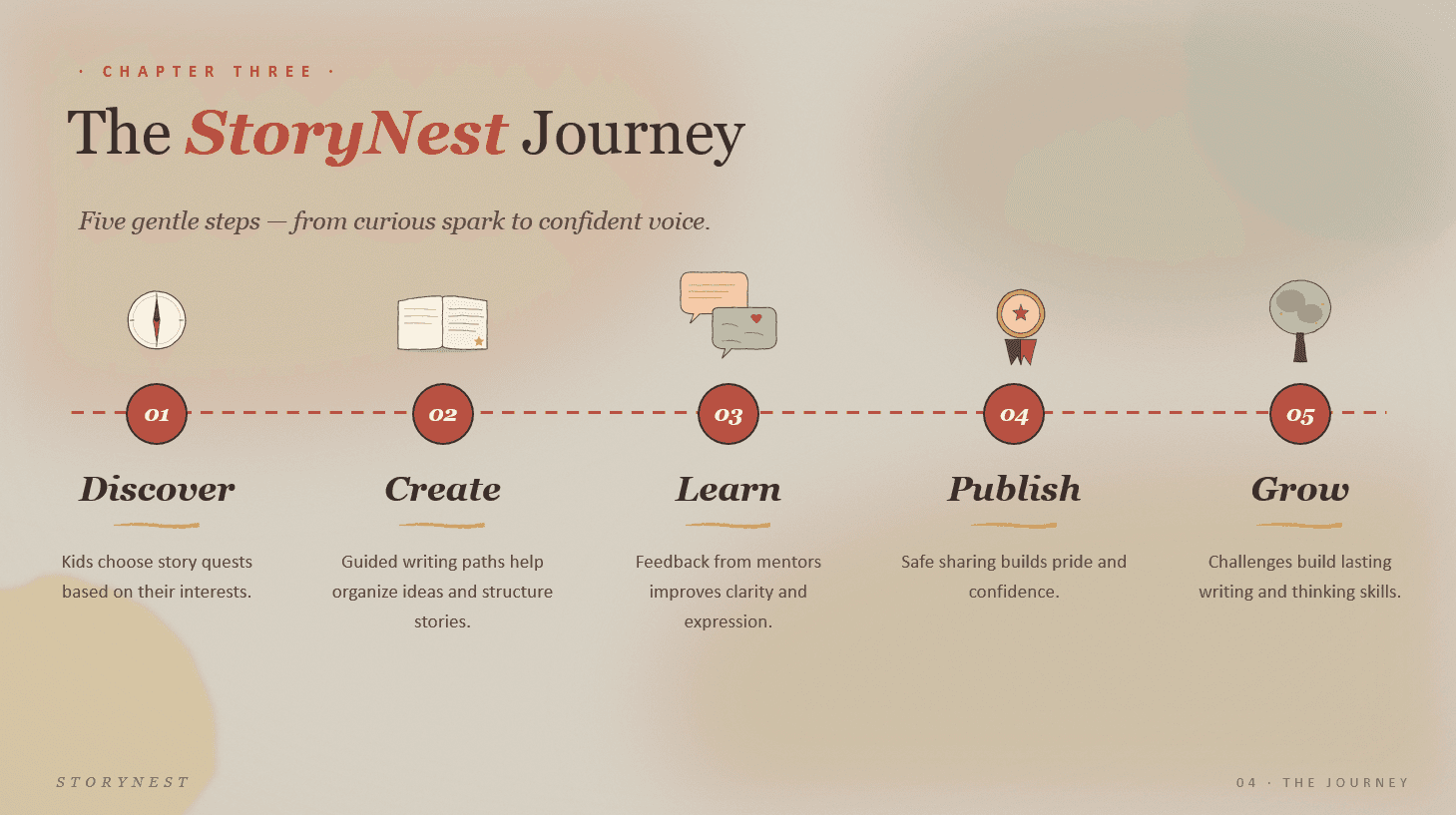
Beispiel für die Ausgabe der Claude-App
Wo sie im Vergleich zu Claude Design und anderen KI-PPT-Tools zurückbleibt:
Auch wenn Claude vieles richtig macht, wirkt das Design im Vergleich zu Claude Design und anderen KI-PPT-Tools immer noch flach. Ein paar spezifische Mängel:
Farbverläufe sind selten. Paletten bleiben flach, wo Tools wie Alai subtile Farbverschiebungen überlagern würden.
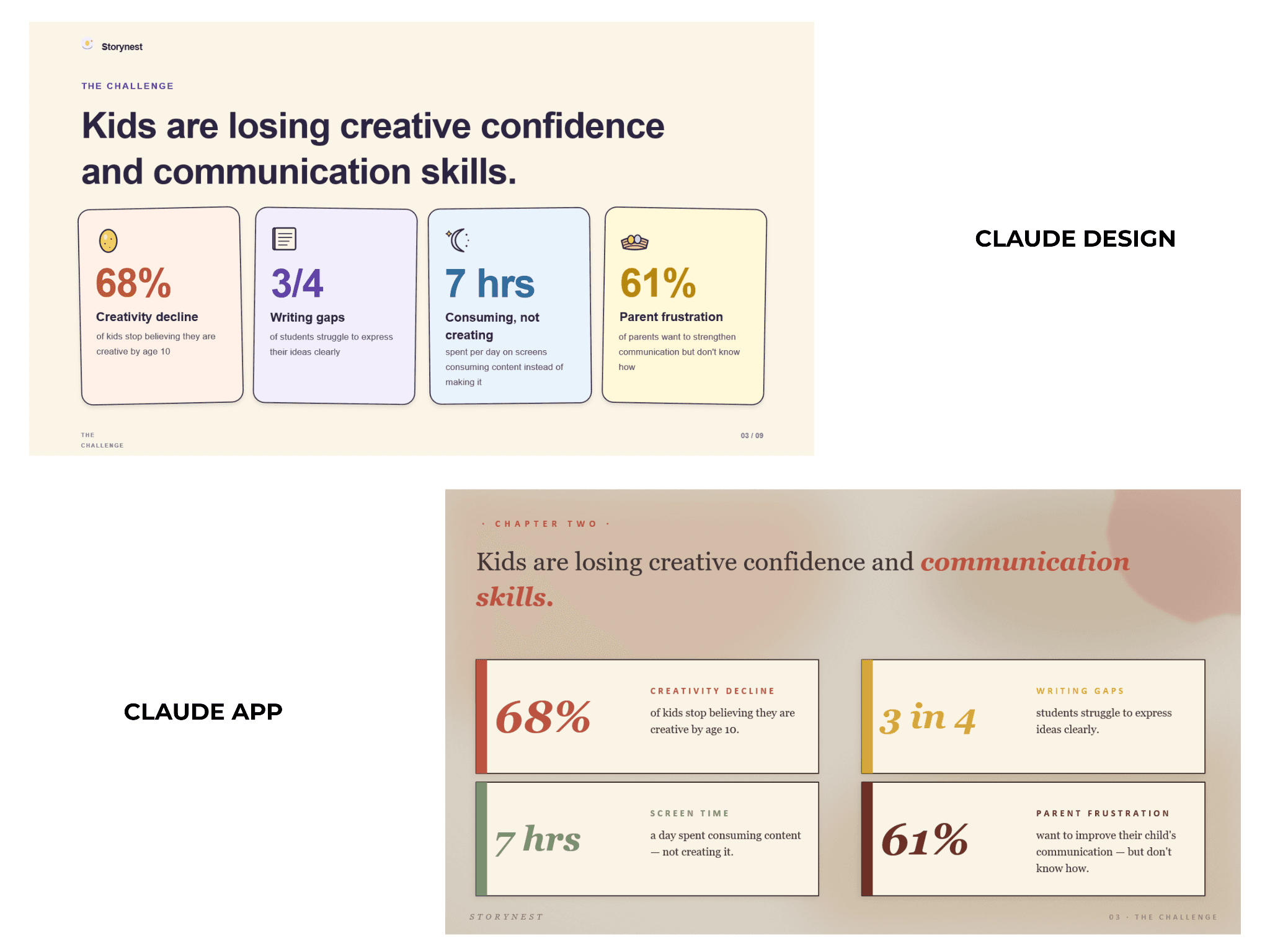
Themen könnten näher am Prompt sein. Obwohl die App in Bezug auf das Thema einen besseren Job macht als das PowerPoint-Plugin, hatte ich immer noch das Gefühl, dass Claude Design näher an meinen Designanweisungen war als die Claude-App. Die Anweisungen waren „Sanfte Aquarell + Schul-basiertes Thema und Elemente“, hier ist, was beide geliefert haben:
Keine präsentationsspezifischen Komponenten. Vergleichen Sie zweispaltige Layouts, Trichter, Feature-Matrizen, Hub-and-Spoke-Diagramme. Nichts davon gehört zum Standardvokabular. Sie erhalten zweispaltige Textblöcke, wo eines dieser speziell angefertigten Layouts die Geschichte besser erzählen würde.
Diagramme sind das schwächste Element. Das gleiche Problem wie bei Claude Design, hier sogar noch schlimmer. Diagramme und Schaubilder sind so gut wie nicht existent. Wenn Ihr Deck auf Daten-Storytelling angewiesen ist, planen Sie, die Diagramme selbst neu zu erstellen.
2. Einfache Iteration
Die Chat-Oberfläche verarbeitet Bearbeitungen auf vier Arten, und jede funktioniert gut:
Nach Folie. Zeigen Sie auf eine bestimmte Foliennummer. Beispiel: „Auf Folie 3 die Statistikfarben an die Abschnitts-Tags auf Folie 5 anpassen.“ Oder „Folie 6, die Feature-Titel kleiner machen.“
Nach Thema. Globale Designänderungen im gesamten Deck. Beispiel: „Das gesamte Deck gedämpfter gestalten.“ Oder „Die Palette kühler verschieben.“
Nach Inhalt. Text umschreiben oder umstrukturieren. Beispiel: „Den Text der Herausforderungsfolie in einem direkteren Ton umschreiben.“ Oder „Eine neue Folie zwischen 7 und 8 über die Preisgestaltung hinzufügen.“
Nach Asset. Bilder in den Chat ziehen oder einen Prompt hinzufügen, und Claude kann Illustrationen durch echte Fotos ersetzen oder bestehende Visuals austauschen.
Ähnlich wie bei Claude Design sind die Bearbeitungen sauber. Sie respektieren das Thema und den Kontext des Decks und lösen nicht die unerwünschten Kaskadenänderungen aus, die der Agentenmodus von Gamma meiner Erfahrung nach oft tut. Der Vorbehalt: Sie benötigen klare Prompts, und jede Bearbeitung dauert mindestens 60 Sekunden.
Ehrlicher Shortcut: Für kleine, schnelle Bearbeitungen exportieren Sie das Deck und öffnen es in PowerPoint. Die Exporte sind vollständig editierbar und kommen ohne Formatierungsprobleme heraus. Sie können auch das Claude für PowerPoint Add-in verwenden, aber das ist in der Regel zeitaufwändiger, als die Eingabe in der Claude-App von vornherein war.
3. Zeit bis zum finalen Entwurf
Erste Generierung: ~10-15 Minuten (abhängig von Prompt und Anforderung)
Jede Bearbeitung: mindestens 60 Sekunden, oft länger
Erwarten Sie mehrere Neuladungen bei längeren Bearbeitungen
Gesamtzeit bis zum finalen Entwurf (10-Folien-Deck): ~40 Minuten in meinem Test
Die Claude-App: Vor- und Nachteile
Vorteile | Nachteile |
Echte bearbeitbare PPTX-Ausgabe | Design ist sichtbar flacher als Claude Design |
Kontextbezogene Bearbeitungen über das gesamte Deck hinweg | Schwächen bei Diagrammen, Grafiken und Datenvisualisierung |
Vier saubere Iterationsmöglichkeiten (Folie, Thema, Inhalt, Asset) | Langsame Iteration (60s+ pro Bearbeitung) |
Bilder und Icons passen ungewöhnlich gut zum Thema | Erfordert aktivierte Code-Ausführungsfunktion |
Saubere PPT-Exporte ohne Formatierungsfehler | Standardmäßig keine präsentationsspezifischen Layouts |
Claude App Preise
Aktuelle Preise von claude.com/pricing:
Plantyp | Stufe | Preis | Was Sie für Präsentationen erhalten |
Einzelperson | Kostenlos | $0 | Code-Ausführung ist enthalten, aber Nutzungslimits machen eine echte Deck-Generierung unrealistisch. Gut zum einmaligen Ausprobieren. |
Einzelperson | Pro | $17/Monat (jährlich, $200 im Voraus abgerechnet) oder $20/Monat (monatlich) | Voller Zugriff auf die Claude App Deck-Generierung mit Opus 4.7. Code-Ausführung und Dateierstellung inklusive. Claude Code und Claude Cowork gebündelt. |
Einzelperson | Max 5x | Ab $100/Monat | 5-fache Nutzung von Pro. Höhere Ausgabegrenzen für alle Aufgaben. Priorisierter Zugang bei hohem Datenverkehr. |
Einzelperson | Max 20x | $200/Monat | 20-fache Nutzung von Pro. Früher Zugang zu neuen Claude-Funktionen. Top-Tier-Einzelplan. |
Team | Standard-Platz | $20/Platz/Monat (jährlich) oder $25/Platz/Monat (monatlich). Min. 5 Plätze, max. 150. | Alle Pro-Funktionen plus zentrale Abrechnung, SSO, Microsoft 365 und Slack-Konnektoren, Unternehmenssuche. |
Team | Premium-Platz | $100/Platz/Monat (jährlich) oder $125/Platz/Monat (monatlich). Min. 5 Plätze, max. 150. | 5-fache Nutzung im Vergleich zu Standard-Plätzen. Kann mit Standard-Plätzen im selben Plan kombiniert werden. |
Unternehmen | Platz + Nutzung | $20/Platz/Monat + Nutzung zu Standard-API-Raten. Vertrieb kontaktieren. | Alle Team-Funktionen plus Audit-Logs, SCIM, Compliance-API, benutzerdefinierte Datenaufbewahrung, HIPAA-konform, IP-Whitelisting. |
Kosten pro Deck (Opus 4.7, 10-Folien-Deck, 5 Bearbeitungen): ca. 5 bis 8 US-Dollar an API-äquivalentem Verbrauch, der auf das Nutzungskontingent Ihres Plans angerechnet wird. Die Claude-App ist kontextlastiger als Claude Design, da die Code-Ausführung bei jedem PPTX-Neuaufbau zusätzlichen Overhead für die Dateigenerierung verursacht. Praktischer Durchsatz bei Pro: 4 bis 6 Decks pro Monat, bevor Nutzungslimits greifen. Stärkere Bearbeitungszyklen drängen Sie in Richtung Max.
Option 3: Claude für PowerPoint, das Add-in
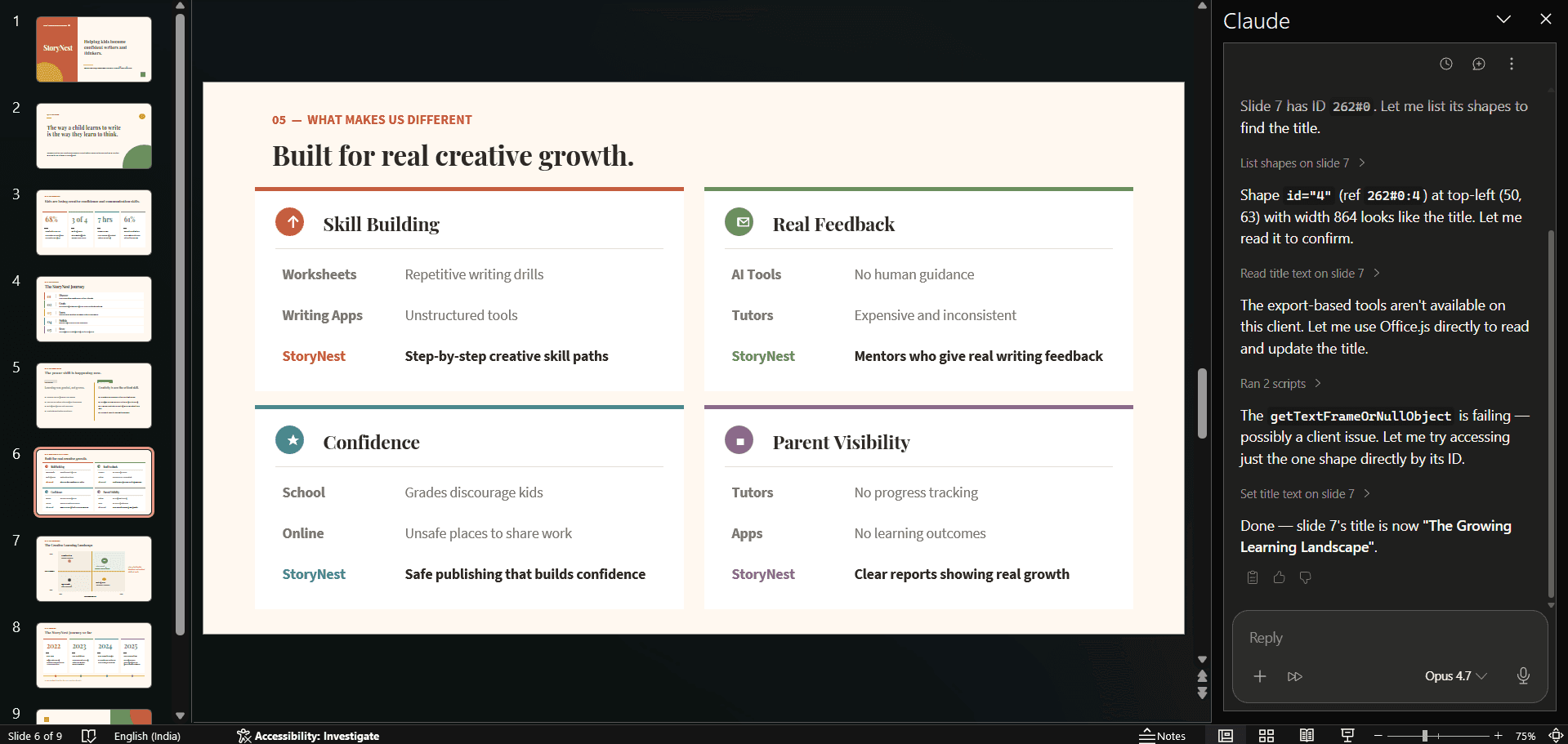
Claude für PowerPoint (manchmal auch als Claude PowerPoint Plugin oder Claude PowerPoint Add-in gesucht) ist das offizielle Anthropic Add-in, das in Microsoft PowerPoint installiert wird und eine Claude-Seitenleiste in die App integriert. Von den drei Claude-Oberflächen verspricht diese am meisten (echte PowerPoint-Elemente, innerhalb Ihrer Markenvorlage) und liefert in meinen Tests die geringste visuelle Politur.
So fügen Sie Claude zu PowerPoint hinzu (Schritt für Schritt)
Öffnen Sie den Microsoft AppSource Marktplatz. Gehen Sie entweder direkt zu appsource.microsoft.com oder öffnen Sie PowerPoint und navigieren Sie zu Einfügen → Add-Ins abrufen.
Suchen Sie nach „Claude for PowerPoint“. Dies ist das offizielle Anthropic-Angebot.
Klicken Sie auf Installieren. Das Add-In wird innerhalb weniger Sekunden in PowerPoint heruntergeladen.
Öffnen Sie PowerPoint und starten Sie eine neue Präsentation oder öffnen Sie eine bestehende. Das Claude-Panel erscheint in der rechten Seitenleiste.
Authentifizieren Sie sich. Melden Sie sich mit Ihrem Claude-Konto an.
Geben Sie Prompts direkt über die Seitenleiste ein. Geben Sie ein, was Claude erstellen oder ändern soll, und die Bearbeitungen erfolgen live auf Ihren Folien.
Optional, aber empfohlen: Aktivieren Sie in Ihren Einstellungen „Alle Bearbeitungen akzeptieren“, damit Sie nicht jede Änderung einzeln genehmigen müssen. Das Überspringen dieses Schritts kostet Sie bei der Iteration viel Zeit.
Die Verwendung von Claude in PowerPoint befindet sich noch in der Beta-Phase als Forschungs-Preview, daher sind gelegentliche Unregelmäßigkeiten zu erwarten.
Claude für PowerPoint Bewertung: Designqualität, Iteration und Zeit bis zum finalen Entwurf
1. Designqualität
Von den drei Claude-Tools fand ich dieses visuell am wenigsten ansprechend. Gleicher Prompt, gleicher Inhalt, gleiche Modellfamilie, aber merklich schwächere Ausgabe als bei Claude Design oder der Claude-App.
Die Ursache ist strukturell. Das Add-In kämpft während der gesamten Generierung gegen die Einschränkungen von PowerPoint. Native PowerPoint-Formen. Native PowerPoint-Schriftarten. Natives PowerPoint-Layout-Raster. Jede Folie ist ein Kompromiss zwischen dem, was Claude erstellen möchte, und dem, was PowerPoint zulässt. Das Ergebnis ist sichtbar.
Hier ist, was immer wieder schiefgeht:
Designs sind einfach. Die meisten Folien bestehen aus einer Hintergrundfarbe mit einer Handvoll einfacher dekorativer Elemente, die übereinander gestapelt sind. Rahmen. Kreise. Dünne Trennlinien. Das war's. Keine Textur. Keine Farbverläufe. Keine geschichtete Tiefe.
Die Ausrichtung hat echte Probleme. Textfelder sitzen leicht außerhalb des Rasters. Ränder stimmen nicht über Folien hinweg überein. Symbole landen an ungünstigen Positionen. Das ist keine Kleinigkeit. Es ist sichtbar genug, dass ein Kunde oder ein Investor es bemerken würde.
Leerraum zieht aus den falschen Gründen Aufmerksamkeit auf sich. Kein bewusst genutzter Negativraum. Nur leere Flächen, die die KI nicht füllen konnte, also ließ sie es. Ihr Blick geht zu den Lücken statt zum Inhalt.
Dekorative Elemente wirken hingeworfen. Wenn das Add-In einen Rahmen, einen Kreis oder eine Trennlinie hinzufügt, wirkt es eher wie Dekoration als wie Funktion. Nichts verdient seinen Platz auf der Folie.
Layouts sind strukturell solide, aber die Ausführung ist flach. Und das ist der Punkt, an dem ich immer wieder anstieß. Das Add-In wählt oft ein vernünftiges Layout (Titel oben, dreispaltiger Textkörper, unterstützendes Bild an der Seite). Die Struktur ist in Ordnung. Aber die Ausführung wirkt zusammengewürfelt, als hätte jemand 20 Sekunden damit verbracht, Formen auf eine leere Folie in PowerPoint zu ziehen und es dann für fertig erklärt.
Die Gesamtstimmung erinnert an ein Corporate PowerPoint der frühen 2000er Jahre. Nicht an ein „KI-generiertes Deck im Jahr 2026“. Ich musste mich immer wieder daran erinnern, dass dies von derselben Modellfamilie wie Claude Design erstellt wurde.
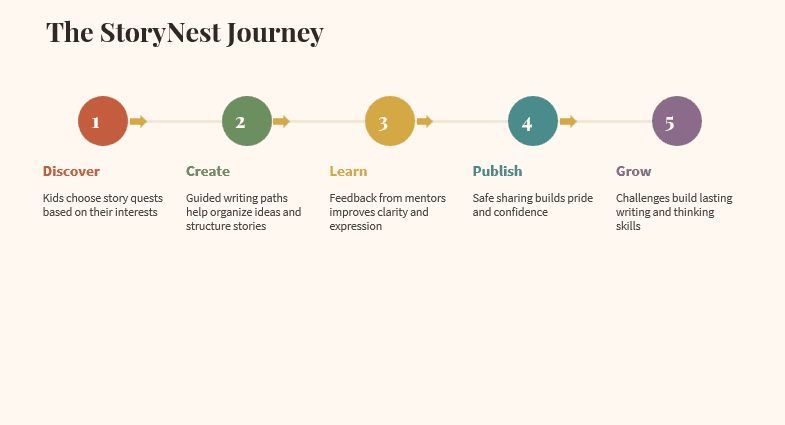
Beispiel einer Folie, die mit dem PowerPoint-Plugin von Claude generiert wurde
Wo es einen Punkt zurückgewinnt.
Eine echte Stärke: Da das Add-In native PowerPoint-Elemente ausgibt, werden die Schriftarten, Farben und Masterlayouts Ihrer Markenvorlage tatsächlich angewendet – vorausgesetzt, Sie beginnen mit einer Unternehmensvorlage mit einem bestimmten Schriftarten-Stack und einer Farbpalette. Claude Design und die Claude-App können dies ohne die neue Designsystem-Einrichtung (und dafür ist ein Team-Konto erforderlich) nicht tun.
Das Design-Potenzial des Add-Ins ist also gering, aber seine Design-Konsistenz mit Ihrer bestehenden Marke ist von Haus aus höher als bei den beiden anderen Optionen. Das ist der Kompromiss.
2. Einfache Iteration
Hier sammelt das Add-in die meisten Punkte. Da die Folien aus nativen PowerPoint-Elementen aufgebaut sind, ist jedes einzelne Element auf der Folie auf die normale PowerPoint-Art vollständig bearbeitbar. Ziehen, Größe ändern, neu gestalten, ersetzen, löschen – alles ist möglich. Sie erhalten auch Claude-Seitenleisten-Prompts für KI-Bearbeitungen.
Ich habe eine Reihe von Bearbeitungstypen getestet. Hier ist, was tatsächlich funktioniert und was nicht:
Inhaltsumschreibungen, reibungslos. Die KI zieht Kontext aus der ausgewählten Folie und bis zu einem gewissen Grad aus dem gesamten Deck. Umschreibungen wirken kohärent mit dem Rest der Präsentation, nicht losgelöst. Dies ist die stärkste Iterationsfähigkeit des Add-ins.
Layoutänderungen, funktionieren, aber langsam. Ich habe einen vagen Prompt („Ändere das zu etwas Saubererem“) und einen spezifischen („Konvertiere das in ein zweispaltiges Layout mit dem Bild links“) ausprobiert. Beide funktionierten. Der vage Prompt dauerte eine Weile und erforderte eine Nachbearbeitung. Der spezifische Prompt war beim ersten Versuch besser. In jedem Fall sollte man mindestens ein oder zwei Minuten pro Layout-Bearbeitung einplanen.
Hinzufügen oder Entfernen von Elementen, gemischt. Der Agent befolgt die Anweisungen korrekt, aber seine Designentscheidungen sind oft nicht optimal. Spezifisches Beispiel aus meinem Test: Ich bat das Add-in, Symbole neben jedem Überschriftselement in einer Feature-Folie hinzuzufügen. Es erledigte die Aufgabe. Aber die ausgewählten Symbole passten nicht zum Inhalt der Überschriften. Generische abstrakte Formen neben spezifischen Feature-Konzepten. Die Anweisung wurde befolgt, aber der Geschmack fehlte.
Bilderzeugung, das kann es nicht. Dies ist eine echte Einschränkung. Das Add-in kann keine Bilder selbst generieren. Jedes Bild, das Sie im Deck haben möchten, müssen Sie selbst hochladen. Das eliminiert einen der größten Zeitersparnisse, die Sie mit Claude Design und der Claude App erzielen.
3. Zeit bis zum finalen Entwurf (und die Kosten, über die niemand spricht)
Erste Generierung: 10 Minuten (am schnellsten aufgrund begrenzter Designauswahl)
Jede Bearbeitung: mindestens 20 bis 60 Sekunden
Gesamtzeit bis zum finalen Entwurf (10-Folien-Deck): mindestens 30 Minuten, wenn nichts schiefgeht (was unwahrscheinlich ist), länger bei intensiver Iteration
Claude für PowerPoint: Vor- und Nachteile
Vorteile | Nachteile |
Echte native PowerPoint-Elemente, vollständig bearbeitbar | Flachstes Design der drei Claude-Optionen |
Inhaltsumschreibungen ziehen Kontext aus dem gesamten Deck | Langsame Iteration, 20-60s pro Bearbeitung |
Bewahrt Ihre Markenvorlage, Schriftarten und Layouts | Kostet ungefähr 7 bis 8 US-Dollar pro Deck in API-äquivalenter Nutzung (mehr bei intensiver Iteration) |
Funktioniert innerhalb Ihres bestehenden PowerPoint-Workflows | Kann keine Bilder generieren, Sie laden sie hoch |
„Alle Bearbeitungen akzeptieren“-Umschalter beschleunigt Genehmigungen | Symbol- und Layoutauswahl oft unpassend |
Häufige Probleme mit Ausrichtung und Leerraum |
Preise und Tarifdetails für Claude für PowerPoint
Das Claude für PowerPoint Add-in kann kostenlos von Microsoft AppSource installiert werden und seine Nutzung wird von Ihrem Haupt-Claude-Plan-Guthaben abgezogen (derselbe Pool wie die Claude App). Es gibt kein separates Add-in-Abonnement. Der kostenlose Plan beinhaltet keinen Add-in-Zugriff. Aktuelle Preise von claude.com/pricing:
Plantyp | Stufe | Preis | Praktischer Durchsatz mit dem Add-in (Opus 4.7, ca. 7-8 $ pro Deck) |
Einzelperson | Kostenlos | 0 $ | Nicht unterstützt. Add-in erfordert einen kostenpflichtigen Plan. |
Einzelperson | Pro | 17 $/Monat (jährlich, 200 $ im Voraus abgerechnet) oder 20 $/Monat (monatlich) | ~2-3 Decks pro Monat vor Drosselung der Nutzung. Gut für gelegentliche Nutzung. |
Einzelperson | Max 5x | Ab 100 $/Monat | ~10-15 Decks pro Monat bequem. Der Sweet Spot für regelmäßige Deck-Ersteller. |
Einzelperson | Max 20x | 200 $/Monat | 40+ Decks pro Monat. Viel Spielraum für Iterationen. |
Team | Standard-Platz | 20 $/Platz/Monat (jährlich) oder 25 $/Platz/Monat (monatlich). Min. 5 Plätze, max. 150. | Gleiches Durchsatzprofil wie Pro, plus zentrale Abrechnung, SSO, gemeinsame Konnektoren. |
Team | Premium-Platz | 100 $/Platz/Monat (jährlich) oder 125 $/Platz/Monat (monatlich). Min. 5 Plätze, max. 150. | 5x Standard. Vergleichbar mit Max 5x pro Platz. Kombinierbar mit Standard im selben Plan. |
Unternehmen | Platz + Nutzung | 20 $/Platz/Monat + Nutzung zu Standard-API-Raten. Vertrieb kontaktieren. | Pay-as-you-go, ca. 7-8 $ pro Deck zu Opus 4.7 API-Raten (5 $/MTok Input, 25 $/MTok Output) zusätzlich zur Platzgebühr. |
Was das in der Praxis bedeutet: Das Add-in ist die teuerste Art, Decks mit Claude in jeder Planstufe zu erstellen. Nicht, weil das Abonnement mehr kostet, sondern weil das Add-in das Nutzungsbudget schneller verbraucht als Claude Design oder die Claude-App, da bei jeder Bearbeitung der gesamte Deck-Kontext neu geladen wird. Wenn Sie hauptsächlich das Add-in verwenden, erwarten Sie, dass Sie zuerst die Pro-Limits erreichen und früher auf Max upgraden müssen, als ein Benutzer, der hauptsächlich die Claude-App verwendet.
Der versteckte Nachteil beim Erstellen von Decks mit Claude: KI-Gleichförmigkeit
Das ist es, was niemand in den anderen Claude PowerPoint-Rezensionen erwähnt. Nachdem Sie genügend Decks mit einem dieser drei Claude-Tools erstellt haben, sehen sie alle gleich aus.
Gleiche Eck-Callouts. Gleiche zweispaltige Erklär-Layouts. Gleiche „Editorial Magazine“-Palette in Design. Gleiche Icon-Bibliothek in der App. Gleiche Rahmen-und-Kreis-Behandlung im Add-in. Das Tool hat einen Hausstil. Nach fünf Decks ist es auch Ihr Hausstil, ob Sie ihn gewählt haben oder nicht.
Für das zugrunde liegende Phänomen gibt es in der KI-Forschungsliteratur einen Begriff: Modellkollaps. Das Nature-Paper von Shumailov et al. aus dem Jahr 2024 hat es formalisiert. Wenn generative Modelle wiederholt mit ihrer eigenen Ausgabe trainiert werden, verengt sich die Verteilung dessen, was sie produzieren. Seltene Variationen verschwinden. Wiederholungen nehmen zu. Die Ausgaben konvergieren zum Mittelwert.
Für ein einmaliges Deck spielt das keine Rolle. Für jeden, der regelmäßig Decks erstellt (Gründer, die Investoren-Updates senden, Marketingfachleute, die wöchentliche Berichts-Decks erstellen, Vertriebsteams, die Angebote vorantreiben), ist das absolut wichtig. Ihr Deck wird erkennbar „von Claude erstellt“.
Wenn Sie Claude verwenden möchten, können Sie die repetitive Struktur wie folgt überwinden:
Ändern Sie die Form Ihrer Prompts bewusst. Unterschiedliche Frames erzeugen unterschiedliche Layouts.
Füttern Sie für jedes Deck unterschiedliche Designreferenzen ein. Das Modell muss sich irgendwo verankern.
Eine weitere Alternative ist die Verwendung eines speziellen KI-Präsentationstools, das darauf trainiert ist, echte Layout-Varianten pro Folie zu generieren, anstatt nur eine Standardvariante. Ich persönlich befürworte diese Alternative am meisten, die detaillierte Erklärung des „Warum“ folgt unten.
Das Setup, das ich tatsächlich verwende: Alai MCP in der Claude-App
Sie können Alai's MCP-Server mit Claude verbinden. Sobald die Verbindung hergestellt ist, bleiben Sie in Ihrer Claude-Konversation, erledigen all Ihre Überlegungen und das Schreiben in Claude, und Alai übernimmt das eigentliche Foliendesign, wenn Sie bereit sind zu generieren. Sie wechseln keine Apps. Sie kopieren und fügen nicht ein. Sie öffnen kein zweites Tool.
Dies ist die stille Lösung für jedes der oben genannten Probleme. Sie behalten die besten Eigenschaften von Claude (die Recherche, die Iteration durch Chat, die Kontextsensibilität über Ihre Konversation hinweg). Sie verlieren die schlechteste Eigenschaft von Claude (die Design-Gleichförmigkeit), weil Alai's Engine vier verschiedene Designvarianten pro Folie generiert, anstatt einer Standardausgabe.
So verbinden Sie Alai mit Claude (Schritt für Schritt)
Öffnen Sie Claude im Web oder auf dem Desktop. Sie benötigen einen Pro-, Max-, Team- oder Enterprise-Plan für Remote-Konnektoren.
Gehen Sie zu Einstellungen → Konnektoren.
Klicken Sie auf „Benutzerdefinierten Konnektor hinzufügen“.
Fügen Sie die Alai MCP URL ein:
https://slides-api.getalai.com/mcp/Klicken Sie auf Verbinden. Claude öffnet ein Browserfenster für die OAuth-Anmeldung. Melden Sie sich bei Ihrem Alai-Konto an (kein API-Schlüssel erforderlich).
Kehren Sie zu Claude zurück und überprüfen Sie die Verbindung: Klicken Sie auf die Schaltfläche + im Chatfenster und wählen Sie dann Konnektoren. Sie sollten Alai in der Liste mit einem grünen Statusindikator sehen.
Beginnen Sie mit dem Prompting. Bitten Sie Claude, Decks mit Alai direkt aus Ihrem Chat zu erstellen.
Was sich in Ihrem Workflow ändert
Ihre Prompts an Claude können jetzt mit einer Alai-Aktion enden. Beispiele aus meiner tatsächlichen Nutzung:
„Nehmen Sie die Notizen aus unserem Q3-Planungsdokument und erstellen Sie mir ein 12-Folien-Board-Update in Alai. Verwenden Sie unser Standard-Markenthema.“
„Ziehen Sie das Investorenmemo, das ich in dieser Konversation entworfen habe, und verwandeln Sie es in ein Series-A-Pitch-Deck in Alai, einschließlich einer Marktgrößenfolie mit einem Tortendiagramm.“
„Aus den Stripe-Umsatzzahlen, die ich gerade eingefügt habe, generieren Sie einen 6-Folien-Monatsrückblick in Alai.“
Claude überlegt sich die Struktur im Chat. Wenn es bereit ist zu bauen, ruft es Alai's MCP-Tools auf.
Hier ist der spezifische Grund, warum das Alai-Setup besser funktioniert als jedes der drei nativen Claude-Tools allein:
4 Layout-Optionen pro Folie reduzieren Regenerationszyklen. Die KI von Alai generiert bis zu vier verschiedene Layout-Variationen für jede Folie aus demselben Inhalt. Wenn sie also eine Visualisierung der Marktgröße erstellt, kann ich zwischen einem Tortendiagramm, einem Balkendiagramm, einer Textaufschlüsselung und einer von Nano Banana generierten Infografik wählen. Ich finde fast immer eine, die auf Anhieb funktioniert. Mit Claudes Standard-Einzelausgabe müsste ich drei- oder viermal neu generieren, um das gewünschte Layout zu erhalten.
Die Integration von Nano Banana 2 erstellt bessere Diagramme und Infografiken als Claude. Alai hat Googles Nano Banana 2 Modell für visuelle Elemente auf Folienebene integriert. Die Infografiken und Diagramme, die es produziert, sind deutlich schärfer als das, was Claude selbst generiert, insbesondere bei komplexen Datenfolien, bei denen Claude sichtbar an Qualität verliert.
Die KI-Bildgenerierung ist besser. Für Illustrationen, Hero-Bilder und visuelle Metaphern kommen die von Alai generierten Bilder näher an das heran, was ich mir tatsächlich vorgestellt hatte. Claudes App generiert anständige thematische Icons, hat aber Schwierigkeiten mit komplexeren Bildern (das Plugin kann selbst keine Bilder hinzufügen).
Benutzerdefinierte Themen, die ich in verschiedenen Präsentationen wiederverwenden kann. Ich erstelle ein Thema einmal (Farben, Schriftarten, Elementstile, Bildrichtung) und wende es danach auf jede Präsentation an. Kein detailliertes Schreiben von Design-Prompts mehr jedes Mal. Und ich weiß genau, wie die Präsentation aussehen wird, bevor Alai sie generiert, anstatt abzuwarten, wie Claude einen Prompt interpretiert, den ich gerade 10 Minuten lang geschrieben habe.
Tatsächlich besseres Design bei den Grundlagen. Farbverläufe, Abstände, Layout-Vielfalt, Typografie-Behandlungen. Die Dinge, die Claude überspringt oder flach darstellt, handhabt Alai standardmäßig. Aus demselben Grund wirken Side-by-Side-Tests zwischen Alai- und Claude-generierten Präsentationen wie zwei verschiedene Qualitätsstufen.
Die Iteration ist einfacher. Alai verfügt über eine reaktionsschnelle Arbeitsfläche, die das manuelle Hinzufügen, Löschen und Ändern der Größe wirklich einfach macht (was in PowerPoint mühsam und in Claude Design unmöglich ist). Dazu kommt der Agentenmodus für promptbasierte Bearbeitungen, wenn ich die Arbeitsfläche nicht berühren möchte. Claude bietet auch chatbasierte Bearbeitungen, aber die manuelle Option der reaktionsschnellen Arbeitsfläche ist das, wonach ich am häufigsten greife.
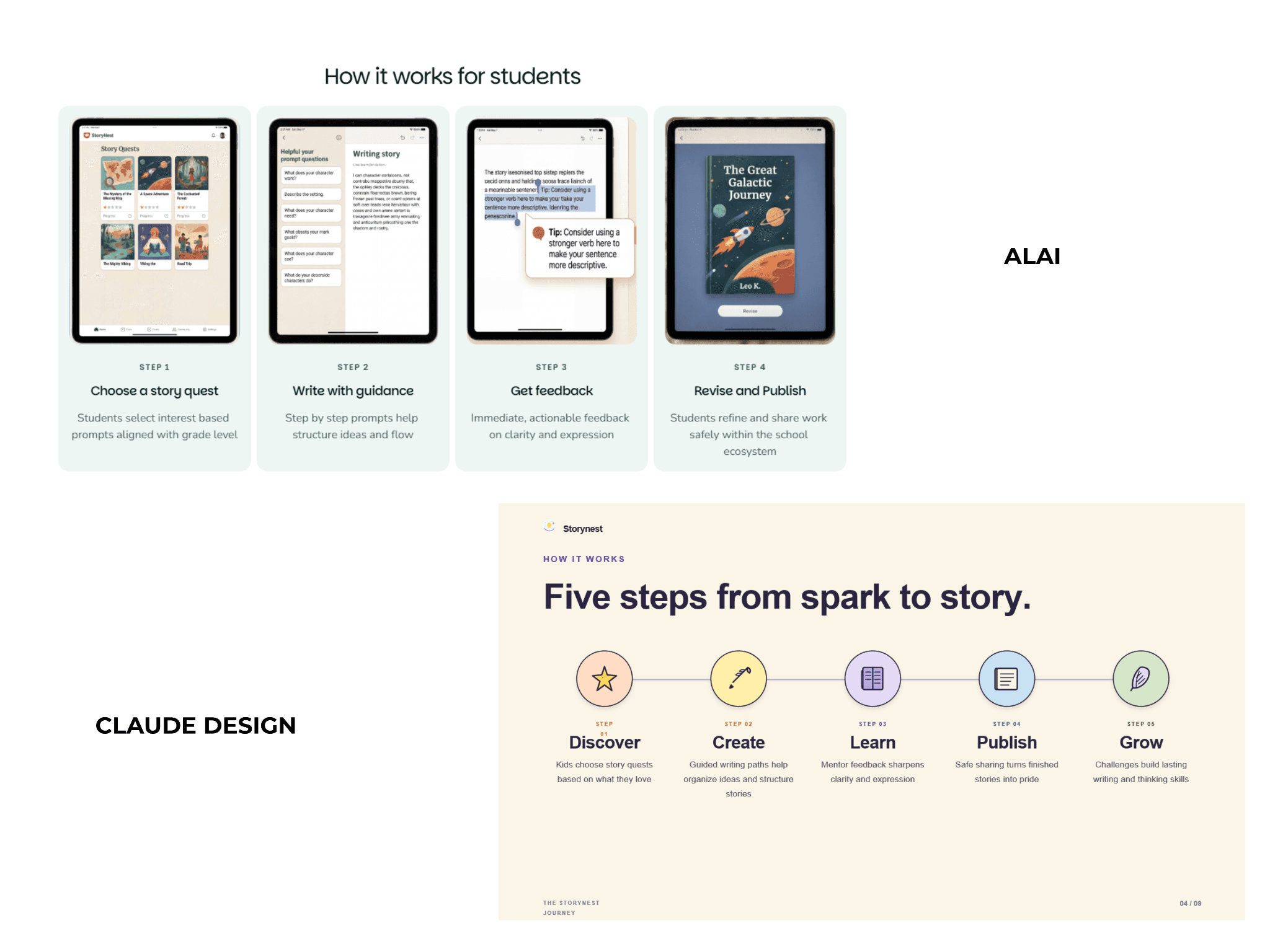
Wie im obigen Beispiel zu sehen ist, sind die Designgrundlagen für Alai viel besser – es gibt keine leeren Bereiche, Bilder passen zum gegebenen Inhalt, während bei der Claude-Variante zufällige leere Bereiche vorhanden sind, die Icons gut aussehen, aber nicht die besten visuellen Unterstützer des Inhalts sind und der Tag „Schritt 1“ seinen vorgesehenen Platz überschreitet.
Warum diese Kombination besser funktioniert als jede Claude-Oberfläche allein
Claude macht das, worin es am besten ist: Recherche, Argumentation, Schreiben, Kontext.
Alai macht das, worin es am besten ist: tatsächliches Präsentationsdesign mit Varianz.
MCP bedeutet, dass Sie die Konversation nicht verlassen müssen.
Mehrere MCP-Server komponieren. Sie können Notion (Inhalte abrufen), Stripe (Umsätze abrufen), PostHog (Analysen abrufen) und Alai (die Präsentation erstellen) in einer Sitzung verbinden. Kein Kopieren und Einfügen. Kein Wechseln der Tabs.
Zeit und Kosten für den Alai MCP Workflow
Erster Entwurf vom Prompt zur Präsentation: in meinen Tests etwa 5-10 Minuten, gegenüber 15+ für jede reine Claude-Option. Iteration: Sekunden pro Bearbeitung über Alais Agentenmodus.
Kosten: Alais Preise beginnen kostenlos mit 300 Credits, Plus kostet 16 $/Monat bei jährlicher Abrechnung, Pro 25 $/Monat, Ultra 60 $/Monat.
Welche Claude-Präsentationsoption sollten Sie tatsächlich verwenden?
Direktes Urteil, ohne Umschweife:
Wenn Sie bereits in Claude sind und die bestmögliche Präsentation wünschen: Richten Sie Alais MCP ein und nutzen Sie diese Kombination. Designqualität auf Alai-Niveau, Argumentation auf Claude-Niveau, schnellste Generierung von allem, was ich getestet habe. Das ist es, was ich jetzt für alles Reale verwende.
Wenn Sie ein einmaliges, schönes visuelles Stück wünschen und bereit sind zu warten: Claude Design. Die langsame erste Generation ist ein echter Kostenfaktor, aber die Typografie und Hierarchie sind die besten der drei nativen Claude-Tools. Exportieren Sie als PPTX, wenn Sie fertig sind. Gut für Keynotes, Denkanstöße, Investoren-Teaser.
Wenn Sie eine Präsentation innerhalb der PowerPoint-Vorlage Ihres Unternehmens bearbeiten müssen: Claude für PowerPoint-Add-in, widerwillig. Die Designausgabe ist die schwächste der drei, aber es ist die einzige Claude-Oberfläche, die Ihre bestehende Vorlagenstruktur respektiert. Planen Sie 10 $+ pro Präsentation für die API-Nutzung mit Opus 4.7 ein.
Wenn Sie eine flexible Generierung vollständig über den Chat wünschen, ohne etwas installieren zu müssen: die Claude-App mit aktivierter Code-Ausführung. Mittlere Qualität, ordentliche Exporte, volle Chat-Flexibilität. Die Ausweichoption, wenn Sie die anderen nicht einrichten können oder wollen.
Wenn Sie mehr als zwei Präsentationen pro Monat erstellen, wird das Problem der Modellgleichheit jeden Claude-only-Workflow einholen. Kombinieren Sie Claude mit einem speziellen Präsentationstool. Alai ist das, das ich verwende; andere KI-Präsentationsersteller existieren und könnten je nach Arbeit besser zu Ihrem Stack passen.
Wichtige Erkenntnisse
Sie haben drei Möglichkeiten, eine Claude PowerPoint-Präsentation nativ zu erstellen (Claude Design, die Claude-App, das Claude für PowerPoint-Add-in), und jede hat unterschiedliche Stärken.
Claude Design erzeugt die am besten aussehende native Ausgabe und exportiert nach PPTX, ist aber bei der ersten Generierung am langsamsten.
Die Claude-App erzeugt echte
.pptx-Dateien mit solider Designqualität im mittleren Bereich.Das Claude für PowerPoint-Add-in bewahrt Ihre Marken-Vorlage, hat aber die schwächste visuelle Ausgabe und kann 10 $+ pro Präsentation bei der Opus 4.7-Nutzung kosten. Die Verwendung von Claude in PowerPoint über das Add-in lohnt sich wirklich nur, wenn die Vorlagenbewahrung die Designqualität überwiegt.
Nach mehr als fünf Präsentationen beginnt jeder Claude-only-Workflow, visuell homogene Ausgaben zu produzieren, ein Phänomen, das in der Forschungsliteratur mit dem Modellkollaps in Verbindung gebracht wird.
Die Verbindung des MCP-Servers von Alai mit Claude behebt das Designproblem, ohne die Konversation zu verlassen: Einrichten unter Einstellungen → Konnektoren in Claude, MCP-URL
https://slides-api.getalai.com/mcp/.
FAQs
Kann Claude PowerPoint-Präsentationen erstellen?
Ja. Claude kann PowerPoint-Präsentationen über drei Tools erstellen: Claude Design (rendert in claude.ai mit PPTX-Export), die Claude-App mit aktivierter Code-Ausführung (generiert .pptx-Dateien direkt im Chat) und das Claude für PowerPoint-Add-in (Bearbeitung und Generierung innerhalb von Microsoft PowerPoint). Für alle drei benötigen Sie einen Pro-Plan oder höher.
Kann Claude PowerPoint-Präsentationen ohne das Add-in erstellen?
Ja. Öffnen Sie die Claude-App, gehen Sie zu Einstellungen → Funktionen → Experimentell und aktivieren Sie „Code-Ausführung und Dateierstellung“. Bitten Sie Claude dann, ein PowerPoint-Deck zu erstellen. Es generiert den Inhalt, führt Code aus, um eine .pptx-Datei zusammenzustellen, und gibt Ihnen einen Download-Link. Kein Add-in erforderlich.
Wie füge ich Claude zu PowerPoint hinzu?
Installieren Sie das Claude für PowerPoint-Add-in über den Microsoft AppSource-Marktplatz. Nach der Installation öffnen Sie PowerPoint, suchen Sie das Claude-Panel in der rechten Seitenleiste und melden Sie sich mit Ihrem Claude-Konto an. Das Add-in ist in den Pro-, Max-, Team- und Enterprise-Plänen enthalten und befindet sich derzeit als Forschungs-Preview in der Beta-Phase.
Welchen Claude-Plan benötige ich, um Präsentationen zu erstellen?
Jeder kostenpflichtige Plan funktioniert. Claude Pro für 17 $/Monat (jährlich) oder 20 $/Monat (monatlich) ist der Einstiegspunkt und deckt alle drei Präsentationsflächen sowie MCP-Konnektoren ab. Max ab 100 $/Monat bietet Ihnen höhere Nutzungslimits und vorrangigen Zugang. Team und Enterprise fügen Admin-Kontrollen und Teamfunktionen hinzu. Der kostenlose Plan beinhaltet die Präsentationsfunktionen nicht.
Lohnt sich Claude für PowerPoint?
Nur, wenn Sie wirklich Bearbeitungen in Ihrer bestehenden PowerPoint-Vorlage benötigen. Die Designqualität ist die schwächste der drei Claude-Tools, die Iteration ist langsam, und eine intensive Nutzung von Opus 4.7 kann über 10 $ an API-Nutzungskosten pro Deck verursachen. Für die meisten Workflows ist es schneller, günstiger und liefert Ihnen besser aussehende Folien, wenn Sie in der Claude-App oder über Alais MCP-Server generieren und dann den .pptx-Export in PowerPoint öffnen.
Was ist eine Claude PowerPoint-Fähigkeit?
Die Claude PowerPoint-Fähigkeit ist die zugrunde liegende Funktion, die es Claude ermöglicht, PPTX-Dateien direkt zu generieren und zu bearbeiten. Sie existiert an zwei Stellen: innerhalb der Claude-App durch Code-Ausführung und Dateierstellung, und innerhalb von Microsoft PowerPoint durch das Claude for PowerPoint Add-in. Die Fähigkeit verwaltet Folienlayouts, native Diagrammerstellung und Dateizusammenstellung.
Wie unterscheidet sich Claude Design vom Claude for PowerPoint Add-in?
Claude Design rendert Präsentationen in einem dedizierten Design-Canvas in claude.ai, mit der besten visuellen Qualität aller nativen Claude-Tools und PPTX-Export, wenn Sie bereit sind, sie zu übergeben. Das Claude for PowerPoint Add-in funktioniert innerhalb von Microsoft PowerPoint selbst und bearbeitet native PowerPoint-Folien mit geringerer visueller Politur, aber dem Vorteil, direkt in Ihrer bestehenden Marken-Vorlage zu arbeiten. Design ist für schöne Decks, die von Grund auf neu erstellt werden. Das Add-in ist für die Bearbeitung von Decks in Ihrer Marken-Vorlage.
Can Claude make PowerPoint presentations directly inside Microsoft PowerPoint?
Yes. Anthropic has released a Claude for PowerPoint add-in that works inside PowerPoint, separate from Claude chat exports and separate from choosing Claude inside Microsoft Copilot.
Is using Claude inside Microsoft Copilot the same as Anthropic's PowerPoint add-in?
No. Microsoft says some Copilot experiences can expose Claude as a model option, but that is still a Copilot workflow inside Microsoft 365, not Anthropic's own Claude add-in for PowerPoint.
SEITEN
Werkzeuge vergleichen
Ressourcen