·
CASE STUDY
·
27 min read

Marketing Lead
Most AI tools announced in 2024 and 2025 promised to fix your presentations. Most of them lied. They either produce generic slide templates dressed up with different colors, or they add an "AI" button on top of a diagramming tool that already existed and call it a revolution. Napkin AI is different. It does something genuinely narrow and does it better than any competitor: paste structured text, and it turns that text into a clean, presentation-ready diagram in under ten seconds. Not a template. Not a wireframe. An actual visual built around the specific content you gave it.
But Napkin AI is not the tool its hype sometimes suggests. It does not build presentations. It does not replace PowerPoint or Gamma or Alai. What it does is solve one specific, painful problem that every consultant, content marketer, and project manager hits constantly: turning written ideas into slide-ready visuals without spending 20 minutes wrestling with shapes and connectors. For that problem, it's one of the best options I've tested.
Just a quick author’s note, I ran this Napkin AI review specifically from a presentation workflow, not general infographic use. I wanted to know if the PPTX export actually works in PowerPoint, whether the visual quality holds up in front of an audience, and which alternatives are worth switching to when Napkin isn't enough. This blog covers all those points and more in detail.
TL;DR: Napkin AI Review at a Glance
Short on time? This section is for you. If you don't need the full breakdown of features, workflow testing, pricing tables, and per-alternative analysis, everything you need to make a decision is right here. Read this, pick a direction, and move on.
Napkin AI is the fastest text-to-visual tool available in 2026 for generating individual diagrams and infographics. It is not a full presentation builder. It creates visual assets you drop into existing decks, not complete slide decks. For that job, it does it better than anything else at its price. The free plan is genuinely usable.
Feature Overview
Feature | Napkin AI | Verdict |
Ease of use | 2-minute signup, no design skills needed | One of the easiest onboardings in this category |
Visual quality | Clean, professional defaults across 30+ types | Strong for structured text; weaker for abstract input |
Pricing | Free (500 credits/week), Plus: $9/mo, Pro: $22/mo | Generous free tier; competitive paid plans |
PPT/export | PNG, SVG, PDF, editable PPTX. SVG and PPT gated to Plus+ | PPTX stays editable in PowerPoint: rare and valuable |
Collaboration | Real-time comments on diagram elements, no API | Good for review cycles; limited for automated workflows |
Best for | Presentation asset creators, content marketers, consultants | Not a full deck builder. Pair with alai or Gamma for complete decks |
Quick Alternatives Comparison
Tool | Best For | Free Plan | Starting Price | My Suggestion If... |
Napkin AI | Individual slide visuals from text | Yes (500 credits/week) | [Verify: $9/mo] | You need fast, accurate diagrams to drop into an existing deck |
Design quality + full deck speed | Yes (300 credits) | $16/mo (annual) | You need polished, complete decks that look designer-made | |
Full AI deck from any text prompt | Yes (400 credits, one-time) | $8/mo (annual) | You want a complete deck in under 60 seconds and will iterate from there | |
Brand-consistent team slide design | Trial only | $12/mo (annual) | Your whole team needs every deck to look identical, no exceptions | |
Free AI-assisted Google Slides workflow | Yes (Free tier) | $19.99/mo (Pro) | You live in Google Workspace and want zero new tools in your stack |
Now let’s get into the detailed review.
What Is Napkin AI?
Napkin AI is a browser-based text-to-visual tool built for business storytelling. It was created by Jerome Scholler and Pramod Sharma, the founders behind AI gaming company Osmo, and has grown to over 5 million registered users as of 2025. The core premise is simple: you paste text into a document, click a button, and the AI generates visual options for that text in seconds.
What makes Napkin different from design tools like Canva or Figma is where visuals live. In Canva, you go to a design canvas and start building. In Napkin, visuals appear alongside your text in a document-style editor. You write or paste content, highlight a paragraph, and the visual appears for that specific highlighted content. This makes it well-suited for document-first content.
Who it's built for: content marketers producing blog and LinkedIn visuals, consultants who need fast diagrams for client proposals, educators creating lecture materials, and project managers documenting workflows.
How Napkin AI Works: Step by Step
Napkin's generation workflow runs in five steps:
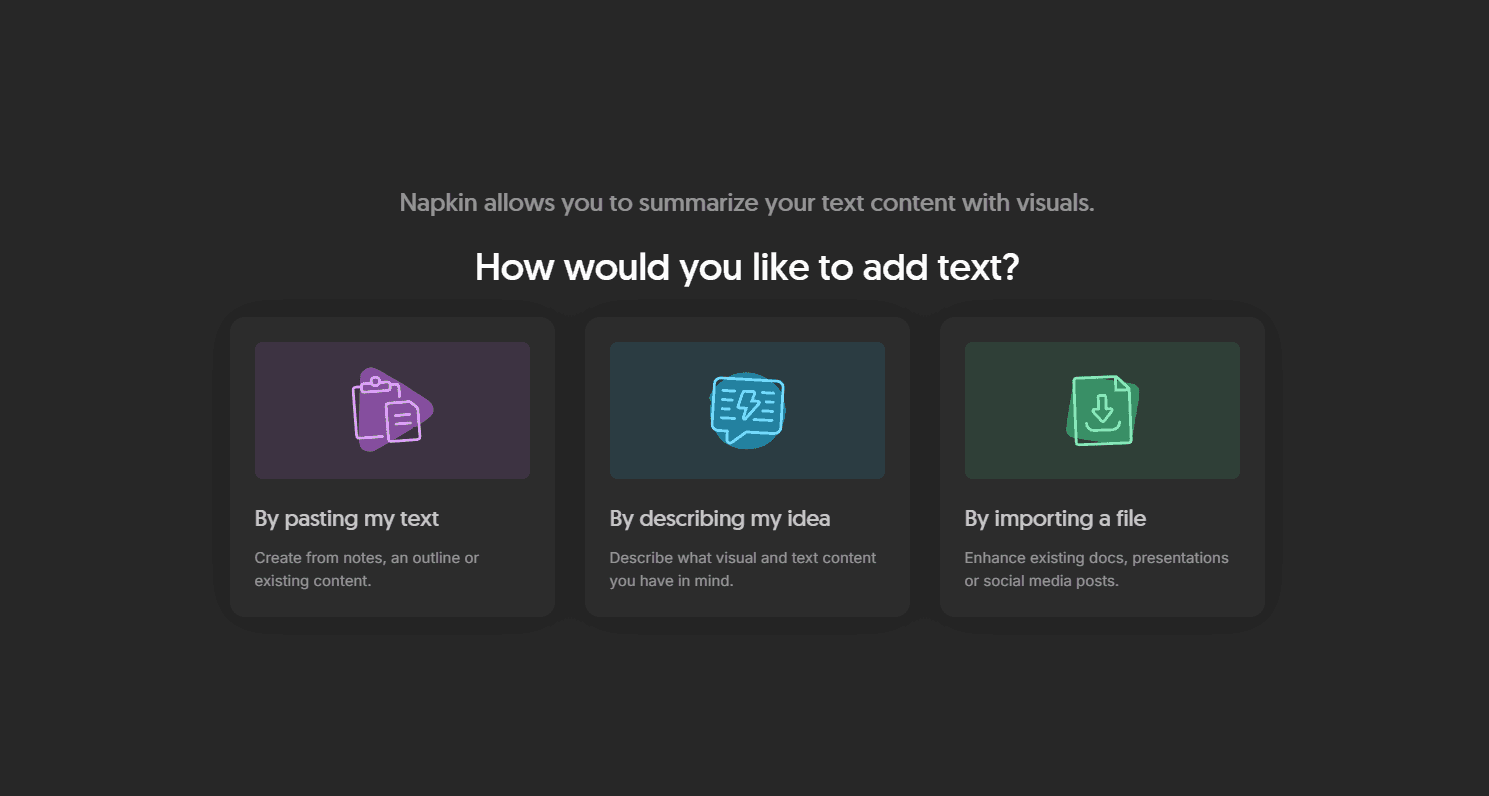
Import your source content. Add your content as notes, ideas or by importing existing files.
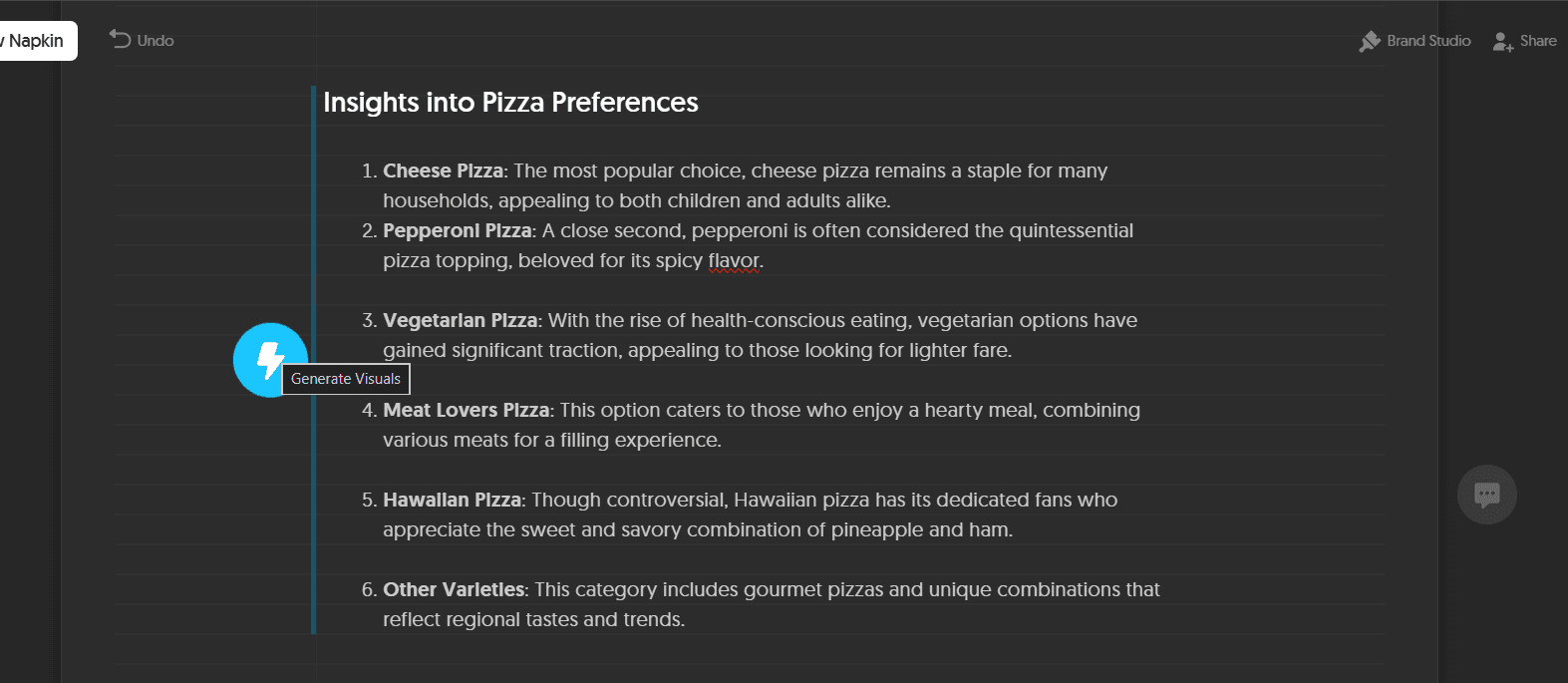
Click the spark icon. For every piece of content that needs a visual, click the spark option to trigger the AI, which analyses the text for structure and turns them into different types of charts, graphs or visuals.
Review 4-6 visual options. The AI typically returns options in 3–8 seconds. Each option represents a different layout interpretation of the same content.
Pick one and edit. Once you have a layout finalized, you can also choose between different design styles. Once done, use the editor to make changes to colors, icons, fonts, connectors, layout direction, and spacing.
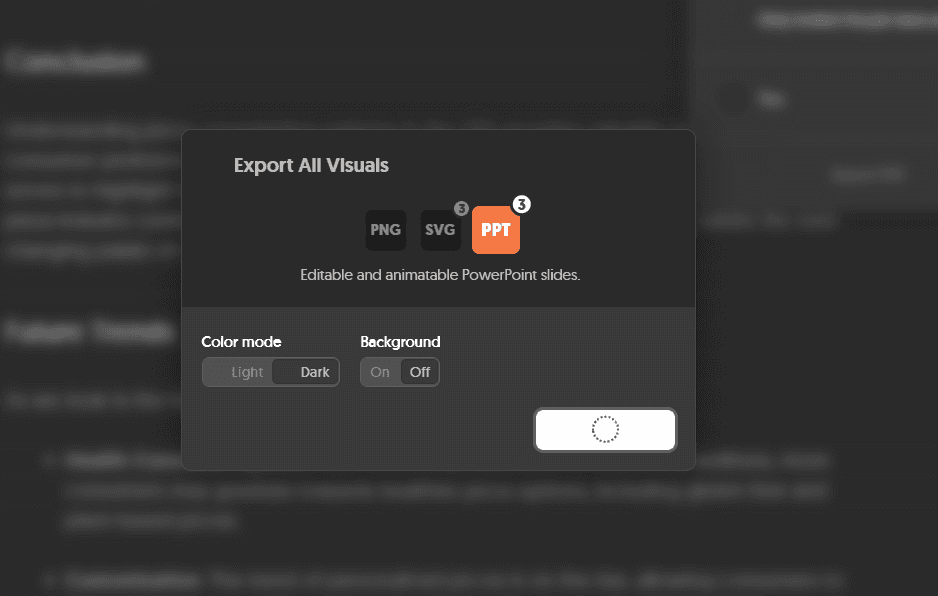
Export. PNG at 1x/2x/3x resolution, SVG, PDF, or editable PPTX. Light and dark mode toggles are available at export. Transparent background is optional.
Credits are consumed at roughly one credit per word of text processed for generation. Editing an existing visual doesn't cost credits on any plan.
Since June 2025, you can use Custom Generation: type the visual type you want before generating (e.g., "horizontal flowchart" or "comparison table") instead of waiting to pick from whatever the AI decides. This is a meaningful upgrade. Before custom generation, abstract input sometimes produced the wrong visual type and required multiple regenerations.
Napkin AI Features: What You Actually Get
These six features matter the most for presentation builders:
1. Text-to-Visual Generation: 30+ Types Flowcharts, mind maps, comparison tables, process diagrams, timelines, Venn diagrams, step-by-step flows, data summaries, org charts. These aren't templated layouts you fill in. The AI generates a visual structure based on the content itself. Paste a six-step onboarding process and you get a flow. Paste a pros/cons list and you get a comparison table. The accuracy is high for structured text. It drops for abstract or loosely written input.
2. Elastic Design System Visuals auto-scale as you add or remove elements. Add a seventh step to a six-step process flow and the diagram adjusts without you touching spacing or connector lines. This matters significantly when you're editing content under deadline pressure and don't want to redo the layout every time.
3. Custom Styles and Brand Kit Upload your brand colors. Napkin includes an auto-extraction feature that pulls colors directly from an uploaded image, so you don't need hex codes. Upload or choose from 700+ Google Fonts. Save multiple style profiles and apply them in one click across all visuals. Brand style features are tiered: three custom styles on Plus, unlimited on Pro.
4. Sketch Overlay Draw directly on any generated visual. Add annotations, freehand arrows, or labels that don't fit standard shapes. Useful for marking up visuals before sending for review.
5. Export Formats Free plan: PNG, PPT and PDF, unlimited. Watermark included. Plus plan: Adds editable PPTX and SVG. Watermark removed. Pro plan: Everything in Plus, plus custom font uploads and optional credit top-ups.
The PPTX export is the critical one for presentation workflows. I exported a four-step process flow to PowerPoint and opened it in PowerPoint 365. Text boxes were individually editable, shape colors were retained, and font fallbacks applied cleanly. You can adjust the layout post-export without redesigning from scratch. That's not guaranteed with every tool that claims PPTX export.
Resolution options at export: 1x, 2x, 3x. Light/dark mode toggle. Transparent background on/off. All in one panel.
6. Collaboration Real-time commenting on individual diagram elements. Multiple editors can work simultaneously. No API is available as of 2026. No native integrations with Notion, Google Slides, or WordPress. Any workflow connecting Napkin to those tools requires manual file export.
Napkin AI Pricing 2026
Napkin runs a three-tier plan structure with a 25% discount for annual billing.
Plan | Monthly Price | Annual Price | AI Credits | Key Limits |
Free | $0 | $0 | 500/week | PNG + PDF only, Napkin watermark on exports |
Plus | $12/mo | $9/mo | 10,000/month | PPTX + SVG export, watermark removed, 3 custom styles, bold icons |
Pro | $30/mo | $22/mo | 30,000/month | Everything in Plus + unlimited custom styles, font upload, credit top-ups |
The free plan's 500 weekly credits refresh every Monday. At roughly one credit per word processed, that covers several blog-quality visuals per week, enough for testing or occasional use. The watermark and PNG-only export are real constraints for any professional sharing visuals externally.
The Plus plan is the right upgrade for most users. The two things it unlocks, PPTX export with watermark removal, are both directly relevant to presentation work.
The Pro plan is justified when you need brand font uploads, more than three custom style profiles, or volume output at scale (30,000 credits covers approximately 30,000 words of text processed per month).
Napkin AI Review: Does It Actually Deliver Good Presentations?
This is the section no other Napkin AI review covers properly, so here is the direct answer: Napkin AI is excellent for creating individual presentation visuals. But, it does not build complete slide decks.
That distinction matters. If you need a polished 12-slide pitch deck generated from a text prompt, Napkin AI is the wrong tool. Go to Gamma or Alai for that. But if you're building a deck in PowerPoint or Google Slides and need to visualize a framework, a process, a comparison, or a roadmap, Napkin AI is faster and cleaner than anything else available.
Here's what that looks like in practice. I pasted a four-step client onboarding description: "Discovery: 30-minute call to understand goals. Proposal: Custom scope sent within 48 hours. Kickoff: 90-minute session to align on deliverables. Delivery: Weekly updates until launch." Then I clicked generate. In six seconds I had a horizontal flow diagram with labeled stages, icons, and clean connector lines. I exported it as an editable PPTX, opened it in PowerPoint 365, and the text boxes were individually editable. I could change fonts, adjust colors, and resize elements without any layout breaking. The whole process took under three minutes.
Visuals only generate for content you select. This is worth understanding before you try it. Napkin AI does not scan your entire document and auto-generate visuals everywhere. You highlight a specific paragraph or bullet block, click the spark icon, and the AI generates options for that section only. This matters for presentation workflows because it means you stay in control of which parts of your content become visuals and which stay as text. You're not fighting AI decisions about what to visualize; you're directing them.
Multiple chart options per content piece, not one interpretation. When you trigger generation on a selected block, Napkin AI returns 4-6 distinct visual options for that same content. You pick the one that fits the slide you're building into and move on. If none of the options work, you can use Custom Generation to specify the visual type upfront ("give me a comparison table" or "give me a timeline") before the AI runs, instead of hoping the auto-selection is right.
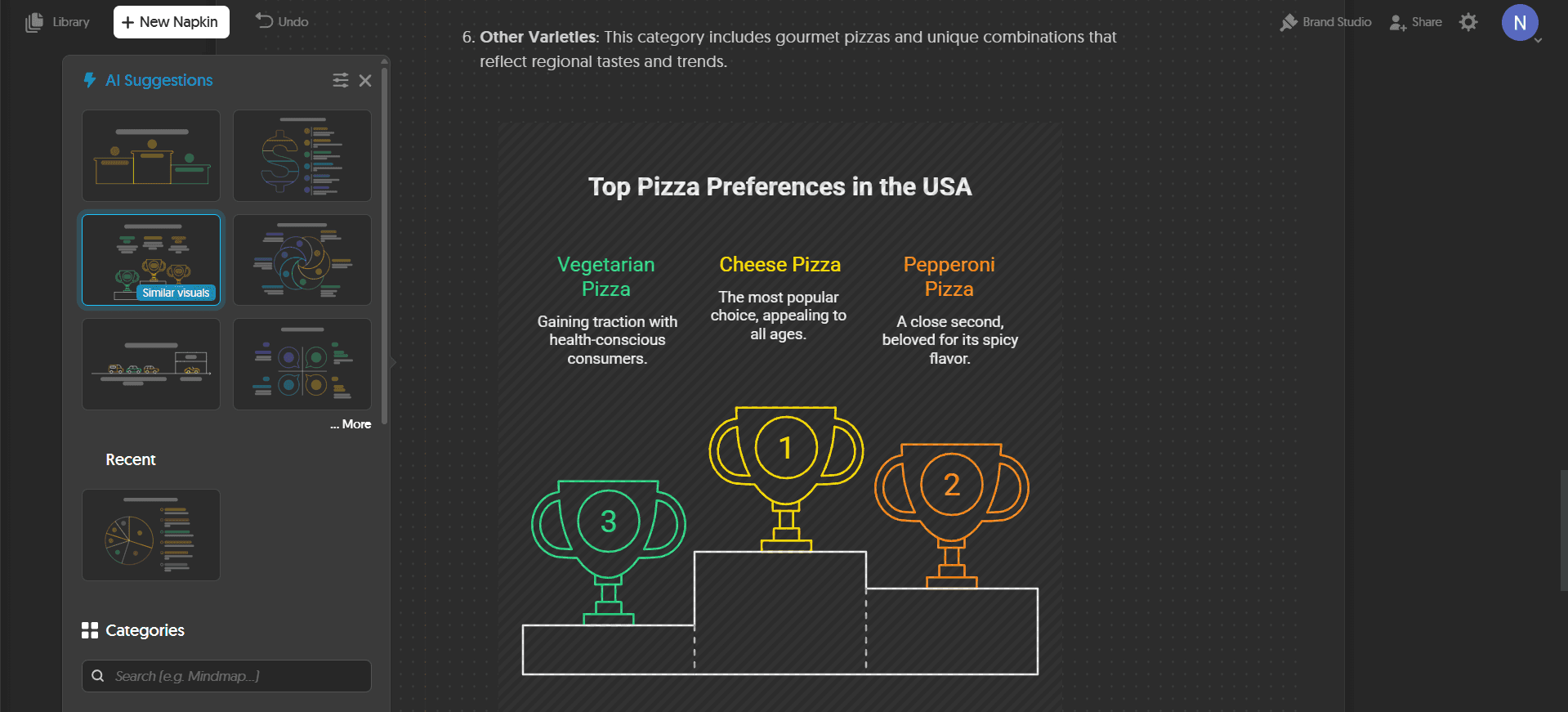
Style switching across the full visual. Once you have a visual, you can switch its style with one click. Napkin AI offers multiple style presets (line-based, filled, flat, layered) that completely change the visual treatment without touching the content or layout. A flowchart in the default style is clean and minimal. The same flowchart in a filled style has colored node backgrounds and bolder connectors. This is useful when you need the visual to match the tone of the deck it's going into: a dark, bold investor deck needs a different visual style than a clean internal process doc. You toggle between styles in seconds and the content structure stays intact.
Brand application is direct and saved. In Napkin AI's Brand Studio, you upload your brand colors and fonts once. For colors, there's an auto-extraction feature: upload an image (a logo, a brand asset, a slide from your deck) and Napkin reads the hex values directly without you entering a single code. Once saved, every visual you generate can apply your brand palette and typography in one click. On the Plus plan you get three saved Custom Styles. On Pro, unlimited. This means a consultant working across multiple clients can maintain separate saved style profiles and switch between them per project, keeping visuals on-brand without manually adjusting colors each time.
Where Napkin AI for presentations wins:
Selective generation: visuals only appear for content you choose to visualize, giving you full control
4–6 distinct layout options per content block, not one interpretation requiring regeneration
Style switching lets you match the visual treatment to the deck's tone without touching content
One-click brand application across all visuals once colors and fonts are saved in Brand Studio
PPTX export with individually editable elements, rare among text-to-visual tools
Elastic Design auto-adjusts layouts when you edit content, no manual realignment needed
Where Napkin AI falls short for presentations:
It does not generate full slide decks. Each visual is a standalone asset that you import into an existing deck.
Vague or abstract input produces generic output. Structured, specific text produces the best results.
No native connection to Google Slides or PowerPoint. Every visual requires a manual export and import step.
Visual variety drops after generating 8+ visuals in one session. Layouts start repeating.
No version history, so iterative edits cannot be undone beyond the current session.
Napkin AI Pros and Cons
Here is the honest breakdown across every dimension that matters for presentation workflows.
Feature | Details |
|---|---|
✅ 3–8 second generation | Paste text, click generate, pick from 4–6 visual options. No other tool at this price produces a diagram-ready visual this fast. |
✅ Genuinely usable free plan | 500 credits/week that reset every Monday, PNG and PDF export included, no credit card required. Functional for regular individual use, not a bait-and-switch trial. |
✅ Editable PPTX export | Exports open in PowerPoint with individually selectable text boxes, shapes, and connectors. You can change fonts, adjust colors, and resize elements post-export without the layout breaking. Rare at this price point. |
✅ 4–6 layout options per content block | Each generation returns multiple structural interpretations of the same content. You pick the one that fits instead of accepting whatever the AI decides first. |
✅ Style switching without touching content | Switch between visual style presets in one click. The content and structure stay intact; only the visual treatment changes. Useful when matching a visual to a specific deck's tone. |
✅ Auto color extraction | Upload a logo or brand image and Napkin reads your hex values directly. No manual entry. Brand colors apply across all visuals immediately. |
✅ Elastic Design auto-scaling | Add a step to a flowchart or remove a bullet and the diagram adjusts automatically. No manual realignment, no connector redrawing. |
❌ No full deck builder | Napkin creates individual visual assets. It does not generate complete multi-slide presentations from a prompt. If that's the use case, you need Gamma or alai, not this. |
❌ Breaks on vague input | Structured text (steps, comparisons, lists) produces accurate visuals. Abstract input ("our company values", "market opportunity") produces generic output that needs heavy editing before it's usable. |
❌ PPTX and SVG locked to Plus | The free plan exports PNG and PDF only, both with a Napkin watermark. Editable PPTX and SVG require upgrading to Plus [Verify: ~$9/mo]. |
❌ Custom fonts locked to Pro | Uploading brand fonts requires the Pro plan [Verify: ~$22/mo]. The Plus plan gives three saved custom styles: enough for individuals, limiting for strict brand teams. |
❌ No API or native integrations | No public API as of March 2026. No native plugin for Google Slides, Notion, or WordPress. Every visual requires a manual export and import step. |
❌ Visual repetition at volume | After generating 10+ visuals from similar content in one session, layout options start repeating. The Pro plan's exclusive designs help but don't eliminate it. |
❌ No version history | Edits within a session are not tracked. If you iterate on a visual and prefer the previous version, you cannot roll back. |
The one-line verdict: My honest review after testing 10+ AI presentation makers is that Napkin AI is the right tool if you create individual diagrams for presentations and content regularly and need them fast. It is the wrong tool if you expect it to build complete decks or integrate into automated pipelines.
4 Best Napkin AI Alternatives for Presentation Builders (2026)
How I Tested These Alternatives
Every alternative below was evaluated against the same four criteria
Design quality: Do the generated slides look like a designer made them, or like a default PowerPoint template?
Content generation: Does the AI produce specific, substantive content, or generic filler?
Editing and iteration: Can you meaningfully improve the output inside the tool, or must you export to do any real editing?
Input flexibility: Can the tool generate from a document or video, or only from a typed prompt?
Export fidelity: Does the downloaded file match what you saw in the tool, with formatting intact?
1. Alai: Best for Design Quality and Presentation Speed
Alai is the answer to the question Napkin AI doesn't try to answer: what if you need a complete, polished deck that actually looks like a designer built it? Most AI presentation tools produce functional output. Alai produces output with real visual depth: gradients, shadows, layered elements, and typographic hierarchy, because its AI is specifically trained on what makes presentations look professional, not just what makes content look organized.
Four layout variants per slide, not one guess. Every other tool on this list gives you one layout option per slide and asks you to regenerate if you don't like it. Alai generates four structurally distinct layout variants per slide: not the same layout in different colors, but four different ways of communicating the same content visually. For the onboarding test prompt, I got a horizontal step-flow, a card-grid layout, an icon-heavy vertical list, and a timeline. All four were polished. Choosing took 15 seconds. While Napkin AI does provide multiple layouts for one piece of content - those layouts are often limited to specific chart or diagram types. With Alai, the layouts vary from charts to text boxes with images.
Nano Banana 2 integration for visual-heavy slides. This is the feature that separates Alai from every other tool in this comparison. When you need a high-quality image slide (a detailed infographic, a data visualization, a visually complex diagram), Alai's Nano Banana 2 integration lets you generate it directly inside the platform without switching tools. The output is 4K quality, theme-consistent with the rest of your deck, and fully editable. Napkin AI generates structural diagrams well but cannot produce image-quality AI visuals.
Multiple options to edit design. Once your deck exists, you can edit it by instructing the AI directly. "Change the pie chart on slide 3 to a bar chart." "Add icons next to each bullet point." "Make the market size slide more visual." Agent Mode executes in real time without menu diving or right-clicking through nested options. But, if you want granular control on elements, that’s possible too with options to edit alignment, spacing, font style and more. Additionally its responsive canvas ensures addition and removal of elements within a slide can be done with zero manual effort.
Presentation-specific design and complete deck building. Most importantly: Alai is a complete deck builder that generates full multi-slide presentations from a prompt, an uploaded document, an image, or a link, which Napkin AI fundamentally cannot do. Paste a URL, drop in a PDF, upload a strategy doc, or type a prompt, and alai builds a structured, consistently designed deck end to end. The design logic behind every generated slide is trained specifically on presentations, not general content: it knows that a market size slide should use a visual hierarchy different from a process slide, that a competitive matrix needs a different layout than a team intro, and that visual weight needs to scale with the importance of the information on each slide. This is what separates Alai from tools that apply the same generic card template to every piece of content. Every element (spacing, typography, depth effects, icon selection) reflects a decision about how that specific content communicates best as a slide, not just as a document.
Analytics and engagement tracking. Alai lets you track how shared decks actually perform. For anyone sharing a pitch deck with investors, a proposal with a client, or a report with stakeholders, this data tells you which parts of your presentation are working and which aren't. Napkin AI has no tracking. Gamma offers analytics on Pro. Beautiful AI offers analytics on all paid tiers. alai includes this as a core feature, not an upsell.
API and automation. Alai has a full API for teams that need to automate presentation creation at scale. You can generate presentations programmatically from CRM updates, meeting notes, emails, or form submissions. It integrates natively with Zapier, Make, and ViaSocket. This means workflows like "generate a personalized proposal whenever a sales call is logged" or "create a weekly summary deck from raw data" are buildable without custom code. Napkin AI has no public API. This positions alai as the only tool on this list suitable for teams building presentation automation into their stack.
Presentation specific design. Most importantly - Alai is a complete deck builder that generates full multi-slide presentations from a prompt or uploaded image/link/document, which Napkin AI cannot do.
Pros:
Four distinct layout variants per slide instead of one option requiring repeated regeneration
Nano Banana 2 integration produces 4K, theme-consistent image slides without leaving the platform
Agent Mode edits the full deck via conversational commands in real time
Analytics and engagement tracking on shared decks: view counts, time per slide, exit rates
Full API with Zapier, Make, and ViaSocket integrations for automated presentation workflows
Complete deck builder that generates full presentations, not just individual visual assets
PPTX export preserves all formatting including charts and alignments in PowerPoint 365
Free plan includes PDF and PPT export with no watermark gating on basic exports
Cons:
Smaller template library than general-purpose design tools
Standalone web app only. No native Google Slides or PowerPoint plugin.
No offline mode
Pricing:
Plan | Monthly | Annual | Credits | Key Features |
Free | $0 | $0 | 300 (no renewal) | Up to 10 slides/prompt, PDF + PPT export |
Plus | $20/mo | $16/mo | 600/month | Up to 20 slides/prompt, watermark-free, priority support |
Pro | $30/mo | $25/mo | 1,200/month | Up to 50 slides/prompt, founder-level support |
Ultra | $80/mo | $60/mo | 5,000/month | Highest credit volume, direct feature requests |
Best for: Business professionals, consultants, founders, and sales teams who need complete decks that look professional without a designer. Also the right pick for any team building automated presentation workflows via API.
2. Gamma: Best for Multi-Doc Content
Gamma sits at the opposite end of the spectrum from Napkin AI. Where Napkin creates individual visual assets from structured text, Gamma takes a text prompt and produces a complete multi-slide presentation in under 60 seconds.
Complete decks, not just visuals. This is the fundamental advantage over Napkin AI. The onboarding test prompt produced a six-slide deck: title, four content slides with supporting detail, and a summary. Each slide used a different layout with consistent design throughout. Napkin AI generated one diagram. Gamma generated a presentation. For anyone whose workflow is "I have a text outline, I need a full deck," Gamma solves that in one step and Napkin AI does not.
Multi-format output from a single prompt. Gamma generates presentations, documents, and web pages from the same interface. If you need to turn the same content into a shareable link for async viewing, a PDF for email, and an embeddable web page for a landing page, Gamma handles all three without switching tools. Napkin AI is diagram-only.
Gamma Agent for conversational deck refinement. Gamma Agent lets you refine the entire deck through conversational AI commands. "Make the third slide more data-driven." "Shorten the intro slide to three bullet points." "Change the theme to dark mode." The Agent executes these across the full deck, not just a single element. This cuts the iteration cycle substantially compared to manually adjusting each slide (although when compared to Alai’s agent mode, I found Gamma’s agent to be a bit lacking in following instructions leading to unwanted changes)
Engagement analytics. Gamma tracks how shared presentations perform: views, time spent per slide, and scroll depth. This data is available on Pro plans and is useful for client pitches, investor decks, and internal reports where you want to know which sections people actually engaged with. Napkin AI has no equivalent.
Embeds and rich media. Gamma supports embedding Figma files, Miro boards, Airtable tables, Power BI reports, YouTube videos, Typeform surveys, and more directly inside a presentation. Napkin AI exports static visuals. Gamma creates living documents.
The honest caveat: the free plan's 400 credits are one-time only. Once gone, they don't reset. Most active users exhaust them within two to three weeks.
Pros:
Complete decks from a prompt in under 60 seconds, covering what Napkin AI cannot do at all
Multi-format output: presentations, documents, and web pages from one interface
Real-time co-editing on paid plans with team workspace management
Gamma Agent refines the full deck via conversational AI commands on Pro
Slide engagement analytics on Pro, tracking views, time per slide, and scroll depth
Rich embeds (Figma, Miro, Airtable, YouTube, Typeform) inside live presentations
PPTX, PDF, and Google Slides export on all plans
70 million users, stable and well-funded platform
Cons:
Free plan's 400 credits are one-time only, not a permanent free tier
First drafts often require significant iteration to reach a polished state, which burns credits
Design quality is competent but not exceptional. Not suited to high-stakes presentations without manual polish.
PPTX export can introduce formatting inconsistencies on complex slides
Pricing:
Plan | Monthly | Annual | Credits | Key Features |
Free | $0 | $0 | 400 (one-time) | Full deck generation, PDF + PPTX export, Gamma branding |
Plus | $10/mo | $8/mo | Unlimited | Remove branding, 20-card decks, priority support |
Pro | $20/mo | $15/mo | Unlimited | Custom fonts, analytics, API, 60-card decks, Gamma Agent |
Ultra | $100/mo | $90/mo | Unlimited | Most advanced AI models, 75-card decks |
Best for: Anyone who needs to create multi-format documents or presentations that are shared internally or as links to be viewed independently. If you're already a Gamma user wondering whether it's the best option for your needs, the Gamma alternatives guide covers where it falls short and what to use instead.
3. Beautiful AI: Best for Brand-Consistent Team Slide Design
Beautiful.ai is built around one core idea: formatting should be automatic. Its Smart Slide templates auto-adjust layouts as content changes. Add a bullet point and the font scales down to fit. Remove an image and text expands to fill the space. This removes most of the manual formatting work that slows down teams who build a lot of decks.
Smart Slide auto-formatting vs. Napkin AI's manual export workflow. In Napkin AI, you generate a visual, export it, import it into your deck, then manually fit it to the slide layout. In Beautiful.ai, the entire deck auto-formats as you edit. Layouts adjust, fonts scale, and spacing stays consistent without you touching a single element. For teams building decks frequently, this difference compounds into hours saved per month.
Workspace-level brand enforcement. This is where Beautiful.ai genuinely outperforms every other tool on this list, including alai and Gamma. On Team and Enterprise plans, admins set fonts, colors, and logos once at the workspace level and lock them so individual presenters cannot override them. Napkin AI's brand tools are per-user, not per-organization. Gamma's custom branding is available on Pro but not enforceable across a workspace. Beautiful.ai locks it at the account level, which is the only solution for organizations where brand drift across multiple presenters is a documented problem.
Full deck generation, not just individual visuals. Like Gamma and alai, Beautiful.ai builds complete multi-slide presentations. DesignerBot generates a structured draft from a text prompt, a pasted URL, or an uploaded document. You start with a real deck, not a collection of diagrams to arrange.
Engagement analytics on all paid tiers. Beautiful.ai tracks views, unique viewers, and time spent per slide on every shared presentation across all paid plans, not just a top-tier plan. This puts deck performance data in the hands of individual contributors, not just Pro subscribers. For sales teams sharing proposals, knowing which slides a prospect actually spent time on is directly actionable.
In-browser presentation mode. You can present directly from Beautiful.ai without exporting. This eliminates the "export to PPTX, open in PowerPoint, fix formatting, present" workflow that Napkin AI and most other tools require.
The trade-off is price and accessibility. There is no free plan; the trial requires a credit card. Monthly billing at $45/user is expensive relative to alternatives. AI-generated images in DesignerBot lean generic and frequently need manual replacement.
Pros:
Smart Slide templates auto-adjust the full layout as content changes, no manual formatting
Admin-level brand lockdown on Team plan, the only tool here with enforceable brand consistency across a workspace
Full deck generation from text prompts, URLs, and uploaded documents
Slide engagement analytics on all paid tiers, not gated to a top plan
In-browser presentation mode eliminates the export-fix-present workflow
PPTX, PDF, and in-browser presentation all supported
Cons:
No free plan. The trial requires a credit card.
Monthly billing at $45/user is steep for small teams or individual users
AI-generated images are frequently generic and need manual replacement
PPTX export shows occasional formatting inconsistencies on complex slides (documented in G2 and Capterra reviews)
Pricing:
Plan | Monthly | Annual | Key Features |
Pro | $45/mo | $12/mo | 1 user, full AI generation, analytics, PPTX export |
Team | $50/seat/mo | $40/seat/mo | Shared workspace, admin brand lockdown, slide library |
Enterprise | Custom | Custom | SSO, advanced admin, custom integrations |
Best for: Sales, marketing, and communications teams where every presentation needs to look identical and brand drift across multiple presenters is an active problem worth paying to solve. See the full Beautiful AI alternatives guide if you want to explore better alternatives at lower pricing.
4. Gemini Canvas: Best for Google Workspace Users Who Want Zero Friction
Gemini Canvas is Google's AI workspace layer inside the Gemini app. It generates documents, presentations, infographics, quizzes, and code from prompts and lives natively inside the Google ecosystem. If your entire workflow runs through Google Workspace (Docs, Slides, Drive, Gmail), Gemini Canvas is the option that adds AI-assisted presentation creation without adding a new tool, a new account, or a new login to your stack.
Zero friction entry vs. Napkin AI's dedicated onboarding. Napkin AI requires a separate account and a new workflow. Gemini Canvas is already inside the Gemini app that Google Workspace users access daily. If someone on your team is already using Gemini for email drafting or document summarization, they can generate a presentation from the same interface they're already in. There is no onboarding, no learning curve for the tool itself, and no credit card required on the free tier.
Multi-format output from a single interface. Gemini Canvas generates presentations, documents, code, infographics, and web content from the same prompt bar. Napkin AI generates diagrams only. For a team that uses Gemini Canvas across multiple content types, having presentations covered by the same tool reduces stack complexity.
Deep Research integration. Gemini Canvas can pull from Deep Research mode, which runs multi-step web research before generating content. A prompt like "Create a presentation on competitive dynamics in the EV market in 2026" can pull current data directly into the slides rather than relying solely on your input. Napkin AI only works with content you provide; it does not pull live information.
Native Google Slides export. Canvas exports directly to Google Slides with one click, where you can use all of Google's existing formatting tools, comment workflows, and sharing permissions your team already knows. Napkin AI requires you to export a PPTX file and manually import it into Slides if you work in that environment.
The honest assessment: Gemini Canvas was not built for presentations. It was built as a general-purpose AI workspace and presentation creation was bolted on afterward. The sequencing shows. Presentations export to Google Slides, not directly to PPTX. Getting a .pptx file requires a two-step conversion (Canvas to Slides, then download as PPTX), and formatting frequently breaks in that process. Design output lacks presentation-specific logic: layouts are functional but flat, closer to 2015-era PowerPoint than what alai or Gamma produces. There is no visual editor. Design quality depends entirely on how detailed your prompt is, which makes it effectively unusable for non-designers trying to produce polished output without prior experience writing design prompts.
Where Gemini Canvas earns its place: free on the standard Gemini plan, zero new-tool friction for Google Workspace users, and adequate for internal drafts under time pressure. For anything going to a client or investor, it needs substantial manual rework in Google Slides after the fact.
Pros:
Free on the standard Gemini plan, no additional subscription required
Zero learning curve for anyone already using Google Workspace daily
Generates presentations, documents, infographics, and code from one interface
Deep Research integration can pull current web data into presentation content
Exports directly to Google Slides for immediate editing with familiar tools
Cons:
No direct PPTX export. Requires Google Slides as an intermediate step, with frequent formatting breakage.
Design output is flat and generic with no presentation-specific design logic
No visual editor. Design quality depends entirely on prompt specificity, inaccessible for most non-designers.
Not suitable for client-facing or investor decks without substantial manual rework
Presentation feature was added after launch, not built-first; the output reflects that
Pricing:
Plan | Monthly | Key Features |
Free | $0 | Gemini app access, Canvas, Google Slides export, Gemini 2.5 Flash |
Google AI Pro | $19.99/mo | Gemini 3.1 Pro, higher usage limits, 1,000 monthly AI credits |
Best for: Google Workspace users who want AI-assisted presentation drafting without adding a new tool, and whose output is for internal use where design quality is not the primary concern.
Which Tool Should You Use? Verdict by Use Case
You create assets for blog posts and one-off decks: Napkin AI Plus. The PPT export and watermark-free output cover the workflow at the right price.
You need a complete, polished deck that looks designer-made: Alai. Four layout variants per slide, genuine design depth, and PPTX export that holds up in PowerPoint. Nothing else on this list combines those three.
You are looking to produce multi-format content: Gamma Plus ($8/mo). Allows you to create decks, websites and documents from the same prompt.
Your team needs every deck to look identical: Beautiful AI Team plan. Admin brand lockdown is the only feature that solves this problem systematically. No other tool here enforces it at the workspace level.
You live in Google Workspace and won't add a new tool: Gemini Canvas. Free, zero friction, adequate for internal use. Don't use it for client-facing output.
FAQ
What is Napkin AI?
Napkin AI is a browser-based text-to-visual tool built for business storytelling. It was created by Jerome Scholler and Pramod Sharma, the founders behind AI gaming company Osmo, and has grown to over 5 million registered users as of 2025. The core premise is simple: you paste text into a document, click a button, and the AI generates visual options for that text in seconds.
Is Napkin AI free?
Yes, Napkin AI has a permanent free plan with 500 AI credits per week that reset every Monday. The free plan covers PNG and PDF export, unlimited visual editing, real-time collaboration, and file import (PPT, DOC, PDF). The two significant limits are: exports carry a Napkin watermark, and PPTX and SVG export formats require Plus or above. For testing the tool or occasional personal use, the free plan is genuinely functional. For professional work where you share visuals externally, Plus removes both constraints.
Can Napkin AI build a full presentation deck?
No. Napkin AI creates individual visual assets: diagrams, flowcharts, infographics, mind maps, that you embed into an existing deck. It does not generate a complete multi-slide presentation from a prompt. For full deck generation, Gamma (complete deck in 60 seconds) or alai (complete deck with designer-quality output) are the right choices. Using Napkin AI and a deck builder like alai together is a strong workflow: generate the deck structure in alai, then use Napkin AI for any complex diagrams that need structural visual treatment.
Does Napkin AI export to PowerPoint?
Yes, on Plus and Pro plans. The PPTX export produces editable files with individually selectable text boxes, shapes, and connectors, all adjustable in PowerPoint 365 and Google Slides. The free plan does not include PPTX export, only PNG and PDF. If PowerPoint editability is a requirement for your workflow, Plus is the minimum plan.
Is Napkin AI good for non-designers?
Yes, specifically. The entire tool is designed to remove design decisions from the user's path. You don't choose a layout, adjust spacing, or manage connector logic. The AI handles all of that. The only design choices you make are: which of the 4–6 generated options to use, and whether to adjust colors or fonts to match your brand. Users with zero design background routinely produce professional-looking diagrams in under five minutes.
Does Napkin AI have a mobile app?
Yes. iOS and Android apps launched in March 2025. Mobile supports viewing existing visuals, making basic edits, and sharing. Full visual creation (generating new diagrams from text, applying custom styles, and exporting) works best on desktop. The mobile app is useful for reviewing and presenting work in the field, not for building from scratch.
SEITEN
Werkzeuge vergleichen
Ressourcen