·
CASE STUDY
·
20 min read

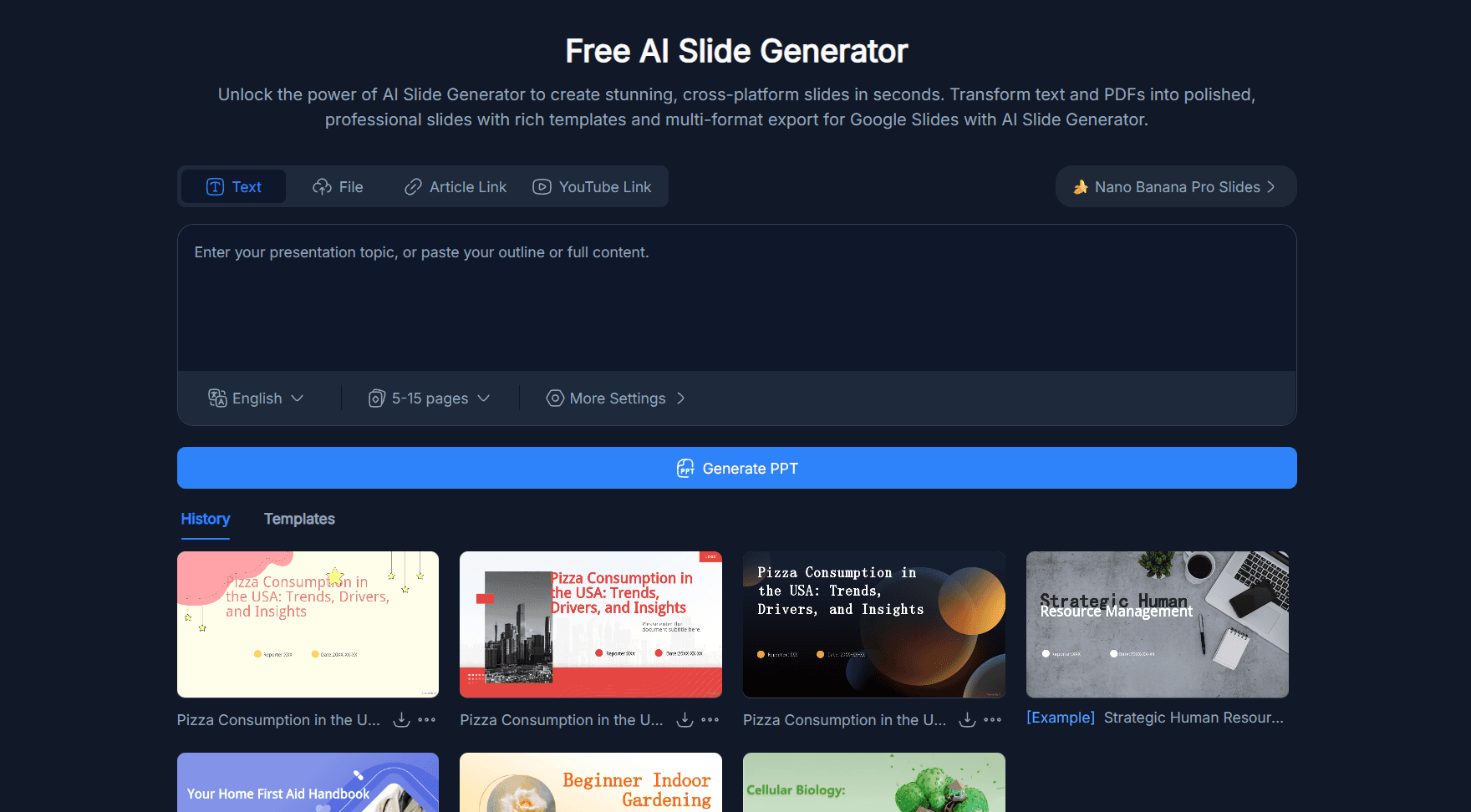
I found NoteGPT because of its YouTube summarizer, which is genuinely one of the better ones I've used. A few weeks later I noticed the presentation maker sitting in the same dashboard and figured I'd give it a try on a deck I was already building.
Four minutes later I had a downloadable PPT. The content was decent. Then I actually looked at the slides: flat layouts, a stock photo of mountains on my healthcare policy deck, and two slides with placeholder text that never got filled in. When I went back to fix it, I found out there was no editor. Exporting to PowerPoint and starting over was my only option.
That prompted a week of proper testing: NoteGPT's presentation maker against the 10+ best AI presentation makers I’d tested so far. This blog contains a detailed breakdown of my review on NoteGPT along with suggestions for better alternatives.
TL;DR Review : NoteGPT as an AI Presentation Maker + Best Alternatives
This is a lengthy blog so if you’re looking to quickly understand where NoteGPT stands as a presentation maker and explore better alternatives - these two sections should cover that for you:
NoteGPT Presentation Maker: Quick Overview
Dimension | Rating | Notes |
Design quality | Weak | Flat layouts, no modern visual elements |
Image relevance | Poor | Stock images consistently unrelated to content |
Content depth (from source doc) | Good | Accurate and well-structured |
Content depth (from prompt only) | Average | Generic filler on short prompts |
In-app editing | Weak | Template-switching only; no visual editor |
Input breadth | Strong | More source types than any dedicated competitor |
Pricing | Fair | Cheaper entry than most dedicated tools |
Export quality | Average | PPT holds on simple layouts; cleanup needed on complex ones |
Quick Answer: NoteGPT vs The Best AI Presentation Maker Alternatives
NoteGPT is the strongest tool in this list for converting YouTube videos, PDFs, and audio files into a first-draft deck. For design quality, in-app editing, and anything presentation-ready, it falls short of every dedicated alternative below. If you already know you want an alternative, the table tells you where to start.
Tool | Best For | Free Plan | Starting Price | Design Quality |
Alai | Design quality + in-app editing | Yes (200 AI credits) | Free / from $16/month (annual) | Excellent |
Gamma | Fast decks with modern layouts | Yes (400 one-time credits) | $8/month (annual) | Very Good |
Beautiful.ai | Consistent business presentations | 14-day trial only | $12/month (annual) | Very Good |
Plus AI | Google Slides / PowerPoint users | 7-day trial | $10/month (annual) | Good |
Now, let’s dive into a more detailed understanding of NoteGPT’s features, how you can create PPTs on NoteGPT and which NoteGPT alternatives are worth exploring
What Is NoteGPT?
NoteGPT is an AI learning assistant built to process content at volume. Feed it a YouTube video, a PDF, an article URL, an audio file, or a plain text prompt, and it returns a summary, transcript, mind map, flashcard set, or presentation depending on what you ask for. The tool targets students, researchers, and self-learners who move through a lot of content and want to compress review time.
The AI presentation maker is one output mode among several. That's important context for this Notegpt review: you are not buying a dedicated slide tool, you are buying a broad AI summarizer that also makes slides. Whether that trade-off works depends entirely on how much the slide quality matters to you.
How To Create Presentations On NoteGPT's AI Presentation Maker
The workflow is five steps from source content to downloadable deck.
Step 1: Add your source. NoteGPT accepts more input types than most dedicated AI presentation maker tools: YouTube links, PDFs, article URLs, text prompts, audio files, podcast files, PPTs, and images. This is genuinely broader than most AI presentation tools which are primarily prompt-based or document-upload tools.
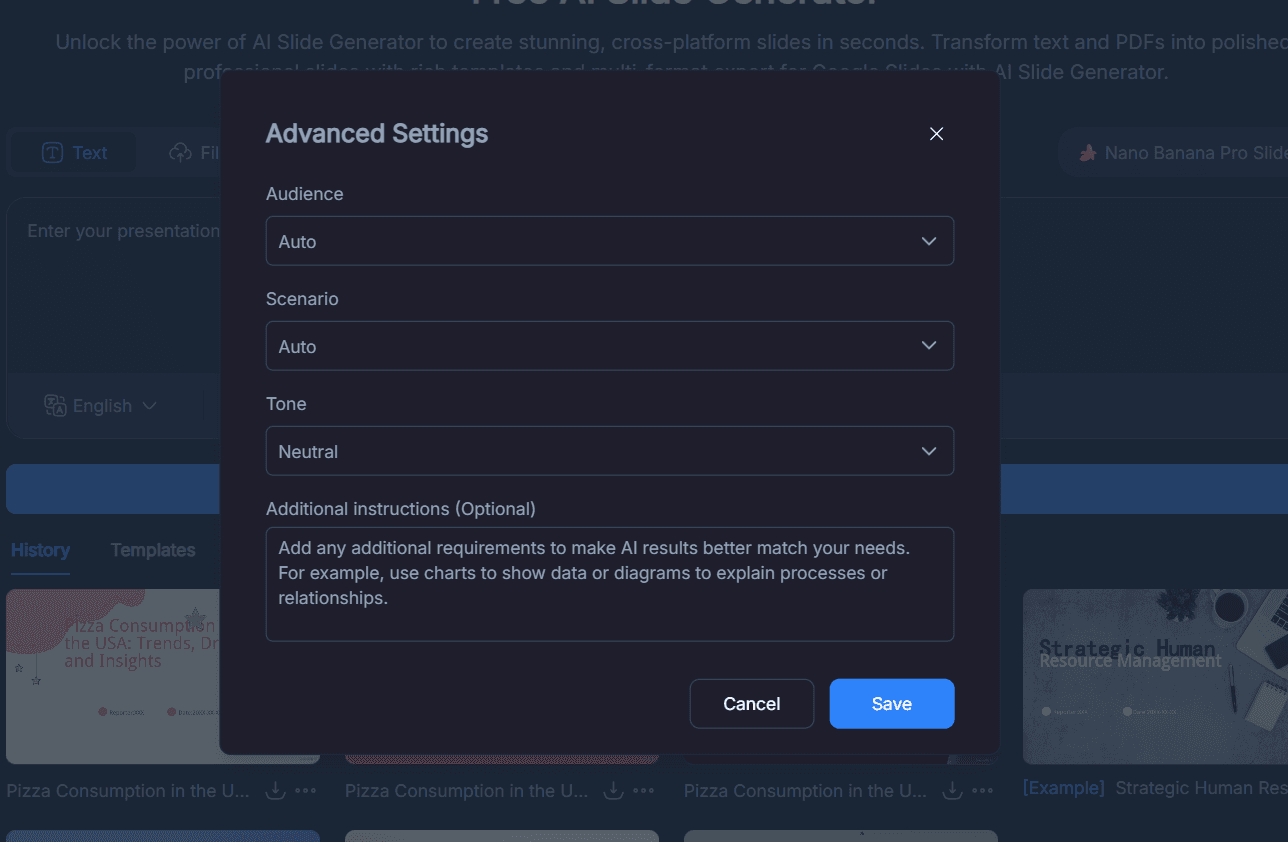
Step 2: Set your parameters. Before generating, you configure language, number of slides, target audience, tone, and any additional instructions. These settings matter. The same source content produces noticeably different output depending on how you define the audience and tone.
Step 3: Choose a template. NoteGPT has a template library filtered by category, style, and color. You pick one before the AI generates anything, which means you are committing to a visual direction before seeing the content.
Step 4: Edit the outline. This is the most useful step in the workflow. Before generating the final deck, you get an editable outline: you can add slides, remove slides, reorder them, and rewrite individual bullet points. Many AI presentation tools generate the full deck first and force you to edit after. NoteGPT intervenes earlier, which saves time when the AI has misread the structure of your source material.
Step 5: Generate and download. The final deck is produced and can be downloaded as a PPT, PDF, Individual images, Combined long image, Keynote and Outline.
Note: NoteGPT does not allow iteration within the tool once a deck is created (apart from switching templates)
NoteGPT Review: Features, Limitations and What to Expect
NoteGPT's presentation maker includes five core features. Here's what each one actually does in practice.
Template library. A filterable library of pre-built slide themes sorted by category, style, and color. The templates are functional but dated - standard PowerPoint-style layouts with no gradients, depth effects, or modern design elements. Fine for a student project; not something you'd send to a client.
Content generation. The AI builds slide content from whatever source you feed it: YouTube link, PDF, article URL, audio file, or plain text prompt. Quality is heavily source-dependent. A structured PDF or YouTube video produces accurate, well-organized slides. A short text prompt produces thin, generic filler. The richer your input, the better the output.
Outline editing. Before the final deck generates, NoteGPT gives you an editable outline to add, remove, reorder, or rewrite slides. This is the most useful feature in the workflow. Most ai presentation tools generate first and fix after. NoteGPT lets you correct the structure before the design gets applied, which saves a meaningful amount of time.
Export. Your deck downloads as a .pptx file compatible with PowerPoint 365 and Google Slides. It works, but expect to do a cleanup pass as text overflow and minor formatting shifts are common on complex slides.
ChatGPT integration. An optional pre-generation setting that connects NoteGPT to ChatGPT and noticeably improves content quality when enabled. It is off by default. Turn it on before you generate anything.
What NoteGPT Does Well
Content from structured source documents. When fed a well-structured PDF, NoteGPT produces accurate, logically organized output. The key points from the source document map cleanly onto slides, and the AI correctly identifies what belongs in body bullets versus what needs a dedicated slide. I tested it on a 32-page research paper and the summary held at the top level, covering the main arguments without inventing claims. For converting existing content, a lecture recording, a research paper, a YouTube video, into a first-draft deck, NoteGPT does this reliably.
Outline editing before generation. Most AI presentation tools generate the full deck first and force you to fix structural problems after the design has been applied. NoteGPT gives you an editable outline before generating: you can add slides, remove them, reorder, and rewrite individual bullet points. I used this to consolidate three thin slides into one, add a summary slide the AI had skipped, and rewrite two titles that missed the point of the source material. That took three minutes and saved me from fixing the same issues after export.
Input breadth. NoteGPT accepts YouTube links, PDFs, article URLs, audio files, podcast files, PPTs, images, and plain text prompts. That is a wider source range than any dedicated ai presentation maker in this comparison. If your workflow involves converting audio or video content into slides, NoteGPT has a pipeline for that; the others do not.
ChatGPT integration. Connecting NoteGPT to ChatGPT before generating noticeably improves content quality. It is not on by default, which is a miss. Treat it as a required step rather than an optional one if you are using NoteGPT for presentations seriously.
What NoteGPT Does Not Do Well
The presentation design is flat and repetitive. The template library is built around two or three basic PowerPoint layouts: heading plus text block, and heading plus text plus image. There are no gradients, no depth effects, no visual hierarchy beyond font size differences. Every slide feels like a flat image. A tool like Alai generates four design variants per slide, each applying spacing, depth, and typographic hierarchy the way a designer would. NoteGPT generates one, and it is always the most basic one.
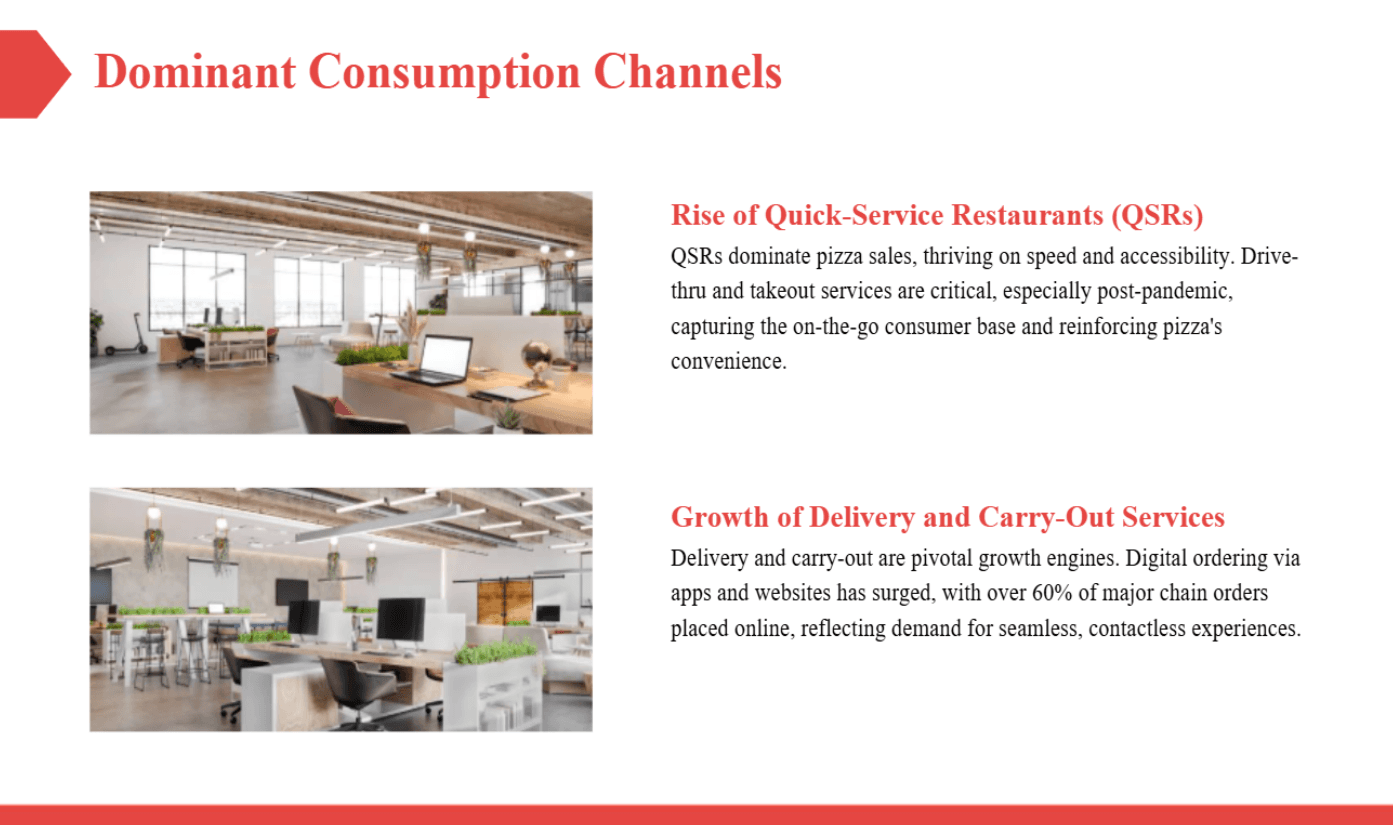
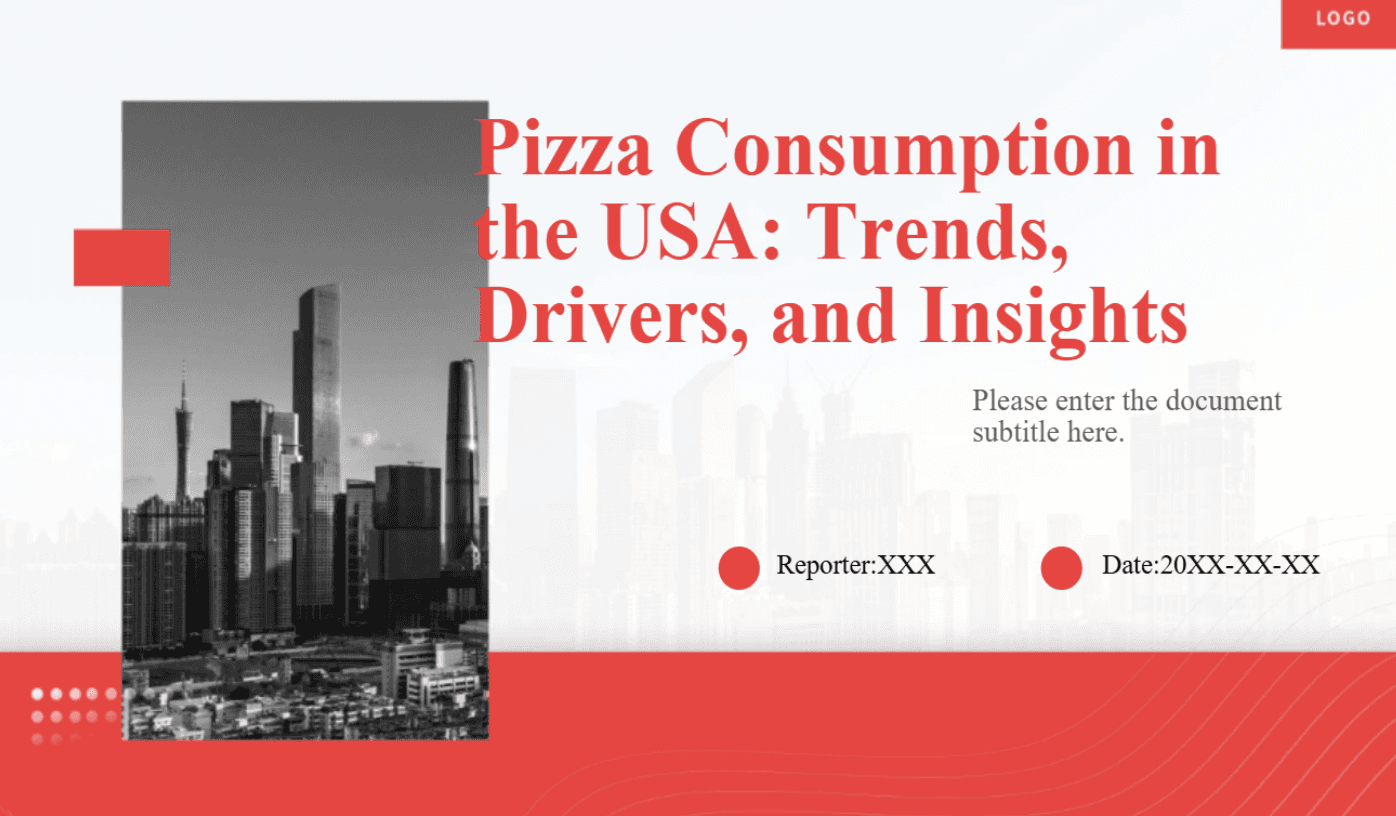
Images are not contextually relevant. When NoteGPT adds stock images to slides, they have no visible connection to the slide's content. I generated a test deck on pizza consumption in the US and most slides contained images that had nothing to do with the topic (example given below). This is a credibility problem: a presentation where the images ignore the content looks like the presenter did not review their own deck.
No in-app visual editor. NoteGPT's website references editing capabilities, but the only meaningful iteration option inside the tool is swapping templates. You cannot move elements, rewrite slide content in a visual interface, or adjust the layout of individual slides. Any real editing requires exporting to PowerPoint first.
Placeholder errors in generated output. In two of the five test decks I generated, some slides retained placeholder text, the kind of instructional text saying "add your content here," where AI-generated content should have appeared (example given below). On a paid product, this is not acceptable.
Thin content from short prompts. Without a rich source document, NoteGPT pads slides with generic statements and repeated points. A two-sentence prompt produces filler. A detailed PDF or YouTube video produces solid content. The tool's quality is source-dependent in a way that dedicated slide generators are not.
Lack of important presentation features. When compared to tools like Alai & Gamma, NoteGPT’s presentation maker lacks a lot of important features including custom theme creation, analytics for decks and a presentation-specific element library. For someone looking for a dedicated presentation tool for their business or brand, these shortcomings can have a huge impact on their experience.
Pros and Cons Summary:
Pros | Cons |
Widest source input range in this comparison | Flat, dated slide design |
Outline editing before generation | Stock images unrelated to slide content |
Accurate content from structured source docs | No in-app visual editor |
ChatGPT integration improves output quality | Placeholder errors in generated decks |
Cheapest entry price at $9.99/month | Thin content from short prompts |
Free plan available | No custom templates or brand kit support |
NoteGPT Pricing
NoteGPT pricing breaks down into a free plan and three paid tiers. Annual billing saves approximately 30% across all plans, and annual subscriptions do not auto-renew, which removes the risk of forgetting to cancel.
Plan | Monthly Price | Annual Price | Credits/Month | Key Limits |
Free | $0 | $0 | 15 | Basic features, very limited |
Pro | $9.99 | $9/month | 100 | All formats, standard batch |
Unlimited | $29 | $19.92/month | 2800 | Expanded batch, longer videos |
Max | $99 | $690/month | 10,000 | Full access, no caps |
Each presentation generation consumes credits. On the free plan, 15 credits per month means roughly 15 deck generations, or fewer if you are also using NoteGPT for summarization and other outputs. For anyone using it more than a few times per week, the Pro plan at $9.99/month is the realistic starting point.
Compared to dedicated AI presentation maker tools, NoteGPT's entry price is lower. Gamma's paid plans start at $8/month (annual). Beautiful.ai starts at $12/month (yearly) with no free plan at all.
5 Best NoteGPT Alternatives for AI Presentations in 2026
How I Tested These Alternatives
I built the same pitch deck across every tool using identical source content, then evaluated each on five criteria:
Design quality: Do the generated slides look like a designer made them, or like a default PowerPoint template?
Content generation: Does the AI produce specific, substantive content, or generic filler?
Editing and iteration: Can you meaningfully improve the output inside the tool, or must you export to do any real editing?
Input flexibility: Can the tool generate from a document or video, or only from a typed prompt?
Export fidelity: Does the downloaded file match what you saw in the tool, with formatting intact?
1. Alai: Best AI Presentation Maker For Design & Speed

I ran the multiple prompts across every tool in this comparison. Alai was the only one that didn't make me hit regenerate repeatedly.
Where NoteGPT gives you one layout per slide and no way to change it inside the tool, Alai generates four distinct layout variants per slide. For my market size slide I got a pie chart, a bar graph, a text-heavy breakdown, and an infographic. All four were professionally designed. I picked one and moved on in 15 seconds. The AI is also trained to make real design decisions: for a healthcare slide it chose a Venn diagram over bullet points because the content called for it. NoteGPT would have given you heading plus text with an unrelated stock photo.
The design quality is what separates Alai from everything else in this comparison, including tools that cost significantly more. Every slide comes out with gradients, layered elements, real typographic hierarchy, and depth effects that make it look like a designer was involved. The AI is trained on over 1,000 presentations and understands visual principles that most tools ignore: when to use white space, how to create emphasis without clutter, which layout type suits which content. The result is that the first draft looks closer to a final deck than a starting point.
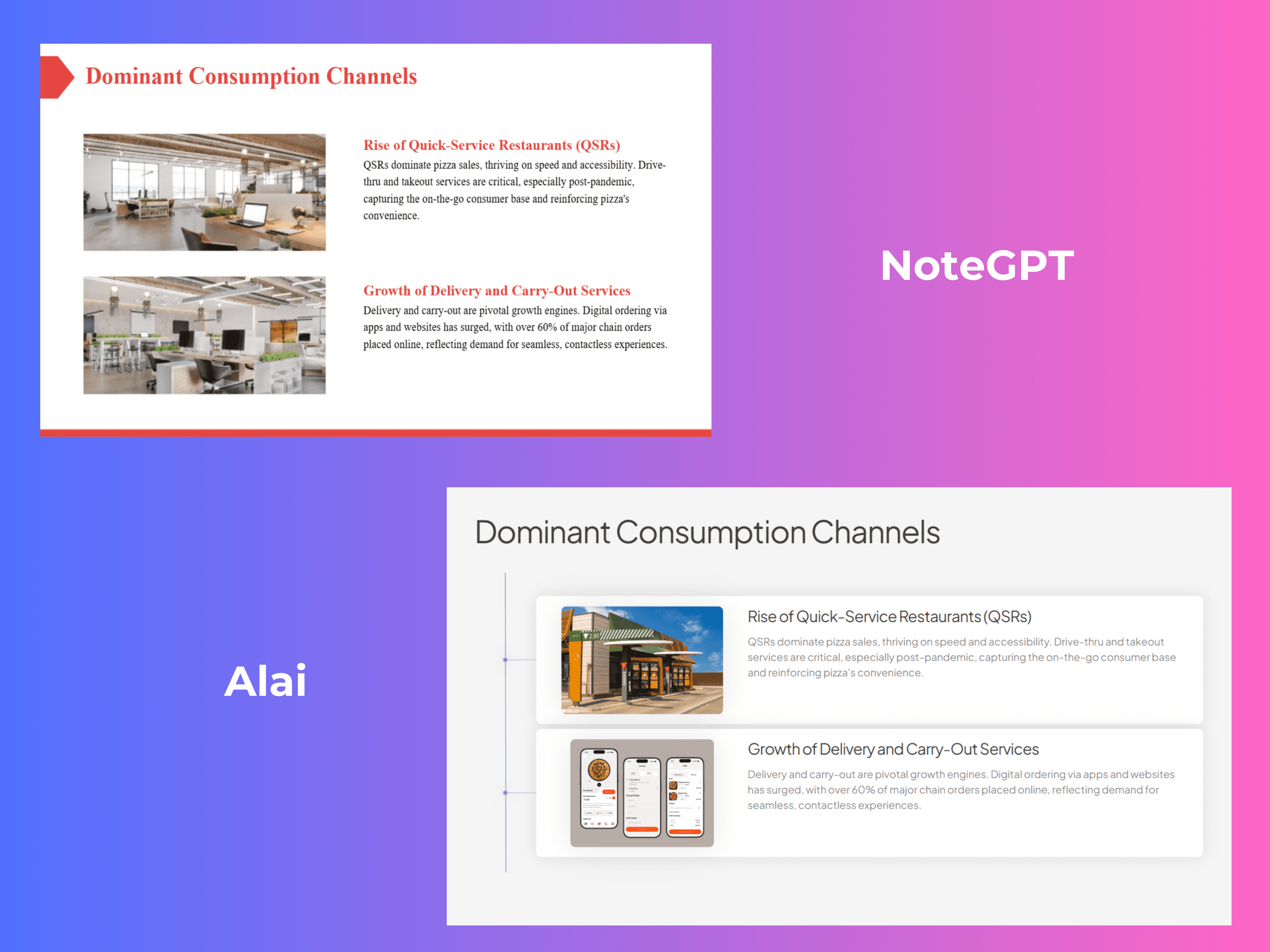
Design comparison of NoteGPT v/s Alai: Same content but different visual quality
Editing works really well through Agent Mode: type what you want changed and it executes without touching the rest of the deck (while maintaining context of the entire deck). Additionally for granular edits, the tool offers element-specific editing features to change spacing, alignment, font size and more. The responsive canvas makes it super ease to add or adjust elements without worrying about manually making space for each change.
Beyond generation and editing, Alai has three features NoteGPT doesn't come close to. First, Nano Banana 2 integration: editable, theme-consistent image slides generated using Google DeepMind's latest model, mixable with regular slides in the same deck. Second, custom themes: upload your brand's colors, fonts, and logos once and they apply across every deck automatically. Third, engagement analytics: share a deck as a link and see which slides viewers spent time on and where they dropped off, so you know exactly where to iterate.
For teams needing more, MCP server integration connects Alai to Notion, Stripe, PostHog, and other tools to pull live data directly into slides, and the API supports automated deck generation at scale.
The one area NoteGPT genuinely wins: input breadth. If your workflow involves converting YouTube videos, audio files, or podcasts into slides, NoteGPT does that natively. Alai does not.
Pros:
Four layout variants per slide at professional design quality, so you choose rather than accept
Presentation specific design that creates output that looks designer made
Agent Mode lets you iterate by chatting with the AI, with no unwanted changes to the rest of the deck
Nano Banana 2 integration produces editable, theme-consistent image slides that can be mixed with regular slides in the same deck
Custom themes apply your brand colors, fonts, and logos consistently across every deck
Engagement analytics show which slides viewers spend time on and where they drop off
Context-aware AI maintains consistent terminology and visual language across the full deck
MCP server integration pulls live data from Notion, Stripe, PostHog, and other connected tools directly into slides
API access for teams generating on-brand decks programmatically at scale
PowerPoint export preserves formatting completely
Cons:
No native YouTube or audio-to-slides pipeline; NoteGPT handles more source types out of the box
Smaller template library than general-purpose design tools like Canva
No Google Slides or PowerPoint plugin; standalone platform only
Pricing is higher than NoteGPT's Pro tier for comparable usage
Pricing:
Plan | Monthly | Annual | AI Credits | Slides per Prompt |
Free | $0 | $0 | 300 (no renewal) | Up to 10 |
Plus | $20/mo | $16/mo ($192/yr) | 600/month | Up to 20 |
Pro | $30/mo | $25/mo ($300/yr) | 1,200/month | Up to 50 |
Ultra | $80/mo | $60/mo ($720/yr) | 5,000/month | Up to 50 |
Best for: Professionals, founders, consultants, and teams who create presentations where design quality is non-negotiable, need to iterate inside the tool without exporting, want engagement analytics on shared decks, and want the ability to automate deck creation through MCP integrations or the API.
2. Gamma: Best Alternative For Multi-Doc Creation
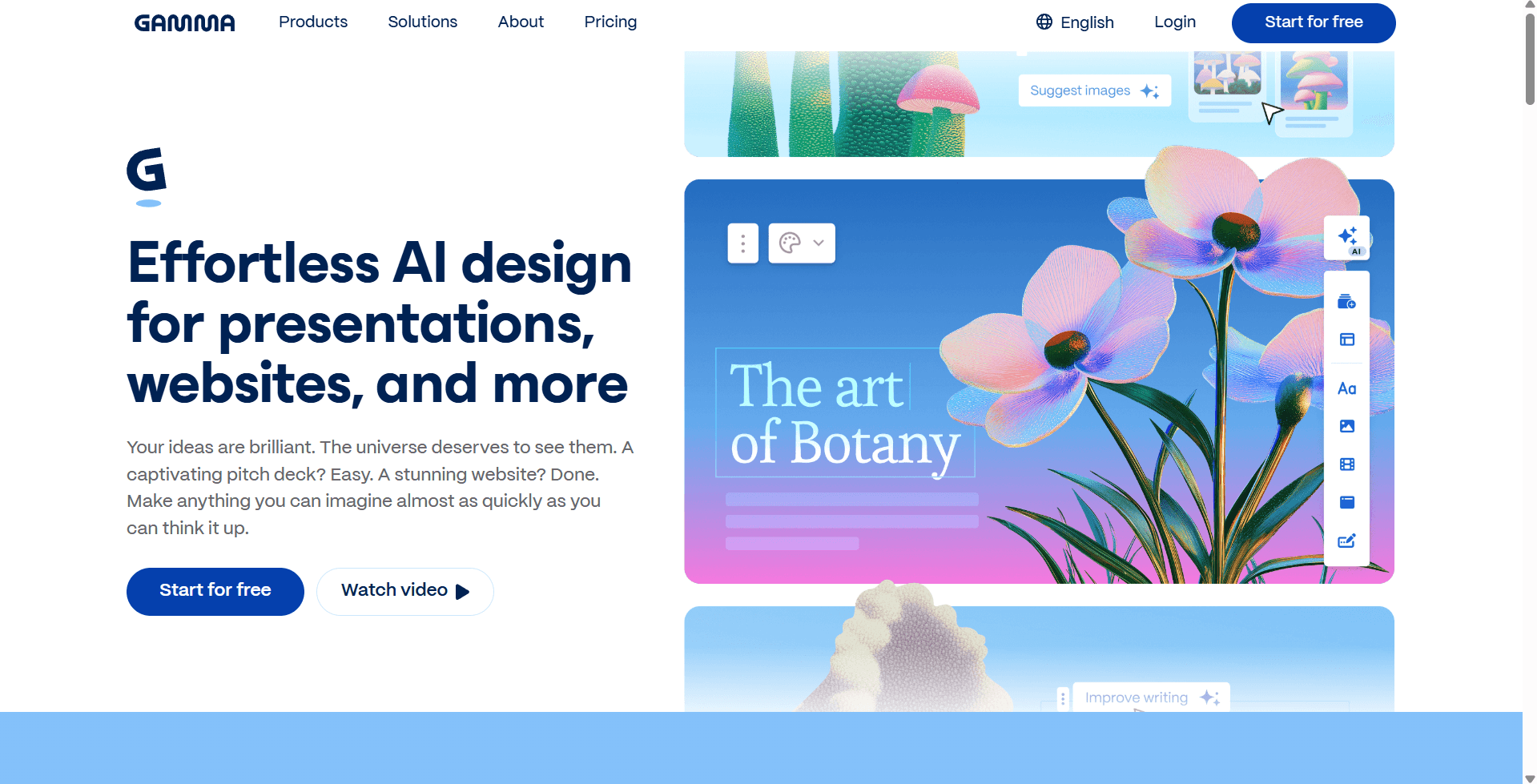
The thing I appreciate most about Gamma is that it's not just a presentation tool. The same workspace lets you build presentations, documents, and web pages from a single prompt. If you're currently switching between tools for slides, one-pagers, and internal docs, Gamma consolidates all of that into one place.
But what acts as a major pro for Gamma also becomes a drawback when it comes to its output. Gamma doesn't really make slides in the traditional sense - it makes cards. Scrollable, web-native, designed to be shared as a link and viewed in a browser. That distinction matters more than it sounds. The layouts look polished, images are actually relevant to the content, and the editing experience is genuinely strong: I rewrote sections, swapped layouts, and adjusted tone without touching PowerPoint once. But the output I got for what was meant to be a professional deck felt more like a document meant for async sharing.
The gap becomes even more obvious the moment you export to .pptx. The translation from Gamma's card-based web format to a fixed 16:9 slide is rough. Fonts shift, elements lose their proportions, and most exports needed a cleanup pass before I'd send them to anyone. If your presentations live as shared links, you'll love Gamma. If your workflow ends with a PowerPoint file attached to an email, it will frustrate you.
The free plan gives 400 one-time credits on signup, enough for roughly 10 presentations. The Plus plan at $8/month (annual) removes branding and unlocks unlimited AI creation, the most affordable paid entry in this comparison.
Pros:
Builds presentations, documents, and web pages from one workspace
Card-based layouts look polished and modern, a significant step up from NoteGPT
Images are relevant to slide content, not random stock photos
Strong in-app editing without exporting
Most generous free plan in this comparison
Cons:
Feels built for shared links, not exactly for professional well designed decks.
No YouTube, audio, or podcast-to-slides pipeline
Free credits are one-time, not monthly
Pricing:
Plan | Monthly | Annual | Key Features |
Free | $0 | $0 | 400 one-time credits, Gamma branding, 10 cards/prompt |
Plus | $10/mo | $8/mo | Unlimited AI creation, no branding, advanced image models, 20 cards/prompt |
Pro | $20/mo | $15/mo | 4,000 credits/mo, 60 cards/prompt, API access, analytics, custom domains |
Ultra | $100/mo | $90/mo | 20,000 credits/mo, 75 cards/prompt, advanced AI models, Studio Mode |
Best for: Individuals and small teams who need fast, modern-looking presentations for sharing via link, and want unlimited AI generation at a low monthly price. For people looking for a dedicated tool to create professional presentations that stick to the 16:9 format, I'd suggest looking at other Gamma alternatives.
3. Beautiful AI: Best Alternative For Templated Design
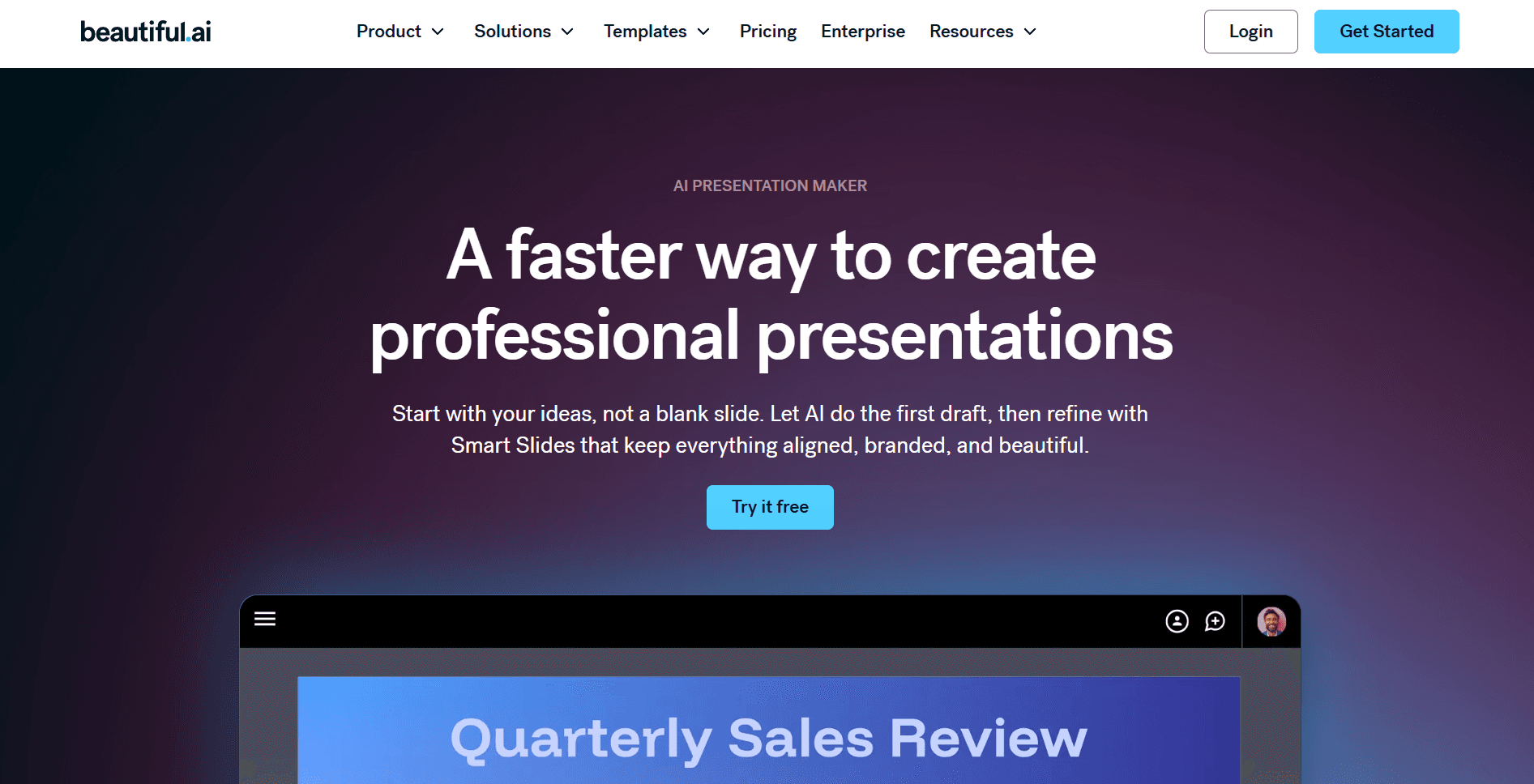
If NoteGPT's biggest problem is that nothing moves once the deck generates, Beautiful AI provides a direct solution to that specific frustration. But where it differs most from every other tool in this comparison is its approach to design: rather than generating from scratch, it works from a library of Smart Slide templates where every layout is pre-engineered to look good regardless of how much or how little content you put in it. Add a fourth bullet point and the font scales to fit. Remove an image and the text expands to fill the space. The templates do the design thinking so you don't have to.
That templated approach is both the strength and the ceiling. The decks look consistently professional because every slide follows a pre-built design logic, you are never going to produce something that looks off-brand or badly formatted. But you are also working within those templates' constraints. If a layout doesn't exist for what you need, you work around it. There is no equivalent of Alai's four layout variants or Agent Mode to break out of the structure. What you see in the template library is roughly what you get.
The other limitation compared to NoteGPT is content sourcing. Beautiful.ai's DesignerBot generates from a text prompt or file upload only. NoteGPT can take a YouTube video, a PDF, or an audio file and build a structured deck from it. If converting existing content into slides is your core use case, you lose NoteGPT's main advantage by switching here.
One more thing worth knowing upfront: there is no free plan. The 14-day trial requires a credit card, and reviews on G2 flag concerns about being charged at trial end without a reminder. Set a calendar alert before you start.
Pros:
Smart Slide templates auto-adjust layout as content changes, keeping decks consistently formatted
Predictable, professional output every time - templated design removes the risk of badly formatted slides
Viewer analytics on paid plans: see which slides got viewed and where drop-off happened
Real-time collaboration with shared workspaces on Team plans
Cons:
No free plan; 14-day trial requires a credit card
Template constraints limit creative control; you work within the library, not around it
No YouTube, audio, or podcast-to-slides pipeline
DesignerBot image generation tends toward generic stock imagery
Pricing:
Plan | Annual | Monthly | Key Inclusions |
Pro | $12/user/month | $45/month | Unlimited slides, AI generation, analytics, PowerPoint export |
Team | $40/user/month | $50/user/month | Everything in Pro, brand controls, shared libraries, collaboration |
Enterprise | Custom | Custom | Everything in Team, plus SSO, provisioning, dedicated support |
Best for: Teams who are looking for templated creation and are okay with limited AI capabilities and fixed design. If you're someone who is actively looking for an 'AI' presentation maker, there are better Beautiful AI alternatives worth exploring - that too at a lower price range.
4. Plus AI: Best Alternative For Google Slides Users
Plus AI is the only tool in this comparison that works natively inside Google Slides and PowerPoint rather than as a standalone platform. You install it as an add-on, and it generates presentations directly inside the tools you are already using. There is no export step, no format translation, no layout cleanup after downloading. The deck is a native Google Slides or PowerPoint file from the moment it is created.
For teams with existing brand templates and established workflows built around Google Workspace or Microsoft 365, this is a genuine advantage. NoteGPT produces a PPT file you then open in Google Slides or PowerPoint and adapt. Plus AI generates directly into that environment, using your existing templates and brand settings as the foundation. In the same comparative test, Plus AI's output was well-organized into labeled sections with clear paragraph descriptions, readable structure, though minimal design given it is constrained by Google Slides as the underlying platform.
The limitation compared to NoteGPT is content sourcing. Plus AI generates from a text prompt, a pasted outline, or a document upload. It does not have a YouTube or audio ingestion pipeline. The 7-day free trial requires no credit card, which is a meaningful advantage over Beautiful.ai's trial setup.
Pros:
Works natively inside Google Slides and PowerPoint, with no export step and no format translation
Uses your existing brand templates and settings; no need to rebuild brand guidelines in a new tool
Zero learning curve for anyone who already knows Google Slides or PowerPoint
Basic plan at $10/month (annual) includes unlimited AI presentations
No credit card required for the 7-day free trial
Cons:
No native YouTube, audio, or podcast-to-slides pipeline; NoteGPT handles more source types
Requires an existing Google or PowerPoint account; does not work as a standalone tool
Design quality depends on your existing templates; Plus AI does not apply its own design system
Less suitable for users without established brand templates to work from
Pricing:
Plan | Monthly | Annual |
Free trial | 7 days, no credit card required | — |
Basic | $15/month | $10/month |
Pro | $25/month | $20/month |
Team | $40/month | $30/month |
Best for: Teams and professionals who work in Google Slides or PowerPoint daily, have existing brand templates, and want AI generation without leaving their current tools or rebuilding their workflow around a new platform.
Final Verdict: Which AI Presentation Maker Should You Use?
Use NoteGPT if you are a student, researcher, or content creator who needs to convert YouTube videos, PDFs, audio files, or articles into a presentation quickly, and the slide design does not need to meet a professional standard. At $9.99/month, NoteGPT's input breadth and outline editing workflow make it the most practical choice for content extraction rather than design quality.
Use Alai if design quality and in-app iteration both matter. Alai produces the most professionally designed slides in this comparison, gives you four layout variants per slide to choose from, and lets you edit in plain language without exporting. The right choice for founders, business teams, consultants, and anyone who needs slides that look like a designer made them.
Use Gamma if you want fast, modern-looking decks with a generous free tier and strong in-app editing. Gamma's card-based layouts are a significant visual step up from NoteGPT at a similar price point. The right choice for individuals who share presentations primarily as links rather than PowerPoint files.
Use Beautiful AI if you are on a team that builds many decks per month and brand consistency across all of them is the priority. Smart Slides' auto-adjusting layouts remove the formatting overhead of PowerPoint without requiring design skill.
Use Plus AI if your team lives in Google Slides or PowerPoint and will not switch platforms. The native integration removes every friction point around export and formatting.
Check our ai tools for students guide if you are comparing these tools for an academic context.
FAQs
Does NoteGPT have a presentation maker?
Yes. NoteGPT has a built-in presentation maker that generates slide decks from YouTube videos, PDFs, article URLs, audio files, text prompts, and other source formats. It includes a template library, a pre-generation outline editor, and a PPT export. The presentation maker is one output mode among several in NoteGPT's broader AI learning assistant, not a standalone slide creation tool.
Is NoteGPT free?
NoteGPT has a free plan that gives you 15 quotas per month. Each presentation generation uses one quota. The free plan covers roughly 15 deck generations per month if you use NoteGPT exclusively for presentations, enough to test the tool but too limited for regular use. The Pro plan at $9.99/month provides 1,000 monthly quotas and is the realistic starting point for anyone using NoteGPT consistently.
Can NoteGPT generate slides from a YouTube video?
Yes, and this is the most practical use case for NoteGPT's presentation maker. Paste a YouTube URL into NoteGPT, set your slide parameters, edit the generated outline, and export the deck. The content quality from a YouTube source is significantly better than from a short text prompt. For students summarizing lecture videos or researchers converting conference talks into reference decks, this is the workflow where NoteGPT holds a real advantage over dedicated AI presentation maker tools like Gamma, Beautiful.ai, and Alai.
Can you export NoteGPT presentations to PowerPoint?
Yes. NoteGPT exports directly to PPT. The exported file opens in PowerPoint 365 and Google Slides without issues. Formatting holds on simple layouts. On slides with more complex content, specifically text-heavy slides or slides where the AI has packed a lot of bullets, you will often need to clean up spacing, text overflow, or image positioning manually. For most use cases, the export is a usable starting point that requires a cleanup pass before it is ready to share. If you need a dedicated ai powerpoint generator rather than an all-in-one summarizer, Gamma and Alai both export cleaner .pptx files with less cleanup required.
Does NoteGPT support custom templates or brand kits?
No. NoteGPT does not support custom template uploads or brand kit configuration. You choose from the templates in NoteGPT's library, but you cannot import your organization's branded template or set your brand's fonts, colors, and logos as defaults. For teams that need brand-consistent presentations, this is a significant limitation. Beautiful.ai's Team plan, Plus AI's Pro plan, Alai, and Canva's Pro plan all support brand template enforcement. NoteGPT does not offer this feature at any pricing tier.
SEITEN
Werkzeuge vergleichen
Ressourcen