·
CASE STUDY
·
23 min read

Marketing Lead
SlidesGPT has generated over 10 million presentations and holds the #1 spot among AI PowerPoint generators on the ChatGPT store. Those are real numbers. But after testing SlidesGPT across a range of use cases, from quick internal decks to client-facing presentations, I have a clear view of where it earns that reputation and where it consistently falls short.
This SlidesGPT review covers everything: how it actually works step by step, its full feature set, current pricing, and an honest verdict on pros and cons. Then I walk through five SlidesGPT alternatives I tested myself, with a detailed breakdown of how each one is better, what it costs, and who should actually use it.
What Is SlidesGPT?
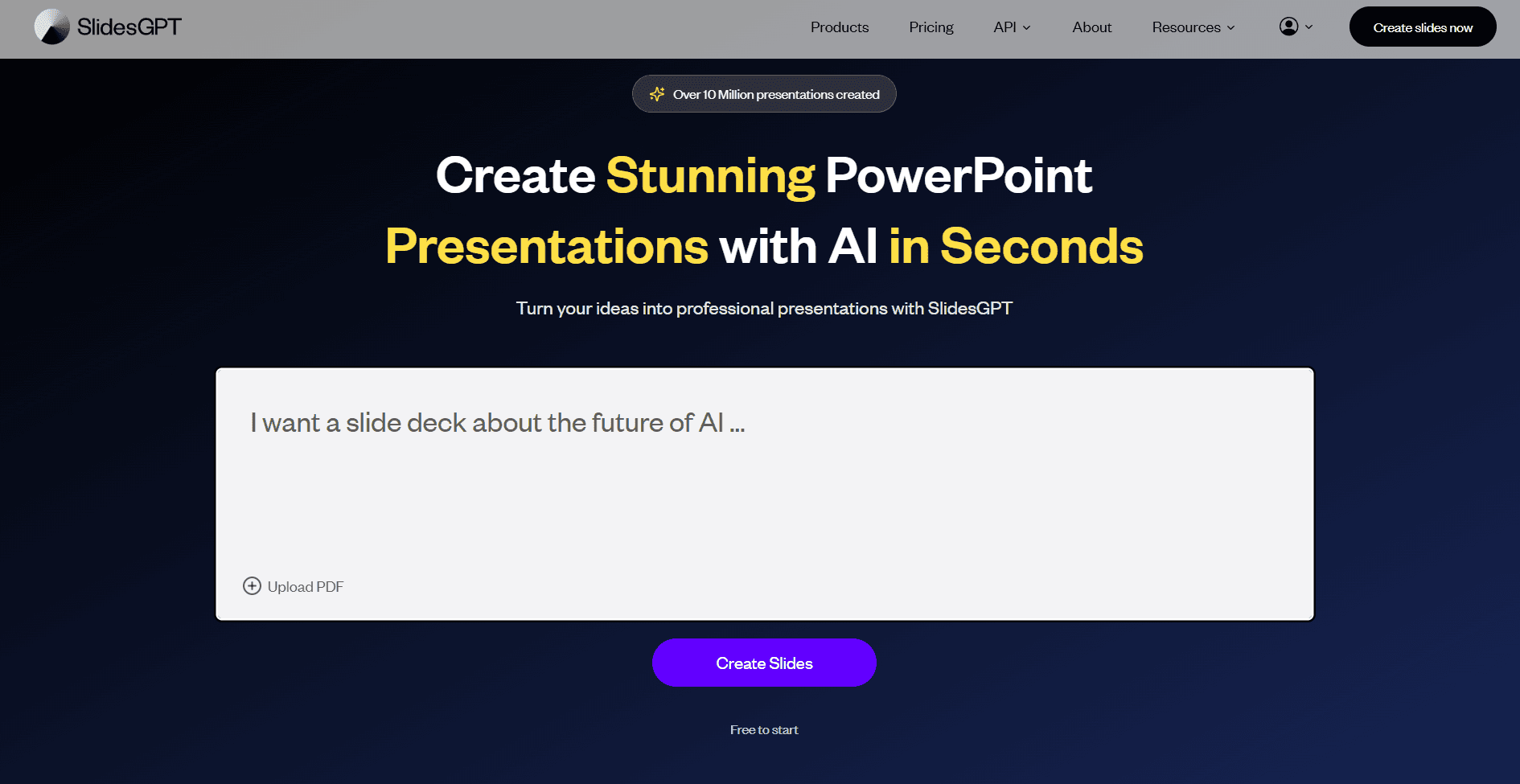
SlidesGPT is an AI presentation maker that converts a text prompt, PDF, or YouTube URL into a structured slide deck in under five minutes. It runs on ChatGPT's AI, which gives it strong content generation capabilities, and handles the full workflow from outline creation to slide content to layout and images, without requiring any design input from you.
There are three ways to access SlidesGPT: the standalone web app at slidesgpt.com, the ChatGPT plugin (listed as the #1 AI PowerPoint app in the ChatGPT store), and a B2B API for companies automating presentation generation at scale. This review focuses on the web app, which is where most people start.
SlidesGPT cites users from Google, Deloitte, Harvard, Amazon, and Accenture on its homepage. The tool serves a genuinely wide range of use cases: internal drafts, educational content, sales presentations, research summaries, and more. Its pitch is speed and simplicity, not design sophistication.
How To Use SlidesGPT: Step-by-Step Guide
Workflow 1: Text Prompt to Presentation
This is the most common workflow and worth walking through in detail.
Step 1: Enter your prompt. The homepage has a single text field. Type your topic: anything from a short phrase to a detailed paragraph. Prompt quality matters significantly here. "Marketing strategy" produces generic slides. "B2B SaaS marketing strategy for mid-market US companies, covering content, paid acquisition, and product-led growth" produces something usable.
Step 2: Choose a theme. SlidesGPT offers a selection of visual themes. The free plan limits you to white and purple. Paid plans unlock more options and let you upload your own PowerPoint template, which is the most practically useful paid feature for anyone working within a brand system.
Step 3: Review and edit the outline. Before generating the full deck, SlidesGPT shows you a slide outline, typically 8 to 12 titles. You can directly edit slide titles or ask the AI to refine specific parts. Spending a few minutes here saves significant cleanup later.
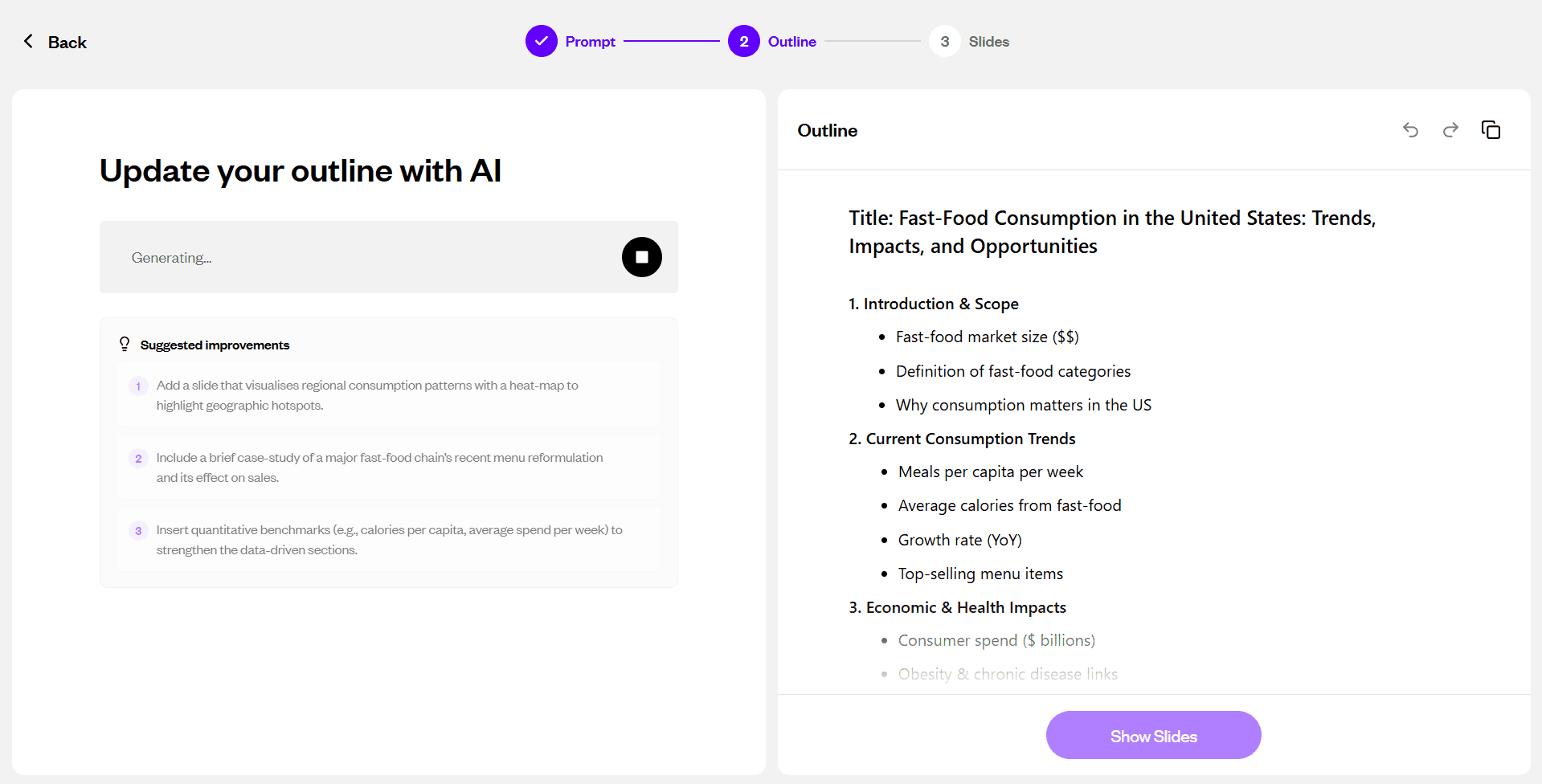
Step 4: Generate the slides. Click "Show Slides." The tool builds the full deck in 30 to 90 seconds. Each slide gets AI-generated text, an automatically applied layout, and an image (not in all slides) either sourced or generated to accompany the content.
Step 5: Edit in-browser. The SlidesGPT editor lets you change text, swap images, switch between layouts from their library and use AI to update slides.
Step 6: Share or download. Free users can share a public link and present in the browser. Downloading requires a paid plan.
Workflow 2: PDF to Slides
Upload a PDF and SlidesGPT extracts the content and structures it into slides. I tested this with a 12-page product brief. The AI correctly identified the main sections, created a logical flow, and summarized content accurately. The weak point was images. SlidesGPT generated stock-photo-style visuals with no real connection to the product being described.
Workflow 3: YouTube to Slides
Paste a YouTube URL into the dedicated converter at slidesgpt.com/youtube. SlidesGPT pulls the video transcript, extracts key points, and builds a slide deck. This works well for long-form educational or explainer content: talks, lectures, tutorials. For videos without clear spoken structure, the output is less reliable.
Workflow 4: ChatGPT Plugin
Connect the SlidesGPT plugin to ChatGPT, and you can generate presentations conversationally. This is the strongest workflow for content quality. The back-and-forth lets you refine emphasis, adjust structure, and add context before triggering generation, which produces better slide copy than a single static prompt on the web app.
Agentic Slides by SlidesGPT: What the ChatGPT App Adds
Editorial disclosure: Alai publishes this comparison and offers presentation-generation software. That commercial relationship means readers should treat the Alai sections as the publisher’s product perspective, alongside the linked product documentation for SlidesGPT and the other tools discussed here. For a broader comparison framework, see our guide to AI presentation makers.
“Agentic Slides by SlidesGPT” is the name used for SlidesGPT’s ChatGPT app experience. According to the official Agentic Slides by SlidesGPT listing, the process lets a user provide a topic, receive a proposed outline, approve that outline, generate a presentation, and export it. This is different from treating a single prompt as the entire brief: the outline is an explicit point at which you can decide whether the deck has the right structure before generation.
SlidesGPT’s own ChatGPT App page also documents slide previews in chat, a slide carousel, theme selection, image search, and exports to PowerPoint, PDF, and Google Slides. Those documented controls make the ChatGPT route relevant when you want to develop the deck brief conversationally and inspect the result in ChatGPT before downloading a file.
Use the outline as a review checkpoint
The most useful step is not simply generating more slides; it is reviewing the outline against the purpose of the presentation. Before approving it, specify the audience, the decision or action the deck should support, the desired length, and the source material that must be represented accurately. For example, a brief such as “Create an eight-slide leadership update that recommends a Q4 launch plan, uses these three metrics, explains the trade-off, and ends with two requested approvals” gives the outline a concrete job to do.
Then check whether the proposed sequence supports that job. Replace generic titles with titles that state the point of the slide, remove sections that do not help the audience make the intended decision, and make sure evidence appears before any conclusion that depends on it. This review does not validate the factual accuracy of generated content; it is a way to catch narrative gaps before you spend time revising a full deck.
A practical workflow for important presentations
Write a constrained brief. State the audience, objective, slide count, required evidence, and desired next step. Include source text or data when the deck depends on specific facts.
Review the proposed outline. Confirm that every slide has a purpose and that the sequence moves from context to evidence to recommendation.
Generate and inspect the full deck. Use the documented preview and carousel to look for duplicated points, missing transitions, or a conclusion that overstates the supplied evidence.
Validate before sharing. Check claims, figures, quotations, and citations against the original materials. AI-generated slide copy should not replace source review for a client, executive, classroom, or external presentation.
Choose the editing environment for the final pass. If the next step is revising a PowerPoint file, export and review it in the software your team uses. If you need help planning the brief in chat first, see how to use ChatGPT to make a PowerPoint presentation.
When this route is a better fit than a one-shot prompt
The ChatGPT app route is best suited to a presentation that needs clarification before slide generation: a recommendation with constraints, a structured update, or a deck assembled from supplied source material. A direct web-app prompt can be sufficient when the topic, audience, and requested structure are already clear. In either case, an exported deck still needs a final review for factual accuracy, narrative logic, and visual suitability.
Bottom line: Agentic Slides by SlidesGPT is a ChatGPT-based workflow that adds an outline-approval stage, in-chat previewing, and export options to presentation creation. Its value is the chance to clarify and review the structure before generating slides—not an assurance that the generated deck is complete or factually verified.
SlidesGPT for Claude and API Workflows
The browser editor and ChatGPT app are not the only ways to create a deck with SlidesGPT. Its product documentation also describes a Claude connector and a presentation-generation API. These are separate entry points for people who already work in Claude or who need to trigger presentation creation from their own software. They do not replace the final review required for any deck that contains claims, figures, or source-based recommendations.
Use the Claude connector when your planning happens in Claude
SlidesGPT describes its Claude connector as a way to create a complete presentation in Claude, including layouts and images, and then download a PowerPoint file. That makes this route relevant when the brief, source discussion, and revision instructions are already being developed in a Claude conversation. The practical question is not whether one chat interface is inherently better than another; it is whether keeping the planning conversation and deck-generation request in the same workspace reduces unnecessary handoffs for your team.
Before requesting a deck, make the brief concrete: name the audience, the decision or action the presentation should support, the intended slide count, and the material that must be represented accurately. Then review the downloaded PowerPoint in the presentation software your team uses. In particular, compare every generated number, quotation, and attribution with the original material rather than treating the generated slide as evidence. If you need a separate guide to structuring the planning conversation, see our walkthrough on how to use Claude to create presentations.
Use the API for repeatable generation in another product or process
SlidesGPT’s API documentation describes generating a presentation by sending a prompt in a request. It also documents an optional template ID, which can be supplied when a custom template is part of the generation request. This is a different use case from opening the editor to make one deck: an API is appropriate when a developer needs presentation generation to be called from an application or a repeatable internal workflow.
The API documentation supports prompt-based generation and optional template selection; it should not be read as evidence that every AI client or workflow has the same integration path. Teams considering implementation should first define the input they can reliably provide, such as a structured brief or approved source text, and determine who will review the resulting presentation before it reaches an audience. A useful operational boundary is to keep source validation and approval outside the generation call: automation can create a draft, but it cannot establish that the underlying business claims are correct.
Choose the route based on where the work begins
Choose the standalone editor when you want to create and revise a deck directly in SlidesGPT.
Choose the ChatGPT app when the brief needs conversational development in ChatGPT; the preceding section covers that workflow and its documented preview and export controls.
Choose the Claude connector when the deck brief is being developed in Claude and a PowerPoint download is the required handoff.
Choose the API when presentation generation must be initiated programmatically from a repeatable process and the implementation team can supply an appropriate prompt and, where needed, a template ID.
For a broader product-level comparison before committing to any workflow, review our guide to AI presentation makers. The key distinction is simple: chat connectors keep deck creation close to a planning conversation, while the API lets a developer place generation inside another system. Neither route removes the need to review the deck’s narrative, visual output, and source-dependent claims before sharing it.
SlidesGPT Features Overview
Text prompt to presentation: Full deck from any prompt in under five minutes
PDF to slides: Upload a document and convert it into a structured presentation
YouTube to slides: Convert any YouTube video into slide content via its transcript
ChatGPT plugin: Conversational workflow inside ChatGPT for better content iteration
AI image generation: 30 AI-generated images per month on paid plans using OpenAI and Google models
Custom brand themes: Upload your own PowerPoint template and generate content inside it
Multiple export formats: Download as .pptx, PDF, or export to Google Slides
Speaker notes: Auto-generated talking points for each slide
In-browser presentation mode: Present directly without downloading
B2B API: Programmatic slide generation at scale for developers and enterprise teams
SlidesGPT Pricing
Plan | Monthly | Annual | Downloads | Key Limits |
Free Starter | $0 | $0 | 0 | Create, view, share only. No file export. |
Pro | $10/mo | $7.50/mo ($89.99/yr) | 10/month | PPT, PDF, Google Slides; 30 AI images/mo |
Pro XL | $22.50/mo | $22.50/mo ($269.99/yr) | 50/month | Everything in Pro |
Business API | $500/mo base | Custom | Unlimited via API | Custom templates, 100+ presentations/month |
Enterprise API | Custom | Custom | Unlimited | On-premise, custom data sources |
The most important thing to know before you start: the free plan does not allow file downloads. You can create a deck, share a public link, and view it in the browser, but exporting as PowerPoint, PDF, or Google Slides requires a paid subscription. Additionally, unused downloads don't roll over month to month.
SlidesGPT Review: What It Does Well And Where It Falls Short
Design Quality
SlidesGPT's design is functional but flat, and the same structural limitations show up on every deck regardless of the content.
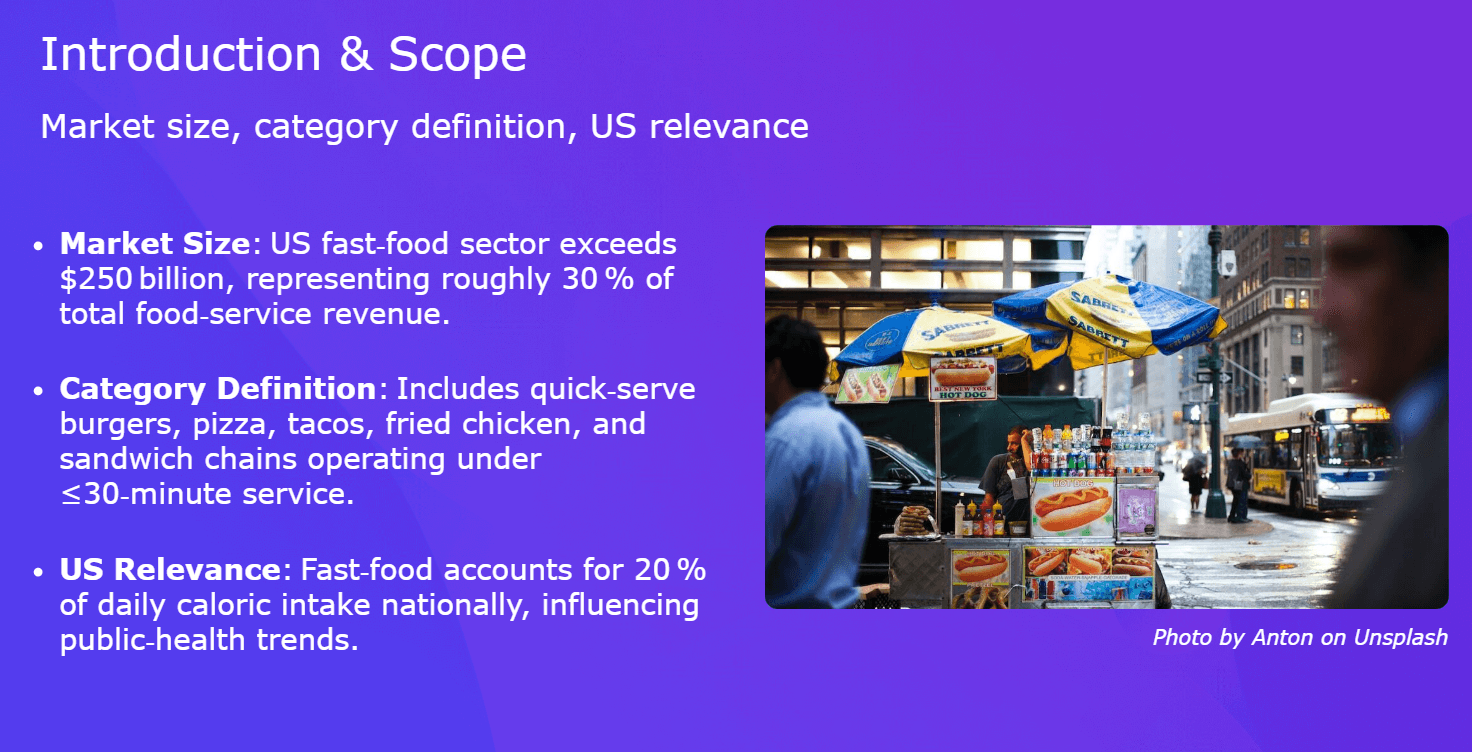
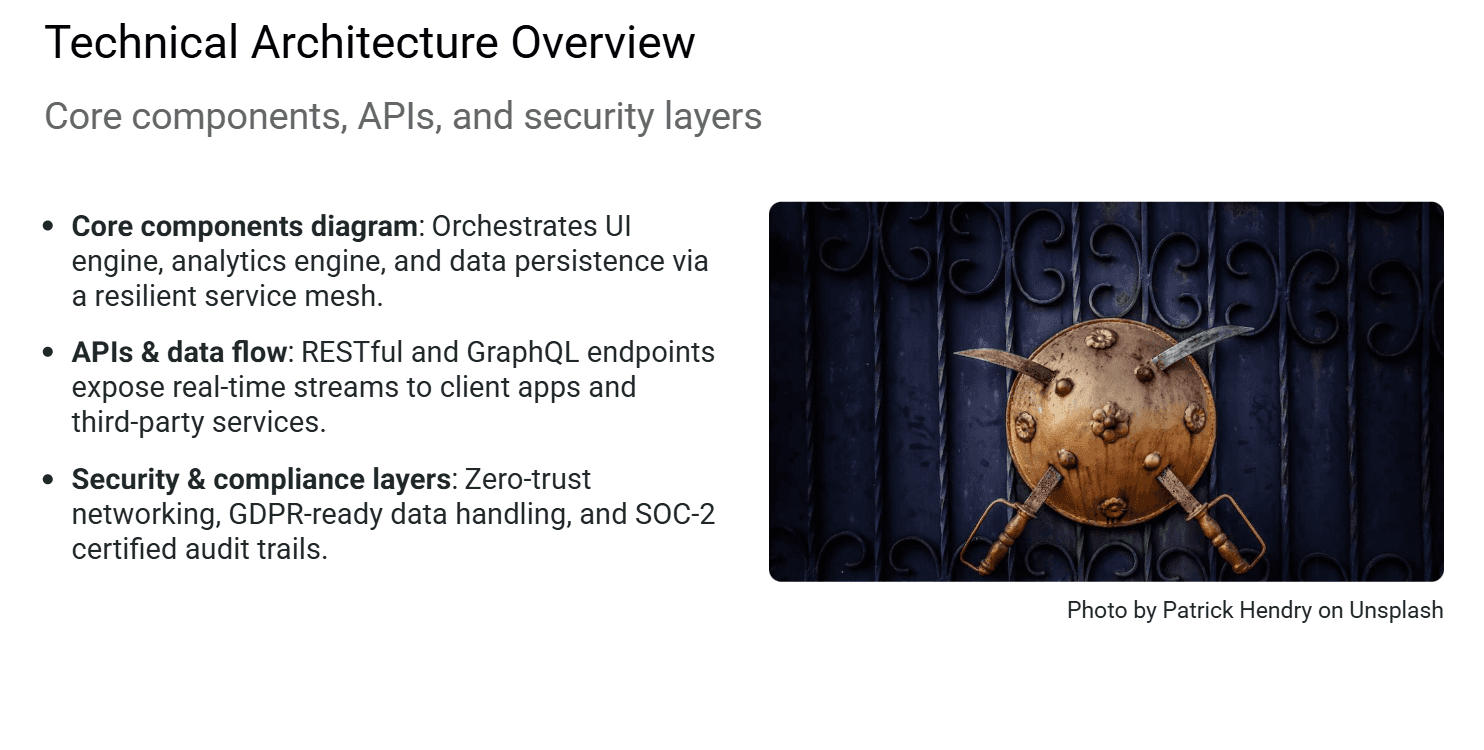
Every slide uses the same layout. Title top-left, subtitle below, bullet points on the left half, stock image on the right. That's the most-used template, and it applies to almost every second content slide. The primary reason for this is SlideGPT’s limited design library that covers only basic layouts - no options for venn diagrams, hub and spoke elements, multi-format text boxes to ensure each deck has variety in design. After reviewing 10+ AI presentation makers, SlideGPT’s output felt like something thrown together on PowerPoint, that too without much thought or effort.
Themes are color swaps, not design changes. The free plan gives you two options: purple gradient background with white text, or white background with dark text. Paid plans add more themes, but none of them change the layout logic, the information hierarchy, or how slides are structured. You're choosing a color palette, not a design system.
The bullet format is applied to everything. SlidesGPT formats every piece of information as a bolded label followed by a colon and a sentence. "Market Size: US fast-food sector exceeds $250 billion." "Category Definition: Includes quick-serve burgers, pizza, tacos..." This pattern is rigid. It works when you genuinely have a list of definitions or facts. It breaks down when the information would be better expressed as a comparison, a step-by-step process, or a visual data point. SlidesGPT doesn't distinguish between these: it renders everything the same way.
Stock images are frequently off-topic. On the right side of each slide, SlidesGPT places an image sourced from Unsplash or generated by AI. The connection between the image and the slide content is often non-existent or extremely generic (as seen below)
Custom templates help, but only partially. Paid plans let you upload a PowerPoint template, and SlidesGPT will generate content inside your existing slide masters. This is the most useful paid feature for anyone with an established brand. The caveat is that the bullet-list layout logic doesn't change. Even inside a professionally designed template, every content slide will be filled with the same label-colon-sentence pattern. The design container improves; the content structure stays the same.
Content Generation
I gave SlidesGPT the prompt "Labubu's growth." The Key Growth Drivers slide came back with this:
Social Media Virality: Labubu gained massive traction through viral posts on TikTok and Instagram, driving global awareness.
Celebrity Endorsements: High-profile influencers and celebrities publicly showcasing Labubu boosted its aspirational appeal.
Limited Edition Releases: Strategic scarcity through limited drops created urgency and drove collector demand.
No Pop Mart revenue figures. No secondary market premiums. No regional breakdown. Anyone could write those three bullets from basic context. So if you’re looking to use SlidesGPT for detailed and well researched decks, be prepared to do a lot of iteration.
Although if you’re looking for high quality content - the ChatGPT plugin is a good workaround. Additionally, pasting in your own research before generating improves the output significantly. Speaker notes are generated automatically but typically just restate what's on the slide.
Iteration and Editing
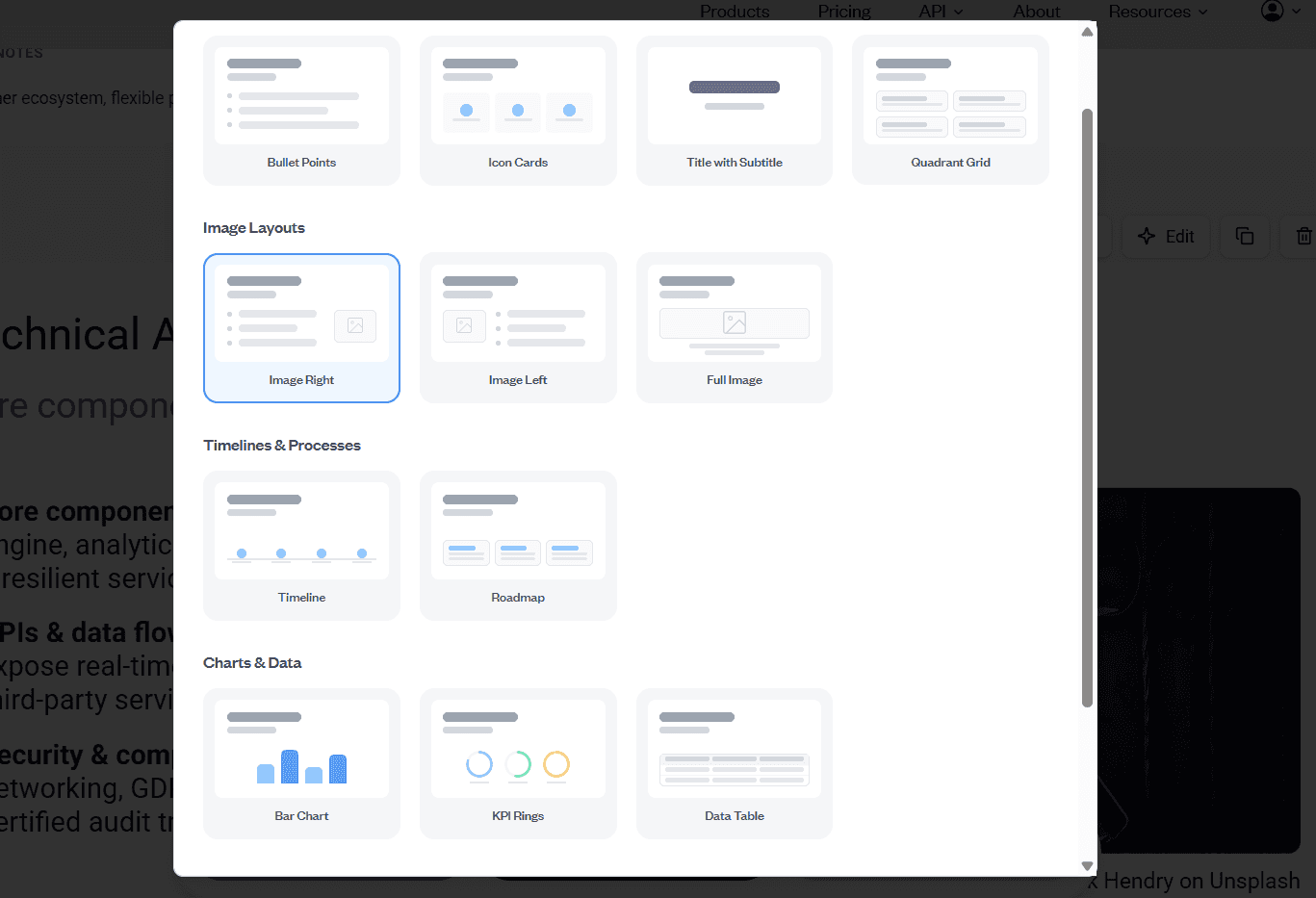
SlidesGPT gives you three ways to edit after generation. The manual editor lets you rewrite text, swap images, and add new slides. The AI lets you prompt changes to existing content. A layout library lets you switch between a small set of preset layouts per slide.
That covers the basics. What it doesn't cover is anything structural. You can't drag elements around, adjust spacing, resize content areas, or change the visual weight of a slide without downloading to PowerPoint. The layout library (given below) is genuinely limited: a handful of options that still follow the same bullet-list logic.
The AI editing is also prompt-and-replace rather than contextual. You tell it to change something, it rewrites that slide in isolation. There's no awareness of the rest of the deck, no ability to say "make slides 3 through 6 more concise" or "shift the tone of this section."
Compare this to how tools like Alai handle post-generation editing: a responsive canvas where elements reflow as you edit, and an agentic AI mode that can make changes across the full deck based on a single instruction. SlidesGPT's editing model is closer to a basic web form than a proper presentation editor. For most users, the real editing happens after they export to PowerPoint.
Export and Compatibility
The .pptx export is SlidesGPT's strongest feature. Files open cleanly in PowerPoint without formatting breaks, font issues, or shifted layouts. This reliability is not universal among AI presentation tools: Gamma's exports break frequently, and several other tools produce files that require cleanup before they're usable. SlidesGPT's export is dependable, which makes it a practical tool for people whose workflow ends in PowerPoint.
You can also export as PDF or push directly to Google Slides. The Google Slides export works, though some formatting can shift depending on the theme.
Please note: Export to PowerPoint or downloading decks is only available on paid plans.
Summary: SlidesGPT Pros and Cons
Category | Verdict | Detail |
Speed | Strong | Prompt to full deck in under 5 minutes, consistently |
Ease of use | Strong | Single text field, zero learning curve |
Content quality | Moderate | Good with detailed prompts, generic with short ones |
Design quality | Weak | Flat, text-heavy, limited layouts, basic themes |
Iteration / editing | Weak | No AI post-generation, basic browser editor only |
Export reliability | Strong | Clean .pptx exports, no formatting issues |
Free plan | Limited | Creates and shares only, no downloads |
Pricing | Fair | $7.50/mo annual for 10 downloads is reasonable |
ChatGPT plugin | Strong | Best workflow for content quality |
AI images | Weak | Often generic or off-topic, needs manual cleanup |
Custom templates | Moderate | Paid feature, works well when configured |
Verdict: This SlidesGPT review comes down to a clear split: if you need a basic first draft in PowerPoint format that you plan to finish yourself, it delivers. If you want a presentation-ready deck with strong design quality out of the box, you’re better off trying out the SlidesGPT alternatives I have given below.
4 Best SlidesGPT Alternatives in 2026
My Testing Method For These Alternatives:
I tested each of these tools using the same criteria I used to review SlidesGPT:
Design quality: Does the output look like a designer worked on it, or is it flat and template-driven?
Content generation: Does the AI produce specific, useful content, or generic summaries that anyone could write?
Editing and iteration: How much control do you have after generation? Can the AI help, or are you on your own?
Export reliability: Does the PowerPoint file open cleanly without formatting breaks?
SlidesGPT Alternatives: Quick Overview
Tool | Best For | Free Plan | Starting Price |
Design quality + speed | Yes (300 credits, no card) | Paid plans available | |
Multi-format content (slides, docs, web) | Yes (400 credits) | $8/mo (annual) | |
Template variety | Yes | $15/mo | |
Google Slides / PowerPoint users | No (7-day trial) | $10/mo |
1. Alai: Best for Design Quality and Speed
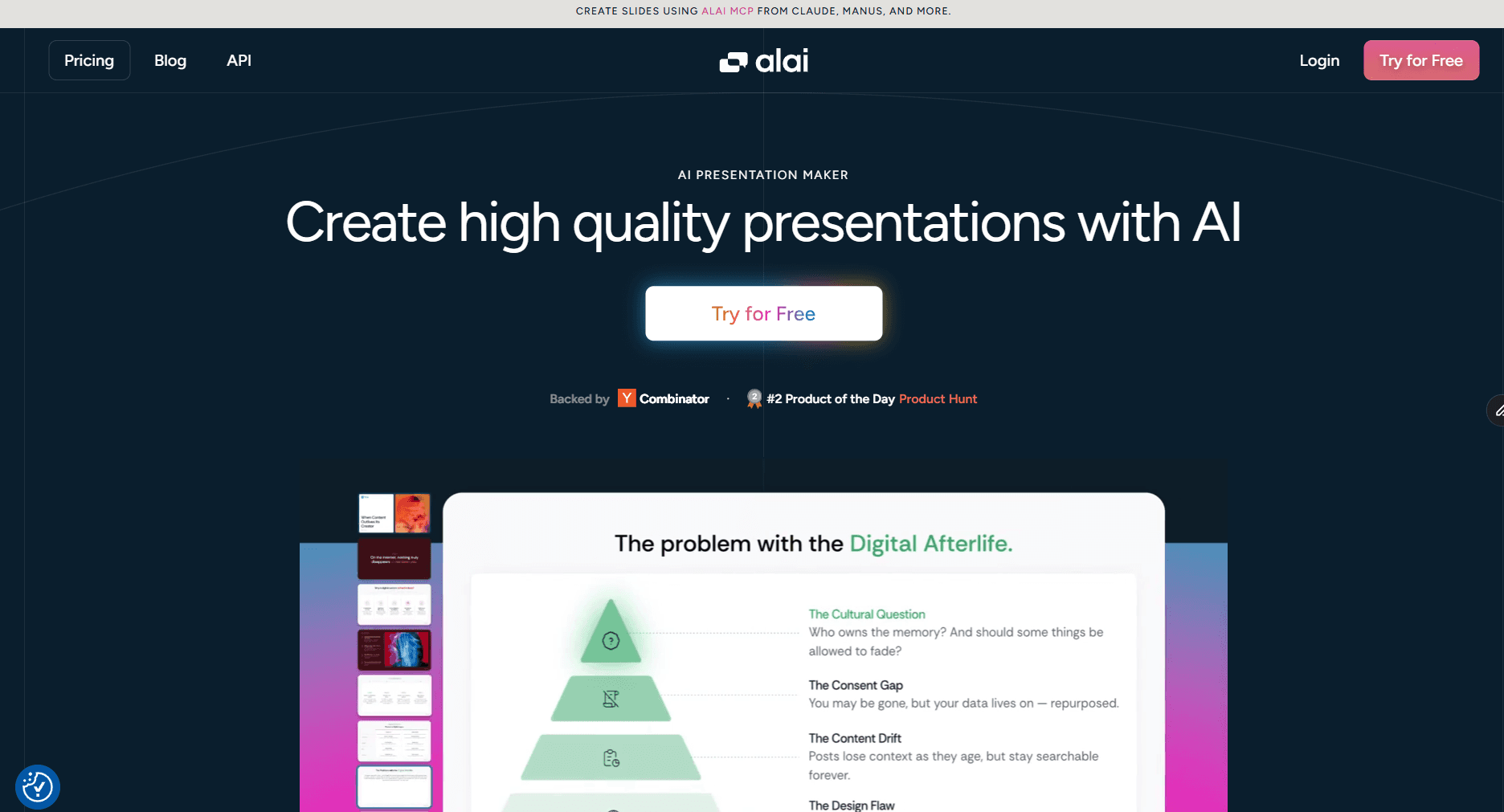
How Is Alai Better Than SlidesGPT
SlidesGPT produces one layout for every slide: title, subtitle, bullet points on the left, stock image on the right. You get the same structure whether you're explaining a process, presenting a market analysis, or introducing a product. There's no design intelligence behind the generation, and once it's done, the AI disappears.
Alai is built differently at every stage of the workflow.
4 layout options per slide. For every slide in your deck, Alai generates four distinct layout variants, different arrangements, different visual emphasis, options with and without images. You choose the one that best communicates your message instead of accepting whatever generated first and spending time fixing it. This alone changes the starting point from "clean up what the AI got wrong" to "pick the best of what the AI got right."
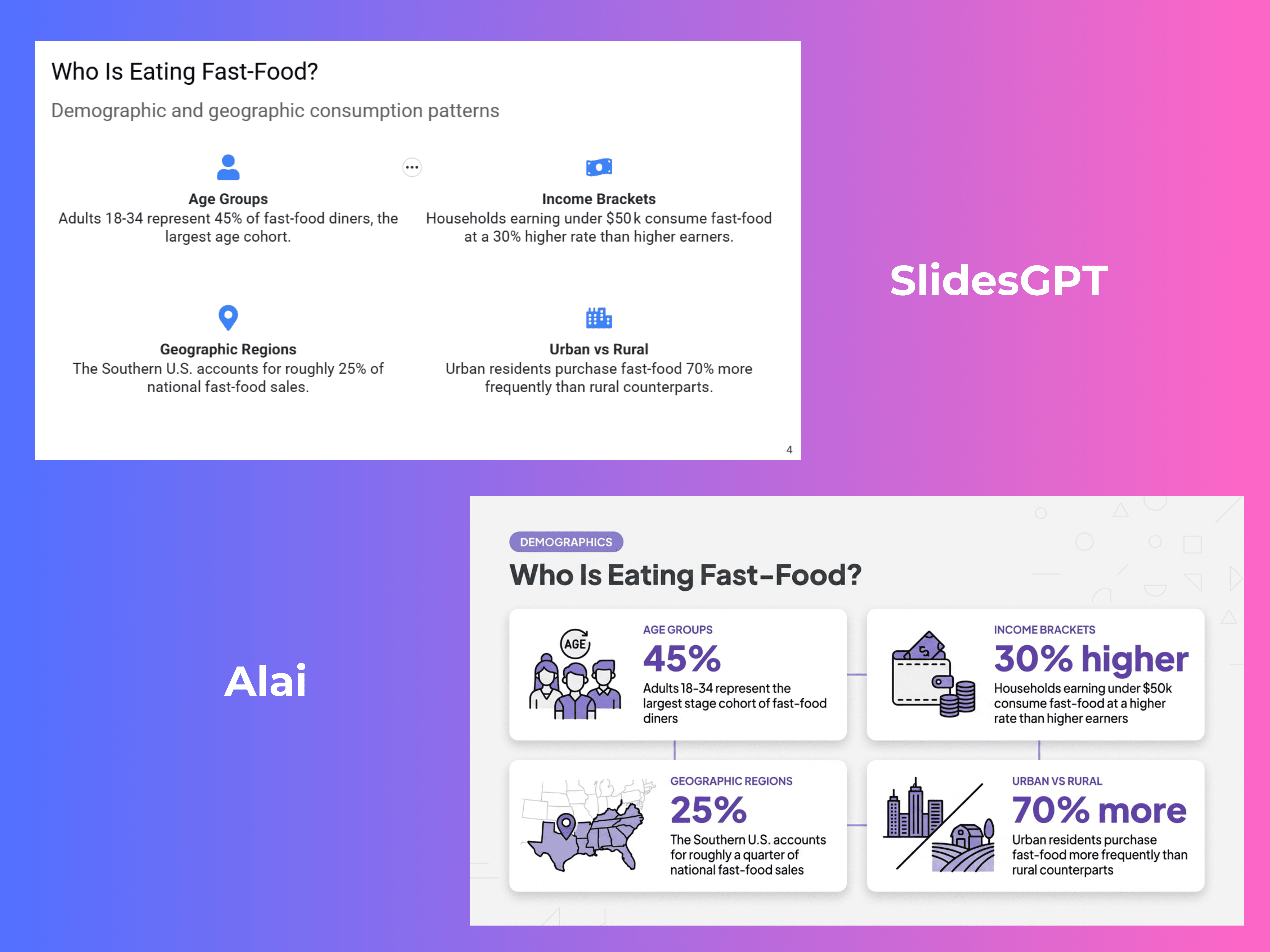
Design quality built on actual design principles. Most AI presentation tools, including SlidesGPT, apply the same fixed grid to every slide: same margins, same text widths, same spacing ratios, different colors. Alai is built around the four dimensions that actually separate professional slides from AI-generated ones: intentional use of space, depth through layering, typographic hierarchy, and visual detail. In practice, this means slides use gradients, shadows, and layered elements rather than flat backgrounds. Whitespace is used deliberately so headlines and key points have room to breathe rather than text filling every available pixel. Typographic hierarchy guides the reader's eye through font weight, size, and contrast rather than making everything the same size. The result is output that looks professionally designed rather than assembled from a template. For teams comparing Alai to SlidesGPT side by side, the design gap is visible immediately (as seen below).
Nano Banana 2 integration. Alai integrates Nano Banana 2 (Google's advanced AI image model) directly into the deck-building workflow. For slides that benefit from high-quality visuals, including infographics, process diagrams, product mockups, and concept illustrations, you can generate image-based slides that match your deck's color scheme and visual style automatically. Additionally, unlike most tools that treat these as flat, locked images, Alai lets you edit Nano Banana 2 slides after generation: click into text, reposition elements, adjust padding and sizing manually, or use AI annotations to target specific elements for change. You can also mix Nano Banana 2 slides with regular slides in the same deck, something tools like Gamma's Studio Mode and Manus don't allow.
Custom theme builder. Alai lets you create, save, and reuse custom themes so every AI-generated slide automatically follows your brand guidelines. Upload your colors, fonts, and layout preferences, and all generated slides including Nano Banana 2 outputs apply your brand identity from the first draft. There's no manual reformatting step after generation. For teams managing multiple clients or a consistent brand identity across many decks, this removes the biggest post-generation cleanup task.
Agent Mode for post-generation editing. Alai's Agent Mode lets you make targeted changes across the deck through natural language: "change this chart to a bar graph," "split this slide into two," "make slides 3 through 6 more concise." Each instruction executes while keeping the rest of the deck intact. The AI also maintains context across the full deck, so editing slide 8 doesn't produce something that clashes with what you established on slide 2. For comparison, SlidesGPT's AI edit is prompt-and-replace on a single slide with no awareness of the surrounding deck.
Manual editing with element-level control. Beyond AI, Alai gives you direct control over spacing, padding, alignment, text formatting, and font hierarchy on individual elements. The Convert feature switches any element between formats instantly: bullet list to timeline, text block to comparison chart, without re-entering content. Free canvas elements like Venn diagrams, quadrants, and Gantt charts can be created and combined with smart elements on the same slide. Content and design are controlled separately, so you can rewrite copy without changing the layout, or swap layouts without regenerating content.
Responsive canvas. Add or remove an element and surrounding content reflows automatically. No manual nudging of text boxes or repositioning of elements after every edit. Combined with Agent Mode, this means the editing experience inside Alai is closer to working with a design tool than a basic web editor.
Engagement analytics. Alai provides engagement tracking on shared presentations: how many slides were viewed, where viewers spent the most time, and which slides had the highest drop-off rate. For client presentations, investor decks, or sales proposals, this data tells you what's landing and what needs work. SlidesGPT has no equivalent. You export a file and have zero visibility into whether anyone opened it.
Pros
4 layout variants per slide so you choose the best option rather than fix the only option
Nano Banana 2 integration for image-based slides that are theme-aware and fully editable
Custom theme builder applies brand colors, fonts, and logo to all generated slides automatically
Agent Mode for deck-wide AI editing through natural language, with full context across all slides
Responsive canvas reflows content automatically, no manual element repositioning
Engagement analytics on shared decks: views, time spent per slide, drop-off tracking
Clean .pptx exports with formatting preserved, no post-export fixes needed
Free plan includes 200 credits with access to all premium design elements, no credit card required
Cons
Smaller brand recognition than Gamma or Canva, less familiar to new users
Free plan credits are more limited than Gamma's 400-credit free tier
Standalone platform with no native Google Slides or PowerPoint plugin
Pricing:
Plan | Monthly | Annual | AI Credits | Slides per Prompt |
Free | $0 | $0 | 300 (no renewal) | Up to 10 |
Plus | $20/mo | $16/mo ($192/yr) | 600/month | Up to 20 |
Pro | $30/mo | $25/mo ($300/yr) | 1,200/month | Up to 50 |
Ultra | $80/mo | $60/mo ($720/yr) | 5,000/month | Up to 50 |
When to choose Alai : Alai is the right choice when the final deck needs to look professionally designed and you want an AI that stays useful throughout editing, not just at generation. If you're presenting to clients, investors, or external stakeholders, need brand-consistent output without manual reformatting, and want visibility into how your deck performs after sharing, Alai covers all of that in a way SlidesGPT doesn't come close to.
2. Gamma: Best for Multi-Format Content
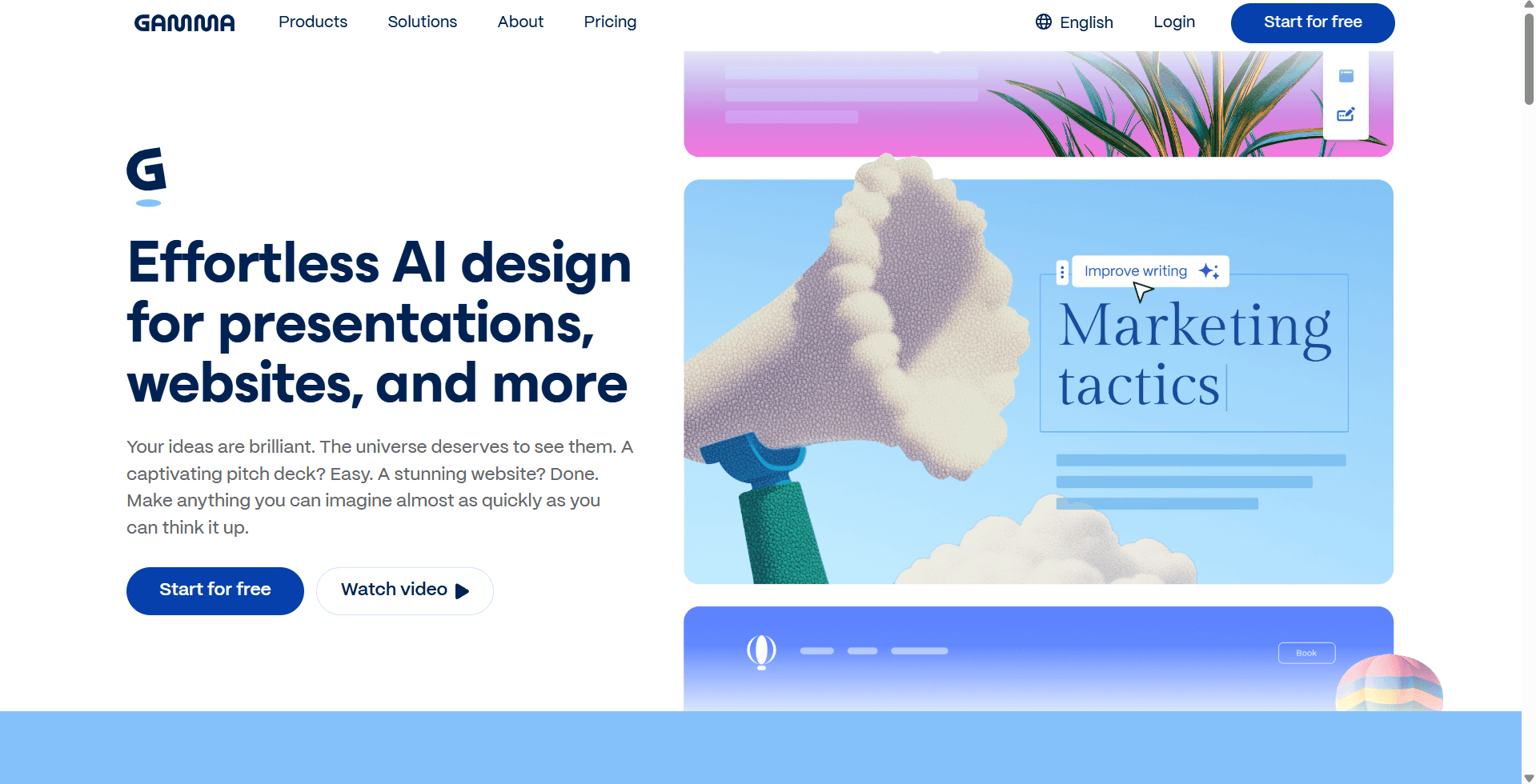
How It's Better Than SlidesGPT
SlidesGPT is a presentation-only tool. You enter a prompt, get slides, download a file. That's the full scope of the workflow. For teams that regularly need to turn the same source material into different content formats, such as a presentation for a meeting, a document for async reading, or a web page for external sharing, SlidesGPT requires rebuilding everything from scratch in a different tool each time.
Gamma eliminates that problem by generating presentations, documents, and web pages from a single interface. You create your content once, and Gamma can output it as any of these formats depending on who the audience is and how they'll consume it. For content and marketing teams, this is a genuine workflow advantage, not a nice-to-have.
The design quality is also a step above SlidesGPT. Gamma's layout engine doesn't default to bullet points on flat backgrounds. It pulls from a range of layout types, including timelines, comparison cards, icon grids, and image galleries, and applies them contextually based on the slide content. Themes apply consistently across every slide automatically, and the AI image generation is more reliably on-topic than SlidesGPT's.
The generation speed is exceptional: a complete deck from a prompt in under a minute. Gamma also supports real-time collaboration, engagement analytics (track who viewed your presentation and for how long), and embeds from external tools like Figma, Miro, Airtable, and YouTube directly inside slides.
The main limitation versus SlidesGPT is PowerPoint export reliability. Gamma's .pptx exports frequently have formatting issues: shifted layouts, non-standard slide dimensions, missing fonts. If you need a clean .pptx file every time, SlidesGPT is more dependable. For sharing as a link or presenting in-browser, Gamma is excellent.
For a detailed breakdown of Gamma's full feature set and where it falls short, read the full Gamma AI review.
Pros
Generates presentations, documents, and web pages from the same interface, which is unique in this category
Layout variety is significantly better than SlidesGPT: timelines, comparison cards, icon grids, image galleries
Real-time collaboration built in: multiple editors, commenting, no file-passing required
Engagement analytics on shared presentations: see who viewed, which slides, and for how long
Generates a full deck in under one minute, the fastest in this comparison
400 free credits, enough for roughly 10 full presentations before needing to upgrade
Cons
PowerPoint export frequently breaks formatting: shifted layouts, non-standard slide dimensions, font issues
Free plan credits don't refresh monthly; once the 400 are spent, you upgrade or stop
Slide dimensions are non-standard, which creates issues for anyone presenting in traditional environments
Credit system on paid plans can be unpredictable: premium AI model usage burns through credits faster than expected
Design output is strong but not as polished as Alai's for client-facing work
Pricing
Plan | Monthly | Annual | Key Features |
Free | $0 | $0 | 400 one-time credits, Gamma branding, 10 cards/prompt |
Plus | $10/mo | $8/mo | Unlimited AI creation, no branding, advanced image models, 20 cards/prompt |
Pro | $20/mo | $15/mo | 4,000 credits/mo, 60 cards/prompt, API access, analytics, custom domains |
Ultra | $100/mo | $90/mo | 20,000 credits/mo, 75 cards/prompt, advanced AI models, Studio Mode |
When to choose Gamma: Gamma is the right choice when your workflow involves more than slides, specifically when the same content needs to become a presentation, a shareable document, or a web page. Also strong for teams that share decks as links and present in-browser rather than in PowerPoint. If you need a reliable .pptx export for editing in PowerPoint, choose SlidesGPT or Alai instead.
3. Canva: Best for Template Variety
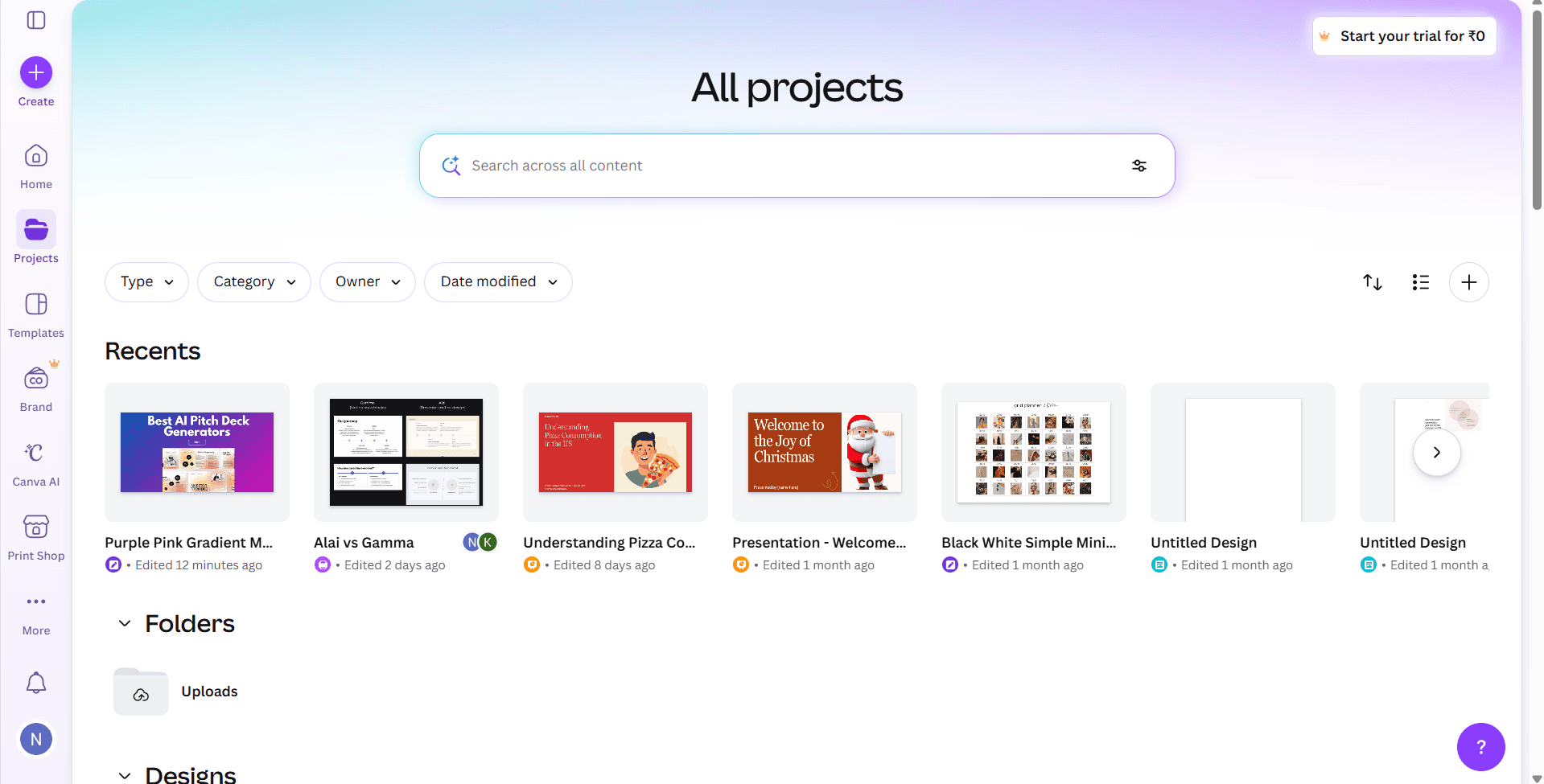
How Is Canva Better Than SlidesGPT
SlidesGPT gives you two visual themes on the free plan and a limited selection on paid. The design starts from the AI's default layout system and you adjust from there. For users who want to start from a professionally designed template that already looks polished, SlidesGPT creates friction: you're fighting against a basic layout rather than customizing a strong starting point.
Canva has the largest template library of any tool in this comparison: thousands of presentation designs across every category, use case, and visual style. You're not generating from a blank AI prompt; you're starting from a design that already looks good and filling in your content. This is a fundamentally different approach that works very well for non-designers who want control over the visual output without needing AI to make design decisions for them.
Canva's AI generation (Magic Presentation) is also available and generates a deck from a prompt, similar to SlidesGPT, but where Canva genuinely outperforms SlidesGPT is in the breadth of templates, the quality of the design assets library, and the free tier's usability. The free plan is genuinely useful without a credit card required and without artificial limits on exports.
Canva also covers the full content workflow in ways SlidesGPT doesn't: social media graphics, videos, documents, website pages, whiteboards. If your team already uses Canva for other content types, adding presentations to that workflow requires zero new tools or accounts.
Where Canva falls short versus SlidesGPT and AI-native tools: the editing experience is manual. Adding a new element to a slide requires dragging it in and manually repositioning surrounding components. Tools like Alai and Gamma adjust layouts automatically through AI. For users who have worked in AI-native editors, returning to manual drag-and-drop feels noticeably slow. AI generation quality is also weaker than dedicated presentation AI tools. Canva's strength is its template library, not its prompt-to-deck output.
Pros
Largest template library of any tool in this comparison: thousands of designs across every category
Free plan is genuinely usable with no credit card required and no artificial export limits
Covers the full content workflow in one platform: presentations, social, video, documents, and web
Brand Kit lets teams apply consistent colors, fonts, and logos across all content types
Familiar drag-and-drop interface with no learning curve for users who've used any design tool before
Cons
Manual editing is slower than AI-native tools: dragging and repositioning elements by hand adds friction
AI prompt-to-deck generation is weaker than SlidesGPT, Alai, or Gamma on content quality and layout variety
Presentations can look obviously template-derived and less distinctive when many teams use the same templates
Paid plan at $15/month is less value for presentation-specific use than dedicated tools at the same price point
No structured outline review before generation, which gives you less control over the deck structure than SlidesGPT
Pricing
Plan | Monthly | Annual | Key Features |
Free | $0 | $0 | 1,000s of templates, basic AI tools, limited Brand Kit |
Canva Pro | $15/mo | $120/yr | Full Brand Kit, premium templates, background remover, Magic tools |
Canva Teams | $10/user/mo | $100/user/yr (min. 3 users) | Shared Brand Kit, template locking, team collaboration |
When to choose Canva: Canva is the right choice for non-designers who want to start from a polished template rather than an AI-generated blank slate, and for teams already using Canva for other content types who want to consolidate into one platform. Not the right choice if you need AI-quality content generation from a prompt or want the deck to look distinctively different from generic templates.
4. Plus AI: Best for Google Slides and PowerPoint Users
How Is Plus AI Better Than SlidesGPT
SlidesGPT generates presentations in its own platform and exports a file you then open in PowerPoint or Google Slides. This creates a workflow gap: you're switching tools, dealing with export formatting, and re-entering your existing collaboration environment with a file rather than a native document. For teams with established Google Slides or PowerPoint templates, this gap is particularly painful. SlidesGPT ignores your template system entirely unless you pay for the upload feature and configure it manually.
Plus AI takes the opposite approach. It installs as a native add-in directly inside Google Slides and PowerPoint. There is no separate platform to learn, no export to manage, and no compatibility risk. You open Google Slides or PowerPoint, invoke Plus AI from the sidebar, describe your presentation, and the AI generates native slides directly inside your existing document, using your existing template, brand fonts and colors, and file structure.
This architecture difference has practical consequences. Every slide Plus AI generates is immediately a native .pptx or Google Slides file. You can edit it exactly as you would any other slide, with no conversion, formatting risk, or file-type inconsistency. When you share the deck, recipients open a normal PowerPoint or Google Slides file. There's nothing unfamiliar about the output.
The feature set goes beyond generation. Plus AI's Remix feature reformats existing slides into new layouts with one click, which is useful for refreshing old presentations. The Rewrite feature rewrites slide copy in different tones or lengths. Live Snapshots embed live screenshots from external dashboards and apps that update dynamically every time the presentation is refreshed. For consultants presenting data-heavy decks, this removes a significant amount of manual screenshot-updating work.
Plus AI supports custom templates and shared template libraries for teams, which is the real enterprise-facing advantage over SlidesGPT. Rather than uploading a template and hoping the AI stays inside it, Plus AI is designed from the start to work inside your existing slide masters and brand guidelines, generating content that conforms to your design system without manual cleanup.
Pros
Works natively inside Google Slides and PowerPoint with no platform switching and no export risk
Every output is a native file immediately: edit, share, and present without conversion
Remix and Rewrite features for refining existing presentations using AI, not just generating new ones
Live Snapshots update embedded data screenshots dynamically, a significant time-saver for data-heavy decks
Custom template and shared library support built in: the AI generates content inside your brand system
SOC 2 Type II certified for enterprise security compliance out of the box
Cons
No free plan: the 7-day trial requires a credit card and charges automatically if not cancelled
Design output is constrained by the template you're working inside, so it can't produce the visual lift of Alai from scratch
Requires installing a browser extension or PowerPoint add-in, which adds small setup friction for non-technical users
Less useful if you don't already live in Google Slides or PowerPoint, as the main advantage disappears outside those tools
Pricing per user adds up quickly for larger teams
Pricing
Plan | Monthly | Annual | Key Features |
Basic | $15/mo | $10/mo | Unlimited AI generation in Google Slides and PowerPoint |
Pro | $25/mo | $20/mo | Longer prompts, document-to-presentation, more slide types |
Team | $40/mo | $30/mo | Custom brand colors, fonts, logo, shared presets, team instructions |
Enterprise | Custom | Custom | Custom templates, SSO, dedicated support |
When to choose Plus AI: Plus AI is the right choice for consultants, agencies, and corporate teams that live in Google Slides or PowerPoint and have no intention of switching platforms. If your workflow involves established slide templates, brand guidelines enforced across a team, or presentations that need to exist as native .pptx files for sharing with clients or executives, Plus AI is the only tool in this list that solves all of those problems without requiring a platform change.
Conclusion: Which SlidesGPT Alternative Is The Right Fit For You?
Here’s my honest take, if:
You need a basic first draft to finish in PowerPoint: SlidesGPT. Fastest generation, reliable .pptx export, zero learning curve.
You need the final deck to look professionally designed without compromising on speed: Alai. Strongest design output in this group, free tier is generous, AI helps throughout editing.
You create presentations alongside docs and web content: Gamma. Multi-format workflow is a genuine advantage; also the strongest for decks shared as links.
You live in Google Slides or PowerPoint and won't switch: Plus AI. Native integration works inside your existing templates, no export risk.
You want the widest template library: Canva. Thousands of designs, strong free tier, familiar interface.
Frequently Asked Questions
Is SlidesGPT free?
SlidesGPT has a free plan that lets you create, view, and share presentations. Downloading as PowerPoint, PDF, or exporting to Google Slides requires a paid plan starting at $7.50/month billed annually ($89.99/year) or $10/month billed monthly.
Is SlidesGPT good for professional presentations?
It depends on how you define "professional." SlidesGPT is good at generating a logical, well-structured outline and turning it into a readable slide deck quickly. Where it falls short for professional use is design: every slide follows the same bullet-list layout, themes are limited, and AI images frequently don't match the content. For internal drafts, meeting prep, or content you plan to finish in PowerPoint, it works well. For client-facing decks, investor pitches, or anything where visual quality matters, you'll need to do significant cleanup after export, or use a design-first tool like Alai from the start.
How good is SlidesGPT's AI content quality?
Solid for general topics, weak for anything specific. SlidesGPT draws from its training data and does not search the web or pull live information. For stable, well-documented topics like marketing frameworks, business strategy, or educational content, the output is structured and accurate. For trend-driven topics, company-specific content, or anything requiring recent data, it produces plausible-sounding but generic slides. I tested it on "Labubu's growth" and got three bullet points about social media virality and celebrity endorsements, with no actual figures, market data, or specific analysis. The best workaround is using the ChatGPT plugin, where you can paste in your own research before generating.
Does SlidesGPT work inside ChatGPT?
Yes. SlidesGPT has a plugin that runs inside ChatGPT, and it's the best way to use the tool. Rather than entering a single static prompt, you can have a conversation with the AI to refine your structure, add specific context, push back on weak points, and adjust emphasis before triggering the slide generation. The output quality is noticeably better than a one-shot prompt on the web app. To use it, go to the ChatGPT store and connect the SlidesGPT plugin, then start a conversation about your presentation topic.
Can SlidesGPT use my existing PowerPoint template?
Yes, on paid plans. You can upload a .pptx file with your brand's slide masters, and SlidesGPT will generate content inside your template. This is the most practical paid feature for teams with an established brand system. The caveat is that SlidesGPT's layout logic doesn't change. Even inside your template, it fills every slide with the same bullet-list structure. The design container improves. The content formatting stays the same.
Is SlidesGPT safe to use? Does it store my data?
SlidesGPT states in its privacy policy that it is committed to protecting user data and does not sell it to third parties. The platform is web-based, so presentations are processed through its servers. For sensitive or confidential content, this is worth being aware of. The same consideration applies to any cloud-based AI tool. If you're creating internal strategy documents or handling client-confidential information, review their full privacy policy at slidesgpt.com/privacy before use.
What is the best AI slide generator in 2026?
For basic decks that you can continue to refine on PowerPoint SlidesGPT is a good low-cost option. For design quality, Alai produces the best output. For multi-format workflows, Gamma is strongest. For Google Slides and PowerPoint users, Plus AI is the only tool that works natively inside those apps. The right answer depends on whether you're optimizing for design quality, speed, workflow compatibility, or content source.
PAGES
Compare Tools
resources