·
CASE STUDY
·
24 Min. Lesezeit

Marketingleiter
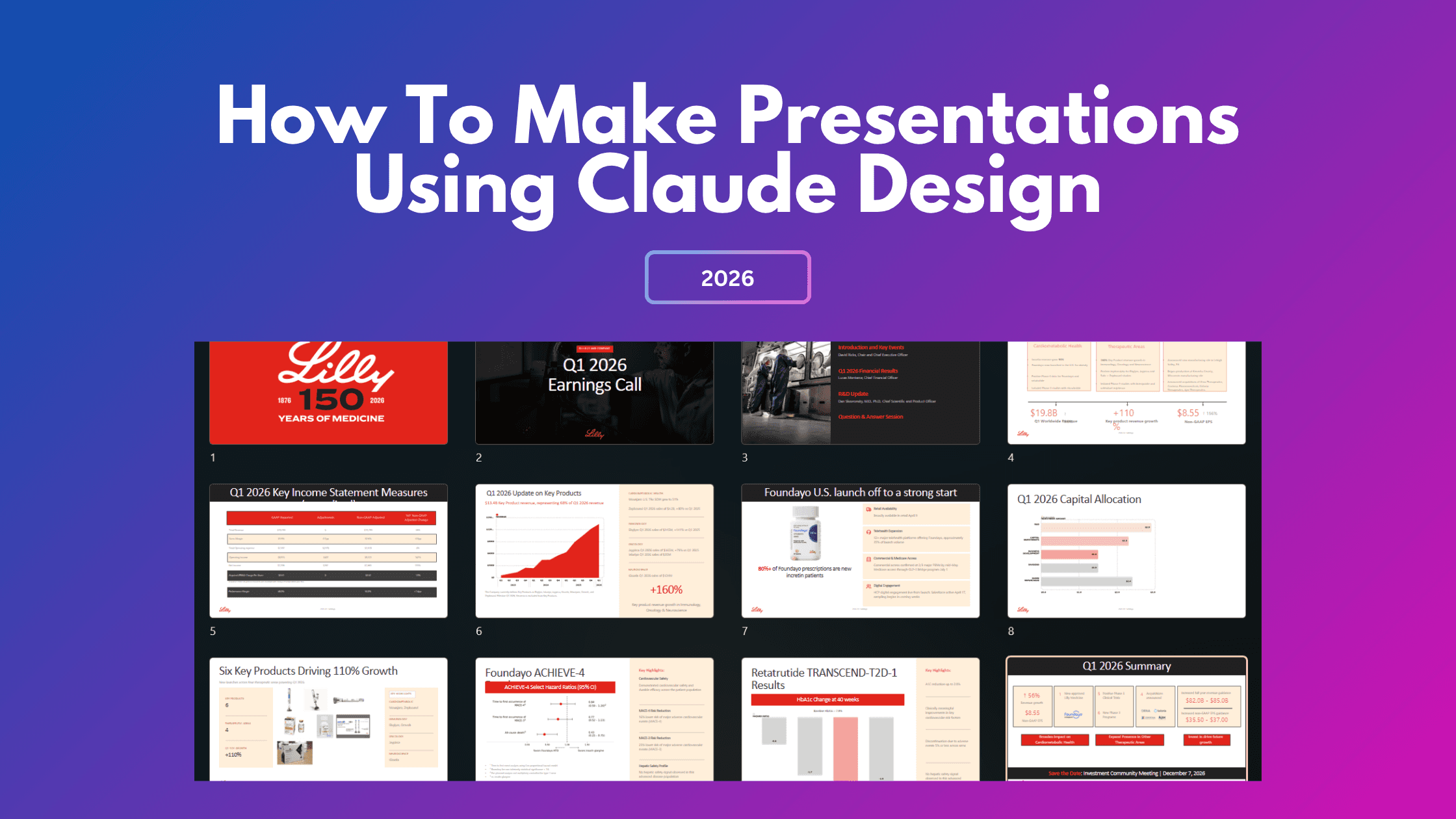
Claude Design wurde kürzlich als KI-Designtool von Anthropic eingeführt, und eines seiner Hauptmerkmale ist die Präsentationserstellung. Es erstellt ein besseres erstes Entwurfs-Deck als einige der besten KI-Präsentationsersteller, die ich getestet habe. Aber es hat auch echte Einschränkungen: eine steile Lernkurve, fehlerhafte Bearbeitung und Kosten, die sich schleichend summieren.
In diesem Claude Design Test werde ich den gesamten Workflow durchgehen: wie Claude Design Präsentationen generiert und nach PowerPoint exportiert werden, die sechs strukturellen Probleme, die nach dem ersten Entwurf auftreten, die Prompts, die diese umgehen, Preise, Alternativen und mein Urteil, wann es verwendet werden sollte.
Es gibt drei Möglichkeiten, Präsentationen mit Claude zu erstellen, und ich habe alle drei getestet. Dieser Artikel konzentriert sich speziell auf Claude Design.
TL;DR
Kategorie | Detail |
Vorteile | Detaillierte Einrichtung des Brand-Systems im Vergleich zu den meisten anderen Tools, gute erste Entwürfe |
Nachteile | Bearbeitung ist fehlerhaft (jede Änderung ist ein erneuter Prompt), Opus 4.7 macht die Bilderzeugung teuer, keine Folienreihenfolge oder Filmstreifen, kein Speicher über Decks hinweg, Export verliert einige Formatierungen in PowerPoint |
Am besten geeignet für | Einmalige, ausgefeilte Decks, bei denen die Markenanforderungen locker sind: Gründer-Pitches, Prototypen, Demos, interne Kickoffs |
Bessere Alternative für wiederkehrende Decks und Markenkonsistenz | Alai Modern Slides, präsentationsbasiert mit einer echten Bearbeitungsebene und Speicher über Decks hinweg |
Bessere Alternative für schnelle, dokumentenähnliche Decks | Gamma, scrollbares Dokumentformat, das lange Inhalte schneller verarbeitet |
Bessere Alternative für Folienbilder | Nano Banana Pro oder GPT Image, beide rendern folienfertige Bilder zu einem Bruchteil der Kosten von Opus 4.7 pro Bild |
Was ist Claude Design?
Claude Design ist das KI-Designtool von Anthropic, das einen Text-Prompt in Webseiten, Poster, Mockups und Präsentationen umwandelt. Es läuft auf Claude Opus 4.7. Für Präsentationen generiert Claude Design das Deck in seinem Design-Canvas und exportiert das Ergebnis nach PowerPoint (.pptx), PDF, eigenständiges HTML oder sendet es sogar an Canva.
Wie man eine Präsentation in Claude Design erstellt (Schritt für Schritt)
Schritt 1: Gehen Sie direkt zu claude.ai/design in Ihrem Browser, oder öffnen Sie die Claude Desktop-App und navigieren Sie dorthin. Sie benötigen einen Pro-, Max-, Team- oder Enterprise-Plan.
Schritt 2: (Optional, aber empfohlen, für Teams) Richten Sie zuerst Ihr Designsystem ein. Dies ist eine einmalige Einrichtung für Marken- oder Designleiter – fügen Sie Details zu Logo, Farben, Komponenten, Abständen, Symbolen, Tonfall und mehr hinzu, um sicherzustellen, dass jedes von Ihnen erstellte Deck markenkonform ist.
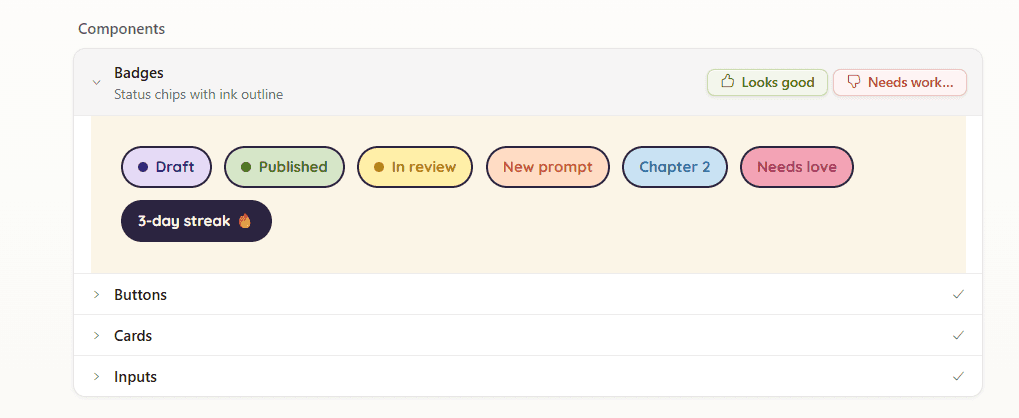
Schritt 3: Erstellen Sie ein neues Projekt. Klicken Sie auf „Neues Projekt erstellen“ auf der Startseite von Claude Design.
Schritt 4: Wählen Sie Ihren Startmodus. Claude Design bietet Startmodi für verschiedene Ergebnisse: Prototyp, Foliendeck, Vorlage oder Freiform. Wählen Sie Foliendeck für eine Präsentation.
Schritt 5: Beschreiben Sie, was Sie möchten. Fügen Sie das Ziel, die Zielgruppe und die Kernaussage hinzu.
Schritt 6: Beantworten Sie Claudes klärende Fragen. Bevor Claude mit dem Erstellen beginnt, stellt es typischerweise 4 bis 5 Fragen zu Blickwinkel, Zielgruppe, Dauer, Ton und visueller Richtung. Arbeiten Sie diese durch.
Schritt 7: Warten Sie auf die Generierung. Es dauert ein paar Minuten. Claude erstellt jede Folie als eigenständiges Design mit eigener Typografie und Layout und erzählt im Chatfenster, was es gerade tut.
Schritt 8: Iterieren Sie mit Chat und Inline-Kommentaren. Verwenden Sie den Chat für strukturelle oder ästhetische Änderungen („Folie 4 neu anordnen“, „Palette dunkler machen“). Verwenden Sie Inline-Kommentare für spezifische Elementanpassungen („diesen Button größer machen“, „dies in ein Dropdown ändern“) oder bearbeiten Sie über den detaillierten Elementeditor.
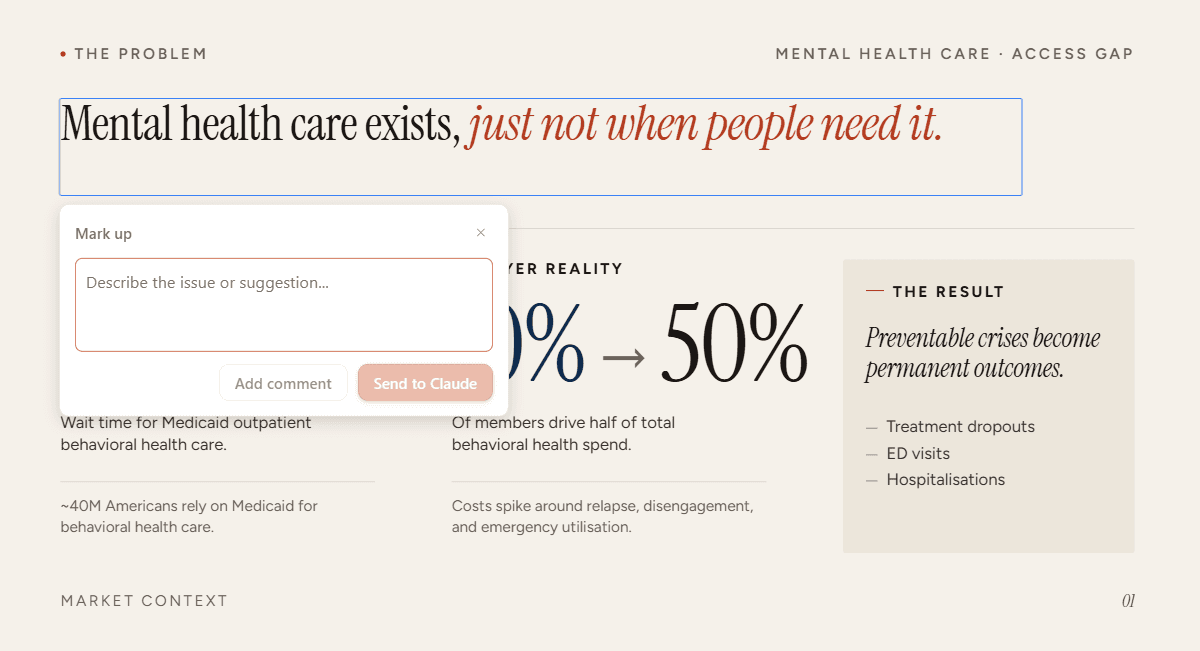
Schritt 9: Exportieren Sie, wenn Sie fertig sind. Klicken Sie oben rechts auf „Teilen“. Wählen Sie aus: PPTX, PDF, eigenständiges HTML, an Canva senden, als .zip herunterladen oder an Claude Code übergeben.
Claude Design Preise für Präsentationen
Es gibt eine kürzliche Änderung, die wichtiger ist als alle Plan-Details: Seit Ende Mai 2026 teilt Claude Design die Nutzungslimits mit Claude.ai und Claude Code. Wenn Sie einen Pro- oder Max-Plan haben, zieht Ihre Claude Design-Arbeit aus demselben wöchentlichen Pool wie Ihre Chat-Konversationen und jede Claude Code-Aktivität. Erstellen Sie morgens ein Deck, und Sie haben nachmittags weniger Claude.ai zur Verfügung. Lassen Sie Claude Code eine Stunde laufen, und Sie haben weniger Claude Design für das Pitch-Deck von morgen übrig.
Bis vor kurzem hatte Claude Design einen eigenen Zähler. Die praktische Implikation für die Präsentationsarbeit: Jedes Deck, das Sie erstellen, kostet Sie jetzt Chat- und Coding-Kapazität. Intensive Iteration an einem einzigen Pitch-Deck verbraucht einen erheblichen Teil Ihres wöchentlichen Kontingents. Der alte „Bonus-Nutzungsvorteil“ von Claude Design bei einem Pro-Plan ist verschwunden.
Die Planstufen selbst sind unverändert.
Was Sie wissen sollten, bevor Sie bezahlen:
Die Kontingente gelten pro Benutzer, nicht teamübergreifend.
Claude Design ist immer noch eine Forschungs-Preview von Anthropic Labs. Noch keine Audit-Logs, keine Nutzungsverfolgung.
Die wöchentlichen Limits sind explizit Beta-Phasen-Ratenlimits. Die kürzliche Zusammenlegung der Zähler ist ein direkter Beweis dafür, dass sie sich ändern können.
Zusätzliche Nutzung kann auf Pro-, Max-, Team- und älteren Enterprise-Plänen erworben werden.
Für ein typisches 12-Folien-Deck mit moderater Iteration auf Pro ziehen Sie jetzt erhebliche Kapazitäten aus demselben Pool, von dem Ihre Chat- und Codierungsarbeit abhängt. Die Bilderzeugung (Problem 1) beschleunigt den Verbrauch schneller als Chat-Prompts. Planen Sie die Deck-Arbeit für den Beginn Ihres wöchentlichen Zyklus, nicht für das Ende.
Wie ich Claude Design getestet habe
Für diesen Test habe ich ein detailliertes Investoren-Pitch für Storynest, eine fiktive Kindergeschichten-App, komplett in Claude Design erstellt. Hier ist, was der Test abdeckte:
Zuerst die Einrichtung des Brand-Systems. Bevor ich eine einzige Folie generierte, erstellte ich das vollständige Brand-System von Storynest in Claude Design: eine benutzerdefinierte Schriftartenpaarung für Überschriften und Text, eine Vier-Farben-Palette mit Primär- und Akzentfarben und eine Icon-Bibliothek, die stilistisch auf diese Palette abgestimmt war. Etwa 40 Minuten Einrichtung.
Prompt-Abhängigkeit für eine gute Ausgabe. Ich testete Claude mit verschiedenen Prompts, um zu sehen, welche Art von Deck es jedes Mal produzierte – auch mit und ohne Brand-System. (Die funktionierenden sind am Ende dieses Artikels)
Mindestens zehn Iterationszyklen. Chat-Prompts für strukturelle Änderungen, Inline-Kommentare für Folien-spezifische Anpassungen, direkte Elementbearbeitung für feine Kontrolle. Ich habe bewusst versucht, jede davon zu „brechen“.
Zwei vollständige Exporte. Einer nach .pptx (die Grundlage für Problem 7 und den Bereinigungsabschnitt), einer nach PDF.
Ich habe die Designqualität der ersten Generation gemessen, wie das Deck bei Bearbeitungen standhielt, wie genau das Brand-System Folie für Folie eingehalten wurde und was beim Export nach PowerPoint kaputt ging.
Alles in den folgenden Vor- und Nachteilen stammt aus diesem Test.
Vorteile: Was Claude Design gut macht
Sechs Dinge, die Claude besser macht als die meisten KI-Deck-Tools, die ich getestet habe:
1. Die Designqualität ist eine der besten in dieser Kategorie
Typografie-Paarungen sind durchdacht. Eine Display-Schrift für Überschriften, eine kontrastierende Sans für den Textkörper, eine Mono für Datenbeschriftungen. Konsistent auf jeder Folie. Nicht aus einer Standardliste ausgewählt, sondern tatsächlich wie von einem Designer gepaart.
Die Ausrichtung ist wirklich sauber. Ränder stimmen über alle Folien hinweg überein. Das Raster wird eingehalten. Nichts sitzt einen halben Pixel daneben.
Icons sind stilistisch aufeinander abgestimmt, keine Stock-Icons. Wenn Claude Design ein Icon hinzufügt, gehört es zur Folie. Strichstärke, Füllstil, Skalierung passen alle zur restlichen visuellen Gestaltung. Dasselbe gilt für Illustrationen und Hintergrundtexturen.
Design-Details summieren sich. Inhaltstags, Wortmarkierungen, Seiten-Callouts, geschichtete Hintergründe. Claude Design fügt Details hinzu, die ein Brand-Designer hinzufügen würde, ohne dass die Folien überladen wirken.
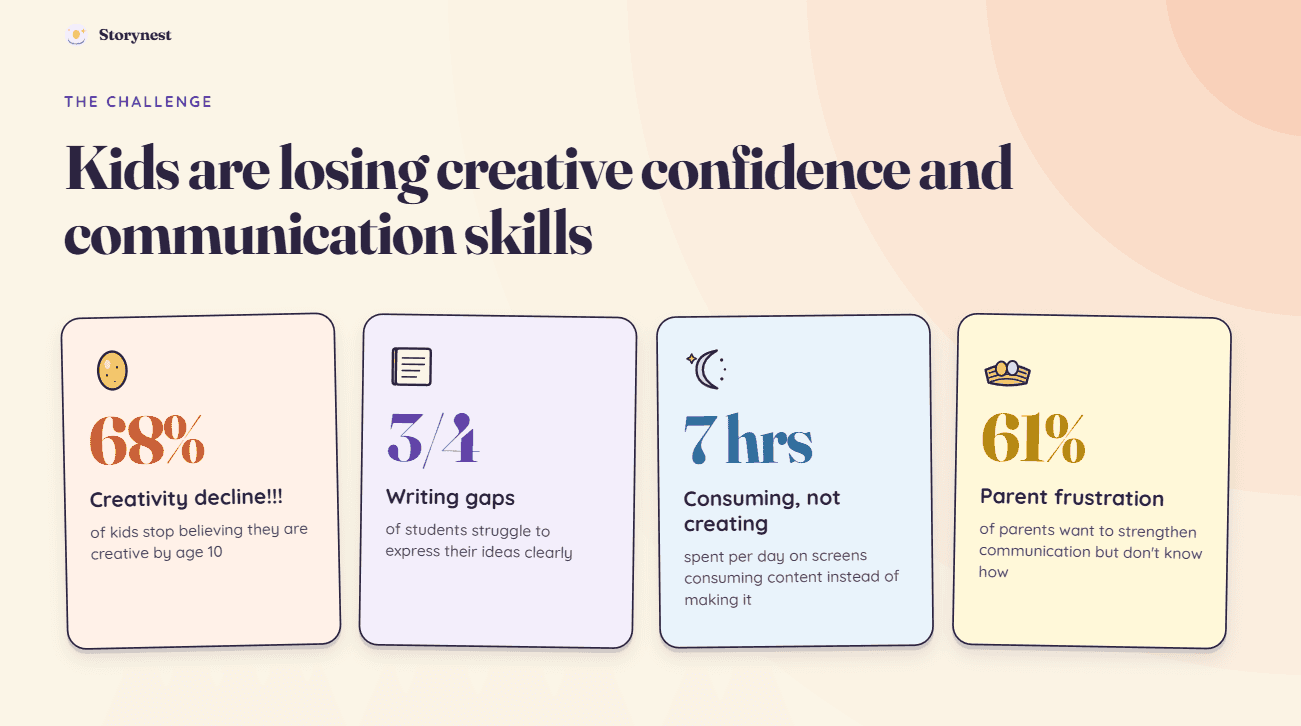
Eine meiner Lieblingsfolien aus dem Deck, die Titelschrift und die Tag-Schrift ergänzen sich gut, außerdem passen die Icons zur Vorlage (nicht so sehr zum Inhalt)
2. Das Brand Design System sichert die Konsistenz über zukünftige Decks hinweg
Dies ist das eine Claude Design-Feature, das die meisten Rezensionen übersehen, und es ist das wichtigste für jeden, der regelmäßig Decks erstellt. Claude Design ermöglicht es Ihnen, ein Brand Design System einmal einzurichten und es dann auf jedes folgende Deck anzuwenden. Farben, Schriftarten, Elementstile, Bildrichtung, Layout-Raster, alles im Voraus definiert und dann automatisch durchgesetzt.
Für ein Team oder einen Gründer, der drei oder mehr Decks pro Monat erstellt, ändert dies die Wirtschaftlichkeit. Sie hören auf, in jedem Prompt einen Absatz mit Designanweisungen zu schreiben. Die Marke bleibt über das Investoren-Deck, das Verkaufs-Deck und das Board-Update hinweg konsistent, ohne dass jemand Designspezifikationen kopiert und einfügt.
3. Sechs Exportpfade, darunter ein echtes .pptx
Die meisten KI-Präsentationstools zwingen Sie in ihr eigenes Format oder bieten Ihnen eine begrenzte Exportoption. Claude Design exportiert nach PPTX, PDF, eigenständiges HTML, Canva, .zip und Claude Code.
Das .pptx ist das wichtigste. Textfelder sind bearbeitbar, Folien sind neu anordenbar, das Deck integriert sich in jeden Workflow, der bereits Ihre Präsentationen steuert. Die anderen fünf Pfade sind wichtig, wenn das Deck an einen anderen Ort als einen Besprechungsraum geht (eine Canva-Übergabe, ein HTML-Einbettung, ein Claude Code-gesteuerter Web-Build).
4. Es ist in kostenpflichtigen Claude-Plänen enthalten
Wenn Sie bereits für Claude oder Claude Code bezahlen, gibt es kein zusätzliches Abonnement zu verwalten. Sie melden sich bei Claude an, öffnen Claude Design und beginnen mit dem Erstellen. Kein neues Konto, keine neue Abrechnungsbeziehung, kein neues Tool, das Ihr Team einführen muss. Für Nutzungslimits – mit dem neuen Update teilt Claude Design nun Limits mit Claude und Claude Code.
Für jeden, der bereits im Claude-Ökosystem ist, ist dies der reibungsloseste Weg, ein ernsthaftes KI-Präsentationstool auszuprobieren (wenn Sie sich keine Sorgen um die Kosten machen).
Nachteile: Wo Claude Design Schwächen zeigt
1. Opus 4.7 ist für die Bilderzeugung überteuert
Claude Design generiert Bilder mit seinen teuren Modellen, die für komplexe Denkaufgaben entwickelt wurden. Es zur Darstellung eines Folienhintergrunds oder eines Hero-Bildes zu verwenden, ist übertrieben, und Sie zahlen Spitzenpreise für jedes einzelne Bild.
Spezielle Bildmodelle erledigen diese Aufgabe besser und günstiger. Nano Banana 2 und GPT 2 sind großartige Alternativen. Keines davon ist von Claude Design aus zugänglich. Kein Modellwechsler, keine Einstellung, um Bildaufträge woandershin zu leiten, keine Möglichkeit, Ihren eigenen Bild-API-Schlüssel zu verwenden.
Bei einem bildlastigen Deck ist dies der größte Treiber Ihres Kreditverbrauchs.
2. Es ist ein generalistisches Designsystem, kein präsentationsspezifisches
Claude Design verwendet eine Engine, um Websites, Poster, Broschüren und Präsentationen zu erstellen. Wenn ein einziges System vier Ausgabeformate bedienen muss, sinkt die Detailgenauigkeit, die es auf eines davon anwenden kann. Ein reines Präsentationstool erfasst die Marke auf Folienebene. Claude Design erfasst sie auf Canvas-Ebene.
Der sichtbarste Fehler ist die Texthierarchie. Die Standardeinstellung ahmt eine Website nach: große Überschrift, Unterüberschrift, darunter Fließtext. Das funktioniert auf einer Landingpage, wo der Leser scrollt. Auf einer Folie, wo das Publikum in drei Sekunden liest, ist es beengt und überladen.
Das Storynest-Brand-System wurde auf Asset-Ebene (Palette, Schriftarten, Icons) korrekt angewendet. Die Layouts, die Claude Design mit diesen Eingaben erstellte, waren nicht immer die besten für eine Präsentation. Das Brand-System wird angewendet. Das Präsentationsdenken nicht.
3. Der „klassische Claude-Look“ sickert in die Folien ein
Verbringen Sie eine Stunde damit, Claude Design-Präsentationen zu generieren, und Sie werden die gleichen Merkmale erkennen. Überall kursive Wörter zur Betonung. Der gleiche Rhythmus von Titel-plus-Untertitel-plus-drei-Punkten über nicht verwandte Decks hinweg. Ein Hausstil, der sich zeigt, egal was Sie präsentieren.
Dies geschieht, weil Claude Design keine kuratierte Bibliothek hat, aus der es schöpfen kann – keine Diagramme, Grafiken oder präsentationsspezifischen Layouts, sodass das Modell auf seine eigenen Standardeinstellungen zurückgreift. Es ist kein Fehler. Es ist das Fehlen eines Referenzsystems.
4. Die Bearbeitung ist fehlerhaft
Die meisten Leute geben Claude Design hier auf. Die Bearbeitungsebene funktioniert nicht so, wie es jeder Benutzer von Präsentationssoftware erwarten würde:
Rückgängig machen und Wiederherstellen verhalten sich über Generationen hinweg nicht zuverlässig
Das Hinzufügen oder Entfernen von Textfeldern wird als direkte Bearbeitung nicht unterstützt
Das manuelle Hinzufügen oder Entfernen von Bildern wird nicht unterstützt
Das Ziehen von Objekten auf der Folie funktioniert nicht
Das Neuanordnen von Folien innerhalb des Tools funktioniert nicht
Die Zusammenarbeit an einem Deck wird nicht unterstützt
Jede „Bearbeitung“ ist eigentlich ein erneuter Prompt. Sie verschieben das Textfeld nicht. Sie bitten das Modell, die Folie mit dem verschobenen Textfeld neu zu generieren. Jeder erneute Prompt verbraucht Credits und birgt das Risiko, Dinge zu ändern, die Sie nicht ändern wollten. Dies ist der Hauptgrund, warum das Erstellen von Claude Design-Präsentationen über den ersten Entwurf hinaus wie ein Kampf gegen das Tool wirkt.
5. Standard-Präsentationsfunktionen fehlen
Abgesehen von der Bearbeitung fehlen die grundlegenden Elemente eines Folientools. Es gibt keinen Filmstreifen oder Folienbereich an der Seite. Es gibt keine Schaltfläche „Folie duplizieren“, keine Schaltfläche „Folie hinzufügen“, kein Drag-and-Drop zum Neuanordnen. Sie bewegen sich durch das Deck, indem Sie scrollen, was bei 6 Folien in Ordnung ist und bei über 20 Folien mühsam wird. Jeder, der an den PowerPoint- oder Keynote-Folienbereich gewöhnt ist, wird allein die fehlende Navigation als verwirrend empfinden.
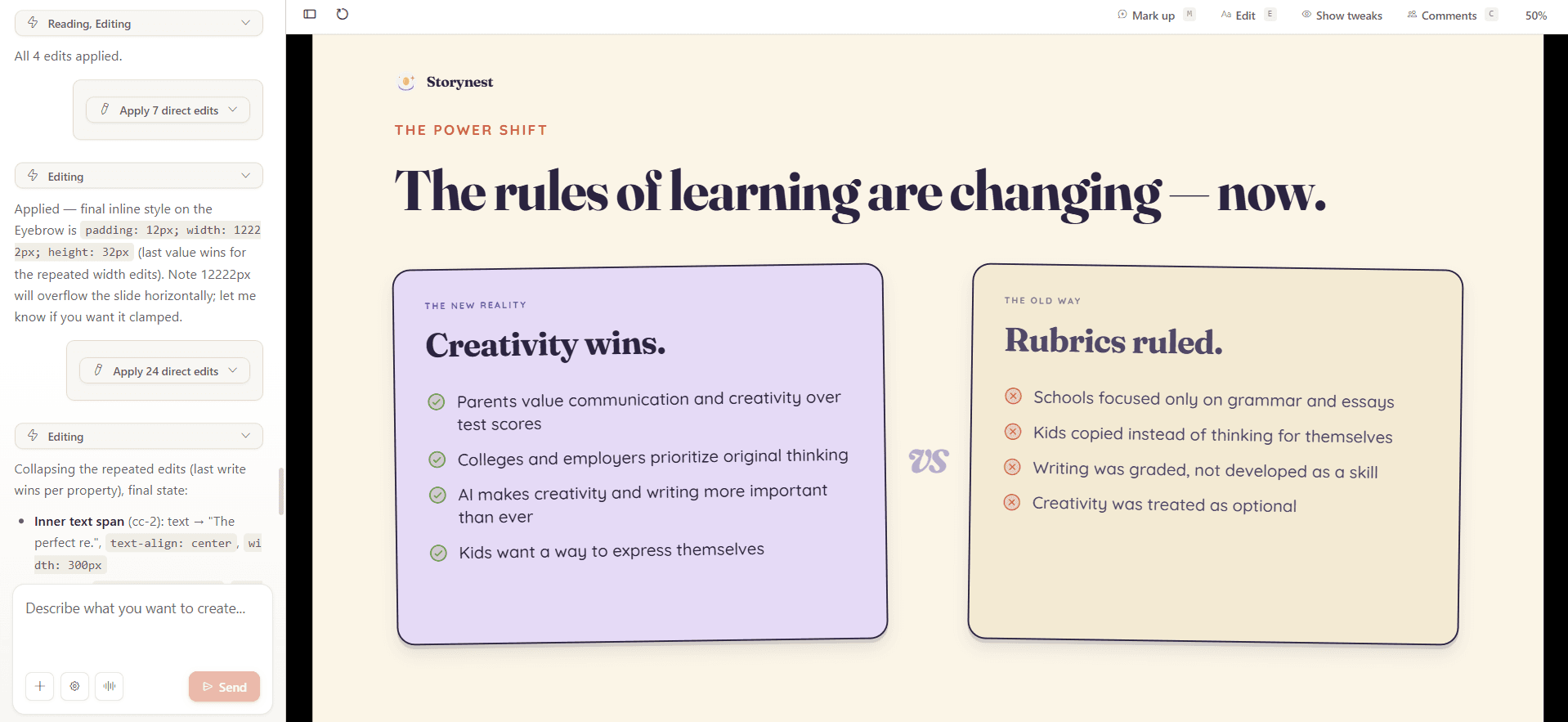
Kein Folienbereich, um schnell zwischen Folien zu wechseln, sie neu anzuordnen oder einfach eine schnelle Vorschau zu erhalten.
6. Kein Speicher über Decks hinweg
Claude Design merkt sich nichts von Ihren vorherigen Decks. Es kann kein Bild, kein Diagramm, kein Farbsystem oder Layout wiederverwenden, das Sie letzte Woche erstellt haben. Jedes Deck beginnt bei Null.
Für eine Einzelperson, die gelegentlich ein einmaliges Deck erstellt, ist das ein Achselzucken. Für ein Team mit einem Brand-System und mehr als fünf Decks pro Quartal ist es disqualifizierend. Wir haben mit Unternehmensteams gesprochen, die Claude Design für interne Decks in Betracht ziehen, und das Fehlen eines übergreifenden Speichers ist das erste, was zur Sprache kommt. Ein Brand-System, das jedes Mal von Grund auf neu eingegeben werden muss, ist kein Brand-System.
7. Der PowerPoint-Export verliert die Formatierung (und davon ziemlich viel)
Claude Design exportiert eine echte .pptx, aber nicht immer eine perfekte. Hier ist, was bei jedem Export abweicht:
Schriftersetzung. Claude Design verwendet Webfonts, die PowerPoint nicht immer installiert hat. Bei meinem Export wurden zwei Folien durch eine Standard-Ersatzschrift ersetzt, was die typografische Hierarchie sichtbar zerstörte.
Verflachung von Farbverläufen. Dekorative Farbverläufe werden in PowerPoint bei meinen Tests auf mindestens einer Folie pro Präsentation flach dargestellt. Die Farbe bleibt ähnlich. Die Tiefe ist verschwunden.
Verschiebung der Textfeldposition. Textfelder verschieben sich beim Export um einige Pixel. Manchmal genug, um die Ausrichtung auf einer Folie mit engem Abstand zu stören.
Planen Sie 10 bis 15 Minuten ein, um den Export in PowerPoint zu bereinigen.
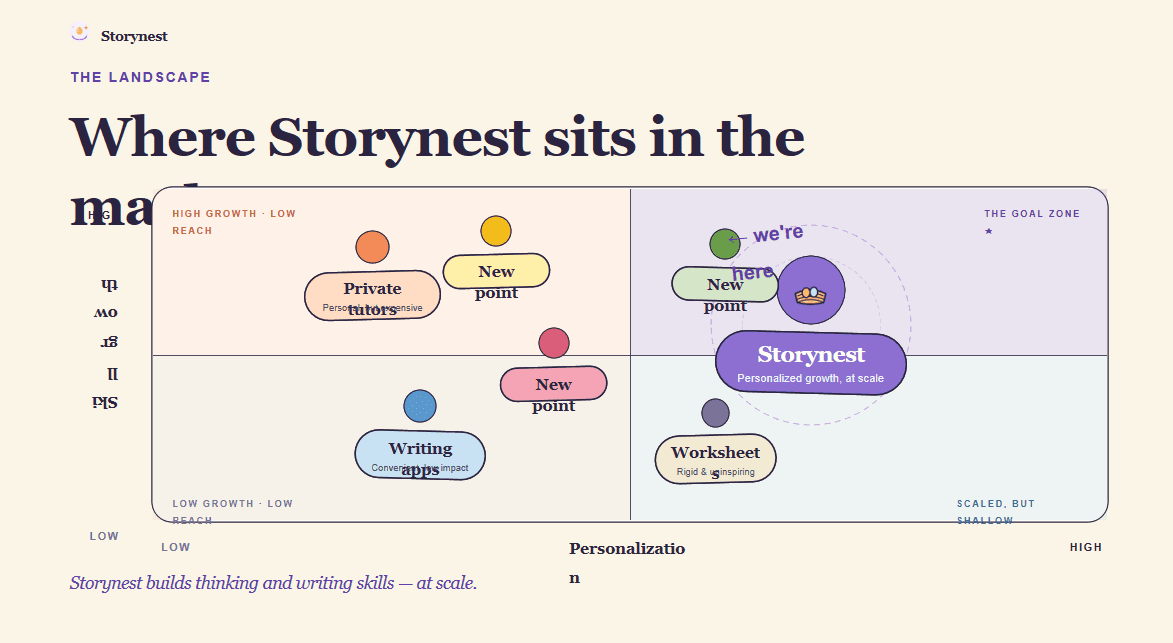
Eine meiner Lieblingsfolien wurde beim Export komplett ruiniert
Wie man gute Präsentationen mit Claude Design erstellt (Prompts + Workarounds)
Claude Design hat echte Probleme, aber man kann damit eine wirklich gute Präsentation erstellen, wenn man mit dem System arbeitet, anstatt dagegen. Hier ist der genaue Workflow und die Prompts, die ich verwende. Kurz gesagt: Machen Sie sich alle Gedanken im Voraus, denn die Bearbeitung im Nachhinein ist der Punkt, an dem es scheitert.
Regel 1: Alles in den ersten Prompt laden
Die Bearbeitung ist fehlerhaft, daher ist jede Änderung ein erneuter Prompt, der Credits kostet. Der erste Prompt muss die vollständige Spezifikation enthalten. Listen Sie jede Folie auf, bevor Sie auf „Generieren“ klicken.
Erstelle eine Präsentation mit [N] Folien für [Zielgruppe] über [Thema].
Ziel der Präsentation: [Verkaufen, Pitchen, Informieren, etc.]
Ton: [z.B. selbstbewusst, minimalistisch, datengesteuert]. Vermeiden Sie kursive
Hervorhebungen und dekorative Farbverläufe.
Gewünschte Folienstruktur:
1. [Titelfolie – genaue Überschrift]
2. [Problem – 1 Statistik als <Diagrammtyp>]
3. [Lösung – max. 3 Aufzählungspunkte]
... (jede Folie explizit auflisten)
Hinweis: Es ist immer besser, Inhalte bereitzuhalten, anstatt sich hier auf Claude zu verlassen, um alles von Grund auf neu zu erstellen.
Regel 2: Den „klassischen Claude-Look“ im Prompt eliminieren
Der Standard-Hausstil setzt sich durch, wenn Sie ihn nicht direkt unterdrücken. Benennen Sie, was Sie nicht wollen, und verweisen Sie dann auf einen Referenzstil, an dem sich das Modell orientieren kann.
Design-Richtung: KEINE kursiven Wörter zur Hervorhebung verwenden.
NICHT den gesamten Text zentrieren. Variieren Sie das Layout zwischen den Folien – einige
vollflächig, einige geteilt links/rechts, einige mit einer einzigen großen Zahl.
Referenzstil: [Nennen Sie einen Präsentationsstil, z.B. „Stripe Investor
Deck“ oder „sauberer redaktioneller Stil wie Linear’s Launch Posts“].
Regel 3: Bildgenerierung von Opus wegleiten
Claude Design greift für Bilder auf Opus 4.7 zurück, was teuer ist und nicht seine Stärke. Generieren Sie Bilder separat in einem günstigeren, besseren Tool und lassen Sie Claude Design Platzhalter setzen.
Fügen Sie für jede Folie, die ein Bild benötigt, ein beschriftetes Platzhalterfeld ein,
das [BILD: Beschreibung] sagt, anstatt das Bild zu generieren.
Ich werde die endgültigen Bilder nach dem Export selbst hinzufügen.
Generieren Sie die echten Bilder in Nano Banana Pro für die Bildgenerierung oder GPT Image und fügen Sie sie dann nach dem Export ein. Diese eine Änderung tut mehr für Ihr Guthaben als alles andere.
Regel 4: Die Präsentation sperren, bevor Sie mit der Bearbeitung beginnen
Rückgängig machen, Wiederherstellen und Ziehen funktionieren nicht. Behandeln Sie die generierte Präsentation als nahezu final. Wenn etwas falsch ist, generieren Sie die gesamte Folie neu, anstatt ein Element zu verschieben. Generieren Sie chirurgisch, Folie für Folie, damit Sie den Rest nicht stören.
Behalten Sie jede Folie genau so bei, AUSSER Folie [N]. Generieren Sie nur
Folie [N] mit dieser Änderung neu: [spezifische Änderung]. Passen Sie das vorhandene
Layoutsystem an, damit es mit dem Rest konsistent bleibt.
Regel 5: Frühzeitig exportieren und in PowerPoint fertigstellen
Der PowerPoint-Export verliert einige Formatierungen, und Sie können Folien in Claude Design nicht neu anordnen. Führen Sie daher alle strukturellen Bearbeitungen nach dem Export durch. Checkliste: Exportieren Sie nach .pptx, öffnen Sie es in PowerPoint oder Keynote, ordnen Sie es über das Folienpanel neu an, beheben Sie alle fehlerhaften Formatierungen, fügen Sie Ihre endgültigen Bilder hinzu, fertig.
Ein wiederverwendbarer Master-Prompt
Dieser berücksichtigt die Regeln 1 bis 3, sodass Sie eine einzige Vorlage für jede Präsentation haben.
Erstelle eine Präsentation mit [N] Folien für [Zielgruppe] über [Thema].
Ziel: [ein Satz]. Ton: [selbstbewusst / minimalistisch / datengesteuert].
Design-Richtung: keine kursive Hervorhebung, keine dekorativen
Farbverläufe, nicht den gesamten Text zentrieren. Variieren Sie die Layouts über die Folien hinweg:
einige vollflächig, einige geteilt, einige mit einer einzigen großen Zahl.
Referenzstil: [benannte Referenz, z.B. „Stripe Investor Deck“].
Folienstruktur:
1. [Titel – genaue Überschrift]
2. [Problem – eine Statistik]
3. [Lösung – maximal drei Aufzählungspunkte]
... (jede Folie auflisten)
Fügen Sie für jedes Bild ein Platzhalterfeld [BILD: Beschreibung] ein,
anstatt es zu generieren.
Verwenden Sie ein konsistentes Layoutsystem für alle Folien.
Als Präsentation ausgeben, die ich nach PowerPoint exportieren kann.
Diese Workarounds liefern Ihnen eine solide einmalige Präsentation. Was sie nicht beheben können, sind die strukturellen Dinge: keine Bearbeitungsebene, kein Gedächtnis über Präsentationen hinweg, keine Neuanordnung. Wenn Sie regelmäßig Präsentationen erstellen oder Markenkonstanz in einem Team benötigen, werden Sie die Workarounds schnell überwachsen.
Claude Design Alternativen für Präsentationen
Die besten Claude Design Alternativen für Präsentationen sind diejenigen, die speziell für Folien entwickelt wurden, denn das Kernproblem von Claude Design ist, dass es das nicht ist. Hier ist diejenige, zu der ich tatsächlich für wiederkehrende Präsentationsarbeiten wechseln würde, plus zwei weitere, die es wert sind, bekannt zu sein.
Alai: Beste Alternative für Unternehmen & große Teams
Alaiist von Anfang an präsentations-nativ aufgebaut, was genau das ist, was Claude Design nicht ist. Wo Claude Design eine Webdesign-Engine an Folien anpasst, behandelt Alai die Folie als primäre Einheit. Dieser einzige Unterschied löst fünf der sieben oben genannten Probleme.
Es behebt das Bearbeitungsproblem direkt. Alai bietet Ihnen eine echte Bearbeitungsebene: Objekte ziehen, Folien neu anordnen, rückgängig machen und wiederherstellen, Text und Grafiken manuell oder mit KI bearbeiten. Sie müssen nicht erneut einen Prompt eingeben, um ein Textfeld zu verschieben. Sie verschieben das Textfeld. Es gibt auch einen Agentenmodus, der strukturelle Bearbeitungen über die gesamte Präsentation hinweg durch Klartextanweisungen vornimmt, kontextsensitiv, sodass eine Änderung an einer Folie den umgebenden Fluss nicht stört.
Es behebt das Problem des Hausstils. Alai wählt keine Vorlage aus und zwingt Ihre Inhalte nicht dazu, sich anzupassen. Es macht das Gegenteil. Die KI wurde mit mehr als 1.000 Präsentationen trainiert, sodass sie bis zu vier verschiedene Layout-Optionen pro Folienidee generiert, die jeweils so konzipiert sind, dass sie zum Inhalt passen, anstatt ihn einzuschränken. Das Muster „überall kursiv, immer die gleiche Struktur“ setzt sich nicht durch, da das System nicht aus einem endlichen Katalog auswählt. Es generiert das Layout passend zu dem, was die Folie tatsächlich aussagen muss. Präsentationsspezifische Strukturen wie „Zwei vergleichen“, „Funktionsmatrix“, „Trichter“, „Hub & Spoke“ und „Zeitachsen“ erscheinen, wenn der Inhalt sie erfordert, nicht weil sie die nächstgelegene Voreinstellung waren.
Es behebt das Problem der Erinnerung und Markenkonsistenz. Die Markenkonsistenz in Alai funktioniert auf drei Ebenen. Erstens können Sie ein detailliertes Markensystem von Grund auf neu aufbauen: Typografiehierarchie, Farbverwendungskontexte, Ikonografie und Markenstimme, alles in das Designsystem kodiert, nicht nur Logo und Primärfarben. Zweitens können Sie vorhandene PowerPoint-Vorlagen und vollständige Foliensätze importieren. Alai baut sie Pixel für Pixel innerhalb des Designsystems als bearbeitbare Folien neu auf, die Sie tatsächlich verwenden können, keine flachen Importe. Die Arbeit, die Ihr Team bereits geleistet hat, wird zur Grundlage. Drittens greift die Speicherfunktion sowohl auf Ihre importierten Präsentationen als auch auf Ihre von Alai generierten Präsentationen zurück, wenn Sie eine neue erstellen. Wenn ich eine genehmigte Kundenlogo-Wandfolie aus einer Verkaufspräsentation habe, die ich im letzten Quartal verschickt habe, kann ich sie in ein neues Investoren-Update einfügen, ohne sie neu aufbauen zu müssen. Die Fallstudienfolie, die Preisfolie, die einseitige Einführung. Sobald sie genehmigt sind, leben sie in Alai und werden wiederverwendet. Das ist es, was Teams mit wiederkehrenden Präsentationen brauchen, und wofür Claude Design keine Antwort hat.
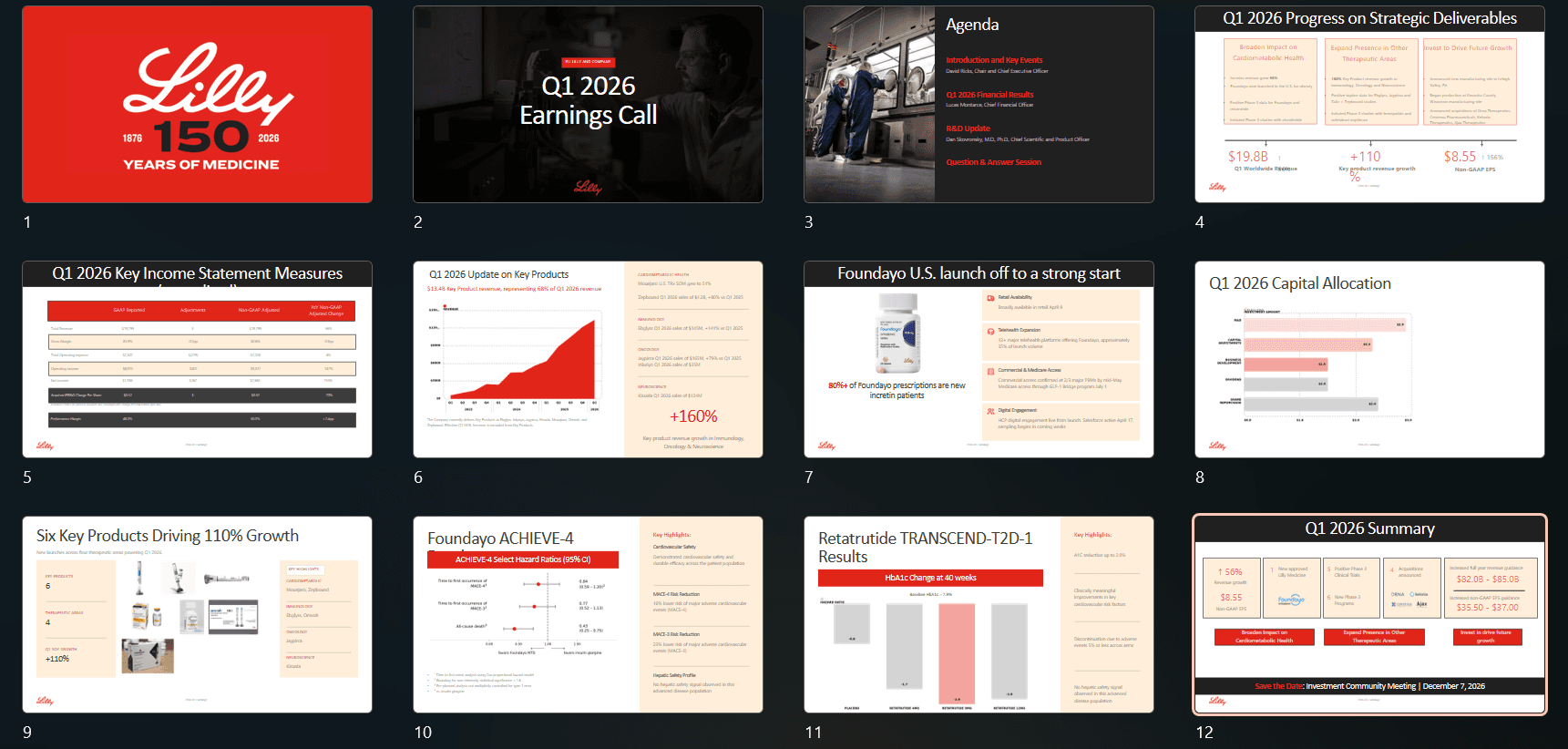
Die 12-Folien-Präsentation, die ich auf Alai getestet habe, indem ich ein vollständiges Markensystem eingerichtet habe – ich liebte, wie es Rot als Sekundär-/Highlight-Farbe auf allen Folien wie angewiesen verwendete.
Es behebt das Problem der Bildgenerierung. Claude Design leitet jedes Bild durch Opus 4.7, was teuer und nicht für die visuelle Generierung optimiert ist.Alai integriert die dedizierten Bildmodelle, die tatsächlich die besten ihrer Klasse für diese Aufgabe sind: Nano Banana 2 und GPT Image 2. Sie erhalten eine bessere Bildqualität zu einem Bruchteil des Opus-Preises. Wichtiger ist, dass die Ausgabe nicht nur ein auf eine Folie gelegtes Bild ist. Es ist eine bearbeitbare Bildfolie, die das Thema Ihrer Präsentation automatisch übernimmt. Eine Produkt-Hero-Folie, eine Kunden-Zitat-über-Foto-Folie, eine Problem-Illustrations-Folie – all diese stehen neben Ihren regulären KI-generierten Textfolien.
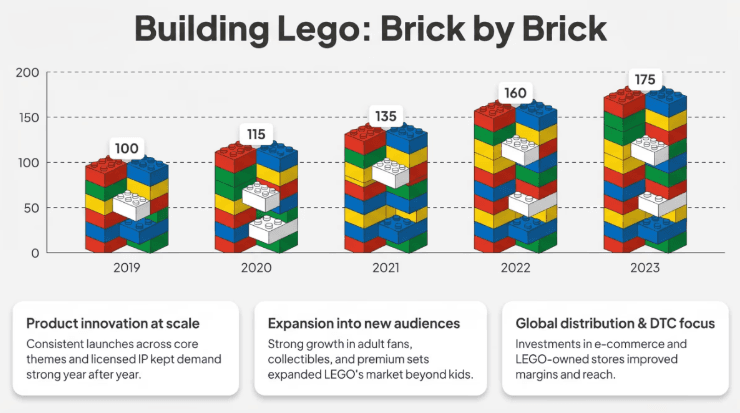
Eine meiner Lieblings-Nano Banana 2 Folien, erstellt auf Alai
Es behebt das PowerPoint-Exportproblem. Sauberer PPTX- und PDF-Export. Keine verschobenen Textfelder oder falsch ausgerichteten Bilder. Außerdem bietet Alai verfolgbare Links, die von Vertriebsteams, Gründern und Kundendienstteams verwendet werden können, um die Leistung ihrer Präsentationen zu verfolgen.
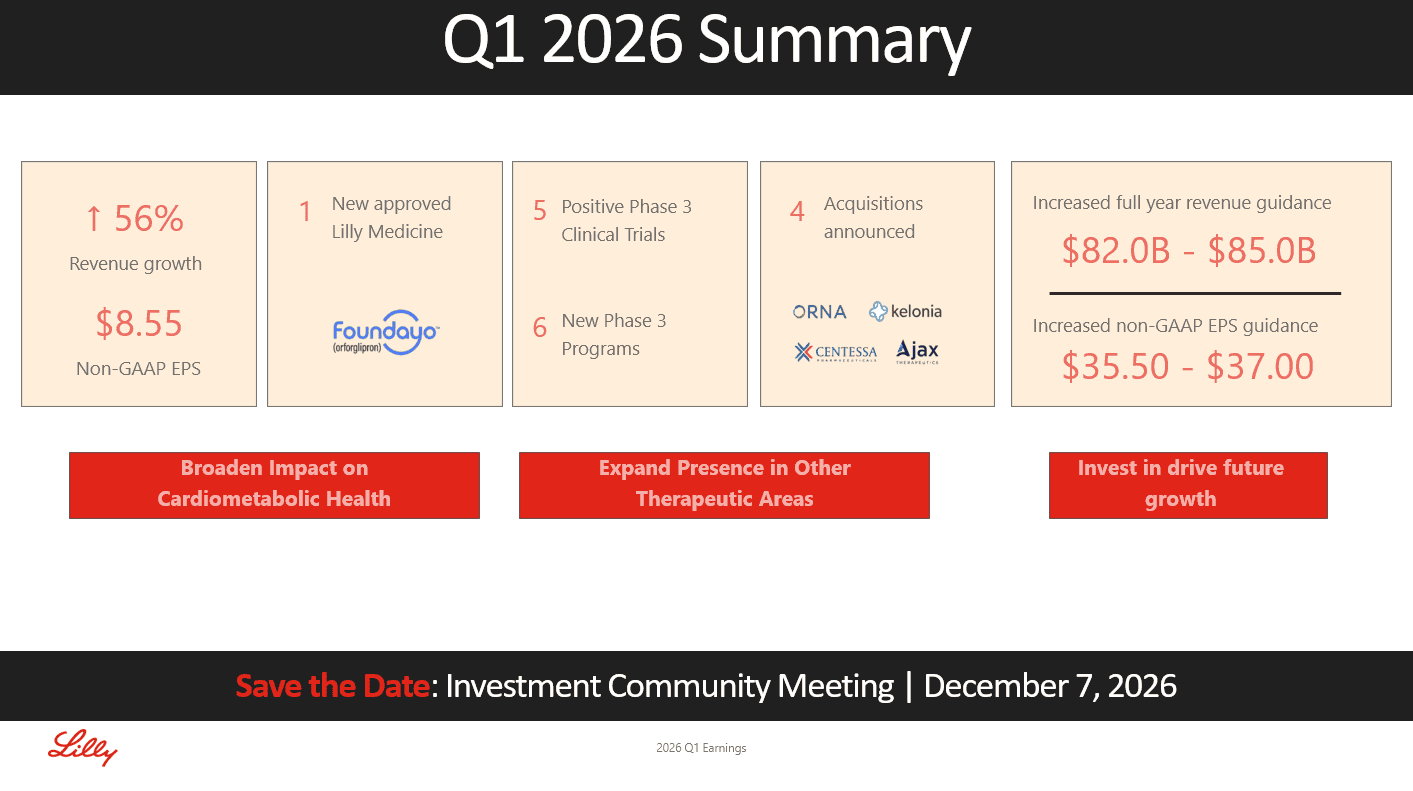
Saubere und markengerechte PowerPoint-Exporte
Vorteile
Echte Bearbeitungsebene: Ziehen, neu anordnen, rückgängig machen, wiederherstellen, manuelle und KI-Bearbeitungen
Agentenmodus übernimmt strukturelle Bearbeitungen über die gesamte Präsentation hinweg, kontextsensitiv
Bis zu vier verschiedene Folienoptionen pro Idee, kein einziges festes Ergebnis
Pixelgenaue Übernahme bestehender PowerPoint-Vorlagen und Folienbibliotheken
Speicher und wiederverwendbare Assets über Präsentationen hinweg für Markenkonsistenz
Nano Banana 2 und GPT 2 Integrationen für hochwertige Bildfolien
Sauberer PDF- und PPT-Export in beide Richtungen, keine manuelle Nachbearbeitung erforderlich
MCP-Server, API und A2A-Integration für programmatische und LLM-gesteuerte Workflows
Engagement-Tracking pro Folie über teilbare Links
Nachteile
Ein dediziertes Tool ist ein weiteres Abonnement, wenn Sie bereits für Claude bezahlen
Weniger nützlich, wenn Sie ein Tool suchen, das mehr als nur Präsentationen entwirft
Preise
Plan | Preis (monatlich) | Hauptlimit |
Kostenlos | 0 $ | 300 KI-Credits, alle Premium-Designelemente, PDF-Export |
Plus | 20 $ (16 $ jährlich) | 600 Credits, PowerPoint-Export, Priority-Support |
Pro | 30 $ (25 $ jährlich) | 1.200 Credits, Priority-Support von Gründern |
Ultra | 80 $ (60 $ jährlich) | 5.000 Credits, direkte Feature-Anfragen an Gründer |
Enterprise | Preis auf Anfrage | API, A2A, benutzerdefinierte Brand-Themes, Admin-Kontrollen, dedizierter Support |
Am besten für: Wählen Sie Alai, wenn Sie regelmäßig Präsentationen erstellen, diese wie echte PowerPoint-Dateien bearbeiten möchten und Markenkonsistenz in einem Team wünschen. Die beste Option für Vertriebs-, Marketing- oder Kundendienstteams in Unternehmen.
Gamma: Am besten für schnelle, dokumentenähnliche Präsentationen
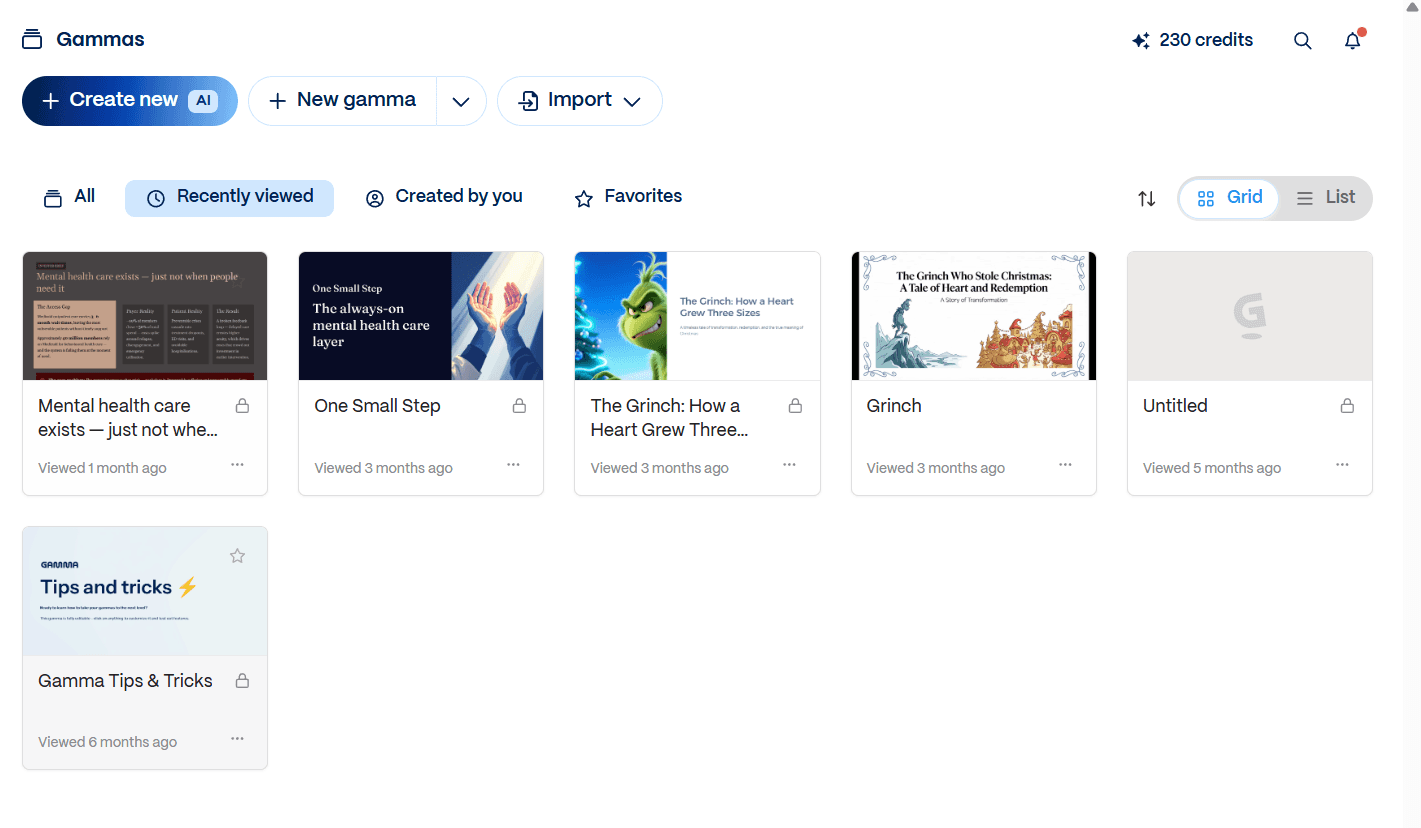
Gammaist das Standard-KI-Präsentationstool, das die meisten Leute zuerst ausprobieren, und das, bei dem die meisten Leser bereits ein Konto haben werden. Es ist stark in Bezug auf Geschwindigkeit und textlastige Ausgabe. Es ist schwächer in Bezug auf das Denken der Folie als Designobjekt, auf das Claude Design und Alai auf unterschiedliche Weise setzen. Betrachten Sie es als das KI-Präsentationstool, das Ihre Präsentation zuerst als Dokument, dann als Folien behandelt.
Schnellste Erstentwurfsgenerierung in dieser Kategorie. Geben Sie einen Prompt ein und erhalten Sie in weniger als 60 Sekunden eine vollständige Präsentation. Titel, Struktur, Layouts, grundlegende Bilder, alles in einem Durchgang. Claude Design braucht länger, weil es mehr Designentscheidungen pro Folie trifft. Gamma ist schnell, weil es weniger trifft. Für ein internes Update oder eine schnelle Freigabe, bei der es darum geht, „kompetent auszusehen“, ist diese Geschwindigkeit wirklich nützlich.
Kartenbasierte, dokumentenähnliche Bearbeitung. Jede Gamma-Folie wird als „Karte“ in einem Fluss behandelt und nicht als Folie mit fester Leinwand. Sie können Karten in der Größe ändern, verschachtelte Inhalte hinzufügen, Abschnitte inline erweitern. Wenn Ihr Team in Notion schreibt oder den ganzen Tag Google Docs teilt, wird sich die Benutzeroberfläche von der ersten Sitzung an vertraut anfühlen. Die Lernkurve ist im Wesentlichen null. Der Kompromiss ist, dass dieses gleiche Modell Gamma in Bezug auf traditionelles Foliendesign schwach macht: Karten dehnen sich, Inhalte fließen, und die „Präsentation“ fühlt sich nicht mehr wie eine Bühne an, sondern wie ein langer, scrollbarer Dokument, das zufällig Seitenumbrüche hat.
Integrierte Bildgenerierung und Theme-Styling. Gamma generiert Bilder direkt in der Präsentation durch eigene Integrationen und wendet ein ausgewähltes Theme (Farben, Schriftarten, visueller Stil) auf alle Karten an. Es sieht sauber und präsentabel aus, direkt nach dem Auspacken. Der „Gamma-Look“ setzt sich jedoch schnell durch und ist schwer zu entkommen: abgerundete Blöcke, ähnliche Header-Behandlungen, das gleiche Muster „Bild links, Text rechts“ wiederholt sich auf den meisten Folien. Wenn Ihr Leser bereits eine Gamma-Präsentation gesehen hat, wird er die nächste erkennen.
Die Bearbeitung nach der Generierung ist funktional, nicht gestalterisch. Sie können Farben ändern, Layouts tauschen, Abschnitte neu generieren und Text anpassen. Was Sie nicht einfach tun können, ist eine benutzerdefinierte visuelle Hierarchie auf einer einzelnen Folie zu erstellen. Pixelgenaue Bereinigungen, die eine Investorenpräsentation erfordert, liegen außerhalb dessen, was Gammas Editor bequem unterstützt. Für Dokumente, die vorgeben, Folien zu sein, funktioniert dies. Für Folien, die tatsächlich eigenständig auf einem Bildschirm stehen müssen, nicht.
Die Markenkonsistenz bleibt auf Kit-Ebene. Sie können ein Logo hochladen, Farben festlegen, Schriftarten auswählen. Das ist die Tiefe. Es gibt keine Designsystem-Kodierung, keine Layoutregeln pro Folientyp, keine Übernahme bestehender Präsentationen. Jede neue Gamma-Präsentation sieht aus wie eine Gamma-Präsentation, die Ihre Farben trägt.
Der Export ist breit gefächert, aber auf der Folienseite verlustbehaftet. PowerPoint, PDF, Web-Einbettung, öffentlicher Link. Die Web-Einbettung ist wirklich nützlich, da Gamma ursprünglich für die Web-First-Veröffentlichung konzipiert wurde. Der PowerPoint-Export, wie der PowerPoint-Export jedes anderen Tools, verschiebt sich. Überschriften verschieben sich, die Kartenflusslogik lässt sich nicht sauber auf feste Folienleinwände übertragen, und Sie verbringen zehn Minuten damit, Dinge auf der anderen Seite zu reparieren.
Vorteile
Schnellste Erstentwurfsgenerierung in dieser Kategorie
Dokumentenähnliche Bearbeitung ist natürlich für Autoren, PMs und Content-Teams
Breite Exportoptionen, einschließlich einer sauberen Web-Einbettung
Integrierte Bildgenerierung
Sauberste kostenlose Version der drei hier genannten Alternativen
Niedrigste Lernkurve aller KI-Präsentationstools
Web-Publishing als Präsentationsformat funktioniert gut
Nachteile
Erkennbarer „Gamma-Look“ setzt sich schnell über Präsentationen hinweg durch
Die Bearbeitung ist funktional, aber nicht folientauglich für kundenspezifische Designarbeiten
Markenkonsistenz bleibt auf Logo plus Farben plus Schriftarten beschränkt
Das Dokumentenerbe bedeutet, dass die Folie als Abschnitt und nicht als Bühne behandelt wird
Der PowerPoint-Export verschiebt sich bei layoutlastigen Präsentationen merklich
Keine Übernahme bestehender Präsentationen oder Speicherung über Präsentationen hinweg
Preise
Plan | Preis (jährlich) | Preis (monatlich) | Was Sie bekommen |
|---|---|---|---|
Kostenlos | 0 $ | 0 $ | 400 Credits (einmalig) bei der Anmeldung (~10 Präsentationen), Gamma-Branding |
Plus | 8 $/Monat | 10 $/Monat | Unbegrenzte KI-Generierungen, Entfernung des Brandings, erweiterte Bildmodelle |
Pro | 15 $/Monat | 20 $/Monat | Premium-KI-Modelle, benutzerdefiniertes Branding, Analysen, API-Zugriff, bis zu 60 Folien/Präsentation |
Ultra | 90 $/Monat | 100 $/Monat | Die meisten fortschrittlichen KI-Modelle, 75-Karten-Decks, 4K Nano Banana Pro HD, Early-Access-Funktionen |
Am besten geeignet für: Gamma ist die richtige Wahl für schnelle, inhaltsorientierte Decks: interne Updates, Share-Outs, einfache Pitches und Präsentationen im Dokumentenstil, bei denen der Text Priorität hat. Nicht geeignet für designorientierte Decks, bei denen das Layout eine wichtige Rolle spielt.
Wenn Sie ein Gamma-Benutzer sind und nach besseren Tools suchen, die die Design- und Exportprobleme lösen, würde ich Ihnen auf jeden Fall empfehlen, sich dieseGamma-Alternativen anzusehen.
Nano Banana 2 und GPT Image 2: Am besten für einmalige Visuals, nicht für Decks
Wenn Sie von Claude Design eigentlich ein gutes Bild, eine Infografik oder ein einzelnes Hero-Visual für Ihr Deck benötigen.
Claude Design leitet die Bilderzeugung über Opus 4.7, was teuer und nicht das Beste für visuelle Arbeiten ist. Nano Banana 2 (Google) und GPT Image 2 (OpenAI) sind die dedizierten Bildmodelle – der direkte Weg dorthin spart das Markup und liefert Ihnen bessere Ergebnisse in kürzerer Zeit.
Was Sie tatsächlich bekommen: Nano Banana 2 ist stark in Fotorealismus, Szenenkomposition und der Wiedergabe von Text auf Bildern, was die historische Schwäche jedes Diffusionsmodells ist. GPT Image 2 ist stark in Infografiken, Diagrammen und allen visuellen Darstellungen, bei denen die logische Struktur wichtiger ist als die ästhetische Politur. Für die meisten einmaligen Marketing- oder Inhaltsvisuals wird eines der beiden innerhalb von zwei oder drei Prompt-Iterationen landen. Beide sind pro Bild dramatisch günstiger als die Ausführung desselben Prompts über Opus 4.7 in Claude Design.
Wo das scheitert: Die Ausgabe ist ein Bild, keine bearbeitbare Folie. Wenn Sie ein Deck benötigen, ist dies die falsche Ebene. Das von Ihnen generierte Bild ist ein fester Pixelinhalt. Bearbeitungen gehen zurück über den Prompt (oder im Fall von Nano Banana können Sie Google Slides verwenden), was derselbe Iterationszyklus ist, der jeden in Claude Design frustriert. Es gibt auch kein Themensystem, keine Markenkonsistenz über mehrere Visuals hinweg und kein Gedächtnis. Jede Generierung beginnt leer (es sei denn, Sie verwenden beide Modelle auf Alai, wo Sie bearbeitbare und markenkonforme Bildfolien erhalten).
Vorteile
Erstklassige Bildqualität für einmalige Visuals
Dramatisch günstiger als die Bilderzeugung mit Opus 4.7
Schneller als die Ausführung eines vollständigen Präsentationstools, um ein Bild zu erhalten
Direkt über die Gemini- und ChatGPT-Apps und deren APIs verfügbar
Kein Abonnement erforderlich, wenn Sie bereits für Gemini oder ChatGPT bezahlen
Nachteile
Die Ausgabe ist ein flaches Bild, keine bearbeitbare Folie
Kein Themensystem oder Markenkonsistenz über mehrere Generationen hinweg
Erneutes Prompting ist der einzige Bearbeitungszyklus
Kein Workflow für vollständige Decks
Das Umschalten zwischen den beiden Modellen ist manuell; kein einheitlicher Arbeitsbereich
Am besten geeignet für: Verwenden Sie Nano Banana 2 oder GPT Image 2, wenn Sie wirklich ein Bild oder eine Infografik benötigen, kein Deck.
Sollten Sie Claude Design für Ihre nächste Präsentation verwenden?
Verwenden Sie Claude Design, wenn Sie einen einmaligen Prototyp benötigen, ihn nicht viel bearbeiten müssen und Pro- oder Max-Guthaben zum Ausgeben haben. Für eine einzelne schöne Präsentation, die Sie einmal halten und nie wieder anfassen werden, ist es wirklich gut, und die Qualität des ersten Entwurfs ist die beste in dieser Kategorie.
Verzichten Sie auf Claude Design, wenn Sie regelmäßig Decks erstellen, eine präsentationsnative Bearbeitung benötigen oder Markenkonsistenz in einem Team benötigen. Die fehlerhafte Bearbeitungsebene und das Fehlen eines übergreifenden Deck-Gedächtnisses sind keine kleinen Mängel, die ein zukünftiger Prompt beheben wird. Sie sind strukturell und verstärken sich mit jedem Deck, das Sie erstellen. Mein ehrliches Urteil: Claude Design ist das beste KI-Tool zum Erstellen einer einzelnen Folie und eines der schlechtesten zum Verwalten eines Decks. Was davon Sie benötigen, entscheidet alles.
Bereit, Decks zu erstellen, die Sie tatsächlich bearbeiten können?Probieren Sie Alai ausfür einen präsentationsnativen Workflow mit echtem PowerPoint-Export. Wenn Sie noch alle Anthropic-Optionen abwägen,hier ist der vollständige Vergleich der Claude-Präsentationen..
FAQ
Was ist Claude Design?
Claude Design ist Anthropic's KI-Design-Tool, das im April 2026 eingeführt wurde und Webseiten, Mockups, Poster und Präsentationen aus einem Text-Prompt generiert. Es läuft auf Claude Opus 4.7 und ist Teil der Claude-Produktfamilie in kostenpflichtigen Plänen. [Überprüfen: Startmonat und Modell] Es ist eine allgemeine Design-Engine, kein spezielles Präsentationstool, weshalb es sich hervorragend für erste Entwürfe eignet und Schwierigkeiten bei der Folienbearbeitung hat.
Kann Claude Design PowerPoints erstellen?
Ja. Claude Design generiert eine Präsentation in seinem Design-Canvas und exportiert das Ergebnis dann nach PowerPoint (.pptx). Die Generierung ist ausgezeichnet und der Export funktioniert. Die Formatierung verschiebt sich beim Export leicht (Schriftersetzung, Gradientenabflachung, geringfügige Textfeldverschiebung), und es gibt keine zuverlässige Möglichkeit, Folien innerhalb von Claude Design selbst zu bearbeiten. Planen Sie, das Deck nach dem Export in PowerPoint fertigzustellen und neu anzuordnen.
Wie viel kostet Claude Design?
Claude Design ist in den kostenpflichtigen Claude-Plänen enthalten und wird nicht separat berechnet. Der eigentliche Kostenfaktor ist die Nutzung von Opus 4.7, da jede Generierung und jedes erneute Prompting von Ihrem Kontingent abgezogen wird, sodass bildlastige Präsentationen mit vielen Iterationen am teuersten sind.
Exportiert Claude Design nach .pptx?
Ja. Die Claude Design Export PPTX-Funktion erstellt in weniger als einer Minute eine echte PowerPoint-Datei. Die Struktur wird intakt übertragen, aber erwarten Sie geringfügige Formatierungsverluste wie verschobene Textfelder, einen abgeflachten Verlauf oder eine ersetzte Schriftart. Planen Sie 10 bis 15 Minuten ein, um es in PowerPoint zu bereinigen.
Kann ich Folien bearbeiten, nachdem Claude Design sie generiert hat?
Nicht gut, nicht innerhalb von Claude Design. Objekte ziehen, Folien neu anordnen, Textfelder hinzufügen und zuverlässiges Rückgängigmachen und Wiederherstellen funktionieren nicht. Jede Änderung ist effektiv ein erneuter Prompt. Der praktische Workaround besteht darin, frühzeitig in .pptx zu exportieren und alle strukturellen Bearbeitungen in PowerPoint oder Keynote vorzunehmen, wo diese Vorgänge normal funktionieren.
Was ist die beste Alternative zu Claude Design für PowerPoint?
Speziell für PowerPoint ist die beste Alternative ein präsentationsnatives Tool mit einer echten Bearbeitungsebene und Gedächtnis über Decks hinweg, was Alai sein soll. Es behebt die Bearbeitungs-, Hausstil- und übergreifenden Deck-Gedächtnislücken, die Claude Design für wiederkehrende Deck-Arbeiten frustrierend machen.
SEITEN
Werkzeuge vergleichen
Ressourcen