·
BASICS
·
10 min read

Marketing Lead
AI tools have gotten remarkably good at research, writing, and analysis. But when it's time to turn that work into a presentation, you're still stuck copying and pasting between apps.
With the Alai MCP Server, that friction disappears. Your AI agent can now generate presentations, manage slides, and export content
What is MCP?
Model Context Protocol (MCP) is a standard introduced by Anthropic that allows AI applications to interact with external tools and services. Think of it as an API specifically designed for AI agents.
MCP Servers expose capabilities (like creating presentations) in a structured way that AI can use
MCP Clients (Claude Desktop, Cursor, Windsurf, etc.) connect to these servers to extend what AI can do
The Alai MCP Server gives any compatible AI agent the ability to create presentations, add slides, generate speaker notes, and export to PowerPoint or PDF, all through natural conversation.
How to connect Alai’s MCP To Your AI Agent
You can connect Alai's MCP to your AI agent in the following two ways:
Connect without an API Key (Easier)
Go to your respective AI agent:
Add a new connector: In your MCP client, open the connectors or integrations panel and click + to add a new MCP server.
Set the Name: In the Name field, enter Alai. This is the label that will identify the connector in your client.
Set the URL: In the URL field, enter
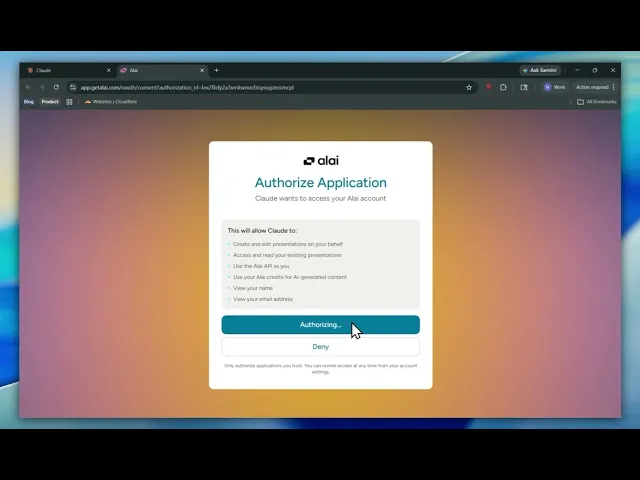
https://slides-api.getalai.com/mcp/. This points your MCP client to Alai's server.Click Connect and sign in: Hit Connect. You'll be redirected to your Alai account - click Authenticate, and Alai's MCP is added to your AI agent as a connector automatically.
Once done, you're connected and ready to start creating or editing presentations.
This approach works with any MCP client that supports URL-based connectors. Just use the URL
https://slides-api.getalai.com/mcp/and authenticate to start using Alai's MCP.
Connect with an API Key
Get Your API Key: Sign up at app.getalai.com and generate an API key from your account settings.
Configure Your MCP Client: Add the Alai MCP server to your preferred AI tool using direct or JSCON configuration.
Start Creating: Ask your AI agent to generate presentations, add slides, or export to PDF/PowerPoint.
For detailed step-by-step instructions for all supported AI agents, visit our MCP documentation.
What Can Alai’s MCP Do?
Capability | What to Ask |
|---|---|
Generate presentations | "Create a 10-slide pitch deck about our Q4 product launch" |
Add individual slides | "Add a slide about our competitive advantages to my presentation" |
Delete slides | "Remove the third slide from my presentation" |
Generate speaker notes | "Create speaker notes for all slides in my deck" |
Export to PowerPoint | "Export my presentation as a PowerPoint file" |
Export to PDF | "Export my presentation as a PDF" |
Create shareable links | "Generate a shareable link for my presentation" |
List presentations | "Show me all my presentations" |
Delete presentations | "Delete my old Q2 presentation" |
Check generation status | "What's the status of my presentation?" |
The real power comes when you combine Alai with other MCP servers and data sources. Let's look at easy workflows you can implement.
Alai Also Supports A2A: Let Your Agent Talk Directly to Ours
MCP works great when you're in Claude Desktop, Cursor, or a compatible client. But if you're building your own agent, or working inside an agentic framework like LangGraph, AutoGen, or CrewAI, there's a faster path: A2A (Agent-to-Agent protocol).
Instead of going through a client, your agent talks directly to Alai's agent. Here's how it works:
→ Your agent sends the task
→ Ours accepts it, asks clarifying questions if needed
→ Streams progress back in real-time
→ Returns the finished deck as an editor link, PDF, or PPTX
This makes Alai composable inside any multi-agent pipeline. Your orchestration layer doesn't need a human in the loop to get a polished deck out.
When to use MCP vs A2A:
MCP | A2A | |
|---|---|---|
Best for | AI client users (Claude, Cursor, etc.) | Developers building agents or pipelines |
Setup | Add connector in your client | Point your agent at Alai's A2A endpoint |
Output | Deck in your Alai account | Editor link, PDF, or PPTX returned to your agent |
If you're using Claude Desktop or Cursor day-to-day, MCP is the right choice. If you're building an agent where Alai is one node in a larger workflow, A2A is what you want.
Alai MCP in Action: 4 Workflows You Can Implement Right Away
Workflow 1: Research → Outline → Deck
The scenario: You need to create a presentation on a topic you're still researching. Instead of researching in one tool, outlining in another, and building slides in a third - do it all in one conversation.
How it works:
Ask your AI agent to research the topic using web search or your preferred research tool
"Research the current state of AI agents in enterprise software. Focus on adoption rates, key players, and emerging use cases."
Refine the outline together through conversation
"Great. Let's create an outline for a 10-slide presentation targeting CTOs. Include an executive summary, market overview, and recommendations section."
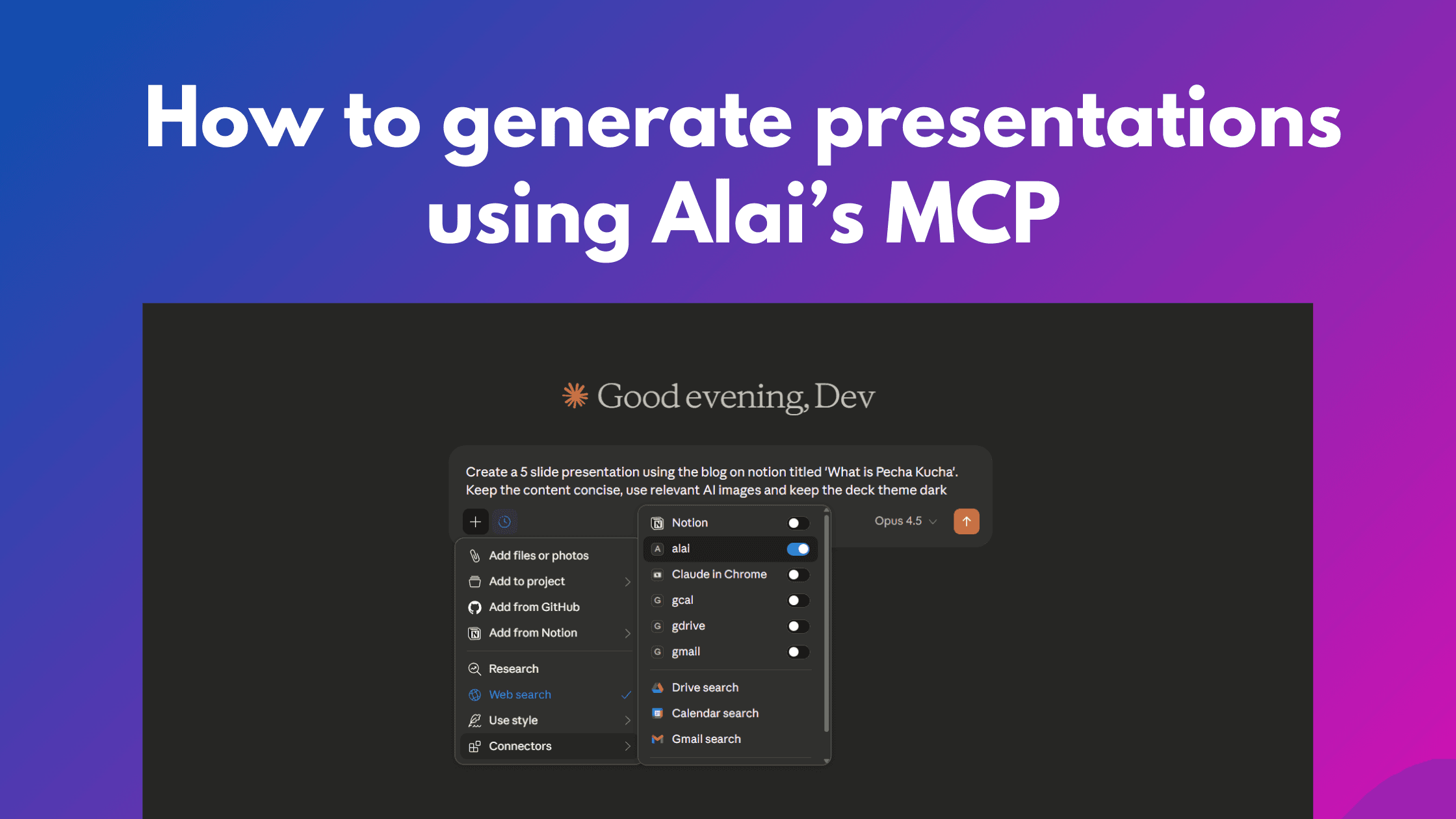
Once you're happy, say "Now create this as a presentation in Alai" (Ensure the Alai connector is switched on)
"Perfect. Now create this as a presentation in Alai with a professional design."
Why this matters: Your research insights, outline decisions, and final deck all live in one thread. No context switching, no copy-pasting, no starting over in a separate app.
Workflow 2: Pitch Deck from Multiple Internal Sources
The scenario: You're preparing a pitch deck and need to pull from multiple internal documents - your product roadmap, financial projections, team bios, and market research. With MCP, your AI can access all of it.
What you need: Alai MCP + Notion MCP (or your preferred internal docs MCP)
How it works:
Connect both Alai and your internal docs MCP server
Ask your AI to pull relevant information from your docs
Let the AI synthesize and structure the content
Generate the presentation directly
Example prompt:
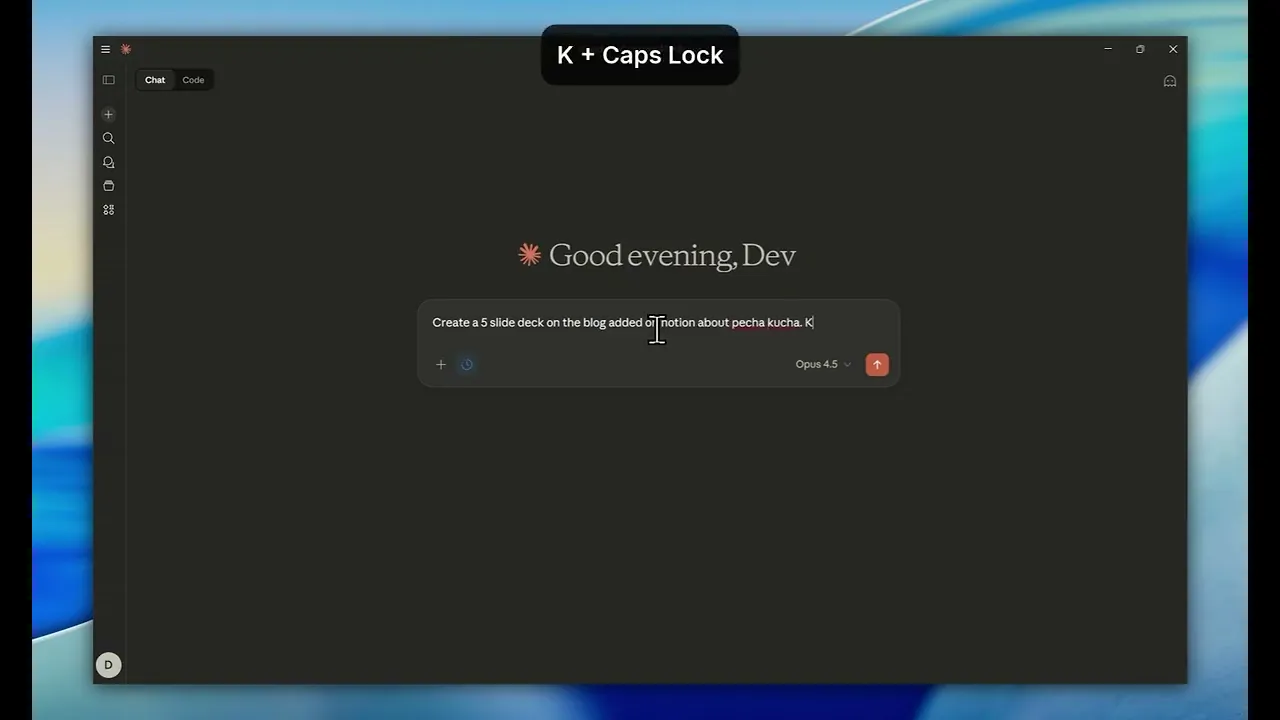
"I need to create an investor pitch deck for Alai. Pull the content from the following pages ‘About Alai’, ‘Alai traction numbers’ and ‘Alai customer reviews’ in Notion, polish it and create a 10-slide pitch deck using the Alai MCP. Make sure it follows the standard VC format."
The result: A comprehensive pitch deck that uses information from across your company documents, created in minutes, not hours.
Workflow 3: Investor Update/Marketing Report
The scenario: Monthly investor updates or marketing reports require pulling data from multiple tools - payment metrics from Stripe, product analytics from PostHog, campaign performance metrics from different dashboards. Earlier this meant hours of data gathering and pasting. Now it's a conversation.
What you need: Alai MCP + Stripe MCP + PostHog MCP + Notion MCP (or the specific dashboards you store data in)
How it works:
Connect all relevant MCP servers to your AI client
Ask for specific metrics across tools
Let the AI pull, analyze, and visualize the data
Generate a presentation with the insights
Example prompt:
"Create our weekly marketing metrics deck. Pull channel-wise performance from the review doc on Notion for 10-17th Jan, pull DAU and WAU user data from the app dashboard on Posthog and weekly revenue data from Stripe. Combine these and create a 5-slide marketing report."
The result: A data-rich update that would normally take a full afternoon, generated in minutes with live data from your actual tools.
Pro tip: Save your prompt as a template. Next month, run the same prompt and get an updated deck with fresh data.
Workflow 4: Sales Proposal from Meeting Notes
The scenario: You just finished a discovery call. While the conversation is fresh, you want to create a tailored proposal. But typing up notes, organizing thoughts, and building a deck takes time, time where your prospect's attention is fading.
What you need: Alai MCP + Meeting notes MCP (Otter, Fireflies, etc.) or paste notes directly
How it works:
Pull or paste your meeting notes
Add your standard company context (via Notion MCP or direct input)
Ask your AI to create a tailored proposal deck
Refine any sections through conversation
Export and send
Example prompt:
"Based on my discovery call notes below, create a sales proposal deck for [Prospect Company]. Reference our standard pricing from the 'Pricing' page in Notion and our case studies from 'Customer Stories'. Focus on the pain points they mentioned: [specific pain points]. Make it 8 slides max."
*Please note these are just example prompts, make sure to add specific design and content instructions to create a deck that matches your needs
How To Get The Best Results From Alai’s MCP?
Be specific about slide count: "Create a 10-slide presentation" gives better results than "create a presentation about X."
Set design preferences: Specify theme, colour palette, layout style, and whether to include AI-generated images or image-based slides (created using Nano Banana Pro) in your deck.
Guide the content style: Define tone, slide length, and how to handle your input - preserve it as-is, condense it, expand on it, or fully rewrite it.
Iterate before generating: Refine your outline in conversation first, then generate. It's faster than regenerating entire decks.
Combine MCP servers: The real power is in connecting multiple tools. Alai + your internal docs + your analytics = presentations that would take hours to build manually.
Iterate in Alai: Once you get the first draft of your deck, go back to your Alai account to make controlled edits to your presentation using Alai's editor.
Export format matters: Ask for PowerPoint if you need to edit further, PDF if it's final or a link if you want to edit in Alai & track deck engagement.
Conclusion: From Ideas to Decks, Without the Busywork
With Alai's MCP, your AI agent becomes a direct line to polished, professional decks.
Whether you're pulling together a pitch deck from scattered internal docs, generating weekly reports from live data, or turning a discovery call into a proposal before your prospect forgets the conversation - Alai MCP allows you to create a deck within one app itself.
Get your API key and start creating →
Frequently Asked Questions
Which AI tools work with Alai's MCP?
Alai's MCP works with any MCP-compatible client including Claude Desktop, Claude Code, Cursor, Windsurf, VS Code (Copilot), Cline, Zed, and JetBrains IDEs. See our full documentation for setup instructions for each client.
Do I need technical knowledge to set this up?
Not really. If you can copy-paste a configuration snippet and restart an app, you're good. The setup takes about 2 minutes for most users.
What file formats can I export?
You can export presentations as PowerPoint (.pptx), PDF, or generate a shareable link for online viewing and engagement tracking.
Can I edit presentations after Alai creates them?
Yes, you can head to your account on Alai to edit presentations created via MCP - any deck created via the MCP would automatically appear on your account. Additionally, you can also download the presentation as a PowerPoint via the AI agent and then edit on PowerPoint.
Can I use AI-generated images in my slides?
Yes. Just specify in your prompt that you want AI-generated images or image-based slides.
What details should I add to my prompt?
To get the best results, include:
Slide count: "Create a 10-slide presentation" gives better results than "create a presentation about X."
Design preferences: Specify theme, colour palette, layout style, and whether to include AI-generated images or image-based slides (created using Nano Banana Pro) in your deck.
Content style: Define tone, slide length, and how to handle your input - preserve it as-is, condense it, expand on it, or fully rewrite it.
Is there a limit on how many presentations I can create?
There's a limit of 5 concurrent generations per user. If you need higher limits, contact support@getalai.com.
What happens if my presentation generation fails?
You can check the status anytime by asking your AI agent "What's the status of my presentation?" If something goes wrong, verify your API key is correct and that you have a stable internet connection. For persistent issues, reach out to our support team.
Can I combine Alai with other MCP servers?
Absolutely, this is where Alai MCP shines. Connect it alongside Notion, Stripe, PostHog, or any other MCP server to pull data from multiple sources into a single presentation.
Have questions or want to share how you're using Alai MCP? Reach out at support@getalai.com.
How can I find out all the capabilities of Alai MCP?
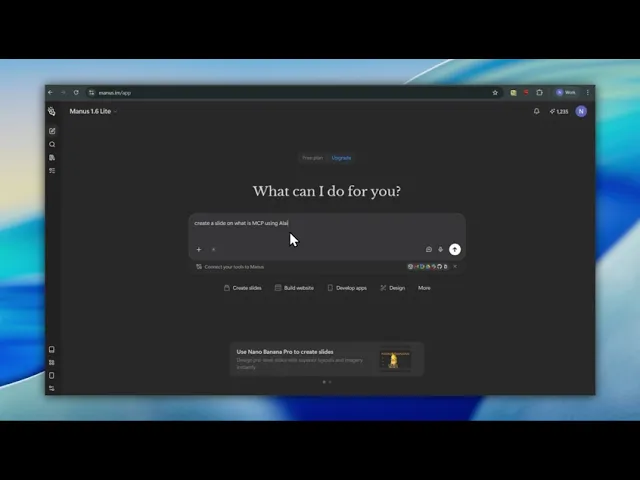
Just ask your AI agent (Claude, Manus, Cursor etc) about what the Alai MCP can do and it should be able to guide you about available tools, parameters and configuration options.
PAGES
Compare Tools
resources