·
BASICS
·
7 min read

Founder, Alai
Alai updates, October 2026: You can now attach documents while editing a Classic deck, present with private speaker notes, and export PowerPoints with improved typography and visual fidelity. We have also added the Modern Slides API and updated the available models.
These changes help with the work that follows the first draft: the brief changes, new information arrives, a slide needs a precise revision, and the finished design has to work outside the editor. They build on Classic, Creative, and Modern rather than replacing the ways you already use Alai.
Alai's design workspace also covers posters, infographics, carousels, and social posts. The presenter features below apply to presentation decks; the design and model workflows extend to broader visual work.
What's new at a glance
Update | What you can do |
|---|---|
Documents in Classic editing chat | Attach a PDF, Word document, or PowerPoint to an existing deck's conversation. |
Speaker notes and presenter view | Prepare private cues and present with current/next-slide previews and a timer. |
PowerPoint export improvements | Carry more of the deck's typography and visual composition into the exported file. |
Downloadable fonts | Get an installable font bundle with eligible PowerPoint exports. |
Background exports and compressed PDFs | Download generated files without holding one long request open, and choose a smaller PDF. |
Brand handoff and model choice | Start a presentation from a published brand and choose among supported models. |
Modern API | Create and revise visual designs from your own application or agent workflow. |
Bring new source documents into an existing Classic deck
You can attach PDF, PPTX, and DOCX files in Classic presentation editing chat, using the file picker or drag and drop. That gives the editing agent source material while you work on a presentation that already exists.
For example, a sales deck may need a new product announcement, a customer-specific brief, or an updated rollout plan. Attach that document and describe which part of the deck should change. You can ask for a new slide or a revision to the relevant content without beginning a separate presentation.
Use the attached product brief to update the implementation slide. Keep the existing customer context and visual style. Include the new rollout phases, and flag any date that is not confirmed in the source.
Review the resulting slide against the source document, particularly tables, figures, and dates. A document attachment provides context; you still decide which claims belong in the presentation.
This extends the existing document workflow to Classic editing chat. Modern already supported documents during the editing conversation. For more on targeted revisions, see editing slides with Alai's Agent Mode.
Prepare speaker notes and use presenter view
Classic, Modern, and Creative presentation decks now have per-slide speaker notes. You can format cues with bold, italic, lists, and links, and keep the words you want to say separate from the words the audience needs to read.
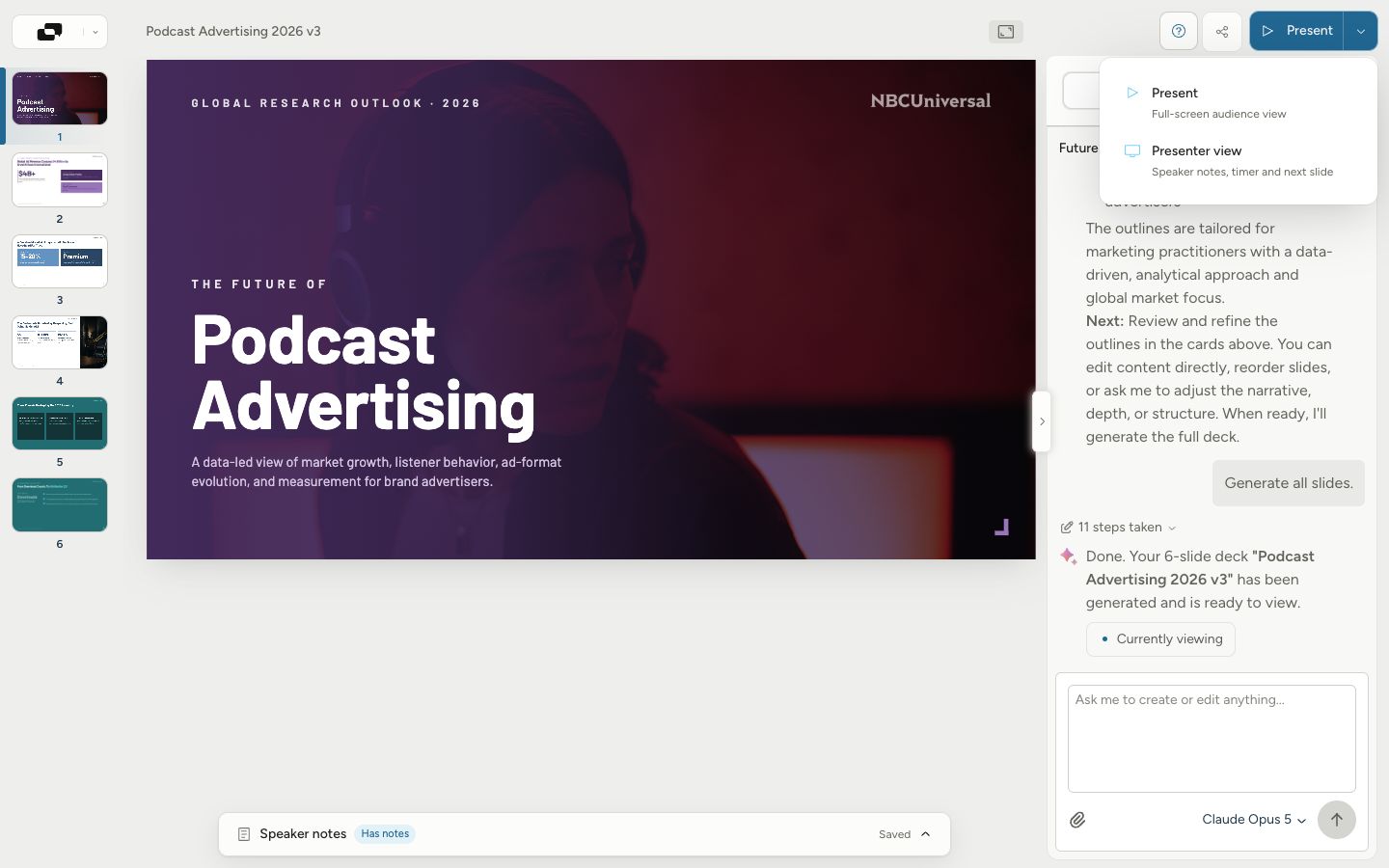
Presenter view shows private notes, the current slide, the next slide, and an elapsed timer. A separate audience window follows the presentation without displaying your notes. You can navigate slides and temporarily black out the audience view when needed.
The Present menu provides an audience view and a separate Presenter view. Screenshot from the presenter-controls release.
Use notes for a few cues: the point to land, the evidence behind it, and the transition to the next slide. Notes travel into supported PowerPoint exports too, so they can stay with the deck when the meeting happens in PowerPoint.
These controls are for presentation decks. A poster or social carousel does not need an audience window, and does not show the same presenter tools.
Take more of your design into PowerPoint
We have improved how PowerPoint exports handle fonts, image crops, transparency, borders, gradients, and chart visuals. The aim is to preserve more of the design you chose in Alai when the deck reaches the person who will review or present it.
Typography has received particular attention. Export now handles more of the font weights, styles, and characters used in the editor. Eligible exports also offer an installable font bundle, so a recipient can install the fonts referenced by the presentation.
This matters when a deck looks correct on one computer but changes on another. Viewers handle embedded fonts differently. Installing the supplied fonts can help in local applications that would otherwise substitute them; viewers that cannot use local fonts may still render differently.
Check the exported file in the application you intend to use. Editable PowerPoint does not mean every visual effect becomes a native shape: some complex compositions are preserved as images while text remains editable. Keep the PDF when you need a fixed-layout copy for review.
Export in the background, or choose a smaller PDF
Presentation exports now run as background jobs. Alai prepares the file, then supplies a download link. That separates file generation from one long browser download request, which is useful for larger decks.
There is also a compressed PDF option alongside the best-quality PDF. Use it when you need a more manageable file for sharing, and review image-heavy pages at the size your reader will use. The best-quality option remains available when fine visual detail is the priority.
Start from a published brand, then choose how to build
Published brands in Your Brand now include a Create presentation action. It carries the selected design system into the new presentation, making the next step clearer after you have prepared a brand style.
In Modern Slides, the design-system library gives you a visual direction before generation. You can also create your own system and refine the result through targeted AI instructions and manual editing. Reusing that starting point is useful when a sales deck, board update, and customer presentation need a recognizable style.
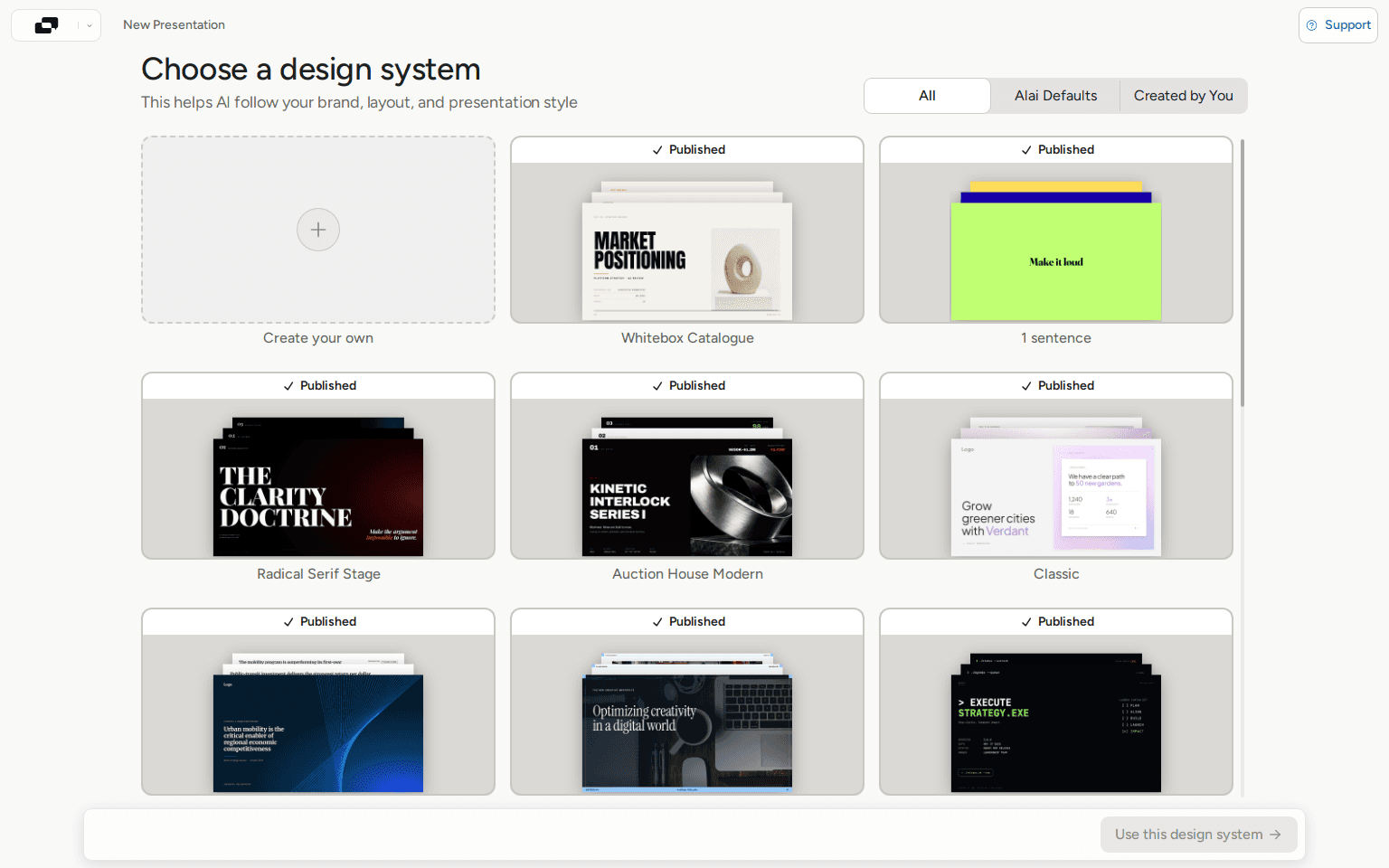
Supported model choice gives you another control. The current catalog includes options from Anthropic, OpenAI, Google, Moonshot, and Z.ai. You can compare the resulting design and revision quality on your brief, then choose a model that fits the job and your budget.
For the complete workflow, read Alai Modern Slides. For posters, infographics, carousels, and social posts, start with our AI design guide.
If you prefer to begin in a Claude conversation, our updated Claude presentation guide explains its current workflows and connecting Alai through MCP.
New image generation with Nano Banana 2.1
Alai adopted Nano Banana 2.1 across its default image-generation paths in October, including Classic slide imagery and the replace-image sidebar. Google describes the newer model as improving text rendering, visual quality, and infographic layout. See its model documentation for the underlying model.
For a presentation, try it on the visual that carries the explanation: a process illustration, a supporting image, or an infographic. Review labels and composition, then make a specific edit. The October model change did not itself reduce Alai's customer credit charges.
Nano Banana Pro remains a distinct model. Our updated Nano Banana presentation guide explains the difference and how image editing relates to editable slide elements.
Build with the Modern Slides API
The Modern Slides API makes Alai's design-system-driven workflow available to developers. You can discover supported models and published design systems, supply assets, generate the work, request natural-language revisions, and export the result.
Despite the name, the supported formats include presentations, infographics, carousels, posters, and social posts. This gives an application or agent a way to create related visual assets as well as decks, with model choice and iteration in the workflow.
The existing Classic and Creative Slides APIs remain available. Modern adds its own contract rather than changing those integrations. Start with the Modern API overview or go directly to the API documentation.
Better protection while you revise
We have also improved how Alai handles unsaved manual changes, save retries, and long editing turns. These changes are intended to reduce lost work when a session refreshes or an editing task does not finish as expected.
A useful way to try the updates is with a deck you already have. Bring in the latest source document, request one precise revision, add the notes you need for delivery, and review the exported PowerPoint. You get to judge the workflow on the changes you actually needed to make.
Open Alai to continue a presentation or start a new design.
Questions about the updates
Can I attach documents while editing a Classic presentation?
Yes. Classic editing chat now accepts PDF, PPTX, and DOCX attachments through its file picker or drag and drop.
Which presentations have speaker notes?
Classic, Modern, and Creative presentation decks support per-slide notes and presenter view. Non-presentation formats such as posters and carousels do not show those controls.
Do speaker notes export to PowerPoint?
Yes. Notes are carried into supported PowerPoint exports across those presentation formats.
Can the Modern API create more than slides?
Yes. Supported artifact formats include presentations, infographics, carousels, posters, and social posts.
Did these changes replace Classic or Creative?
No. Classic, Creative, and Modern remain complementary workflows. Modern's API is separate from the existing Classic and Creative API contract.
SEITEN
Werkzeuge vergleichen
Ressourcen