·
BASICS
·
9 min read

Marketing Lead
Updated October 27, 2026. Nano Banana Pro can create presentation visuals with text, diagrams, and detailed compositions. The useful distinction is between generating an image that looks like a slide and building a presentation whose text, charts, and layout you can keep editing.
This guide explains how to use Nano Banana Pro for presentations, bring its output into PowerPoint or Google Slides, and combine image generation with Alai's presentation and design workflows. It also covers the newer Nano Banana 2.1, now used by Alai's default image-generation paths.
The examples retained below come from the original Nano Banana Pro review. They do not show a new Pro-versus-2.1 benchmark. Alai publishes this guide and sells presentation and visual-design software.
What is Nano Banana Pro?
Nano Banana Pro is Google's Gemini 3 Pro Image model. It produces and edits images from instructions and reference material. Google's model documentation positions it for complex visual work, including text-heavy graphics and product visuals.
In a presentation, that can mean an infographic, a process illustration, a visual metaphor, or a composed slide image. It does not mean the model returns a PowerPoint with independent text boxes and editable chart data. The surrounding application determines how the image becomes part of a deck.
Nano Banana Pro vs. Nano Banana 2.1 for presentations
Nano Banana 2.1 is a different model, not a new name for Pro. Google released 2.1 in October 2026 as an update to Nano Banana 2. Its documentation describes improvements to text rendering, visual quality, and infographic layout, with a focus on efficient image generation and editing.
Model | Model ID | Role |
|---|---|---|
Nano Banana Pro |
| Google's premium option for complex visual tasks. |
Nano Banana 2.1 |
| A newer efficiency-focused image-generation and editing model. |
Alai adopted Nano Banana 2.1 across its default image-generation paths in October, including Classic slide imagery and the replace-image sidebar. If you follow an older Pro tutorial, check the model selected in your current workflow. A new default does not mean every historical example was generated with it.
Choose using the task in front of you. For a visual with dense labels, inspect the labels. For a product graphic, check the product details. For a series, compare the composition and consistency across the whole set. Model names alone do not establish which result fits your brief.
Where Nano Banana Pro helps in a presentation
Infographics and visual explanations
A composed image can show relationships that are tedious to assemble from individual shapes: a process unfolding across a landscape, a detailed cutaway, or an illustrated system with labels. Write the labels yourself and provide them in the brief so you have something concrete to verify.
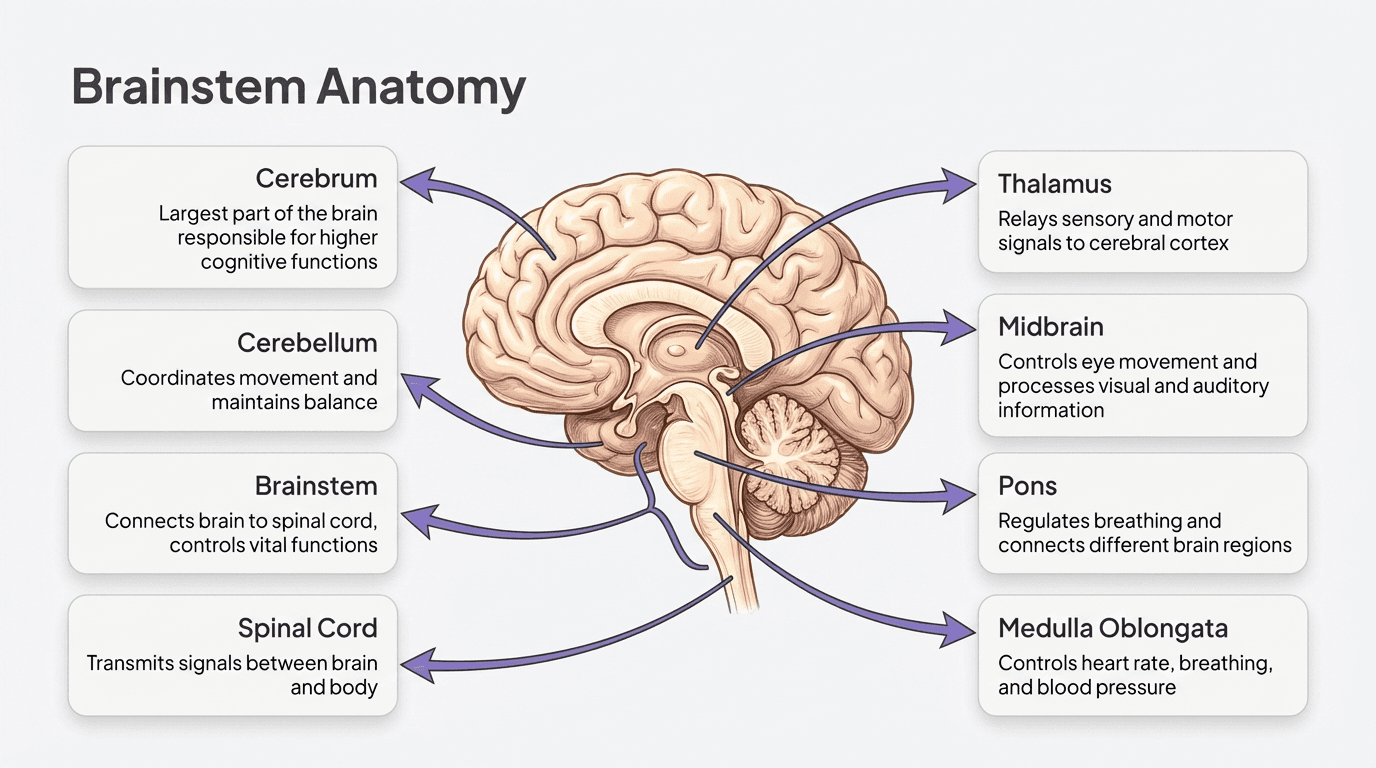
Original Nano Banana Pro example. Inspect the labels and relationships before using a generated infographic.
Headlines and short labels inside visuals
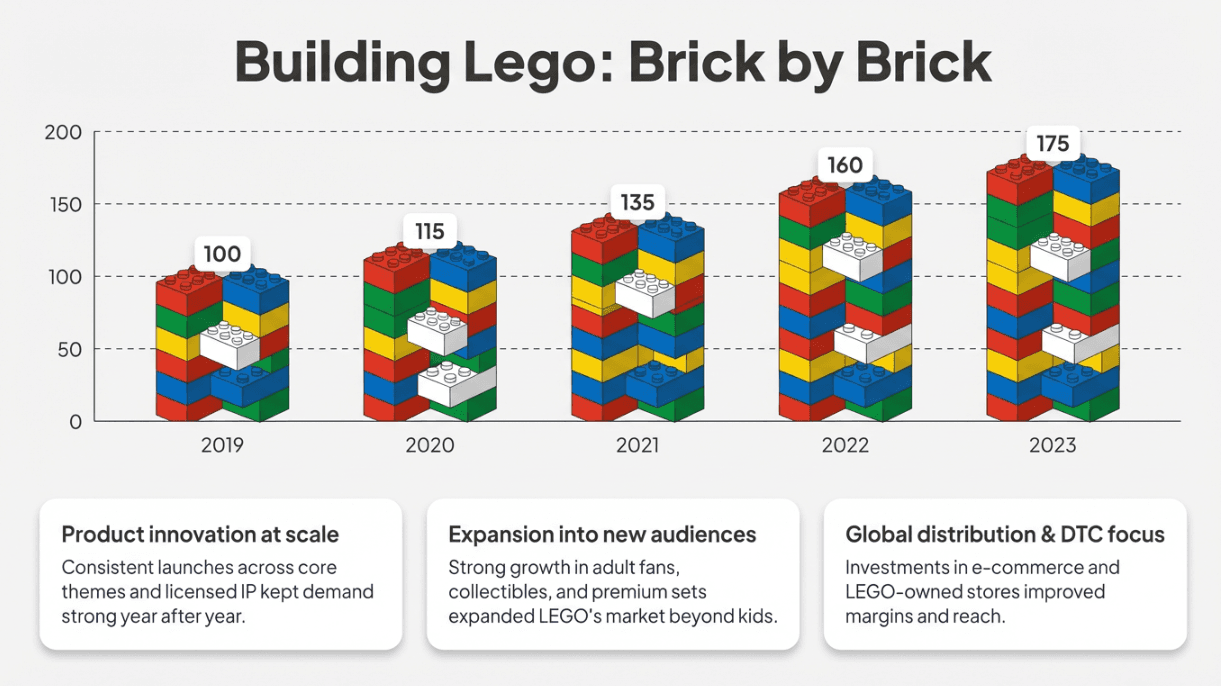
Text rendering makes poster-like compositions and labeled diagrams practical. It still needs proofreading. A headline that looks convincing at a glance can contain a missing character, and a correct label can be attached to the wrong part of the diagram.
Supporting images with room for editable text
When wording will change frequently, ask for a visual with clear space for a headline. Add the headline in Alai, PowerPoint, or Google Slides as editable text. You can change the copy later without regenerating the illustration.
For a live business chart, retain the underlying data and use an editable chart object where the workflow supports it. An attractive picture of a chart is a poor substitute when someone needs to update its values next week.
How to use Nano Banana Pro in Gemini
Open Gemini's image-generation workflow and check which model is active.
Provide the content, exact labels, intended dimensions, and visual direction.
Attach approved references when you need a particular product, visual style, or asset.
Review the output at presentation size, then request a specific correction.
Download the image and place it in your deck.
The model controls and availability can change. Google's current Gemini image-generation page describes Nano Banana 2.1 access and a Redo with Pro option. Use the controls shown in your account rather than assuming an older Fast/Thinking selector still maps to the same models.
A reusable brief:
Create a widescreen presentation illustration of a customer onboarding process. Show three stages: Setup, First Value, and Expansion. Use these labels exactly. Use our attached brand reference for colors and image treatment. Leave a clear area in the upper left for an editable headline that I will add separately. Do not add other text or numerical claims.
For a correction, be specific: "Keep the composition and colors. Replace the label 'First Value' with 'First Outcome'. Change nothing else." Review the whole image after the edit; a narrow request still needs a visual check.
How to use Nano Banana Pro in PowerPoint
Download the generated image and insert it into PowerPoint as a picture. Use a background image for a full-slide composition, or place a supporting image beside native text. The second approach gives you more room for later copy changes.
Match the image's aspect ratio to the intended slide area.
Insert it into the slide and review any cropping.
Add editable headings, source notes, and labels outside the image where useful.
Open the file in the viewer the audience will use and check readability.
Putting the picture inside a .pptx does not make the words inside that picture editable. If your workflow offers image-to-slide reconstruction, check the result separately for missing text and misplaced elements.
How to use Nano Banana Pro in Google Slides and NotebookLM workflows
You can insert a downloaded visual into Google Slides and keep the surrounding slide content editable. If you use a built-in image-generation control, check its current model and account requirements before assuming it is Pro.
For a research-heavy deck, NotebookLM can be another starting point. Keep document-to-deck generation separate from your final editability check: a visually polished export can still contain image-based slide content. Our NotebookLM slide-editing guide covers that handoff.
For Google's full-deck workflow inside Slides, see using Gemini in Google Slides. It is a separate task from generating one Nano Banana visual.
How to combine image generation with Alai
Alai brings image generation into a wider design workflow. You can create a presentation, refine particular slides, and produce related posters, infographics, carousels, or social posts. You can also bring an image you generated elsewhere into Alai as an asset.
Choose the slide workflow according to how you want to keep working:
Workflow | What it gives you | What to inspect |
|---|---|---|
Classic Slides | Curated elements and responsive layouts, with image generation where appropriate. | Text, charts, and visual hierarchy after a content revision. |
Creative Slides | Image-model-driven slide compositions with dedicated AI editing controls. | Which changes happen through image editing and which require reconstruction. |
Modern Slides | Design-system-driven creation with supported model choice and AI/manual iteration. | Brand fidelity, precise changes, and the exported result. |
These are complementary tools. Using a high-quality image model does not require making every slide a single image, and a design system is more than repeating a color palette.
A practical Alai workflow
Bring the content. Start with the approved story, source material, and relevant brand assets.
Choose the design approach. Use the slide type and available model controls that suit the deck. For Modern, select a published design system or prepare your own.
Use images deliberately. Ask for a supporting visual or a fuller composition where it helps explain the point.
Revise precisely. Name the slide, object, or region you want changed. Use manual controls for editable elements and AI editing for image content.
Review the handoff. Check the actual PowerPoint or PDF, including fonts, crops, and readable labels.
Alai examples retained from the original Pro review, rather than a demonstration of the newer 2.1 model.
What does editable mean here?
There are three different operations: revising an image with AI, editing native slide elements, and reconstructing an image as editable elements. They should not be presented as interchangeable.
In Alai, use the editing controls appropriate to the output. If you convert an image slide for manual editing, inspect the reconstruction before replacing the source. If you need exact wording and frequently changing data, keep those parts in native editable elements from the start where possible.
For published design systems and model choice, read the Modern Slides guide. For the latest document attachments, presenter tools, and export improvements, see what's new in Alai.
Prompts for presentation visuals
A useful brief specifies the message, content, composition, and constraints. The examples below use hypothetical material; replace it with your approved information.
Explain a process
Create a clean presentation infographic explaining our four-step support process: Submit, Triage, Investigate, Resolve. Put the steps in that order and use the exact labels. Use consistent icon treatment and enough space between stages to make the sequence clear. Use the attached brand colors. No invented response times.
Illustrate a product benefit
Create a presentation visual comparing a cluttered approval workflow with an organized one. Use two clearly separated areas and the same visual vocabulary in both. Do not add written claims, logos, or numbers. Leave room for editable captions underneath.
Create an infographic from approved figures
Use only the supplied table to create an infographic. Preserve every category name, value, and unit. Give the main finding the largest visual emphasis and keep the source note readable. If any figure is ambiguous, ask before generating.
Even with exact data in the prompt, verify the rendered values and the size of the marks used to represent them. Supplying accurate input helps, but it does not guarantee an accurate chart image.
Check these details before presenting
Text: read every label, name, unit, and number in the image.
Composition: check the slide at the size the audience will see it, not only zoomed in.
References: make sure product details and approved assets remain accurate.
Consistency: compare the image with neighboring slides for color, scale, and visual density.
Revision: try the small edit you are most likely to need later.
Export: open the actual file and inspect fonts, cropping, and image resolution.
You can use the same image-generation approach for posters and social designs, with dimensions and reading distance appropriate to the format. Alai's design-format guide covers those outputs.
FAQs
Can Nano Banana Pro create PowerPoint slides?
It can generate images that look like slides. Use PowerPoint or a presentation tool to organize them into a deck. Native text and chart editability depend on that workflow.
Is Nano Banana 2.1 the same as Nano Banana Pro?
No. They are different models. Google's IDs are gemini-nano-banana-2.1 and gemini-3-pro-image respectively.
Does Alai use Nano Banana 2.1?
Yes. Alai adopted it across its default image-generation paths in October 2026, including Classic slide imagery and the replace-image sidebar. Check the selected model in your workflow.
Can I edit text inside a generated image?
You can request an AI image edit. To edit text as a normal slide object, keep it in a native text layer or use a reconstruction workflow and inspect its result.
Is Nano Banana Pro free?
Access and quotas depend on the application and plan. Check the model controls and allowance in the service you use; do not assume Pro access from a general image-generation allowance.
Is the newer model cheaper in Alai?
The October model update did not itself reduce Alai's customer credit charges. Check the current credit requirements for the action you are taking.
Which model is best for a presentation?
Compare the output on your own brief. Check labels, visual consistency, revision quality, and the final export rather than assuming the newest model wins every task.
SEITEN
Werkzeuge vergleichen
Ressourcen