·
BASICS
·
11 min read

Founder, Alai
Verdict: Google Slides finally has a native Gemini workflow that can generate an actual multi-slide presentation inside Slides, using your files in Drive, a reference deck for style, and an outline approval step before slide creation. That is a meaningful product change, not marketing fluff. But it is not magic. The output quality still depends on the quality of your source material, the clarity of your prompt, and whether you are willing to review the outline before generation.
If your team already lives in Google Workspace, this is the most obvious place to start. If you need more structured storytelling control, faster iteration across formats, or a workflow designed specifically for presentation creation rather than general workspace assistance, it is worth comparing it with dedicated tools like Alai.
There is also a clear demand for this topic. Our existing Gemini-related pages received 7,457 query impressions, and Google Slides queries received 599 impressions without a dedicated guide. A newer query cluster around Gemini Canvas and presentation creation added 8,396 impressions. So let us get practical and separate what Google has actually announced from what people are assuming it can do.
Source and methodology note, updated 2026-08-22: this guide is based on Google's published product announcement and related article evidence, not on an authenticated hands-on Google Workspace test for this article. That means the workflow details below reflect what Google publicly documented as of the cited source date. Where a capability was not explicitly stated in the source, it is not claimed here.
What changed: Gemini can now create full presentations directly in Google Slides
On June 30, 2026, Google announced that Gemini in Google Slides can create fully native and editable presentations. That matters because older AI-in-slides experiences often stopped at drafting copy, suggesting layouts, or helping on a slide-by-slide basis. This new workflow is positioned as full presentation generation.
According to Google's announcement, the workflow can:
Generate multiple slides in one flow
Use multiple Drive files as grounding material
Suggest relevant files, emails, and chats to pull from
Accept a style-reference deck
Let the user edit or approve the outline before slides are generated
Produce slides that remain native and editable in Google Slides
That combination is more interesting than a generic "make me a deck" button. The outline checkpoint in particular is a good sign. In presentation work, most quality failures happen before design: bad framing, wrong order, weak takeaways, or too much content. An AI system that forces an outline review is closer to how decent operators actually build decks.
Who can use it, and what are the stated limits?
Google's launch details were not universal. The company said the feature launched for English (United States) and for selected Workspace, Google AI, and education plans. It also stated that per-user limits apply after the promotional period.
That is worth reading carefully. If you are evaluating the workflow for a team, do not assume every Google account has access, or that unlimited generation will remain available. Check the exact plan language in the official announcement and your Workspace admin settings.
Question | What the source confirms | What not to assume |
|---|---|---|
Is it available to everyone? | No. Google says selected Workspace, Google AI, and education plans. | Do not assume all consumer or business accounts have it. |
Is it multilingual at launch? | Launch support is listed as English (United States). | Do not assume full global language support. |
Are outputs editable? | Yes. Google says the slides are native and editable in Google Slides. | Do not assume this means every design choice will be ideal. |
Are there usage caps? | Yes. Google says per-user limits apply after the promotional period. | Do not assume open-ended generation volume. |
How to use Gemini in Google Slides to create a full presentation
Below is the practical workflow implied by Google's announcement. The exact UI labels can evolve, but the core process is clear.
Open Google Slides and start the Gemini presentation workflow. The new capability lives inside Slides rather than requiring a separate export-from-chat path.
Describe the presentation you want. Give Gemini a concrete prompt with audience, objective, and desired output. Avoid vague requests like "make slides about AI." Ask for a specific deck for a specific use case.
Add grounding materials from Drive. Google says the workflow can use multiple Drive files and suggest relevant files, emails, and chats. This is probably the most important quality lever. If the input material is thin or contradictory, the deck will be too.
Provide a style-reference deck if brand consistency matters. Google explicitly says you can use a style-reference deck. For operators, this is a big deal. It means you have a better shot at getting something closer to your team's visual system instead of generic AI styling.
Review and edit the outline. Before slide creation, Google says users can edit or approve the outline. This is where you should spend your attention. Tighten the thesis, merge duplicate sections, and cut anything that sounds impressive but says nothing.
Generate the slides. Once approved, Gemini creates the multi-slide deck directly in Google Slides.
Edit natively in Slides. Because the output is native and editable, you can keep refining content, layout, notes, and collaboration in the standard Slides workflow.
A simple prompt structure that should work better than a one-line ask
Even without claiming undocumented prompt behavior, it is reasonable to say that clearer requests produce clearer outputs. A practical structure is:
Audience: who the deck is for
Goal: what decision or action the presentation should drive
Source material: which Drive docs or data should be used
Constraints: deck length, tone, and must-include sections
Style reference: the deck to emulate for formatting or brand feel
Example:
Create a 10-slide quarterly business review for internal leadership. Use the product roadmap doc, Q2 metrics sheet, and customer interview summary from Drive. Keep the tone direct and concise. Include: executive summary, wins, misses, customer themes, roadmap updates, risks, and next-quarter priorities. Use last quarter's leadership review as the style-reference deck.
Why the outline approval step matters more than the AI generation itself
Most AI presentation workflows get judged on the final slide visuals, but that is often the wrong layer to optimize first. The highest-leverage step is the outline.
Google's decision to include an outline edit-or-approve stage is one of the strongest signals in the whole announcement. It recognizes a basic truth: presentations are argument structures. If the story is weak, prettier slides just make the problem more expensive.
In practice, review the outline for:
One clear thesis: can you state the main takeaway in one sentence?
Logical sequencing: does each section earn the next one?
Evidence density: are claims anchored in the provided materials?
Redundancy: did the AI create multiple slides that say nearly the same thing?
Decision utility: does this help the audience decide something, or just consume information?
If you skip this step, you are basically asking the model to lock in a draft structure that you will later have to unwind slide by slide.
Drive grounding: the real strength, and the real risk
The grounding story is where Gemini in Google Slides gets genuinely useful for Workspace-heavy teams. Google says the workflow can use multiple Drive files and suggest relevant files, emails, and chats. In theory, that reduces the painful copy-paste loop of gathering source material across tabs.
But there is a tradeoff. The easier it becomes to pull from many sources, the easier it becomes to generate a deck that blends together stale, conflicting, or low-signal inputs.
Use grounding well by following a few operator rules:
Curate the inputs first. Three good sources beat ten messy ones.
Prefer final docs over brainstorm docs. Early drafts often contain speculation that should not end up in a presentation.
Watch for recency problems. A model pulling from older docs may present outdated assumptions with confidence.
Use one source of truth for numbers. Do not let the deck synthesize metrics from inconsistent files.
AI makes retrieval easier. It does not make source governance optional.
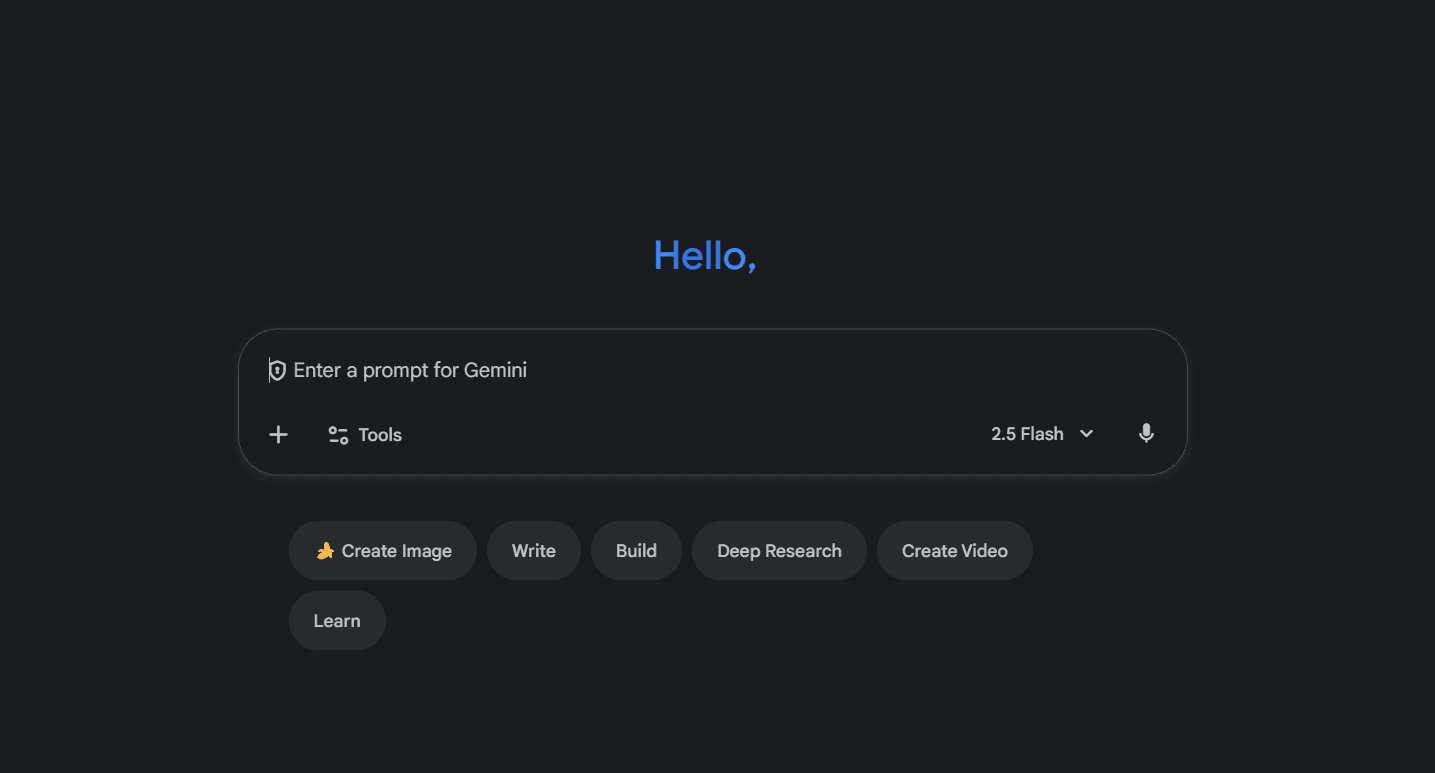
The broader Gemini presentation workflow interest is real, but readers should distinguish between Gemini product surfaces. Not every Gemini screenshot on the internet reflects the newer native multi-slide workflow inside Google Slides announced by Google in June 2026.
Can Gemini match your brand? The style-reference deck is the key feature to watch
One of the more practical features in Google's announcement is support for a style-reference deck. That means users can point Gemini toward an existing presentation to guide the look and feel of the generated slides.
Why this matters:
Most teams do not need random creativity. They need consistency.
Brand-aligned slides are usually more valuable than flashy slides.
Reference-based generation is a more realistic path to useful output than asking a model to infer your design system from one sentence.
That said, do not overread the feature. A style reference can improve consistency, but it is not the same as a dedicated presentation system with built-in reusable templates, messaging logic, and stronger controls. Think of it as a useful bridge between blank-canvas generation and strict branded production.
Google Slides workflow vs dedicated AI presentation tools
If you are deciding whether to use Gemini in Google Slides or a dedicated presentation tool, the answer depends on the job.
Use case | Gemini in Google Slides | Dedicated tool like Alai |
|---|---|---|
Team already works entirely in Google Workspace | Strong fit. Native environment and editable Slides output are major advantages. | Possible, but may add another layer if Workspace-native collaboration is your top priority. |
Need a first draft from existing docs in Drive | Strong fit because Google explicitly supports Drive grounding and source suggestions. | Can still work, but the Google-native path may be simpler. |
Need tighter presentation storytelling control | Possible, especially with outline review, but not necessarily optimized for deep narrative iteration. | Often better if your workflow starts from argument structure and deck logic rather than generic assistant generation. |
Need export or handoff flexibility, including PowerPoint workflows | Works if your team is comfortable doing the final handoff from Slides to PowerPoint as needed. | Often better if PPT is the center of the workflow or you want purpose-built deck conversion paths. |
Need a branded deck system, not just one-off generation | Style-reference deck helps, but may not be enough for all teams. | Better if you need a repeatable presentation creation workflow. |
If you are comparing the broader category, our guides on the best AI presentation makers, Gemini Canvas and other AI presentation tools, and using ChatGPT to make a PowerPoint presentation cover adjacent workflows.
What about PowerPoint handoff?
The source for this article confirms native and editable output in Google Slides. It does not provide new detailed claims about PowerPoint fidelity, formatting preservation, or one-click PPT export specifics for this Gemini feature. So the cautious answer is simple: if your team ultimately delivers in PowerPoint, plan for a review pass during handoff.
That is not a criticism unique to Google. Cross-format presentation workflows are where formatting issues tend to surface across the whole category. If PPT is non-negotiable for your org, keep handoff quality in mind from the beginning. That is also where specialized conversion workflows, such as a dedicated link-to-ppt path or presentation-specific toolchain, can be more practical than a general AI workspace flow.
What Gemini in Google Slides still does not solve
Google's announcement is substantial, but it does not erase the usual AI deck problems.
AI still cannot know your actual narrative standard. It can infer from prompts and references, but someone still needs to decide what matters.
Generated decks can look complete before they are persuasive. This is a dangerous failure mode, especially for founders and operators in a rush.
More source access does not equal better judgment. Grounding helps factual alignment, but not prioritization.
Editability is necessary, not sufficient. Native editing matters because you will probably need it.
That last point is worth underlining. Whenever a product says the output is editable, the implicit message is not just convenience. It is realism. AI-generated presentations are drafts. Sometimes strong drafts, sometimes weak drafts, but drafts.

For teams evaluating AI deck creation, the useful question is not "Can it generate slides?" Most tools can. The better question is how much structure, editability, and brand control you get before and after generation.
When Alai is a better workflow
Use Gemini in Google Slides if your main goal is: turn Workspace materials into a native Slides draft without leaving Google.
Consider Alai when the bigger problem is not generation inside Google, but building better presentations as a repeatable workflow. That usually shows up when teams need:
more deliberate narrative construction
faster iteration on presentation structure
cleaner deck production across shareable formats
a workflow designed specifically for decks rather than a general assistant inside productivity software
A good rule: if your friction is mostly where the work happens, Gemini in Slides is promising. If your friction is mostly how strong presentations get built and refined, a dedicated presentation tool may be the better bet.
Bottom line
Google's June 2026 update is the first Gemini-in-Slides announcement that clearly crosses the line into a serious presentation creation workflow. Multi-slide generation, Drive grounding, style-reference decks, outline approval, and native editability are the right ingredients.
Still, the workflow should be treated like a capable first-draft system, not an autopilot. The best results will come from teams that supply clean sources, review the outline carefully, and stay skeptical of polished-but-thin output.
If that matches how your team already works in Google Workspace, Gemini in Google Slides is worth trying. If you need more presentation-specific control, compare it against dedicated tools before standardizing on it.
Related reading: how to use Claude to create presentations and our prettify deck tool if your main issue is improving an existing draft rather than generating one from scratch.
Can Gemini create a full presentation directly in Google Slides?
Yes. Google's June 30, 2026 announcement says Gemini in Google Slides can create fully native and editable multi-slide presentations directly in Slides.
Does Gemini in Google Slides use my Google Drive files?
According to Google's announcement, yes. The workflow can use multiple Drive files as grounding material and can suggest relevant files, emails, and chats.
Can I control the style of the generated deck?
Partly. Google says the workflow can accept a style-reference deck, which should help align the output with an existing presentation style or brand direction.
Do I get to review the outline before slides are created?
Yes. Google says users can edit or approve the outline before Gemini generates the slides. That is one of the most important quality-control steps in the workflow.
Is Gemini in Google Slides available on every Google account?
No. At launch, Google said support was limited to English (United States) and selected Workspace, Google AI, and education plans. Per-user limits also apply after the promotional period.
SEITEN
Werkzeuge vergleichen
Ressourcen