·
BASICS
·
11 min read

Marketing Lead
You've generated a deck. The structure is solid, the content is there but now comes the part that eats up your afternoon: the edits.
Move this image left. Make that title bigger. Split this slide into two. Change this pie chart to a bar chart. Each tweak means hunting through menus, clicking through options, and even manually adjusting spacing afterward.
What if you could just.…ask?
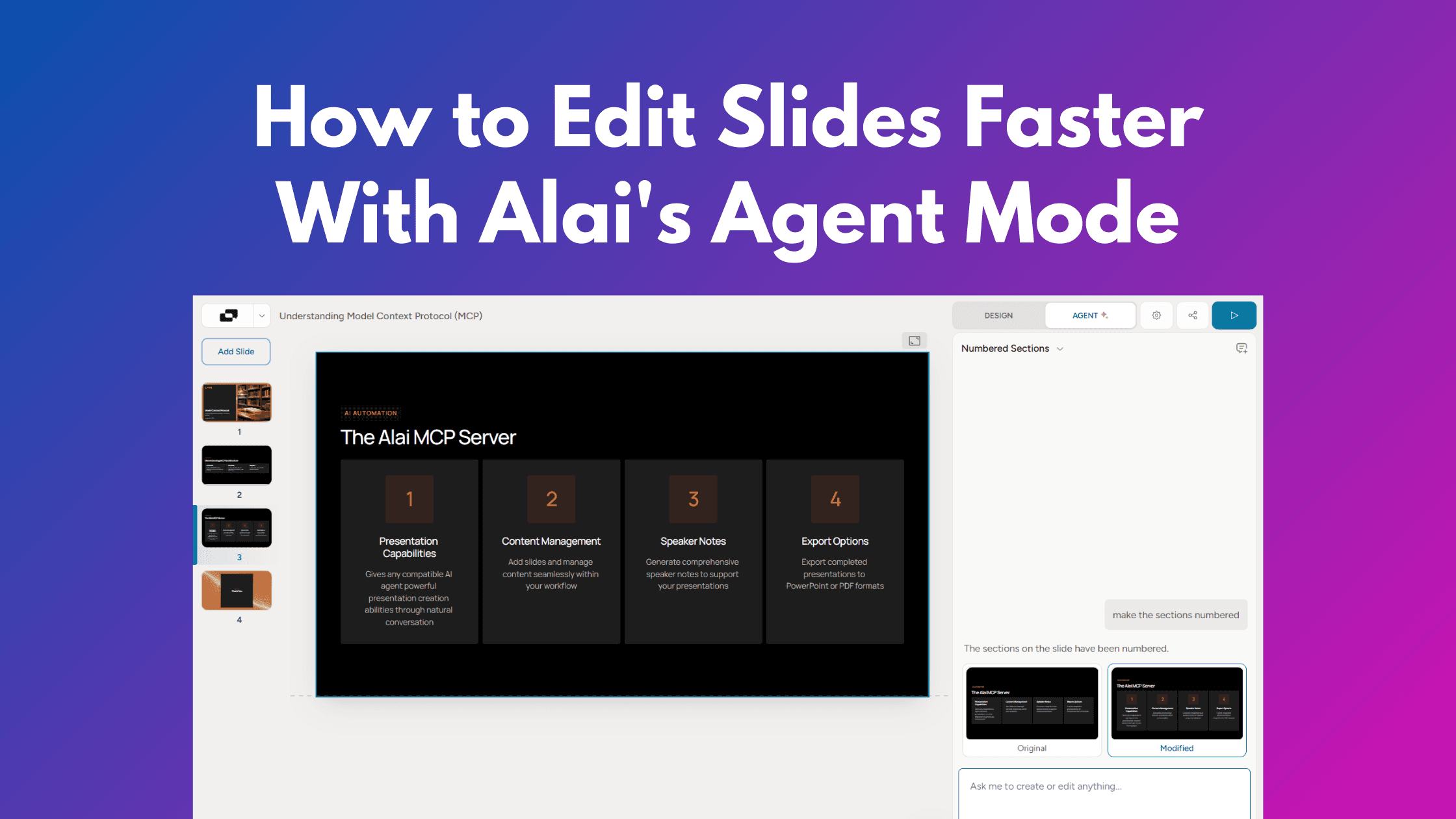
This is why, we're launching Agent Mode - a new way to edit presentations using natural language and a chat interface. Instead of learning where every setting lives, just describe what you want. Alai handles the rest.
What Is Agent Mode?
Agent Mode is a conversational AI interface built directly into Alai's editor. It understands your presentation context - the theme, the content, the layout and executes your edit requests instantly.
Think of it as having a design assistant who already knows your deck inside out.
You type: "Change the pie chart to a bar chart"
Alai changes it.
You type: "Make the title bigger and bold"
Done.
You type: "Split this into two slides"
Two slides, properly formatted, content distributed logically.
No menus. No manual formatting. No back-and-forth regeneration hoping for the right output.
Why We Built This
We noticed something while observing how people use Alai.
Getting from 0% to 80% was fast. Prompt, generate, pick a layout - done in minutes. But that last 20%? The tweaks, the polish, the "can you just move this slightly" phase? That's where time disappeared.
Users knew exactly what they wanted. And the existing AI controls made things faster, but they still had to figure out how and when to use these controls.
Agent Mode flips that. Instead of learning the tool, you tell the tool what you need. Your words become the interface.
What You Can Do With Alai’s Agent Mode
Here are some (common) examples of what's possible with the agent mode, categorised by function
Layout & Structure
These prompts reshape how your slide is organized:
What You Type | What Happens |
|---|---|
"Split this into two slides" | Content gets distributed across two properly formatted slides |
"I want it simpler and side by side" | Complex layouts become clean two-column designs |
"Change it into blocks" | Content reorganizes into distinct visual sections |
"Instead of 4 sections, divide it into 6 sections to accommodate 6 subtopics" | Layout restructures with proper numbering |
"Remove the sections and leave the text as it currently is" | Section boxes disappear, text remains |
"Fit into boxes and 16:9 size" | Content snaps into containers, slide reformats to standard dimensions |
Text & Typography
Fine-tune how your text looks:
What You Type | What Happens |
|---|---|
"Make the title bigger and bold" | Title scales up with bold styling |
"Increase text size" | Body text enlarges proportionally |
"Reduce font size to fit all bullet points" | Font scales down so everything fits without overflow |
"Make 'Thank You' in big letters in the middle" | Creates centered, large-format text |
"Change it so content under the main heading is all in 'Large' font size" | Specific text sections resize while preserving hierarchy |
Images & Visuals
Control your visual elements:
What You Type | What Happens |
|---|---|
"Move the image to the left side" | Image repositions, content reflows automatically |
"Include an image on the right" | AI finds and places a relevant image |
"Make the picture proportionally bigger - as big as it can be without touching the text" | Image scales to maximum size while respecting boundaries |
"Put image of modern abacus" | Generates or finds and inserts the specific image |
"Change slide layout to where image is in background, title is on top, and body on bottom" | Full layout restructure with image as backdrop |
"Use a relevant picture to show a hub" | AI interprets intent and adds appropriate visual |
"Add one professional hospitality interview or restaurant management image behind slide content" | Contextual image placement as background |
Charts & Data Visualization
Transform how your data appears:
What You Type | What Happens |
|---|---|
"Change the pie chart to a bar chart" | Data visualization converts while preserving data |
"Create a comparison table for the two products" | Generates formatted comparison table from your content |
"Add a timeline diagram showing milestones" | Creates timeline with your existing milestone data |
"Use onion diagram for SAM and SOM" | Converts market sizing data to nested circle visualization |
"Can you make the image according to the updated data?" | Regenerates visual to reflect new numbers |
Alignment & Spacing
Get pixel-perfect layouts without the manual adjustments:
What You Type | What Happens |
|---|---|
"Centre align all the content" | Everything centres horizontally |
"Align Stages 4, 5, and 6 inside the Scaling and Impact section equally" | Specific elements redistribute with equal spacing |
"Resize the table to fit the slide width" | Table expands to use available horizontal space |
"Reduce the height of the images and the 6 framework sections without changing the format to make everything fit in the 16:9 area" | Proportional scaling while maintaining structure |
Adding Elements
Drop in new components:
What You Type | What Happens |
|---|---|
"Add company logo to top right corner" | Logo places in specified position |
"Add a footer with page numbers" | Footer generates across slides with pagination |
"Add icons next to each bullet point" | Relevant icons appear beside each point |
"Add 'Country Spotlight: Singapore' as heading" | New heading inserts with proper formatting |
"Add icon for Stage 6" | Specific icon adds to match existing stage icons |
Styling & Theming
Change the overall look:
What You Type | What Happens |
|---|---|
"Change background colour to dark blue" | Background updates while maintaining text contrast |
"Keep pictures, just split slide into two slides - what is applications and what is content of the course" | Content-aware split that preserves visuals and organizes by topic |
What Makes Alai’s Agent Mode Different From Agents Of Other AI Presentation Makers
Most AI presentation makers treat editing as an afterthought. You get a generated first draft, then you're back to clicking through menus and dragging elements manually. Some tools offer AI chat features, but they operate like black boxes - you ask for a change, something happens, and you're left wondering why it also moved your logo and reformatted your bullet points.
Alai's Agent Mode works differently. It's built specifically for presentations, trained on how decks actually work, and designed to make precise edits - not unwanted changes that you're left fixing.
Here's what that means:
Context-Aware Edits Across Your Entire Deck
Agent Mode keeps in mind both the specific slide you’re iterating and the entire deck while making edits, this helps in ensuring:
Cross-slide consistency: Ask "Add the same footer style to all slides" and Agent Mode applies your footer format deck-wide, maintaining the exact styling. No copy-pasting slide by slide.
Style matching: Request "Add an icon for Stage 6" and Agent Mode looks at how Stages 1-5 are styled across your deck, then matches the icon style automatically. Visual coherence without micromanaging every detail.
Narrative continuity: Say "Make the transition between slides 4 and 5 smoother" and Agent Mode understands the content flow, adjusting headings or adding bridging text that fits your established tone.
Bulk reformatting: Type "Make all section headers the same size" and Agent Mode identifies every section header across your deck and standardizes them, even if they're styled slightly differently on individual slides.
Content-aware additions: Ask "Add a summary slide at the end" and Agent Mode pulls key points from throughout your presentation, formatted to match your existing theme and layout patterns.
Trained on Presentations, Not Just Text
Generic AI models understand language. They don't understand slide design.
Agent Mode is trained specifically on presentation structure - how titles relate to body content, how visual hierarchy guides attention, how spacing affects readability, how charts should scale relative to surrounding elements.
When you say "make this cleaner," it knows what clean means for a slide - not just grammatically correct text, but proper alignment, breathing room, and visual balance.
No Black Box Edits
Some AI tools change more than you asked for. You request a font change and suddenly your layout shifts, images resize, and content reflows in unexpected ways.
Agent Mode does what you ask - nothing more, nothing less.
Ask to move an image left? The image moves left. Your title stays put.
Ask to make the title bigger? The title gets bigger. Your chart doesn't randomly resize.
Ask to change background colour? The background changes. Text contrast adjusts appropriately, but your content structure remains intact.
You stay in control. The AI handles execution, not decision-making you didn't authorize.
Predictable, Precise, Reversible
Every Agent Mode edit is:
Predictable: The change matches your request, scoped to what you specified
Precise: Adjustments respect existing elements, spacing, and alignment
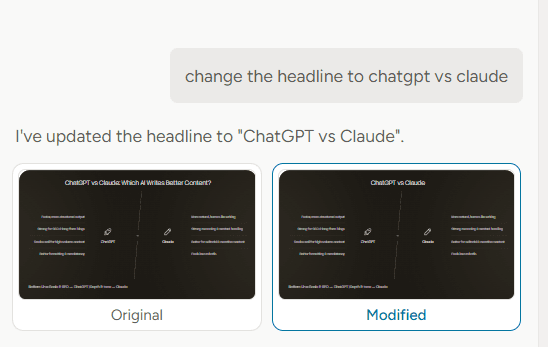
Reversible: The AI agent always share both the older variant and the modified variant so you’re always in control of which edits you want to apply and which can be skipped (additionally, Alai stores chat history so that you’re able to revert back to older versions that go beyond just the current chat)
When to Use Agent Mode vs. Manual Editing
Agent Mode isn't meant to replace direct editing - it's meant to handle the edits that slow you down.
Use Agent Mode when:
You know what you want but not how to make the change
You're making bulk changes across multiple elements
You want to experiment quickly
You're in the final polish phase and making lots of small tweaks
You're working fast and don't want to break your flow
Use manual editing when:
You need precise pixel-level control (especially in design)
You're doing something highly custom that's hard to describe
You prefer the tactile feedback of dragging and dropping
Both work together. Start with Agent Mode for speed, switch to manual for more control.
Getting Started: How to use Alai’s Agent Mode
Agent Mode is available now for all Alai users.
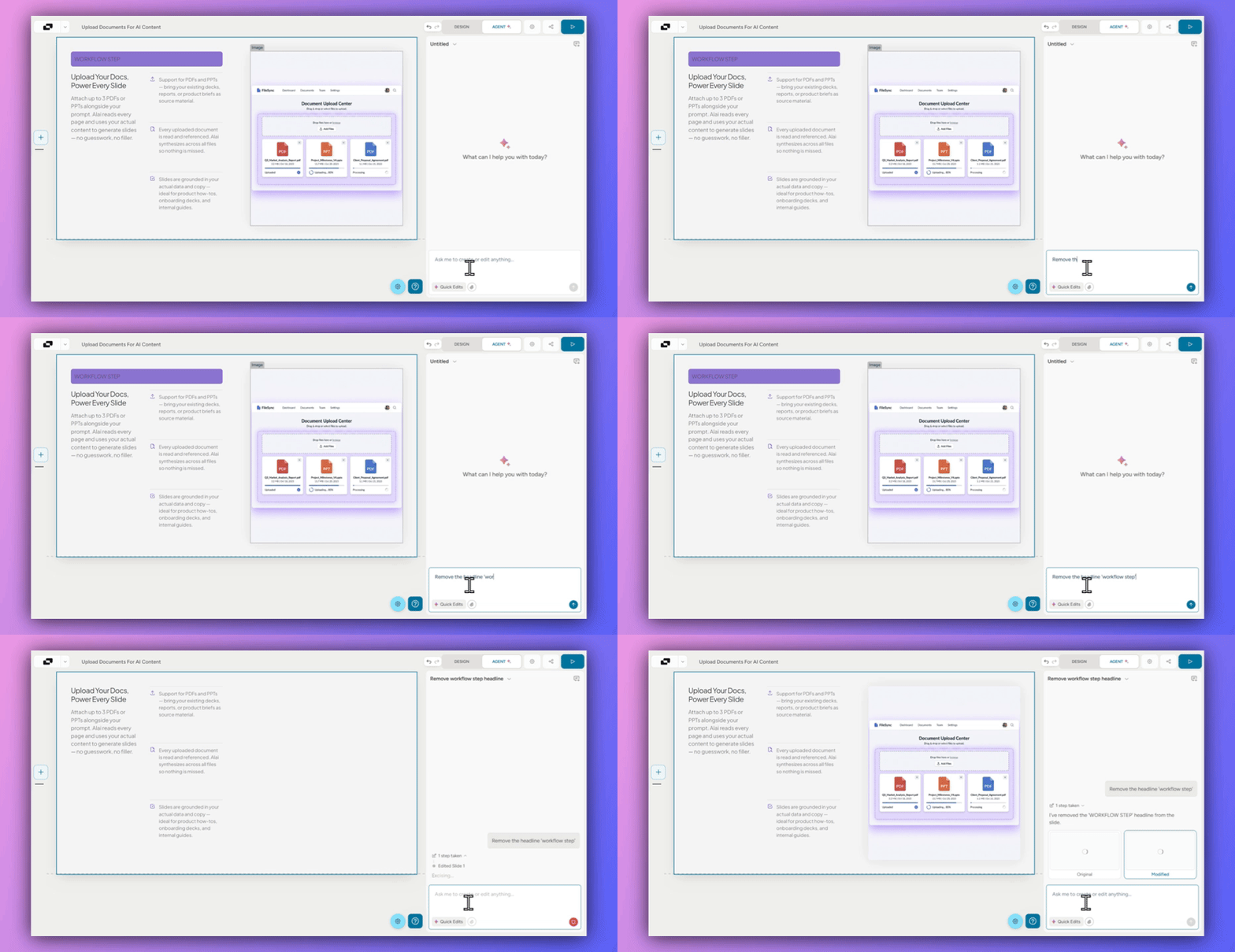
Open any presentation in Alai
Click on ‘AGENT’ in the top right corner
Type your instructions into the chat
Choose if you want to stick to the older variant or pick the modified one
Frequently Asked Questions
What is Agent Mode?
Agent Mode is Alai's conversational editing interface. Instead of clicking through menus to make changes, you describe what you want in plain English - "make the title bigger," "change the pie chart to a bar chart," "split this into two slides" and Alai’s AI executes the edit instantly. It understands your full presentation context, so changes stay consistent with your theme and design.
Is Agent Mode available on all plans?
Yes. Agent Mode is available to all Alai users, including those on the free plan. Each edit request uses AI credits from your plan's allocation.
How many AI credits does Agent Mode use?
Each Agent Mode request uses AI credits based on the complexity of the edit. Simple changes like "make the title bold" use fewer credits than complex requests like "split this slide into two and add relevant images to each." Your remaining credits are always visible in the editor.
Do I need to use specific commands or syntax?
No. Agent Mode understands natural language - type the way you'd explain the change to a colleague. "Move the image to the left," "I want it simpler," and "can you make the picture bigger without touching the text" all work. You don't need to learn special commands or formatting.
Can Agent Mode edit multiple slides at once?
Yes. You can make deck-wide changes like "add a footer with page numbers to all slides" or "make all titles the same size." Agent Mode understands cross-slide context, so bulk edits maintain consistency throughout your presentation.
What happens if Agent Mode doesn't understand my request?
If your request is ambiguous, Agent Mode will ask a clarifying question before making changes. If the result isn't what you expected, you can undo the change and try rephrasing your request with more detail. You can also switch to manual editing anytime for precise control.
Can I undo changes made by Agent Mode?
The AI agent always share both the older variant and the modified variant so you’re always in control of which edits you want to apply and which can be skipped (additionally, Alai stores chat history so that you’re able to revert back to older versions that go beyond just the current chat)
Does Agent Mode work with presentations I've imported?
Yes. Agent Mode works on any presentation in Alai - whether you created it from scratch, generated it from a prompt, or imported it from PowerPoint or PDF. It analyzes your existing slides and makes edits that match the current style.
Can Agent Mode generate new content or only edit existing content?
Both. Agent Mode can edit what's already on your slides (resize, reposition, restyle) and add new elements (images, icons, charts, text). For example, "add a timeline showing our milestones" will generate and insert a new timeline based on content in your deck.
Is there a limit to how complex my requests can be?
Agent Mode handles everything from simple ("bold the title") to complex ("reduce the height of the images and the 6 framework sections without changing the format to make everything fit in 16:9"). For very complex multi-step changes, breaking your request into smaller parts sometimes produces better results.
Does Agent Mode preserve my brand settings and theme?
Yes. Agent Mode is aware of your theme, colours, fonts, and brand settings. When you ask for changes, it maintains consistency with your established style. If you say "add an icon," the icon style will match your deck's aesthetic.
What languages does Agent Mode support?
Agent Mode currently works best with English prompts. Support for additional languages is on our roadmap. You can still edit presentations that contain content in other languages - just give your instructions in English.
Try It Now
The best way to understand Agent Mode is to use it.
Open your next presentation in Alai, and instead of reaching for a menu, just type what you want.
"Make the title bigger."
See what happens.
Related Reading:
PAGES
Compare Tools
resources