
·
CASE STUDY
·
73 мин чтения

РУКОВОДИТЕЛЬ ОТДЕЛА МАРКЕТИНГА
Краткий вердикт: лучшие программы для создания презентаций с ИИ в 2026 году
Нет времени читать 5000 слов? Вот кто победил:
Случай использования | Победитель | Почему |
|---|---|---|
Лучшая программа для создания презентаций с ИИ для предприятий | Полное кодирование системы дизайна, режим агента для чистых и быстрых правок, импорт существующих шаблонов, чистый экспорт PPTX, API/A2A/MCP для создания презентаций в масштабе | |
Лучшая бесплатная программа для создания презентаций с ИИ | 400 бесплатных кредитов при регистрации, карта не требуется | |
Лучшая программа для создания презентаций с ИИ для дизайнерских команд | Chronicle для интерактивных презентаций на основе виджетов; Canva для огромной библиотеки шаблонов и универсальной экосистемы дизайна | |
Лучшая программа для создания презентаций с ИИ для презентаций, ориентированных на исследования | Claude 3.7 Sonnet с живым веб-поиском и интеграцией с рабочими пространствами Gmail/Slack/Drive/Notion | |
Лучшая программа для создания презентаций с ИИ для отделов продаж (аналитика) | Pitch Rooms объединяет презентации с вспомогательными материалами, а также аналитику вовлеченности на уровне слайдов для более эффективного последующего взаимодействия | |
Лучшая программа для создания презентаций с ИИ для пользователей Google Slides и PowerPoint | Встроенное дополнение для Google Slides и PowerPoint с Live Snapshots и сохраненными запросами | |
Лучшее бюджетное программное обеспечение для презентаций с ИИ | План Pro менее 10 долларов в месяц со встроенным переводом на более чем 100 языков |
Я протестировала 17 программ для создания презентаций с ИИ с одним и тем же запросом, одними и теми же фирменными цветами и одной и той же темой презентации из 10 слайдов. Некоторые создали чистые экспорты PowerPoint. Некоторые сломались на 3-м слайде. Две полностью проигнорировали мои рекомендации по бренду и сделали свою собственную презентацию.
Вот что я обнаружила.
Что такое программа для создания презентаций с ИИ?
Инструмент для презентаций с ИИ использует искусственный интеллект для автоматизации создания слайдов: генерации контента по запросам, создания макетов, выбора изображений и поддержания согласованности дизайна.
Вместо того чтобы начинать с пустого слайда, вы:
Предоставляете запрос («Создать презентацию для привлечения инвестиций серии А для ИИ-стартапа»)
Загружаете существующий контент (заметки, PDF, документы)
Позволяете ИИ сгенерировать первый черновик
Редактируете и дорабатываете
Лучшее программное обеспечение для презентаций с ИИ берет на себя 80% рутинной работы, чтобы вы могли сосредоточиться на 20%, которые имеют значение: вашем сообщении и повествовании.
Зачем использовать программу для создания презентаций с ИИ?
Экономьте часы на каждой презентации
Согласно моим тестам по 15 инструментам в этой статье, переход от текстового наброска к презентабельному первому черновику занимает в среднем 3-6 минут. Создание той же презентации вручную в PowerPoint занимает 2-4 часа. Экономия времени в основном приходится на структуру и макет, две части, с которыми ИИ справляется лучше всего.
Профессиональный дизайн без дизайнера
Лучшие инструменты ИИ автоматически применяют принципы дизайна: правильные отступы, согласованные шрифты, визуальную иерархию. Вы получаете профессиональный результат, не зная, что делает слайд красивым.
Сохраняйте бренд вашей команды
Когда все используют один и тот же инструмент ИИ с рекомендациями по бренду, каждая презентация выглядит так, будто она пришла из одной компании. Больше никаких моментов «кто это разработал?».
Как я тестировала эти 16+ программ для создания презентаций с ИИ
Я провела каждый инструмент через один и тот же тест. Один и тот же запрос. Один и тот же контент. Одни и те же фирменные цвета. Одни и те же целевые экспорты. Вот что именно я дала каждой программе для создания презентаций с ИИ:
«Создайте презентацию из 10 слайдов, используя следующий контент. Сохраняйте контент на каждом слайде точно таким же, как контент, который я предоставила. Структура: заголовок, проблема, размер рынка, решение, обзор продукта, динамика, бизнес-модель, конкурентная среда, команда, запрос. Используйте чистую, профессиональную тему, подходящую для инвесторской аудитории.»
Я вставила один и тот же исходный контент во все инструменты. Затем я экспортировала каждую презентацию в PowerPoint 365 и открыла ее в Google Slides, чтобы проверить на наличие повреждений форматирования.
Критерии тестирования для каждого инструмента для презентаций с ИИ
Каждый инструмент получает оценку из 100 баллов на основе пяти взвешенных критериев:
Критерий | Что я тестировала |
|---|---|
Точность контента и дизайна | Насколько точно он воспроизводит контент и рекомендации по дизайну, которые я загрузила |
Качество дизайна первого черновика | Насколько близок первый черновик к окончательному |
Качество экспорта в PowerPoint и Google Slide | Насколько хорошо он экспортируется в файл PPTX и даже Google Slide |
Скорость до презентабельного черновика | Сколько времени требуется, чтобы перейти от первого к окончательному черновику |
Бесплатный уровень и ценность ценообразования | Стоит ли инструмент своих денег и можно ли его бесплатно протестировать, прежде чем переходить на платный план? |
Что я не включила и почему
Я исключила программное обеспечение для презентаций с ИИ без публичных цен и без самостоятельной пробной версии. Я исключила инструменты, которые не выпускали значительных обновлений за последние 12 месяцев. Я исключила расширения для браузера, которые оборачивают ChatGPT и называют себя программами для создания презентаций с ИИ, не создавая при этом реальных слайдов. Все перечисленные ниже инструменты для презентаций с ИИ прошли базовый тест: реальный продукт, реальные обновления в 2026 году, реальный результат.
Сравнение программ для создания презентаций с ИИ: функции, цены и примеры результатов
Не хотите читать подробный обзор? Вот краткое изложение функций, цен и результатов каждого инструмента.
Функции, лучше всего подходит для и рейтинг среди лучших инструментов для презентаций с ИИ
Инструмент | Лучше всего подходит для | Функции ИИ | Соответствие бренду | Скорость | Экспорт PPT | Начальная цена | Рейтинг |
|---|---|---|---|---|---|---|---|
Презентации для предприятий и команд | 4 макета/слайд, режим агента, MCP/API, Nano Banana 2 + интеграция GPT 2 | Полное кодирование системы дизайна и импорт существующих шаблонов | 30 мин | Идеально | 16 $/мес | 4.9/5 | |
Рассказывание историй для руководителей | Структуры повествования, доработка сообщений на уровне слайдов | Только логотип + цвет + шрифт | 45-60 мин | Хорошо | Пользовательский | 4.3/5 | |
Прокручиваемые презентации в стиле веб-страниц | Изображения DALL-E, авторазметка, живые вставки | Базовый (Pro+) | 45 мин | Сломан | 8 $/мес | 4.2/5 | |
Шаблоны, соответствующие бренду | Умные слайды, авторазмер, ограниченное редактирование ИИ | Базовые элементы управления брендом | 60 мин | Хорошо | 12 $/мес | 4.1/5 | |
Универсальный дизайн | Magic Design, Magic Animate, огромные шаблоны | Набор для бренда | 50 мин | Хорошо | 15 $/мес | 4.3/5 | |
Пользователи Google Slides | Live Snapshots, пользовательские шаблоны, сохраненные запросы | Дизайнер тем (Pro+) | 50-60 мин | Интегрируется в PowerPoint | 10 $/мес | 4.2/5 | |
Отслеживание продаж | Базовое копирование ИИ, Pitch Rooms, аналитика вовлеченности | Командные библиотеки | 45 мин | Теряет анимацию | 20 $/мес | 4.0/5 | |
Бюджетные пользователи | Текст в слайды, Magic Write, 100+ языков | Базовый | 55 мин | Хорошо | 8.33 $/мес | 3.8/5 | |
Нелинейное повествование | Масштабируемый холст, Prezi Video, подсказки ИИ | Базовый | 45 мин | Нет | 5 $/мес | 3.7/5 | |
Живые интерактивные презентации | Создание на основе виджетов, Peek & Deep Hover | Пользовательские темы (Pro+) | 40 мин | Нет | 12 $/мес | 4.0/5 | |
Экосистема Google | Глубокий поиск, контекст Drive/Gmail, Nano Banana 2 | Нет | 90 мин | Хорошо | 20 $/мес | 4.0/5 | |
Диаграммы из текста | 30+ типов диаграмм, Elastic Design, пользовательская генерация | Автоматическое извлечение цвета | 30 мин | Редактируемый (Plus+) | 9 $/мес | 4.2/5 | |
Презентации, основанные на исследованиях | Многоагентный поиск, режим гида, проверка фактов для каждого слайда | Ненадежная загрузка шаблонов | 55 мин | Требуется форматирование | 24,99 $/мес | 4.0/5 | |
Автономное исследование | Claude 3.7 Sonnet, поиск в реальном времени, интеграции с рабочим пространством | Непоследовательно | 55 мин | Неаккуратно на сложных слайдах | Бесплатно + Pro | 3.8/5 | |
Видео/аудио в слайды | Ввод YouTube/подкаст/PDF, редактирование структуры, интеграция ChatGPT | Нет | 60 мин | Хорошо | 9 $/мес | 3.6/5 | |
Черновики плагина ChatGPT | Плагин ChatGPT, PDF/YouTube в слайды, B2B API | Пользовательские шаблоны (платно) | 35-40 мин | Только платно | Бесплатно + Платно | 3.5/5 | |
Одноразовые визуальные презентации | Встроенные комментарии, аннотации для рисования, 6 путей экспорта, режим презентации | Система дизайна (только для команды) | 60 мин | Хорошо (требует некоторого форматирования) | 17 $/мес |
Сколько стоят инструменты для презентаций с ИИ? (Реальный расчет)
В таблице сравнения выше указаны основные цены. Она не показывает, что на самом деле стоит вам, когда вы начинаете использовать эти инструменты. После часов тестирования я вел список моментов, когда реальный счет не соответствовал заявленной цене. Некоторые из них незначительны. Несколько являются критическими в зависимости от того, как вы планируете платить.
Вот сводный список, ранжированный примерно по тому, насколько сильно каждый из них бьет по бюджету.
Инструмент | Ценовая ловушка | Что они не говорят вам заранее |
|---|---|---|
Beautiful AI | 45 $/месяц при ежемесячной оплате, 12 $/месяц при годовой подписке | Наценка 275% за отказ от годовой подписки. Золотой середины нет. |
Plus AI | Нет реального бесплатного тарифа | «Бесплатная пробная версия» длится 7 дней и требует предварительного ввода данных кредитной карты. Забудьте отменить, и вы перейдете на Basic за 15 $/месяц. |
Pitch | Кредиты бесплатного плана одноразовые, а не ежемесячные | 100 кредитов ИИ при регистрации, затем ноль. Бесплатный план технически остается бесплатным навсегда, но функции ИИ перестают работать после вашей первой или двух презентаций. |
Claude Design | Согласованность бренда привязана к командному плану на 5 мест | Настройка системы дизайна требует Team Standard за 20 $/место/месяц при годовой подписке с минимумом 5 мест. Индивидуальный Pro за 17 $/месяц и Max за 100–200 $/месяц этого не получают. Если вы подписались на Claude Pro, ожидая презентаций, соответствующих бренду, вы не сможете включить это без перехода на командный аккаунт с минимальной стоимостью 1000+ $/год. |
SlidesGPT | Бесплатный план не позволяет ничего скачивать | Вы можете сгенерировать презентацию, просмотреть ее, поделиться ссылкой. Экспорт в PPT, PDF или Google Slides платный — 10 $/месяц. Вы создаете ее и не можете уйти с ней, не заплатив. |
Napkin AI | Редактируемый экспорт только платный | Бесплатный план экспортирует PNG и PDF с водяным знаком. Чтобы получить редактируемый вывод PowerPoint, вам нужен Plus за 9 $/месяц при годовой подписке. Большинство обзоров называют Napkin «бесплатным», не указывая на это. |
SlidesGPT (платные планы) | Неиспользованные загрузки не переносятся | План Pro за 10 $/месяц дает вам 10 загрузок в месяц. Используйте 6, потеряйте 4 при сбросе. Количество загрузок измеряется, а не накапливается. |
Claude Design | Нет опубликованных данных о количестве кредитов или лимитах слайдов для каждого уровня | Anthropic не раскрывает точное количество кредитов или слайдов для любого плана, включая уровень Max 20x за 200 $/месяц. Лимиты устанавливаются на пользователя, а не на уровне организации. Бюджетирование использования командой — это гадание. |
Prezent.ai | Нет самостоятельной пробной версии или прозрачного ценообразования | Вы не можете протестировать продукт без звонка в отдел продаж. Цены рассчитываются индивидуально. Запуск внутреннего пилотного проекта занимает на несколько недель больше, чем любой другой инструмент в этом списке, и вы заключаете контракт, прежде чем узнаете, сколько платите. |
Prezi AI | План Plus не включает ИИ | Уровень Plus за 7 $/месяц выглядит доступным, пока вы не поймете, что генерация ИИ доступна только на уровне Premium за 19 $/месяц. Дешевый план — это подписка Prezi без ИИ с другим названием. |
Некоторые из них — незначительные неудобства. Наиболее болезненными на практике являются те, которые заставляют вас вкладывать деньги, прежде чем вы протестировали инструмент: стена кредитных карт Plus AI, звонок в отдел продаж Prezent и минимальный заказ на 5 мест Claude Design для согласованности бренда.
Если вы выбираете инструмент для команды или организации, минимальный заказ на 5 мест в Claude Design — самый дорогой сюрприз в этом списке для тех, кто начинал с Claude Pro. Расчет меняется с 17 $/месяц для одного человека до минимум 1000+ $/год для функции, которая на самом деле нужна большинству команд. Это не указано на странице цен. Это проявляется в первый раз, когда вы пытаетесь применить рекомендации по бренду.
Как инструменты для презентаций с ИИ сравниваются по одному и тому же запросу
Большинство обзоров создателей презентаций с ИИ охватывают функции, но ни один из них не сравнивает качество слайдов бок о бок, используя один и тот же контент. Слайды, показанные в этом разделе, были представлены в качестве первого черновика каждого создателя презентаций с ИИ с использованием только предоставленного инструментам контента с базовыми инструкциями по дизайну.
Вот точный запрос, который я использовал:
«Создайте 10-слайдовую презентацию, используя следующий контент. Сохраняйте контент на каждом слайде точно таким же, как я поделился. Структура: заголовок, проблема, размер рынка, решение, обзор продукта, динамика, бизнес-модель, конкурентная среда, команда, запрос. Используйте чистую, профессиональную тему, подходящую для инвесторов».
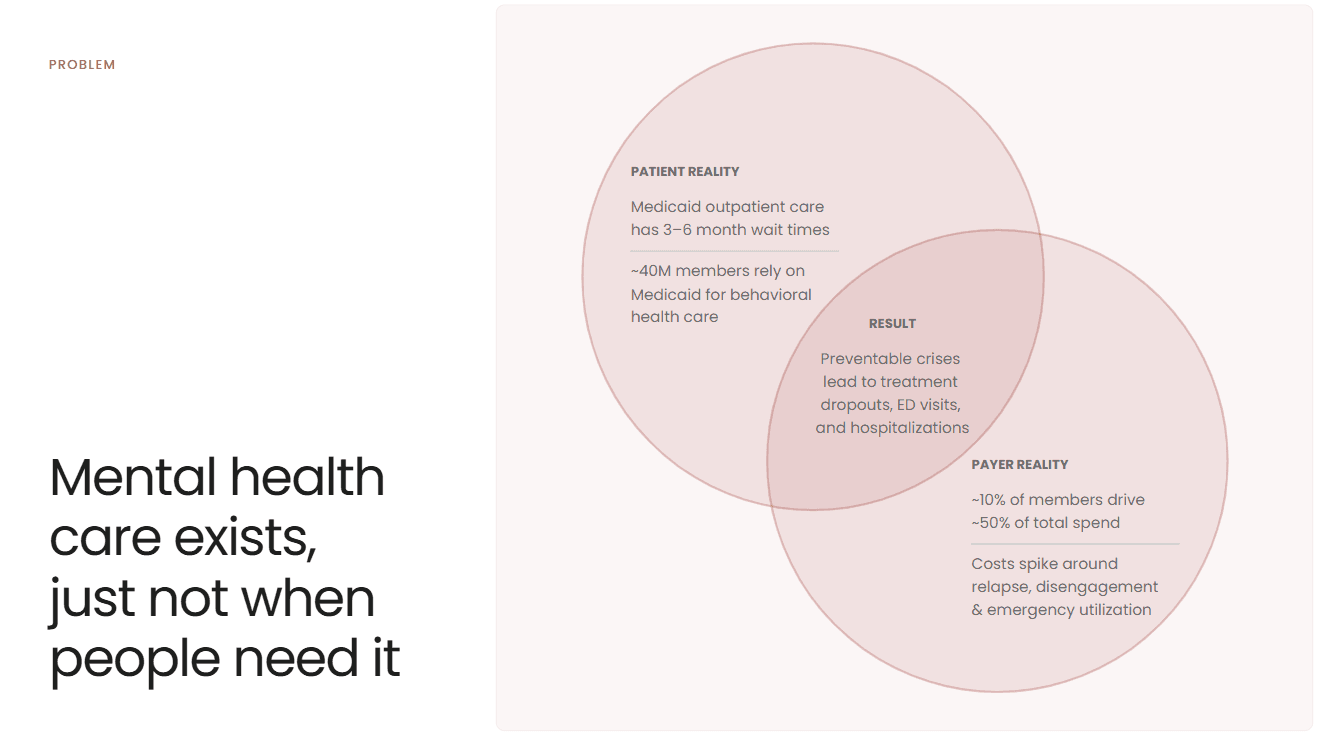
Alai:
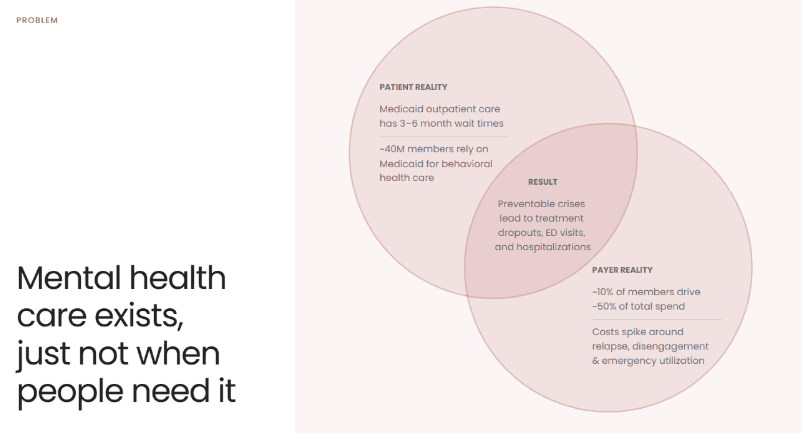
Использует диаграмму Венна для визуализации взаимосвязи между реальностью пациента, реальностью плательщика и результатами. Чистый макет со сбалансированным расстоянием между заголовком и визуальным элементом.
Gamma:
Перестраивает тот же контент в трехколоночный макет с фоновым изображением, сгенерированным ИИ. Темная тема добавляет визуальный контраст, хотя колонки оставляют мало места для текста.

Canva:
Плоский маркированный список с декоративным графическим элементом в углу. Содержимое объединено под одним заголовком, а не структурировано по категориям. Большая часть пустого пространства в нижней половине слайда не используется.

Plus AI
Содержимое хорошо организовано в три помеченных раздела с четкими описаниями абзацев. Читаемая структура, но минимальный дизайн — никаких визуальных элементов, цветового различия или иерархии, кроме форматирования текста. Отражает ограничения дизайна Google Slides как базовой платформы.

Pitch
Разделяет контент на двухколоночный макет со стоковым изображением. Охватывает только перспективу пациента — реальность плательщика и результаты из исходного контента добавлены на два отдельных слайда. Текст в виде абзацев слишком плотный для презентационного слайда.

SlidesAI
Сжимает весь контент в один абзац, теряя структурированное разбиение на реальность пациента, реальность плательщика и результаты. Сгенерированное ИИ изображение — визуализация масштаба рабочей силы — не имеет прямого отношения к содержанию слайда. Значительное пустое пространство в левой половине слайда не используется.

Prezi AI
Разбивает контент на четыре помеченные карточки, что хорошо структурирует информацию. Однако текст внутри каждой карточки слишком мал, чтобы его было удобно читать во время презентации. Сгенерированные ИИ фоновые изображения — архитектурные рендеры медицинских учреждений — конкурируют за внимание с текстом, а не поддерживают его. Заголовок расположен справа, что меняет ожидаемый порядок чтения.

Chronicle
Сильное визуальное воздействие с хорошо подобранным стоковым изображением и четкой иерархией заголовков. Четыре тега в стиле виджетов внизу отображают ключевые данные, но они читаются как метки, а не как законченные мысли — «Предотвратимые исходы:» и «Длительное ожидание:» обрезаны без фактических деталей. Слайд отдает приоритет атмосфере, а не передаче информации.

Gemini
Чистый двухколоночный макет, который сохраняет категории пациента и плательщика с ключевыми статистическими данными, выделенными цветом. Читабельный и хорошо структурированный, хотя визуально простой — без изображений, без визуальных элементов, кроме базовых контейнеров для карточек. Функциональный, но ближе к макету документа, чем к презентационному слайду.
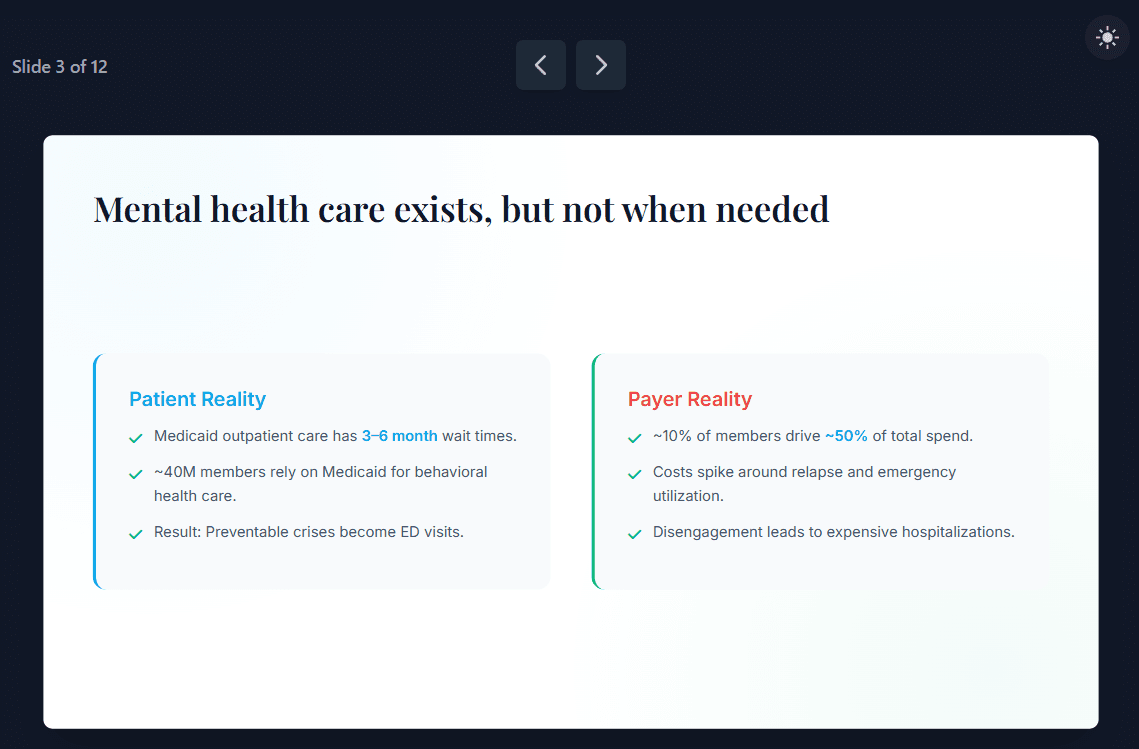
Napkin AI:
Napkin AI не генерирует полный слайд из запроса, как это делают другие инструменты. Я вставил контент для сравнения пациента/плательщика в редактор, нажал на значок искры и получил шесть вариантов макета для того же контента. Я выбрал сравнительную таблицу, которая организует данные в трехколоночную структуру: характеристика, реальность пациента и реальность плательщика. Таблица точно представляет данные, и макет чистый, но он не связывает выводы. Зритель видит две перспективы как отдельные столбцы, не понимая, как они создают общую проблему. Заголовок «Разрыв в доступе к психиатрической помощи» также недооценивает срочность того, что показывают данные. Для такого тяжелого контента макет, который визуализирует совпадение и последствия между реальностью пациента и плательщика, быстрее донес бы суть, но ни один из шести вариантов, сгенерированных Napkin, не двигался в этом направлении. Все данные есть. Визуальной логики, чтобы связать их воедино, нет.
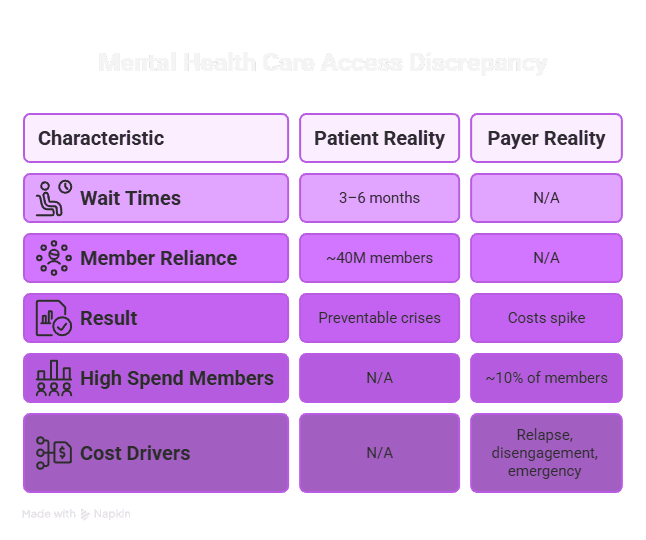
Genspark AI:
Вывод Genspark здесь визуально амбициозен, но его труднее читать, чем следовало бы. Разделение на две панели между реальностью пациента и реальностью плательщика в сочетании с блок-схемой внизу дает слайду три отдельные области, конкурирующие за внимание одновременно. Как зрителю, не сразу понятно, с чего начать. Панель пациента и панель плательщика кажутся оторванными друг от друга, поэтому связь между ними, которая является главной целью слайда, теряется. Числовой акцент действительно хорош: 3-6 месяцев, 40 миллионов участников, 10% участников, обеспечивающих 50% расходов, — все это четко выделено. Но макет просит зрителя самостоятельно установить связь, а не делает это за него. Блок-схема внизу — это правильный инстинкт, но усеченные метки и необъяснимые цветные точки добавляют путаницы, а не ясности. Сильный контент, макет, который нуждается в переосмыслении.
Manus AI:
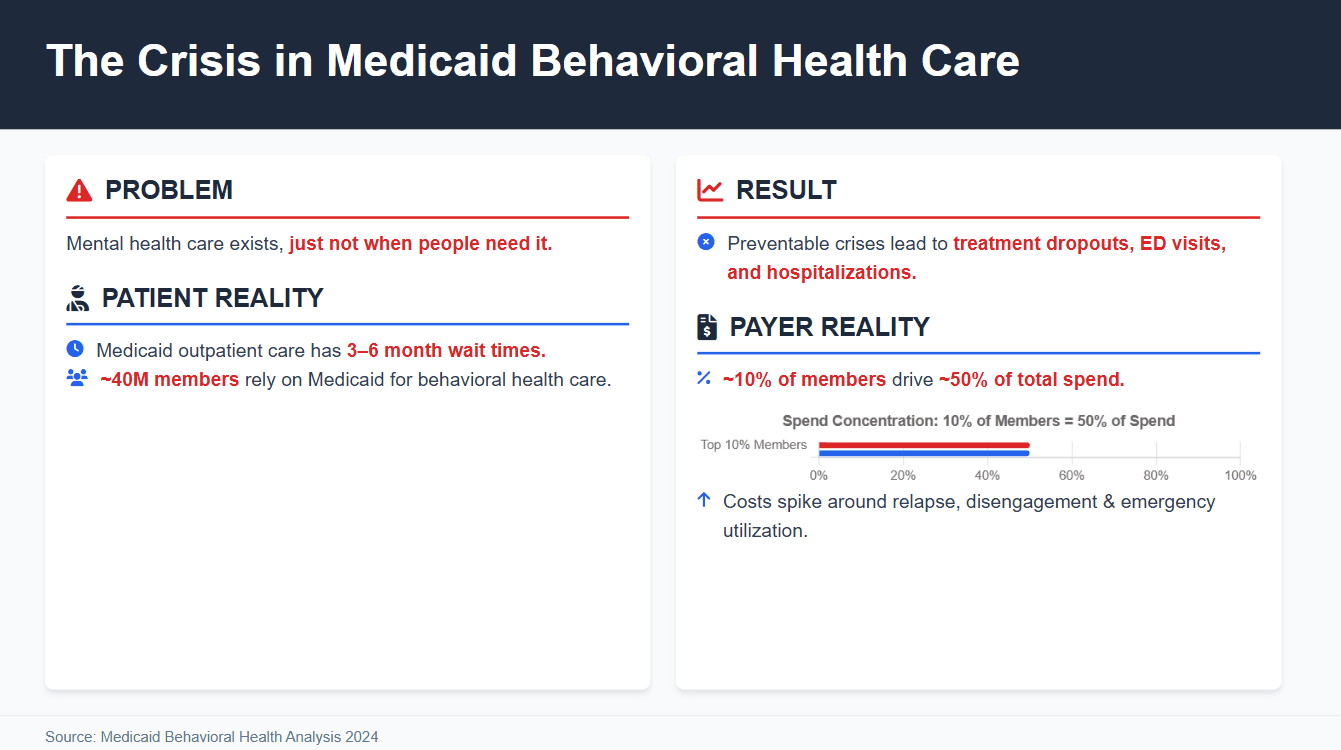
Manus структурировал слайд на четыре помеченных раздела по двум панелям: проблема и реальность пациента слева, результат и реальность плательщика справа. Ключевые статистические данные были точно переданы: время ожидания 3-6 месяцев, 40 миллионов участников, 10% участников, обеспечивающих 50% расходов. Гистограмма концентрации расходов на панели реальности плательщика — хорошее решение, она превращает соотношение в нечто визуально немедленное, а не оставляет его в виде текстового утверждения. Заголовок «Кризис в поведенческом здравоохранении Medicaid» также сильнее, чем у большинства инструментов, созданных для этого слайда. Недостаток заключается в том же, что и у Genspark: две панели кажутся двумя отдельными аргументами, а не одной связанной проблемой. Причинно-следственная связь между реальностью пациента и реальностью плательщика, что пробелы в доступе создают концентрацию затрат, нигде на слайде не показана. Зритель читает обе панели и понимает каждую по отдельности, но должен сам установить связь. Ссылка на источник внизу — приятный штрих к достоверности, который не включил ни один другой инструмент в этом тесте.
NotGPT:
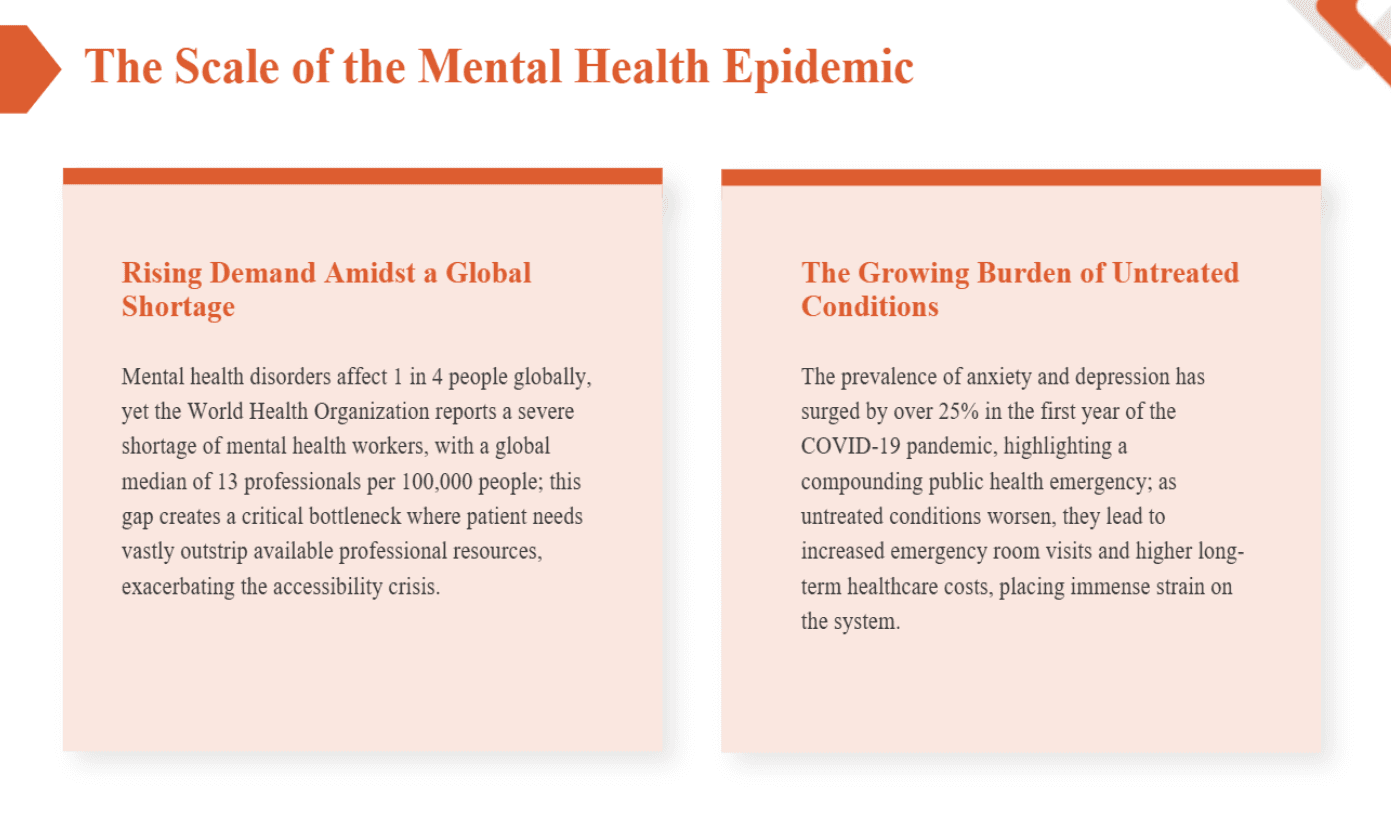
NoteGPT был единственным инструментом в этом тесте, который полностью проигнорировал исходный контент. Вместо того чтобы использовать предоставленный мной контент слайда пациента/плательщика, он провел собственное исследование и сгенерировал полную 10-слайдовую презентацию по психическому здоровью в целом. Этот слайд взят из этой презентации. Контент точен в общем смысле, но не имеет ничего общего с конкретной формулировкой Medicaid, цифрой в 40 миллионов участников, концентрацией затрат плательщика или любыми данными из исходного запроса. Что касается дизайна, двухпанельный макет функционален, но полностью текстовый: два блока абзацев, расположенные внутри цветных карточек без визуализации данных, без иерархии, кроме подзаголовков, и без элементов дизайна, которые удерживали бы внимание на живой презентации. Для слайда, доказывающего существование кризиса психического здоровья, плотный абзацный текст — это наименее убедительный формат, который можно выбрать.
SlidesGPT:
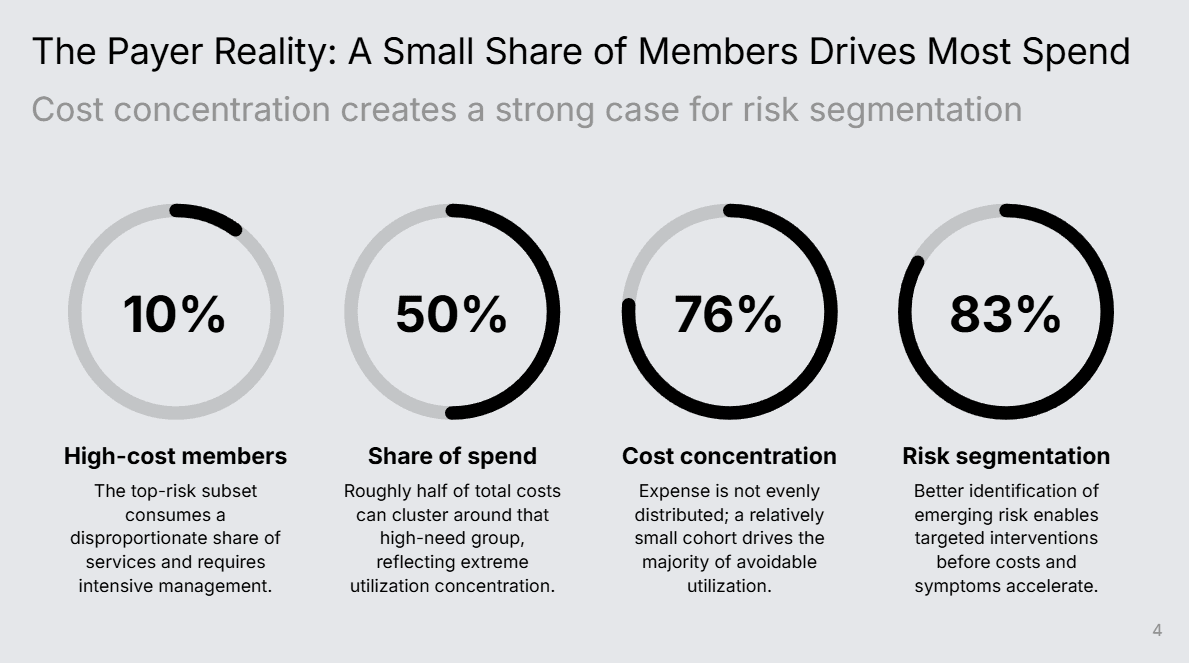
Как и NoteGPT, SlidesGPT проигнорировал запрос на один слайд и сгенерировал полную 10-слайдовую презентацию, используя свой собственный контент. Этот слайд взят из этой презентации. Выбор дизайна на самом деле интересен: четыре кольцевые диаграммы с большими процентными показателями — это более продуманный макет, чем у большинства инструментов, и он показывает, что SlidesGPT экспериментирует с визуальной структурой, а не по умолчанию использует маркированный список. Заголовок и подзаголовок также сильны: «Небольшая доля участников обеспечивает большую часть расходов» с «Концентрация затрат создает веские основания для сегментации рисков» формирует данные с четкой точкой зрения. Но исполнение плоское. Диаграммы монохромные, серые и черные, без цветового различия, без глубины, без визуального веса, чтобы направить взгляд на наиболее важную цифру. Каждая кольцевая диаграмма выглядит одинаково, независимо от значения, которое она представляет. Вспомогательный текст под каждой диаграммой маленький, плотный и больше похож на сноску, чем на метку. Первый черновик с правильными инстинктами и без какой-либо полировки, чтобы их подкрепить.
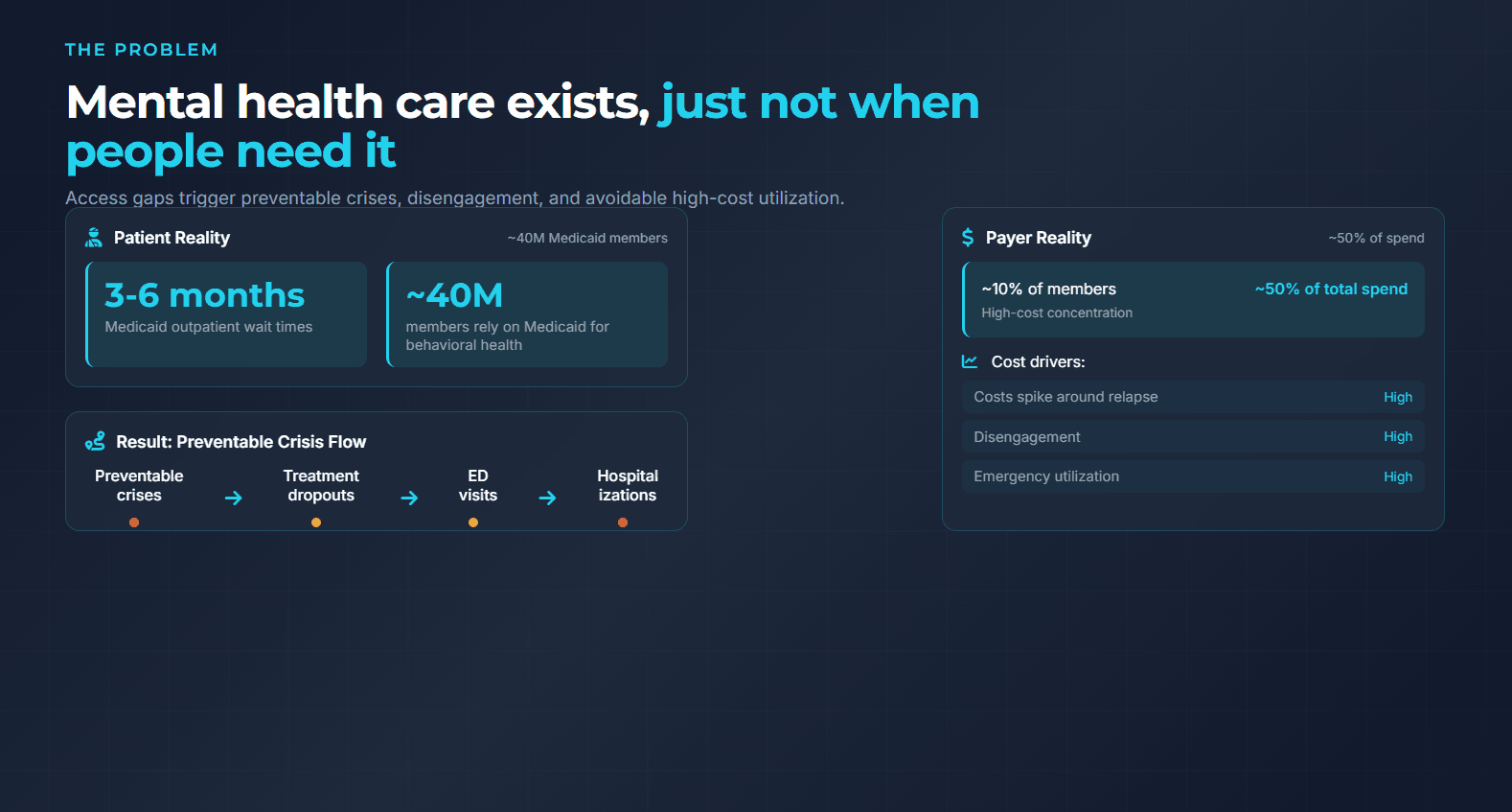
Claude Design:
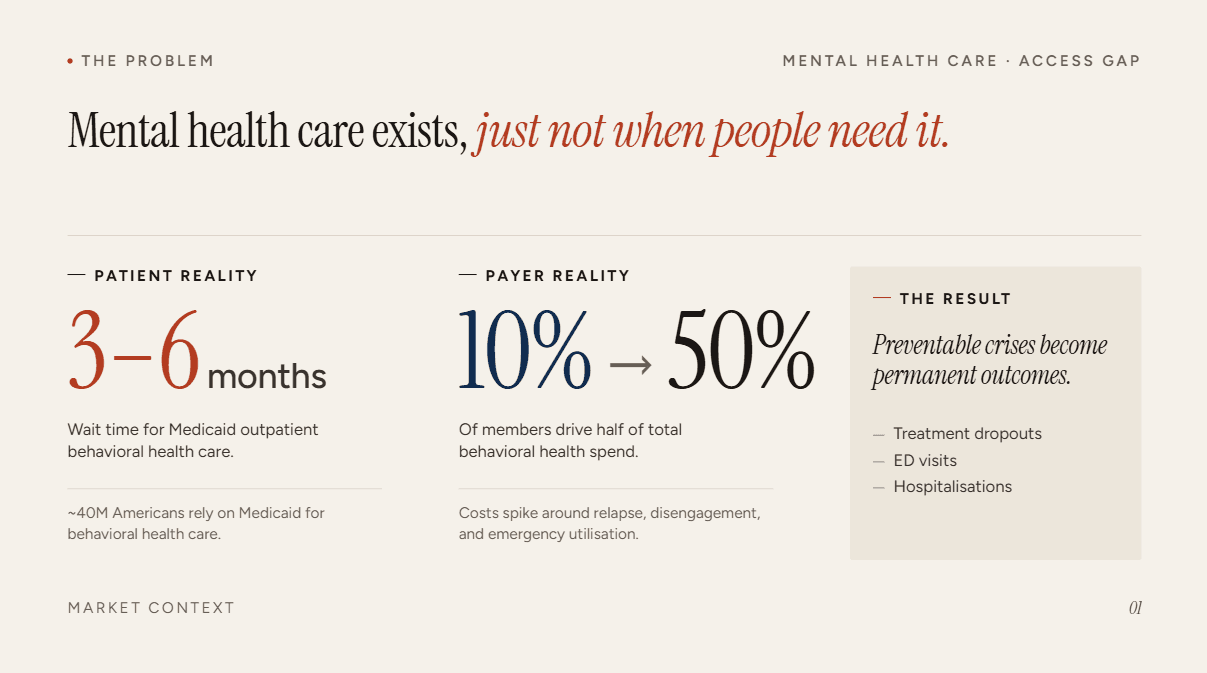
Слайд выше демонстрирует фирменный прием Claude Design: курсив с засечками во фразе внутри заголовка, «просто не тогда, когда это нужно людям», выделенный курсивом красным цветом. Вы увидите этот шаблон почти во всех выходных данных Claude Design, и когда он работает, он несет реальный аргументационный вес, который большинство инструментов ИИ сглаживают в одну строку без засечек. Трехколоночная иерархия хорошо держится, каждая колонка выполняет свою задачу с последовательными метками разделов в малых прописных буквах и намеренным размером чисел. Где он промахивается, так это в решении о выделении. Claude все еще с трудом определяет, какие слова в презентации на самом деле несут основной смысл, поэтому красный акцент падает на риторическую фразу вместо статистики, которая должна быть заголовком (время ожидания 3-6 месяцев или концентрация расходов от 10% до 50%). Курсивное оформление — это то, что мне лично не понравилось — я вижу его во всех дизайнах Claude, и оно действует как мгновенный признак, как тире для контента, написанного ИИ.
Лучшие создатели презентаций с ИИ в 2026 году (подробные обзоры)
Ниже приведены полные обзоры каждого инструмента, который я тестировал, включая категорию, к которой он относится, мой звездный вердикт и то, где каждый создатель презентаций с ИИ на самом деле занимает свое место.
Alai: Лучший создатель презентаций с ИИ для предприятий
Категория: Лучшее для предприятий
Вердикт: ★★★★★ - Единственный создатель презентаций с ИИ, который решает проблемы качества дизайна, скорости итераций, согласованности бренда и масштабирования в одном инструменте.
Я протестировал множество инструментов для презентаций с ИИ, и большинство из них следуют одному и тому же разочаровывающему шаблону: введите запрос, подождите, скрестите пальцы, надейтесь получить что-то пригодное. Обычно нет. Обычно вы нажимаете «сгенерировать снова». И снова «сгенерировать снова». Alai полностью разорвал этот цикл.
Когда я ввел запрос для своей презентации, он сгенерировал четыре различных варианта макета для каждого слайда. Для слайда с размером рынка я получил вариант круговой диаграммы, вариант гистограммы, вариант с большим количеством текста и инфографический макет. Все четыре выглядели профессионально. Я выбрал инфографику, потому что она лучше соответствовала моему повествованию, и перешел к следующему шагу за 15 секунд. С другими инструментами тот же слайд стоил бы мне 10 минут на перегенерацию и согласие на «достаточно хорошо».
Дизайн каждого слайда выглядел так, будто его создал профессионал. Градиенты, тени, размытия и многослойные элементы создают настоящую визуальную глубину. ИИ Alai обучен мыслить в терминах дизайна презентаций: он оценивает каждый фрагмент контента и генерирует четыре варианта макета на основе того, как этот контент лучше всего визуально передается. Вместо того чтобы перечислять проблемы пациентов и плательщиков в виде маркированных списков, он выбрал диаграмму Венна, чтобы показать, как две реальности пересекаются и приводят к общему результату. Это то решение, которое обычно требует участия человека-дизайнера.
Больше всего меня удивила точность бренда. Настраиваемые темы бренда Alai глубоко кодируют полную систему дизайна: обработка фона для темных и светлых слайдов, иерархия типографики, контексты использования цвета, правила интервалов, язык форм, стиль иконок, размещение логотипа и голос бренда. Это не просто загрузка логотипа и фиксация шестнадцатеричного кода. Каждая презентация, которую генерирует любой член команды, автоматически соответствует полной системе дизайна, без необходимости ручного контроля. Это идеальное решение для корпоративных команд, где торговые представители, маркетинговые команды и высшее руководство могут создавать презентации, которые выглядят так, будто они пришли из одного места, потому что так оно и есть.
Для организаций, создающих презентации в больших объемах — ежеквартальные бизнес-отчеты, предложения клиентам, отчеты для совета директоров и внутренние стратегические презентации — Alai принимает существующие шаблоны PowerPoint и библиотеки слайдов и перестраивает их пиксель за пикселем внутри системы дизайна. Команды, переходящие на Alai, не теряют ничего из того, что они уже создали. Существующие утвержденные слайды, кейсы и одностраничные описания продуктов переносятся и могут быть напрямую включены в новые презентации, а не перестраиваться с нуля каждый раз. Для команд, которым требуется программная генерация в масштабе, API и сервер MCP напрямую связывают Alai с внутренними рабочими процессами агентов, данными CRM и такими инструментами, как Claude, Cursor, Notion и PostHog, для создания брендированных презентаций без участия человека.
Режим Агента ускоряет итерации на каждом этапе. Я набрал «изменить круговую диаграмму на гистограмму» и наблюдал, как это выполняется в реальном времени по всей презентации, в соответствии с брендом и в контексте. Когда я сказал «разделить слайд 7 на два слайда», он создал логический разрыв контента, а не дубликат. В отличие от режима агента Gamma, который вызывал нежелательные изменения форматирования на других слайдах, Alai обучен на более чем 1000 сценариях, чтобы гарантировать, что одно изменение не приведет к каскадным изменениям, о которых вы не просили. Полная итерация презентации, которая ранее занимала час циклов доработок, теперь заняла у меня около 30 минут.
Адаптивный холст и контекстная осведомленность — вот что делает Alai особенно эффективным для командных рабочих процессов. Большинство инструментов ИИ рассматривают каждый слайд изолированно. Alai помнит, что вы установили. Когда я редактировал слайд 8, он сохранил ту же терминологию и визуальный язык со слайда 2. Последовательность без ручного контроля — это именно то, что нужно корпоративным командам. Для команд, использующих Claude, Cursor или другие совместимые с MCP инструменты, интеграция Alai с MCP позволяет генерировать и управлять презентациями непосредственно из вашего ИИ-агента без переключения вкладок.
Ключевые особенности:
4 варианта макета на слайд: Каждый запрос генерирует четыре различных варианта дизайна в зависимости от потребностей контента. Больший выбор на начальном этапе означает меньше циклов регенерации и отсутствие необходимости соглашаться на «достаточно хорошо».
Редактирование в режиме агента: Редактируйте презентации с помощью простых текстовых инструкций по всей презентации. Наберите «изменить круговую диаграмму на гистограмму», «разделить это на два слайда» или «добавить значки рядом с каждым пунктом» и наблюдайте, как ИИ выполняет это в реальном времени. Обучен на более чем 1000 сценариях, чтобы гарантировать, что одно изменение не вызовет нежелательных изменений в других местах.
Полное кодирование системы дизайна: Alai кодирует полную систему бренда: обработка фона, иерархия типографики, контексты использования цвета, правила интервалов, язык форм, иконография, размещение логотипа и голос бренда. Не просто загрузка логотипа и шестнадцатеричный код. Полная спецификация, автоматически применяемая к каждой презентации.
Попиксельное внедрение существующих шаблонов: Alai принимает существующие шаблоны PowerPoint и библиотеки слайдов и перестраивает их внутри системы дизайна. Существующие утвержденные активы переносятся, а не требуют полной перестройки.
Элементы, специфичные для презентаций: Сравнение двух, матрица функций, воронкообразные диаграммы, «звезда» и временные шкалы встроены как нативные элементы. Переключайтесь между типами элементов одним щелчком мыши, чтобы проверить, что лучше всего подходит для данных.
Контекстно-ориентированный ИИ: Alai сохраняет контекст всей презентации при каждом редактировании. Изменения на слайде 8 учитывают то, что было установлено на слайдах с 1 по 7. Последовательность повествования сохраняется без ручного контроля.
API для масштабирования: Программная генерация брендированных презентаций для команд, создающих автоматизацию презентаций. Подключайтесь к внутренним источникам данных и системам контента для создания презентаций без участия человека.
Интеграция с сервером MCP: Подключите Alai к Claude, Cursor и другим совместимым с MCP ИИ-агентам. Генерируйте презентации, добавляйте или удаляйте слайды и экспортируйте в виде ссылки, PowerPoint или PDF непосредственно из вашего рабочего процесса ИИ. Комбинируйте с Notion, Stripe, PostHog и другими серверами MCP для извлечения данных из нескольких источников в одну презентацию.
Интеграция A2A: Запускайте генерацию презентаций непосредственно из внутренних рабочих процессов агентов без переключения инструментов.
Чистый экспорт PPTX и PDF: Протестировано на нескольких типах презентаций без необходимости ручной доработки. Форматирование, градиенты и расположение элементов сохраняются при конвертации.
Отслеживание вовлеченности: Общие ссылки показывают, кто просмотрел вашу презентацию, время, проведенное на каждом слайде, и точки отсева. Полезно для презентаций инвесторам, предложений клиентам и любых презентаций, где важен последующий контроль.
Интеграция Nano Banana Pro и GPT 2: Генерируйте тематически согласованные, редактируемые ИИ-изображения с предустановками дизайна. Бесшовно смешивайте сгенерированные и стандартные слайды, что не поддерживает ни один другой ИИ-конструктор презентаций.
Множество форматов ввода: Превращайте заметки, URL-адреса, скриншоты, PDF-файлы и существующие файлы PowerPoint в презентации. Инструмент «украсить существующие презентации» является одной из наиболее часто используемых функций для команд, обновляющих старые библиотеки слайдов.
Плюсы:
Единственный ИИ-конструктор презентаций, который соответствует всем шести корпоративным критериям: точность бренда, согласованность дизайна, внедрение существующих активов, скорость итерации, масштабируемость и специализированная поддержка.
Полное кодирование системы дизайна до системного уровня, а не только логотип, цвет и шрифт.
Попиксельное внедрение существующих шаблонов означает отсутствие необходимости перестройки при переключении.
Режим агента делает итерацию презентации такой же быстрой, как и создание, без нежелательных каскадных изменений.
4 варианта макета на слайд устраняют циклы регенерации и догадки.
API, MCP и A2A обеспечивают объемную генерацию без участия человека.
Контекстно-ориентированный ИИ поддерживает повествовательную и визуальную согласованность по всей презентации.
Чистый экспорт PPTX, протестированный на различных типах презентаций без необходимости ручной доработки форматирования.
Специализированная партнерская поддержка для корпоративного внедрения, настройки системы дизайна и развертывания.
Адаптивный холст автоматически регулирует интервалы и выравнивание при изменении контента.
Отслеживаемые ссылки предоставляют данные о вовлеченности на уровне слайдов для более эффективного последующего контроля.
Минусы:
Меньшая библиотека шаблонов, чем у Canva или Beautiful AI.
Нет плагина Google Slides или PowerPoint — это отдельная платформа.
Нет автономного режима.
Для кого это:
Корпоративные команды и отделы, которым нужны последовательные, высококачественные и брендированные презентации для нескольких пользователей, от ежеквартальных бизнес-отчетов и презентаций для совета директоров до запусков продуктов, предложений клиентам и презентаций для клиентов. Отделы продаж, создающие предложения в больших объемах. Маркетинговые команды, которым нужны брендированные презентации без ожидания дизайнеров. Основатели стартапов, создающие презентации для инвесторов. Любой, у кого есть существующие презентации PowerPoint, требующие визуального обновления, или любой, кто хочет пропустить кривую обучения и просто сказать ИИ, что изменить.
Для полного анализа того, как Alai соответствует шести наиболее важным корпоративным критериям, см. мое руководство по лучшим ИИ-конструкторам презентаций для корпоративных команд..
Когда выбрать Alai:
Вам нужны качество дизайна и скорость вместе: Генерация 4 вариантов на слайд обеспечивает профессионально разработанные вариации немедленно и сокращает время, затрачиваемое на многократные регенерации.
Вы создаете для команды или предприятия: Полное кодирование системы дизайна, доступ к API и контекстно-ориентированный ИИ обеспечивают согласованность каждой презентации для всех пользователей без ручного контроля.
Скорость итерации имеет значение: Режим агента позволяет вам дорабатывать слайды, вводя простые инструкции на английском языке, а не настраивая каждый элемент вручную.
У вас есть существующие активы, которые нужно сохранить: Попиксельное внедрение существующих шаблонов PowerPoint и библиотек слайдов означает отсутствие необходимости перестройки.
Вам нужны презентации в масштабе: Интеграции API, MCP и A2A обеспечивают программную генерацию брендированных презентаций, подключенных к внутренним источникам данных и рабочим процессам агентов.
Отслеживание вовлеченности имеет значение: Общие ссылки показывают личность зрителя, время на слайд и точки отсева для более эффективного последующего контроля клиентов и инвесторов.
Вы используете рабочие процессы ИИ-агентов: Генерируйте, редактируйте и экспортируйте презентации непосредственно из Claude, Cursor или других клиентов MCP в сочетании с Notion, Stripe, PostHog и другими источниками данных.
Цены:
Бесплатно: 300 кредитов ИИ, все премиум-элементы дизайна, экспорт в PDF.
Плюс: 16 долларов в месяц (годовая подписка) или 20 долларов в месяц — 600 кредитов ИИ, экспорт в PowerPoint, приоритетная поддержка.
Про: 25 долларов в месяц (годовая подписка) или 30 долларов в месяц — 1200 кредитов ИИ, приоритетная поддержка и бесплатная консультация по презентациям от основателей.
Ультра: 60 долларов в месяц (годовая подписка) или 80 долларов в месяц — 5000 кредитов ИИ, прямые запросы функций основателям.
Prezent AI: Лучший инструмент для ИИ-презентаций для исполнительного сторителлинга и бизнес-повествований.
Категория: Лучший для презентаций, ориентированных на исполнительный сторителлинг.
Вердикт: ★★★☆☆ - Сильный нарративный интеллект, слабая прозрачность и дизайн.
Prezent AI создан для решения одной конкретной проблемы: презентаций, которые должны влиять на принятие решений, а не просто делиться информацией. Презентации для совета директоров, исполнительные обзоры, стратегические предложения и ежеквартальные бизнес-отчеты, где структура аргументации так же важна, как и визуальные эффекты. ИИ не просто генерирует слайды. Он применяет проверенные фреймворки деловой коммуникации, чтобы презентация была структурирована в соответствии с тем, как мыслит аудитория, а не только с тем, что вы хотите сказать.
Этот фокус делает его самым сильным инструментом в этом списке для презентаций, требующих детального повествования. Это также означает, что он не подходит для объемных, рутинных или визуально ориентированных презентаций.
Ключевые особенности:
Фреймворки бизнес-повествования: Принцип пирамиды, потоки «проблема-решение», последовательности «данные-инсайт», резюме для руководителей и структуры коммуникации, специфичные для заинтересованных сторон, применяемые ИИ к каждой презентации.
Уточнение сообщений на уровне слайдов: Попросите ИИ переписать любой отдельный слайд для исполнительного тона, краткости, ясности или убедительности, не затрагивая остальную часть презентации. Для презентаций, ориентированных на руководство, где один плохо сформулированный слайд может подорвать весь аргумент, это функция, которая оправдывает инструмент.
Структурированные шаблоны повествования: Готовые форматы для ежеквартальных бизнес-отчетов, презентаций для совета директоров, коммерческих презентаций, отчетов для инвесторов и обзоров для руководства, разработанные с учетом того, как эти презентации фактически используются, а не с учетом визуальной эстетики.
Генерация и доработка презентаций ИИ: Генерируйте структурированные черновые варианты из запроса и дорабатывайте сообщения на уровне слайдов через интерфейс ИИ.
Плюсы:
Сильный нарративный интеллект, а не просто генерация слайдов.
ИИ помогает уточнять мышление и сообщения, а не только дизайн.
Хороший экспорт в PowerPoint, подходящий для большинства рабочих процессов.
Минусы:
Нет бесплатного плана самообслуживания или пробной версии. Для оценки продукта требуется демонстрация.
Индивидуальное ценообразование без прозрачности замедляет проведение внутреннего пилотного проекта по сравнению с любым другим инструментом в этом списке.
Визуальный вывод плоский и структурно повторяющийся для разных типов презентаций.
Система бренда охватывает только логотип, цвет и шрифт. Отсутствует глубина системы дизайна на уровне пикселей.
Нет механизма для загрузки или использования существующих утвержденных библиотек слайдов.
Добавляет накладные расходы для объемных, менее важных презентаций, где точность повествования не является приоритетом.
Для кого это:
Презентации для совета директоров, обновления для руководителей, стратегические предложения, где структура повествования и логика сообщений так же важны, как и визуальные эффекты. Единовременные презентации, где повествование важнее фактического дизайна.
Когда выбрать Prezent.ai:
Ваша презентация должна изменить мнение, а не просто поделиться информацией. Prezent фокусируется на том, как аргументы структурированы и последовательны, а не только на том, как выглядят слайды.
Сообщения на уровне слайдов имеют значение. Вы можете попросить ИИ переписать один слайд для исполнительного тона, краткости или убедительности, не затрагивая остальную часть презентации.
Цены:
Обычно настраивается в зависимости от размера команды, использования и требований безопасности. Демонстрации и пробные версии доступны для квалифицированных команд.
Gamma: Лучший бесплатный ИИ-конструктор презентаций (особенно для внутренних презентаций и документов).
Категория: Лучший бесплатный ИИ-конструктор презентаций.
Вердикт: ★★★★☆ - Щедрый бесплатный тариф, современный веб-формат, непредсказуемое редактирование ИИ.
Бесплатный тариф Gamma довольно щедрый. 400 кредитов достаточно, чтобы протестировать несколько презентаций, не вводя платежную информацию. На рынке, где большинство «бесплатных» планов — это раздутые демонстрации, призванные заставить вас перейти на платную версию, Gamma позволяет выполнять реальную работу бесплатно.
Прокручиваемый веб-формат выглядит бесспорно современно. Вместо того чтобы пролистывать отдельные слайды, зрители прокручивают их, как веб-страницу. Я встроил прототип Figma прямо в раздел демонстрации продукта, и он действительно работал. Интерактивное встраивание оставалось функциональным. Это полезно для презентаций продуктов, где вы хотите показать, а не рассказать. Но поскольку моей основной целью было создание презентации в формате 16:9, Gamma с трудом удерживалась в этих рамках, хотя я специально давал ей такие инструкции, и если это удавалось, контент часто казался слишком плотно упакованным в требуемый размер. Как вы можете видеть ниже, маркированные списки делают слайд перегруженным, а контент трудночитаемым; диаграмма Венна или разделы с текстовыми полями без изображения сбоку помогли бы создать визуально более чистый слайд.

Вот моя проблема, и она значительна: редактирование ИИ непредсказуемо. Я попросил его «увеличить заголовок» на слайде 6. Простая просьба. Он увеличил заголовок. Он также изменил цветовую схему на слайдах 7, 8 и 9 без предупреждения или объяснения. Каждая сессия редактирования ощущалась как игра в кости. Иногда ИИ делал именно то, что я просил. Иногда он «улучшал» вещи, которыми я был недоволен.
Проблема с экспортом в PowerPoint реальна. Четыре из десяти моих слайдов имели проблемы в PowerPoint 365. Текстовые поля смещены на пиксели. Метки диаграмм перекрывают легенды. Градиенты фона отображаются по-разному. Исправимо, но добавило 15 минут, которых я не ожидал.
Ключевые особенности:
Одна платформа, несколько форматов: Создавайте презентации, документы и веб-страницы в одном редакторе. Используйте контент в разных форматах без переделки с нуля.
Встроенная аналитика вовлеченности: Смотрите, кто просматривал вашу презентацию, сколько времени они провели в каждом разделе и где они остановились. Полезно для презентаций инвесторам и последующих продаж.
Встраивайте что угодно: Вставляйте видео, файлы Figma, базы Airtable, календари и другой живой контент прямо в свою презентацию.
Разделы с аккордеоном и переключателями: Добавляйте расширяемые блоки контента, которые зрители открывают по запросу. Сохраняйте основной вид чистым, предлагая более глубокую информацию тем, кто этого хочет.
Кнопки и призывы к действию: Добавляйте кликабельные кнопки, которые ссылаются на демонстрации, календари или страницы регистрации прямо в вашей презентации.
Плюсы:
Создает прокручиваемые, веб-подобные презентации, которые выглядят современно и интерактивно.
Щедрый бесплатный план с 400 кредитами ИИ.
Работает для презентаций, документов и веб-страниц с одной платформы.
Встроенная аналитика для отслеживания вовлеченности зрителей.
Минусы:
«Черный ящик» ИИ — изменения могут вызывать непреднамеренные изменения по всей презентации.
Формат прокрутки не подходит для живых презентаций или официальных заседаний совета директоров.
Гибкость мультиформата имеет свою цену — дизайн презентаций кажется менее отточенным, чем у специализированных инструментов, таких как Alai, которые сосредоточены исключительно на слайдах.
Экспорт в PowerPoint часто приводит к потере форматирования или выглядит иначе, чем ожидалось.
Если вы уже используете Gamma и достигаете ее пределов, я подробно рассмотрел лучшие альтернативы Gamma .
Для кого это:
Основатели, которым нужны обновления для инвесторов, не требующие формата презентации. Внутренние команды, создающие отчеты, документацию или базы знаний, которые должны выглядеть отполированными без больших усилий по дизайну. Команды, желающие быстро создать 1-2 презентации без затрат.
Когда выбрать Gamma:
Ваша презентация будет просматриваться чаще, чем представляться. Прокручиваемый формат отлично подходит для презентаций, отправляемых по электронной почте или в Slack.
Вам нужен один инструмент для нескольких типов контента. Презентации, документы и целевые страницы в одном месте.
Вам нужен лучший бесплатный вариант. 400 кредитов позволят вам многое сделать без оплаты.
Пропустите, если вы выступаете вживую (формат прокрутки кажется неудобным) или вам нужен точный контроль над дизайном.
Цены:
Бесплатно: 400 кредитов при регистрации, ограниченное количество созданий ИИ, до 10 карточек на запрос, экспорт в PDF/PPTX/PNG/Google Slides.
Плюс: 8 долларов США/место/месяц (годовая подписка) или 10 долларов США/место/месяц — 1000 ежемесячных кредитов, удаление брендинга Gamma, продвинутые модели изображений ИИ, до 20 карточек на запрос.
Про: 18 долларов США/место/месяц (годовая подписка) или 25 долларов США/место/месяц — 4000 ежемесячных кредитов, пользовательский брендинг и шрифты, подробная аналитика, доступ к API, до 60 карточек на запрос.
Ультра: 90 долларов США/место/месяц (годовая подписка) или 100 долларов США/место/месяц — 20 000 ежемесячных кредитов, самые продвинутые модели ИИ, до 75 карточек на запрос, ранний доступ к новым функциям.
Beautiful AI: Лучшее ПО для презентаций с ИИ для базовой реализации бренда.
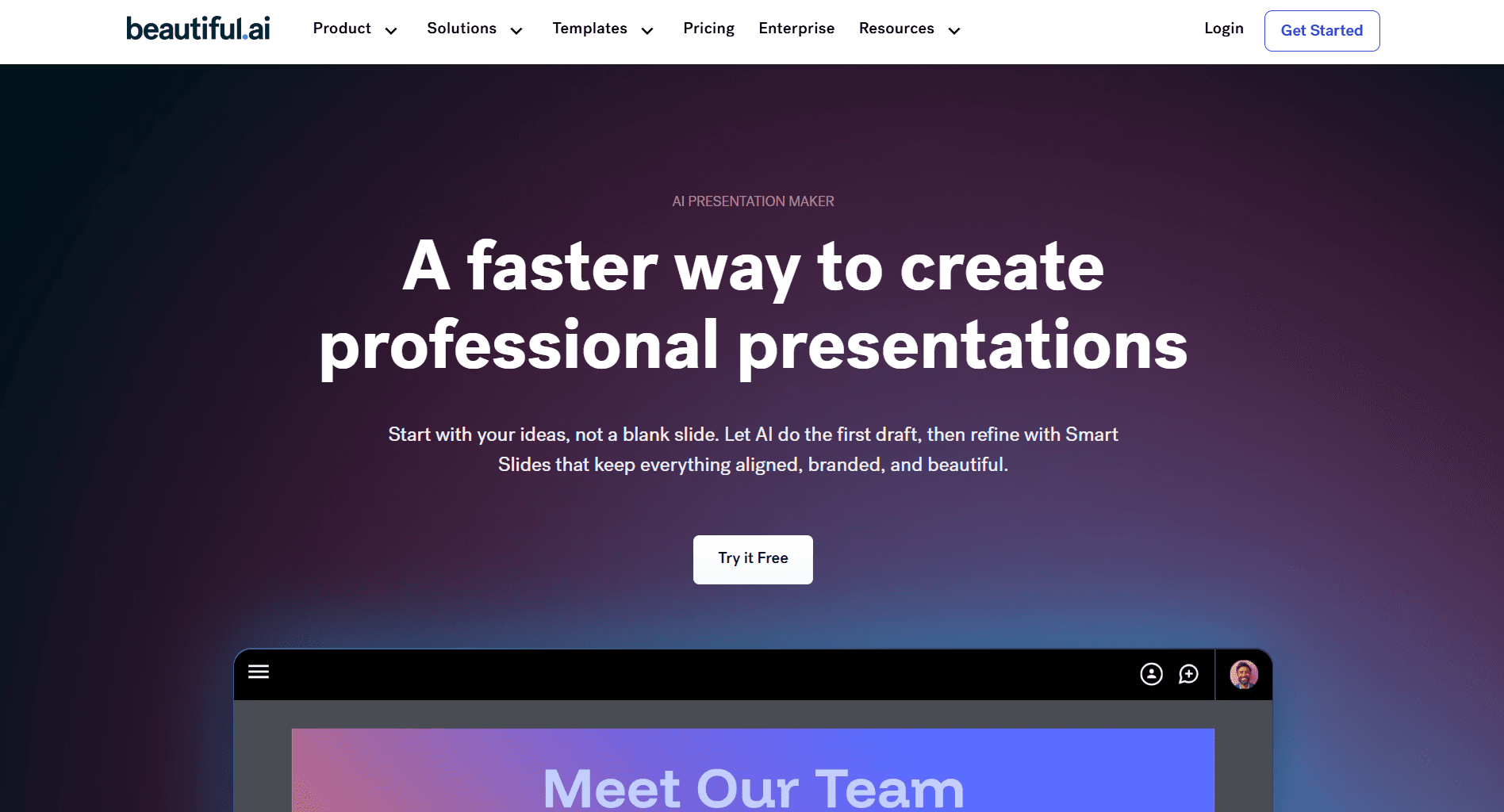
Категория: Лучшее для дизайнеров и творческих команд
Вердикт: ★★★☆☆ - Базовые элементы управления брендом, ИИ едва существует после первого черновика.
Буду честен: хотя обширная библиотека шаблонов может обеспечить отличную отправную точку, ИИ в этом инструменте едва существует после создания презентации.
Концепция «умных слайдов» — это то, что отличает его. Слайды со встроенными правилами дизайна, которые предотвращают некрасивые макеты. Текст автоматически изменяет размер. Элементы привязываются к приятным позициям. Цвета остаются гармоничными. Теоретически, любой может создавать профессиональные слайды без дизайнерской подготовки.
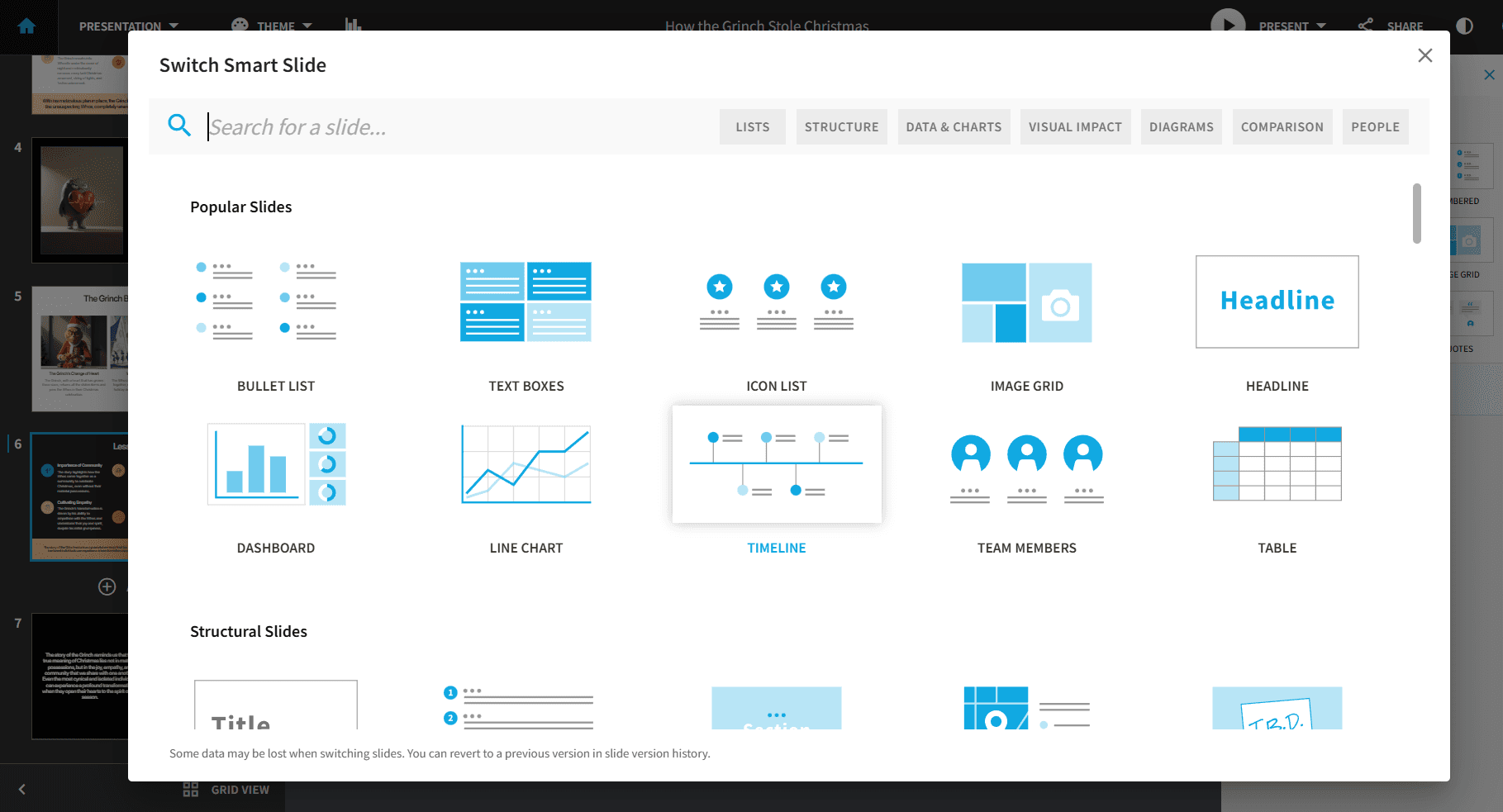
Умные слайды позволяют выбирать между несколькими стилями для ваших слайдов.
На практике это казалось ограничивающим. Я хотел добавить текстовое поле на слайд, но мне не разрешили, так как шаблон допускал только 3 текстовых поля на слайде. Я бы принял это объяснение, если бы 3 текстовых поля были полностью заполнены контентом и не могли быть изменены, но это было не так.
ИИ генерирует разумный первый черновик, затем вы остаетесь один на один с редактированием методом «наведи и нажми». В отличие от Alai или режима агента Gamma, редактирование Beautiful AI осуществляется через меню и вручную. После первоначальной генерации я делал те же настройки, что и в PowerPoint.
Элементы управления брендом — это настоящая сила. Загрузите свой логотип, зафиксируйте цвета, укажите шрифты. Каждый слайд, каждый шаблон, каждая новая презентация использует их автоматически. Когда разные команды создают свои собственные презентации, их слайды идеально соответствуют бренду.
Кроме того, с точки зрения ценообразования, Beautiful AI требует либо годовой подписки по более низкой цене, либо оплаты высокой ежемесячной платы, что может быть нецелесообразно для стартапов/небольших команд.
Ключевые особенности:
Управление брендом: Зафиксируйте свои цвета, шрифты и логотип. Каждый новый слайд автоматически соответствует рекомендациям бренда.
Командные библиотеки: Делитесь шаблонами, слайдами и активами внутри вашей организации. Обеспечьте, чтобы все работали с утвержденными материалами.
Аналитика слайдов: Отслеживайте, кто просматривал вашу презентацию и сколько времени они провели на каждом слайде. Полезно для последующих продаж.
Сотрудничество в реальном времени: Несколько членов команды могут редактировать одновременно с комментариями, назначениями и историей версий.
Экспорт в PPT: Хорошо для базовых слайдов, может потерять форматирование в случае слайдов с несколькими элементами.
Плюсы:
Сильный контроль над брендом для корпоративных команд.
Хорошая библиотека шаблонов с профессиональным дизайном.
Надежное командное сотрудничество и общие библиотеки активов.
Минусы:
ИИ помогает в создании первого черновика, но после этого большинство правок — это ручной труд.
«Умные слайды» могут показаться ограничивающими, если вы хотите творческого контроля.
Нет бесплатного плана, а ежемесячная цена возрастает до 45 долларов, если вы не подписываетесь на годовой план.
Дизайн может выглядеть устаревшим по сравнению с новыми инструментами, созданными с использованием ИИ.
Импорт PowerPoint преобразуется в режим редактирования «Классический», теряя доступ к функциям Smart Slide. Несоответствия шрифтов, искаженные фоны и проблемы с макетом являются обычным явлением — быстрее перестроить с нуля, чем исправлять импорт.
Для кого это:
Команды с дизайнерами, которым нужны быстрые первоначальные черновики, над которыми они могут работать.
Когда выбрать Beautiful AI:
Команды, которые не против ручной итерации и имеют команду дизайнеров для работы над презентациями после первого создания.
Пропустите, если вы хотите творческой свободы или чувствительны к цене годовых обязательств.
Цены:
Про: 12 долларов США/месяц (годовая подписка) или 45 долларов США/месяц — неограниченное количество слайдов, генерация контента ИИ, импорт/экспорт PowerPoint, аналитика просмотров.
Команда: 40 долларов США/пользователь/месяц (годовая подписка) или 50 долларов США/пользователь/месяц — общие элементы управления брендом, командные библиотеки, функции совместной работы, инструменты администратора.
Предприятие: Индивидуальные цены — SSO, предоставление пользователей (SCIM), выделенное обучение, приоритетная поддержка.
Если ежемесячная цена является камнем преткновения, стоит протестировать лучшие альтернативы Beautiful AI для более дешевых вариантов.
Canva: Лучший ИИ-конструктор презентаций для создания по шаблонам.
Категория: Лучшее для дизайнеров и творческих команд
Вердикт: ★★★☆☆ - Огромная библиотека шаблонов, ИИ кажется прикрученным, а не нативным.
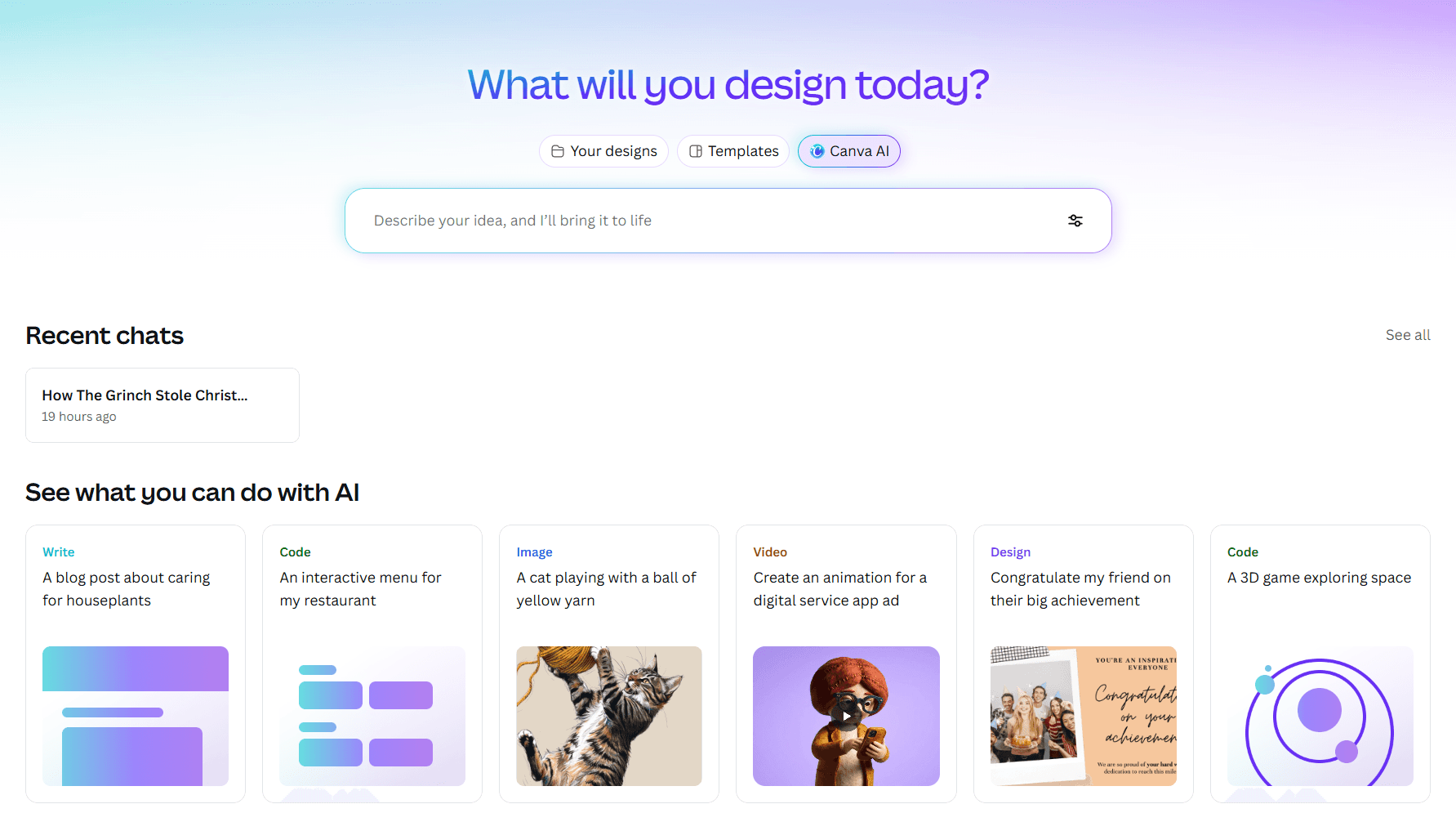
Функции ИИ для презентаций Canva являются частью более крупной экосистемы дизайна, что является как ее сильной, так и слабой стороной. Magic Design предлагал макеты на основе шаблонов из огромной библиотеки Canva. Некоторые выглядели действительно хорошо. Другие выглядели точно так, как они есть: шаблоны Canva, которые использовала половина Интернета. Когда ваш инвестор видел тот же макет в трех других презентациях в этом месяце, ваша перестает казаться особенной.
ИИ помог с первым черновиком. Но редактирование было традиционным перетаскиванием. Когда я удалил маркер, остальные маркеры остались на месте, оставляя неловкие пробелы, которые я закрывал вручную. Я потратил 3 минуты на настройку интервалов на одном слайде, потому что нет адаптивного холста. Кроме того, хотя шаблоны Canva позволяют создавать отличные дизайны, вывод ИИ был низкого качества: большинство слайдов состояли из заголовка и маркированных списков, а не диаграмм, временных шкал, текстовых полей.

Настоящая ценность Canva в том, что это не только презентации. Если вы уже платите за графику для социальных сетей, маркетинговые материалы и видеоконтент, презентации идут в комплекте. Библиотека стоковых медиа означает, что не нужно искать фотографии и иконки на других сайтах.
Ключевые особенности:
Несколько вариантов шаблонов: Введите запрос или загрузите контент, и Canva предложит макеты на основе шаблонов. Работает лучше как отправная точка, чем как готовый продукт.
Массивная библиотека шаблонов: Тысячи шаблонов презентаций, организованных по отраслям, стилям и вариантам использования. Фильтруйте по цвету, теме или типу макета.
Бренд-кит: Сохраняйте свои цвета, шрифты, логотипы и активы бренда. Применяйте их к любому дизайну одним щелчком мыши.
Сотрудничество в реальном времени: Несколько пользователей могут редактировать одновременно с комментариями, реакциями и историей версий.
Библиотека стоковых медиа: Доступ к миллионам фотографий, видео, иконок и графики, не покидая платформы.
Magic Animate: Добавляйте анимацию к слайдам одним щелчком мыши. Выбирайте из предустановленных стилей анимации, которые применяются ко всем элементам.
Плюсы:
Огромная библиотека шаблонов с тысячами дизайнов презентаций.
Одна подписка охватывает презентации, графику для социальных сетей, видео и многое другое.
Отличный бесплатный план с включенными функциями ИИ.
Хороший экспорт в PPT по сравнению с такими инструментами, как Gamma.
Минусы:
Не создан специально для презентаций, это прежде всего универсальный инструмент дизайна.
Предложения Magic Design могут быть как удачными, так и неудачными, в зависимости от вашего контента.
Хотя создание первого черновика может быть легким, редактирование все еще требует ручных усилий из-за отсутствия элементов управления редактированием, специфичных для презентаций, которые есть в таких инструментах, как Alai.
Редактирование методом перетаскивания заставляет вас вручную настраивать интервалы, выравнивание и размер для каждого элемента (в отличие от адаптивного холста Alai, который автоматически настраивает элементы).
Отсутствуют специфические для презентаций строительные блоки, такие как временные шкалы, матрицы функций или диаграммы типа «звезда» (которые есть в других специализированных инструментах для презентаций, таких как Alai и Beautiful AI).
Для кого это:
Маркетологи, которым нужен один инструмент для всего — презентаций, контента для социальных сетей, рекламы и видео. Небольшие команды без штатных дизайнеров. Все, кто уже находится в экосистеме Canva.
Если презентации — ваш основной вариант использования, я отдельно рассмотрел лучшие альтернативы Canva для дизайна презентаций .
Когда выбрать Canva:
Вы предпочитаете начинать с шаблонов, а не с пустых запросов.
Вам нужно больше, чем просто презентации. Социальные сети, видео, печать — все в одной подписке.
Пропустите, если вам нужны специализированные функции для презентаций или если важно отличаться от конкурентов.
Цены:
Бесплатно: 250 000+ шаблонов, базовый Magic Design, 5 ГБ хранилища, экспорт в PDF/PowerPoint.
Про: 15 долларов США/месяц или 120 долларов США/год — полная библиотека шаблонов, 100М+ премиум-активов, Magic Studio (500 кредитов ИИ), Brand Kit, 1 ТБ хранилища, удаление фона, 30-дневная бесплатная пробная версия.
Бизнес: 20 долларов США/пользователь/месяц или 200 долларов США/пользователь/год (минимум 3 пользователя) — все, что есть в Pro, плюс командное рабочее пространство, утверждение дизайна, расширенные элементы управления брендом, права администратора, 500 ГБ хранилища на пользователя.
Предприятие: Индивидуальные цены — SSO, SCIM, журналы аудита, расширенное управление, выделенная поддержка.
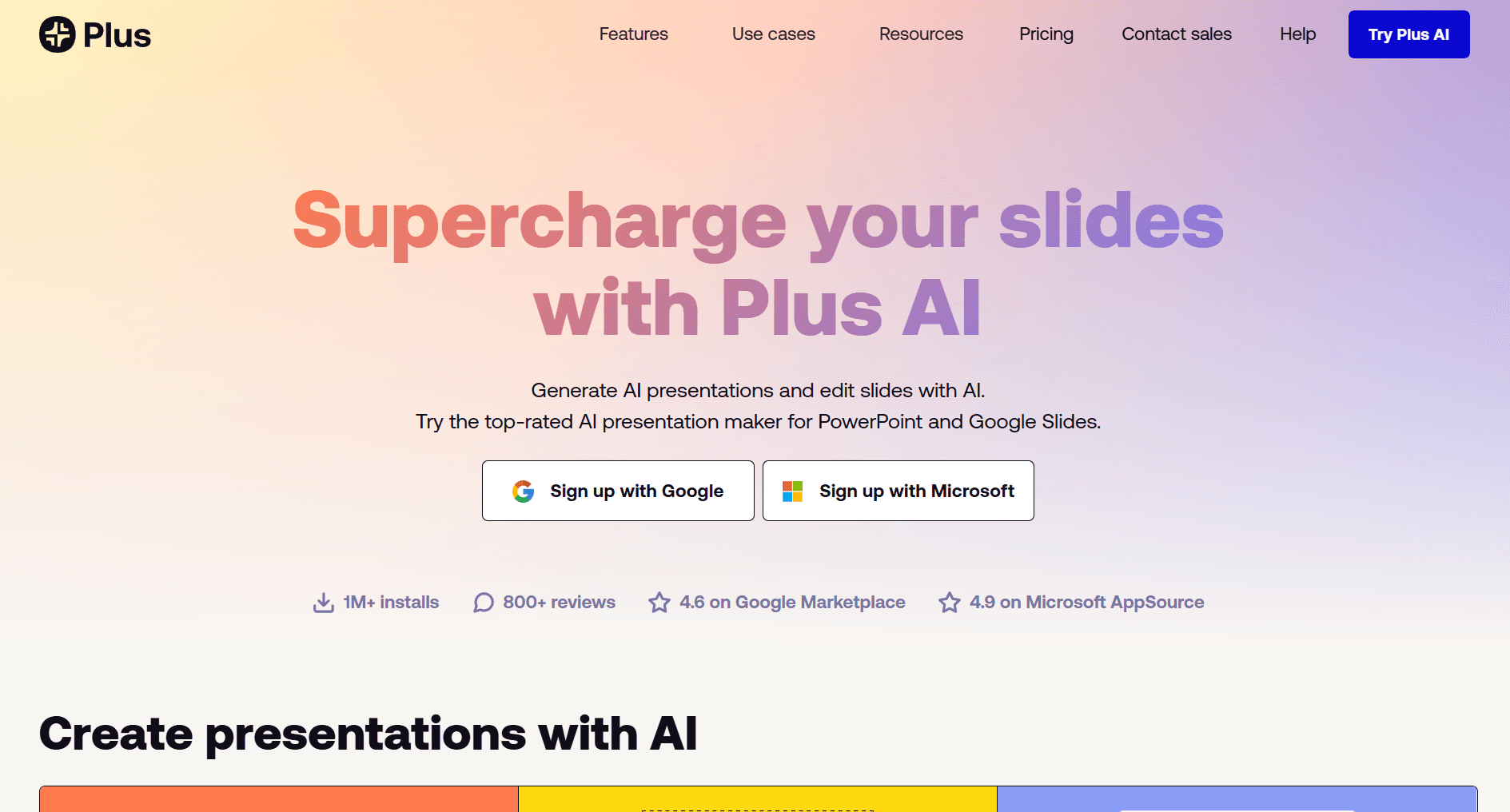
Plus AI: Лучший генератор презентаций с ИИ для PowerPoint и надстройка Google Slides.
Категория: Лучший генератор презентаций с ИИ для PowerPoint | Лучшее для Google Slides
Вердикт: ★★★★☆ - Лучший генератор презентаций с ИИ, если вы работаете в Google Slides или PowerPoint.
Plus AI работает внутри Google Slides как надстройка. Никакой новой платформы. Никакой тревоги по поводу экспорта/импорта. Я открыл Расширения, ввел свой запрос, и слайды сгенерировались прямо в мой документ. Все функции совместной работы работали, потому что я никогда не покидал Google Slides.
«Живые снимки» — это действительно умно. Я встроил живой скриншот аналитической панели, который обновляется одним щелчком мыши. Для повторяющихся презентаций, таких как ежемесячные отчеты, это реальная экономия времени.
Но по сравнению с другими инструментами, вывод Plus AI отстает по качеству дизайна. Макеты базовые. Варианты дизайна ограничены тем, что предлагает Google Slides. Вы по-прежнему вручную настраиваете интервалы, потому что Google Slides также не имеет адаптивного холста. Plus AI делает Google Slides лучше. Он не делает Google Slides великолепным.
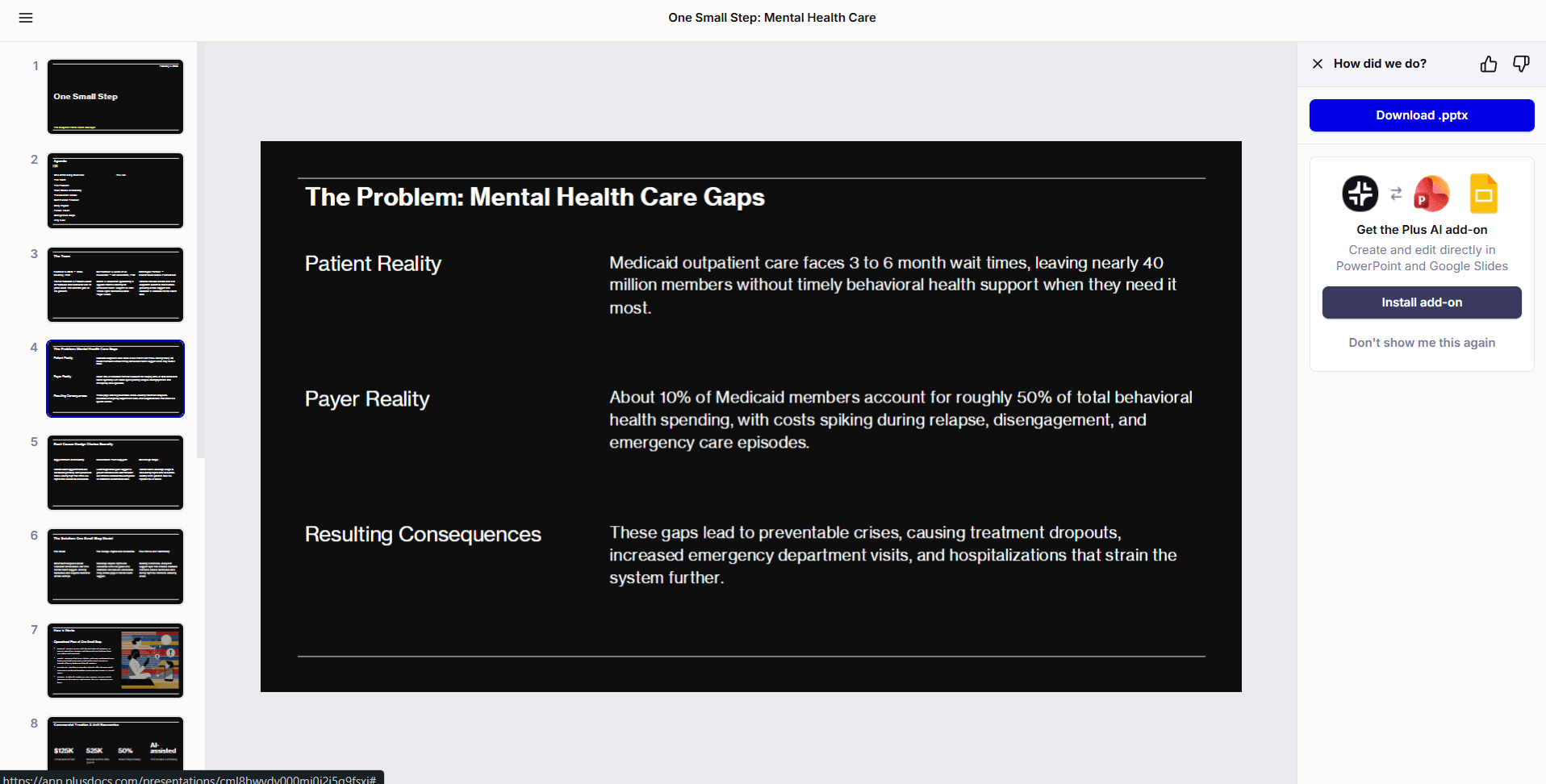
Вывод Plus AI уступает по качеству дизайна таким инструментам, как Alai и Gamma.
Ключевые особенности:
Нативная интеграция: Работает внутри Google Slides и PowerPoint как надстройка, а не отдельное приложение. Генерируйте, редактируйте и сотрудничайте, не покидая существующего рабочего процесса.
Живые снимки: Встраивайте живые скриншоты из любого приложения, панели или веб-сайта прямо в слайды. Один щелчок обновляет все снимки в вашей презентации, больше не нужно вручную обновлять диаграммы перед встречами.
Поддержка пользовательских шаблонов: Загрузите свой фирменный шаблон (Pro/Team), и Plus AI сгенерирует контент, который точно соответствует вашим макетам, шрифтам и цветам. Enterprise поддерживает сложные мастер-слайды с более чем 25 типами слайдов.
Сохраненные запросы и контекст: Храните информацию о компании, данные клиентов и предпочтения по тону, которые запоминает Plus AI. Создавайте многоразовые запросы для повторяющихся презентаций — создайте один раз, используйте каждый квартал со свежими данными.
Плюсы:
Работает непосредственно в Google Slides и PowerPoint, без экспорта, без проблем с совместимостью.
Нулевая кривая обучения для команд, уже работающих в Google Workspace.
Функции совместной работы (комментарии, общий доступ, история версий) работают нативно.
Соответствие SOC 2 Type II — безопасность корпоративного уровня
Минусы:
Не является автономным инструментом, для работы требуется Google Slides или PowerPoint
Нет бесплатного тарифа, только 7-дневная пробная версия с обязательным указанием кредитной карты
Результат может быть слишком общим для специализированного или технического контента
Ограниченные возможности настройки дизайна по сравнению с нативными инструментами ИИ
ИИ создает базовые макеты, а вам приходится вручную настраивать интервалы и выравнивание. Ограниченное разнообразие в структурировании контента.
Для кого это:
Команды, работающие в Google Workspace, консультанты, которым нужен нативный вывод Google Slides, организации, желающие улучшить существующие рабочие процессы, а не внедрять новый инструмент
Когда выбрать Plus AI:
Ваша команда работает в Google Slides. Работает именно там, где вы уже работаете.
У вас есть установленные шаблоны. ИИ работает в вашей системе.
Пропустите, если вам нужен творческий контроль над дизайном или автономный инструмент.
Цены:
7-дневная бесплатная пробная версия: полный доступ, требуется кредитная карта, отмена в любое время до окончания пробного периода
Базовый: $10/мес (годовая подписка) или $15/мес (ежемесячная подписка): неограниченное количество презентаций с ИИ, Live Snapshots, базовое сотрудничество
Профессиональный: $20/мес (годовая подписка) или $30/мес (ежемесячная подписка): пользовательские темы, более длинные запросы, расширенные функции
Командный: $30/мес (годовая подписка) или $40/мес: пользовательские шаблоны, общие библиотеки, административный контроль, настройки бренда для всей команды
Корпоративный: Индивидуальные цены: расширенная поддержка шаблонов, SSO, выделенный менеджер по адаптации
Если плагины PowerPoint — это не то, что вы ищете, я также составил список альтернатив PowerPoint , которые вы можете посмотреть.
Pitch: Лучший ИИ-генератор презентаций для отслеживания продаж и аналитики

Категория: Лучшее для отделов продаж
Вердикт: ★★★★☆ — Отлично подходит для отделов продаж, слабее как чистый ИИ-генератор презентаций.
Главное преимущество Pitch — не генерация ИИ. Это то, что происходит после отправки колоды. «Pitch Rooms» объединяют презентацию с вспомогательными материалами: видео о продукте, PDF с ценами, кейс-стади, ссылку Calendly. Аналитика показывает, что именно произошло, когда потенциальные клиенты открыли колоду. Какие слайды были просмотрены? Сколько времени потрачено на каждый? Они посмотрели видео? Нажали на планирование?
Когда я поделился тестовой Pitch Room, я увидел, что мой зритель потратил 3 минуты на цены и 10 секунд на историю компании. Это точно подсказало мне, на чем акцентировать внимание в дальнейшем. Это информация, которая помогает вам быть готовым.
Что касается генерации колоды, Pitch создает первые черновики, которые требуют довольно много доработки — его ИИ не всегда понимает дизайн презентаций, и слайдам часто не хватает визуальной глубины и иерархии (как показано ниже).

Лично я бы использовал Pitch скорее как дополнение к своим колодам для аналитики и управления, чем для создания самой колоды.
Ключевые особенности:
Pitch rooms: Объединяйте колоды, видео, PDF-файлы и ссылки для планирования в одном общем пространстве для потенциальных клиентов. Отслеживайте вовлеченность по каждому активу, смотрите, какие слайды помогли заключить сделку, а какие были пропущены.
Аналитика вовлеченности: Расширенные ссылки показывают, кто именно открыл вашу колоду, какие слайды он просмотрел и сколько времени потратил на каждый. Требуйте ввод электронной почты или пароли для контролируемого доступа.
Сотрудничество в реальном времени: Совместное редактирование с вашей командой одновременно, назначение слайдов коллегам, установка статусов (черновик, на проверке, окончательный) и передача во время презентации с бесшовным совместным представлением.
Интерактивные встраивания: Вставляйте прототипы Figma, базы Airtable, виджеты Calendly или видео Loom непосредственно в слайды. Контент остается живым и кликабельным во время презентаций.
Интеграция с HubSpot и CRM: Создавайте pitch rooms, предварительно заполненные данными о компании из HubSpot, прикрепляйте колоды к сделкам и отслеживайте вовлеченность, не выходя из рабочего процесса CRM.
Плюсы:
Сотрудничество в реальном времени, созданное для команд — комментарии, назначения, статусы слайдов
Pitch rooms позволяют объединять колоды, ресурсы и ссылки для планирования для потенциальных клиентов
Аналитика вовлеченности показывает, кто открыл вашу колоду, какие слайды просмотрел, сколько времени потратил
Сильные интеграции (HubSpot, Slack, Notion, Loom) для рабочих процессов продаж
Щедрый бесплатный план с неограниченным количеством презентаций
Минусы:
Ограничения дизайна могут показаться жесткими — отлично для единообразия, но ограничивает творческий контроль
Экспорт в PowerPoint иногда приводит к потере форматирования или анимации
Функции ИИ менее развиты, чем в нативных инструментах ИИ, лучше подходят для доработки, чем для генерации
Ограниченные возможности диаграмм и фигур по сравнению с другими инструментами
Интерфейс только на английском языке
Ручное размещение элементов — вам приходится самостоятельно настраивать размер и интервалы из-за отсутствия адаптивного холста. Ограниченные возможности диаграмм и фигур ограничивают разнообразие макетов (инструменты, такие как Alai и Beautiful AI, имеют больше опций)
Для кого это:
Отделы продаж, управляющие многоканальным взаимодействием с потенциальными клиентами, агентства, отправляющие клиентские материалы, стартапы, которым нужны отполированные инвестиционные колоды с отслеживанием вовлеченности
Когда выбрать Pitch:
Вы продаете, а не просто презентуете. Pitch Rooms и аналитика дают представление о вовлеченности потенциальных клиентов.
Сотрудничество в реальном времени имеет значение. Команды остаются согласованными без хаоса версий.
Пропустите, если генерация ИИ является вашим приоритетом или вам нужен точный творческий контроль.
Цены:
Бесплатно: $0 навсегда — до 5 участников (все администраторы), 100 кредитов ИИ (одноразово, не продлевается), неограниченное количество презентаций, только брендированный экспорт
Профессиональный: $20/мес или ~$17/мес при годовой оплате ($204/год) — включает 2 места, дополнительные места ~$13/мес при годовой оплате ($156/год), до 25 участников, 25 расширенных ссылок, 2 pitch rooms, пользовательские шрифты, небрендированный экспорт PDF/PPTX, 30-дневная история версий
Бизнес: $80/мес или ~$68/мес при годовой оплате ($816/год) — включает 5 мест, дополнительные места ~$17/мес при годовой оплате ($204/год), до 200 участников, неограниченное количество расширенных ссылок, неограниченное количество pitch rooms, коллекции библиотеки активов, приоритетная поддержка
Корпоративный: Индивидуальные цены (30+ мест) — SAML SSO, выставление счетов, выделенный менеджер по успеху, индивидуальная адаптация
SlidesAI: Лучший дешевый ИИ-генератор PowerPoint
Категория: Лучший ИИ-генератор PowerPoint (бюджетный)
Вердикт: ★★★☆☆ — Дешево, работает в Google Slides и PowerPoint, вывод требует доработки.
SlidesAI преобразовал мой текст в слайды. Вот и все.
Я ввел свой запрос и получил 10-слайдовый план. Структура была логичной: проблема, решение, рынок, динамика, команда, запрос. Но сгенерированные слайды были скудными, а форматирование требовало доработки. Например, как видно на слайде ниже — нужно исправить интервалы, а изображение ИИ нужно удалить или изменить, так как оно не соответствует содержанию.

При цене менее 10 долларов в месяц вы получаете то, за что платите. SlidesAI не конкурирует с Alai по качеству. Он конкурирует по цене. Для школьных проектов или внутренних совещаний, где «достаточно хорошо» действительно достаточно хорошо, 10 долларов в месяц — это разумная цена.
Ключевые особенности:
150+ шаблонов: Выбирайте из профессионально разработанных тем, которые применяют единообразный стиль. Настраивайте цвета и шрифты в соответствии с вашим брендом на вкладке «Настройка».
Magic Write: Перефразируйте и улучшайте содержимое слайдов непосредственно в инструменте. Помогает отшлифовать неуклюжие предложения, не покидая Google Slides.
Встроенный перевод: Переводите всю презентацию на 100+ языков одним щелчком мыши. Удобно для международных команд или многоязычной аудитории.
Ремикс макетов: Переорганизуйте текст и визуальные элементы на любом слайде, чтобы попробовать различные дизайны без перестройки с нуля. Быстрый способ экспериментировать с форматированием.
Плюсы:
Чрезвычайно доступный — тариф Pro менее $10/месяц
Работает в Google Slides и PowerPoint — не нужно изучать новое приложение
Поддерживает более 100 языков со встроенным переводом
Хорошо подходит для студентов и преподавателей с ограниченным бюджетом
Минусы:
Ограниченная сложность ИИ, базовое преобразование текста в слайды, не стратегическое построение презентаций
Качество вывода непостоянно — часто требуется значительное ручное редактирование
Нет предустановок для распространенных типов презентаций (презентации для инвесторов, ежеквартальные отчеты)
Для кого это:
Студенты, создающие классные презентации, преподаватели, разрабатывающие учебные материалы, профессионалы с ограниченным бюджетом, которым нужны быстрые черновики, любой, кому нужны «достаточно хорошие» слайды быстро и без больших затрат
Когда выбрать SlidesAI:
Вам нужны слайды быстро и дешево, и вы готовы к ручной доработке.
Отлично подходит для большого объема презентаций с низкими ставками, где стоимость важнее качества.
Пропустите, если вам нужно профессиональное качество без серьезного редактирования.
Цены:
Базовый (бесплатно): $0 — 3 презентации в месяц, ограничение ввода 2500 символов, 10 кредитов ИИ в месяц
Профессиональный: $10/мес ежемесячно или $8.33/мес ежегодно ($100/год) — 10 презентаций в месяц (120/год при годовой подписке), ввод 6000 символов, 50 кредитов ИИ в месяц (600/год при годовой подписке), загрузка документов
Премиум: $20/мес ежемесячно или $16.67/мес ежегодно ($200/год) — неограниченное количество презентаций, ввод 12000 символов, 100 кредитов ИИ в месяц (1200/год при годовой подписке), загрузка документов
Prezi AI: Лучший конструктор презентаций для нелинейных презентаций
Категория: Лучшее для дизайнеров и творческих команд (нелинейное)
Вердикт: ★★☆☆☆ — Уникальный формат, проваливается при экспорте в PowerPoint и живой презентации.
Буду прямолинеен: адаптироваться к уникальному холсту Prezi было непросто.
Масштабируемый холст действительно отличается. Вместо линейных слайдов вся ваша презентация существует на одном большом холсте. Увеличивайте масштаб для деталей, уменьшайте для контекста. Креативная концепция.
Но хотя масштабируемый холст казался уникальным, постоянное масштабирование и панорамирование вызывало легкое головокружение на 27-дюймовом мониторе. Я мог бы представить использование этого для маркетингового актива продукта или видео, но презентация этого по звонку привела бы к тому, что и я, и мой потенциальный клиент больше сосредоточились бы на масштабировании, чем на продукте.
Что касается вывода, хотя макет каждого слайда казался уникальным, создавалось впечатление, что ИИ сосредоточился на том, чтобы слайды выглядели хорошо, но не были полезными. Тексты и шрифты иногда были слишком мелкими, чтобы их можно было легко прочитать (как показано ниже). Кроме того, ИИ часто не понимал, насколько важен каждый элемент контента — как видно ниже, хотя заголовок получил визуальную важность, ИИ не смог предоставить достаточно места для основных пунктов содержания слайда.

Плюс, для многих это решающий фактор: вы не можете экспортировать в PowerPoint. Импортировать PPTX — да. Экспортировать обратно — нет. Создайте что-то в Prezi, если вам это нужно где-то еще, переделайте с нуля.
Ключевые особенности:
Масштабируемый холст: Вместо линейных слайдов вся ваша презентация находится на одном большом холсте. Увеличивайте масштаб для деталей, уменьшайте для контекста. Создает кинематографический поток, который помогает аудитории увидеть, как идеи связаны.
Prezi Video: Накладывайте свой контент рядом с собой на экране во время звонков Zoom, вебинаров или записанных видео. Вы остаетесь видимым во время презентации, поддерживая вовлеченность аудитории в удаленных условиях.
Режим докладчика с заметками: Просматривайте свои заметки докладчика, инструменты тайминга и навигацию на отдельном экране, пока ваша аудитория видит чистую презентацию. Важно для живых выступлений.
Аналитика (Премиум): Отслеживайте, кто просмотрел вашу презентацию, какие разделы привлекли внимание и общую вовлеченность. Полезно для коммерческих предложений и презентаций для инвесторов, где важен последующий контакт.
Плюсы:
Единственный крупный инструмент с масштабируемым холстом: увеличивайте масштаб для деталей, уменьшайте для общей картины, создавая кинематографический поток, который не может сравниться ни с одной слайдовой презентацией.
Prezi Video меняет правила игры для удаленных презентаций: вы появляетесь НА своем контенте во время звонков Zoom, а не рядом с общим экраном.
Нелинейная навигация позволяет аудитории видеть, как идеи связаны, вместо того чтобы пролистывать отдельные слайды.
Фокус на движении и повествовании делает сложные темы (пути клиентов, временные шкалы, системное мышление) действительно увлекательными.
Минусы:
ИИ кажется прикрученным, это скорее подсказки и предложения, а не настоящая генерация ИИ, как в новых инструментах
Эффект масштабирования может вызывать укачивание или отвлекать, если используется чрезмерно
Кривая обучения для освоения интерфейса на основе холста
Нет экспорта в PPTX, можно импортировать PowerPoint, но нельзя экспортировать обратно
Функции совместной работы отстают от конкурентов (нет совместного редактирования в реальном времени на более низких тарифах)
Редактирование на мобильных устройствах неудобно; опыт работы в основном на настольных компьютерах
Для кого это:
Преподаватели, которым нужны визуально привлекательные уроки, публичные ораторы, создающие рассказы, тренеры, объясняющие сложные процессы, маркетологи, выступающие на конференциях или вебинарах
Когда выбрать Prezi:
Ваша презентация — это история, а не свалка данных. Масштабируемый холст показывает, как идеи связаны.
Prezi Video позволяет вам оставаться видимым во время удаленных презентаций.
Пропустите, если вам нужен экспорт в PPTX, вы считаете движение отвлекающим или вам нужен традиционный формат для корпоративной среды.
Цены:
Индивидуальные планы (оплата ежегодно):
Бесплатно: До 5 проектов, брендинг Prezi, только базовые функции
Стандарт: $5/мес — 5 кредитов ИИ в месяц, неограниченное количество презентаций, базовые шаблоны, онлайн-презентации
Плюс: $12/мес — неограниченный ИИ, режим докладчика, озвучивание, экспорт в PDF, настольное приложение с автономным доступом, загрузка видео, удаление брендинга Prezi
Премиум: $16/мес — все в Plus + Prezi Analytics, расширенное обучение, телефонная поддержка
Бизнес-планы (оплата ежегодно):
Команды: $29/пользователь/мес — все в Premium + командная работа, общий набор брендов, централизованное выставление счетов
Корпоративный: Индивидуальные цены — SSO, расширенные административные элементы управления, выделенная поддержка
Образовательные планы:
EDU Plus: Скидка для проверенных студентов/преподавателей — неограниченный ИИ, автономный доступ, экспорт в PDF
EDU Pro: Все в EDU Plus + аналитика для отслеживания успеваемости в классе
14-дневная бесплатная пробная версия доступна для всех платных планов.
Chronicle: Лучшее программное обеспечение для презентаций с ИИ для живых и интерактивных презентаций
Категория: Лучшее для дизайнеров и творческих команд
Вердикт:★★★☆☆ - Мощные функции для проведения презентаций, нет экспорта в PowerPoint.
Ценность Chronicle заключается в проведении, а не в создании.
Функции «Peek» (Подсмотреть) и «Deep Hover» (Глубокое наведение) дают докладчикам прямой контроль над вниманием аудитории во время живых презентаций. Наведение курсора на точку данных затемняет все остальное, а число увеличивается — это действительно полезно для докладчиков, направляющих внимание аудитории в реальном времени.
Виджетный подход к созданию также отличает его от традиционных редакторов слайдов. Предварительно разработанные компоненты имеют встроенную интерактивность и анимацию: диаграммы анимируются при появлении, изображения имеют состояния наведения, и все выглядит отполированным, потому что каждый компонент разработан как законченная единица.
Создание — это то, в чем Chronicle отстает. Первый черновик был приличным, но требовал значительной ручной доработки — текст накладывался на слайды, нерегулярные интервалы между элементами. Инструмент быстро приводит вас к чему-то, но не к законченному результату.
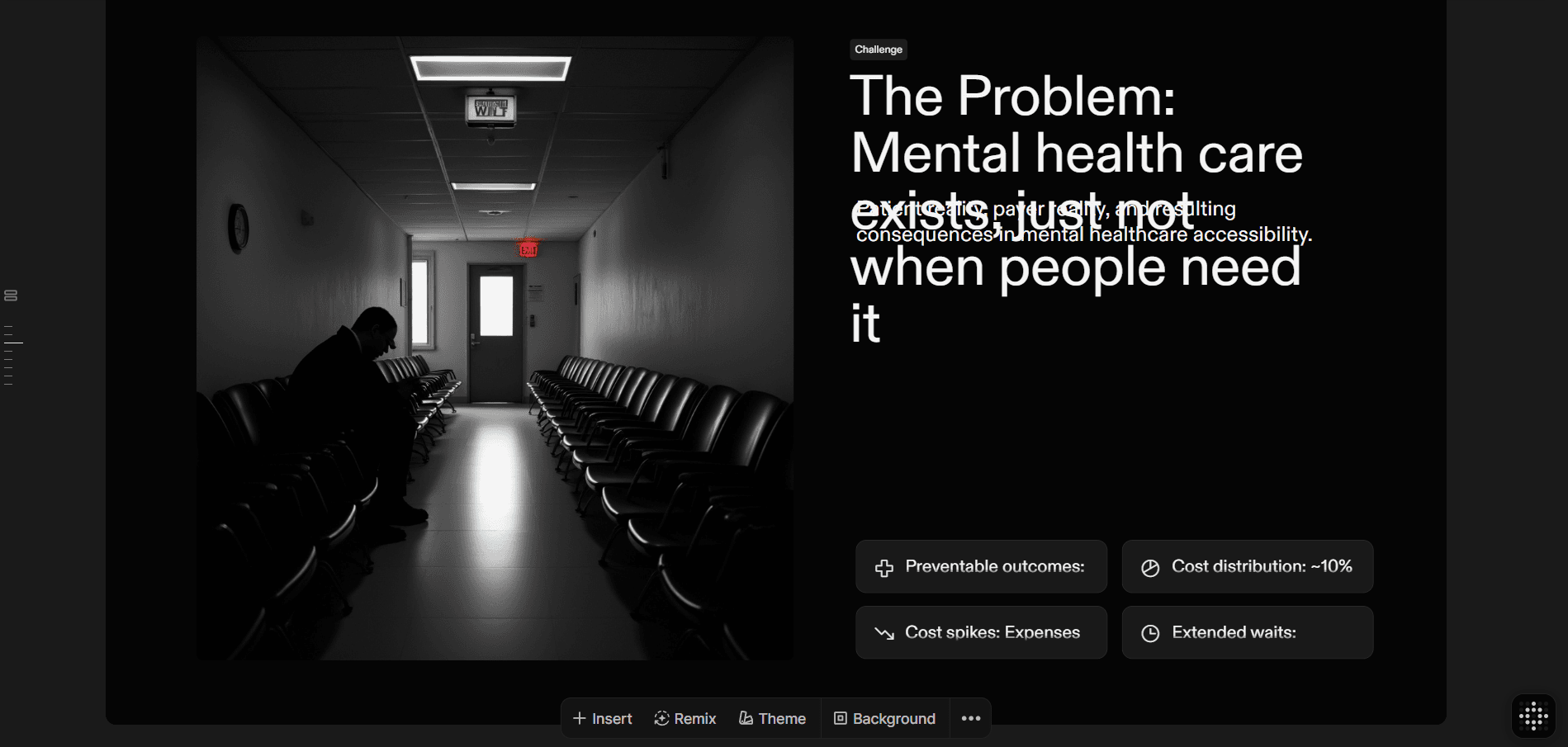
Нет экспорта в PowerPoint. Презентации Chronicle живут в Chronicle.
Ключевые особенности:
Создание на основе виджетов: Предварительно разработанные карточки, диаграммы, временные шкалы и встраиваемые элементы со встроенной интерактивностью и движением, перетаскиваются на свободный холст, затем используется функция «Tidy Up» (Привести в порядок) для выравнивания элементов в аккуратные макеты.
Инструменты контроля внимания: Peek и Deep Hover позволяют докладчикам увеличивать, выделять или изолировать элементы, чтобы направлять внимание аудитории во время живых презентаций.
Совместная работа в реальном времени: Совместное редактирование с живыми курсорами и командными рабочими пространствами, реакции аудитории во время презентаций.
Плюсы:
Функции управления вниманием (Peek, Deep Hover) уникальны — масштабируйте, выделяйте или изолируйте элементы, чтобы точно контролировать то, что видит ваша аудитория во время живых презентаций.
Создание на основе виджетов со встроенным движением делает презентации более динамичными, чем традиционные слайды.
Рабочий процесс, ориентированный на клавиатуру, ускоряет создание после освоения горячих клавиш.
Свободный холст дает творческую гибкость, а функция «Tidy Up» поддерживает аккуратные макеты.
Минусы:
Нет импорта PowerPoint, можно импортировать PDF, но нельзя экспортировать обратно в PPTX, что ограничивает использование в организациях, ориентированных на PowerPoint.
Каждый элемент требует ручного размещения и изменения размера. Нет готовых компонентов, таких как временные шкалы или сравнительные таблицы, что требует создания каждого слайда с нуля.
Более крутая кривая обучения, чем у традиционных инструментов для слайдов; парадигма виджетов требует привыкания.
Библиотека шаблонов все еще растет; меньше отправных точек, чем у признанных конкурентов.
Некоторые расширенные функции, такие как редактирование изображений, все еще дорабатываются.
Нет экспорта в PowerPoint. Для команд, выбирающих между Chronicle и инструментами с поддержкой PPTX, я подробно рассмотрел лучшие альтернативы Chronicle.
Для кого это:
Докладчики, которые проводят живые презентации и нуждаются в контроле внимания аудитории, команды, создающие интерактивные отчеты и кейсы, а также все, кто создает презентации, ориентированные на повествование, где вовлеченность важнее статических слайдов.
Когда выбрать Chronicle:
Вы проводите живые презентации и хотите использовать такие инструменты, как Peek и Deep Hover, для управления вниманием.
Вам нужны презентации, публикуемые в Интернете, со встроенной аналитикой.
Пропустите, если вам нужен экспорт в PowerPoint или вы работаете в организациях, ориентированных на PPTX.
Цены:
Бесплатно: Неограниченное количество документов/виджетов, 100 токенов AI, базовые темы, веб-публикация, экспорт в PDF/соцсети, 1 гостевой редактор.
Pro: 12 $/пользователь/месяц (годовая подписка) или 15 $/месяц — 250 токенов/месяц, импорт, пользовательские темы, удаление брендинга, 3 гостевых редактора.
Plus: 25 $/пользователь/месяц (годовая подписка) или 30 $/месяц — 1000 токенов/месяц, неограниченное количество гостевых редакторов, приоритетная поддержка.
Gemini Canvas: Лучший инструмент AI PPT для экосистемы Google.
Категория: Лучше всего для Google Slides
Вердикт: ★★★☆☆ - Комплексная ценность, если вы уже платите за Google AI Pro, слаб как отдельный инструмент для создания презентаций с ИИ.
Gemini Canvas извлек контент из моего Google Drive и сгенерировал презентацию. Интеграция бесшовна, если вы уже платите за Google AI Pro. Я упомянул тему, и он сослался на документы месячной давности, ничего не загружая.
Но с Gemini вы получаете нулевой визуальный контроль во время генерации. Нет выбора шаблона. Нет опций макета. Вы получаете то, что ИИ производит на основе вашего запроса. Вывод выглядел как контент, сгенерированный ИИ. Базовые макеты, общие изображения, пригодные, но не вдохновляющие.
Подробное описание запроса улучшает результаты. Когда я указал «минимальный макет, темный фон, крупные заголовки без засечек», я получил лучший результат. Но пользователям не нужен такой уровень инженерии запросов.
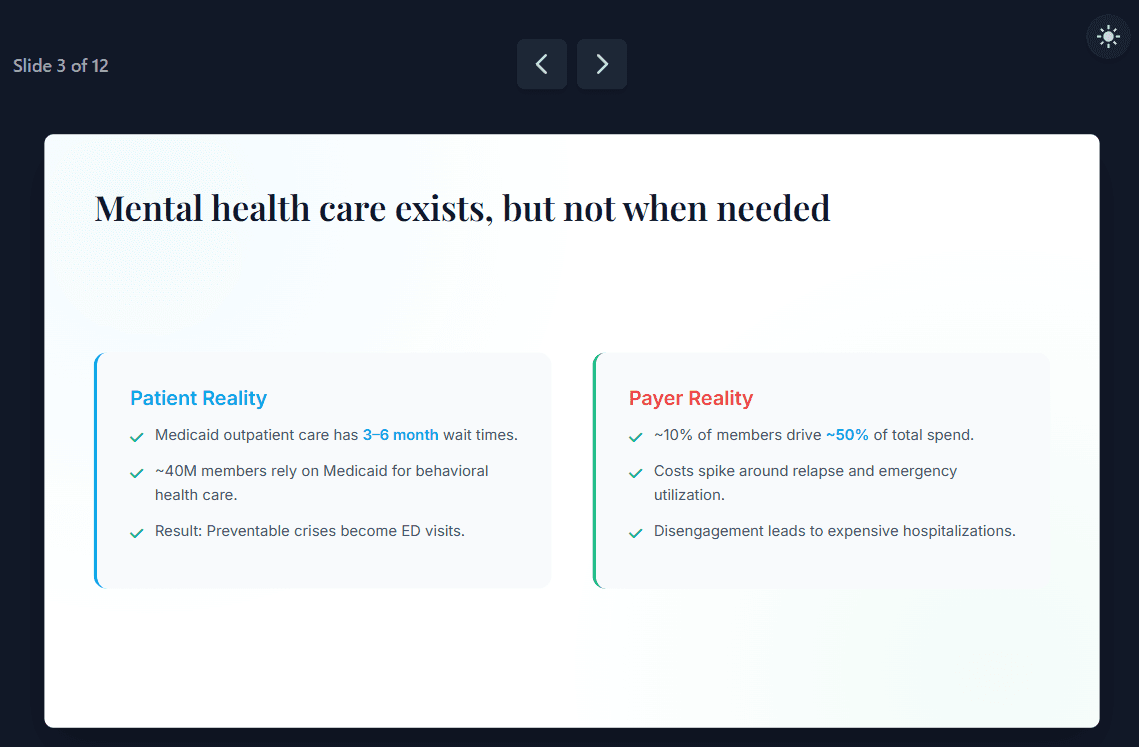
Пример вывода Gemini
Кроме того, редактирование в Gemini утомительно. Без элементов управления, специфичных для элементов, вы застряли в постоянном обмене запросами, и если вы не можете точно описать, что хотите изменить, вы остаетесь с тем, что имеете. Единственная реальная альтернатива — экспорт в Google Slides и редактирование там, что подрывает смысл использования Gemini в первую очередь.
Ключевые особенности:
От запроса к презентации: Опишите тему или загрузите источник (PDF, документ, электронную таблицу, научную статью), и Gemini сгенерирует полную презентацию со структурированным текстом, визуальными элементами и согласованным оформлением.
Экспорт в Google Slides: Экспорт в Google Slides в один клик для нативного редактирования, совместной работы и обмена, без проблем с конвертацией формата.
Интеграция контекста: Извлекайте контент из Google Drive, Gmail, Docs и Calendar для синтеза многоисточниковых брифингов в презентации.
Глубокая интеграция исследований: Генерируйте исследовательские отчеты в Canvas, затем конвертируйте их в презентации, инфографику или интерактивные веб-страницы.
Gemini в боковой панели Slides: Доступ к помощи ИИ непосредственно в Google Slides для уточнения текста, генерации изображений, суммирования и заметок докладчика.
Плюсы:
Включено в подписку Google AI Pro (20 $/месяц), нет дополнительных затрат на инструмент для презентаций, если вы уже платите.
Бесшовная интеграция с Google Workspace означает, что ваши существующие документы и электронные письма могут мгновенно стать презентациями.
Работает в Интернете и мобильном Интернете (скоро появятся нативные приложения для iOS/Android).
Данные остаются в экосистеме Google, что хорошо для организаций с требованиями соответствия Google Workspace.
Минусы:
Нулевой визуальный контроль во время генерации, нет выбора шаблона, нет опций макета, вы получаете то, что производит ИИ, а затем редактируете вручную в Google Slides.
Качество презентаций непостоянно — общие результаты, нерелевантный контент и слайды, не соответствующие исходному материалу.
Это не инструмент для презентаций, это общее рабочее пространство ИИ, где слайды являются одним из форматов вывода; отсутствуют принципы дизайна, специфичные для презентаций.
Требуется инженерия запросов, для получения достойных результатов необходимы подробные брифы с терминологией дизайна, в отличие от специально разработанных инструментов, которые работают с простыми запросами.
Ограничения экспорта — прямые загрузки изображений не могут быть включены в экспорт слайдов; диаграммы работают, но внешние медиа требуют ручного вмешательства.
Дизайн может выглядеть базовым по сравнению с нативными инструментами для презентаций с ИИ; кажется, что это контент, сгенерированный ИИ, а не слайды дизайнерского качества.
Для кого это:
Опытные пользователи Google Workspace, которым нужна генерация презентаций с ИИ в комплекте с их существующей подпиской, и команды, которым нужна тесная интеграция с Drive, Docs и Gmail.
Когда выбрать Gemini Canvas:
Выбирайте Gemini Canvas, если вы уже платите за Gemini Pro и хотите избежать еще одной подписки, или если ваш исходный материал находится на Google Drive и вы хотите конвертировать его в один клик. Пропустите его, если вам нужен контроль над дизайном, стабильное качество вывода или функции ИИ, специфичные для презентаций.
Я также рассмотрел сравнение Gemini Canvas с другими инструментами для презентаций с ИИ, если вы хотите получить полную картину.
Цены:
Бесплатно: Базовые функции Canvas, ограниченная генерация презентаций, Gemini 2.5 Flash, ограничения использования.
Google AI Pro: 20 $/месяц — полная генерация презентаций, Gemini 2.5 Pro, Deep Research, 2 ТБ хранилища, Gemini в приложениях Workspace.
Google AI Ultra: 250 $/месяц — самые высокие лимиты доступа, продвинутые модели, приоритетная обработка.
Google Workspace Business: 20 $/пользователь/месяц — Gemini в боковой панели Slides (отдельный набор функций).
12. Napkin AI: Лучший инструмент-компаньон для презентаций с ИИ для преобразования текста в готовые к презентации диаграммы.
Категория: Инструмент-компаньон, а не автономный инструмент для создания презентаций с ИИ
Вердикт: ★★★★☆ - Лучший генератор диаграмм из текста, не полноценный конструктор презентаций.
Хочу сразу сказать: Napkin AI не является полноценным конструктором презентаций и не пытается им быть. Он решает одну конкретную проблему, с которой постоянно сталкиваются каждый консультант, контент-маркетолог и менеджер проектов: создание визуально привлекательных графиков и диаграмм для различных сценариев использования.
Причина, по которой он занимает место в этом обзоре, заключается в том, что он заполняет пробел, который большинство конструкторов презентаций не всегда заполняют. Когда вам нужна точная диаграмма для фреймворка, процесса или сравнения для существующей презентации — Napkin AI генерирует этот визуальный элемент из структурированного текста за считанные секунды.
Когда вы запускаете генерацию на выбранном блоке контента, вы получаете 4-6 различных визуальных вариантов, представляющих различные структурные интерпретации одного и того же текста. Вы выбираете тот, который подходит. Если ни один из автоматически сгенерированных вариантов не подходит, пользовательская генерация (добавлена в июне 2025 года) позволяет указать тип визуального элемента до запуска ИИ. Введите «дайте мне сравнительную таблицу» или «дайте мне временную шкалу», и он построит именно это. Эта функция устраняет большинство циклов регенерации с неправильным макетом, с которыми я сталкивался при тестировании более ранних версий.
Переключение стилей также происходит быстрее, чем кажется. После того, как у вас есть визуальный элемент, вы переключаетесь между предустановками одним щелчком мыши. Блок-схема в стиле по умолчанию чистая и минималистичная. Та же блок-схема в заполненном стиле имеет цветные фоны узлов и более жирные соединители. Содержимое и макет остаются нетронутыми; меняется только визуальное оформление. Для подбора визуального элемента к тону презентации, в которую он будет вставлен, это переключение одним щелчком мыши экономит несколько минут ручной настройки.
Цвета бренда работают непосредственно из загруженного логотипа. В Brand Studio Napkin вы загружаете изображение, и оно автоматически извлекает ваши шестнадцатеричные значения. Никакого ручного ввода кода. Цвета применяются ко всем визуальным элементам немедленно, а сохраненные профили стилей позволяют переключаться между различными наборами брендов в тарифном плане Plus.
Ограничение, о котором стоит четко сказать: абстрактный или нечетко написанный ввод приводит к общему выводу. Инструмент лучше всего работает со структурированным текстом: нумерованными шагами, пунктами сравнения, списками плюсов и минусов, обозначенными этапами. Вставьте «ценности нашей компании», и вы потратите больше времени на редактирование результата, чем сэкономили на его генерации. Кроме того, нет API и нет нативного подключения к Google Slides или PowerPoint, поэтому каждый визуальный элемент требует ручного экспорта и импорта в вашем рабочем процессе.
Ключевые особенности
Генерация текста в визуальные элементы: Более 30 типов диаграмм, включая блок-схемы, ментальные карты, сравнительные таблицы, временные шкалы и диаграммы Венна. ИИ генерирует визуальную структуру из самого контента, а не из шаблона, который вы заполняете.
4-6 вариантов макета для каждого блока контента: Несколько структурных интерпретаций для каждой генерации, плюс пользовательская генерация для предварительного указания типа визуального элемента.
Эластичный дизайн: Визуальные элементы автоматически масштабируются при добавлении или удалении элементов. Добавьте седьмой шаг к шестишаговому потоку, и диаграмма изменится без касания ни одного соединителя.
Набор бренда: Загружайте цвета бренда с помощью автоматического извлечения (загрузите любой логотип или изображение бренда, и Napkin прочитает шестнадцатеричные коды) плюс более 700 шрифтов Google Fonts. Применяйте ко всем визуальным элементам одним щелчком мыши.
Переключение стилей: Переключайтесь между предустановленными визуальными стилями одним щелчком мыши, не затрагивая структуру контента или макета.
Редактируемый экспорт в PPTX: Текстовые поля, фигуры и соединители индивидуально настраиваются в PowerPoint 365. Бесплатный план экспортирует только PNG и PDF.
Наложение эскиза: Рисуйте аннотации, стрелки от руки или метки непосредственно на любом сгенерированном визуальном элементе перед экспортом.
Плюсы
Генерирует профессиональные диаграммы из структурированного текста за 3-8 секунд, быстрее, чем любой другой инструмент по этой цене.
Бесплатный план действительно функционален: 500 кредитов в неделю (сброс каждый понедельник), экспорт в PNG и PDF, кредитная карта не требуется.
Экспорт в PPTX создает индивидуально редактируемые элементы в PowerPoint 365, что встречается реже, чем предполагает большинство описаний инструментов.
Автоматическое извлечение цвета считывает шестнадцатеричные значения из загруженного изображения, без ручного ввода шестнадцатеричного кода.
Эластичный дизайн автоматически настраивает диаграммы при изменении содержимого, без ручного выравнивания.
Пользовательская генерация указывает тип диаграммы до генерации, устраняя цикл неправильного макета.
Мобильные приложения (iOS и Android) запущены в марте 2025 года для просмотра и обмена на ходу
Минусы
Не является автономным инструментом для презентаций. Создает отдельные визуальные активы для импорта в существующую презентацию, а не полные наборы слайдов.
Абстрактный или расплывчатый ввод приводит к общему выводу. Для точных визуальных элементов требуется структурированный, конкретный текст.
Экспорт в PPTX и SVG доступен только в плане Plus (9 $/месяц при годовой подписке). Бесплатный план только PNG и PDF, с водяным знаком Napkin.
Загрузка пользовательских шрифтов доступна только в плане Pro (22 $/месяц при годовой подписке).
Нет API, нет нативной интеграции с Google Slides или Notion. Каждый визуальный элемент требует ручного экспорта и импорта.
Нет истории версий в рамках сессии. Итеративные изменения нельзя отменить, если вы хотите вернуться.
Цены
План | Ежемесячно | Ежегодно | Кредиты | Ключевые ограничения |
Бесплатно | 0 $ | 0 $ | 500/неделя | Только PNG + PDF, водяной знак Napkin |
Плюс | 12 $/мес | 9 $/мес | 10 000/месяц | PPTX + SVG, водяной знак удален, 3 пользовательских стиля |
Про | 30 $/мес | 22 $/мес | 30 000/месяц | Все в Plus, неограниченное количество пользовательских стилей, загрузка шрифтов |
Для кого это
Контент-маркетологи, консультанты и менеджеры проектов, которые хотят создавать диаграммы или графики для существующей презентации и не хотят инвестировать в комплексный инструмент для создания презентаций.
Если вы решаете, стоит ли Napkin AI ваших усилий для вашего конкретного рабочего процесса, прочитайте мой полный обзор Napkin AI.
Когда выбрать Napkin AI
Вы регулярно создаете отдельные визуальные элементы для постов в блогах, постов в LinkedIn или предложений клиентам и вам нужен быстрый, профессиональный результат с редактируемым экспортом в PPTX.
Вы хотите генерировать структурированные визуальные элементы из существующего письменного контента, не подписываясь на комплексный инструмент для создания презентаций.
Пропустите Napkin AI, если вам нужна полная презентация по запросу, автоматизированный конвейер или нативный плагин Google Slides.
13. Genspark AI: Лучший для проверенных фактов, основанных на исследованиях презентаций.
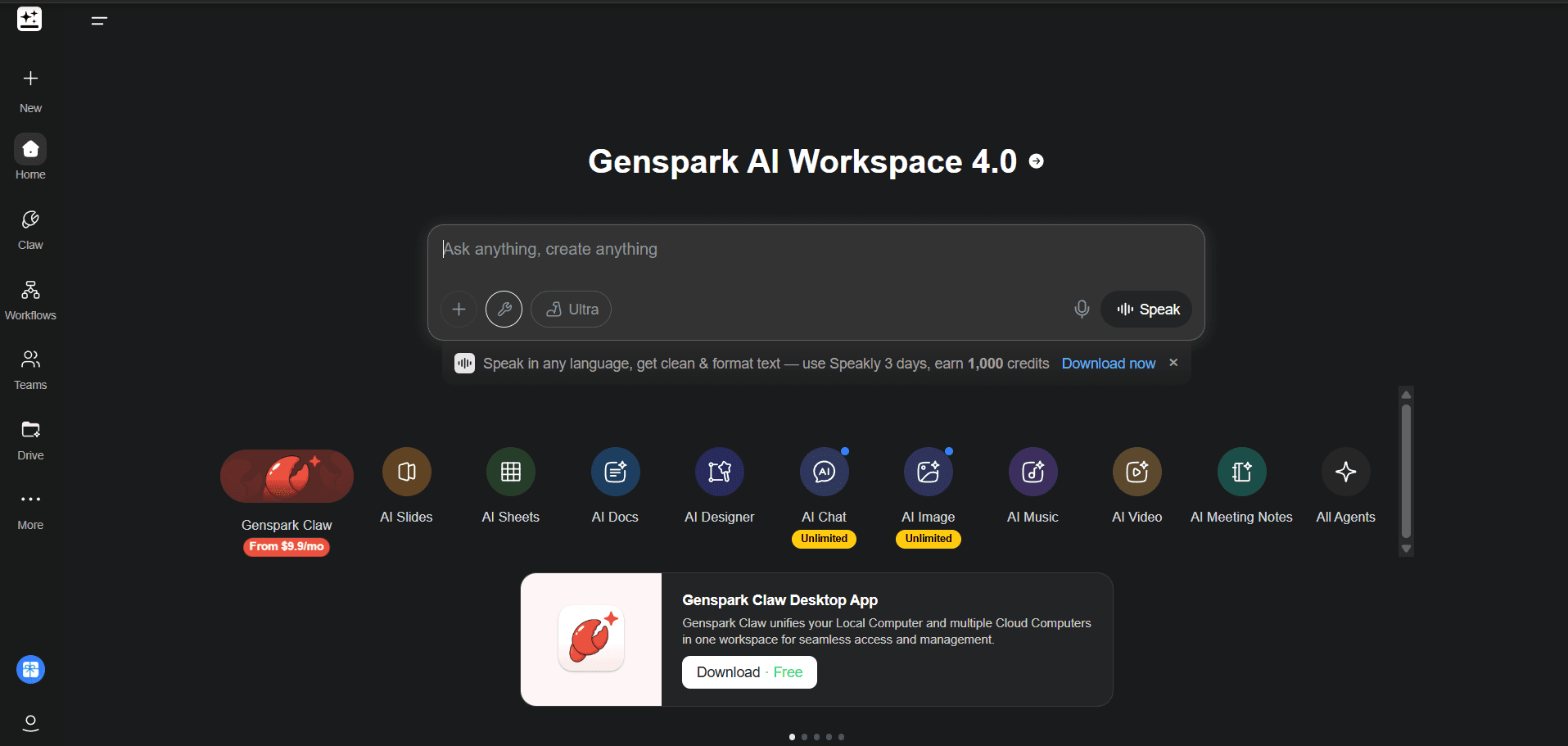
Категория: Лучший для исследований
Удобный для компаньонов Вердикт: ★★★☆☆ - Сильный исследовательский слой, повторяющийся дизайн.
Большинство инструментов для создания презентаций с ИИ — это форматеры. Вы предоставляете контент, а они располагают его на слайдах. Genspark делает нечто действительно иное: он проводит исследование во время создания. Вы задаете тему, и его мультиагентная архитектура развертывает несколько моделей ИИ параллельно для выполнения задач по исследованию, написанию текста и структурированию слайдов как отдельных задач. Полученная презентация создается на основе найденных материалов, а не переформатированных заметок.
Режим Guide Mode — это функция, которая действительно меняет ситуацию. Я запускал один и тот же запрос с ним и без него. Версия с Guide Mode возвращала более четкую сюжетную линию, правильный тон для указанной аудитории и слайды, откалиброванные по правильному объему контента на слайд. Guide Mode задает четыре вопроса перед началом создания: кто аудитория, какова цель, какой формат и продолжительность вы планируете, и насколько аудитория знакома с темой. Затем он показывает полный план и поэтапно проводит генерацию, чтобы вы могли просмотреть его до создания слайдов. Пропуск Guide Mode быстрее. Использование его последовательно дает лучший первый черновик.
Многоагентный конвейер контента также создает текст, который хорошо сочетается по всей презентации. Большинство инструментов с одной моделью пишут каждый слайд изолированно, и это заметно. Повествование Genspark больше похоже на что-то действительно структурированное. Один конкретный момент из тестирования: слайд об истории создания продукта автоматически подтянул фотографии реальных основателей без каких-либо инструкций с моей стороны. Это работа исследовательского слоя.
Где он теряет очки, так это в дизайне. Профессиональный режим следует одной и той же структуре слайд за слайдом: текстовые блоки в рамках с изображением ИИ рядом. Даже когда контент явно требует временной шкалы или диаграммы, макет по умолчанию использует текстовые блоки. Полная презентация из 12 слайдов, созданная в профессиональном режиме, выглядит визуально монотонной уже к 6-му слайду. Креативный режим (Nano Banana Pro) создает привлекательные слайды, но несколько из них в моих тестах вернулись только с заголовком и полноэкранным изображением, без какого-либо фактического содержания (пример приведен ниже).
Загрузка пользовательских шаблонов ненадежна, что имеет практическое значение. Я загрузил фирменный шаблон PowerPoint, ожидая, что шрифты и цвета будут перенесены. Этого не произошло. Планируйте применять фирменный стиль вручную после экспорта, если это важно для вашего случая использования.
Единственная функция, которая оправдывает свое место:проверка фактов для каждого слайда. После генерации вы можете отследить содержание любого слайда до его источника. Ни один другой создатель презентаций с ИИ в этом обзоре не делает этого на уровне слайда. Для презентаций, которые ссылаются на рыночные данные, статистику исследований или внешние утверждения, такое отслеживание источников является настоящей проверкой достоверности.
Мы более подробно рассмотрели Genspark, включая сравнение его режимов генерации, в моемполном обзоре Genspark AI.
Ключевые особенности
Многоагентная архитектура:Направляет исследования, написание текста и структуру слайдов специализированным моделям ИИ одновременно, создавая более связные первые черновики, чем инструменты с одной моделью, при том же запросе.
Режим Guide Mode:Проводит вас через вопросы об аудитории, цели, формате и тоне перед генерацией плана и слайдов. Последовательно улучшает качество первого черновика.
Проверка фактов для каждого слайда:Содержание каждого слайда можно отследить до его источника после генерации. Уникально в этой категории.
Два режима генерации:Профессиональный (структурированные, редактируемые слайды) и Креативный через Nano Banana Pro (вывод с большим количеством изображений). Выберите один заранее.
Несколько типов ввода:Текстовый запрос, PDF, документ Word, файл Excel или существующий PowerPoint.
Гибкий экспорт:PPTX, PDF или прямая отправка в Google Slides.
Плюсы
Глубина контента выше среднего: многоагентное исследование создает связный текст, который образует единое повествование по всей презентации.
Режим Guide Mode заметно улучшает структуру и тон первого черновика для сложных тем.
Проверка фактов для каждого слайда отслеживает утверждения до их источников, что полезно для презентаций, содержащих много данных.
Изображения привязаны к содержанию конкретного слайда, а не к общей теме презентации.
200 бесплатных кредитов в день достаточно для регулярного индивидуального использования и тщательного тестирования.
Прямой экспорт в Google Slides доступен на всех планах.
Минусы
Макеты в профессиональном режиме повторяются: ограниченное визуальное разнообразие от слайда к слайду независимо от типа контента.
Креативный режим (Nano Banana Pro) иногда создает визуально эффектные, но малосодержательные слайды.
Загрузка пользовательских шаблонов ненадежна: фирменные шрифты и цвета часто не переносятся чисто.
Экспорт PPTX требует форматирования перед тем, как файл будет готов к презентации.
Качество дизайна заметно уступает специализированным инструментам, таким как Alai или Gamma.
Цены резко возрастают с бесплатного ($0, 200 кредитов/день) до Plus ($24.99/месяц) без промежуточного варианта.
Цены
План | Цена | Кредиты | Ключевые особенности |
Бесплатно | $0 | 200/день | Полная генерация слайдов, экспорт PPTX + PDF + Google Slides |
Плюс | $24.99/мес | Более высокие лимиты | Неограниченная генерация слайдов, приоритетная обработка |
Про | $249.99/мес | Самые высокие лимиты | Функции для предприятий, расширенные задачи агентов |
Для кого это
Для контент-команд, консультантов и исследователей, которым нужны презентации, созданные на основе актуальной, проверенной информации, и которые хотят иметь возможность проверять каждое утверждение после генерации. Если презентация требует актуальных данных, свежей статистики или синтеза из нескольких источников, исследовательский слой Genspark добавляет ценность, которую не могут предложить такие форматеры, как Canva или Beautiful AI.
Когда выбирать Genspark
Ваша презентация требует много исследований, и у вас нет времени самостоятельно собирать исходные материалы.
Вам нужна проверка фактов для каждого слайда в качестве уровня верификации утверждений, сгенерированных ИИ, перед внешним распространением.
Вы готовы к ручной доработке дизайна после экспорта и больше заботитесь о точности контента, чем о визуальном качестве первого черновика.
Пропустите Genspark, если качество дизайна является приоритетом с первого черновика, или если вам требуется надежное применение фирменного шаблона.
14.Manus AI: Лучший для полностью автономной генерации презентаций с приоритетом исследований
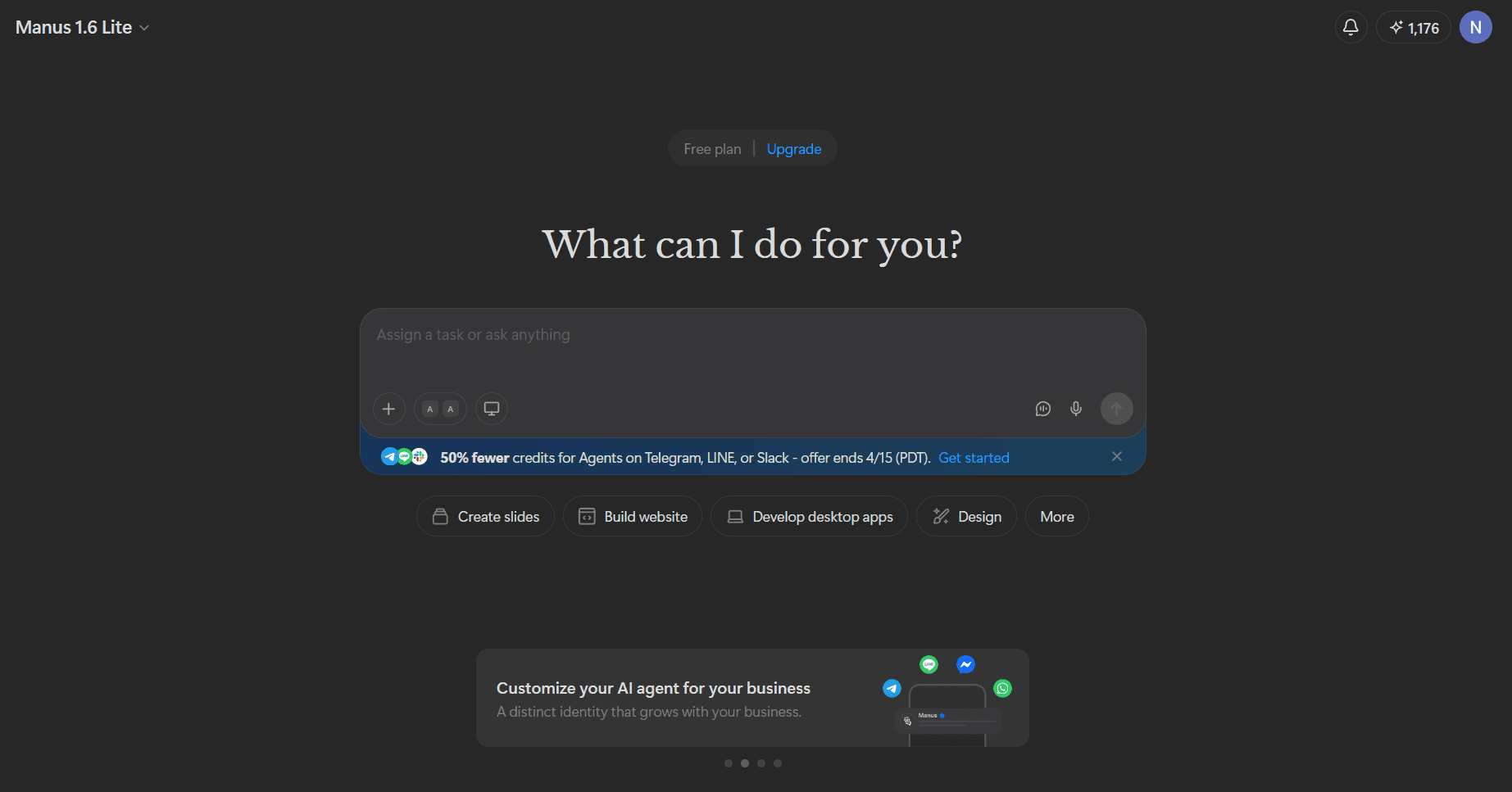
Категория:Лучший для исследований
Вердикт:★★★☆☆ - Самый автономный инструмент из протестированных, дизайн требует доработки.
Manus — самый автономный инструмент для презентаций, который я тестировал. Это универсальный агент ИИ, который берет задачу и выполняет ее в несколько этапов без вашего участия на каждом из них. Вы отправляете краткое описание, появляется журнал исследования в реальном времени, показывающий, что именно он делает, и вы возвращаетесь к готовой презентации. Что отличает его от Genspark, так это автономность: Genspark генерирует и передает вам презентацию для редактирования. Manus планирует, исследует, пишет и корректирует, прежде чем предоставить результат.
Качество контента — самый сильный аргумент в пользу Manus. Claude 3.7 Sonnet занимается написанием, и это заметно. Для теста презентации для инвесторов Manus подтянул актуальные рыночные данные, сослался на источники для каждого слайда и создал повествование, которое держалось от проблемы до запроса. Интеграции с рабочим пространством также добавляют реальную практическую ценность: подключите Gmail, Slack, Google Drive или Notion, и Manus будет напрямую извлекать информацию из ваших существующих документов, без копирования и вставки в запрос.
Дизайн — это его слабое место. Загрузка фирменных шаблонов непоследовательна: шрифты и цвета не переносились чисто в моих тестах. Базовое качество компетентно, но плоско. Для презентаций инвесторам или клиентам Manus лучше всего подходит как инструмент для первого черновика, который вы затем дорабатываете в Alai или PowerPoint. Экспорт PPTX также может быть запутанным на сложных слайдах; экспорт PDF и Google Slides получается чище.
Ключевые особенности
Автономное выполнение задач:Планирует многоэтапный подход, выполняет каждый этап, анализирует результаты и корректирует курс перед предоставлением окончательного результата.
Веб-исследование в реальном времени во время генерации:Активно ищет и синтезирует актуальные источники во время процесса создания, что видно в журнале в реальном времени.
Написание текста с помощью Claude 3.7 Sonnet:Создает логически структурированный, ориентированный на аудиторию текст слайдов, основанный на исследованном контенте.
Несколько типов ввода:Текстовый запрос, PDF, DOCX, URL или напрямую из Gmail, Slack, Google Drive и Notion через интеграции с рабочим пространством.
Генерация заметок докладчика:Контекстно-зависимые тезисы, написанные по запросу для всей презентации, а не только для краткого изложения слайда.
Самый широкий диапазон экспорта в этой категории:PowerPoint, Google Slides, PDF, общая ссылка или живая публичная веб-страница.
Плюсы
Веб-исследование в реальном времени во время генерации основывает контент на актуальных источниках, а не только на обучающих данных.
Claude 3.7 Sonnet создает связный, ориентированный на аудиторию текст, который образует единое повествование по всей презентации.
Интеграции с рабочим пространством (Gmail, Slack, Drive и Notion) устраняют ручной сбор контента.
Генерация заметок докладчика добавляет контекстно-зависимые тезисы, учитывающие повествование всей презентации, а не только отдельных слайдов.
Самые широкие возможности экспорта в этом обзоре: PPTX, Google Slides, PDF, общая ссылка и живая публичная веб-страница.
1000 бесплатных кредитов при регистрации без необходимости ввода данных кредитной карты.
Минусы
Качество дизайна компетентно, но ему не хватает визуальной глубины специализированных инструментов, таких как Alai.
Загрузка пользовательских шаблонов непоследовательна: шрифты и цвета не всегда переносятся чисто.
Структура слоев экспорта PPTX может быть запутанной на сложных слайдах, что затрудняет глубокую переработку дизайна.
Лучшие результаты требуют подробных запросов. Расплывчатые входные данные дают средние первые черновики.
Не является самостоятельным инструментом для презентаций. Это платформа агентов, где слайды — один из многих результатов.
Цены
План | Цена | Кредиты | Ключевые особенности |
Бесплатно | $0 | 1000 при регистрации | Полная генерация презентаций, все форматы экспорта |
Про | [Проверить: актуальные цены на manus.im] | Более высокие лимиты | Приоритетная обработка, больше задач агентов |
Для кого это
Для исследователей, аналитиков, консультантов и основателей, которым нужны презентации, основанные на актуальной, проверенной информации, и которые хотят, чтобы исследование было сделано за них. Если узким местом является сбор контента, а не дизайн, Manus устраняет его более полно, чем любой другой инструмент в этом обзоре.
Когда выбирать Manus AI
Презентация требует актуальных данных, свежей статистики или синтеза из нескольких источников, и у вас нет времени на ручное исследование.
У вас есть исходные материалы в потоках Gmail, каналах Slack, Google Drive или Notion, которые инструмент может напрямую использовать.
Вы хотите, чтобы заметки докладчика были написаны вместе со слайдами, учитывая повествование всей презентации.
Пропустите Manus, если вам нужен предсказуемый вывод фирменного шаблона с первого черновика, или если качество дизайна является основным требованием без отдельного этапа доработки.
Для более глубокого изучения того, как Manus работает с различными типами презентаций, прочитайте мойполный обзор Manus AI
15.NoteGPT: Лучший для преобразования видео с YouTube и аудио в презентации
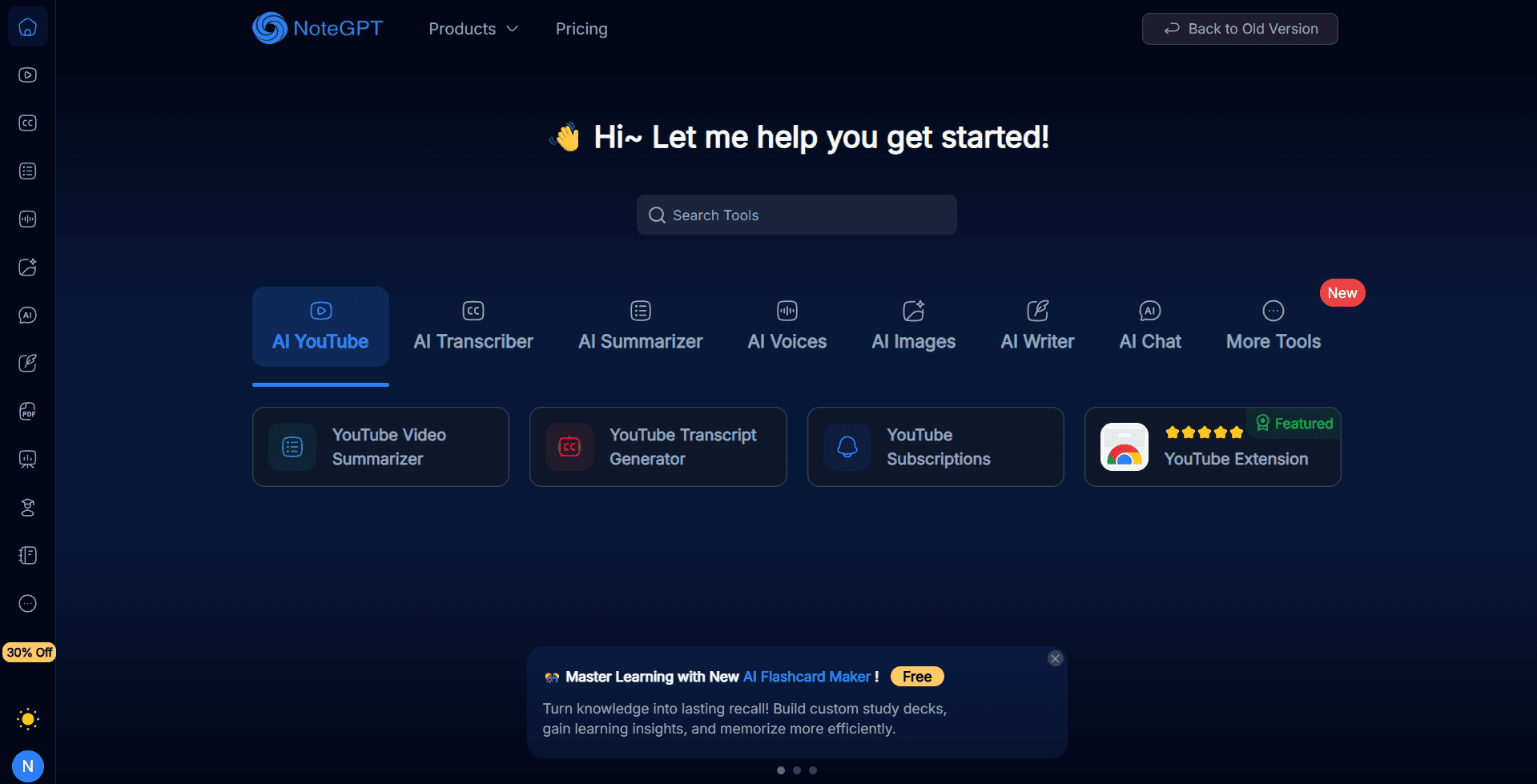
Категория:Лучший для исследований (многоисточниковый ввод)
Вердикт:★★★☆☆ - Самый широкий диапазон ввода в этом сравнении, самый плоский дизайн.
Я нашел NoteGPT через его суммаризатор YouTube, который действительно является одним из лучших, что я использовал. Несколько недель спустя я заметил функцию презентации на той же панели инструментов и протестировал ее на презентации, которую я уже создавал. Через четыре минуты у меня был загружаемый PPT. Содержание было приличным. Затем я посмотрел на слайды: плоские макеты, стоковая фотография гор на презентации по политике здравоохранения и два слайда с текстом-заполнителем, который так и не был заполнен. Когда я вернулся, чтобы исправить это, редактора не было.
Настоящая сила NoteGPT — это широта ввода. Он принимает ссылки на YouTube, PDF-файлы, URL-адреса статей, аудиофайлы, записи подкастов, существующие PPT-файлы и простые текстовые запросы, что шире, чем у любого специализированного инструмента в этом сравнении. Шаг редактирования плана перед генерацией также полезен: исправьте структуру до применения дизайна. Один неочевидный совет: включите интеграцию с ChatGPT перед генерацией. Она отключена по умолчанию и заметно улучшает качество контента.
Где он ломается, так это в дизайне и редактировании. Шаблоны представляют собой плоские макеты в стиле PowerPoint без градиентов или визуальной иерархии. Стоковые изображения не имеют связи с содержанием слайда. И нет встроенного визуального редактора: любое реальное редактирование означает сначала экспорт в PowerPoint.
Я тестировал NoteGPT с пятью различными типами ввода в нашемполном обзоре NoteGPT, если вы хотите получить полный анализ.
Ключевые особенности
Самый широкий диапазон ввода в этом сравнении: поддерживаются ссылки на YouTube, PDF-файлы, URL-адреса статей, аудиофайлы, записи подкастов, существующие PPT-файлы, изображения и простые текстовые запросы.
Редактирование плана перед генерацией: добавляйте, удаляйте, переупорядочивайте и переписывайте слайды до создания окончательной презентации.
Интеграция с ChatGPT: подключается к ChatGPT перед генерацией для заметного улучшения качества контента. Отключено по умолчанию; включите его.
Библиотека шаблонов: готовые темы, отфильтрованные по категории, стилю и цвету. Функциональный, но устаревший дизайн.
Несколько форматов экспорта: PPT, PDF, отдельные изображения, объединенное длинное изображение, Keynote и план.
Плюсы
Самый широкий диапазон исходных данных в этом сравнении: поддерживаются YouTube, аудио, подкасты, PDF, URL, изображения и обычный текст.
Редактирование плана перед генерацией экономит время на доработку, позволяя исправить структурные проблемы до применения дизайна.
Точное извлечение контента из структурированных исходных документов, таких как научные статьи и подробные PDF-файлы.
Интеграция с ChatGPT улучшает качество вывода при включении.
Самая низкая начальная цена — $9.99/месяц для платного плана.
Доступен бесплатный план с 15 кредитами в месяц.
Минусы
Нет встроенного визуального редактора: замена шаблонов — единственная опция итерации дизайна внутри инструмента.
Плоский, устаревший дизайн слайдов без современных визуальных элементов, градиентов или глубины.
Стоковые изображения постоянно не связаны с содержанием слайда.
Ошибки с текстом-заполнителем появились в 2 из 5 сгенерированных тестовых презентаций.
Тонкий, общий контент из коротких запросов без богатого исходного документа.
Нет создания пользовательских тем, аналитики или библиотеки элементов, специфичных для презентаций.
Цены
План | Ежемесячно | Ежегодно | Кредиты/месяц | Ключевые ограничения |
Бесплатно | $0 | $0 | 15 | Базовые функции, очень ограничено |
Про | $9.99 | $9/мес | 100 | Все форматы, стандартная пакетная обработка |
Безлимитный | $29 | $19.92/мес | 2,800 | Расширенная пакетная обработка, более длинные видео |
Макс | $99 | $69/мес | 10,000 | Полный доступ, без ограничений |
Для кого это
Для студентов, исследователей, преподавателей и контент-команд, которым регулярно требуется преобразовывать видео с YouTube, записи лекций, аудиофайлы или длинные документы в структурированный черновик презентации. Если узким местом является извлечение контента из уже имеющегося источника, а не создание слайдов с нуля, NoteGPT справляется с этим шагом быстрее, чем любой другой инструмент в этом списке.
Когда выбирать NoteGPT
Вам нужно преобразовать видео с YouTube, подкаст или аудиозапись непосредственно в слайды
Бюджет ограничен, и начальная цена в $9.99/месяц без требований к дизайну важнее, чем визуальная отточенность
Пропустите NoteGPT, если вам нужно профессиональное качество дизайна, редактирование в приложении или что-либо, что будет представлено клиенту или инвестору без значительной ручной доработки.
16. SlidesGPT: Лучше всего для быстрых внутренних черновиков через ChatGPT
Категория: Лучшее для скорости
Вердикт: ★★☆☆☆ - Быстро, одинаковые макеты на каждом слайде.
SlidesGPT сгенерировал более 10 миллионов презентаций и занимает первое место среди генераторов PowerPoint с ИИ в магазине ChatGPT. Это реальные показатели. После тестирования его в различных сценариях использования, мое мнение однозначно: он достаточно быстр и прост для внутренних черновиков или образовательного контента, но сталкивается с жесткими структурными ограничениями для всего, что предназначено для клиентов или инвесторов.
Скорость подлинная. От запроса до загружаемой презентации менее чем за пять минут — это точно. Шаг редактирования структуры перед генерацией также полезен: переписывайте, переупорядочивайте или вырезайте заголовки слайдов до того, как будет применен дизайн. Что касается качества контента, плагин ChatGPT дает заметно лучший результат, чем веб-приложение: диалоговый режим позволяет уточнять структуру перед запуском генерации.
Ограничение дизайна является структурным, а не косметическим. Каждый слайд использует один и тот же макет независимо от типа контента: заголовок, подзаголовок, маркированный список слева, стоковое изображение справа. Темы — это только смена цветов, ни одна из них не меняет логику макета. Формат маркированного списка применяется ко всему, даже к контенту, который лучше выразить в виде сравнения или блок-схемы. Одно практическое замечание: бесплатный план не позволяет скачивать файлы. Экспорт в PowerPoint, PDF или Google Slides требует платной подписки.
Ключевые особенности
Текстовый запрос в презентацию: Полная презентация из любого запроса менее чем за пять минут
PDF в слайды: Загрузите документ и преобразуйте его в структурированную презентацию
YouTube в слайды: Преобразуйте любое видео с YouTube в содержимое слайдов через его транскрипцию
Плагин ChatGPT: Диалоговый рабочий процесс внутри ChatGPT для лучшей итерации контента перед генерацией
Пользовательские темы бренда: Загрузите свой собственный шаблон PowerPoint на платных планах и генерируйте контент внутри него
Генерация изображений с ИИ: 30 изображений, сгенерированных ИИ, в месяц на платных планах
Несколько форматов экспорта: PPTX, PDF или Google Slides
Заметки докладчика: Автоматически генерируемые тезисы для каждого слайда
B2B API: Программная генерация слайдов в масштабе для разработчиков и корпоративных команд
Плюсы
Быстро: от запроса до загружаемой презентации менее чем за пять минут
Редактирование структуры перед генерацией позволяет исправить структуру до применения дизайна
Рабочий процесс плагина ChatGPT дает заметно лучший контент, чем статический запрос веб-приложения
Рабочие процессы PDF и YouTube в слайды надежно работают для простого исходного материала
Загрузка пользовательского шаблона на платных планах позволяет генерировать контент в существующей системе бренда
Заметки докладчика генерируются автоматически для каждого слайда
Доступен B2B API для команд, автоматизирующих создание презентаций в масштабе
Минусы
Каждый слайд использует один и тот же макет независимо от типа контента, нулевое визуальное разнообразие в презентации
Темы — это только изменения цветовой палитры, а не изменения системы дизайна
Формат маркированного списка применяется ко всему контенту независимо от того, подходит ли он для информации
Стоковые изображения часто не связаны с содержимым слайда
Глубина контента невысока при коротких запросах без дополнительного исследовательского ввода
Бесплатный план не позволяет скачивать файлы. Экспорт требует платного плана.
Неиспользованные загрузки не переносятся на следующий месяц
Цены
План | Ежемесячно | Ежегодно | Загрузки | Ключевые ограничения |
Бесплатный стартовый | $0 | $0 | 0 | Только создание, просмотр, обмен. Нет экспорта файлов. |
Про | $10/мес | $7.50/мес | 10/месяц | PPT, PDF, Google Slides; 30 изображений ИИ/мес |
Про XL | $22.50/мес | $22.50/мес | 50/месяц | Все, что есть в Pro |
Бизнес API | $500/мес база | Пользовательский | Неограниченно через API | Пользовательские шаблоны, 100+ презентаций/месяц |
Корпоративный API | Пользовательский | Пользовательский | Неограниченно | Локальное развертывание, пользовательские источники данных |
Для кого это
Для всех, кому нужен быстрый первый черновик для внутреннего использования, образовательного контента или презентаций с низкими ставками, где качество дизайна не является решающим фактором. Плагин ChatGPT делает его разумным вариантом для опытных пользователей ChatGPT, которые хотят генерировать презентации в рамках рабочего процесса, который они уже используют ежедневно.
Когда выбирать SlidesGPT
Вам нужен быстрый внутренний черновик, и вы сами будете выполнять ручную доработку дизайна
Вы опытный пользователь ChatGPT и хотите генерировать презентации в рамках существующего рабочего процесса через плагин
Вы автоматизируете создание презентаций в масштабе через API и вам нужен простой, надежный конвейер генерации
Пропустите SlidesGPT, если вам нужно визуальное разнообразие между слайдами, качество дизайна, которое выдерживает критику в клиентской или инвесторской среде, или глубина контента при коротких запросах без значительного ручного ввода.
17. Claude Design: Лучший ИИ-конструктор презентаций для одноразовых визуальных презентаций
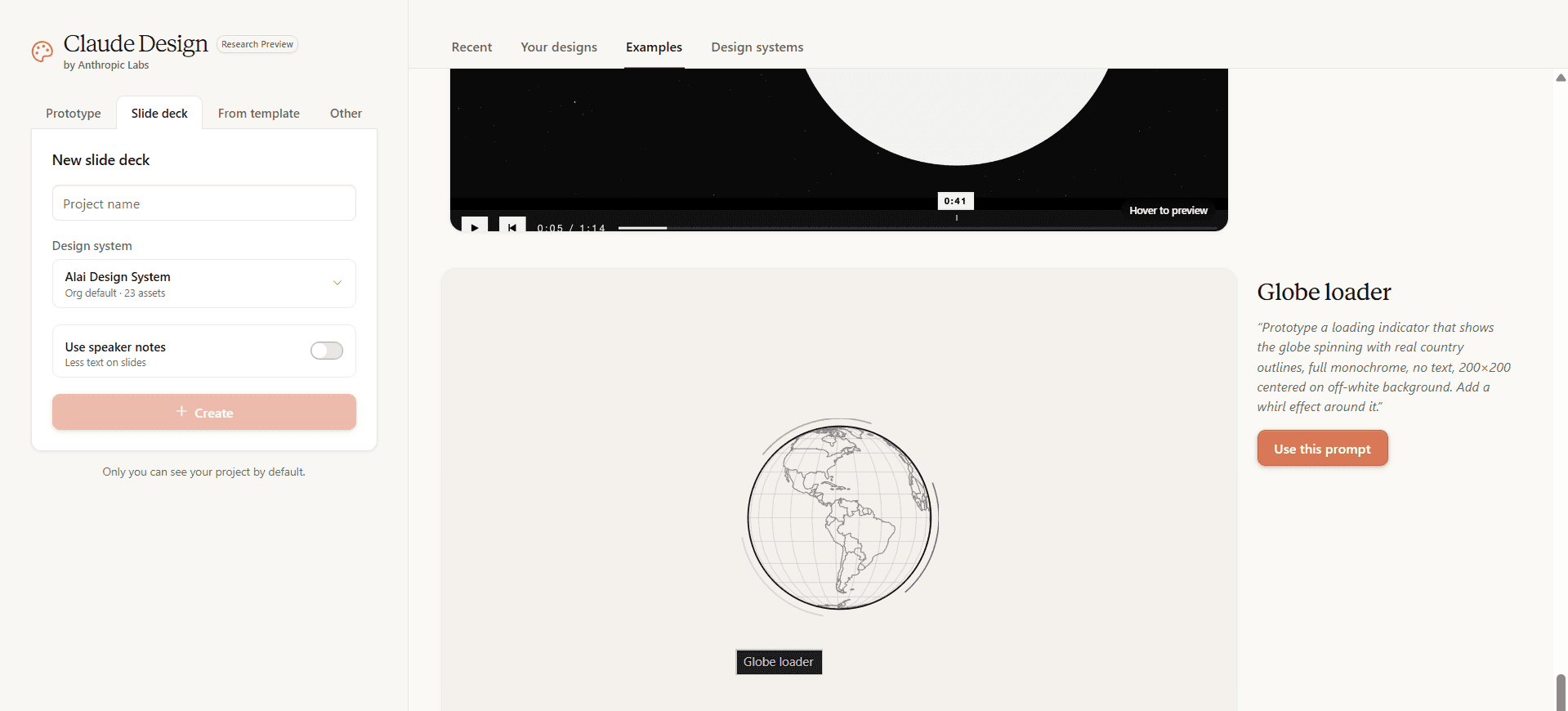
Категория: Лучшее для одноразовых брендированных визуальных презентаций
Вердикт: ★★★★☆
Claude Design — это инструмент Anthropic Labs для визуального творчества и, вероятно, один из лучших способов создания презентаций с помощью LLM по сравнению с Gemini или Manus. Вы выбираете «Презентация» в качестве начального режима, создаете свою собственную подробную систему брендинга и отвечаете на четыре или пять уточняющих вопросов, и Claude создает презентацию, которую вы можете редактировать слайд за слайдом. Это один из трех способов, которыми Claude может нативно создавать презентации, и он дает лучший по внешнему виду первый черновик из трех с явным отрывом.
Я создал ту же 10-слайдовую презентацию через Claude Design, которую использовал для тестирования каждого инструмента в этом списке. Первое, что бросается в глаза, — это типографика. Заголовочный шрифт для заголовков, контрастный шрифт без засечек для основного текста, моноширинный для меток данных, единообразный на каждом слайде. Он выглядит продуманным, а не случайным. Выравнивание действительно чистое. Поля совпадают на всех слайдах. Иконки соответствуют теме остальной презентации, а не взяты из общего набора. Большинство инструментов ИИ по умолчанию используют сине-белую палитру SaaS независимо от вашего запроса. Claude Design действительно прислушивается.
Подвох в слайдах с данными. В тот момент, когда слайд должен нести реальный аналитический вес, многосерийные диаграммы, сравнительные таблицы с более чем тремя столбцами, временные шкалы с аннотациями, качество вывода падает на уровень. Метки сбиваются в кучу (как показано ниже). Числа располагаются поверх линий сетки. Легенды оказываются там, где их невозможно прочитать. Полный обзор всех трех инструментов для презентаций Claude содержит примеры сравнения и расчет стоимости за презентацию: Как использовать Claude для создания презентаций.
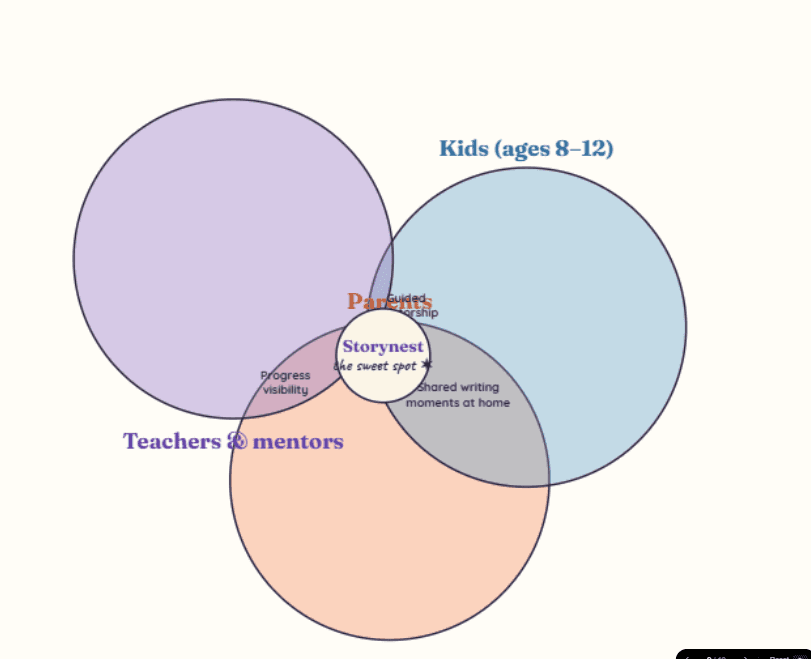
Другая вещь, о которой никто не говорит: после пяти или шести презентаций домашний стиль Claude Design становится вашим домашним стилем. Те же угловые выноски, та же редакционная палитра, та же иерархия. Для этого есть исследовательский термин. В статье Nature 2024 года Шумайлова и др. это называется коллапсом модели. Для одноразовой презентации это не имеет значения. Для тех, кто делает более двух презентаций в месяц, это быстро проявляется.
Ключевые особенности
Режим запуска «Презентация» специально разработан для презентаций (наряду с прототипом, шаблоном, произвольной формой)
Предварительная анкета из четырех-пяти уточняющих вопросов перед генерацией (аудитория, тон, визуальное направление, продолжительность, ракурс)
Встроенные комментарии для редактирования на уровне элементов без написания абзацев запроса
Прямое редактирование элементов для ручного изменения содержимого, цвета, размера и положения
Аннотации в стиле рисования для набросков изменений макета непосредственно на холсте
Шесть путей экспорта: PPTX, PDF, автономный HTML, отправка в Canva, .zip, передача в Claude Code
Настройка системы дизайна для согласованности бренда (только для командных аккаунтов, требуются права администратора)
Плюсы
Сильнейшая типографика и визуальная иерархия среди всех нативных инструментов Claude
Встроенные комментарии ускоряют итерацию: от 20 до 40 секунд на каждое изменение
Макеты выглядят продуманными, а не шаблонными
Работает непосредственно в claude.ai без установки
Тема действительно соответствует вашему запросу, а не по умолчанию использует домашний стиль
Шесть путей экспорта охватывают большинство рабочих процессов передачи
Минусы
Самая медленная первая генерация среди всех опций Claude (около 15 минут, включая анкету)
Диаграммы и слайды с данными отображаются заметно хуже, чем остальная часть презентации
Макеты, специфичные для презентаций (Воронка, Матрица функций, Сравнение двух, Центр и периферия), отсутствуют в стандартном наборе
Анкета добавляет трение перед генерацией, особенно когда ваш запрос уже детализирован
Настройка системы дизайна требует командного аккаунта с правами администратора
Однообразие вывода проявляется после пяти и более презентаций
Не предназначен для продаж или бизнес-презентаций
Для кого это
Основатели, создающие одноразовый тизер для инвесторов. Маркетологи, выпускающие ключевую презентацию или аналитическую статью. Все, кому нужна одна красивая презентация, а не повторяющийся рабочий процесс. Если вы уже платите за Claude Pro для исследований или написания текстов, Claude Design входит в комплект. Вам не нужна отдельная подписка.
Когда выбирать Claude Design
Выбирайте его, когда типографика и визуальная иерархия важнее плотности данных. Пропустите его, если ваша презентация зависит от диаграмм, если вы выпускаете более двух презентаций или если вам необходимо истинное сохранение шаблона бренда без настройки командного аккаунта. Для презентаций с большим количеством данных или любых презентаций, ориентированных на продажи, другие инструменты в этом списке помогут вам быстрее.
Цены
План | Цена | Лучше всего для |
|---|---|---|
Про | $17/мес ежегодно, $20/мес ежемесячно | Быстрые исследования, одноразовые презентации |
Макс. 5x | От $100/мес | Полурегулярное использование: менеджеры проектов, инженеры, создающие регулярные макеты |
Макс. 20x | $200/мес | Интенсивное использование: дизайнеры и креативщики |
Команда Стандарт | $20/место/мес ежегодно, мин. 5 мест | Быстрое исследование в команде |
Команда Премиум | $100/место/мес ежегодно, мин. 5 мест | Опытные пользователи: штатные дизайнеры |
Корпоративный | Пользовательский (свяжитесь с отделом продаж) | Оплата по факту использования по тарифам API |
Anthropic не публикует точное количество кредитов или ограничений по количеству слайдов для каждого уровня. Разрешения предоставляются на пользователя, а не объединяются на уровне организации. Claude Design все еще находится в стадии предварительного исследования, поэтому отслеживание использования и журналы аудита пока недоступны. Стоит знать, если вы работаете в регулируемой среде.
Итоговое резюме: Как выбрать правильный инструмент для презентаций с ИИ
Если вы ищете… | Рекомендуемый инструмент | Второй вариант |
|---|---|---|
Лучший ИИ для корпоративных команд | ||
Лучший ИИ для бизнеса | ||
Лучший бесплатный ИИ-конструктор презентаций | ||
Лучший ИИ для дизайнерских команд | ||
Лучший ИИ для презентаций, требующих много исследований | ||
Лучший ИИ для презентаций по продажам (с аналитикой) | ||
Лучший ИИ для пользователей Google Slides | ||
Лучший ИИ для пользователей PowerPoint | ||
Лучший бюджетный создатель ИИ-презентаций | ||
Лучший ИИ для питч-деков | ||
Лучший ИИ для инвесторских презентаций | ||
Лучший ИИ для презентаций для руководителей и совета директоров | ||
Лучший ИИ для презентаций, соответствующих бренду | ||
Лучший ИИ для консультантов | ||
Лучший ИИ для маркетинговых команд | ||
Лучший ИИ для студентов | ||
Лучший ИИ для учителей и преподавателей | ||
Лучший ИИ для проверенного контента | ||
Лучший ИИ для инфографики и диаграмм | ||
Лучший ИИ для преобразования YouTube/аудио в слайды | ||
Лучший ИИ для интерактивных презентаций | ||
Лучший ИИ для опытных пользователей Google Workspace | ||
Лучший ИИ для разовых брендированных презентаций |
Быстрые заметки: 8 других создателей ИИ-презентаций, которые я тестировал (и которые не прошли отбор)
Эти восемь создателей ИИ-презентаций не вошли в основной список, но о них стоит знать, если у вас есть конкретный вариант использования, который не охватывают топ-16.
Decktopus: Удобный для новичков ИИ-создатель PPT с вводом запросов через форму. Результат функционален, но плоский. Хорошо подходит для пользователей, впервые использующих ИИ-создатель презентаций, которые хотят получить управляемый опыт.
MagicSlides: Надстройка Google Slides, которая напрямую конкурирует с Plus AI по цене. Дешевле, но дизайн более простой. Стоит попробовать, если пробная цена Plus AI вас отпугивает.
Slidesgo AI: От команды Freepik. Создатель ИИ-презентаций, ориентированный на шаблоны, с большим разнообразием шаблонов, но слабой генерацией ИИ. Ценность заключается в библиотеке, а не в ИИ.
Wonderslide: Берет существующую презентацию PowerPoint и переделывает ее. Полезно для обновления старых файлов PPT, а не для создания новых с нуля.
Presentations.AI: Ориентирован на корпоративный сегмент с функциями совместной работы. Ценообразование непрозрачно, а бесплатный уровень ограничен. Стоит попробовать демо, если Beautiful AI слишком дорог.
Slideoo: Новый участник рынка с акцентом на скорость. Генерирует презентации менее чем за две минуты. Качество дизайна уступает лидерам.
Simplified: Общий набор инструментов для дизайна, который включает генерацию ИИ-презентаций как одну из многих функций. Позиционирование похоже на Canva, но библиотека шаблонов меньше.
Designs.ai: Старая платформа ИИ-дизайна, к которой добавили генерацию презентаций. Результат выглядит устаревшим по сравнению с нативными ИИ-создателями презентаций, такими как Alai или Gamma.
Что я узнал после тестирования 16 создателей ИИ-презентаций
Вот что показали 16 часов тестирования в цифрах.
4 из 16 инструментов выдали поврежденные экспорты PowerPoint, которые требовали более 15 минут доработки. Gamma, Pitch, импорт Beautiful AI и SlidesGPT — все имели повреждения форматирования при конвертации в PPT.
2 из 16 инструмента полностью проигнорировали мой исходный контент и сгенерировали свою собственную презентацию на смутно связанную тему. NoteGPT и SlidesGPT сделали это в тесте с одним слайдом.
3 из 16 инструмента вообще не имеют экспорта в PowerPoint. Prezi AI (только импорт), Chronicle (только PDF) и Gemini Canvas (только Google Slides, без нативного PPT). Если PowerPoint является вашим форматом распространения, эти три инструмента не подходят, независимо от того, насколько удобным кажется редактирование.
1 из 16 выдал четыре варианта дизайна для каждого слайда по первому запросу. Alai. Все остальные создатели ИИ-презентаций давали один результат и просили меня перегенерировать, если я хотел попробовать что-то другое.
5 из 16 не имели пригодного для использования бесплатного уровня. Beautiful AI, Plus AI (только 7-дневная пробная версия с обязательной картой), Prezent.ai (только демо), Manus AI (кредиты, но ограниченные) и SlidesGPT (только просмотр) — все они требуют оплаты или звонка в отдел продаж, прежде чем вы сможете создать загружаемую презентацию.
Разрыв между слайдами, созданными ИИ, и результатом дизайнерского качества значительно сократился в 2026 году. Если вы все еще создаете каждую презентацию с нуля, вы теряете часы. Но разрыв между лучшим создателем ИИ-презентаций и худшим все еще достаточно велик, чтобы выбор неправильного инструмента отнимал больше времени, чем ручное создание.
Заключительные замечания
Если вы попробуете только один инструмент: Начните с Alai. Подход «4 варианта на слайд» решил мою самую большую проблему с создателями ИИ-презентаций, которая заключается в бесконечной регенерации, пока вам не повезет. Режим агента делает редактирование похожим на работу с помощником по дизайну, который действительно понимает, что вы хотите. А для команд и предприятий полное кодирование системы дизайна означает, что каждая презентация выглядит единообразно без ручного контроля. Это единственный инструмент для ИИ-презентаций, который объединяет качество дизайна, скорость итераций, согласованность бренда и масштабируемость в одном месте.
Если ваши презентации распространяются, а не демонстрируются: Gamma создан для асинхронной работы. Прокручиваемый веб-формат хорошо подходит для отчетов инвесторам, внутренних отчетов и любых презентаций, которые просматриваются по электронной почте или в Slack, а не в переговорной комнате. 400 бесплатных кредитов трудно превзойти в качестве отправной точки.
Если вам нужны только шаблоны, а не ИИ: Пропустите шумиху вокруг ИИ и выберите Beautiful AI или Canva. Beautiful AI — лучший выбор, если важна согласованность бренда и вы хотите иметь дизайнерские ограничения. Canva лучше, если вам нужно огромное разнообразие и вы уже используете ее для других дизайнерских работ. Оба предоставляют отполированные шаблоны без использования генерации ИИ.
Если вы работаете в Google Slides: Plus AI — единственный инструмент, который не создает препятствий для вашего существующего рабочего процесса.
Разрыв между слайдами, созданными ИИ, и результатом дизайнерского качества значительно сократился. Если вы все еще создаете каждую презентацию с нуля, вы теряете часы.
Последнее обновление: 27 мая 2026 г. — Добавлен обзор Claude design, обновлены функции для Alai и Prezent AI. Я ежемесячно перепроверяю инструменты и обновляю рейтинги по мере изменения функций. Есть вопросы или вы считаете, что я что-то упустил? Пишите на почту nandini@getalai.com
Часто задаваемые вопросы
Какой лучший бесплатный ИИ-создатель презентаций?
Бесплатный план Gamma с 400 кредитами — это самое сильное предложение среди бесплатных ИИ-создателей презентаций. Его достаточно, чтобы протестировать полноценные презентации и выполнить реальную работу без оплаты. Бесплатный план Alai с 300 кредитами является следующим лучшим, особенно потому, что все премиум-элементы дизайна доступны на бесплатном уровне. Бесплатный план Canva также действительно полезен, если вам нужно разнообразие шаблонов, а не генерация ИИ.
Какой ИИ-создатель презентаций лучше всего подходит для экспорта в PowerPoint в 2026 году?
Alai обеспечивает самый чистый экспорт в PowerPoint в этом тесте. В нескольких типах презентаций экспорт проходил без необходимости ручной доработки форматирования. Градиенты, расположение элементов и форматирование диаграмм сохранялись при конвертации в PPT. Plus AI — следующий лучший вариант, потому что он работает нативно внутри PowerPoint как надстройка, поэтому этапа экспорта вообще нет. Большинство других ИИ-создателей презентаций в этом списке требуют как минимум 10-15 минут доработки после экспорта в PPT.
Какой ИИ-создатель PPT самый быстрый?
Alai в среднем тратил 30 минут от запроса до готовой презентации из 10 слайдов. Napkin AI был быстрее для отдельных визуальных элементов, но не генерирует полноценные презентации. SlidesGPT быстр на этапе генерации, но результат требует значительного ручного редактирования, что нивелирует преимущество в скорости.
Как ИИ-создатели презентаций сравниваются с ручным дизайном в PowerPoint или Google Slides?
Для первых черновиков ИИ-создатели презентаций в 20-40 раз быстрее, чем ручной дизайн. Та же презентация из 10 слайдов, на создание которой вручную в PowerPoint уходит 2-4 часа, занимает 3-6 минут в таких инструментах, как Alai или Gamma. Для окончательной доработки ручной дизайн по-прежнему имеет преимущество в творческом контроле. Практический рабочий процесс, который большинство команд используют в 2026 году, — это ИИ для первого черновика, затем 15-30 минут ручной доработки.
Какой ИИ-создатель презентаций лучше всего подходит для бизнес-презентаций?
Alai лучше всего подходит, когда вам нужна редактируемая, отполированная бизнес-презентация из исходного материала. Gamma быстр для веб-нативных черновиков, а Canva полезна для дизайнерских работ, требующих большого количества шаблонов.
Могут ли ИИ-создатели презентаций экспортировать редактируемые файлы PowerPoint?
Некоторые могут, но качество варьируется. В нашем тестировании качество экспорта является одним из самых больших различий между инструментами, потому что веб-нативные слайды часто ломаются при конвертации в PPTX.
Достаточно ли хороши ИИ-создатели презентаций для клиентских презентаций?
Они могут быть, но только если инструмент поддерживает хорошую структуру, точное редактирование, согласованность дизайна и чистый экспорт. Быстрый первый черновик недостаточен для работы с клиентами.
PAGES
Compare Tools
resources