·
BASICS
·
15 мин чтения
Руководитель отдела маркетинга
Введение
Google NotebookLM запустил функцию слайдов некоторое время назад, но большинство людей до сих пор о ней не знают.
Предложение заманчиво: загрузите свои исследования, свои PDF-файлы, свои заметки, свои отчеты, и NotebookLM прочитает все, найдет самые важные идеи и превратит их в отточенную, визуально оформленную презентацию менее чем за две минуты. Никаких пустых слайдов. Никакого ада форматирования. Просто структурированная, точная по источникам презентация, которая действительно отражает содержание ваших документов.
Для получения сильного первого черновика из кучи исходных материалов это отличный ресурс.
Но есть подвох, и это причина, по которой вы, вероятно, здесь.
После того как NotebookLM сгенерирует ваши слайды, их редактирование — это совсем другая история. Хотите исправить опечатку? Вы снова запрашиваете ИИ и ждете, пока вся презентация будет сгенерирована заново. Хотите изменить размер шрифта? Тот же процесс. Хотите переместить один элемент на два пикселя влево? Невозможно. Слайды, созданные NotebookLM, отображаются как плоские изображения — визуально впечатляющие, но принципиально заблокированные.
Google быстро выпускает обновления. Теперь есть интерфейс для редактирования каждого слайда, прямой экспорт в PowerPoint и Gemini 3.1 Pro, обеспечивающий генерацию. Это реальные улучшения. Но основная проблема — возможность щелкнуть элемент и просто изменить его — остается нерешенной.
Это руководство охватывает все: как работает функция слайдов NotebookLM, что на самом деле меняет каждое недавнее обновление на практике, почему ручное редактирование до сих пор невозможно внутри инструмента и какой рабочий процесс решает эту проблему. Независимо от того, хотите ли вы внести небольшие изменения в дизайн, применить фирменные шрифты и цвета или экспортировать файл, который вся ваша команда сможет редактировать в PowerPoint — к концу этого блога вы будете точно знать, как это сделать.
Что такое слайды NotebookLM?
Google NotebookLM начинался как исследовательский помощник на базе ИИ, разработанный, чтобы помочь вам разобраться в ваших собственных документах. Загружайте PDF-файлы, Google Docs, веб-сайты или заметки, и NotebookLM предоставит вам исследовательского партнера на базе Gemini, который использует только ваши источники — никаких галлюцинаций из веб-контента, никаких догадок.
В конце 2024 года Google добавил ключевую функцию на панель Studio: генерацию слайд-презентаций. Одним щелчком мыши NotebookLM может проанализировать все содержимое вашего блокнота и вывести отточенную, визуально оформленную презентацию — с макетами, значками, цветовыми темами и структурированным контентом, взятым непосредственно из ваших источников.
Ключевой факт: слайды NotebookLM генерируются с использованием Gemini и отображаются с помощью модели генерации изображений Google Nano Banana Pro, что означает, что каждый слайд по сути является изображением высокого разрешения, а не структурированным документом с редактируемыми слоями.
Это важная деталь, которая определяет все, что касается поведения слайдов NotebookLM — как с точки зрения того, что выглядит великолепно, так и с точки зрения того, что становится досадно трудно изменить.
Что хорошо делает функция слайдов NotebookLM:
Контент, основанный на источниках: Каждый слайд полностью построен на основе загруженных вами источников информации — документов или ссылок. Никакого общего наполнителя, никаких вымышленных фактов.
Профессионально оформлено: NotebookLM автоматически применяет продуманный визуальный дизайн: цветовые схемы, иконографию и иерархию макета.
Мгновенная генерация: Полная презентация готова за считанные секунды, структурированная вокруг наиболее важных тем в ваших источниках.
Параметры экспорта: Загрузите свою презентацию в формате PDF или непосредственно в формате PowerPoint (.pptx).
Как создать презентацию в NotebookLM
Если вы еще не создавали презентацию в NotebookLM, вот как это работает:
Шаг 1: Загрузите свои источники. Добавьте PDF-файлы, Google Docs, веб-ссылки, видео с YouTube или простые текстовые заметки в свой блокнот NotebookLM. Чем больше релевантного контента вы добавите, тем лучше будут слайды.
Шаг 2: Выберите «Презентация». Найдите раздел Studio на правой боковой панели интерфейса вашего блокнота. Нажмите на опцию «Презентация». NotebookLM прочитает ваши источники и начнет генерировать презентацию. Обычно это занимает 30–90 секунд в зависимости от объема контента.
Шаг 3: Просмотрите сгенерированную презентацию. NotebookLM покажет вам предварительный просмотр каждого слайда в интерфейсе. Вы можете прокрутить всю презентацию перед экспортом.
Шаг 4: Внесите изменения с помощью ИИ. Добавьте инструкции по изменениям, которые вы хотите внести для каждого слайда, а затем нажмите «Сгенерировать новую презентацию», чтобы создать пересмотренную презентацию с изменениями.
Шаг 5: Экспортируйте свою презентацию. Используйте меню с тремя точками, чтобы загрузить ее в формате PDF или PowerPoint после завершения всех изменений.
Что хорошо делает функция слайдов NotebookLM и где она не справляется
Прежде чем перейти к тому, как редактировать презентации NotebookLM, стоит четко понять, в чем этот инструмент действительно хорош:
Внимательно читает ваши источники — не просматривает их бегло. Он обрабатывает каждый загруженный вами документ и извлекает действительно важные идеи.
Интеллектуально структурирует контент — темы логически сгруппированы, слайды следуют связному повествованию, и поток имеет смысл без какого-либо вашего участия.
Остается в рамках вашего материала — каждое утверждение на каждом слайде исходит из того, что вы загрузили. Никакого общего наполнителя, никаких вымышленных фактов.
Быстро справляется с тяжелой работой по контенту — превращение 40-страничного исследовательского отчета или беспорядочной кучи заметок в структурированный черновик презентации занимает менее двух минут.
Где он ломается, так это во всем, что происходит потом.
Почему редактировать слайды NotebookLM сложнее, чем должно быть
Слайды NotebookLM отображаются как плоские изображения с использованием Nano Banana Pro. Каждый слайд генерируется как изображение высокого разрешения, а не как структурированный файл с независимыми текстовыми полями, фигурами и элементами. Это означает, что после генерации слайда под ним нет слоя, с которым можно взаимодействовать. Вы не можете щелкнуть заголовок и перепечатать его. Вы не можете перетащить значок в другое положение. Вы не можете изменить шрифт или настроить цвет, не обращаясь к ИИ.
Для больших структурных изменений — «перестроить всю презентацию с другой цветовой схемой» или «добавить раздел конкурентного анализа» — это управляемо. ИИ справляется с этим и генерирует новую презентацию. Но для тех небольших, точных корректировок, которые происходят в конце каждого рабочего процесса презентации — исправление слова, соответствие фирменному цвету, ужесточение макета — это создает разочаровывающий цикл подсказок, ожидания, просмотра и повторения.
Google выпустил реальные улучшения в процессе редактирования с момента запуска, и их стоит понять, прежде чем списывать инструмент со счетов. Но не менее важно четко понимать, где все еще существуют ограничения.
Что изменилось в 2026 году: объяснение обновлений слайдов NotebookLM
Функция слайдов NotebookLM быстро развивалась с момента ее запуска в ноябре 2025 года. Вот каждое крупное обновление и что оно на самом деле означает на практике.
Редактирование слайдов NotebookLM: Редактирование на основе подсказок
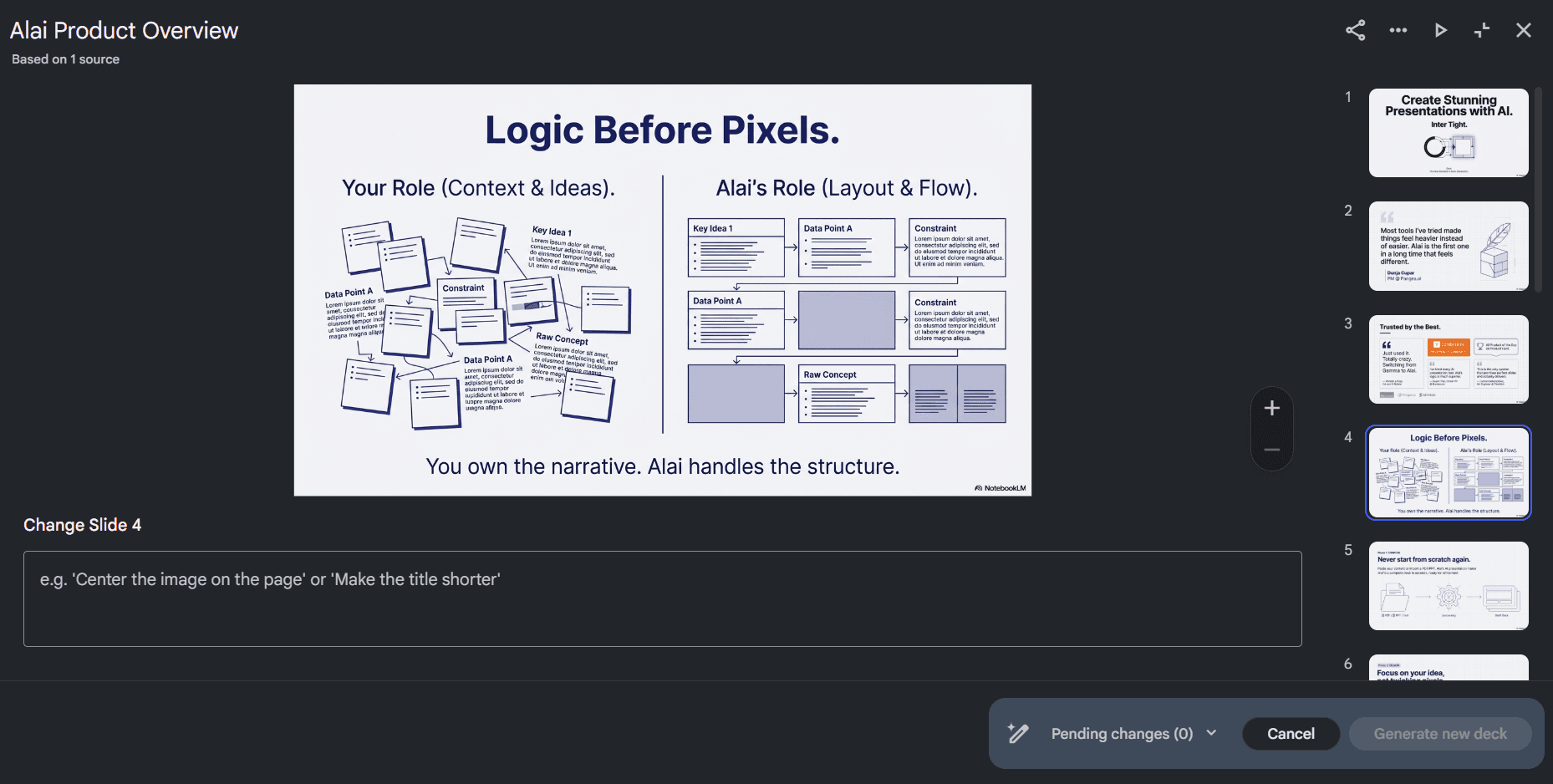
Это самое значительное обновление редактирования, выпущенное NotebookLM. Теперь вы можете открыть любую существующую презентацию на панели Studio, щелкнуть значок карандаша рядом с заголовком и получить доступ к интерфейсу редактирования каждого слайда. Каждый слайд получает собственное поле для подсказок, где вы можете поручить ИИ редактировать текст, изменять визуальный макет, заменять изображения или настраивать цвет. Когда вы закончите ставить в очередь изменения, «Сгенерировать новую презентацию» создаст пересмотренную версию.
Это реальное улучшение по сравнению с полной регенерацией всей презентации вслепую. Но оно имеет заметные ограничения, о которых говорится в собственной документации Google: добавление или удаление слайдов пока не поддерживается, источники не учитываются при редактировании (только при первоначальной генерации), к общему количеству редактирований применяются ограничения квот, а редактирование приводит к полной регенерации всей презентации, поэтому внесение быстрых изменений все еще может быть трудоемким.
Экспорт в PowerPoint и PDF: доступен всем пользователям
Экспорт в PDF и PPTX теперь доступен из меню с тремя точками на панели Studio. Экспорт в Google Slides подтвержден, хотя дата не объявлена.
Удаление водяных знаков для подписчиков Pro и Ultra
Экспортированные файлы бесплатных пользователей теперь содержат видимый водяной знак Nano Banana Pro. Подписчики Google AI Pro и Ultra получают вывод без водяных знаков, что является значительным отличием для профессионального использования. Видимый водяной знак ИИ в презентации для клиента или совета директоров — это сложная задача.
Обновление Gemini 3.1 Pro
Теперь доступно для подписчиков Pro и Ultra, это привносит более сильные возможности рассуждения в слой генерации. На практике: более связный повествовательный поток по всей презентации и лучшая обработка технически плотного исходного материала.
Опция длинной презентации (Pro/Ultra)
Пользователи Pro и Ultra теперь могут генерировать более длинные презентации, превышающие стандартное ограничение по количеству слайдов, что полезно для исследователей, преподавателей и консультантов, которым необходимо охватить значительный объем материала в одной презентации.
Почему все это не решает основную проблему
Вышеупомянутые обновления действительно полезны, и если вы выполняете серьезное структурное редактирование с помощью ИИ, опыт значительно лучше, чем шесть месяцев назад. Но есть причина, по которой ни одно из них не устраняет пробел, который на самом деле ощущает большинство пользователей.
Слайды NotebookLM не создаются как файлы PowerPoint. Когда ИИ генерирует слайд, он использует Nano Banana Pro для создания плоского изображения слайда без базовой структуры независимых текстовых полей, фигур или перемещаемых элементов. Визуальный слой и слой контента — это одно и то же.
Вот почему даже экспорт в PPTX не дает вам по-настоящему редактируемого файла. Когда вы открываете его в PowerPoint, вы видите слои изображений внутри контейнера PPTX, а не документ с выбираемыми объектами. Нажатие на «текстовое поле» показывает плоское изображение. Ничего нельзя перемещать, изменять размер или перепечатывать напрямую.
Так что цикл остается. Хотите исправить опечатку? Подскажите ИИ, дождитесь регенерации презентации, просмотрите каждый слайд, чтобы убедиться, что ничего неожиданно не сдвинулось, и повторите, если что-то не так. То, что должно занимать пять секунд, может занять пять минут. Для профессионалов, которым нужно применять фирменные шрифты, соответствовать определенным стандартам дизайна или вносить целевые корректировки макета для конкретной аудитории, это не незначительное неудобство. Это то, что делает слайды NotebookLM трудными для профессионального использования.
Именно на решении этой проблемы и построен остаток этого руководства.
Как редактировать слайды NotebookLM: Лучшие обходные пути и как они работают
Естественно, сообщество разработало креативные решения для извлечения и редактирования содержимого слайдов NotebookLM. Вот честный взгляд на 3 лучших альтернативы.
Метод | Подходит для | Редактируемый текст | Сохраняет макет | Усилия |
Конвертеры PDF → PowerPoint (Adobe, Smallpdf и т. д.) | Базовое извлечение контента | Частично | Плохо | Высокие |
Импорт Canva + Magic Studio | Визуальные макеты, простые презентации | С планом Pro | Умеренно | Высокие |
Полное ручное + ИИ редактирование | Полный контроль | Сохранено | Низкие |
Конвертер PDF → PowerPoint
Большинство онлайн-конвертеров PDF в PPT просто плохо работают с экспортом NotebookLM. Поскольку каждый слайд является отрендеренным изображением, эти инструменты либо (а) сохраняют содержимое как плоские изображения внутри слайдов PowerPoint — что означает, что ничего нельзя редактировать, либо (б) пытаются извлечь текст с помощью OCR и при этом полностью искажают весь макет. В любом случае, вам предстоит значительная работа по очистке.
Подход Canva
Canva может импортировать PDF-файлы NotebookLM, а такие инструменты, как Magic Grab, позволяют извлекать отдельные элементы из изображений. Однако это требует подписки Canva Pro, работает непоследовательно со сложными макетами, часто не соответствует шрифтам и все еще требует значительной ручной работы для точного воссоздания каждого слайда. Это жизнеспособный вариант для простых презентаций, но не масштабируемый рабочий процесс для профессионалов.
Редактор слайдов NotebookLM от Alai
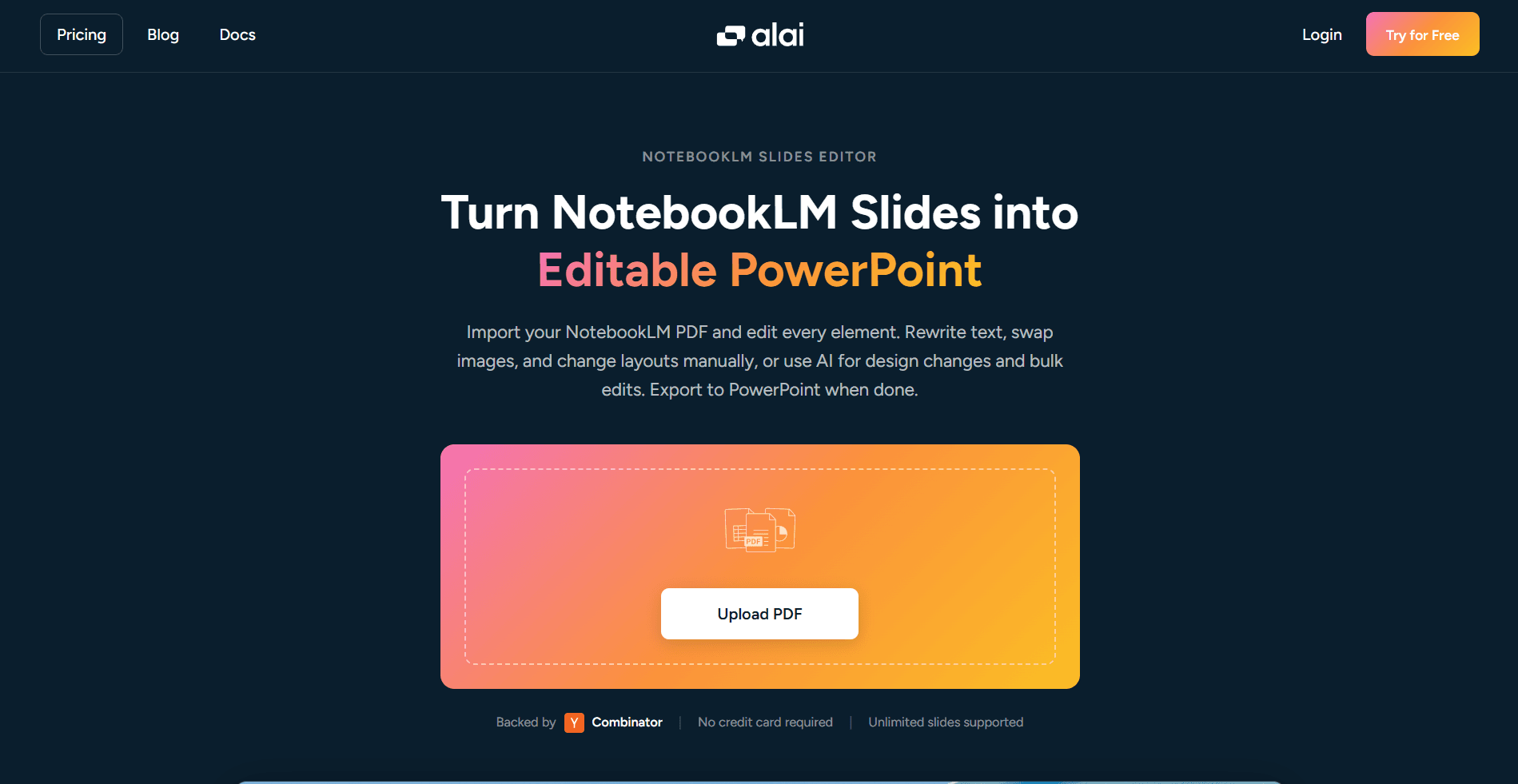
Редактор слайдов NotebookLM от Alai устраняет разрыв между генерацией на основе ИИ в NotebookLM и ручным контролем, необходимым для правильного завершения презентации.
Концепция проста, но мощна: вместо того, чтобы пытаться редактировать внутри NotebookLM (который этого не поддерживает) или возиться с общими конвертерами PDF (которые нарушают макеты), вы экспортируете свою презентацию NotebookLM, загружаете ее в Alai и получаете точную, полностью интерактивную версию своих слайдов, которую вы можете редактировать элемент за элементом — вручную или с помощью ИИ.
Чем отличается редактор NotebookLM от Alai: Редактор Alai реконструирует элементы слайдов как реальные, выбираемые объекты, а не плоские изображения. Это означает, что вы можете щелкнуть текстовое поле и изменить одно слово, переместить значок, изменить размер изображения или поменять цвет, не касаясь ИИ и не дожидаясь полной регенерации презентации.
И что важно: ручные правки не расходуют кредиты. Вы можете сколько угодно итерировать дизайн и макет, не беспокоясь об ограничениях использования. После того как вы будете довольны структурой, вы также можете использовать функцию «украсить» Alai, чтобы отполировать общий визуальный дизайн перед экспортом.
Как только ваши слайды окажутся в Alai, у вас будет два разных способа работы с ними. Позвольте мне показать вам, какой из них выбрать и когда.
Ручное редактирование против редактирования ИИ: Как работает редактор слайдов NotebookLM от Alai
Как только ваши слайды NotebookLM окажутся в Alai, у вас будет два различных режима редактирования.
Ручное редактирование: Полный прямой контроль
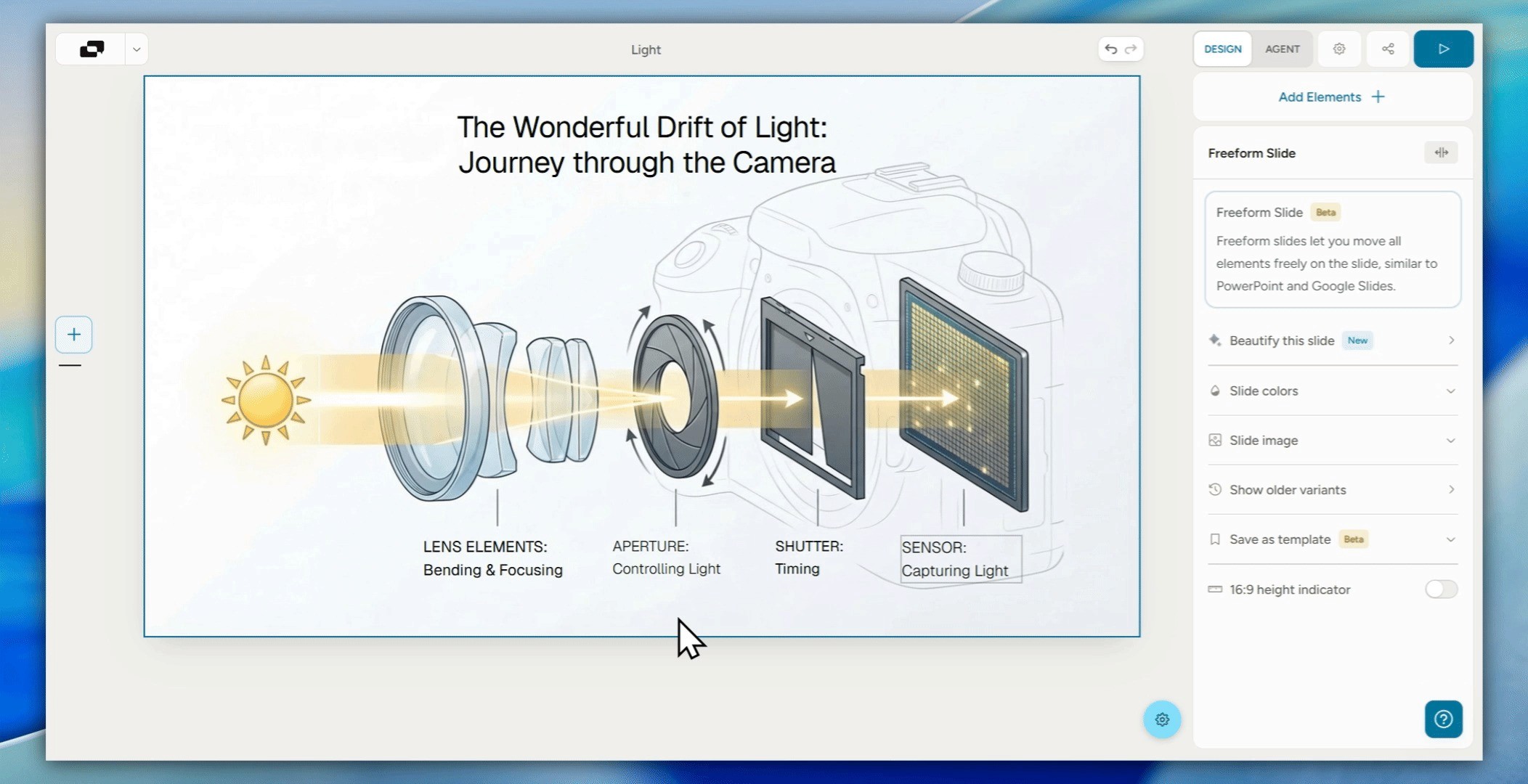
Ручное редактирование в Alai преобразует слайды-изображения в свободные, что позволяет пользователям:
Выбрать текстовый блок → изменить шрифт, размер, цвет или выравнивание
Нажать на изображение или значок → изменить размер, положение или заменить его
Настроить интервалы и отступы между элементами
Добавить новые элементы — текстовые поля или изображения
Изменить цвета фона или градиенты для каждого слайда
Ручные правки мгновенны, они ничего не регенерируют и не расходуют кредиты. Это правильный режим для тонкой настройки типографики, исправления небольших ошибок в контенте, применения фирменных стилей или корректировки макета. Все, что вам нужно сделать после импорта презентации, это:
Шаг 1: Выберите опцию «Редактировать вручную» и сделайте слайд редактируемым
Шаг 2: Внесите необходимые изменения непосредственно в слайд
Шаг 3 (необязательно): Снова «украсьте» слайд, чтобы исправить любые ошибки в форматировании
Редактирование с помощью ИИ:
Alai также предлагает редактирование на основе ИИ, которое можно выполнять двумя способами, сохраняя при этом контекст темы:
С помощью общих инструкций, данных ИИ, таких как:
«Перепишите заголовок слайда, чтобы он был более ярким и коротким»
«Сделайте тон более формальным»
«Добавьте заметки докладчика к слайду»
Через аннотации: Нажмите на область/текст, который хотите отредактировать, и опишите желаемое изменение.
Пошаговое руководство: Как редактировать слайды NotebookLM и экспортировать в PPTX
Вот полный рабочий процесс от создания в NotebookLM до полностью отполированной, готовой к экспорту презентации.
Шаг 1: Создайте свою презентацию в NotebookLM. Загрузите свои источники и используйте панель Studio для создания слайдов. Используйте интерфейс AI-подсказок, чтобы правильно настроить структуру перед экспортом.
Шаг 2: Экспортируйте в PDF из NotebookLM. Нажмите меню из трех точек на вашей презентации и выберите «Загрузить PDF-документ (.pdf)». Это сохранит максимальную визуальную точность для следующего шага.
Шаг 3: Загрузите в редактор слайдов NotebookLM от Alai. Перейдите на app.getalai.com/notebooklm и загрузите свой PDF.
Шаг 4: Редактируйте любой элемент напрямую или используйте ИИ:
Общие инструкции: Измените слайд в целом (например, «сделайте его более наглядным»)
Точечные инструкции: Вносите целенаправленные изменения с помощью ИИ в конкретные элементы, изображения или текст
Ручное редактирование: Нажмите «Редактировать вручную», чтобы преобразовать слайды-изображения в свободно редактируемые слайды, что даст вам полный контроль над переписыванием текста, изменением положения элементов, настройкой отступов, изменением размера шрифта и многим другим.
Шаг 5: Экспортируйте в редактируемый PPTX. Когда вы довольны результатом, экспортируйте свою презентацию как полностью редактируемый файл PowerPoint.
Что содержит экспортированный файл PPTX:
Настоящие, выбираемые текстовые поля с сохраненным стилем шрифта
Независимо перемещаемые изображения и графические элементы
Правильная структура слайдов, совместимая с PowerPoint.
Слайды NotebookLM: Часто задаваемые вопросы
Можно ли редактировать слайды NotebookLM непосредственно в NotebookLM?
Не в традиционном смысле. Новая функция NotebookLM для внесения изменений на основе подсказок позволяет давать ИИ инструкции по изменению отдельных слайдов, но она все равно генерирует презентацию заново, а не позволяет вам напрямую нажимать и редактировать элементы. Вы не можете выбрать текстовое поле, переместить значок или изменить шрифт без использования ИИ.
Экспортирует ли NotebookLM редактируемые файлы PowerPoint?
NotebookLM недавно добавил опцию прямого экспорта в PowerPoint (.pptx). Однако экспортированный файл по-прежнему содержит слайды, отображаемые как слои изображений, а не как структурированные, редактируемые объекты. Большинство текстовых и графических элементов нельзя выбрать или изменить в PowerPoint после экспорта.
Какой лучший способ редактировать слайды NotebookLM вручную?
Наиболее надежный рабочий процесс: экспортируйте свою презентацию NotebookLM в PDF, загрузите ее в редактор слайдов NotebookLM от Alai, отредактируйте любой элемент непосредственно в интерфейсе Alai и экспортируйте как полностью редактируемый PPTX. Это сохраняет оригинальный дизайн, предоставляя вам полный ручной контроль.
Есть ли способ редактировать слайды NotebookLM без использования кредитов ИИ?
Да, в редакторе NotebookLM от Alai ручное редактирование (нажатие и прямое изменение элементов) не расходует никаких кредитов. Только редактирование с помощью ИИ учитывается при использовании. Это означает, что вы можете сколько угодно итерировать макет, типографику и дизайн, не беспокоясь об ограничениях.
Могу ли я применить фирменные шрифты и цвета моей компании к слайдам NotebookLM?
Не в самом NotebookLM. ИИ контролирует все визуальное оформление во время генерации. Однако, как только вы загрузите свою презентацию в редактор Alai, вы сможете свободно изменять шрифты, цвета и элементы дизайна, что упрощает приведение презентации в соответствие с вашими фирменными рекомендациями перед экспортом.
Что такое Nano Banana Pro и почему это важно для слайдов NotebookLM?
Nano Banana Pro — это модель изображений Gemini 3 Pro от Google, запущенная в ноябре 2025 года. Это движок для генерации изображений, который обеспечивает визуальное оформление слайдов NotebookLM, и он специально создан для рендеринга разборчивого текста внутри изображений — с чем большинство моделей изображений ИИ не справляются. Вот почему слайды NotebookLM выглядят четкими и профессионально оформленными. Ограничение заключается в том, что Nano Banana Pro выводит изображения, а не редактируемые слои слайдов, поэтому для ручного управления необходимы сторонние инструменты редактирования.
Могу ли я добавлять новые слайды в презентацию NotebookLM?
Согласно последнему обновлению, добавление или удаление слайдов не поддерживается в интерфейсе редактирования NotebookLM — вы можете изменять только существующие. Чтобы добавить новые слайды, вам потребуется заново сгенерировать всю презентацию с новыми инструкциями или перенести свою презентацию в Alai, где вы сможете добавлять слайды вручную.
Бесплатна ли функция слайдов NotebookLM?
Функция создания слайдов доступна всем пользователям NotebookLM, включая бесплатные аккаунты. Однако у бесплатных пользователей есть ограничения по квоте на количество презентаций и изменений, которые они могут генерировать, а их экспортированные слайды включают водяной знак Nano Banana Pro. Удаление водяного знака и приоритетный доступ к более длинным презентациям требуют подписки Google AI Pro или Ultra.
Чем Alai отличается от Gamma для редактирования слайдов NotebookLM?
Gamma — это мощный автономный конструктор презентаций, но он не импортирует экспорты NotebookLM — вам придется заново создавать свою презентацию в Gamma с нуля. Редактор NotebookLM от Alai специально разработан для того, чтобы взять ваш существующий PDF-вывод NotebookLM и реконструировать его как полностью редактируемую презентацию, сохраняя оригинальный дизайн и предоставляя вам контроль на уровне элементов. Если вы уже сгенерировали презентацию в NotebookLM и хотите ее отредактировать, а не переделывать, Alai — более прямой путь.
Итог по редактированию слайдов NotebookLM
NotebookLM действительно отлично справляется с той частью, с которой большинство людей сталкиваются с наибольшими трудностями: превращение исходного материала в структурированное, профессионально выглядящее содержание презентации. Это сложная проблема, и он ее хорошо решает.
Редактирование — это та сторона, где он передает эстафету. Редактирование на основе подсказок, экспорт в PPTX, Gemini 3.1 Pro — это реальные улучшения, и Google явно быстро развивается. Но базовая архитектура не изменилась. Слайды по-прежнему являются изображениями. Элементы по-прежнему заблокированы. И для любого профессионала, которому необходимо применять стандарты бренда, вносить точные корректировки макета или передавать файл, с которым может работать вся команда, цикл редактирования только с помощью ИИ недостаточен.
Рабочий процесс, который устраняет этот пробел, прост: генерируйте в NotebookLM, экспортируйте PDF, импортируйте его в редактор слайдов NotebookLM от Alai, и завершите презентацию с полным ручным и ИИ-контролем. Вы сохраняете все, в чем NotebookLM хорош, и получаете все, что он не может вам дать.
Если вас также интересует, как Nano Banana Pro — модель, обеспечивающая визуальное оформление слайдов NotebookLM, — может использоваться вне NotebookLM для создания презентаций, полное руководство Alai по использованию Nano Banana Pro для презентаций охватывает весь спектр, включая то, какие инструменты сочетают его с реальными возможностями редактирования, а какие оставляют вас в той же ситуации с заблокированными изображениями.
Можно ли редактировать слайды NotebookLM?
Да, но слайды NotebookLM обычно требуют ручной доработки после генерации. Вы можете доработать структуру, переписать заголовки слайдов, улучшить макеты и перенести черновик в инструмент для презентаций для работы над дизайном.
Может ли NotebookLM экспортировать слайды в PowerPoint?
Рабочие процессы NotebookLM могут создавать выводы в стиле слайдов, но передача редактируемого файла PowerPoint по-прежнему является проблемой рабочего процесса. Проверьте экспортированный формат, прежде чем полагаться на него для окончательной презентации.
Какой лучший способ улучшить слайды NotebookLM?
Начните с уточнения истории и удаления слабых сводок источников. Затем переработайте слайды, используя одну идею на слайд, более четкую иерархию и визуальные элементы, подтверждающие аргумент.
Может ли Alai редактировать слайды NotebookLM?
Alai полезен после того, как NotebookLM создает материал на основе источников, потому что он может помочь превратить этот материал в более отполированный, редактируемый рабочий процесс презентации.
Почему слайды NotebookLM выглядят шаблонно?
NotebookLM оптимизирован для понимания источников, а не для окончательного дизайна презентации. Вывод часто нуждается в более сильной повествовательной структуре, визуальной иерархии и брендовой полировке.
PAGES
Compare Tools
resources