·
BASICS
·
18 min read

Marketing Lead
Remember when AI image generators couldn't spell "congratulations" correctly? Those days are over.
Google's Nano Banana Pro (Gemini 3 Pro Image) launched in November 2025 and it's the first AI image tool that actually handles text properly.
For presentation creators, this means infographics with legible labels, slides with correctly spelled headlines, data visualizations where the numbers make sense.
I tested Nano Banana Pro across dozens of presentation use cases. Here's what actually works, what doesn't, and how to get the best results without becoming a prompt engineer.
TL;DR: Nano Banana Pro is the first AI image generator that reliably renders text, making it actually useful for presentations. Access it directly through Gemini (requires prompt skills, outputs flat images) or through AI presentation makers like Alai (no prompting needed, output stays editable). For most users, the presentation maker route is faster and produces more consistent results.
What is Nano Banana Pro?
Nano Banana Pro is Google DeepMind's latest AI image generation model, built on Gemini 3 Pro. It's the upgrade to Nano Banana (Gemini 2.5 Flash Image) with significantly better reasoning, text rendering, and resolution options.
Why Use Nano Banana Pro To Create Presentations?
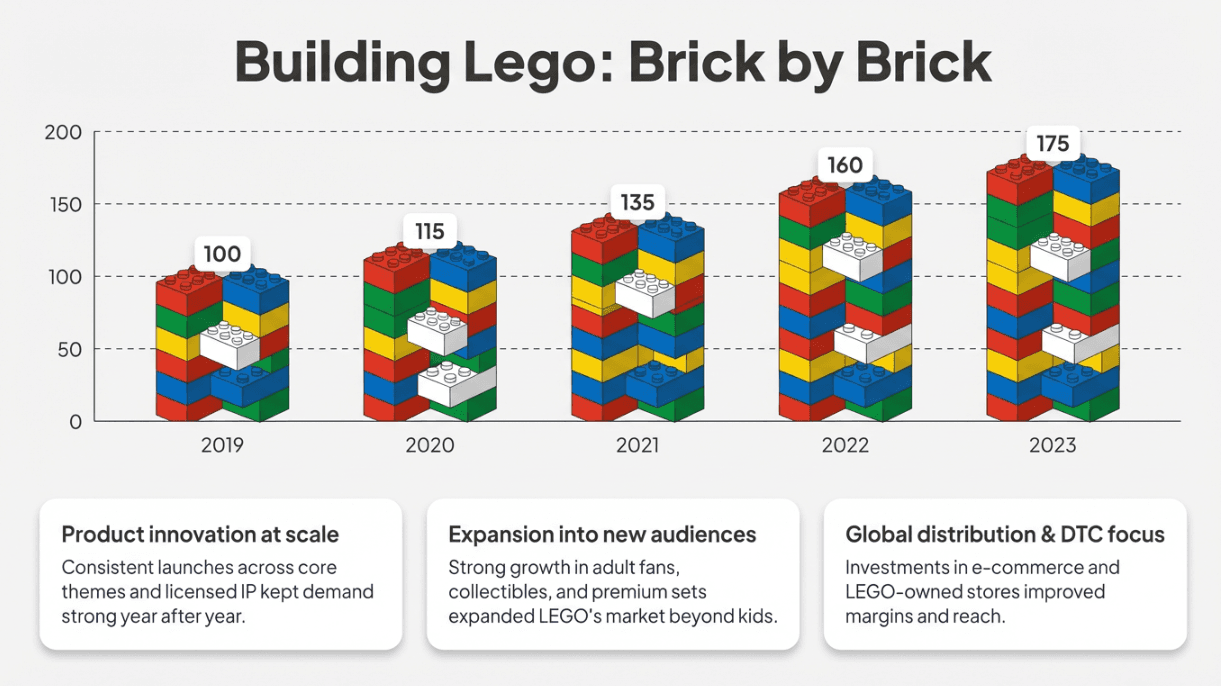
Accurate text rendering
Labels, headings, and annotations appear as intended instead of breaking into unreadable fragments. This is the capability that DALL-E and Mid-journey still struggle with, and it's what makes Nano Banana Pro genuinely useful for infographics, data visualizations, and presentation slides.
Text appears as intended instead of breaking into unreadable fragments
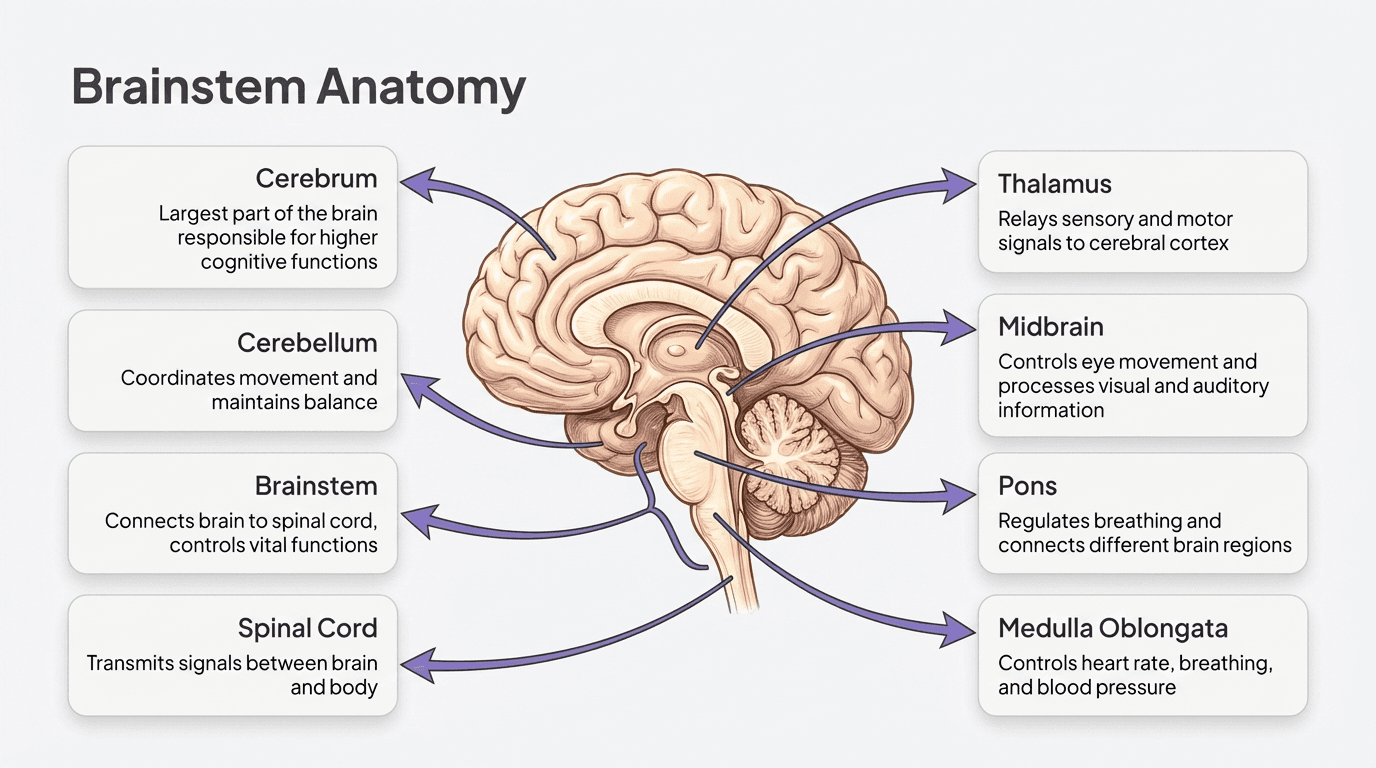
Structured visual handling
Infographics, diagrams, and charts maintain alignment between labels and visual elements. When you generate a chart, the labels actually point to the right data points.
Infographics, diagrams, and charts maintain alignment between labels and visual elements.
High resolution output
Support for up to 4K resolution means generated slides are usable on large displays without looking soft or pixelated.
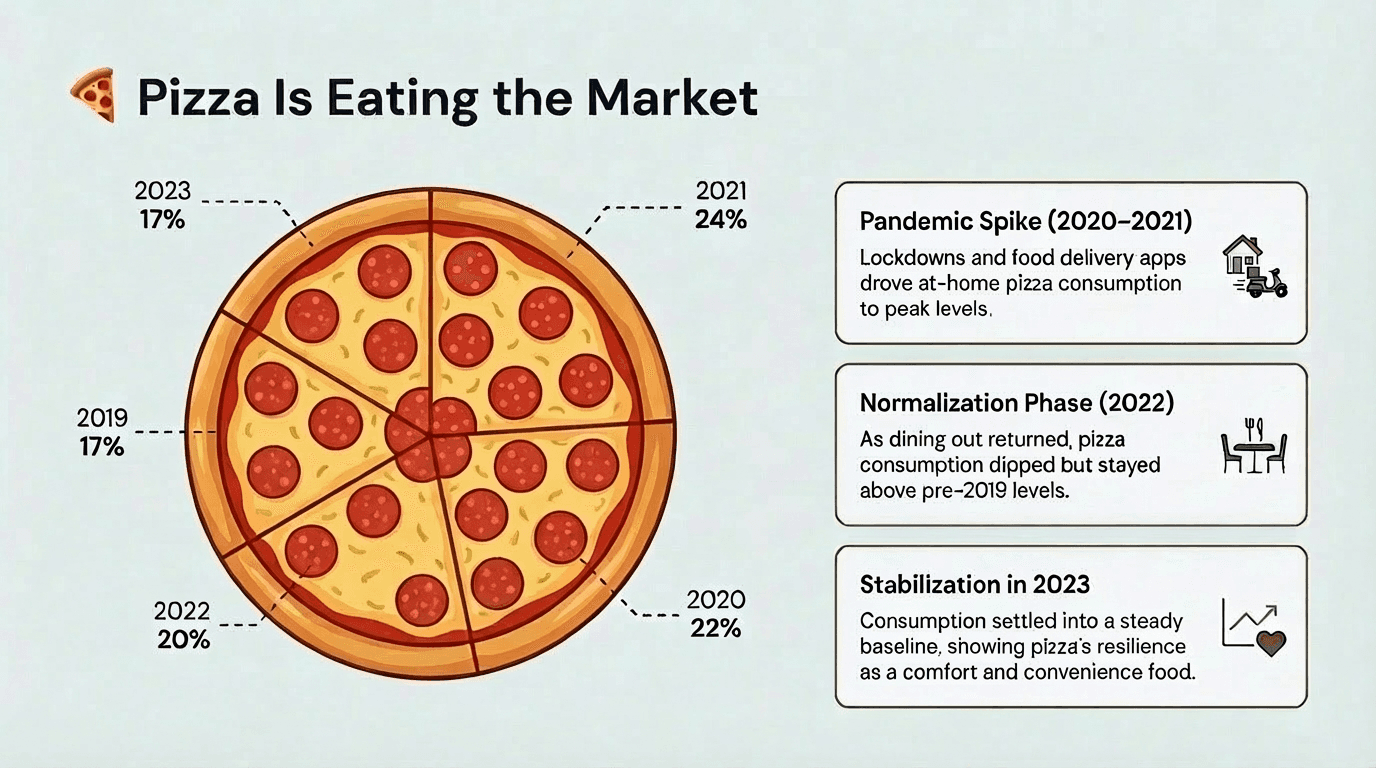
Presentation-native layouts
It consistently respects the 16:9 slide canvas and produces layouts that resemble real presentation slides rather than generic images.
Slides maintain 16:9 dimension and content is structured to fit the same
Because of these capabilities, Nano Banana Pro is well suited for full-slide infographics, complex visual metaphors, and diagram-heavy slides that would be difficult to design manually.
Nano Banana Pro: Quick Summary
Category | Details |
|---|---|
Best for | One-off infographics, hero images, data visualizations with text |
Not for | Complete editable decks, collaborative workflows, brand-consistent slide series |
Access | Gemini app (free + paid tiers), NotebookLM, Google Slides (Workspace), Google Vids, Alai (with pre-trained design pre-sets and fully editable slides) |
Key advantage | Actually renders legible text in images—something DALL-E and Midjourney still struggle with |
Key limitation | Outputs are flat images, not editable slides (unless you use a tool that's built on top of it) |
Where to Access Nano Banana Pro
Platform | Availability | Best For |
|---|---|---|
Gemini App | Global (Free + Paid) | Quick image generation |
NotebookLM | Global (All users) | Full slide decks from documents |
Google Slides | Workspace customers | Direct slide creation |
Google Vids | Workspace customers | Video presentations |
AI Mode in Search | US (Pro/Ultra only) | Research + visuals |
Alai, Gemini app, NotebookLM, Google Slides, Google Vids, Gamma, Manus, Kimi | Global (Free + Paid) | Pre-trained design pre-sets, no prompt engineering, editable slides |
How to access in Gemini: Click the banana icon (🍌), select "Create images," then choose "Thinking" for Nano Banana Pro (not "Fast" - that's the older model).
How to Use Nano Banana Pro in Google Slides
Workspace customers get native integration. Two approaches:
Method 1: Help Me Visualize
Open Google Slides
Select "Help me visualize" from the sidebar
Enter your prompt
Insert the generated image
There's also a "Beautify this slide" feature that analyses your existing slide and enhances the design.
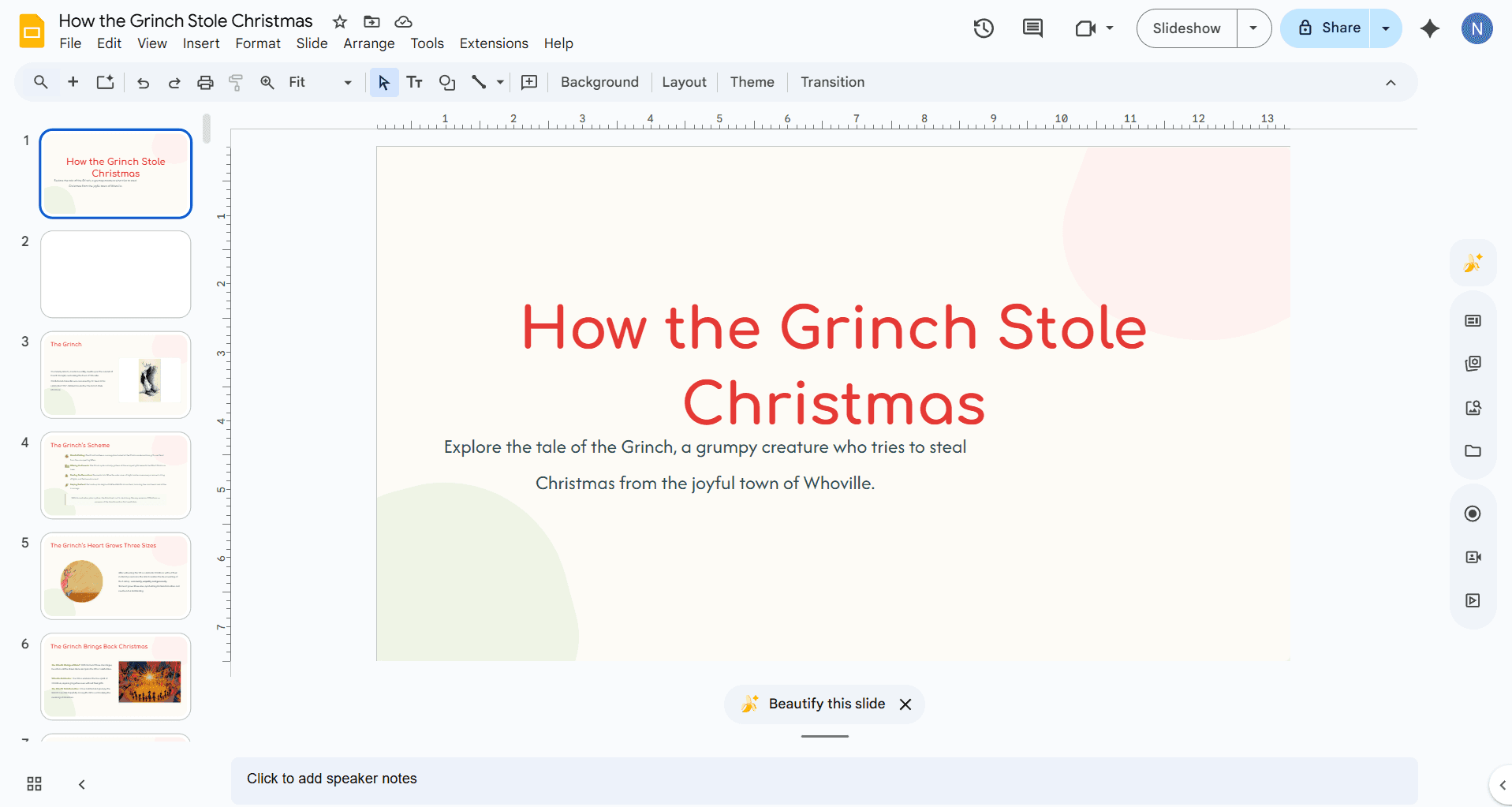
Before using Nano Banana Pro: The banana icon on the right sidebar allows you to enter your prompt and create a slide while the ‘Beautify this slide’ button at the bottom re-generates a better-looking slides after analysing your existing one
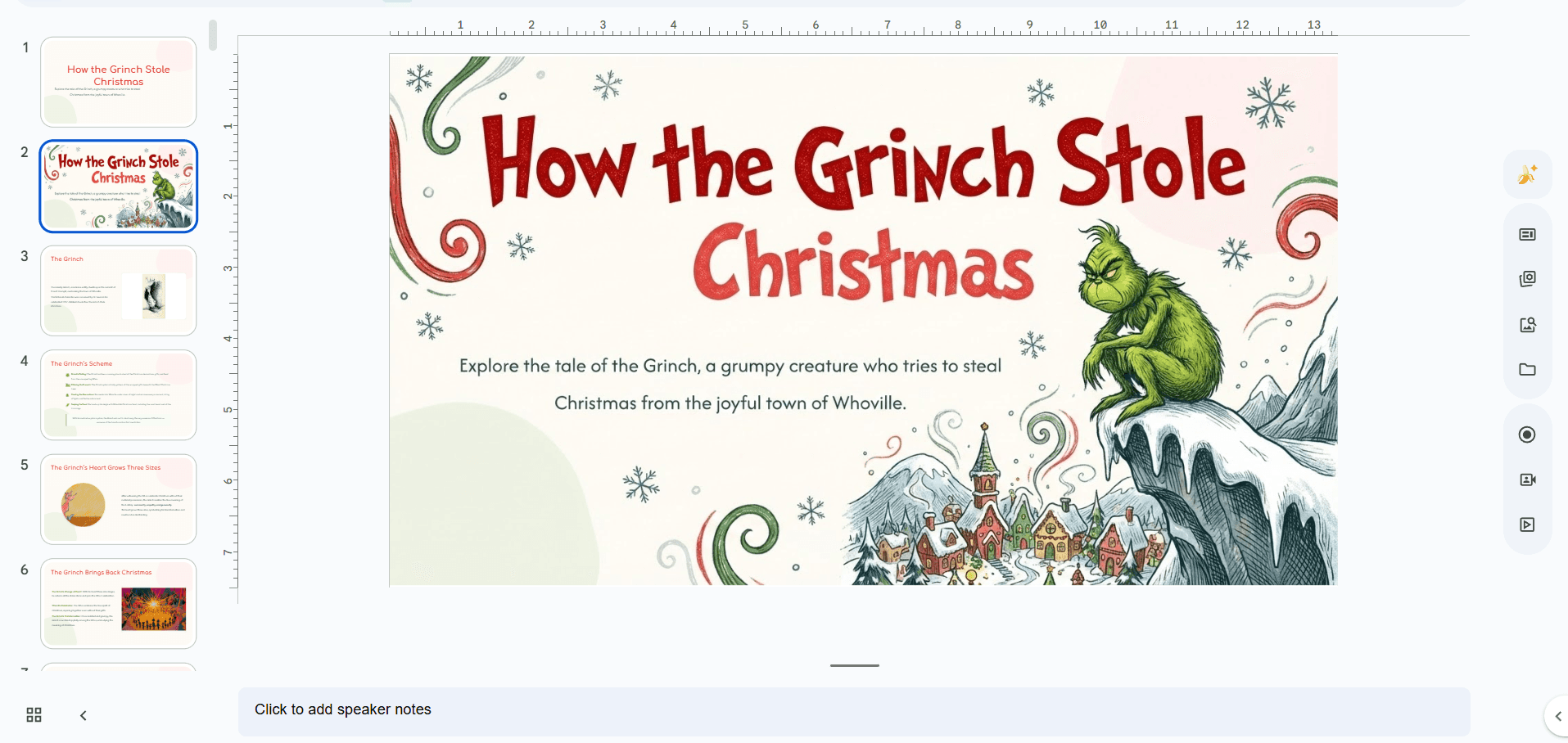
After using Nano Banana Pro: Results from ‘Beautify this slide’
Method 2: NotebookLM Slide Decks
NotebookLM can convert documents into full presentations using Nano Banana Pro:
Upload your source docs (PDFs, notes, research)
Click "Create slides" or "Create infographic"
Export to Google Slides for editing
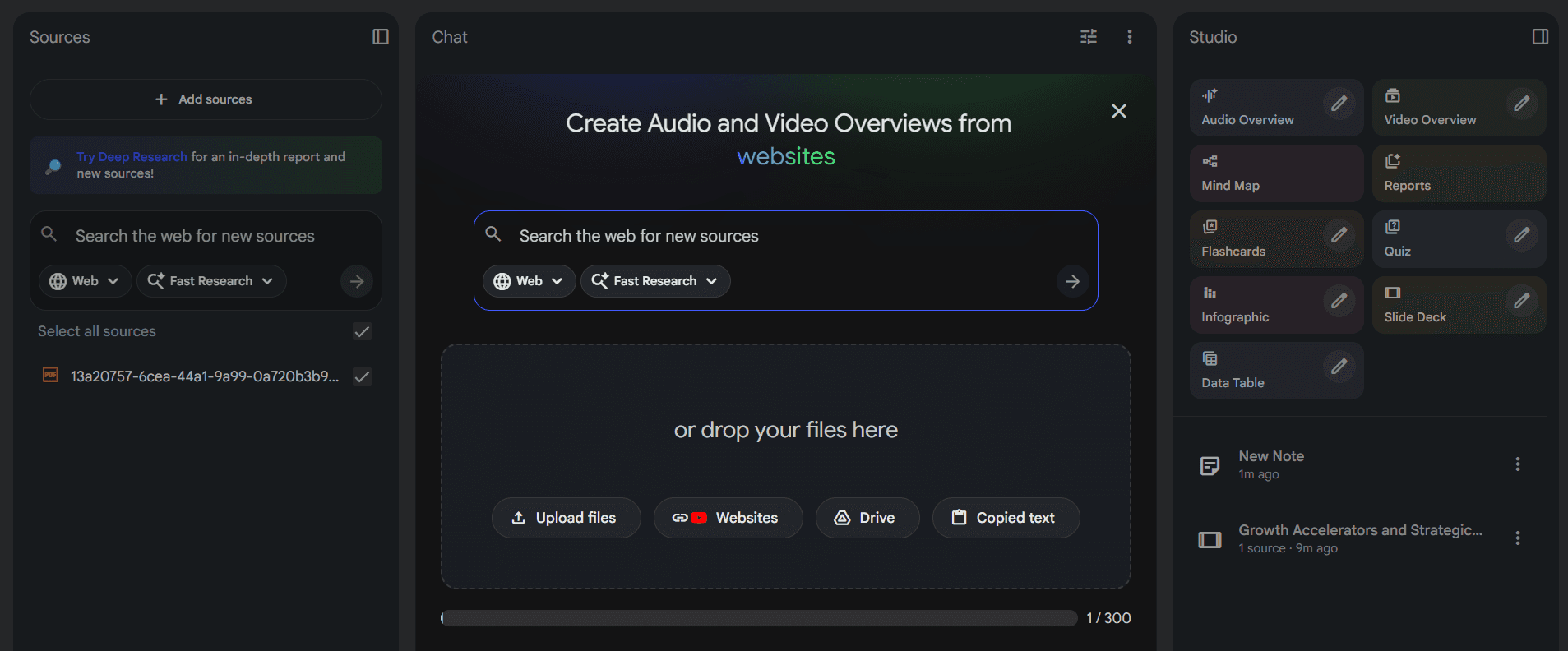
NotebookLM uses Nano Banana Pro to convert PDFs/Notes/Documents to infographics or slide decks
This works well for turning research into presentations. The output looks polished, but you can't control layouts or choose between design options.

Example of slides created using NotebookLM
How to Use Nano Banana Pro in PowerPoint
No native integration yet. Two workarounds:
Method 1: Copy-Paste from Gemini
Go to gemini.google.com
Click → "🍌 Create image"
Enter your prompt
Right-click → Copy image
Paste into PowerPoint
Simple but makes it difficult to maintain consistency in designs and requires you to create a new prompt for each slide.
Method 2: Third-Party Add-ins
Plus AI and similar add-ins now include Nano Banana Pro access directly in PowerPoint. Install from the Microsoft Office Add-ins store.
How to Use Nano Banana Pro in AI Presentation Makers
Here's the thing about Nano Banana Pro: the output quality depends almost entirely on your prompt, and the output isn't editable, you get a flat image, not a slide you can tweak.
That's fine if you know prompt engineering and don't mind regenerating from scratch when something's off. Most people don't.
AI Presentation Makers solved this by building Nano Banana Pro into their presentation tools, handling the prompts for you and keeping your content editable.
Here are the top 4 AI presentation makers using Nano Banana Pro:
Alai
Alai uses Nano Banana Pro with prompts trained on 1,000+ presentations. Instead of writing prompts yourself, you pick a design pre-set and the AI handles the rest.
Additionally, Alai offers the option to use current theme context while generating a new slide to ensure the design matches all other slides and offers both AI and manual edit options for Nano Banana Pro slides (something most other tools do not offer)
How it works:
Import your content into a deck. This can be raw notes, text, links, screenshots, or files.

Review & edit the outline. For each slide, Alai produces both regular and Nano Banana Pro options. You can control the ratio of normal to Nano Banana Pro variants for each slide when you finalize the outline (choose more Nano Banana Pro variants for visual-heavy content like infographics, or lean toward regular variants when you need easy editing.) This gives you control over both the output style and credits spent during generation.
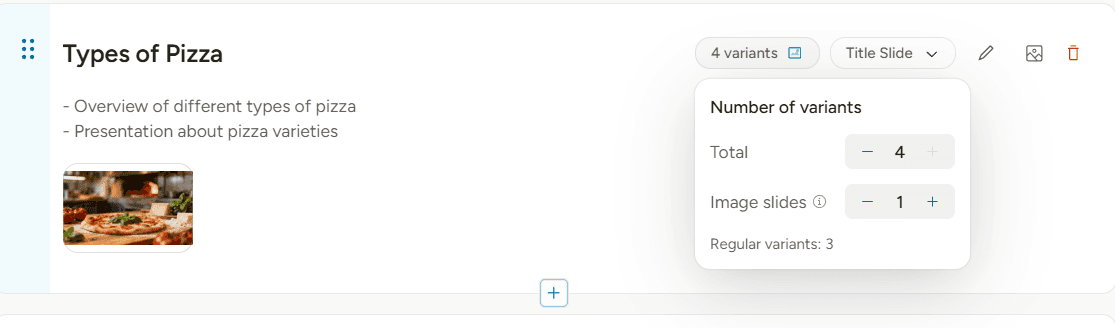
Choose the number of ‘image slide’ variants you want for each slide at the time of generation
‘Beautify’ regular responsive slides. Once you have all your slides generated, you can choose to ‘beautify’ an existing regular slide with Nano Banana Pro by selecting the ‘Beautify this slide’ option. While doing this make sure to:
Choose a Design Pre-set: Select from Alai's library of design pre-sets. Each pre-set triggers different optimized Nano Banana Pro prompts tailored to deliver that specific style. You can also select the ‘Custom’ pre-set to use a prompt of your own.
Enable Theme Context (Important!): Tick the checkbox for ‘Use current theme context’, this ensures the design matches all your other slides, maintaining visual consistency throughout your deck.
Edit your slides. After generation, you can refine the output by:
General instructions: Change the overall slide (e.g., "make it more visual")
Point-specific instructions: Make targeted AI edits on specific elements, images, or text
Manually editing NBP slides: Click 'Edit Manually' to convert image slides to freeform slides, giving you full control to rewrite text, reposition elements, adjust padding, change font size and more.
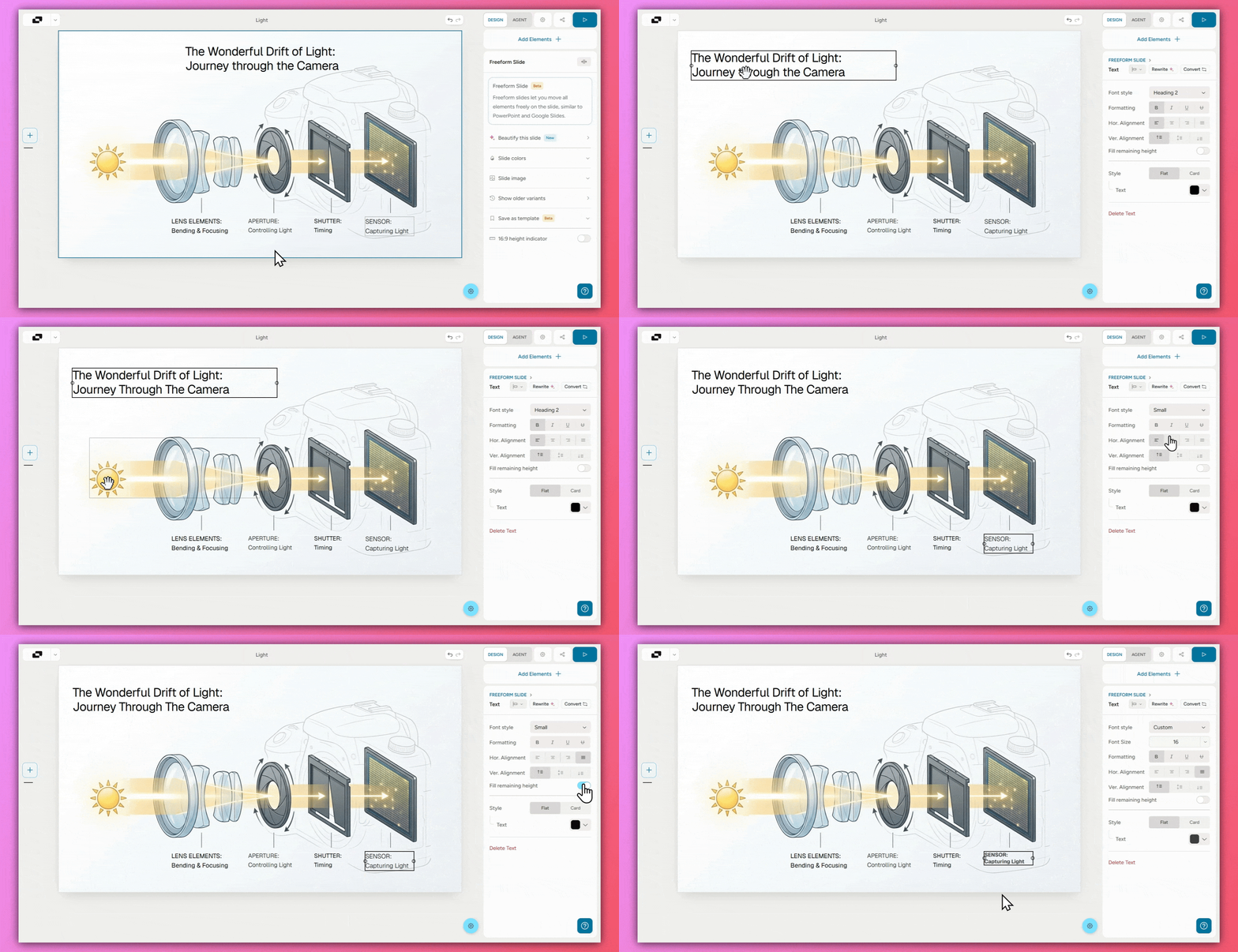
Pro tip: Beautify again to clean up. After your manual changes, use the Beautify feature again to fix formatting and make the slide look polished.
Export. Once satisfied, export your presentation as:
PowerPoint (.pptx)
PDF
Trackable link
The goal is not to make every slide image-based. The goal is to use Nano Banana Pro where it creates leverage, while keeping the deck easy to refine overall.
The Result:
Examples of slides created on Alai using Nano Banana Pro
Gamma
Gamma integrated Nano Banana Pro into their Studio Mode for generating images within presentations. The model auto-matches your presentation's theme and handles text rendering.
How it works:
Either choose studio mode while creating a deck (amongst other import options) or select Nano Banana Pro as the model while generating images for slides
Describe what you want or let Gamma suggest visuals
Nano Banana Pro generates images that match your deck's colour scheme and style
Limitations:
Nano Banana Pro only works when generating entire presentations, unlike Alai you cannot split your deck between regular and Nano Banana Pro slides. Additionally, Gamma does not support editing for specific elements, texts or images using AI or manually - any edits require you to change the entire prompt for the slide or instruct Gamma's AI agent.
The Results:
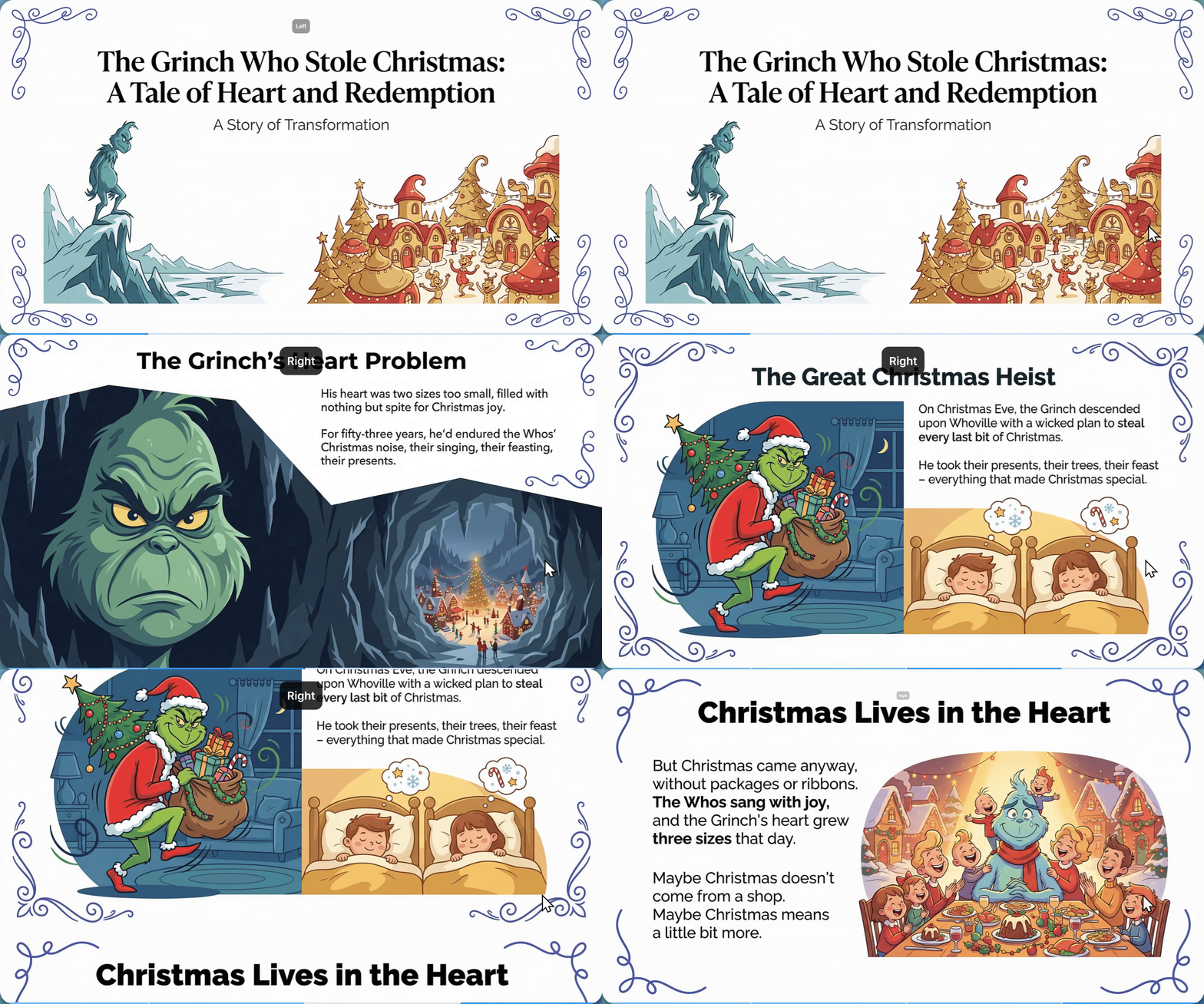
Examples of slides created on Gamma using Studio Mode (via Nano Banana Pro)
Manus
Manus uses Nano Banana Pro to generate entire slides as images - text, graphics, layouts, everything in one visual. A recent update made these slides editable at the element level.
How it works:
Go to Manus Slides and start a new presentation (specifically select Nano Banana Pro)
Describe your topic, audience, and key messages
Manus generates complete slides using Nano Banana Pro
Edit text or elements manually or with AI
Export as PPTX, PDF, or Google Slides
Limitations
No theme or style pre-set support. Each slide is generated independently, making it difficult to maintain visual consistency across longer decks without careful prompt management. Additionally it lacks manual editing options so each edit is highly dependent on AI prompting.
The Results:
Examples of slides created on Manus using using Nano Banana Pro
Kimi
Kimi combines Nano Banana Pro with their Agentic Slides feature. Upload existing documents and the AI converts them into presentations automatically—no manual content entry.
How it works:
Upload source materials or add your prompt
Kimi's agent analyses/creates the content and structures it into slides
Nano Banana Pro generates infographics and visuals
Edit slides in browser, then export as PowerPoint
Limitations:
Editing is text-only. You can modify headlines, bullet points, and labels after generation, but icons, images, and visual elements are locked for both AI and manual edits. Adjusting graphics requires regenerating the entire slide.
The Results:
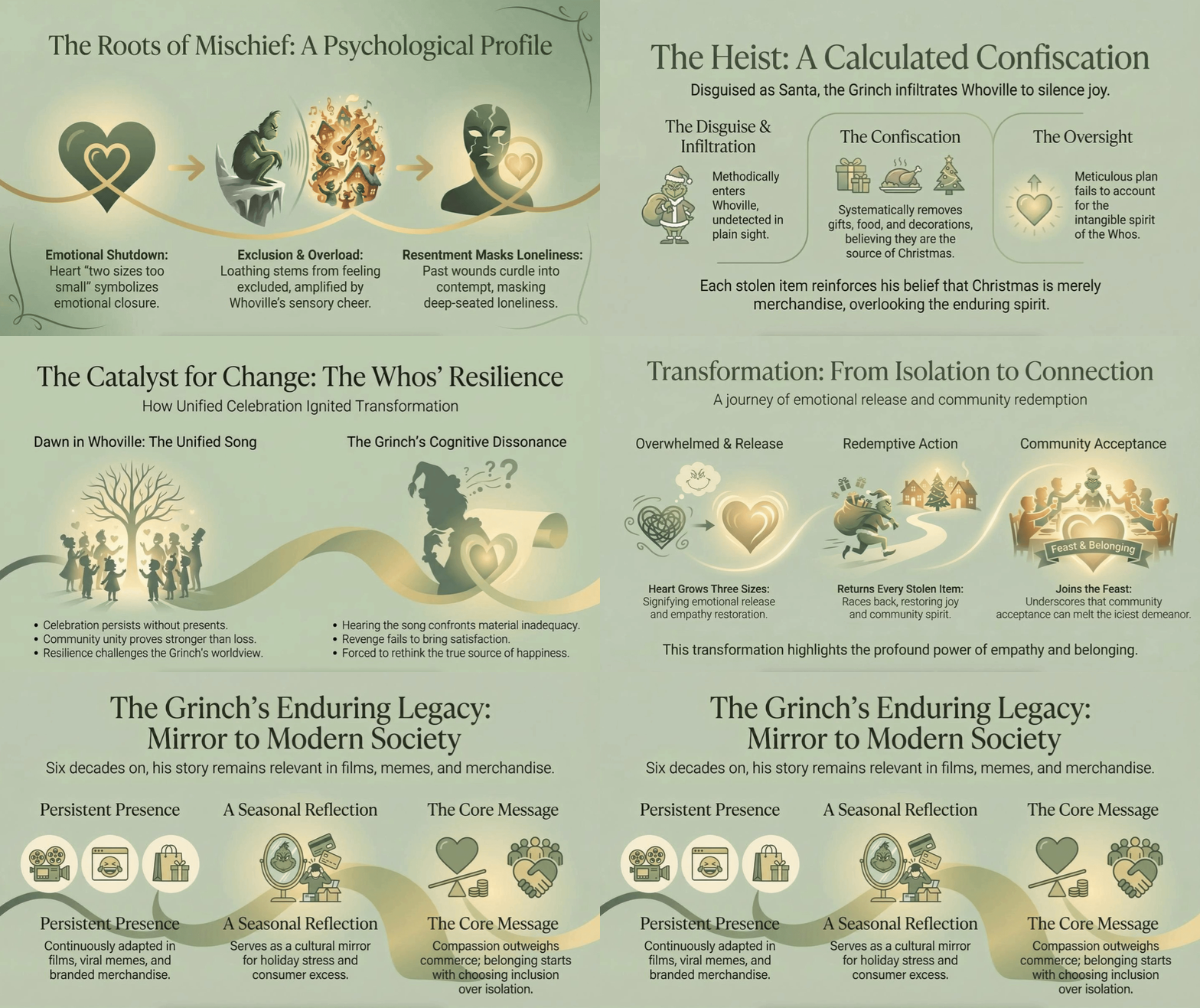
Examples of slides created on Kimi using using Nano Banana Pro
Which AI Presentation Maker Uses Nano Banana Pro Best?
Feature | Alai | Gamma | Manus | Kimi |
|---|---|---|---|---|
Apply NBP to individual slides | ✓ | ✗ | ✗ | ✗ |
Edit text after generation | ✓ | Limited | ✓ | ✓ |
Edit icons/images after generation | ✓ | ✗ | ✓ | ✗ |
Edit slides manually | ✓ | ✗ | ✗ | ✗ |
Theme/style presets | ✓ | ✓ | ✗ | ✗ |
Maintain theme across slides | ✓ | ✓ | ✗ | ✗ |
Import existing decks | ✓ | ✓ | ✗ | ✓ |
Export to PowerPoint | ✓ | ✓ | ✓ | ✓ |
Free tier includes NBP | ✓ | ✓ | Limited | ✓ |
Now that we know the different ways to use Nano Banana Pro, the question boils down to which way is the best way, let me break that down for you.
What's The Best Way To Use Nano Banana Pro?
You've seen the options - Gemini direct, Google Slides, NotebookLM, PowerPoint workarounds, and four different AI presentation makers. That's a lot of paths to the same destination.
Here's how to choose:
Method | Best For | Trade-offs |
|---|---|---|
Gemini (direct) | One-off visuals, hero images, quick infographics | Requires prompt skills, flat image output, no editability |
Google Slides / NotebookLM | Workspace users who want native integration | Limited design control, still produces flat images, lacks theme consistency |
AI Presentation Makers | Full decks, consistent styling, editable output (if you're specifically looking to edit Nano Banana Pro or NotebookLM slides manually, Alai is your best option) | Additional tool to pay for |
Why AI Presentation Makers Win for Most Use Cases
Raw Nano Banana Pro through Gemini is powerful, but it puts all the work on you. AI presentation makers solve the three biggest friction points:
1. No prompt engineering required.
Getting good results from Nano Banana Pro directly means writing prompts like: "Create a minimalist infographic showing customer journey funnel: Awareness (100%) → Interest (60%) → Decision (30%) → Purchase (15%). Blue gradient. Include percentage labels. 16:9 aspect ratio. Clean sans-serif typography. Professional business style."
Miss any of those details and your output suffers. Too vague? Generic results. Wrong aspect ratio? Doesn't fit your slide. Forgot to specify text? The AI invents something.
Tools like Alai use prompts trained on thousands of presentations. You pick a design pre-set; the tool constructs the optimal prompt behind the scenes. Same quality, no guesswork.
2. Editable output instead of flat images.
When you generate a slide through Gemini or NotebookLM, you get a PNG or JPEG. It looks like a slide, but it's an image. You can't:
Click into the headline to fix a typo
Change the font size
Swap out an icon
Something wrong? Regenerate the entire thing and hope the new version doesn't introduce different problems.
AI presentation makers solve this by keeping your content in editable layers. Alai, for example, lets you modify text, move elements, and make point-specific edits after Nano Banana Pro generates the design. The visual quality comes from the AI; the editability comes from the tool architecture.
3. Style consistency across slides.
A presentation isn't one slide, it's 10, 15, 20 slides that need to feel like they belong together. Same colour palette. Same typography. Same visual language.
With raw Nano Banana Pro, this is hard. Even if you copy-paste the same style instructions into every prompt, subtle variations creep in. The blue is slightly different. The spacing feels off. One slide looks more "designed" than another.
Presentation tools handle theme context automatically. Alai's "use current theme context" checkbox, for instance, analyses your existing slides and ensures new generations match. Gamma auto-matches your presentation's established theme. The consistency problem gets solved at the platform level, not through your prompting skills.
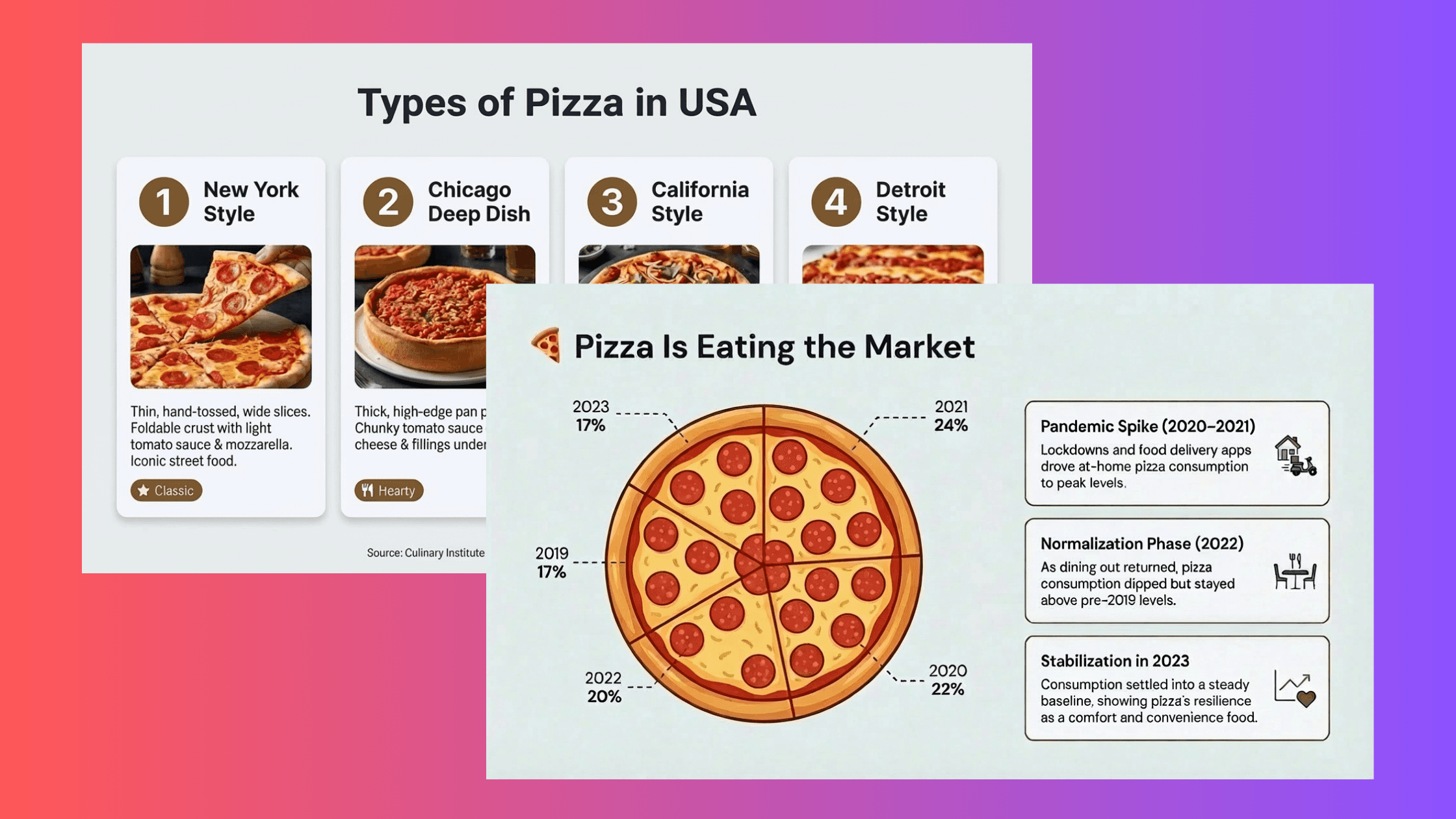
Best Nano Banana Pro Workflows by Use Case
After testing multiple approaches, here's what works best:
For New Presentations From Scratch
Start in Alai, describe your presentation topic or paste your content
Get 4 layout options per slide, choose what fits your message
Use Beautify to apply Nano Banana Pro design pre-sets to slides that need visual impact
Make edits manually or with AI wherever needed (use point-based editing for precision)
Export to PowerPoint, PDF, or shareable link
Why this works: You maintain full control over content and structure while selectively applying AI-generated design where it adds value. Not every slide needs a complex infographic—some just need clean text. This workflow lets you choose.
For Existing Decks That Need a Refresh
Import your PowerPoint into Alai
Hit Beautify - the pre-trained prompts transform your slides while keeping content intact
Review each slide; make edits manually or using AI
Use point-based editing for specific changes ("make this headline bigger," "change this icon to something more modern") or make edits directly using the manual edits function.
Export back to PowerPoint
Why this works: You're not rebuilding from scratch. Your content, your structure, your narrative—all preserved. The AI handles the visual upgrade without touching what you've already written.
For One-Off Visuals
Go to Gemini directly
Use the prompt templates below
Be specific: include exact text, colours, aspect ratio, and style
Iterate until you get what you need
Copy-paste into your deck
Why this works: For a single hero image or infographic, you don't need a full presentation tool. Direct access is faster when you know what you want and you're comfortable with prompt iteration.
Prompts for Gemini (If You're Going the DIY Route)
If you prefer direct access through Gemini, here's what actually produces usable results:
For Infographics
Template: "Create a [style] infographic showing [data/concept] with [specific elements]. Use [colours]. Include [labels]. 16:9 aspect ratio."
Example: "Create a minimalist infographic showing customer journey funnel: Awareness (100%) → Interest (60%) → Decision (30%) → Purchase (15%). Blue gradient from dark to light as funnel narrows. Include percentage labels at each stage. 16:9 aspect ratio. Clean sans-serif typography."
Why this works: You're specifying style, data structure, colour direction, label requirements, and dimensions. Nothing left to chance.
For Concept Slides
Template: "Create a presentation slide illustrating [concept] using [visual metaphor]. [Style]. Clean background for text overlay."
Example: "Create a presentation slide illustrating digital transformation using interconnected gears and circuits. Modern flat design with subtle gradients. Navy blue and white colour scheme. Clean right side for text overlay."
Why this works: The visual metaphor gives Nano Banana Pro creative direction without being too prescriptive. Specifying where to leave space for text prevents the AI from filling the entire canvas.
For Data Visualization Slides
Template: "Create a presentation slide showing [metric/data] as a [chart type]. Include the values [specific numbers]. Use [colours]. Title: '[Your headline]'. 16:9 aspect ratio."
Example: "Create a presentation slide showing monthly recurring revenue growth as a line chart. Values: Jan $120K, Feb $135K, Mar $142K, Apr $158K, May $171K, Jun $189K. Use green for the line, light grey grid. Title: 'MRR Growth: 58% in 6 Months'. 16:9 aspect ratio."
Why this works: You're giving the AI exact numbers, so it can't invent data. The chart type is specified. The headline is written for you, not generated.
For Pitch Deck Visuals
If you're building an investor pitch deck, Nano Banana Pro can generate supporting visuals. But remember: investors care about clarity more than aesthetics. A beautiful image that obscures your point is worse than a plain slide that communicates clearly.
Template: "Create a professional presentation slide showing [metric] with [visualization type]. Include the text '[headline]' prominently. Clean, minimal design. 16:9 aspect ratio."
Example: "Create a professional presentation slide showing market size as three concentric circles: TAM $50B (outer), SAM $8B (middle), SOM $800M (inner). Include labels for each circle. Title: 'Large Market, Focused Entry'. Navy and light blue colour scheme. 16:9 aspect ratio."
For complete pitch deck structure and strategy, see our guide to creating investor decks that get funded.
Tips for Getting Better Results using Nano Banana Pro
If Using Gemini Directly
Always specify "16:9 aspect ratio" for presentation slides. Without this, Nano Banana Pro defaults to square or portrait orientations that don't fit slide decks.
Write the exact text you want in the prompt. Don't leave headlines, labels, or annotations to the AI. If you want it to say "Q3 Revenue: $4.2M," type that exact phrase in your prompt.
Use professional style terms. Words like "clean," "minimalist," "corporate," and "professional" steer the output away from over-artistic or experimental results that don't fit business presentations.
Include colour guidance. Mention your brand colours, preferred palette, or at least a colour direction ("blue and white," "warm earth tones," "high contrast black and yellow").
Batch similar requests in one session. If you're generating multiple visuals for the same deck, do them back-to-back with consistent style language. This improves coherence, though it's not guaranteed.
If Using Alai
Try different design presets. Each preset triggers different Nano Banana Pro prompts optimised for that style. Minimalist, corporate, creative, data-heavy—experiment to find what fits your content.
Import existing decks instead of rebuilding. Beautify transforms what you have. It's faster than starting from scratch and preserves your content structure.
Check "use current theme context." This analyses your existing slides and ensures new generations match the established look. Essential for consistency across longer decks.
Use manual editing for precision: Alai is one of the few AI presentation tools that allows you to convert Nano Banana Pro's image slides to freeform slides enabling you to rewrite text, move elements or change layouts directly without using AI.
Learn how to make stunning slides using Nano Banana Pro.
FAQs
Can Nano Banana Pro create slides?
Yes, but with a caveat.
Nano Banana Pro can generate images that look like slides - complete with titles, bullet points, graphics, and layouts. Prompt it with something like "Create a slide about market trends in renewable energy" and you'll get a polished, presentation-ready image.
The limitation: It's still an image. You can't click into the text and edit it. You can't move elements around. If there's a typo, you have to regenerate the whole thing.
Is Nano Banana Pro free?
Yes, with limits. Free tier in Gemini app has usage caps. Google AI Plus/Pro/Ultra subscribers get higher quotas. Alai's free plan includes access to Nano Banana Pro through their Beautify feature.
Can I edit the images after generation?
Depends on how you access it. Through Gemini directly - no, you get flat images. Through Alai - yes, both using AI and manually. With Kimi - only text can be edited. With Manus - editing is possible only with AI prompting.
How does Nano Banana Pro compare to DALL-E and Midjourney?
Text rendering is Nano Banana Pro's main advantage. It generates legible, correctly spelled text far better than either competitor. DALL-E and Midjourney may still produce more artistic images for non-text use cases.
What's the difference between Nano Banana and Nano Banana Pro?
Nano Banana (Gemini 2.5 Flash Image) is the standard model—"Fast" option in Gemini. Nano Banana Pro (Gemini 3 Pro Image) is the advanced model with better reasoning and text rendering—"Thinking" option.
Do I need to learn prompt engineering to use Nano Banana Pro?
If you're using Gemini directly, yes, your output quality depends on prompt quality. If you're using Alai, no, their design presets use prompts trained on 1,000+ presentations, so you get professional results without writing prompts.
Which creates better presentations: Nano Banana Pro or ChatGPT?
They do different things.
Nano Banana Pro is an image generation model. It creates visuals - infographics, diagrams, slide graphics with readable text. It's the best AI model for generating images that belong in presentations because it actually renders text correctly (most AI image generators don't).
ChatGPT is a language model that can also generate images (via DALL-E or GPT-4o). It's stronger at writing content, structuring ideas, creating outlines, and drafting speaker notes. Its image generation is decent but struggles with text rendering compared to Nano Banana Pro.
Bottom Line: When To Use Nano Banana Pro
Nano Banana Pro is a genuine step forward for AI-generated presentation visuals. The text rendering alone makes it worth using.
But raw access through Gemini requires prompt engineering skills most people don't have (or want to develop). The smarter play is using tools that have already done the prompt optimization work.
Why Alai is the best way for using Nano Banana Pro for presentations:
Maintains theme context
Contains a library of prompts for different pre-sets (styles)
Lets you iterate on images precisely via annotations or manually
Allows creating responsive slides with Nano Banana Pro slides easily (rather than choosing to generate an entire deck with/without Nano Banana Pro)
Ready to try Nano Banana Pro the easy way? Get started with Alai free - pre-trained design pre-sets, editable slides, PowerPoint export in seconds.
Related Reading:
What is Nano Banana Pro useful for in presentations?
Nano Banana Pro is useful for creating or editing visual assets for slides, especially when you need image generation, text rendering, or product-style visuals inside a deck.
Can Nano Banana Pro make PowerPoint slides?
Nano Banana Pro is primarily an image generation workflow, not a full presentation builder. It can help create visuals for slides, but you still need a tool to structure and edit the deck.
How do I use Nano Banana Pro with Alai?
Use Nano Banana Pro for specific visuals when needed, then bring those assets into Alai to build, edit, and polish the full presentation.
Is Nano Banana Pro better than an AI presentation maker?
Not for full decks. Nano Banana Pro can create strong visuals, while an AI presentation maker handles structure, slide flow, design consistency, and export.
PAGES
Compare Tools
resources