·
BASICS
·
11 min read

Marketing Lead
Introduction: What Is Nano Banana Pro?
Nano Banana Pro 2 is Google DeepMind's latest AI image generation model, built on Gemini 3 Pro (sometimes referred to as Gemini 3 Pro Image).
It's designed to generate high-quality images from text prompts, but what sets it apart from models like DALL-E or MidJourney is its ability to handle text and structured layouts reliably, making it uniquely suited for presentation slides.
Why Use Nano Banana Pro To Create Presentations?
Accurate text rendering
Labels, headings, and annotations appear as intended instead of breaking into unreadable fragments. This is the capability that DALL-E and Mid-journey still struggle with, and it's what makes Nano Banana Pro genuinely useful for infographics, data visualizations, and presentation slides.
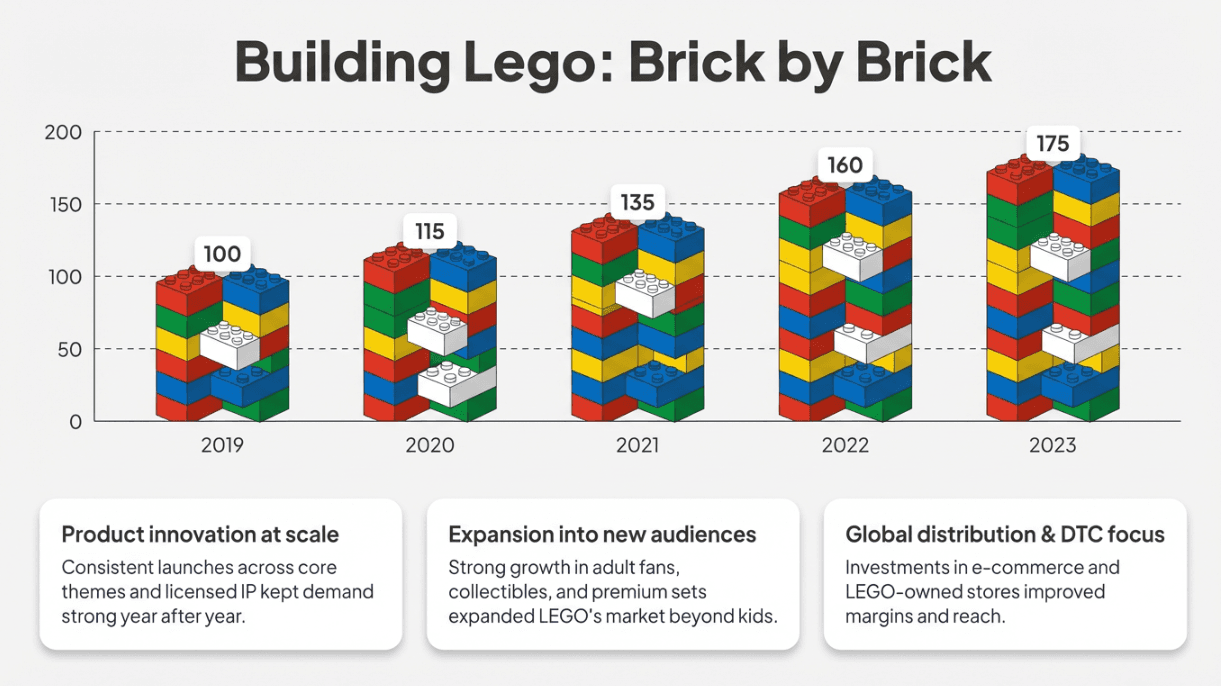
Text appears as intended instead of breaking into unreadable fragments
Structured visual handling
Infographics, diagrams, and charts maintain alignment between labels and visual elements. When you generate a chart, the labels actually point to the right data points.
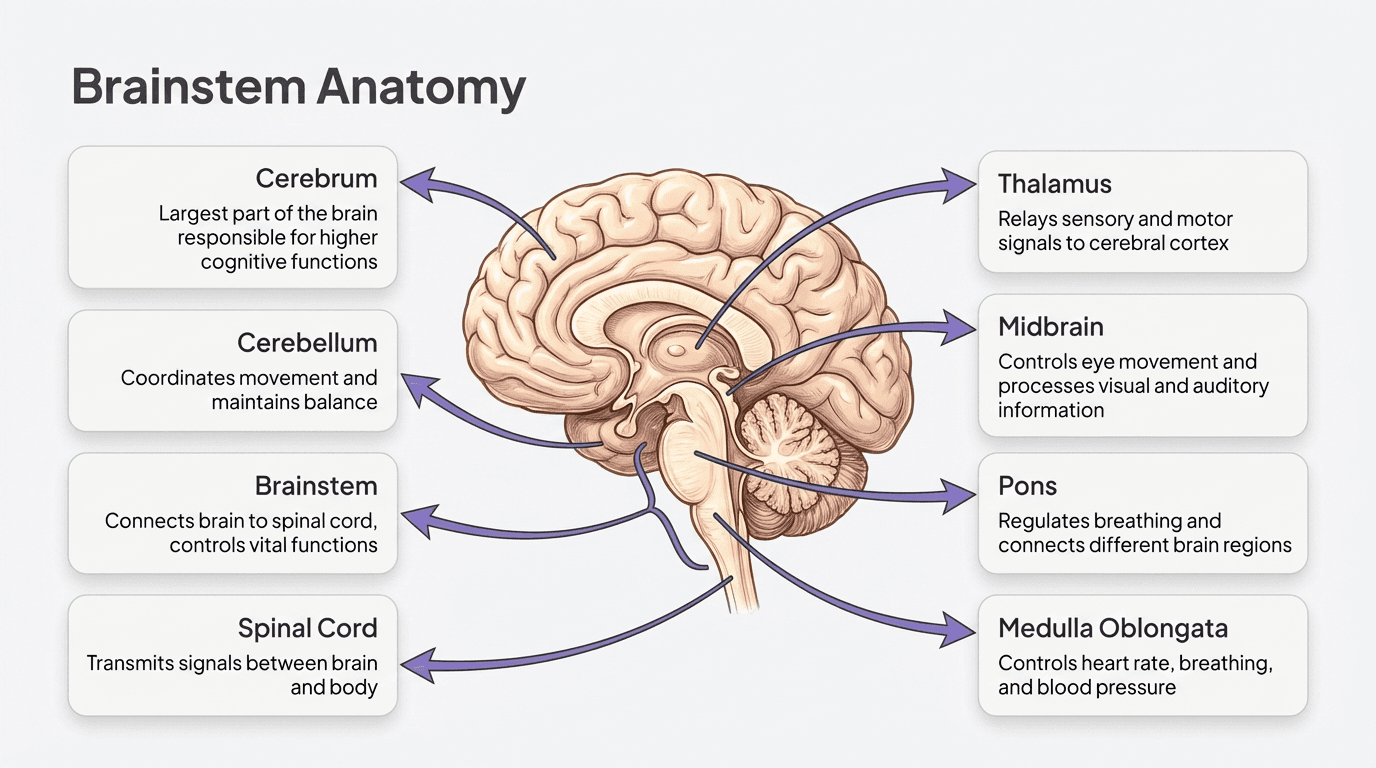
Infographics, diagrams, and charts maintain alignment between labels and visual elements.
High resolution output
Support for up to 4K resolution means generated slides are usable on large displays without looking soft or pixelated.
Presentation-native layouts
It consistently respects the 16:9 slide canvas and produces layouts that resemble real presentation slides rather than generic images.
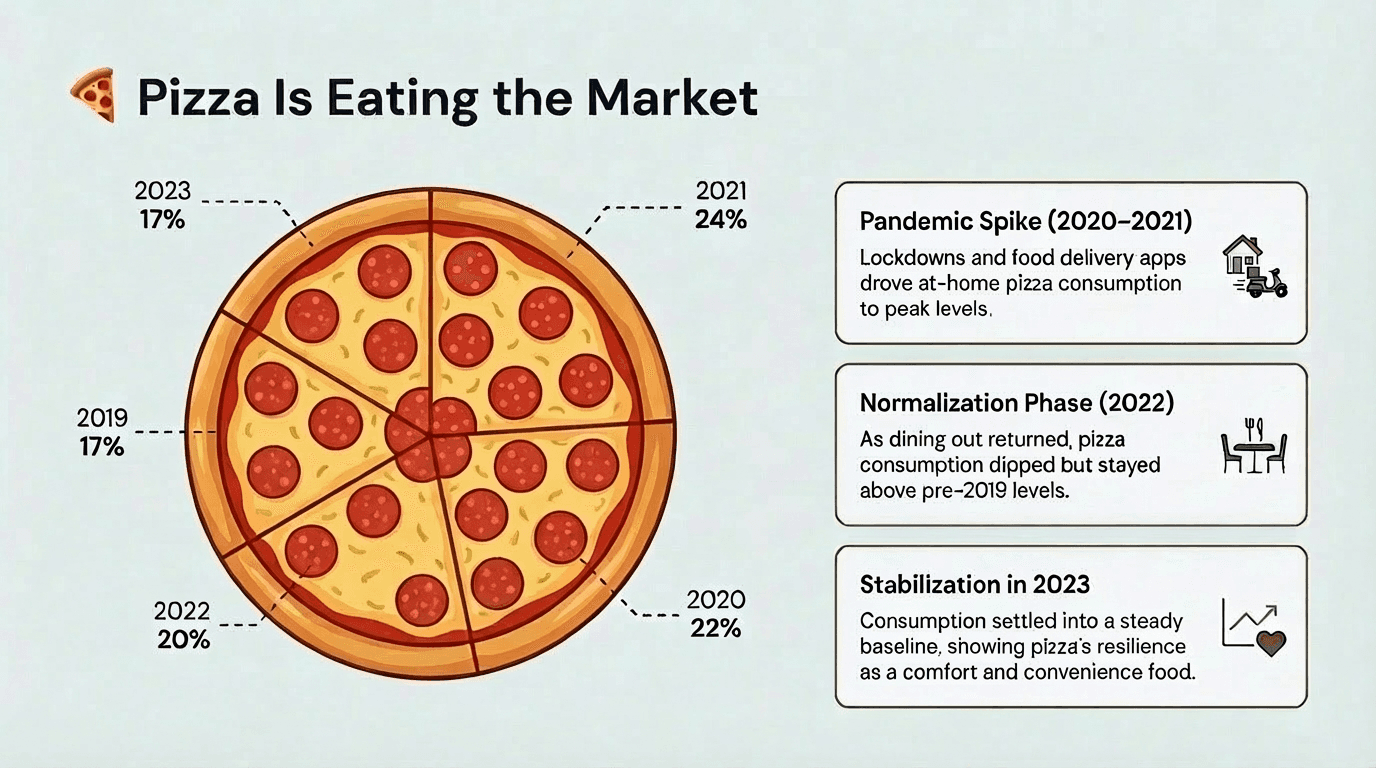
Slides maintain 16:9 dimension and content is structured to fit the same
Because of these capabilities, Nano Banana Pro is well suited for full-slide infographics, complex visual metaphors, and diagram-heavy slides that would be difficult to design manually.
Nano Banana Pro Limitations: The 80 Percent Problem
When Nano Banana Pro is used directly through Gemini, the output is a flat image.
This creates a hard limitation.
If there is a typo, the entire slide must be regenerated. If emphasis needs to shift, regeneration is required. If a single icon feels wrong, there is no way to adjust it in isolation.
This is the 80 percent problem.
Nano Banana Pro gets you most of the way to a great slide very quickly, but it offers no practical way to finish the last 20 percent that makes a slide presentation-ready.
As a result, teams either accept slides that are close but not quite right, or they keep regenerating and lose consistency across the deck.
This is not a failure of the model. It is a limitation of using image generation without a presentation system.
Most AI presentation tools that support Nano Banana Pro don't solve this either (except Alai) - they still treat the output as a flat image with no way to directly edit what's on the slide. The few tools that do provide iteration as an option only allow edits on text (Kimi) or do not provide manual editing options (Manus)
When Nano Banana Pro Makes Sense (and When It Doesn't)
Not every slide benefits from being image-based. Strong presentations use both.
Nano Banana Pro slides work best for:
Complex diagrams and infographics
High-level framing and narrative moments
Visualizing abstract ideas quickly
Slides that need to make a strong visual impression
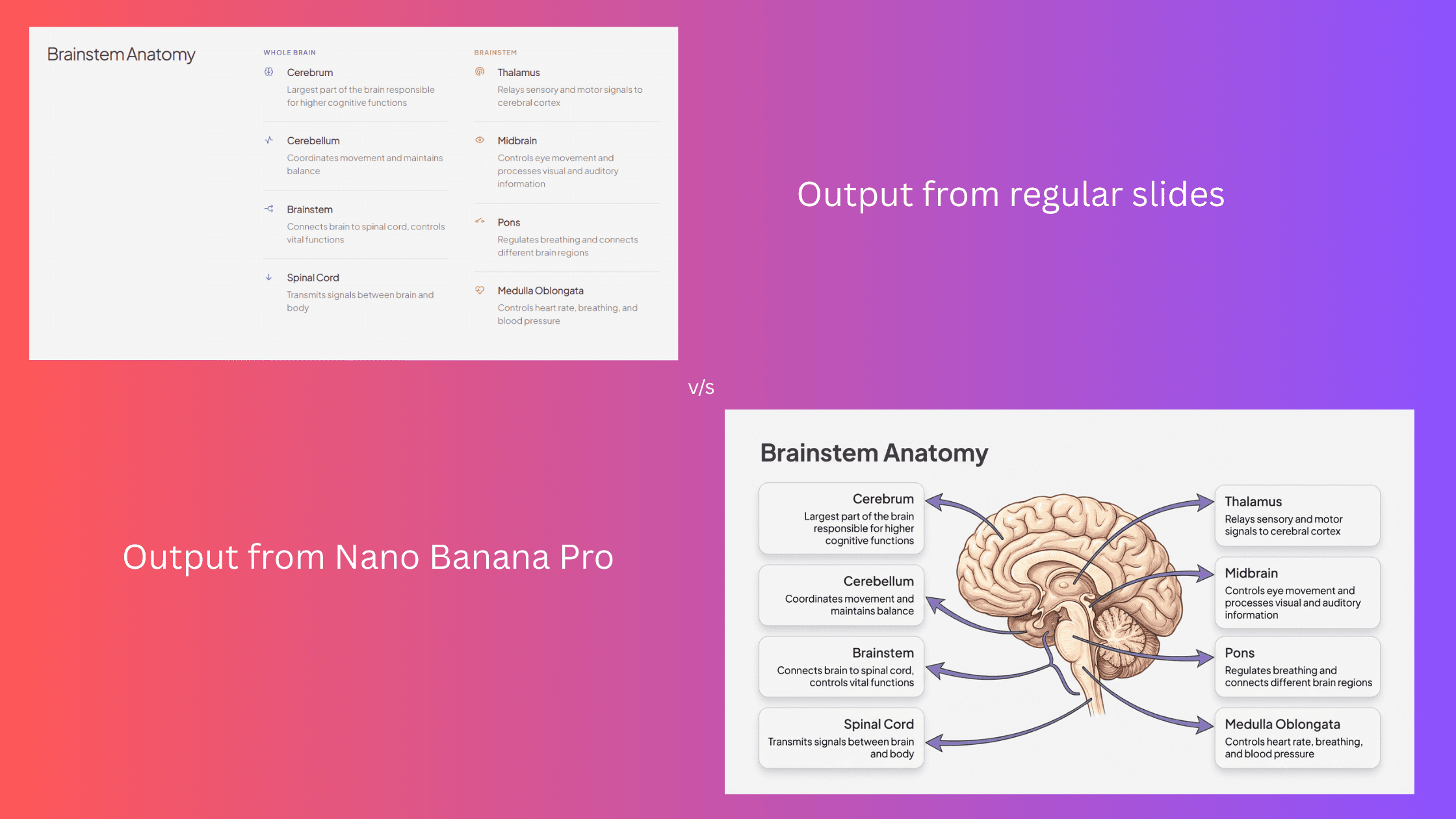
Nano Banana Pro works best for complex infographics and diagrams
Regular slides are better for:
Detailed explanations
Comparisons and tables
Content that changes often
Slides that require exact wording
The future is not image slides versus regular slides. It is the ability to mix them seamlessly inside the same deck.
Why Nano Banana Pro Works Better Inside an AI Presentation Maker
Nano Banana Pro 2 is powerful on its own, but using it in isolation is where most people get stuck.
Generating a slide is only the first step. Real presentations require refinement. Headlines change after feedback. Visual emphasis shifts as the story evolves. New slides are added days later and still need to feel like they belong in the same deck.
This is why the interface around Nano Banana Pro 2 matters as much as the model itself.
How Alai Solves This
Here's how Alai solves the problems Nano Banana Pro users run into.
1. Generates Both Slide Types for Every Idea
The most practical workflow is not choosing image slides or regular slides upfront. It is seeing both.
When you generate slides in Alai, you get multiple options per slide, which includes regular responsive slides for content that needs precise wording and easy edits, and Nano Banana Pro image slides for moments that benefit from complex visuals, diagrams, or infographic-style composition.
This lets you choose the right slide type based on intent, not novelty. You're not locked into one mode or the other.
2. Makes Iterating on Flat Image Slides Possible
Changing text, icons or elements on Nano Banana Pro usually means re-describing the entire slide and hoping the next image is closer.
Alai enables iteration through three mechanisms:
General instructions that change the overall slide (such as "make it more visual" or "simplify this"), and
Point-specific instructions that make targeted AI edits on specific elements, images, or text.
Manual editing that allows you to directly rewrite text, rearrange elements and change layout - something most AI presentation tools don't offer for Nano Banana Pro slides, since they treat the generated output as a final, non-editable image.
This means you can refine without starting from scratch every time.
3. Removes Prompt Engineering from the Workflow
Getting the output you want often requires testing and re-iterating prompts till you land on the right one. Alai removes that hassle for you by providing a library of presentation-specific design pre-sets. Each pre-set triggers different optimized Nano Banana Pro prompts that have been trained through thousands of real presentations. This removes prompt engineering as a barrier to getting professional results.
4. Keeps Theme and Style Consistent Automatically
Image slides tend to drift over time. When visuals are generated at different moments, colours, typography, and overall tone lose consistency. With theme context enabled, Alai uses your current deck as context so new Nano Banana Pro generations stay aligned with existing slides. Tick the checkbox for "Use current theme context," and the AI matches your colours, fonts, and design language automatically.
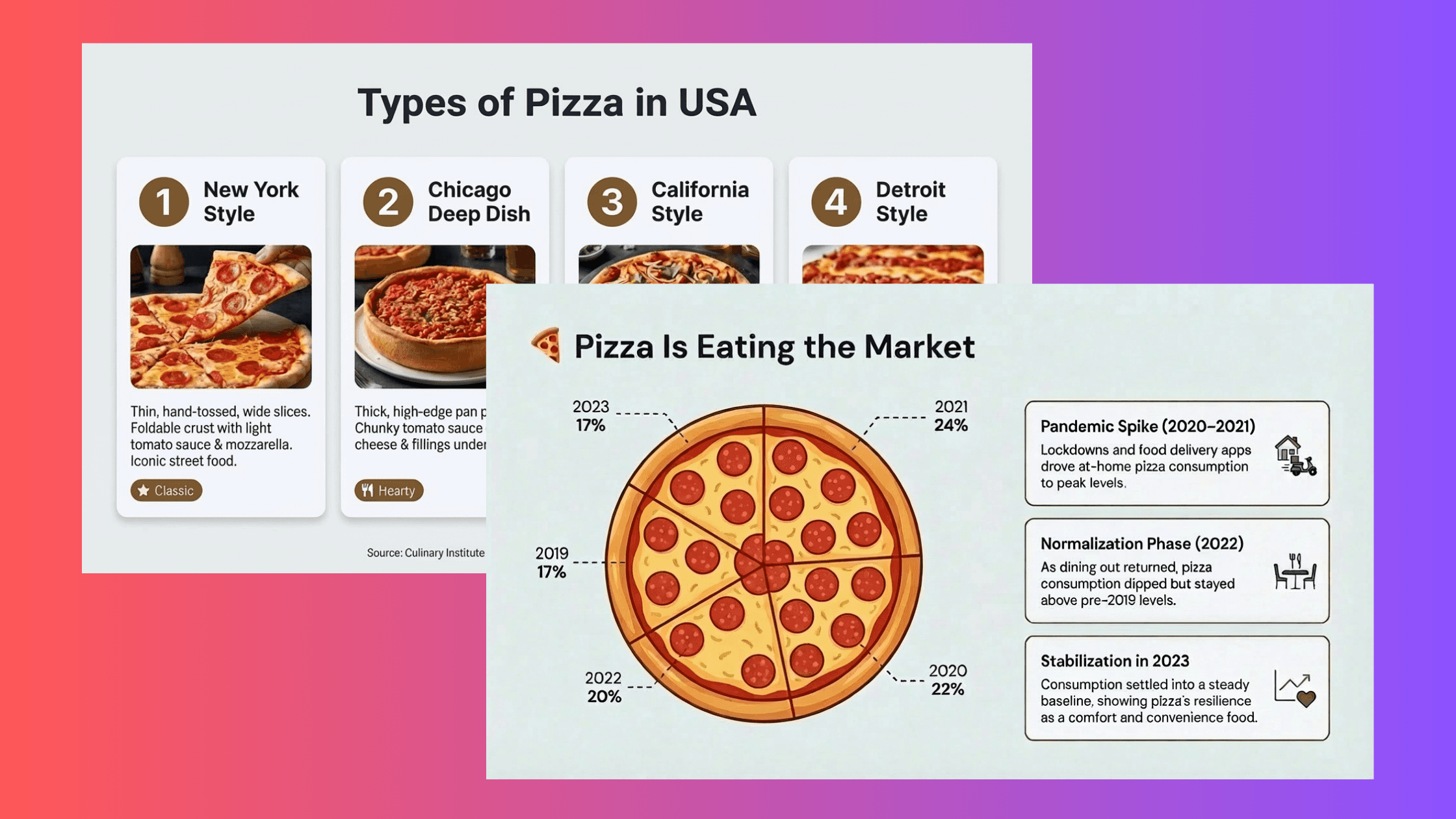
Alai ensures all Nano Banana Pro slides maintain theme consistency
5. Mixes Image Slides and Regular Slides in One Deck
Not every slide should be image-based. Some slides need visual density. Others need precise text and easy edits.
Unlike other AI tools which lock you into one mode, Alai allows Nano Banana Pro image slides and regular responsive slides to coexist in the same deck, following the same design logic.
Use AI visuals where you need them, keep traditional slides everywhere else. Total flexibility.
How to Generate Slides Using Nano Banana Pro in Alai
Import your content into a deck. This can be raw notes, text, links, screenshots, or files.

Review & edit the outline. For each slide, Alai produces both regular and Nano Banana Pro options. You can control the ratio of normal to Nano Banana Pro variants for each slide when you finalize the outline (choose more Nano Banana Pro variants for visual-heavy content like infographics, or lean toward regular variants when you need easy editing.) This gives you control over both the output style and credits spent during generation.
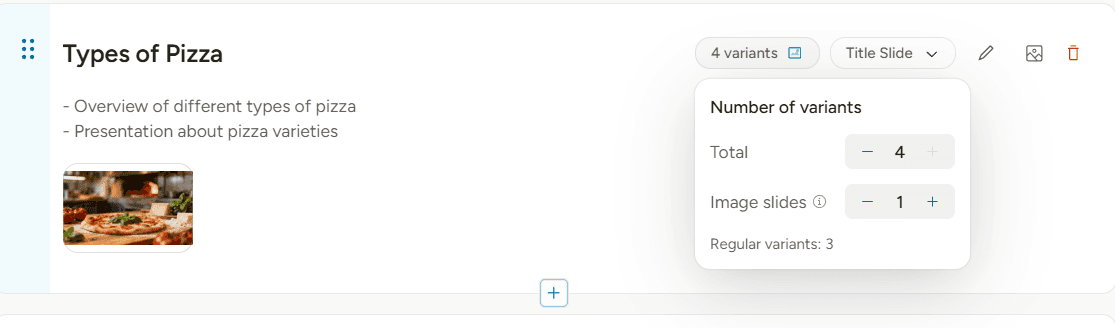
Choose the number of ‘image slide’ variants you want for each slide at the time of generation
‘Beautify’ regular responsive slides. Once you have all your slides generated, you can choose to ‘beautify’ an existing regular slide with Nano Banana Pro by selecting the ‘Beautify this slide’ option. While doing this make sure to:
Choose a Design Pre-set: Select from Alai's library of design pre-sets. Each pre-set triggers different optimized Nano Banana Pro prompts tailored to deliver that specific style. You can also select the ‘Custom’ pre-set to use a prompt of your own.
Enable Theme Context (Important!): Tick the checkbox for ‘Use current theme context’, this ensures the design matches all your other slides, maintaining visual consistency throughout your deck.
Edit your slides. After generation, you can refine the output by:
General instructions: Change the overall slide (e.g., "make it more visual")
Point-specific instructions: Make targeted AI edits on specific elements, images, or text
Manually editing NBP slides: Click 'Edit Manually' to convert image slides to freeform slides, giving you full control to rewrite text, reposition elements, adjust padding, change font size and more.
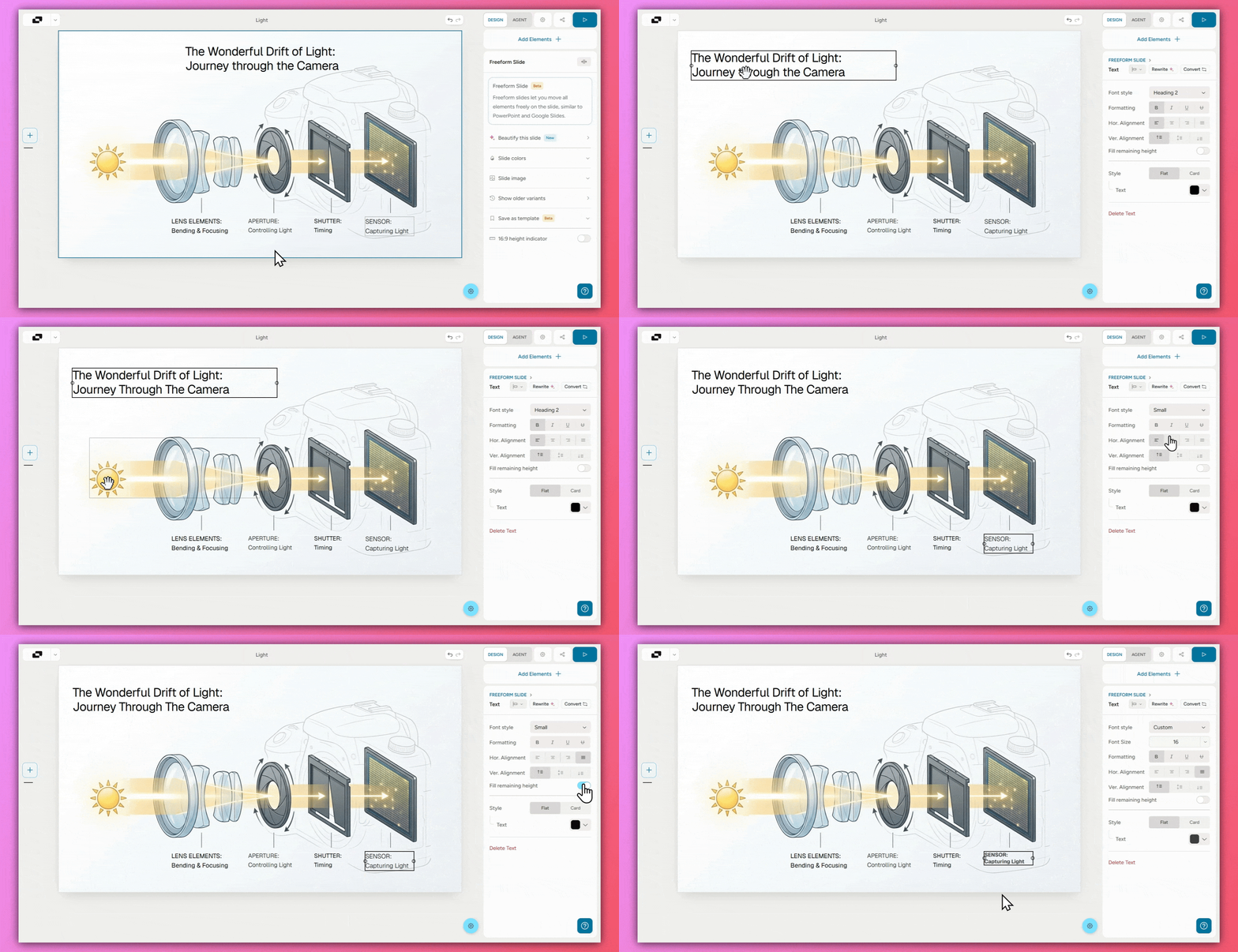
Pro tip: Beautify again to clean up. After your manual changes, use the Beautify feature again to fix formatting and make the slide look polished.
Export. Once satisfied, export your presentation as:
PowerPoint (.pptx)
PDF
Trackable link
The goal is not to make every slide image-based. The goal is to use Nano Banana Pro where it creates leverage, while keeping the deck easy to refine overall.
When to Use Alai vs. Using Gemini Directly
Use Alai When... | Use Gemini Directly When... |
|---|---|
You need fully editable slides | You need a one-off infographic |
You want consistent design across slides | You're comfortable with flat images |
You don't want to write prompts | You enjoy prompt engineering |
You're beautifying existing PowerPoints | You just need a single visual asset |
You need to mix slide types in one deck | You're not building a presentation |
The difference is not the capability of Nano Banana Pro. The difference is whether you have a system that helps you turn first drafts into a coherent presentation.
Pro Tips for Using Nano Banana Pro in Alai
Try different design pre-sets. Each triggers different optimized prompts, and what works best depends on your content. Don't settle for the first option.
Import existing decks to transform. Faster than rebuilding from scratch, and the theme context feature will help maintain consistency with your existing design language.
Always check "use current theme context." This is the single most important setting for keeping all slides visually consistent. Make it a habit.
Use manual editing for precision. When something specific needs to change - convert the image slides to freeform slides and edit text, elements or layout setting directly.
Know when to use regular slides. Not everything needs to be a Nano Banana Pro image. Content that changes often, requires exact wording, or needs easy editing is usually better as a regular slide.
Frequently Asked Questions
What is Nano Banana Pro?
Nano Banana Pro (also called Gemini 3 Pro Image) is Google DeepMind's latest AI image generation model. It's known for accurately rendering text in images, something DALL-E and Midjourney still struggle with, making it ideal for infographics, data visualizations, and presentation slides.
Why are Nano Banana Pro slides hard to edit on their own?
When used directly through tools like Gemini, Nano Banana Pro outputs flat images. Once a slide is generated, there is no reliable way to change text, icons, or layout without regenerating the entire image.
Does Alai make Nano Banana Pro slides fully editable?
Yes. Unlike most AI presentation tools, which treat Nano Banana Pro output as a flat, non-editable image or provide very limited iteration options, Alai offers three ways to edit Nano Banana Pro slides:
General instructions: Change the overall slide using AI prompts (e.g., "make it more visual," "use a darker color scheme").
Point-specific instructions: Make targeted AI edits on specific elements, images, or text using annotations.
Manual editing: Click 'Edit Manually' to convert the image slide into a freeform slide, giving you full control to rewrite text, reposition elements, adjust padding, refine text hierarchy, change font size, and more. After making manual changes, you can use the Beautify feature again to clean up formatting and keep the slide looking polished.
Is Nano Banana Pro free to use in Alai?
Yes, Alai's free plan includes access to Nano Banana Pro through the Beautify feature. Paid plans offer higher usage limits and additional features.
Can I edit slides after generating them with Nano Banana Pro?
Yes, that's one of Alai's key advantages. Unlike Gemini (which outputs flat images), Alai allows you to make edits using AI or manually.
How do I maintain consistent design across all my slides?
Check the "use current theme context" option before generating. Alai will analyze your existing slides and match colours, fonts, and overall design language automatically.
Can I mix Nano Banana Pro slides with regular slides?
Yes. Alai lets you combine standard slides with Nano Banana Pro-generated slides in the same deck. Use AI visuals where you need them and keep traditional slides elsewhere.
Why is getting both regular slides and Nano Banana Pro slides important?
Not every slide benefits from being image-based. Some slides need precise wording and frequent edits. Alai generates both regular responsive slide options and Nano Banana Pro image options for each idea, so you can choose what works best without committing upfront.
When should I use Nano Banana Pro slides instead of regular slides?
Nano Banana Pro slides work best for diagrams, infographics, complex visuals, and framing ideas at a glance. Regular slides are better for detailed explanations, comparisons, and content that changes often.
What export formats does Alai support?
You can export your presentations as PowerPoint (.pptx), PDF, or a trackable link for sharing.
Do I need to learn prompt engineering to use Nano Banana Pro in Alai?
No. Alai's design pre-sets use prompts trained on 1,000+ presentations, so you get professional results without writing any prompts yourself.
Final Thoughts
Nano Banana Pro is now strong enough to generate genuinely good presentation slides as images.
What it does not provide on its own is a way to refine, iterate, and mix those slides inside a real deck.
The best results come from combining Nano Banana Pro's visual strength with an AI presentation maker that gives you choices per slide, supports iteration through pre-sets and annotations, and keeps everything consistent as the presentation evolves.
That combination is what turns impressive first drafts into slides people can actually present.
Related Reading:
PAGES
Compare Tools
resources