·
BASICS
·
19 min read

Marketing Lead
You’re grading papers at 9 PM. Tomorrow’s lesson plan still needs slides. And your “quick 10-minute presentation” is now entering hour two of font adjustments and image hunting.
Teachers spend an average of 7 hours per week on lesson preparation and a significant chunk goes into creating presentations that students scroll through in minutes.
AI presentation makers promise to change that. These tools automate slide design, so teachers can focus on teaching instead of formatting. But here’s the reality: most tools are built for sales teams and corporate decks, not classroom instruction. They generate generic slides that miss grade-level nuance, curriculum alignment, and the visual variety that keeps students engaged.
We tested over 8 AI presentation makers specifically through the lens of educator needs - from elementary teachers building vocabulary lessons to coaches creating training materials. Here’s what actually works - a game changer for lesson preparation.
How Teachers Can Choose an AI Presentation Maker
Disclosure: Alai publishes this article and is one of the products discussed below. The most useful choice depends on the presentation task you need to complete and the software your school already uses. An AI presentation maker for teachers should help you create a draft from approved teaching materials while leaving you in control of the learning objective, examples, vocabulary, and final classroom review.
Start with the bottleneck rather than a feature checklist. If you already have lesson material in a PDF and need a presentation-format starting point, Alai provides a PDF-to-PPT workflow. If your staff already builds and shares decks in Google Slides or PowerPoint, Plus AI describes its product as AI assistance for creating and editing presentations in those two presentation applications. Those are different starting points: one begins with a PDF conversion workflow, while the other begins inside an existing slide workflow.
Match the tool to the job you need done
Existing PDF material: Begin with the source material you have already approved. A PDF-to-PPT workflow can be a practical starting point when the lesson exists as a handout or document. Review the resulting slides against the original material before using them with students.
Google Slides or PowerPoint workflow: Consider a presentation assistant designed for the application your school already uses. Plus AI states that it works with Google Slides and PowerPoint, so it is worth evaluating when staying in either environment is a requirement.
Educator and school workflow: MagicSchool describes its platform as AI tools for educators and school workflows. Review its current documentation and test a real lesson task if an educator-focused workspace is the main reason you are considering a new tool.
Eligible K–12 education access: Canva for Education is available to eligible K–12 teachers, students, and schools. Confirm eligibility and the current terms for your school before making it part of a classroom workflow.
These categories are not a substitute for a classroom test. They are a way to narrow the shortlist before you spend time moving lesson materials between products. For a broader product-by-product overview, see our guide to the best AI presentation makers. If your first task is writing a slide outline rather than converting an existing document, use the prompt-planning process in our guide to using ChatGPT to make a PowerPoint presentation.
A classroom-readiness check before you present
Check the objective. Make sure the deck states what students should understand, practice, or discuss.
Check the source material. Compare generated wording, examples, quotations, figures, and images with the instructional materials you approved.
Check grade fit. Edit terminology, reading load, and examples for the students in the room rather than relying on a generic draft.
Check the sequence. Confirm that slides support your intended explanation, modeling, discussion, practice, or assessment sequence.
Check delivery. Open the final presentation on the device and platform you will use in class, including any exported file or shared link.
The best AI presentation maker for teachers is therefore not automatically the tool with the most advertised features. It is the one that fits your source materials and delivery environment, produces a draft you can verify, and allows you to make the instructional decisions AI cannot make for your class.
Best AI Presentation Makers for Teachers: Quick Summary
Tool | Best For | Teacher-Specific Features | Free Plan | Starting Price |
|---|---|---|---|---|
Design quality + fast iteration | 4 layout options per slide, context-aware AI, responsive canvas, multiple format import and export, API integrations, AI image generation | Yes (200 credits) | $16/mo | |
Curriculum-aligned content | Grade-level targeting, standards alignment, rubric integration | Yes | $14.99/mo | |
Interactive classroom engagement | Live polls, quizzes, Q&A, real-time student participation | Yes | $7.99/mo | |
Template variety | Education Hub, Canva for Education (free), massive library, collaboration tools, multiple formats, download presentations | Yes | Free for educators | |
Google Slides integration | Native Google Workspace, Live Snapshots, collaboration tools, multiple formats, download presentations | Trial only | $10/mo | |
Subject-specific templates | Teacher Community, Slidesclass, lesson plan templates, multiple formats, download presentations | Yes | $5.99/mo | |
Non-linear storytelling | Zoomable canvas, concept mapping, Prezi Video for remote, multiple formats, download presentations | Yes (EDU) | $5/mo (EDU) | |
Budget-conscious educators | 100+ language translation, text-to-slides, multiple formats, download presentations | Yes | $8.33/mo | |
Classroom delivery + student access | Topic/text/URL/file inputs, student link & QR code, folder library, Google Slides & PPT export | Yes (limited trial) | $7.99/mo |
What Is an AI Presentation Maker?
An AI presentation maker uses artificial intelligence to automate the time-consuming parts of slide creation: structuring content, designing layouts, selecting visuals, and maintaining consistency across your deck. As an ai slide maker and ai presentation generator, it leverages generative ai to automate slide creation and streamline the entire process.
For teachers, these tools use ai powered features to automatically create presentations and generate content from user input. This means entering your lesson topic, learning objectives, or raw notes and getting a polished presentation in minutes instead of hours. Users can create slides quickly and easily with this type of presentation software, often with the help of an ai writing assistant for drafting and refining content.
The best AI presentation makers for teachers go beyond generic slide generation. They understand educational contexts: grade levels, subject matter, curriculum standards, and the visual engagement strategies that work in classrooms.
What Teachers Should Look for in an AI Presentation Maker
Before diving into individual tools, here’s what actually matters for educators:
Grade-Level Appropriateness
A 3rd-grade science presentation needs different vocabulary, visuals, and complexity than a high school AP Biology deck. Look for tools that let you specify grade level or adjust content complexity.
Visual Variety
Students tune out when every slide looks the same. The best AI presentation maker for teachers offers multiple layout options, not one generic template repeated 15 times. Top tools help teachers create stunning slides and visually appealing presentations that engage students. Many also include data visualization features, making it easy to turn complex data into engaging, easy-to-understand slides.
Curriculum Integration
Can you upload your lesson plans, standards documents, or existing materials? The best tools let you upload files and own images to personalize your slide deck and presentation content, ensuring your materials match your teaching style and classroom needs. Many schools also integrate their classroom presentation workflows with assessment tools such as AssessPrep to create quizzes, track student performance, and measure learning outcomes more efficiently.
Quick Iteration
Classroom needs change fast. You need tools where editing doesn’t mean regenerating the entire deck or fighting with locked templates. With AI, you can easily edit and rearrange slides to suit your needs. Many tools can generate draft slides or even a complete presentation from a simple text prompt or your ideas, letting you create or update content quickly.
Export Flexibility
Whether you present from Google Slides, PowerPoint, or directly from the tool, your presentation should export cleanly without breaking formatting. The best tools allow you to export in pptx format and other multiple formats, and download presentations for offline use.
Accessibility
Consider tools with built-in translation features, font choices that work for diverse learners, and export options that support accommodation needs. As AI transforms school education globally, accessibility features become increasingly important for reaching all students regardless of language or learning differences.
AI presentation makers help teachers work smarter and save valuable time by generating ready to use presentations and presentation instantly, so you can focus more on teaching and less on formatting.
8 Best AI Presentation Makers for Teachers in 2026
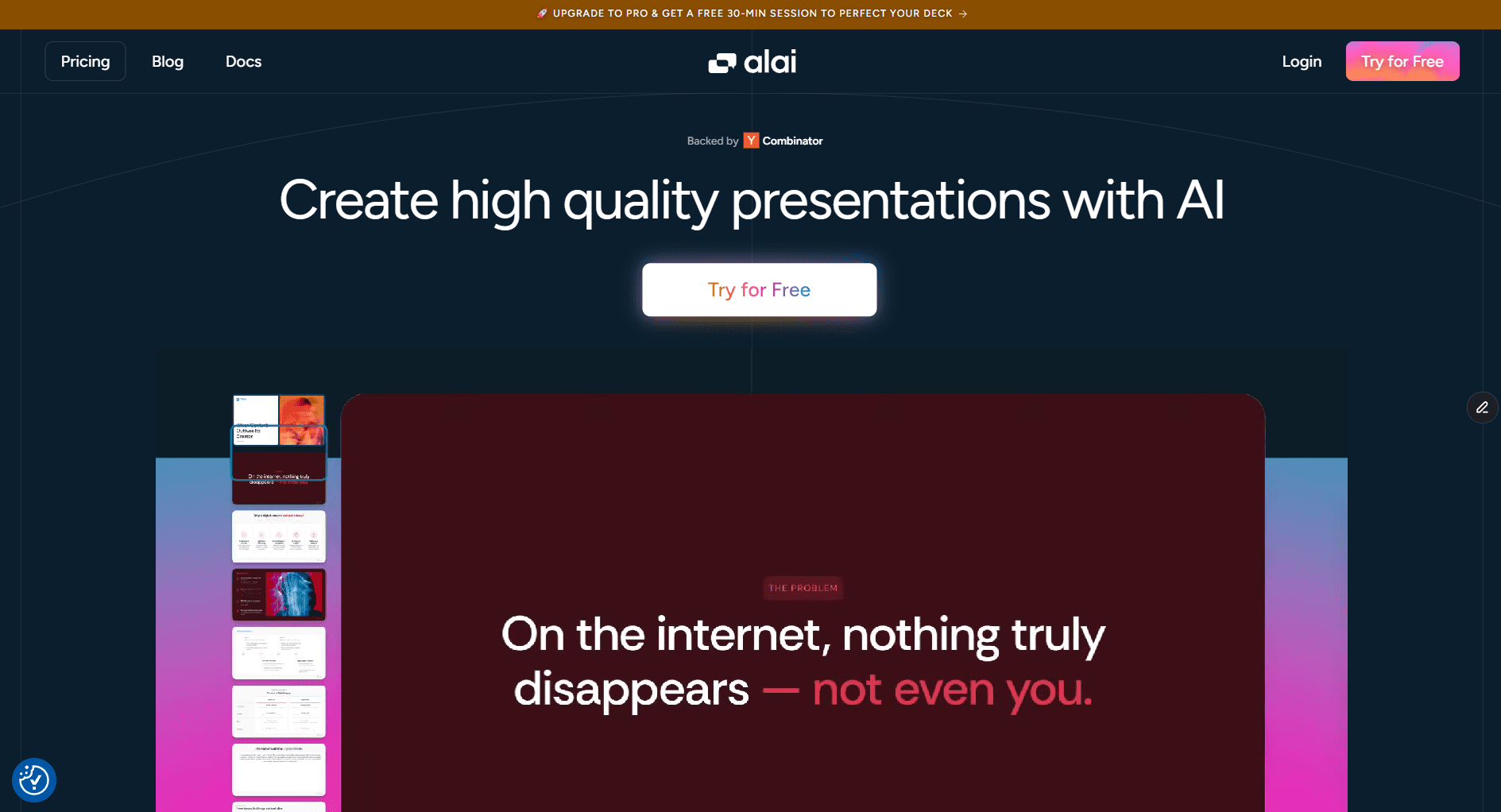
1. Alai: Best for Design Quality and Fast Iteration
Key Features for Educators:
4 layout options per slide: Preview and select the layout that best communicates each concept- timeline, comparison, hub-and-spoke, feature matrix, or clean text
Context-aware AI: When you edit one slide, Alai understands the full deck context. Your terminology stays consistent from introduction to conclusion
AI image generation: Create engaging images, slides and infographics using top AI models like Nano Banana Pro (with pre-set prompt libraries, theme compatibility and AI-editing)
Responsive canvas: Add or remove elements without manual spacing adjustments—the layout adapts automatically
Rich element library: Access Compare Two, Feature Matrix, Funnel, Hub & Spoke, Pie Chart, and more, visual building blocks that make complex topics accessible
Import flexibility: Generate presentations from notes, URLs, PDFs, or even screenshots, perfect for turning existing lesson materials into presentations (PDF to PPT converter)
Multiple formats: Export presentations in multiple formats including PPT, PPTX, PDF, and trackable links for compatibility across devices and platforms.
API integrations: Connect Alai with your LMS using API to transfer information automatically without lifting a finger.
Teacher Use Case Example:
A middle school science teacher needs a presentation on the water cycle. The teacher simply enters their ideas or a text prompt describing the topic. Instead of one generic output, Alai transforms these ideas or the text prompt into multiple presentation options:
Option 1: Circular process diagram with animated arrows
Option 2: Step-by-step timeline with images
Option 3: Hub-and-spoke showing interconnections
Option 4: Clean text layout with supporting visuals
Choose the one that fits your teaching style and class needs in seconds.
Pros:
Generates polished, designer-quality slides in minutes
4 layout variations per slide means you’re selecting, not regenerating
Full creative control, edit manually or with AI assistance
Existing presentations can be refreshed with better layouts without starting over
Multiple import and export options to both add information and download decks
API integrations that allow you to automate presentation creation
AI image and slide generation that uses theme context and does not require expert prompt engineering
Cons:
Smaller template library than Canva
No Google Slides plugin, standalone platform
No offline mode
Pricing:
Free: 200 AI credits, all premium design elements, PDF export
Plus: $16/month (annual) or $20/month - 400 AI credits, PowerPoint export, priority support
Pro: $25/month (annual) or $30/month - 1000 AI credits, free deck consultation from founders
When to Choose Alai:
Alai is a game changer for teachers who want to save valuable time on lesson prep without compromising on design. The 4-options-per-slide approach is particularly valuable for educational content where visual variety keeps students engaged across a 30-minute lesson.
It’s also the right choice if you have existing PowerPoint presentations that need a design refresh, upload your old deck, polish it with better layouts, and export back to PowerPoint.
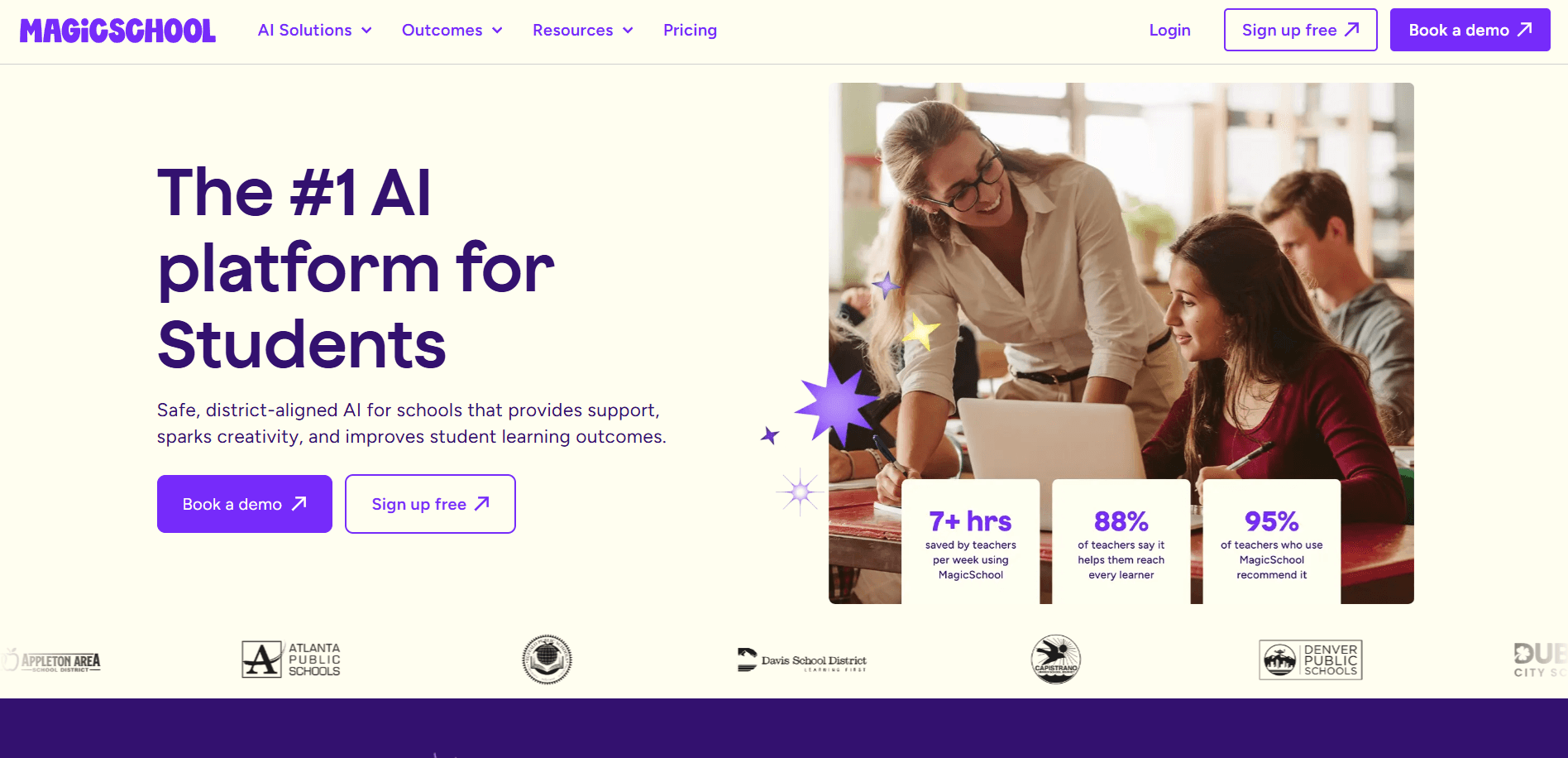
2. MagicSchool: Best for AI Tools That Go Beyond Presentations
Key Features for Educators:
Grade-level targeting: Select specific grade levels (K-12) and MagicSchool adjusts vocabulary, complexity, and visual approach
Standards alignment: Align presentations to specific standards or rubrics for curriculum consistency
Multiple input sources: Generate from topics, uploaded documents, YouTube videos, or existing lesson plans
AI powered features: Utilize AI-powered tools to refine content, generate presenter notes, translate languages, and analyze data for more effective and engaging presentations
Collaboration tools: Collaborate in real-time with shared editing and integration with popular project management platforms
Beyond presentations: Access 60+ AI tools including lesson planners, IEP generators, email writers, and rubric creators
Teacher Use Case Example:
A 4th-grade teacher starts by entering their ideas or a simple text prompt like “fractions” as the topic, specifies grade 4, and uploads their state math standards. MagicSchool uses these ideas or the text prompt to automatically generate an age-appropriate presentation with visuals, examples, and activities aligned to required competencies.
Pros:
Purpose-built for educators with grade-level understanding
Integrates with Google Slides and PowerPoint
Comprehensive platform beyond just presentations
Free version available for testing
Helps teachers work smarter by automating presentation creation
Cons:
Design output is content-focused rather than visually polished
First draft often needs visual enhancement
Less design flexibility than presentation-specific tools
Pricing:
Free: Limited features, good for testing
Plus: $14.99/month—full access to all tools
School/District: Custom pricing for institutional licenses
When to Choose MagicSchool:
Choose MagicSchool when curriculum alignment and grade-level appropriateness matter more than visual design polish. It’s particularly strong for teachers who need presentations that explicitly address standards, useful for lesson planning documentation and administrative requirements.
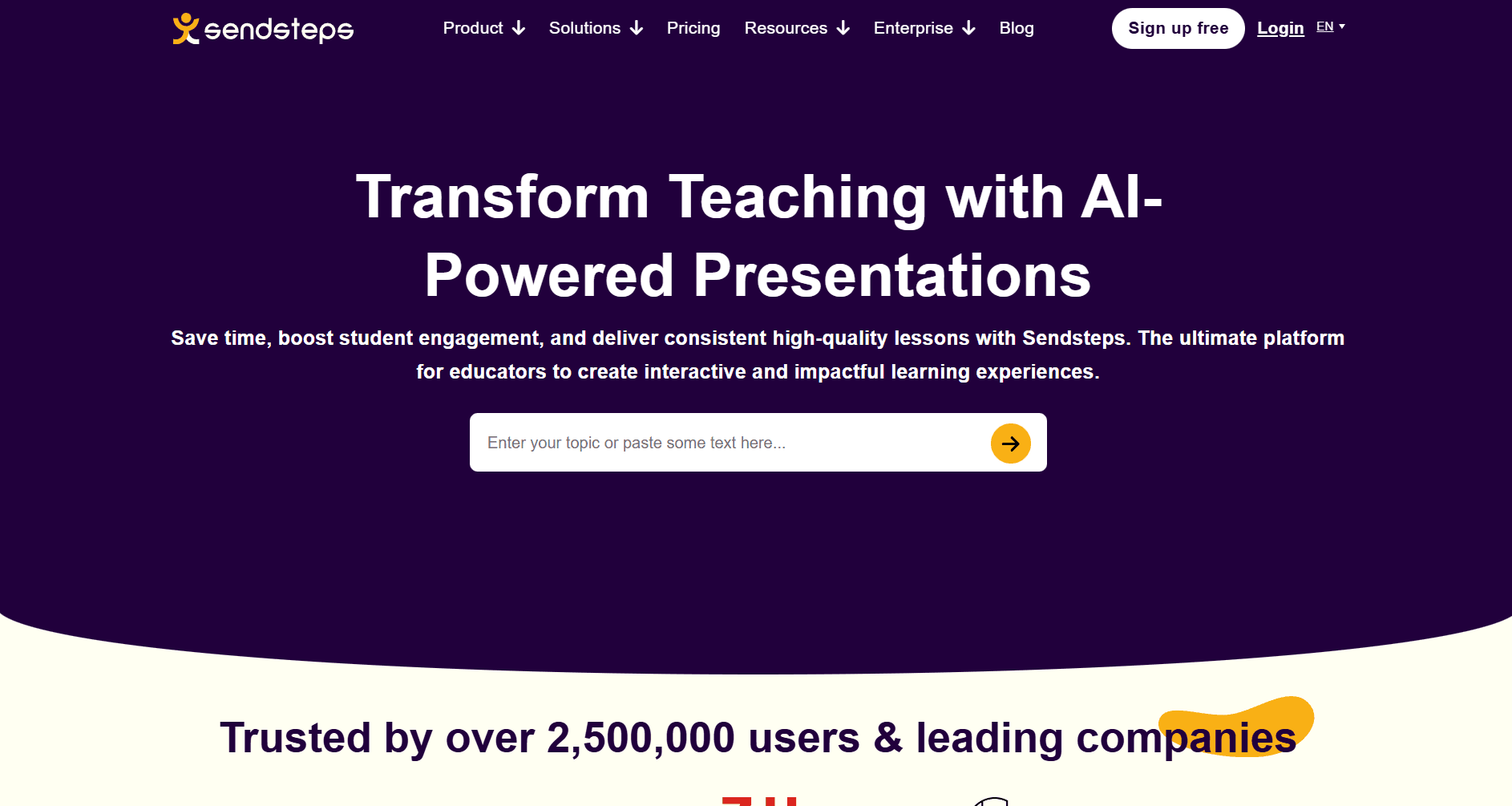
3. Sendsteps: Best for Interactive Classroom Engagement
Key Features for Educators:
Live polls and quizzes: Add interactive elements that students respond to from any device
Real-time feedback: See student responses instantly to gauge understanding
No student login required: Participants join with a simple code—no accounts needed
AI-generated questions: The AI can suggest quiz questions based on your content
Teacher Use Case Example:
A high school history teacher creates a presentation on World War I. Sendsteps generates content slides AND interactive quiz questions throughout, students answer from their phones, and the teacher sees comprehension in real-time.
Pros:
Interactive elements built into the presentation flow
Excellent for formative assessment during lessons
Easy student participation without technical barriers
Keeps students engaged with participation opportunities
Cons:
Design quality is secondary to interactivity features
Requires internet connectivity for interactive features
Less useful for self-paced or asynchronous content
Pricing:
Free: Basic features with limited responses
Starter: $7.99/month—500 responses/month, basic interactivity
Professional: $19.99/month—unlimited responses, advanced analytics
When to Choose Sendsteps:
Choose Sendsteps when student engagement and real-time feedback matter most. It's the best AI presentation maker for teachers running synchronous lessons where participation tracking helps identify which students need additional support.
4. Canva: Best for Template Variety and Free Access
Key Features for Educators:
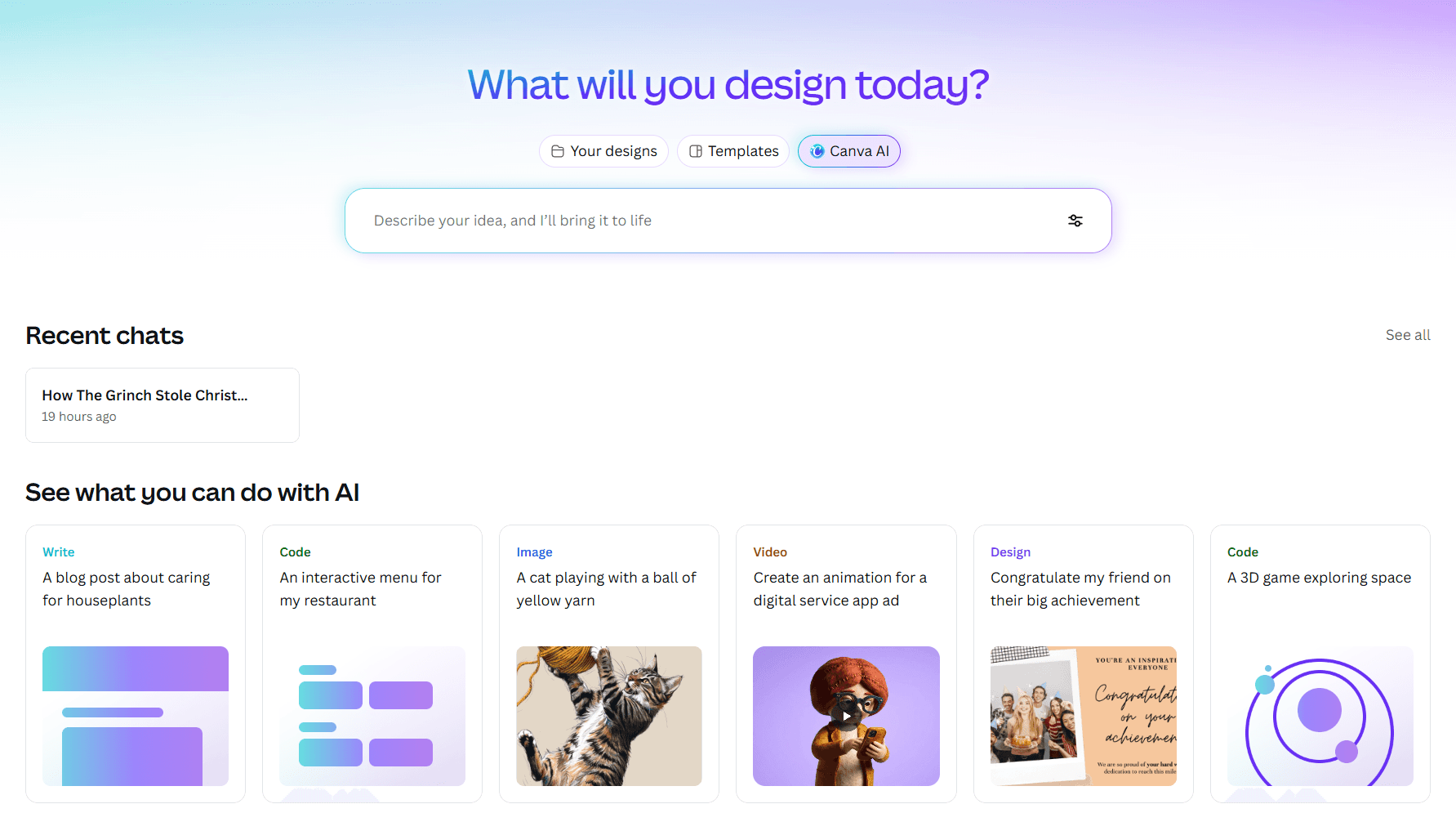
Canva for Education: Free premium access for eligible teachers and students
Massive template library: Thousands of presentation templates organized by subject and style
Education Hub: Dedicated resources including lesson plans, rubrics, and behavior charts
Brand Kit: Save school colours, fonts, and logos for consistent presentations
Real-time collaboration: Work with colleagues on shared presentations
Teacher Use Case Example:
An elementary teacher needs a colourful presentation about the solar system. Canva's template library offers dozens of space-themed options, pick one, customize with AI assistance, and add content. The free Education plan means no budget concerns.
Pros:
Free for verified educators - significant cost savings
Massive template library covering virtually every subject
Familiar interface for teachers who already use Canva
All-in-one platform for presentations, worksheets, and more
Cons:
Not built specifically for presentations—general design tool first
AI features help but don't generate truly polished educational content
Manual adjustment still required for spacing and layout
Popular templates can make presentations look familiar to students
Pricing:
Canva for Education: Free for verified educators
Canva Pro: $15/month for those who don't qualify for education access
When to Choose Canva:
Choose Canva when budget is a primary constraint and you prefer starting from templates rather than AI-generated content. The free Education plan makes it accessible for any teacher, and the template variety covers virtually every subject area.
For more AI-focused presentation generation with better design output, see our comparison of the best AI presentation makers.
5. Plus AI: Best for Google Slides Integration
Key Features for Educators:
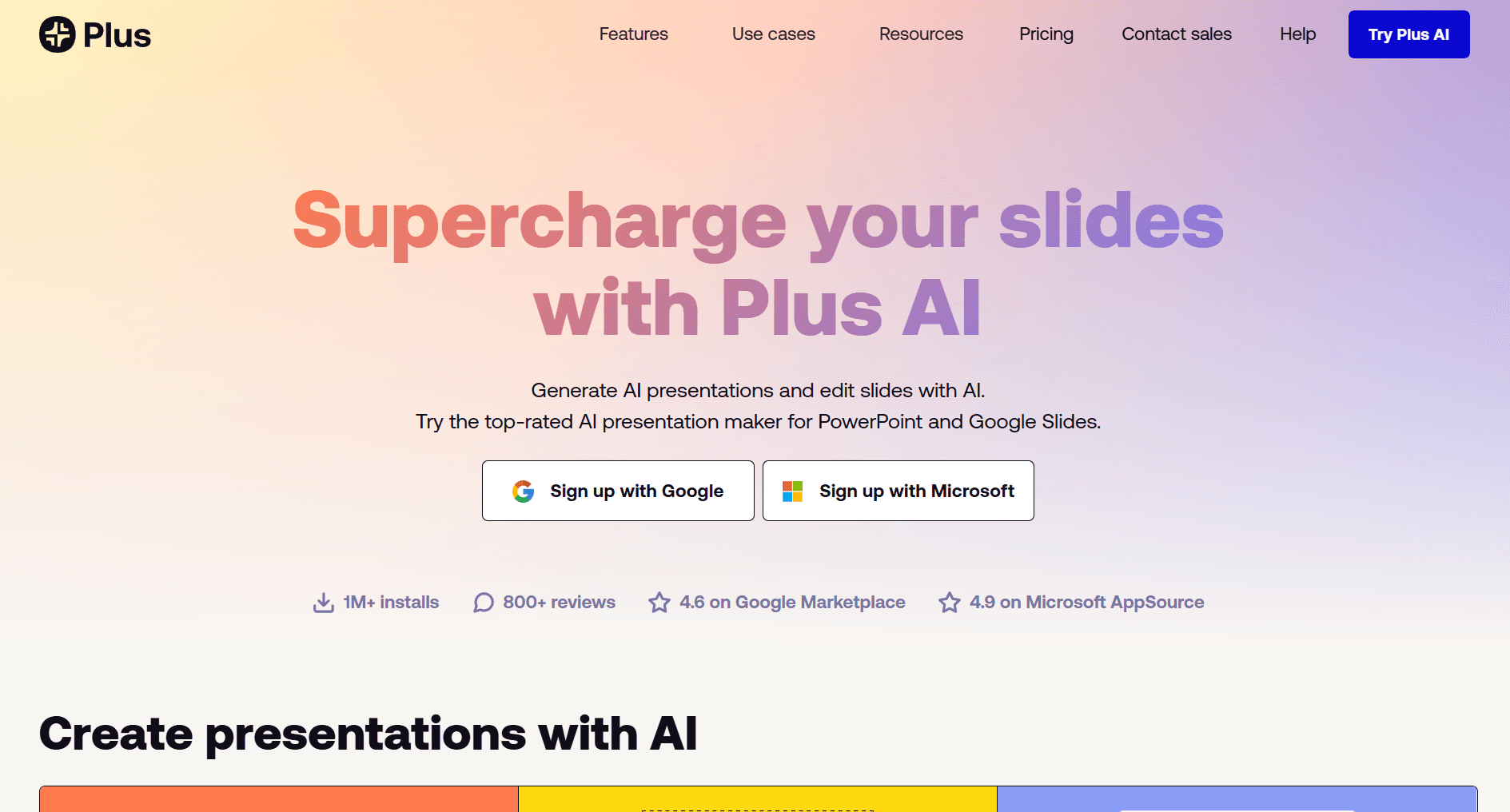
Native Google Slides integration: Works as an add-on within your existing workflow
Custom template support: Upload your school's branded template and Plus AI generates content that fits
Live Snapshots: Embed live screenshots from dashboards or websites that refresh with one click
Saved prompts: Store reusable prompts for recurring presentation types
Teacher Use Case Example:
A coach needs weekly training presentations for athletes. Plus AI lets them save a prompt template: "Create a training session presentation for [sport] focusing on [skill] for [level] athletes." Each week, update the variables and generate, all within Google Slides.
Pros:
Zero learning curve for Google Slides users
Native collaboration features work seamlessly
Custom templates maintain school branding
SOC 2 Type II compliant for schools with security requirements
Cons:
Requires Google Slides or PowerPoint to function, not standalone
No free plan, only 7-day trial
Design output can feel generic for specialized content
Limited visual variety in layouts
Pricing:
7-day free trial: Full access, credit card required
Basic: $10/month (annual) or $15/month—unlimited AI presentations
Pro: $20/month (annual)—custom themes, advanced features
Small teams: Special pricing available for small teams to collaborate and manage presentations efficiently
Education discount: Contact Plus AI for institutional pricing
When to Choose Plus AI:
Choose Plus AI when your school is fully committed to Google Workspace and switching tools isn't an option. The native integration means teachers can use AI assistance without changing their existing workflow.
Slidesgo: Best for Subject-Specific Templates
Key Features for Educators:
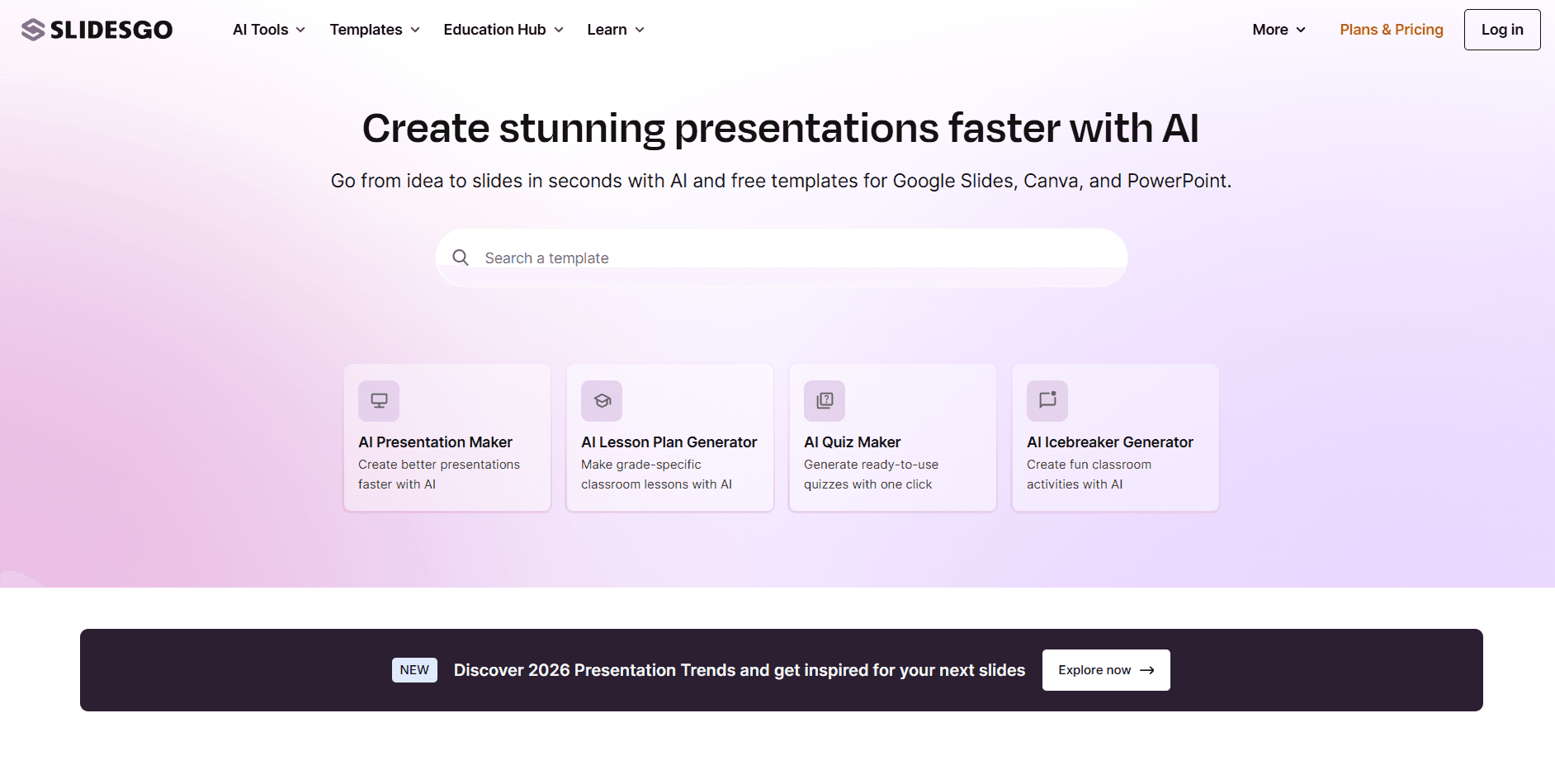
Education Hub: Content organized by subject (math, science, history, etc.) and grade level
Slidesclass: Free downloadable lessons with exercises and exit tickets
Teacher Community: Global network of educators sharing tips and resources
AI Presentation Maker: Generate slides from topic and tone preferences
AI Writer and Translator: Built-in tools for content creation and 60+ language translation
Teacher Use Case Example:
A Spanish teacher needs a presentation for an ESL class. Slidesgo's AI translator can convert any existing presentation into Spanish, and the Education Hub offers bilingual-specific templates designed for language learning contexts.
Pros:
Education-specific organization makes finding relevant templates fast
Free templates available with reasonable limitations
Built-in AI translation for multilingual classrooms
Strong community and shared resources
Cons:
AI generation still relies heavily on templates rather than custom design
Free plan includes Slidesgo branding
Less sophisticated AI than dedicated presentation tools
Pricing:
Free: Access to free templates with Slidesgo branding
Premium: $5.99/month or $23.99/year - full library access, no branding
Education discounts: Available by contacting Slidesgo
When to Choose Slidesgo:
Choose Slidesgo when you want a middle ground between template-based design and AI generation, particularly if you need subject-specific starting points or multilingual support for diverse classrooms.
7. Prezi: Best for Non-Linear Storytelling and Concept Mapping
Key Features for Educators:
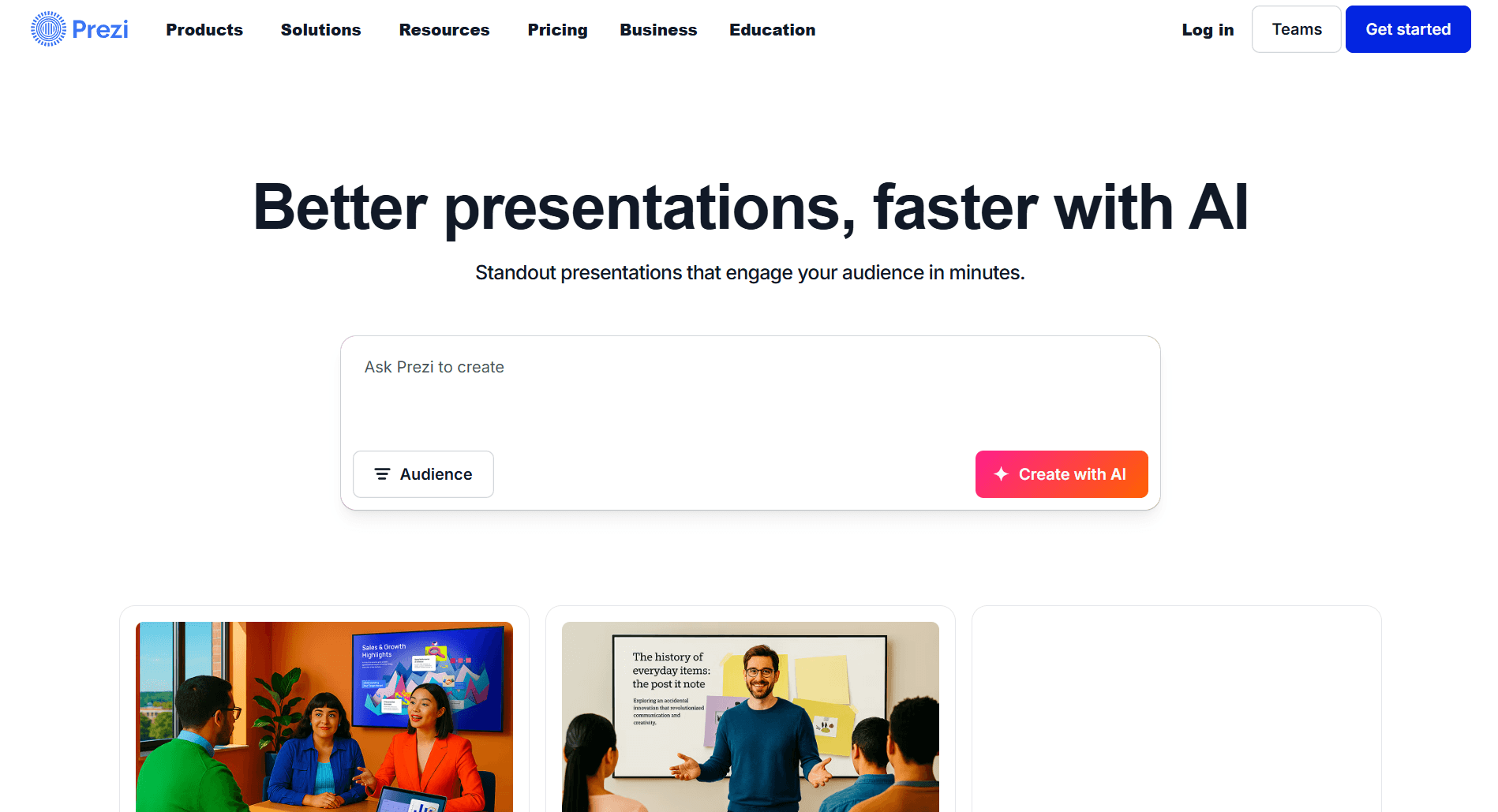
Zoomable canvas: Show the big picture, then zoom into details - perfect for concepts with interconnected parts
Prezi Video: Overlay your content next to you on screen during remote teaching
Non-linear navigation: Jump between topics based on student questions without losing flow
Education plans: Discounted pricing for verified educators and students
Teacher Use Case Example:
A biology teacher explaining ecosystems can show the entire food web, then zoom into specific relationships (predator-prey, decomposers, producers) without losing the connection to the whole system. Students see both details and context.
Pros:
Unique zooming interface creates memorable visual experiences
Excellent for concept mapping and relationship visualization
Prezi Video is powerful for remote and hybrid teaching
Education-specific pricing makes it accessible
Cons:
Steeper learning curve than traditional slide tools
Zooming can cause motion discomfort for some viewers
No PowerPoint export capability
AI features feel less sophisticated than dedicated AI tools
Pricing:
Free: Up to 5 projects with Prezi branding
EDU Plus: Discounted for verified educators - unlimited AI, offline access, PDF export
EDU Pro: Everything in Plus + analytics for tracking student engagement
When to Choose Prezi:
Choose Prezi when your content involves relationships, hierarchies, or systems where linear slides fall short. It's the best AI presentation maker for coaches and teachers who need to show how concepts connect - particularly effective for STEM subjects and complex frameworks.
8. SlidesAI: Best Budget Option for Text-to-Slides
Key Features for Educators:
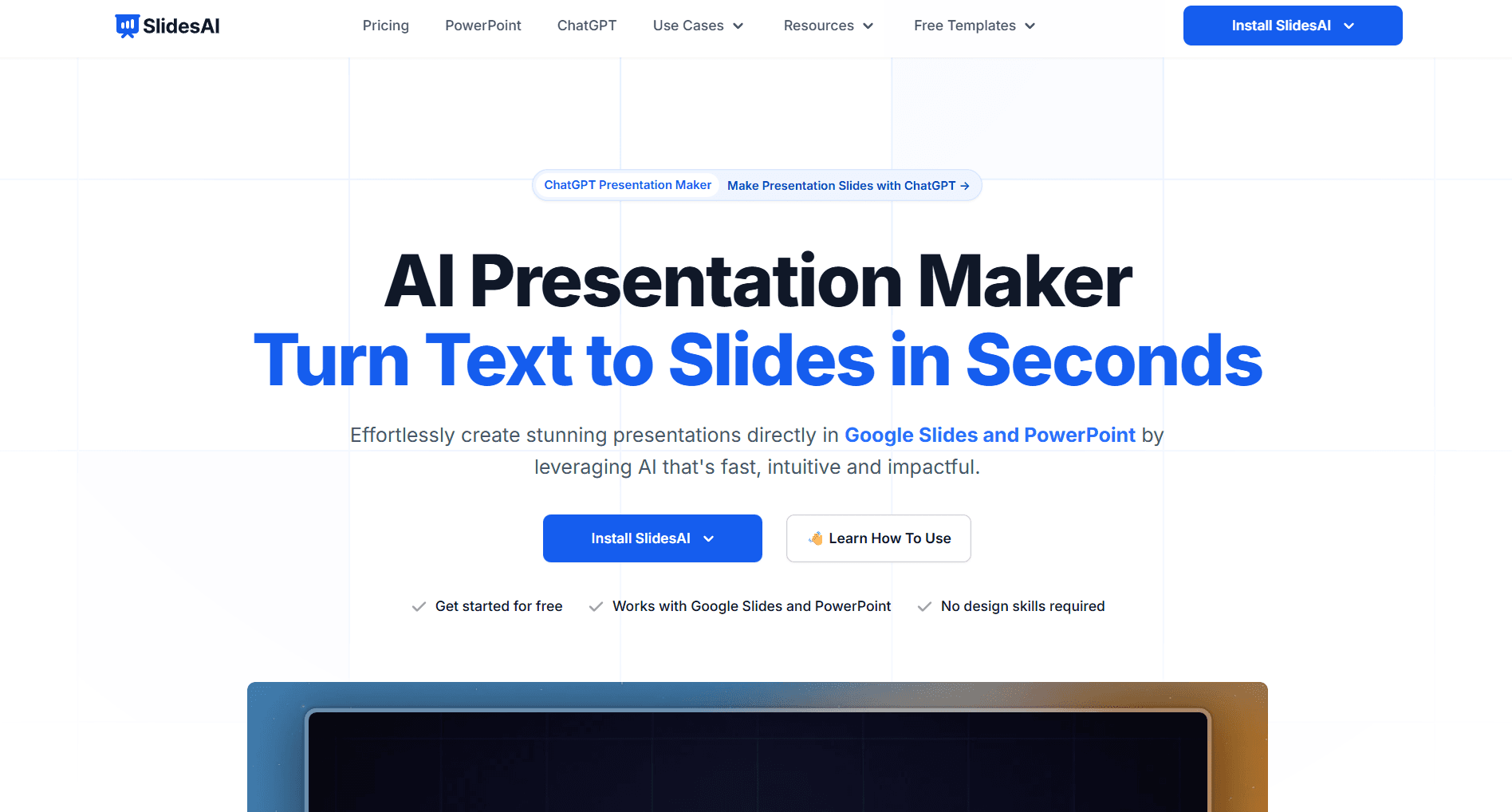
Text-to-slides conversion: Paste your lesson notes and generate a basic presentation
100+ language translation: Translate entire presentations for multilingual contexts
Google Slides integration: Works as an add-on within Google Slides
Magic Write: AI assistance for improving slide content
Teacher Use Case Example:
A teacher has a set of lesson ideas or detailed notes in a Google Doc. SlidesAI can take these initial ideas and convert them into a basic slide presentation with one click—not polished, but functional for quick needs.
Pros:
Very affordable - Pro plan under $10/month
Simple text-to-slides workflow
Helps teachers save time by quickly converting text to slides
Good for high-volume, low-stakes presentations
Translation features support diverse classrooms
Cons:
Output quality is basic—often needs significant manual editing
Limited design sophistication
Inconsistent results depending on input content
Many features still in beta
Pricing:
Free: 3 presentations/month, limited features
Pro: $8.33/month (annual) - 10 presentations/month, 50 AI credits
Premium: $16.67/month (annual) - unlimited presentations, 100 AI credits
When to Choose SlidesAI:
Choose SlidesAI when budget is the primary constraint and you’re okay with basic output that requires manual polish. It’s best for converting existing text content into slide format quickly rather than generating polished educational presentations.
Edcafe AI: Best for Classroom-Ready Slides and Student Access
Key Features for Educators:
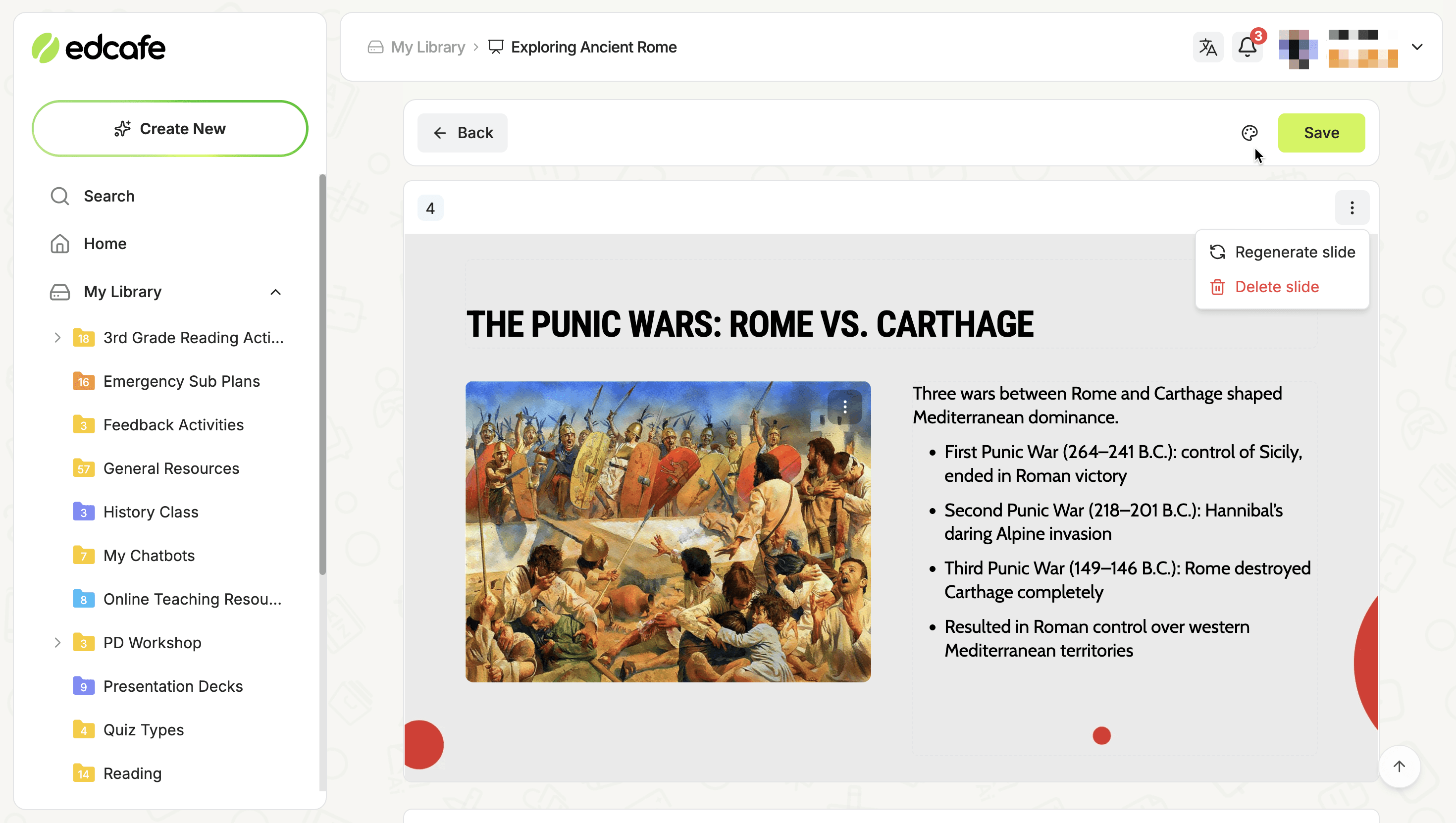
Flexible inputs: Build decks from a topic, pasted text, a webpage URL, or uploaded documents
Teaching-oriented structure: Slides are structured for classroom use (clear headings, supporting text, visuals) rather than generic corporate pitch layouts
Customization post-generation: Edit copy, regenerate individual slides, adjust image placement, etc.
Images three ways: Use search-based images, AI-generated images, or your own uploads
Students can access the deck: Use Assign to give learners a link (or QR code) so they open the presentation in the browser
Export when you need files: Export to formats you’re already familiar with: PowerPoint, Google Slides
Library workflow: Save decks in folders (e.g. by subject or course) so materials stay organized
Teacher Use Case Example:
A middle school science teacher is teaching photosynthesis. They combine a short article with notes from a district doc, and add instructions to keep diagrams simple. After generation, they replace one image with a lab photo, regenerate a slide into shorter bullets. They save the file, assign it so every student uses the same link on their devices, and post that link in Google Classroom.
Pros:
Strong end-to-end workflow: create → organize → deliver to students → export
Multiple input sources (topic, text, webpage, YouTube videos, files)
Student link + QR plus Classroom / Teams / embed cover school distribution
Share-to-duplicate supports departments and PLCs reusing the same base deck
Cons:
AI Slides Generator is a Pro (and up) capability
Less design-forward
Web image search and AI images need a quick district policy check
Pricing:
Free: Limited, one-time trial to test out
Pro: $7.99/month — includes AI Slides Generator, exports, file uploads as AI knowledge, higher monthly generation
Premium: $14.99/month — unlimited monthly generations and access to all tools
When to Choose Edcafe AI:
Choose Edcafe AI when the priority is classroom-ready decks students can actually open, folder-based libraries, and easy duplication for colleagues. For maximum layout experimentation or standalone deck-design studios, other tools may headline design variety more aggressively; Edcafe AI’s strength is teaching workflow and delivery.
AI Presentation Makers for Specific Educational Use Cases
Best AI Presentation Maker for Coaches
Coaches need presentations for training sessions, game analysis, team meetings, and parent communications. Consider:
Alai: Visual variety for plays and drills, comparison elements for opponent analysis, PowerPoint export for athletic department systems
Plus AI: Native Google Workspace integration, Live Snapshots for auto-updating stats dashboards
Canva: Sports-specific templates, free for educators, strong for recruitment materials and parent communications
Sendsteps: Interactive polls and quizzes for team meetings and game film review
Best AI Presentation Makers for Educational Content Creators
Teachers and content creators building courses, workshops, or online learning materials need consistent quality at scale. Consider:
Alai: Context-aware AI maintains terminology across multi-deck courses, professional quality for recorded video, PDF conversion for repurposing materials, API integration to automate course creation
Gamma: Scrollable format works well for self-paced, asynchronous learning
Canva: Brand consistency across presentations, worksheets, and marketing in one platform
Beautiful.ai: Smart templates enforce unified look across multiple instructors
Best AI Presentation Maker for K-5 Teachers
Elementary teachers need age-appropriate visuals, simple layouts, and engaging designs. Consider:
Alai: Visual variety keeps young learners engaged across a full lesson
Canva for Education (free): Massive library of colorful, kid-friendly templates
MagicSchool: Grade-level targeting ensures appropriate vocabulary and complexity
Edcafe AI: Strong end to end workflow to create course pieces for students using AI
Best AI Presentation Maker for High School Teachers
Secondary teachers often need more sophisticated content handling and subject-specific flexibility:
Alai: Handles complex topics with visual variety and professional quality
Plus AI: Native Google Slides integration for schools standardized on Workspace
Prezi: Non-linear format works well for AP courses and complex subjects
Edcafe AI: Strong end to end workflow to create course pieces for students using AI
Frequently Asked Questions
What is the best free AI presentation maker for teachers?
Canva for Education offers the most generous free access for verified teachers, full premium features at no cost. For AI-focused generation, Alai's free plan (200 credits) provides access to all design elements and the 4-options-per-slide feature.
Can AI presentation makers align with curriculum standards?
MagicSchool is the strongest option for standards alignment, allowing you to specify standards or rubrics during generation. Other tools can work with uploaded standards documents but don't have built-in curriculum databases.
Which AI presentation maker works best with Google Slides?
Plus AI works natively inside Google Slides as an add-on. Alai exports cleanly to Google Slides format, though it's not a native add-on.
Are AI-generated presentations appropriate for classroom use?
Yes, when used appropriately. AI handles layout, structure, and initial content, but teachers should review and customize for their specific classroom context, grade level, and learning objectives. Think of AI as a starting point that saves time, not a replacement for pedagogical judgment.
How can coaches use AI presentation makers for training sessions?
Coaches benefit from tools that offer visual variety (play diagrams, comparison charts, timeline progressions) and quick iteration (adapting to changing game plans). AI presentation makers can also help coaches create pitch decks for team or parent presentations, making it easier to communicate strategies and goals. Alai handles these needs with its 4-layout-per-slide approach and fast editing capabilities.
Can I convert my existing lesson materials into presentations?
Yes. Alai allows teachers to upload files such as PDFs, URLs, and screenshots—converting existing materials into polished presentations (PDF to PPT tool). MagicSchool works with uploaded documents and YouTube videos. Most tools accept some form of document input, making it easy for teachers to upload files and quickly generate presentations from their lesson materials.
What's the difference between AI presentation makers and traditional templates?
Templates give you a starting design that you fill with content manually. In contrast, AI presentation makers generate both structure and content based on your input, with slides and layouts automatically created for you. This means the entire presentation is automatically created from your prompts, saving time and effort compared to templates that require manual content entry. The best tools combine AI generation with design quality—not just text on a template background.
Final Verdict: Choosing the Right AI Presentation Maker for Your Classroom
There’s no single “best” tool for every teacher. Your choice depends on:
If design quality and iteration speed matter most: Alai - The 4-options-per-slide approach and context-aware AI produce polished presentations fast, AI image generation makes it easy to create professional looking visuals and API allows automation for creation at scale.
If curriculum alignment is non-negotiable: MagicSchool - Purpose-built for educators with grade-level targeting and standards integration.
If student engagement through interactivity is the goal: Sendsteps - Built-in polls, quizzes, and real-time feedback during presentations.
If budget is the primary constraint: Canva for Education - Free for verified teachers with a massive template library.
If your school is standardized on Google Workspace: Plus AI - Native Google Slides integration with zero learning curve.
If you teach complex systems and relationships: Prezi - Zoomable canvas shows how concepts connect.
The right AI presentation maker is a great tool and a game changer for teachers. It saves hours of prep time while producing slides that actually engage students. Start with a free plan, test it on a real lesson, and see if the output matches your teaching needs.
Ready to try AI-powered presentation creation? Get started with Alai and see how 4 layout options per slide transforms your lesson prep.
Related Reading
PAGES
Compare Tools
resources