·
CASE STUDY
·
11 min read

Founder, Alai
Most people asking for an AI PPT maker do not actually want a machine to decorate a handful of sentences. They want to go from a rough brief, a source document, or a few notes to a PowerPoint they can present, edit, hand to a colleague, and update when the numbers change.
That distinction matters. A polished static output can look convincing in a preview and still be useless in a real working session. If a title cannot be rewritten, a chart cannot be updated, or a layout falls apart after one edit, you have received an image of a deck rather than a usable presentation.
Quick answer: use AI in four stages: make the decision and audience explicit, convert the brief into a slide-by-slide outline, generate a first draft in a workflow that preserves editable elements, then run a deliberate PowerPoint QA pass. The generation step saves time. The outline and review steps determine whether the deck is any good.
OpenAI documents a PowerPoint-native ChatGPT experience for creating, editing, understanding, and polishing presentations while preserving editable slide structure. Its documentation also advises users to review important claims, numbers, citations, and slide edits before relying on generated output. That is the right operating assumption, not an annoying disclaimer. OpenAI's PowerPoint guidance makes clear that AI output still needs editorial ownership.
What an AI PPT maker should actually produce
The category has spent too long optimizing for the first 30 seconds: paste a prompt, watch slides appear, admire the gradient. That is not the difficult part. The difficult part is creating a deck that survives revision.
I evaluate an AI presentation workflow on five outputs, in this order:
A clear narrative: the deck has a beginning, a decision or conclusion, and a sequence that earns that conclusion.
Editable structure: text, shapes, charts, and visual components can be selected and changed without rebuilding the slide.
Source discipline: claims are traceable to supplied material or explicitly marked for verification.
Visual hierarchy: each slide tells the audience where to look first and what to remember.
Revision speed: the author can change a message, data point, or layout without starting again.
A PowerPoint file extension alone does not prove editability. Open the export and test it. Click a heading. Select a chart label. Change a number. Resize an image. Duplicate a slide. If your changes create a mess, the deck has failed the practical test.
This is why I would separate the question of which tool to use from how to work. If you are still comparing products, read our guide to AI presentation makers. But once a tool is chosen, a good process has more leverage than another generic prompt.
Start with a brief that gives AI a job, not just a topic
“Make a presentation about customer retention” is a topic. It is not a brief. It leaves the core decisions unanswered: who is in the room, what do they need to decide, what evidence matters, and what should happen after the final slide?
A useful brief can fit on half a page. It should include the following:
Audience: for example, an executive team, prospects, a training cohort, or an internal project group.
Decision or outcome: approve a budget, align on a launch plan, understand a strategy, or choose between options.
Source material: links, documents, approved statistics, interview notes, previous decks, and any claims that must be retained exactly.
Slide constraint: the target slide count and presentation length. A 10-minute discussion needs a different density than a 45-minute workshop.
Visual constraints: template, brand colors, required diagrams, prohibited imagery, or accessibility requirements.
Non-negotiables: key messages, decision criteria, legal language, or pages that require human review.
For example, instead of asking for a deck about retention, write: “Create a 9-slide decision deck for the leadership team. Recommend whether to fund the retention program in Q4. Use the attached cohort data and customer interview notes only. Lead with the recommendation, show the three drivers of churn, compare two investment options, and end with an approval request. Keep slides sparse, use our blue-and-white template, and flag unsupported claims.”
This level of specificity gives the model constraints it can use. More importantly, it gives you criteria for rejecting a bad draft.
Step 1: turn the brief into a slide-by-slide outline
Do not ask for design first. Ask for the argument. The outline is the cheapest place to find bad logic, missing evidence, repetition, and a conclusion that arrives too late.
For each slide, request four fields: slide title, audience takeaway, supporting evidence, and recommended visual form. The title should be a message, not a label. “Retention investment pays back within two quarters” is stronger than “Retention analysis.” The first makes a claim; the second asks the audience to do the synthesis.
A basic decision deck often follows this sequence:
The decision requested and the recommendation.
The problem or opportunity in audience terms.
The evidence behind the problem.
The drivers or root causes.
The options considered.
The recommendation and why it wins.
Implementation plan, owners, and timing.
Risks, assumptions, and mitigations.
The specific next step.
Not every presentation needs this structure. A sales narrative, training deck, or project review has a different rhythm. But every good deck should make its logic visible before anyone spends time aligning boxes.
There is also a low-tech fallback worth knowing. PowerPoint can import outlines in DOCX, RTF, or TXT formats, and heading and indentation conventions determine how that outline becomes slides and body content. Microsoft's outline import instructions are useful when your team wants to keep story development in a familiar document workflow before formatting slides.
Outline review questions
Could someone state the recommendation after reading only the slide titles?
Does every slide earn its place, or are two slides making the same point?
Is there evidence for every important claim?
Are assumptions distinguished from facts?
Does the final slide ask for a concrete action?
If the answer to any of these is no, fix the outline. AI makes it easy to generate 15 more slides. That is precisely why you need the discipline not to.
Step 2: generate the first draft as a working deck
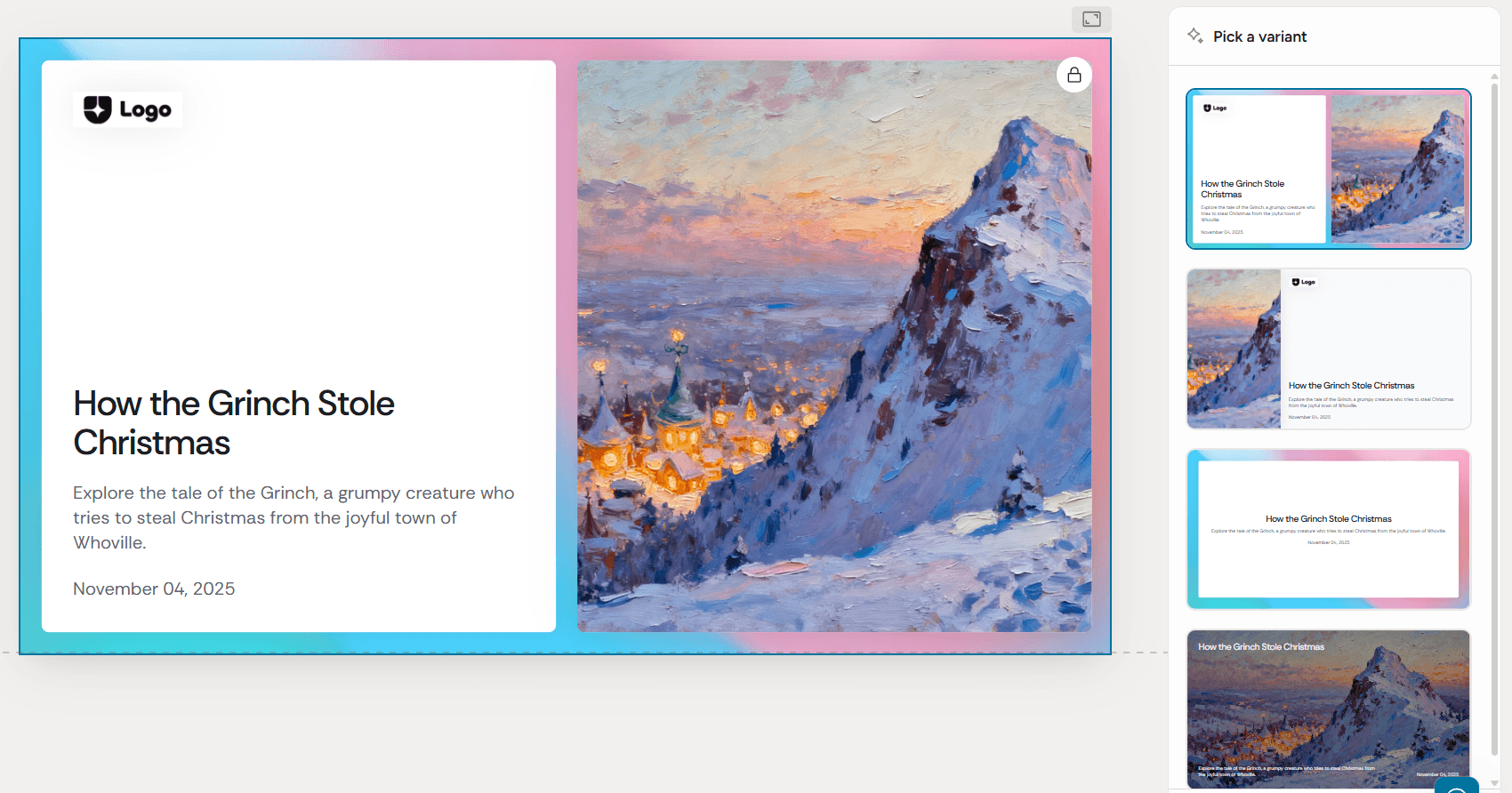
Once the outline is approved, use the AI workflow to create the first draft. Tell it what must remain editable, what sources it may use, and what it should not invent. Treat the resulting deck as a structured draft, not a final artifact.
At this stage, the model is helpful for converting an approved narrative into slide components: title hierarchy, concise body copy, comparison matrices, timelines, process diagrams, and suggestions for charts. It is less reliable when asked to infer a strategic conclusion from incomplete evidence or to create accurate numbers from general web knowledge.
For presentation creation inside an editor, it can be useful to generate and revise the deck where the design system is visible. Alai documents exporting an existing presentation as PDF, PPT, or a shareable link. Alai's export documentation describes those output options. The important question is not whether any tool can export a file; it is whether the exported PowerPoint retains the elements your team must change later.
If you are using a conversational AI workflow, our guide on using ChatGPT to make a PowerPoint presentation covers the mechanics. The broader point is to separate the jobs: use AI to draft structure and components, then use PowerPoint or a presentation editor for the editorial decisions that require context and taste.
Step 3: verify that the PPT export is editable
This is the step many teams skip because it feels operational. It is actually the product test. Run it before you send the deck to anyone.
Check | What to do in PowerPoint | What failure looks like | What to do next |
|---|---|---|---|
Text | Edit a headline, paragraph, and footnote. | Text is baked into an image or reflows badly. | Rebuild the affected content as native text boxes. |
Charts | Change a value, label, and series color. | Chart is only a screenshot or labels cannot be changed. | Use a native chart or keep a linked source table. |
Shapes | Move, recolor, and duplicate a diagram element. | Whole diagram selects as one bitmap. | Replace it with editable shapes where revision matters. |
Images | Crop and replace an image. | Image is fused with text or background content. | Separate image and text into independent objects. |
Layouts | Duplicate a slide and change the title length. | Elements overlap, clip, or jump unexpectedly. | Adjust spacing and use a more robust layout. |
Fonts | Open on a second device if possible. | Substitution changes line breaks and alignment. | Use approved available fonts or embed where policy permits. |
There is no virtue in making every pixel editable. A decorative background can remain an image. The practical rule is simpler: make editable anything that is likely to change, anything containing facts, and anything someone may need to repurpose.
Teams often discover this only when a VP asks to revise a number ten minutes before a review. The deck that enables a two-minute fix is more useful than the deck that looked slightly better in its original preview.
Step 4: improve story, data, and visual hierarchy
AI can create visual variation quickly. It does not automatically create visual judgment. After the first draft, edit with an audience lens.
Fix the story before the styling
Read the deck in slideshow mode without touching the mouse. If you need to narrate around a slide to explain its point, the slide is carrying too much ambiguity. Rewrite the title as the conclusion. Remove secondary ideas. Split slides only when each resulting slide has a distinct job.
Use the right visual grammar
Choose visuals based on the question being answered. Use a bar chart for magnitude comparisons, a line chart for change over time, a table for precise lookup, a matrix for tradeoffs, and a process diagram for sequence. Do not turn every list into an illustration. A decorative visual that does not reduce cognitive effort is mostly occupying space.
Make hierarchy obvious
On a good slide, the eye should land on the takeaway, then the evidence, then the detail. Usually that means one dominant title, one primary visual or number, restrained supporting copy, and enough whitespace to keep groups distinct. If you need a stronger design pass, see our practical guide to making AI slides look designer-made.
Separate facts from generated prose
Every important number should have a source, a date, and a definition you can explain. AI may compress a source accurately, misread its context, or fabricate a connective sentence that sounds plausible. Review claims, numbers, citations, and edits manually, as OpenAI advises in its PowerPoint guidance. That review requirement is part of the workflow, not a last-minute legal check.
Step 5: run a final PowerPoint QA pass
Presentations are software-like artifacts: their defects often emerge only in the final environment. A clean editor canvas is not enough.
Run the deck in slideshow mode at the display resolution you expect to use.
Check every title, data label, citation, and footer for clipping.
Confirm contrast is readable and color is not the only signal used to convey meaning.
Check reading order and alternative text for meaningful images where accessibility is required.
Review speaker notes, especially where a slide needs precise context or a transition.
Open the exported PPT on the device or version of PowerPoint most likely to be used.
Confirm ownership: who updates the numbers, who presents, and where the source files live.
Then do one final narrative test: can the audience understand the recommended action without hearing every word you planned to say? If not, the slides are relying too heavily on the presenter.
A reusable prompt for an editable PowerPoint
Use this as a starting point, then replace the bracketed material with your specifics:
Create a [number]-slide PowerPoint for [audience] to help them [decision or outcome]. Use only the attached sources and mark any unsupported claim as “verify.” The central recommendation is [recommendation]. For each slide, provide: a conclusion-led title, one-sentence takeaway, supporting evidence, suggested visual format, and concise editable slide copy. Keep text to [constraint]. Use [brand or visual constraints]. Build native editable text, charts, tables, and shapes wherever content may need revision. Include a final slide with [next action]. Before generating slides, show the slide-by-slide outline for approval.
The last sentence is doing important work. It prevents the tool from racing ahead into a visually finished but strategically wrong deck.
Choose the workflow based on what will change next
There is no universal winner between a PowerPoint-native AI workflow and an AI presentation editor. The sensible choice depends on where the deck will live and how it will be revised.
Situation | Best starting workflow | Why | Watch-out |
|---|---|---|---|
Existing corporate template and heavy PowerPoint collaboration | PowerPoint-native AI | It keeps work close to the team's final editing environment. | Still inspect structure, fonts, and source accuracy. |
Starting from a brief and needing visual exploration | AI presentation editor | It can help turn an outline into varied layouts and slide components quickly. | Test the PPT export before committing. |
Source document needs to become slides | Outline-first workflow | It exposes the argument before design work begins. | Do not mistake document order for presentation order. |
Existing deck is structurally sound but visually weak | Redesign workflow | Preserve the approved story and improve hierarchy and layouts. | Do not redesign away useful emphasis or compliance content. |
High-stakes external presentation | AI draft plus human editorial pass | AI accelerates production while a person owns facts, judgment, and delivery. | Allocate review time; generation is not the finish line. |
If you already have content and the problem is visual quality rather than creation, a PowerPoint redesign workflow is usually more appropriate than generating a new deck from scratch.
Practical takeaway
An AI PPT maker is useful when it reduces blank-page work without taking away your control over the final presentation. Ask it to draft the outline, propose layouts, compress source material, and create editable components. Do not ask it to own the argument, certify the facts, or make aesthetic tradeoffs without review.
The workflow is straightforward: brief the decision, approve the outline, generate a working deck, test editability in PowerPoint, improve the narrative and hierarchy, then run QA in the environment where the deck will be presented. Do that consistently and AI becomes a useful production partner rather than a fast way to create slides you have to rebuild.
Can AI make an editable PowerPoint?
Yes, some AI workflows can create or preserve editable PowerPoint structure. But a PPTX export is not enough proof on its own. Open the file and test text, charts, shapes, layouts, and fonts before treating it as a working deck.
What should I include in a brief for an AI PPT maker?
Include the audience, the decision or outcome, source material, target slide count, visual constraints, and non-negotiable messages. The more clearly you state what the audience must understand or decide, the less generic the draft will be.
Can AI use an existing PowerPoint template?
It can be useful to work in a PowerPoint-native workflow or an editor that supports your brand system when a template is required. Regardless of the route, inspect the final file for font substitution, broken layouts, and editable content before sharing it.
What needs manual review in an AI-generated deck?
Review all important claims, numbers, citations, definitions, and recommended actions. You should also check whether the story makes sense for the audience and whether the visual hierarchy makes the main takeaway immediately clear.
Should I generate slides before creating an outline?
Usually no. Start with a slide-by-slide outline so you can validate the argument while changes are inexpensive. Once the titles, takeaways, evidence, and visual roles are clear, generating the deck becomes faster and more reliable.
How do I know if an AI-generated slide is really editable?
Try changing the title, moving a diagram shape, updating a chart value, cropping an image, and duplicating the slide. If content is flattened into a bitmap or small edits break the layout, it is not editable enough for a real revision workflow.
PAGES
Compare Tools
resources