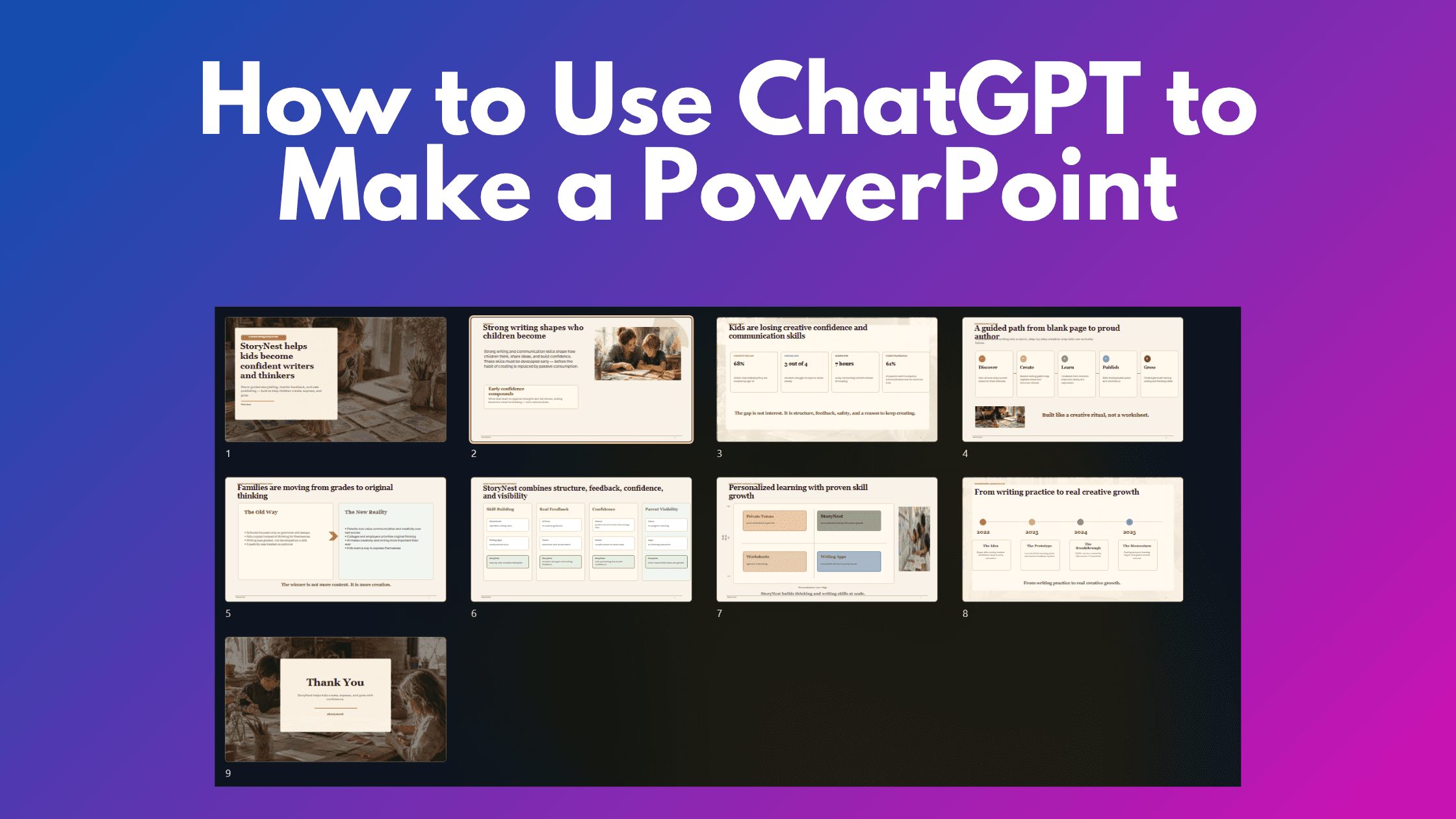
·
CASE STUDY
·
20 min read
Marketing Lead
With the ChatGPT PowerPoint plugin launch - there are now 3 ways to successfully create presentations using ChatGPT. This blog covers how to use each one, what it does well, what it doesn’t and better alternatives.
TL;DR: How To Create Presentations With ChatGPT
Tool | When to use it |
1. ChatGPT chat | A throwaway 10-slide internal deck you'll redesign in PowerPoint anyway |
2. ChatGPT PowerPoint plugin | You already work in PowerPoint and want AI edits in the sidebar, not a new tab |
3. ChatGPT + Alai MCP | A finished, on-brand .pptx you can prompt without leaving the ChatGPT chat |
Alternative: Alai | You ship 3+ branded decks a month and need real editing plus cross-deck reuse |
Alternative: Claude Design | One polished deck for a single moment (pitch, demo, prototype) you won't edit again |
Can ChatGPT Make a PowerPoint?
Official update for 2026: ChatGPT for PowerPoint is now an OpenAI add-in
If your real question is not "can ChatGPT make slides" but "how do I add ChatGPT to PowerPoint," the first answer is now the official ChatGPT for PowerPoint add-in from OpenAI, not a generic plugin listing. OpenAI describes it as a PowerPoint-native sidebar add-in that can create a first draft from source material, add or revise slides, analyze story and structure, and keep slides editable rather than flattening everything into images. That matters because most searchers are looking for something inside PowerPoint, not just a downloadable file from the chat. Source.
Just to keep terms clean: inside Microsoft PowerPoint, this is an add-in. That is the right product term in OpenAI's own documentation. Older references to "plugin" elsewhere in this article reflect the original historical test language, but if you are installing it today, search for the add-in. Source.
How to install the ChatGPT for PowerPoint add-in
Open PowerPoint.
Go to Home > Add-ins.
Search for ChatGPT.
Select the official ChatGPT for PowerPoint add-in and install it.
Open the sidebar and sign in with your ChatGPT account.
If your company blocks Marketplace installs, OpenAI says administrators can deploy the add-in via manifest instead. That is the enterprise path when end users cannot self-install from the Add-ins menu. Source.
The practical upside is straightforward: if you already build in PowerPoint, this is the lowest-friction way to get ChatGPT into the file you are actually presenting from. No export-import loop, no separate app just to make copy tweaks, and no pretending a sidebar assistant is the same thing as a slide design system.
What the official add-in is good for, and what it is not
Workflow | What it does well | Where it stops |
|---|---|---|
OpenAI ChatGPT for PowerPoint add-in | Works inside PowerPoint, drafts from source material, revises slides, analyzes story and structure, preserves editable slide structure. Source | OpenAI says template adherence and advanced chart, shape, formatting, and slide-management edits can be limited. Source |
Agent-generated PPTX from ChatGPT chat | Fastest way to get a rough .pptx draft from a prompt, as shown in the existing Storynest test in this article. | You still download, inspect, and often clean up the file manually in PowerPoint. |
ChatGPT connected to Alai via MCP | Keeps ChatGPT for prompting while handing slide generation to a presentation-specific system, as covered below and in our MCP guide. | Separate setup and account; not the same thing as adding ChatGPT directly into PowerPoint. |
This is the distinction most articles blur, and it is why search intent gets messy. These are three different products and workflows:
The OpenAI add-in is for working inside PowerPoint.
Direct ChatGPT file generation is for getting a rough PPTX out of the chat.
ChatGPT + Alai MCP is for using ChatGPT as the interface while a presentation tool handles the slide-building layer.
If you want the shortest path to "ChatGPT for PowerPoint," start with the add-in. If you want the best odds of a more designed, more controlled presentation output, the add-in is not automatically the winner just because it is official.
Current limitations you should know before you depend on it
OpenAI's own help doc is fairly clear here, which is refreshing. The add-in can help with drafting and revisions, but template adherence is still limited, and advanced chart, shape, formatting, and slide-management edits can still be limited. In operator terms: fine for getting words and structure moving, less reliable if you expect pixel-level slide craft or complex presentation mechanics. Source.
Brand fidelity is not guaranteed. If your team works from strict templates, do not assume the add-in will honor every layout rule or design constraint. OpenAI explicitly calls out template adherence limits. Source
Complex presentation edits are still a weak spot. Advanced charting, shape manipulation, detailed formatting, and some slide-management operations may not land cleanly. Source
Access depends on your plan. OpenAI says Free and Go have limited access, while paid and workspace access depend on plan and agentic usage limits. So yes, the add-in may appear available, but real usage can still vary by account tier. Source
That last point matters because a lot of low-quality roundups treat "available" as the same thing as "fully usable." It is not. Before you standardize on this workflow for a team, confirm the actual account access and usage constraints in your environment. Source.
The simple way to think about it: the official add-in is now the right first answer for users searching how to add ChatGPT to PowerPoint. It is also not the same as saying ChatGPT has solved presentation design inside PowerPoint. It has solved access and workflow convenience better than before. Design quality, template precision, and advanced slide control are still separate questions.
Yes, in three ways, three workflows, three outputs, one clear winner depending on what you actually need.
Direct in ChatGPT. Prompt ChatGPT for an editable .pptx and it builds one through its file tools. Rough, fast, free. Plan to redesign it.
A ChatGPT PowerPoint plugin. Use a ChatGPT-powered add-in inside PowerPoint itself. Easier editing, design is still flat.
ChatGPT connected to Alai via MCP. Run ChatGPT for content and have Alai generate the actual slides. The only path of the three that returned a designed, on-brand deck on the first try.
Method 1: Generate Slides Directly in the ChatGPT Chat
The fastest path is also the messiest. You write a prompt, ChatGPT builds a rough .pptx, and you do the design cleanup yourself. This answers "can ChatGPT generate PowerPoint files" on its own: yes, but they arrive unfinished.
How to use it
Open ChatGPT and start a new chat on a model with file tools (the code interpreter capability).
Write a prompt with these must-haves: an explicit request to "give the output as an editable .pptx," image-style instructions, the exact slide count, and any layout hints.
Send it and wait while ChatGPT runs its code interpreter to build the file. This takes 30 to 90 seconds.
Click the download link to grab the .pptx.
Open the file in PowerPoint to review. There is no preview inside the chat.
Edit directly in your slide tool, or describe a change in the chat and have it regenerate. Regenerating rebuilds the whole file and wipes manual edits, so do chat edits before hand edits, never after.
The exact ChatGPT ppt prompt I used for the Storynest test:
Help me create a 9-slide deck for my company "Storynest" using the content below.
[full slide-by-slide copy, slide 1 to slide 9]
Image style: Painterly Realism / Soft Watercolor + storytelling lifestyle photography.
Additional instructions: use warm, handcrafted, storytelling imagery of kids creating with
paper and art tools in soft natural light, with real textures and emotions, not glossy or
corporate visuals.
Give the output as an editable .pptx.
Pros - What ChatGPT Does Well
Theme consistency is the one thing it genuinely nails. Credit where it's due: across all 9 Storynest slides the palette and font held without me asking twice. Warm cream background, one consistent heading style, the same accent on every slide. (As seen below)
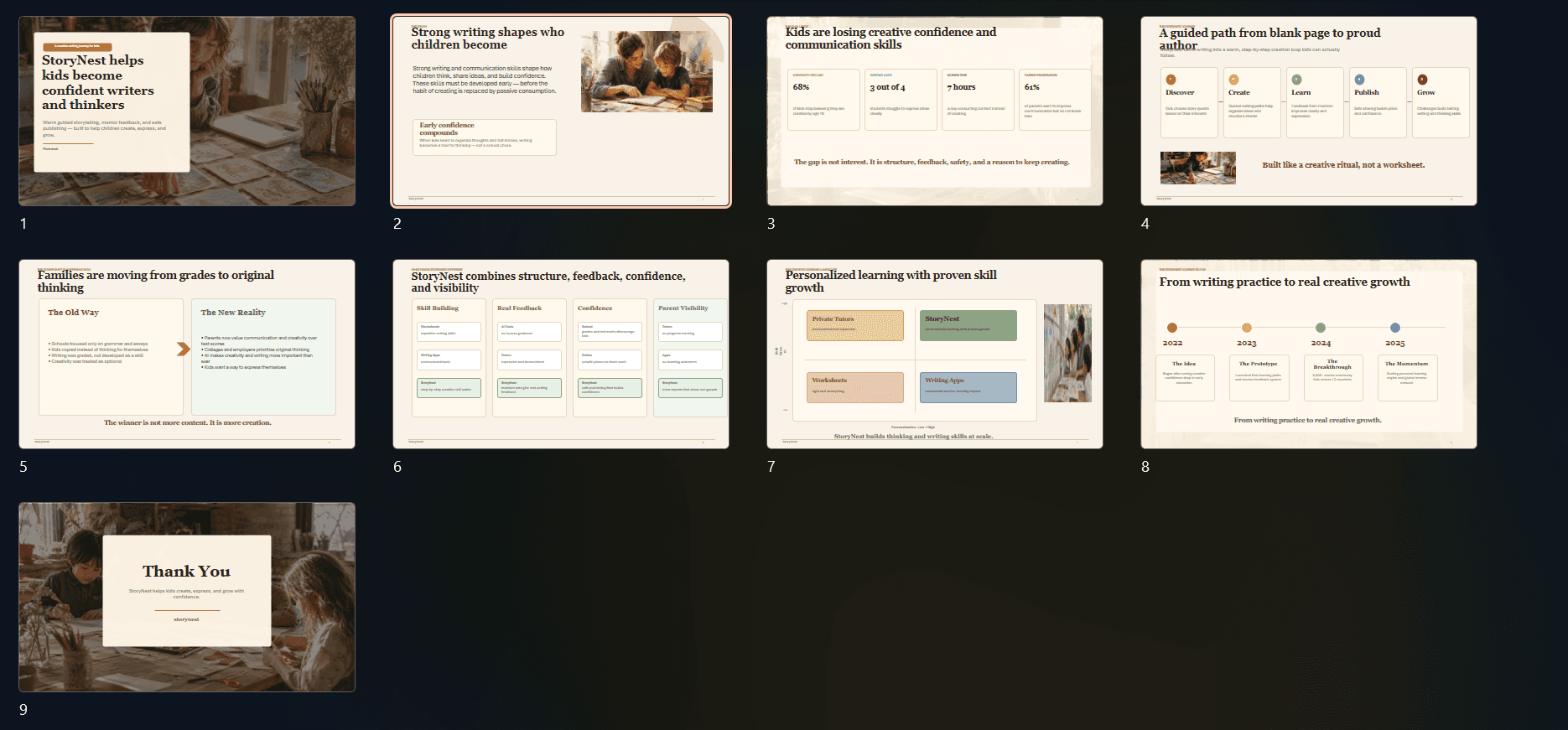
The images actually read the slide content. This surprised me. On the title slide, it placed an image of a child with paper and art supplies (given below), not a generic classroom stock photo. ChatGPT pulls imagery off the slide's real text, which beats tools like Beautiful AI that usually end up defaulting to stock images that have nothing to do with the actual content.
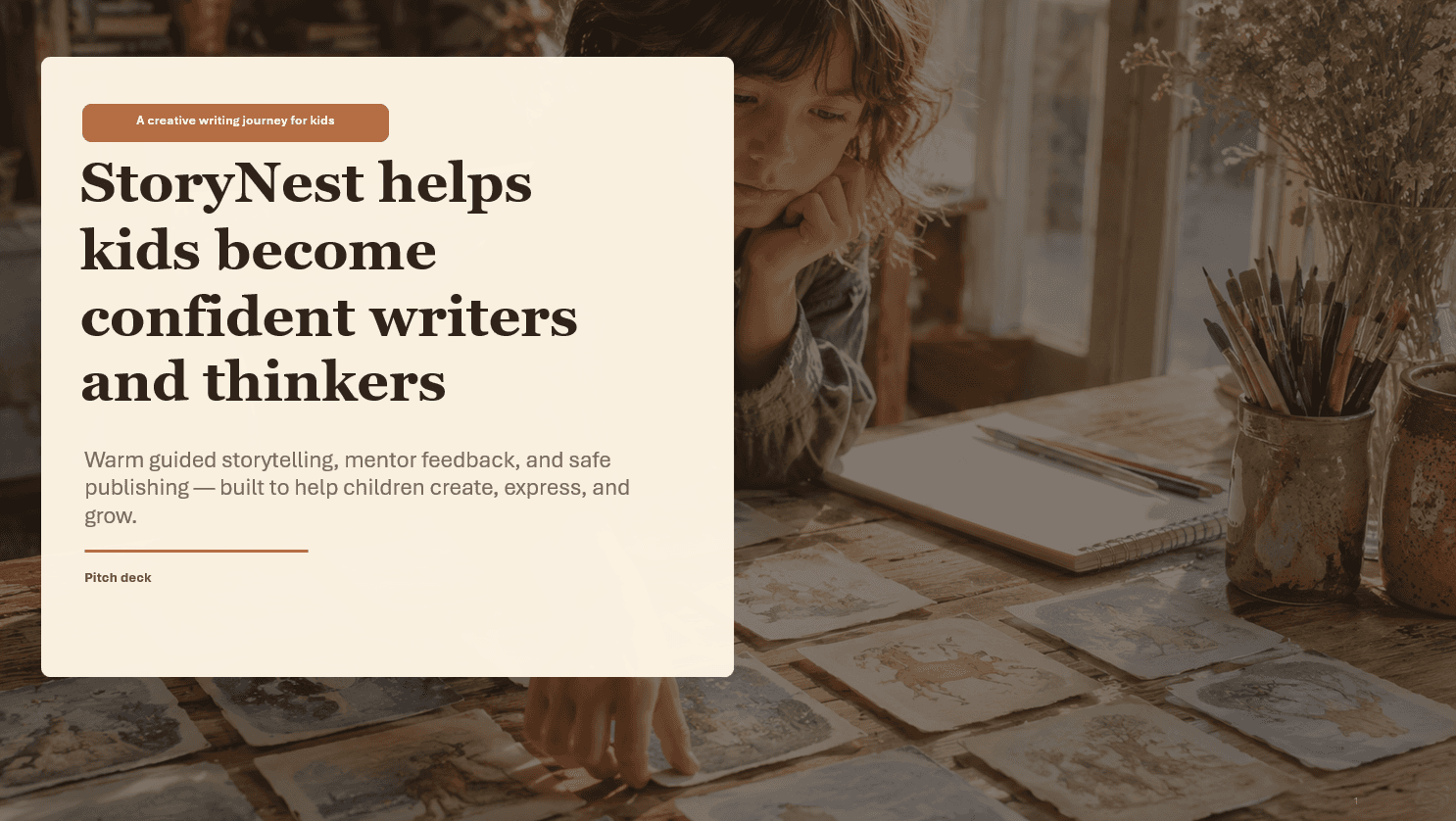
Fully editable slides. Every element is a native PowerPoint object. Nothing is baked into a flat screenshot. When the watercolor styling came out wrong, and it did, I could at least open the file and fix it by hand instead of starting from zero.
Fast enough to justify itself for a first pass. Nine slides, prompt to download, under three minutes. For an internal version-zero you plan to redesign anyway, that is a fair trade and I'd take it.
Cons: Where ChatGPT Falls Short
Formatting falls apart once you export to PPTX. ChatGPT does a bad job at maintaining formatting. Two slides had bullet text overflowing the box. One had a wide empty band where an image should have anchored. The Storynest logo landed misaligned on most slides. While these might feel like small design issues - on a 10+ slide deck it becomes an hour spent on making basic fixes.
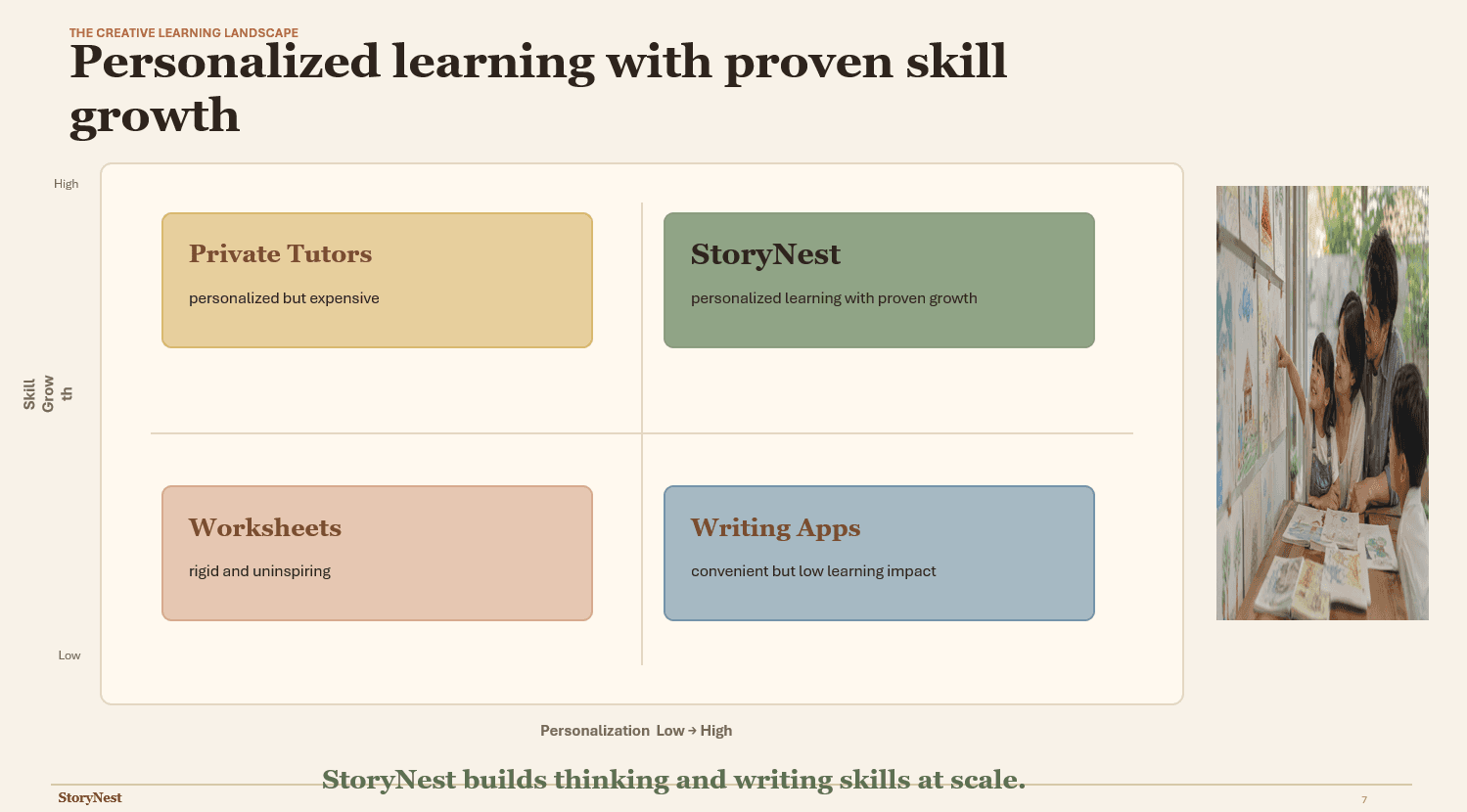
In the example given above, the headline and tag are merging into each other, the image is squeezed into the right corner and the footer text overrides the line.
No preview, so every check costs a download. You cannot see a single slide without downloading and opening the file. I downloaded the deck four times across edits. For nine slides that is a genuinely annoying amount of open-close-return friction.
No charts, and it won't fake them. Storynest's traction slide needed a simple growth visual. ChatGPT gave me a bulleted list of the numbers instead. It builds no data visualizations into the .pptx, so every data slide is your problem to solve.
Layouts are wireframe-grade. The maximum depth shown in these slides are the background images. Apart from that it is just flat color blocks, and text. No gradients, no handcrafted texture, no content-specific icons.
Brand alignment is 100% your prompt's job. Everything Storynest-specific that landed, landed because I spelled it out. Anything I left vague reverted to generic. Most tools have options to set custom themes or brand systems you can re-use, ChatGPT just depends on your prompt.
ChatGPT Pricing
Plan | Price (USD) | Billing | Minimum Seats | Best For |
Business | $25 / user / month (annual) $30 / user / month (monthly) | Annual or monthly | 2 | Small and mid-sized teams that want shared workspaces, admin controls, and SAML SSO |
Enterprise | Custom pricing | Annual (contact sales) | Custom | Large organizations needing SCIM, enterprise key management, data residency, and custom legal terms |
Edu | Custom pricing | Annual (contact sales) | Custom | Universities and educational institutions deploying ChatGPT across faculty and students |
When to use it
Internal decks, training sessions, anything you'll redesign anyway. Reach for it when you need a fast first draft and don't want to set up a second tool.
Method 2: Use ChatGPT’s PowerPoint Plugin
ChatGPT recently launched its plugin to be used directly within PowerPoint - here’s what testing showed.
How to use it
Download the plugin from https://chatgpt.com/apps/powerpoint/
Open a new or existing PowerPoint file and you’ll be able to find ChatGPT in the Add-ins section
Open the add-in, login to your account
Add your prompt and give ChatGPT the access to edit slides
Wait for results then make iterations directly or using the chat sidebar
I ran the same Storynest content and image brief through the ChatGPT Powerpoint add-in:
Help me create a 9-slide deck for my company "Storynest" using the content below.
[full slide-by-slide copy, slide 1 to slide 9]
Image style: Painterly Realism / Soft Watercolor + storytelling lifestyle photography.
Additional instructions: use warm, handcrafted, storytelling imagery of kids creating with
paper and art tools in soft natural light, with real textures and emotions, not glossy or
corporate visuals.
Here’s the results I got (both good and bad) -
Pros: What ChatGPT’s PowerPoint Plugin Does Well
The layout variety is better than most PowerPoint plugins. I’ve tried multiple PowerPoint plug-ins and the one thing this plugin does well is offering layouts that go beyond the basic text and bullet points. Slides include tables, boxes and timelines.
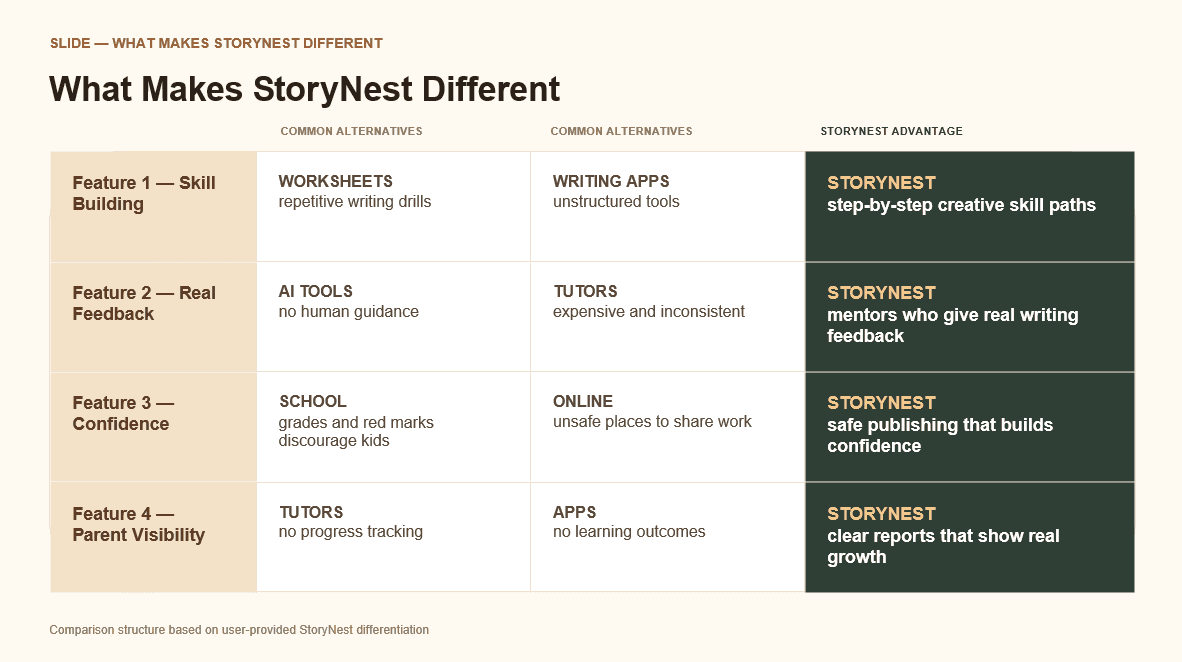
Editing is much easier and faster than native ChatGPT. When the founder's-note slide needed rewording, I typed it into the sidebar and that slide updated live. Against Method 1's download-regenerate-download loop, this is a much easier way to make fixes.
Consistency survives editing. Because the plugin fills a template rather than spinning a fresh file each round, the warm palette and fonts held across every edit. No slide silently drifted to a different style mid-session.
You present from the exact file you edit. With the PowerPoint add-in there is no export step and no format drift. What you see in the sidebar is what you'll show on screen.
Cons: What ChatGPT’s PowerPoint Plugin Does Not Do Well
Flat is flat, and the Storynest brief deserved better. No gradients, no texture, no painterly anything. The plugin is capped by what PowerPoint accepts as a layout, so a brand that needs handcrafted warmth came out looking like a tidy corporate template. In fact, while native ChatGPT managed to add images both on slides and in the background to add some depth to slides, this plug-in does not go beyond 1-3 elements each slide structured like a 2000 created PowerPoint.
The AI edits can be a hit or miss. In the example below I asked it to break content into three horizontal boxes with one point each rather than one box containing all points - it failed to do so and instead created boxes for each point within the existing container. This wasn’t a one time issue but a recurring one across slides. Not always but enough times to leave you frustrated.
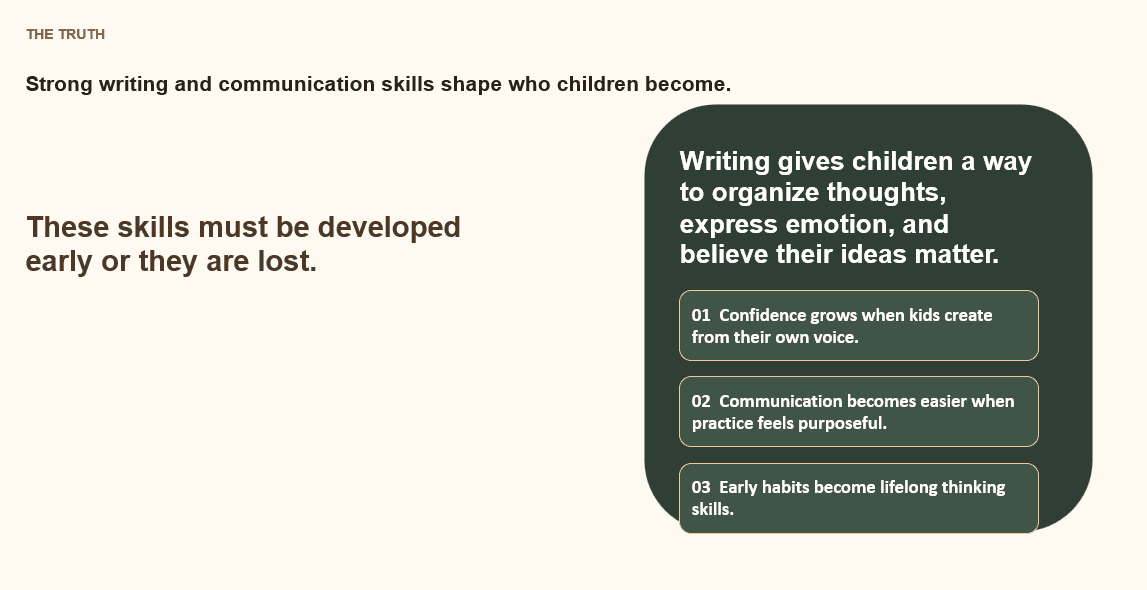
Still no charts. Same gap as the chat method. Storynest's traction numbers became bullets again. While the layout variety is better, it still is very text dependent.
It's slower than it feels. First draft was slower than Method 1, and getting the Storynest deck to "presentable" ran past an hour. The edit-by-chat conversation feels productive while quietly eating your afternoon.
Pricing For The ChatGPT PowerPoint Plugin
The official ChatGPT for PowerPoint Add-in (by OpenAI) is available at no additional cost for users with an active subscription. A standard (Free) ChatGPT account provides limited access to the add-in, while ChatGPT Plus ($20/month) offers priority access and faster response times
When to use it
If given the option, I’d rather choose the ChatGPT + MCP route than this one, for people looking to use AI within PowerPoint, this isn’t the best option out there.
Method 3: Connect ChatGPT to Alai with MCP
Connecting Alai to ChatGPT through MCP is the only method here that returns a designed deck instead of a rough draft. This is the ChatGPT presentation maker setup worth doing if you build decks often.
How to use it
In ChatGPT, open Settings and go to Apps (or Connectors).
In the advanced section, switch on developer mode.
Click Create app (Create connector).
Fill in the details: name it Alai, and paste the MCP URL
https://slides-api.getalai.com/mcp/.Save, then authenticate. ChatGPT redirects you to sign in to your Alai account. Click Authenticate and the connector links automatically.
Open a new chat, click the "more" or connectors menu, and switch Alai on.
Prompt ChatGPT to build the deck, naming Alai explicitly, with content, slide count, theme, and image style.
ChatGPT calls Alai's MCP tools, generates the slides in your Alai account, and returns a link.
Open the link to refine in Alai's editor, or ask ChatGPT to export to PowerPoint or PDF.
The full connector walkthrough lives in Alai's MCP guide.
The prompt I used for this method:
Using the Alai connector, create a 9-slide deck for my company "Storynest" from the content below.
[full slide-by-slide copy, slide 1 to slide 9]
Use the 'Storynest' theme already created to make this deck.
Pros: What The ChatGPT + Alai MCP Does Well
This is the only method that honors the brand’s theme. Since I was able to set up Storynest’s brand in advance on Alai and reference it via the MCP - the slides created were way closer to the actual brand.
Consistency is automatic, not prompted. The warm palette, the handcrafted tone, and the image style held across all nine slides without me restating them. The context-aware model carries the brief forward by itself and ensures the design continues to be consistent across edits.
It builds real visuals, not text stand-ins. Storynest's traction slide returned as a designed stat block. This is because Alai’s design system also includes presentation-specific layouts such as charts, graphs and compare two to ensure slides do not default to the basic text and bullet point layout.
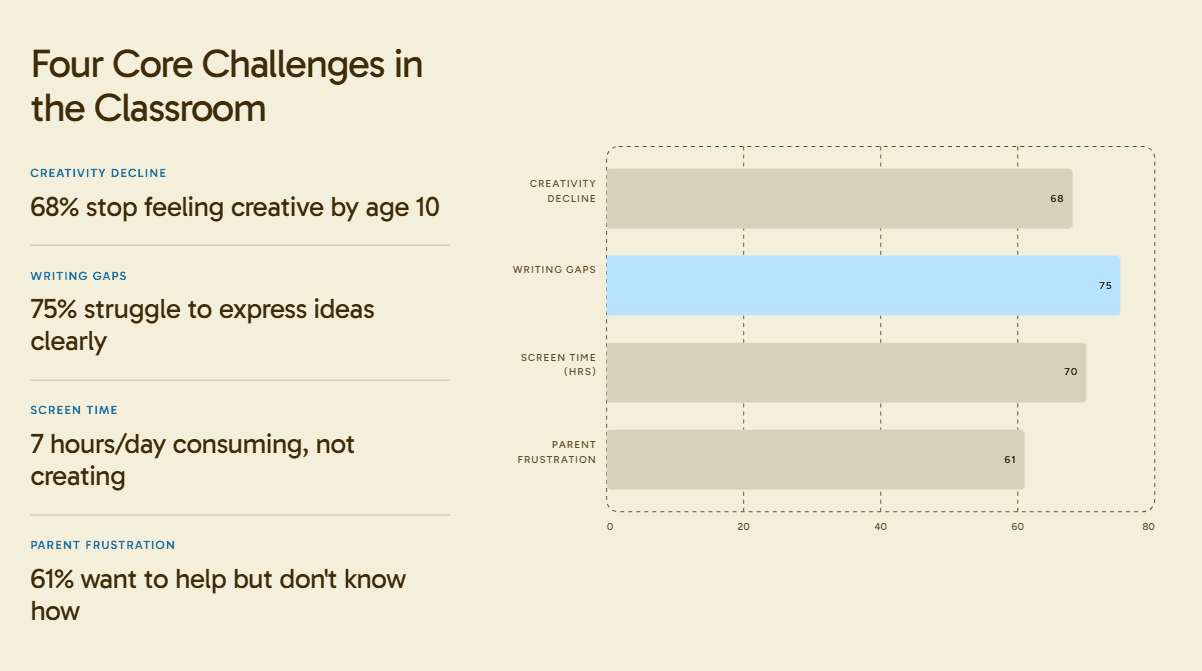
Access top image models for high quality images and infographics. Alai allows you to use Nano Banana 2 or GPT 2 to create high quality image slides which are both editable and on-brand. This enables you to access top image models within your slides without limiting yourself to just GPT.
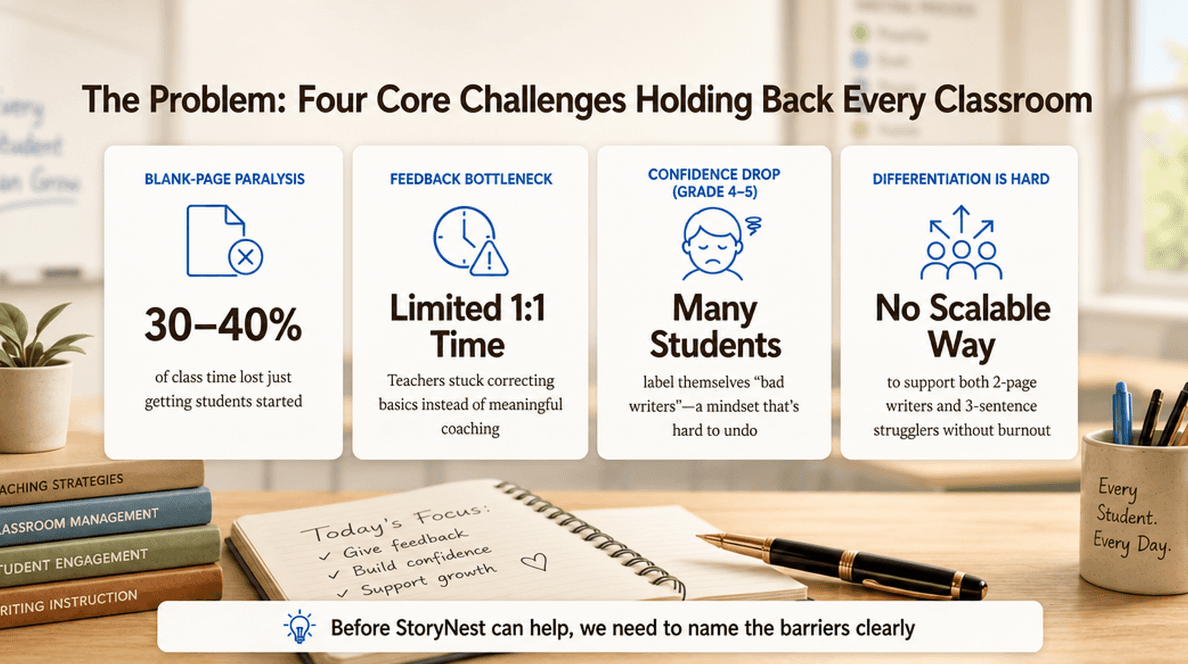
One clean workflow, one clean export. I asked ChatGPT to export to .pptx and got a properly formatted file: no overflow, no misaligned logo, no empty bands. Prompt a usable deck, without leaving the chat.
Deck analytics to track performance. Decks created via Alai’s MCP can be exported as trackable links which give you data on views, where people spend their time on and where most drop-offs happen.
Cons: What ChatGPT + Alai MCP Does Not Do Well
It's another account. You need an Alai login. The free tier covers it, but it's one more setup step before slide one.
MCP access depends on your ChatGPT tier. Connector support sits behind developer mode and isn't guaranteed on every plan. Confirm yours before you build a workflow on top of it.
Pricing
Alai Free includes 300 AI credits, enough for several full decks. Plus is $16/month annual ($20 monthly), Pro is $25/month annual ($30 monthly), and Ultra is $60/month annual ($80 monthly). Full breakdown on pricing. Keep your existing ChatGPT plan separate; it covers the chat side, Alai covers the design side.
When to use it
If you want to use ChatGPT for research and content but are looking for a better way to design decks which are more on brand and higher in quality, the Alai MCP is the best way to go without breaking away from the ChatGPT workflow.
How to Use ChatGPT With an Existing PowerPoint, PDF, or Template
Disclosure: Alai publishes this article and offers presentation software. The comparisons and Alai workflow elsewhere on this page should be read with that commercial relationship in mind. For an existing deck, use the official PowerPoint add-in when you need to work in PowerPoint itself; use an uploaded source file when you need help turning material into a proposed slide story; and treat a reusable template as a separate requirement from a one-off reference deck.
The practical goal is not to ask ChatGPT to “make this better.” First define the material it may change, the material it must preserve, and the point at which a human must review the result. That creates a smaller, reviewable task and helps prevent a request to rewrite copy from becoming an unintended restructure of the presentation.
Starting point | Use ChatGPT for | State in your request |
|---|---|---|
An existing PowerPoint presentation | Targeted drafting, revision, or story review in PowerPoint | The slide range, requested change, and content that must remain unchanged |
A PDF, report, memo, or spreadsheet | A proposed slide outline before slide copy is drafted | The audience, desired slide count, source material to retain, and facts that require verification |
A recurring company deck | Applying an approved repeatable structure | Required sections, approved terminology, reusable layouts, and brand rules |
Edit a defined part of an existing PowerPoint
OpenAI describes ChatGPT for PowerPoint as a sidebar add-in for PowerPoint that can create a first draft from source material, revise slides, and analyze story and structure while keeping slides editable. OpenAI also says template adherence and advanced chart, shape, formatting, and slide-management edits can be limited. Use the add-in for a bounded change in the presentation you already have, then inspect the changed slides before presenting. See OpenAI’s ChatGPT for PowerPoint documentation.
A useful request identifies both the scope and the guardrails:
Review slides 4–8 for an executive audience. Keep slide order, fonts, colors, and slides 1–3 unchanged. Shorten slide 5 to three proof points, then draft one risks slide after slide 6. Do not change stated metrics.
Review numbers, names, dates, quotations, and customer-facing commitments against the original material after the edit. This is a content-review step, not a claim that the add-in can validate the underlying source for you. For more options that work inside PowerPoint, see our guide to AI PowerPoint add-ins.
Turn a report or PDF into a slide plan first
ChatGPT supports uploads of common file types including PPTX, PDF, DOCX, XLSX, CSV, and TXT, according to OpenAI’s file uploads FAQ. For a long report, separate the storyline decision from slide production: request an outline first, approve it, and only then ask for slide-level copy. That makes it easier to identify unsupported conclusions, missing evidence, or an unsuitable slide order before design work begins.
Using the attached report, propose an 8-slide customer presentation. Return only a slide outline first. For each slide, identify the report section that supports it, preserve stated metrics exactly, and flag conclusions not directly supported by the file. Wait for approval before drafting slide content.
After approving the outline, reuse the approved slide titles in the next request. If the final deck must follow a strict visual system, provide the relevant approved assets and review the produced presentation against those requirements. Our guide to creating an editable PowerPoint from a brief covers how to make those editing requirements explicit.
Use a reference deck differently from a reusable template
OpenAI’s documentation for ChatGPT Work distinguishes a reference file for one-off work from a reusable template for repeatable work. It also says presentation workflows can use instructions, source material, an existing file, a master deck, or a reusable template, with availability varying by plan, workspace settings, file type, and surface. See OpenAI’s ChatGPT Work documentation.
Attach a reference deck when one assignment should follow a particular example. Use a reusable template when your team repeats the same deck format, such as a monthly business review or client update. In either case, name the non-negotiables: required slides, terminology that cannot change, sections that cannot be removed, and layouts that may be reused.
The Best ChatGPT Prompts for Presentations (Copy and Paste)
Most prompt lists online focus on content. The ones below focus on design, which is where ChatGPT actually struggles. Copy them as starting points and fill in the bracketed variables.
Lock the visual system before generating any slides
Add this to all prompts. Skip it and ChatGPT picks navy blue, sans-serif, every time.
Before generating any slides, lock in this visual system for the deck:
- Primary color: [hex]
- Accent color: [hex]
- Heading font: [font]
- Body font: [font]
- Image style: [painterly watercolor / flat illustration / lifestyle photography]
- Visual mood: [warm and handcrafted / clean and corporate / bold and editorial]
Apply consistently across every slide, including regenerations.
Specify the layout per slide, not "make it look good"
Generic prompts get you nine title-bullet-image slides. Layout-by-layout instructions force variety.
Generate the deck using these specific layouts:
- Slide 1 (cover): Full-bleed hero image, title bottom-left
- Slide 2 (problem): Split 50-50, statistic left, image right
- Slide 3 (solution): Three vertical columns, icon-headline-one-line each
- Slide 4 (traction): Stat block, three large numbers with caption under each
- Slide 5 (CTA): Centered single line, accent block behind
Do not default to title-bullets-image for any slide.
Direct the image style explicitly
"Add an image" gets stock photos. Specifics on medium, lighting, and what to avoid is what shifts the output.
For every image, follow this brief:
- Medium: [oil painting / watercolor / 3D render / film photography]
- Lighting: [warm afternoon sun / overhead studio / golden hour]
- Mood: [intimate and candid / clean and editorial / playful]
- Avoid: glossy corporate stock, smiling-at-camera shots, business handshakes
Apply to every image. Do not switch styles between slides.
Block ChatGPT's corporate defaults
The single most useful prompt for design quality:
Avoid every default presentation pattern:
- No three-bullet slides
- No icons inside colored circles
- No "Our Mission / Our Vision / Our Values" framing
- No identical title-and-content layouts repeated more than twice
Every slide must use a layout specific to its content.
ChatGPT Presentation Alternatives: Which Tool for Which Deck
ChatGPT is rarely the whole answer. The right tool depends on whether you build decks weekly, build one deck that has to land, or just need a single visual to drop into existing slides. Here's how each alternative actually compares against where ChatGPT fell short on the Storynest test. The full roundup is in our best AI presentation makers post; this is the focused version for ChatGPT users.
Alai: Best for Repeat Branded Decks and Real Editing
Alai is presentation-native, which is the exact thing ChatGPT is not. Where ChatGPT writes slide copy and assembles a rough .pptx around it, Alai treats the slide as the primary unit and builds the deck design-first.
It fixes the one-shot problem. ChatGPT gives you a single deck output per prompt. If you don't like the layout, your only option is to regenerate the whole file and lose any manual fixes already made. Alai generates up to four distinct slide options per idea on the same canvas, so you pick the layout that fits the content instead of regenerating until the model lands on it by accident. For the Storynest traction slide where ChatGPT gave me bulleted numbers, Alai offered a stat block, a horizontal bar chart, a comparison layout, and a single-number-with-caption variant. I picked one and moved on.
It fixes the brand drift problem. With ChatGPT you have to ensure your prompt contains detailed instructions for your theme and even then you have very limited control on how the AI interprets it. Plus you need to re-prompt the AI everytime you need a new deck with the exact same detail. Alai's brand system works at three layers: build a full design system upfront (typography hierarchy, color usage, iconography, voice), ingest existing PowerPoint templates pixel-by-pixel as editable slides, and reuse approved slides from previous decks via memory. Once a slide is approved, it lives in your account and gets reused across new decks. ChatGPT has no answer to any of this.
It fixes the data slide problem. Where ChatGPT's reflex for any number is a bullet list, Alai has a real visual element library: Compare Two, Feature Matrix, Funnel, Hub & Spoke, Pie Chart, Timeline, and stat blocks that adapt to the content. The Storynest traction slide returned as a designed stat block on the first generation in Method 3, because Alai picked the right element for the content rather than defaulting to text.
It fixes the image generation problem. ChatGPT's image style failed the painterly watercolor brief in both Methods 1 and 2. Alai integrates Nano Banana 2 and GPT Image 2, the dedicated image models that are best in class right now, and the output is not a flat image dropped on a slide. It's an editable image slide that adopts your deck's theme automatically. You also get to pick the model for the job instead of being locked to ChatGPT's default.
It fixes the editing problem. Alai’s Agent Mode is trained on 1000+ presentations - it ensures that each edit you make only changes what’s asked - nothing more or less. Additionally the AI is trained to be context aware - this means each time a slide is edited it takes into account the content and design of the entire deck before making changes.
It fixes the export problem. ChatGPT's .pptx came back with overflowing text, misaligned logos, and empty bands. Alai's PowerPoint and PDF exports come back clean, both directions. Decks can also be exported as trackable links with slide-level engagement analytics, which matters for sales and client-facing teams who need to know which slides actually held attention.
And it slots into the ChatGPT workflow without breaking it. The Alai MCP setup from Method 3 means you keep using ChatGPT for content and research and have Alai handle the design layer through chat. You don't switch tools, you switch what each tool is responsible for.
Pros
Four distinct slide options per idea, not a one-shot result
Real editing layer: drag, reorder, undo, redo, manual or AI edits per element
Detailed branding system set-up to create decks that are on brand always
Context-aware AI maintains brand and tone across the full deck without re-prompting
Existing PowerPoint templates and decks ingested pixel-by-pixel as editable slides
Memory and reusable approved slides across decks
Built-in visual element library (Compare Two, Feature Matrix, Funnel, Pie Chart, stat blocks)
Nano Banana 2 and GPT Image 2 integration for high-quality editable image slides
Clean PDF and PowerPoint export in both directions
MCP, API, and A2A integration for ChatGPT, Claude, and programmatic workflows
Per-slide engagement tracking on shareable links
Cons
A dedicated tool is a second subscription if you already pay for ChatGPT
Less useful if you need a tool that designs more than just presentations
Pricing
Plan | Price (annual) | Key limit |
Free | $0 | 300 AI credits, all premium design elements, PDF export |
Plus | $16/month | 600 credits, PowerPoint export, priority support |
Pro | $25/month | 1,200 credits, priority support from founders |
Ultra | $60/month | 5,000 credits, direct feature requests to founders |
Enterprise | Contact for pricing | API, A2A, custom brand themes, admin controls, dedicated support |
Best for: Enterprises that are looking to create branded decks at scale without spending too much time on iteration.
Claude Design: Best for One-Off Polished Decks
Claude Design is Anthropic's AI design tool, and it produces a better first-draft deck than any of the three ChatGPT methods. If ChatGPT gave me wireframes for the Storynest deck, Claude Design gave me something closer to a real designed slide. The catch: it is structurally not built for the way most people actually work on decks past the first draft. The full Claude Design review has the deeper breakdown.
It fixes the design quality problem. Where ChatGPT defaults to flat color blocks and tidy corporate templates, Claude Design layers in details a brand designer would: paired typography, style-matched icons, layered backgrounds, content tags. The painterly watercolor brief that all three ChatGPT methods missed has a real chance here. Across the alternatives, it is the closest thing to a finished slide on first generation.
It fixes the brand system problem. Where ChatGPT depends on you re-prompting brand details into every deck, Claude Design lets you set up a full brand system once - typography, colors, components, spacing, icons, tone of voice - and applies it across every deck after. Not as deep as Alai's three-layer system, but a real step up from ChatGPT's "spell it out every time" approach.
It does not fix the editing problem. This is where Claude Design falls apart, and it is worse than ChatGPT. Dragging objects, reordering slides, adding text boxes, reliable undo and redo - none of it works inside Claude Design. Every change is effectively a re-prompt that burns credits and risks changing things you did not want changed. Past the first draft, building in Claude Design feels like fighting the tool.
It does not fix the image generation problem. Claude Design routes all images through Opus 4.7, which is expensive and not best-in-class for visual work. There is no model switcher, no way to route image jobs to Nano Banana 2 or GPT Image 2. On an image-heavy deck like Storynest, this is the single biggest driver of your credit burn.
It does not fix the memory problem. Claude Design remembers nothing from your previous decks. No reusable slides, no ingested templates, no cross-deck consistency beyond the brand system reapplying. Every deck starts from zero.
The PowerPoint export still drifts. Font substitution, gradient flattening, text-box position drift on at least one slide per deck. Plan 10 to 15 minutes of cleanup in PowerPoint, same problem as Method 1.
Pros
Best-in-category first-draft design quality
Real brand system setup, not just prompt-dependent
Six export paths including a working .pptx
Included with paid Claude plans, no separate subscription
Inline comments and chat for slide-level direction
Cons
Editing layer is broken; every change is a re-prompt
Opus 4.7 makes image generation expensive
No memory across decks
No filmstrip, no slide reorder, no duplicate-slide button
PowerPoint export loses some formatting
Shares usage limits with Claude.ai and Claude Code as of late May 2026
Pricing
Claude Design is included with paid Claude plans (Pro at $20/month, Max from $100/month, Team and Enterprise custom). Since late May 2026, Claude Design draws from the same weekly usage pool as your Claude.ai chats and Claude Code activity, so heavy deck iteration eats into your other Claude work.
Best for: One-off polished decks where brand requirements are loose - founder pitches, prototypes, demos, internal kickoffs. Skip it for recurring branded deck work or anything you will need to edit substantially after generation.
Should You Use ChatGPT to Make Your Next PowerPoint?
Yes, but be honest about what "make a PowerPoint" means for your situation. The three ChatGPT methods land in three different places.
If the deck is internal, short, and disposable, the ChatGPT chat gets you a workable draft in three minutes. Plan to clean it up in PowerPoint, and don't try to direct the art beyond "make it look professional."
If you already live in PowerPoint and want lightweight AI help inside the file, the ChatGPT PowerPoint plugin is one of the lowest-friction path. The design ceiling is flat though.
If the deck has to feel like a brand and you want a finished .pptx without leaving the chat, the ChatGPT + Alai MCP workflow is the only one of the three that returned an on-brand deck on the Storynest test. For anyone building decks weekly, this is the setup worth two minutes of configuration.
For the work ChatGPT can't do well, the alternatives matter more than the methods. Alai's standalone editor is the answer for team-wide branded deck work where the same slides get reused across investor updates, sales decks, and board reports. Claude Design is the answer for a single polished deck (founder pitch, prototype demo) you will deliver once and never touch again.
The honest summary: ChatGPT writes great content for slides. It does not design great slides. The workflows that win are the ones that pair ChatGPT with a tool built for the design layer.
If you'd rather skip the cleanup pass on your next deck, the ChatGPT + Alai MCP setup takes two minutes and the free tier's 300 credits cover several decks. Worth trying on the next deck you'd otherwise hand-design from a ChatGPT outline.
FAQ
Can ChatGPT create a PowerPoint presentation?
Yes, in three ways. ChatGPT can write the outline and copy in chat, generate a rough editable .pptx through its file tools, or drive a real design tool like Alai through MCP. The honest answer is the chat alone gives you slides but not a designed deck.
Can ChatGPT make PowerPoints automatically?
Sort of. With slide count, theme, and a request for editable .pptx output, ChatGPT can spin up a file in one shot. The file is functional but rarely presentation-ready, so plan to spend time on formatting afterward.
Can ChatGPT make Google Slides?
Not directly. ChatGPT can't output to Google Slides. The workaround: have ChatGPT generate a .pptx, then in Google Slides go to File, then Import slides, and pull it in. Layout will need cleanup after import.
Can ChatGPT make slides from a document or PDF?
Yes. Upload the document into ChatGPT and ask it to turn the content into a presentation outline or full .pptx.
Is there a ChatGPT PowerPoint plugin?
Yes.
Is there an official ChatGPT add-in for PowerPoint?
Yes. OpenAI documents ChatGPT for PowerPoint as an official PowerPoint-native sidebar add-in. It is installed from Home > Add-ins by searching for ChatGPT: https://help.openai.com/en/articles/20001242-chatgpt-for-powerpoint
How do I install ChatGPT in PowerPoint?
Open PowerPoint, go to Home > Add-ins, search for ChatGPT, install the official add-in, then open the sidebar and sign in. If Marketplace installs are blocked, OpenAI says admins can deploy it via manifest: https://help.openai.com/en/articles/20001242-chatgpt-for-powerpoint
Can the ChatGPT for PowerPoint add-in fully follow my template?
Not always. OpenAI says template adherence can still be limited, along with some advanced chart, shape, formatting, and slide-management edits: https://help.openai.com/en/articles/20001242-chatgpt-for-powerpoint
Is the official PowerPoint add-in the same as generating a PPTX in ChatGPT?
No. The add-in works inside PowerPoint as a sidebar assistant. Generating a PPTX directly in ChatGPT is a separate workflow that creates a downloadable file from the chat. This article also covers a third route: connecting ChatGPT to Alai via MCP for presentation-specific generation.
PAGES
Compare Tools
resources